Calendesk Help Center Articles: Discover how to swiftly begin with Calendesk, covering everything from registration to initial setup.
Read time: 2 minutes
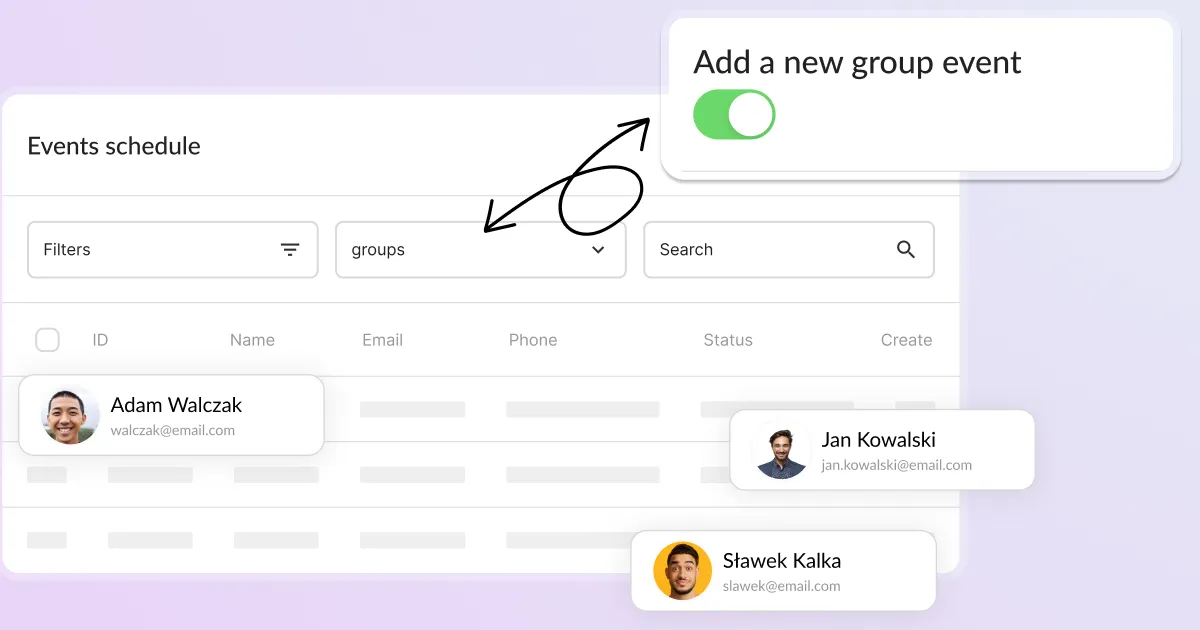
How to set up a group events?
How to create a booking service? In order to offer bookings for your services in Calendesk, you need to go to the "Offer / Services" tab. Use Calendesk to set up group events.
Read time: 6 minutes
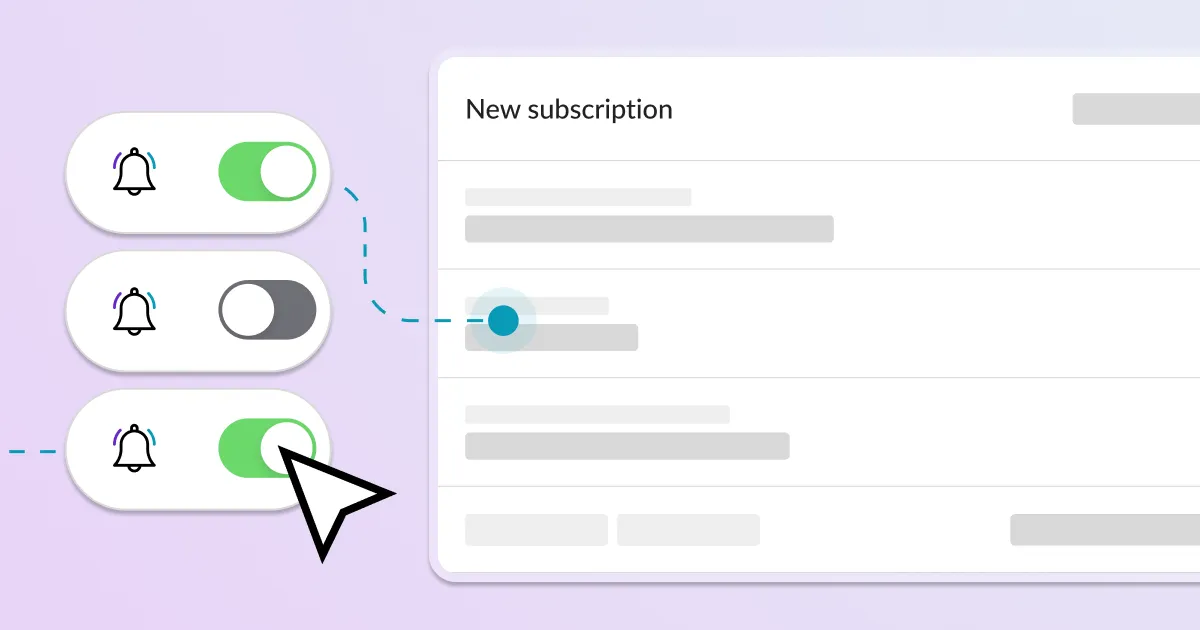
How to offer subscriptions or one-time payments for your customers?
What do you need before you create a subscription-based model in Calendesk? You need to have an active Calendesk account. If you don't have an account, you can create one for free.
Read time: 4 minutes
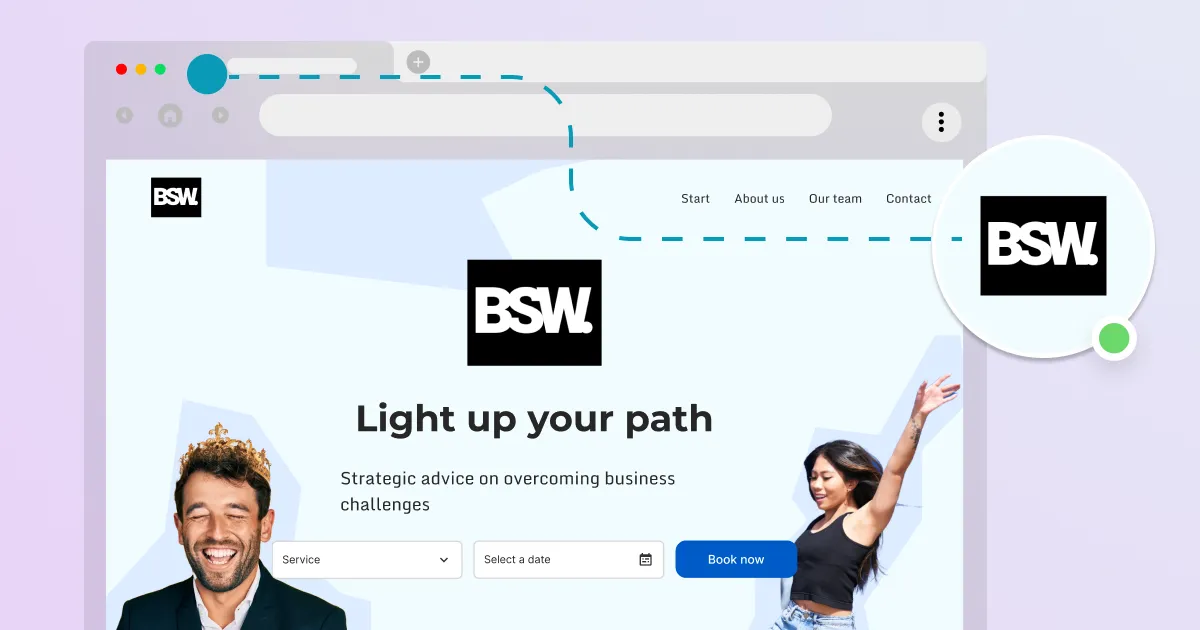
What is an Open Graph Image and how can you set it up in the website builder?
Open Graph Image is a hidden HTML meta tag used by social media to present a shared link of a website. This feature allows websites to control how their content appears when shared.
Read time: 2 minutes
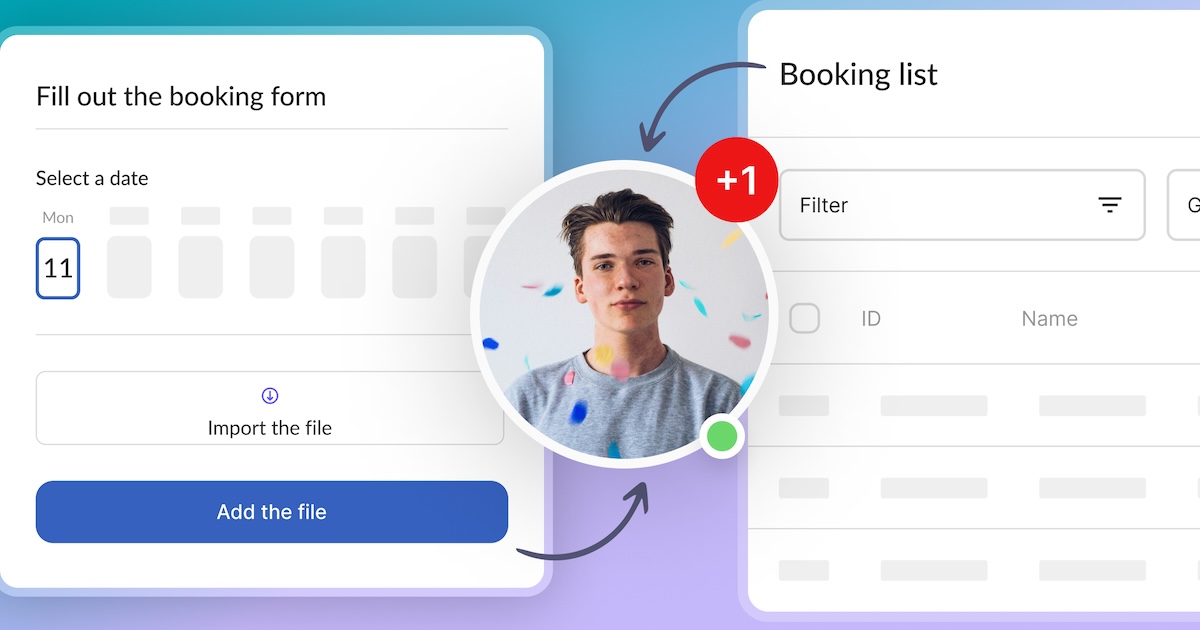
How to add custom fields to your website booking system?
A well-designed reservation form significantly facilitates the scheduling of business appointments. By using a booking form, you can gather the necessary information from your clients.
Read time: 2 minutes
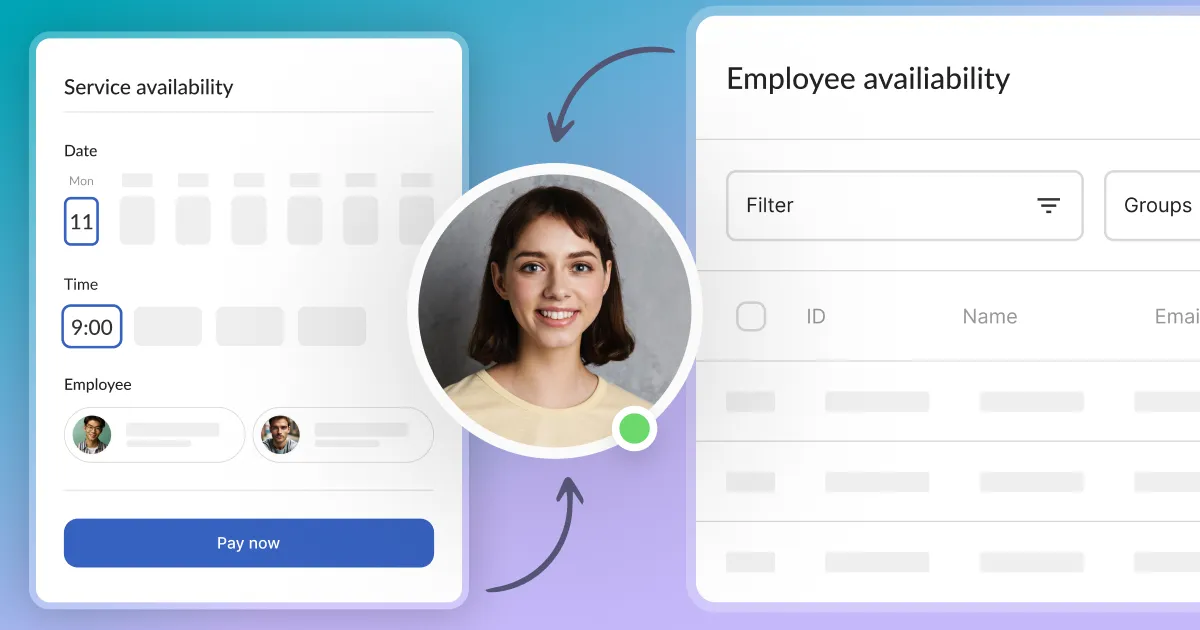
How to preview service availability in the admin panel?
Preview available time slots with Calendesk's "Select a date & time from available time slots" feature in the admin panel.
Read time: 3 minutes
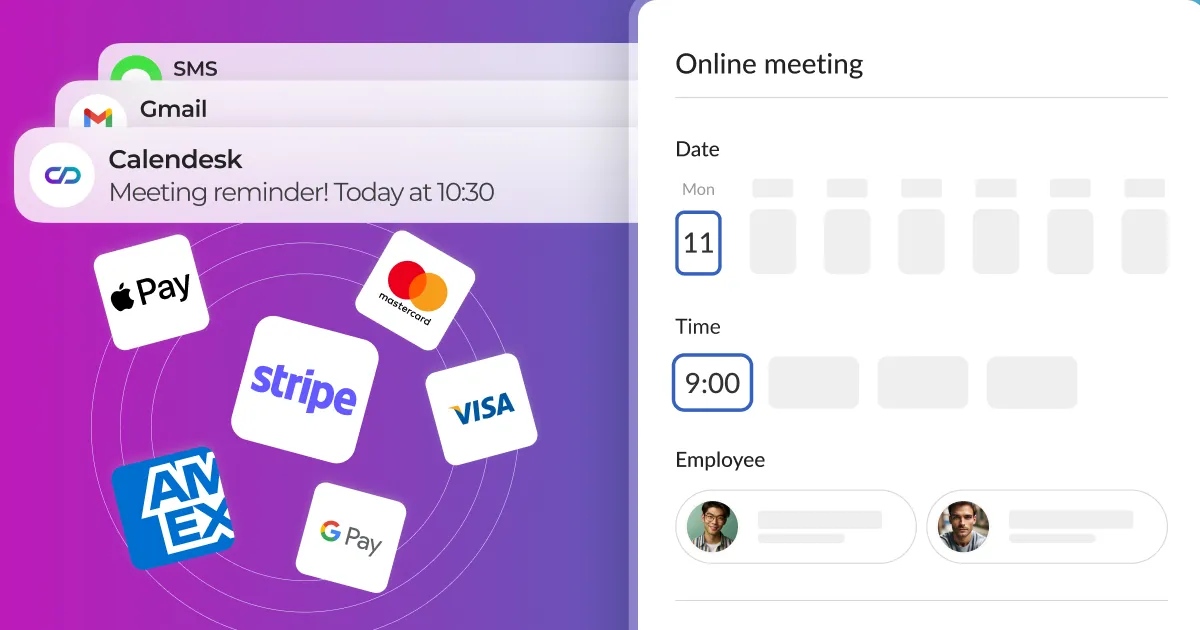
How to set up prepayments for bookings?
Learn how prepayments work for online bookings in Calendesk. While editing your services, you can easily set up the "Require prepayment before" option.
Read time: 2 minutes
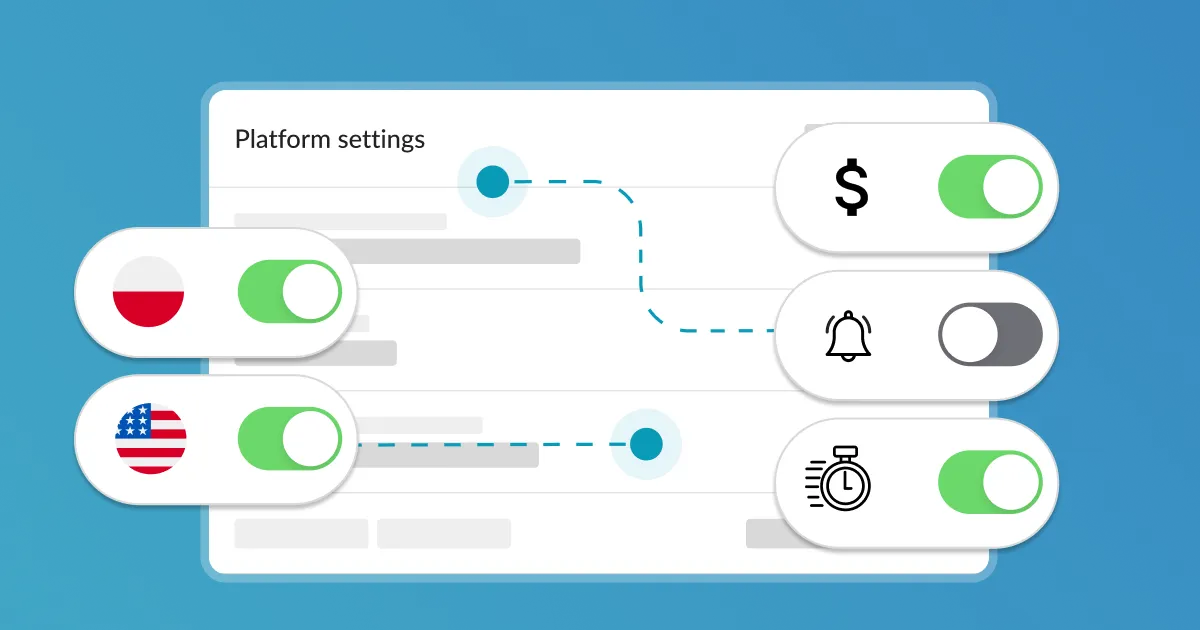
How to change the currency?
You can enable payments with Stripe in Calendesk in 46 currencies and 37 countries. Here is the complete list of the supported countries and currencies.
Read time: 2 minutes
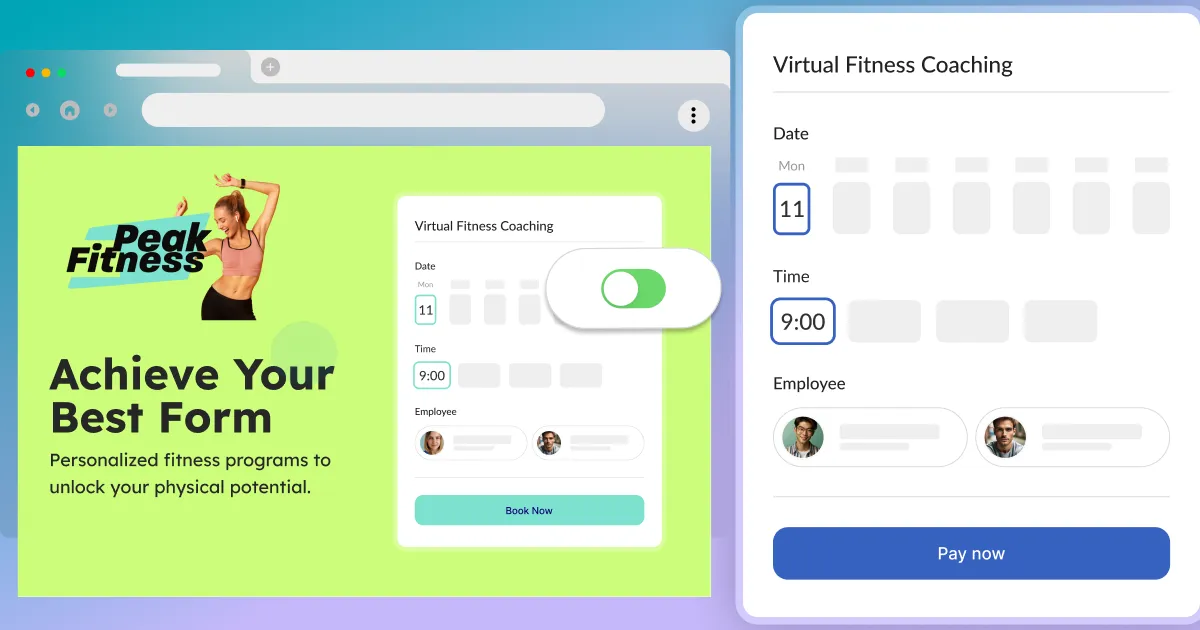
How to add an online booking system to WordPress?
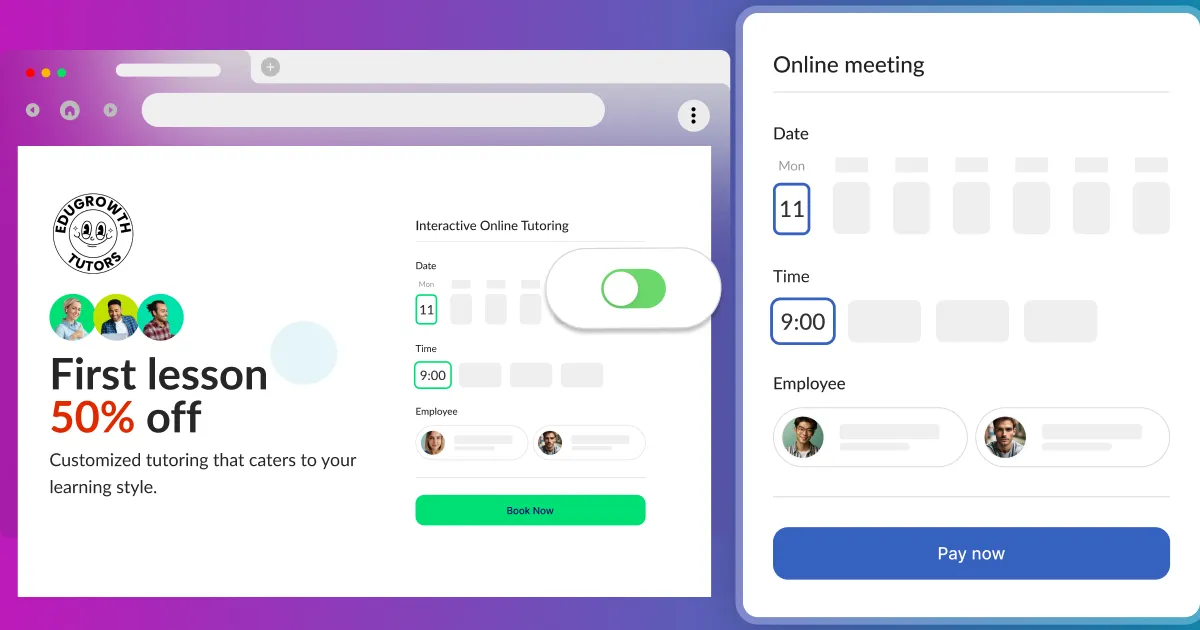
Make sure you have read the article about generating your code for your online booking system: How to add an online booking system to your website? Once you have your code, you can easily add it to your WordPress site.
Read time: 2 minutes
How to add an online booking system to your website?
Add Calendesk Online Booking System to your website easily. Follow these steps to integrate our booking system into your website drafts and start accepting appointments.
Read time: 3 minutes
How to integrate Stripe payments?
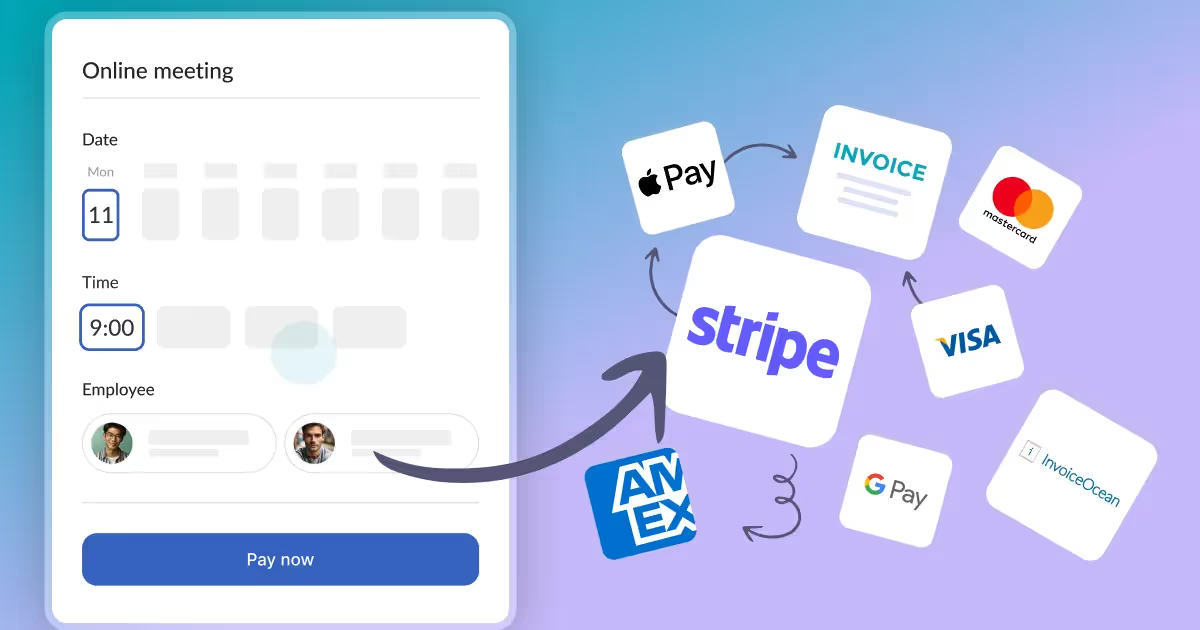
Integrate Stripe payments into your Calendesk booking system for online payments, subscriptions, or products. A Stripe account is required.
Read time: 2 minutes
How to personalize the sender name for SMS messages?
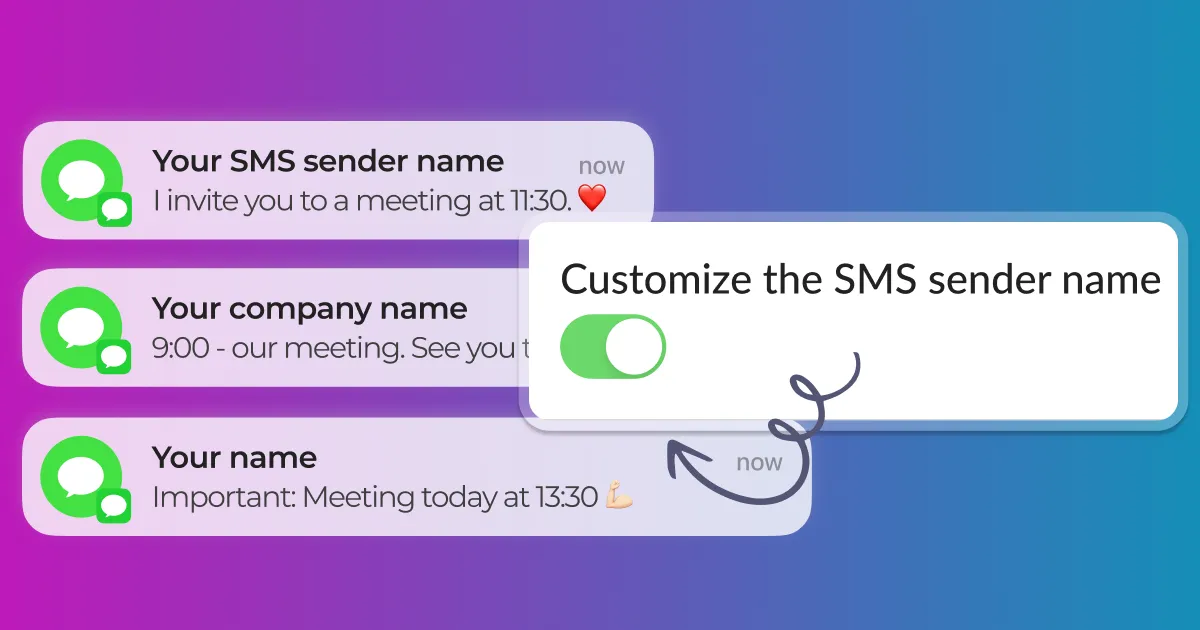
What is an SMS Sender Name? An SMS Sender Name allows you to send SMS messages to your customers from a personalized sender name, like a company name.
Read time: 4 minutes
How to integrate Zoom?
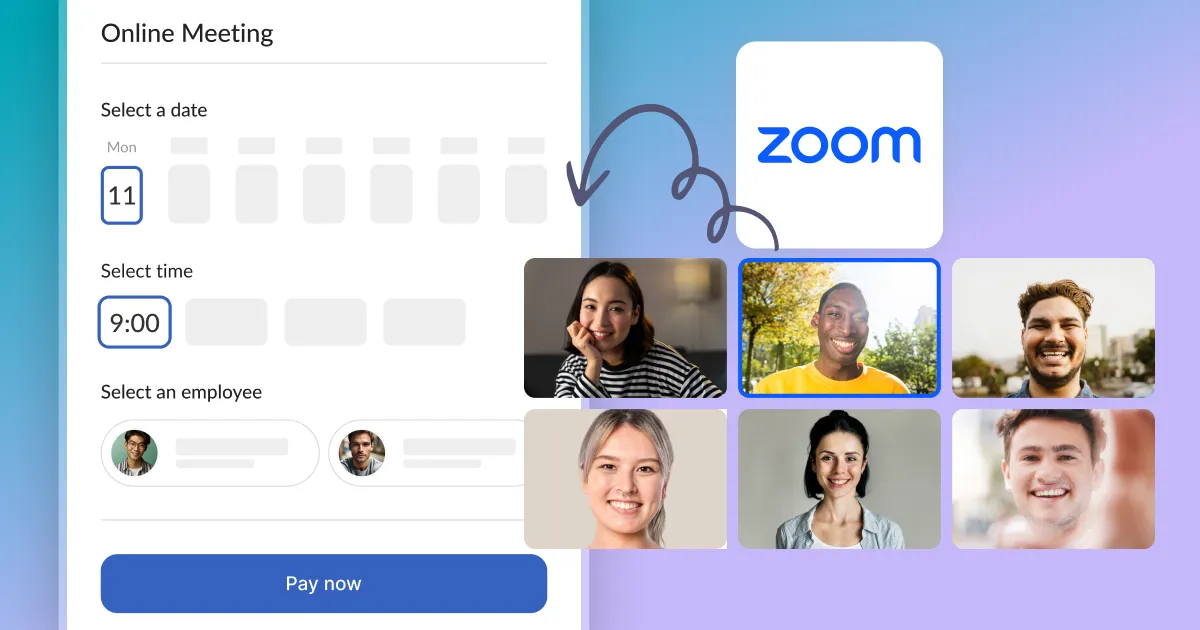
Calendesk integration with Zoom. Learn how to connect Calendesk and Zoom. Zoom is one of the most popular video conferencing tools for online meetings.

Read time: 3 minutes
How to integrate Google Services (Google Calendar and Google Meet)?
Learn how to connect your Calendesk account to Google Calendar and Google Meet. This article explains what these Google services are and how to integrate them.
Read time: 3 minutes
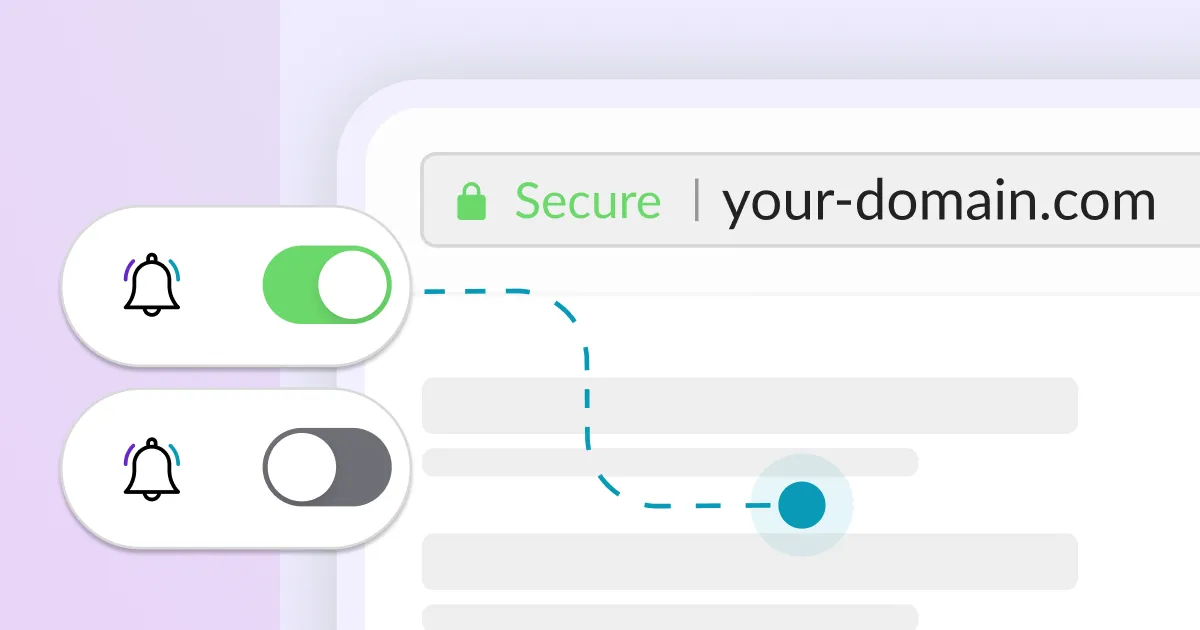
How to set your custom domain for your website?
Once your website is created and published, it is available under the Calendesk subdomain (calendesk.net). You can edit the subdomain and use it as long as you want.
Read time: 8 minutes
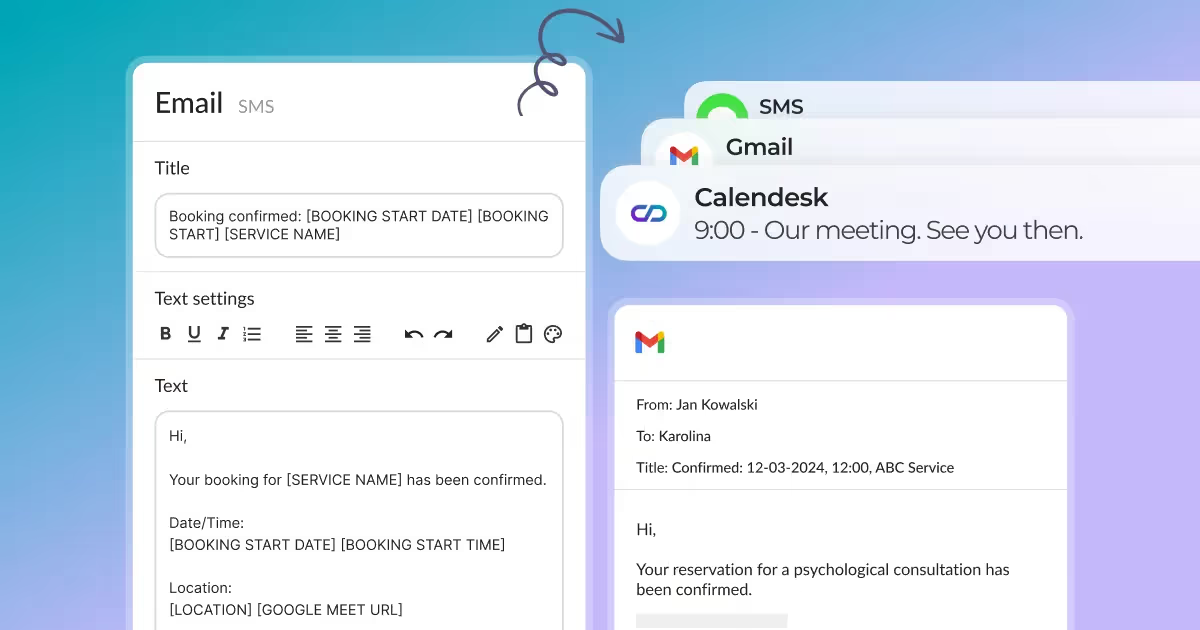
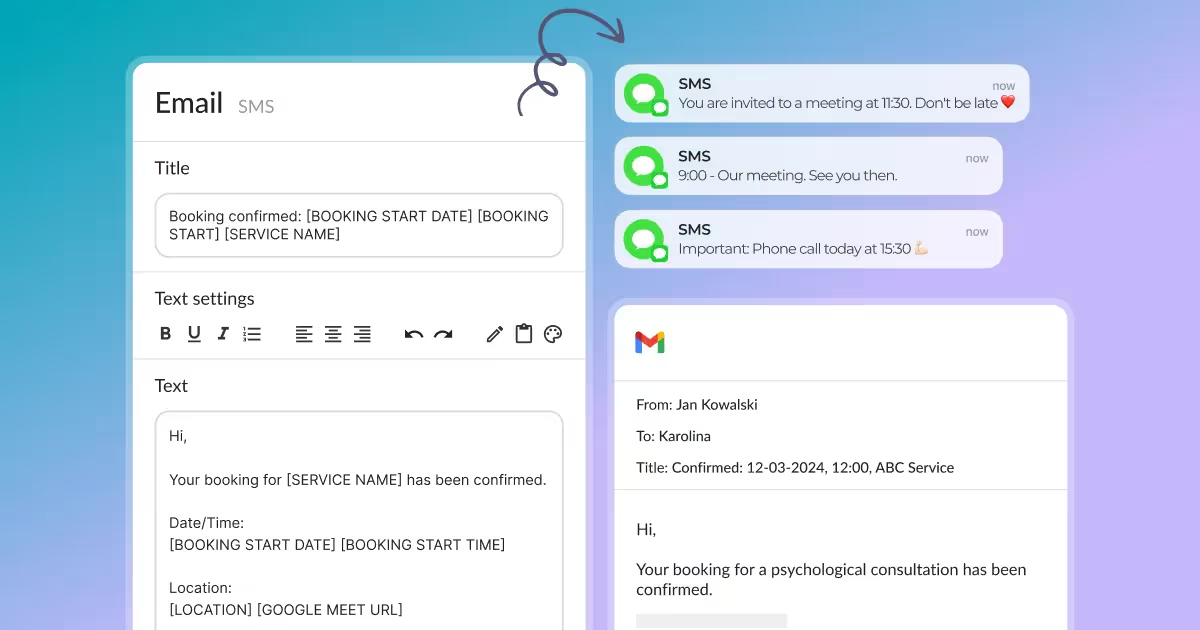
Advanced Notification Editing
Customize all notifications that Calendesk sends to your customers and employees. Go to the "Notifications" section to begin editing.
Read time: 3 minutes
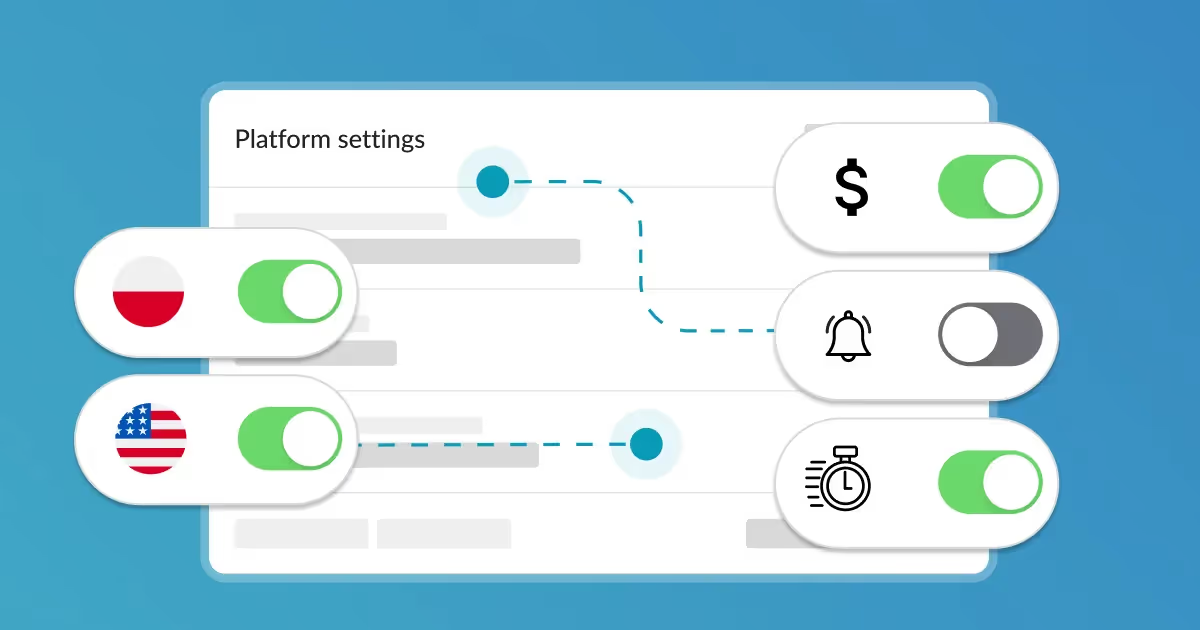
How can I configure different types of notifications?
In Calendesk, you can decide what kind of notifications you want to send automatically to your customers or employees. Go to the "Settings" section to configure them.
Read time: 2 minutes
How can I configure platform settings including timezone, language, currency, and phone prefix?
Customize general settings in Calendesk, including language, timezone, area phone code, and currency, to personalize your booking experience.
Read time: 2 minutes
What are labels, groups, and resources and how to manage them?
Manage all your labels, groups, and resources from one central place. Access the "Settings" tab to easily organize and control them.
Read time: 2 minutes
How can I access and manage employees?
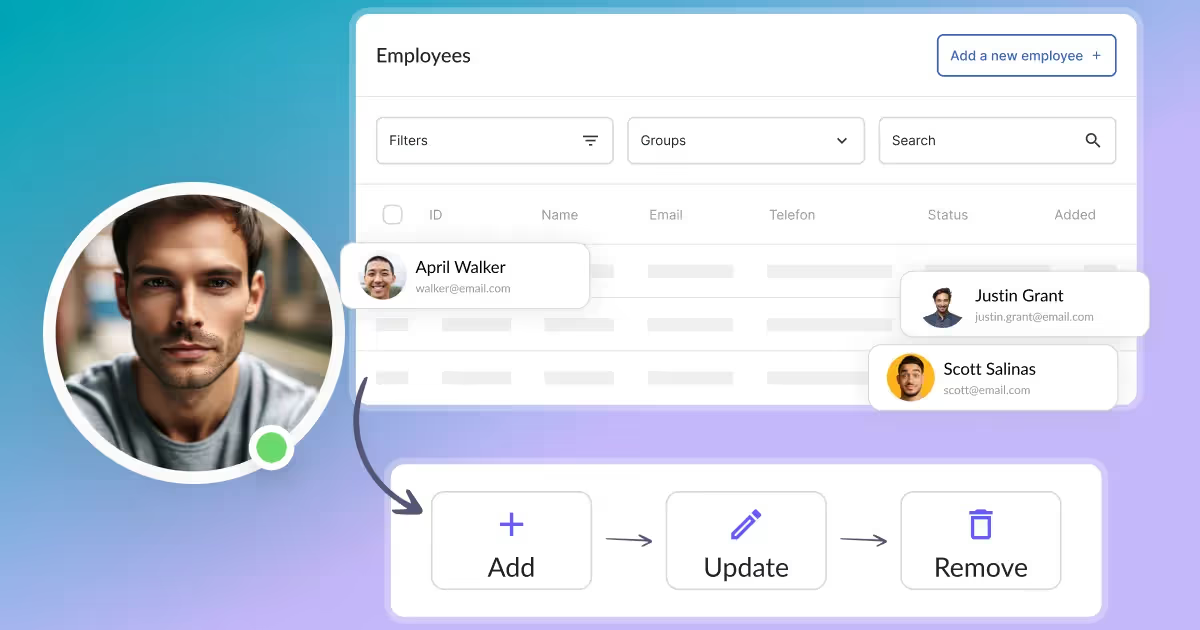
The list of employees displays all the employees that you added to the Calendesk. Each record of the table includes some basic information about the employee.
Read time: 2 minutes
How can I add an employee?
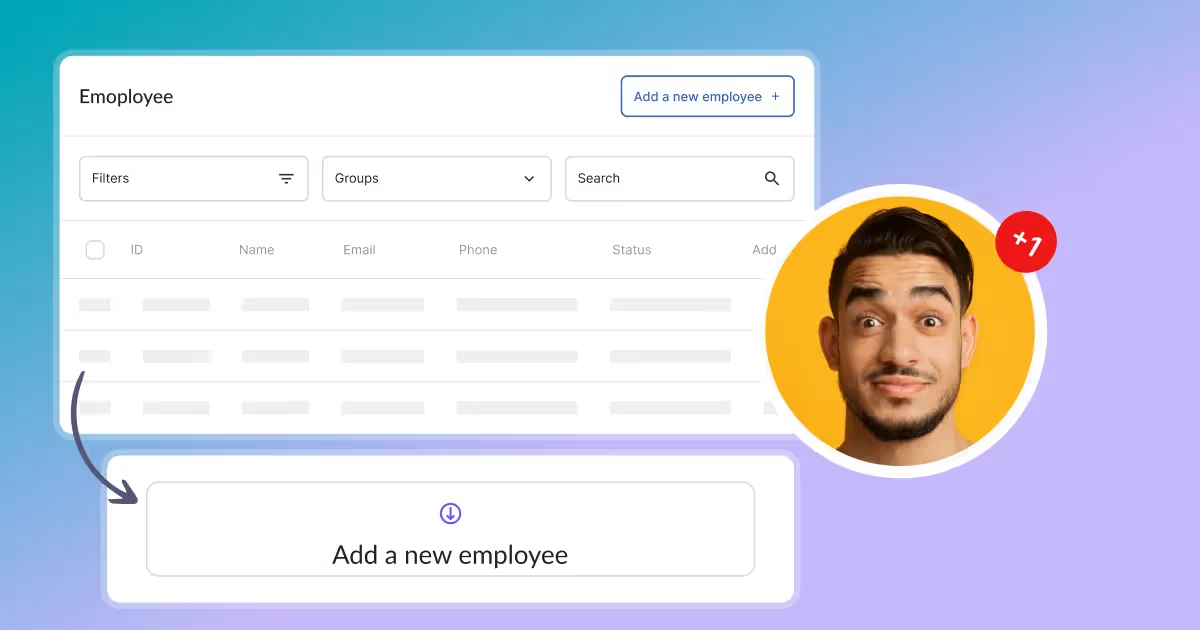
Add an employee to your database to manage your online bookings. This feature allows you to easily add and manage staff members for your business.
Read time: 2 minutes
How can I manage bookings through the calendar?
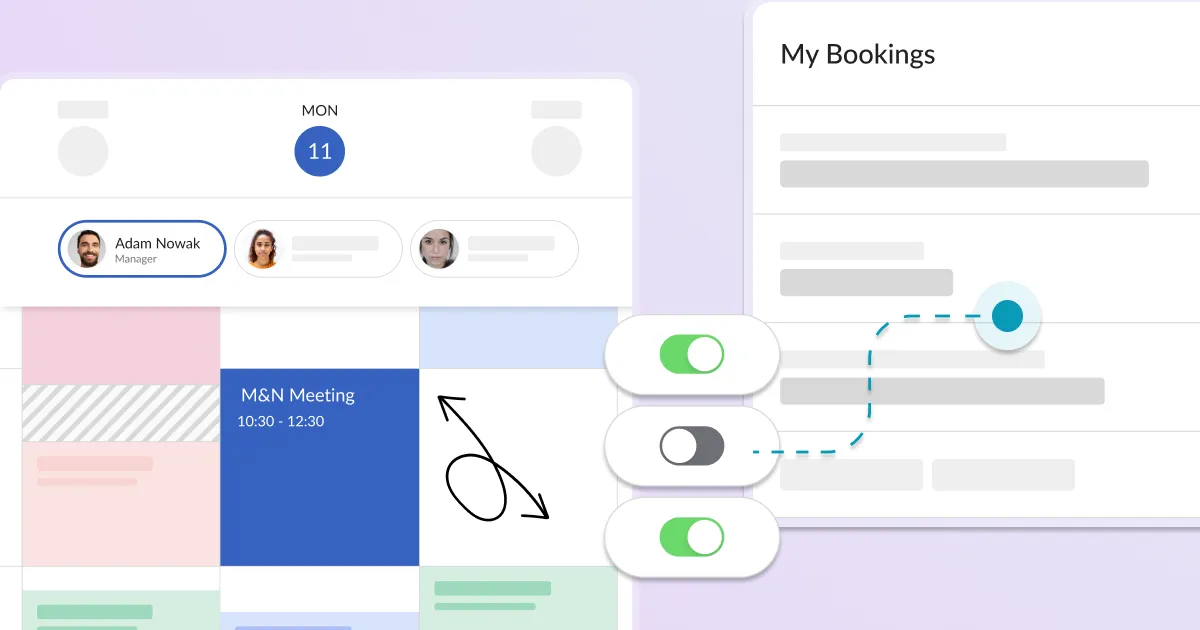
The calendar is a section where your employees can view and manage all paid and accepted online bookings. To view all the bookings, you need to select the desired date.
Read time: 5 minutes
How can I personalize a website?
Learn how to personalize your website with Calendesk. After generating and personalizing your subdomain, you can easily publish your site.
Read time: 2 minutes
How can I upload, edit, and use pictures?
Learn how to upload, edit, and use pictures in Calendesk. The "Tools / Files" view is a shared space for all your image needs.
Read time: 2 minutes
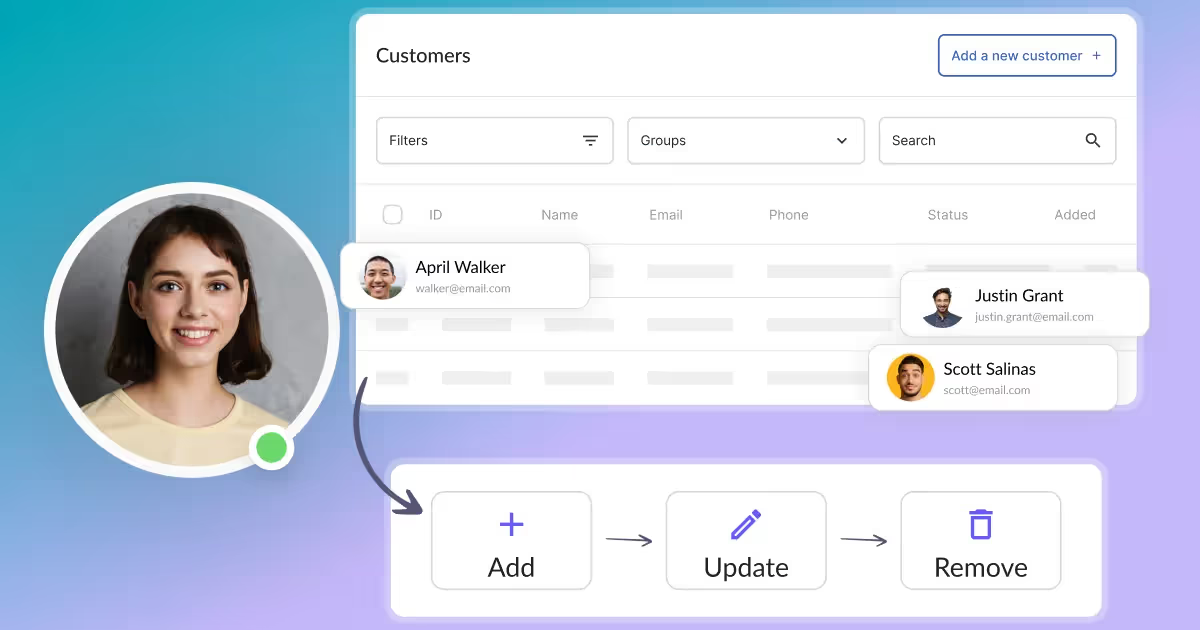
How can I view and edit customer profiles?
View and edit customer profiles from the "Customers" tab in the Calendesk Admin Panel. This module allows you to manage all your customer data.
Read time: 3 minutes
How can I create a website using the website builder?
Learn how to use the Calendesk website builder to create a new website with a wide selection of templates.
Read time: 2 minutes
How can I access and manage customers?
Access and manage all your Calendesk customers from the customer list. This table provides quick information about each customer.
Read time: 2 minutes
How can I add a customer?
Add new customers to the Calendesk platform using the "Add a customer" view. Enter details of those who will be using your services.
Read time: 2 minutes
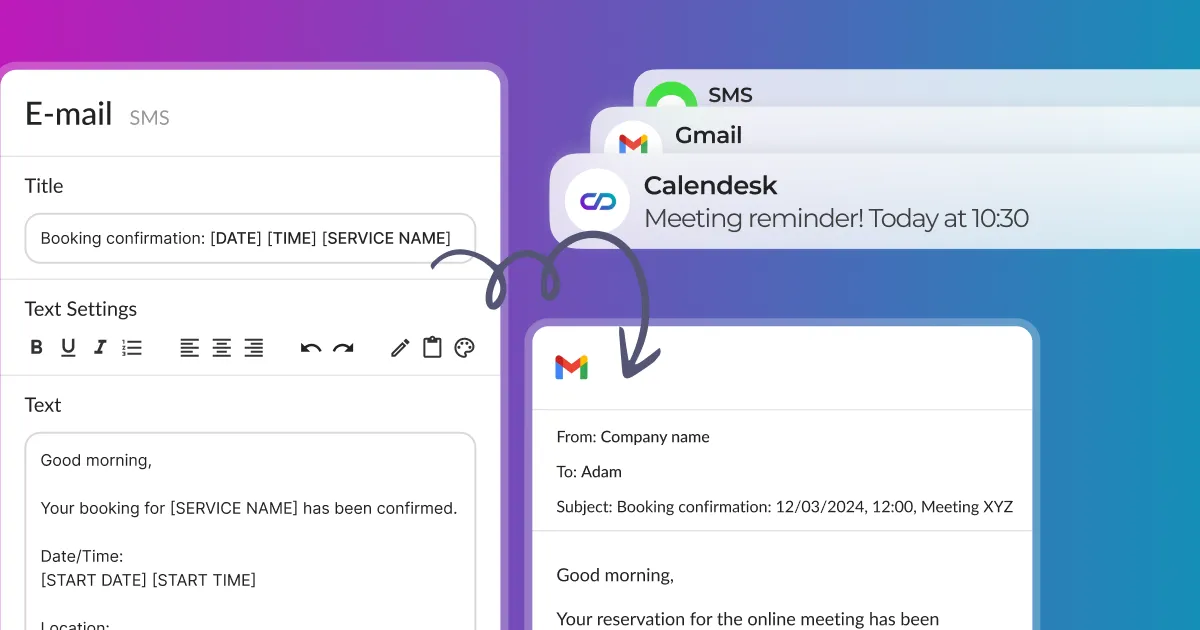
How can I send notifications to customers via email, SMS, and push?
This article will show you how to manually send notifications to share something with your customers or newsletter subscribers via email, SMS, and push.
Read time: 2 minutes
How can I access and manage events?
In the "Sales / Events" section, you will find all bookings information displayed in a very convenient table. Use Calendesk to easily access and manage your events.
Read time: 2 minutes
How to effectively manage a newsletter? From collecting email addresses to sending messages.
Learn how to collect subscriber email addresses and send email notifications. Discover effective newsletter management from collecting emails to sending messages.