How do I get Calendesk Chat running on my website in 15 minutes?
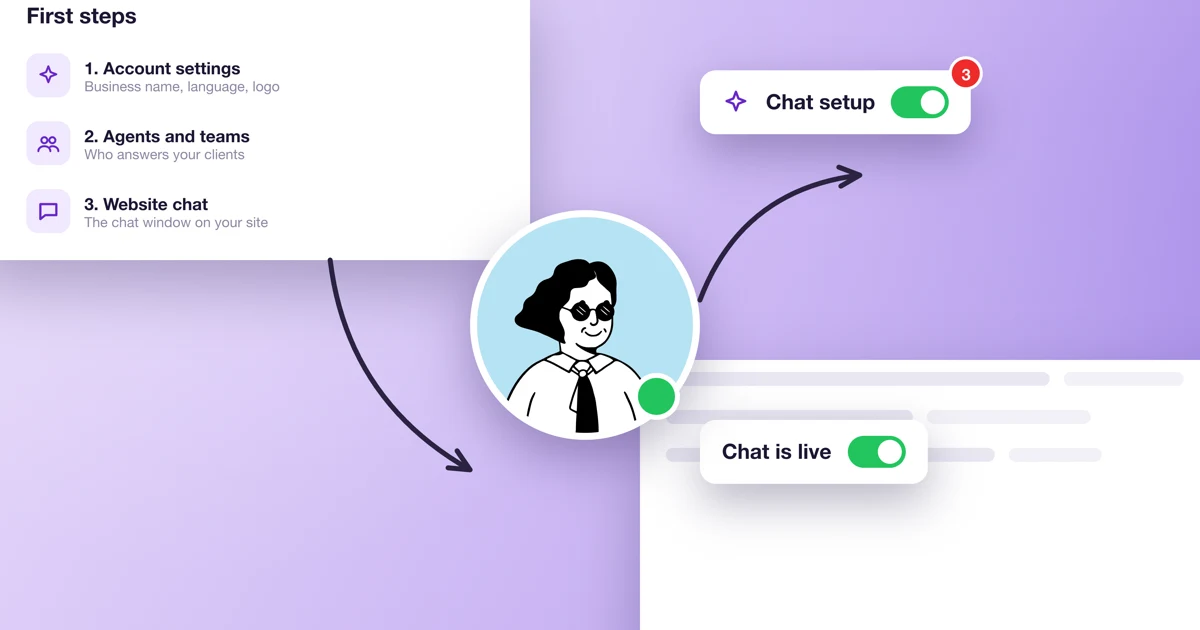
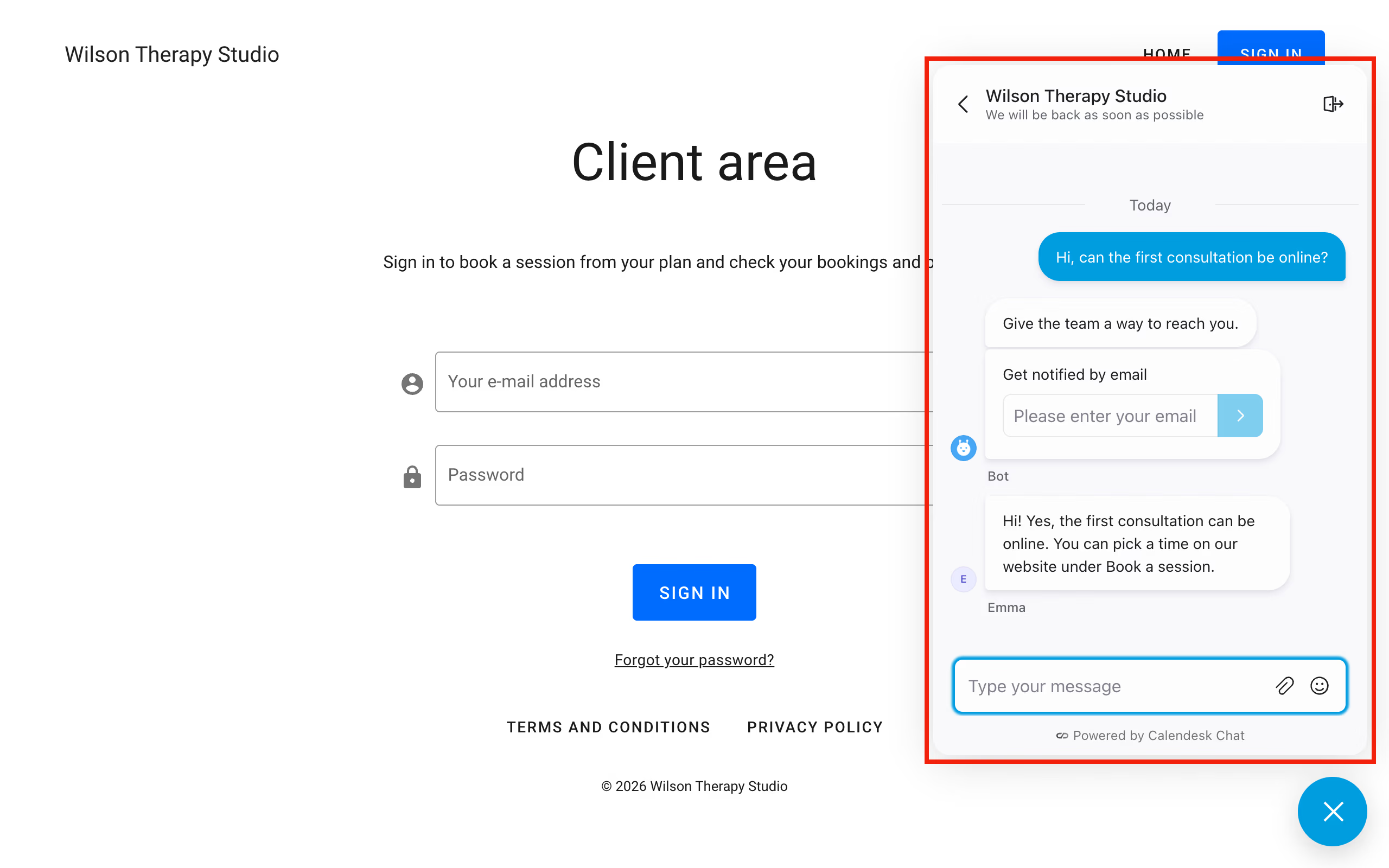
This is what the chat on your website will look like after these five steps. It takes about 15 minutes. We're assuming you've already bought and set up the add-on. If you haven't, start with What is Calendesk Chat and how do I turn it on?
Step 1. Open the chat dashboard
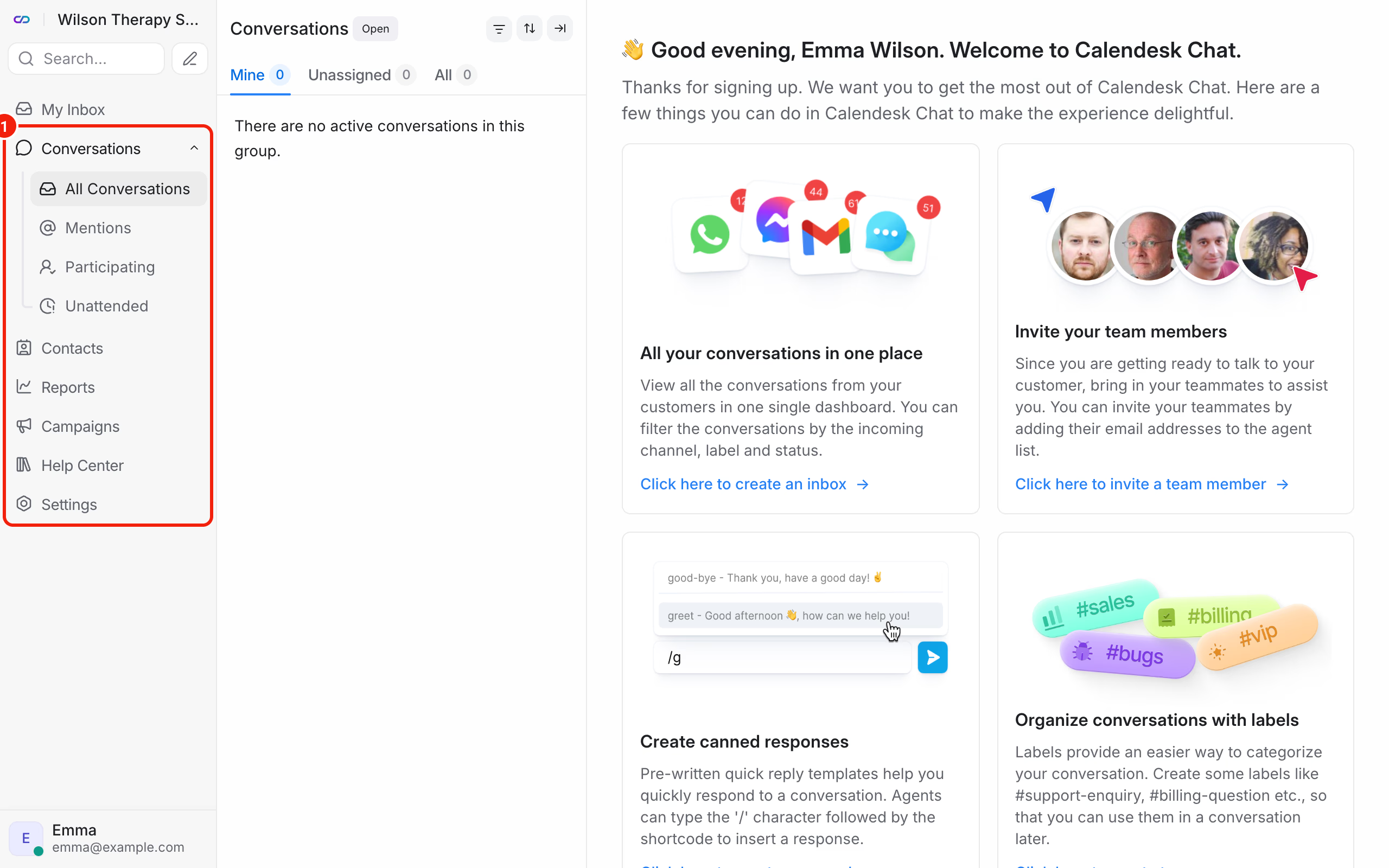
In the Calendesk panel, click Calendesk Chat in the menu. The chat dashboard opens in a new tab, already logged in. At the start, the conversation list is empty.
You already entered your business name and support email in the form in Calendesk. To change them, go to Settings → Account Settings.
Step 2. Turn on notifications
Click your profile picture in the bottom left corner and choose Profile settings. In the Notification preferences section, tick what you want to get by email and what as a browser notification. Then turn on the switch next to Enable push notifications for your browser so you're able to receive them and allow notifications when your browser asks. More details in How do I set up my profile and notifications in Calendesk Chat?
Step 3. Create the chat for your website
Go to Settings → Inboxes and click Add Inbox. Choose Website, enter your website's name and address, and pick a color. At the end you'll get the chat script. Copy it.
Step 4. Paste the script into your website
Where it goes depends on your website:
- a website built in Calendesk: the website builder, the General tab, the Custom scripts field,
- a website with Google Tag Manager: a separate tag with the script, described in How to add Calendesk Chat to your website with Google Tag Manager?,
- any other website (WordPress, Wix and the like): the place for your own code in the site settings.
Got a cookie banner on your website? Then the chat may wait for the visitor's consent. Steps 3 and 4, together with the banner settings, are covered in detail in How do I add Calendesk Chat to my website?
Step 5. Send a test message
Open your website in a private browser window. You'll see the chat bubble in the bottom right corner. Click it and type something. The message appears in the chat dashboard under Conversations. Reply from the dashboard, and your reply shows up on the website straight away.
If you haven't turned on the pre chat form, the chat asks the visitor for their email address by itself, so they get your reply even after they close the page.
Last step: invite your colleagues
If someone else will answer on the chat too, add them in Settings → Agents and add them to your website's inbox. Each person takes one agent slot in the add-on. Here's how: How do I add agents to Calendesk Chat?
What should you set up next?
- The chat's greeting, color and business hours: How do I set up the chat's look, greeting and business hours?
- Templates for the questions you hear every day: How do I use canned responses in Calendesk Chat?
- Replying, notes and resolving conversations: How do I handle conversations in Calendesk Chat day to day?