How do I set up my profile and notifications in Calendesk Chat?
Every agent has their own profile in the chat dashboard: name, picture, signature and notifications. Each agent sets it up themselves, the administrator doesn't have to do it for them. Here's what's worth setting on day one.
Where is your profile?
Click your profile picture or initials in the bottom left corner of the chat dashboard and choose Profile settings.
How do you set your name, picture and email?
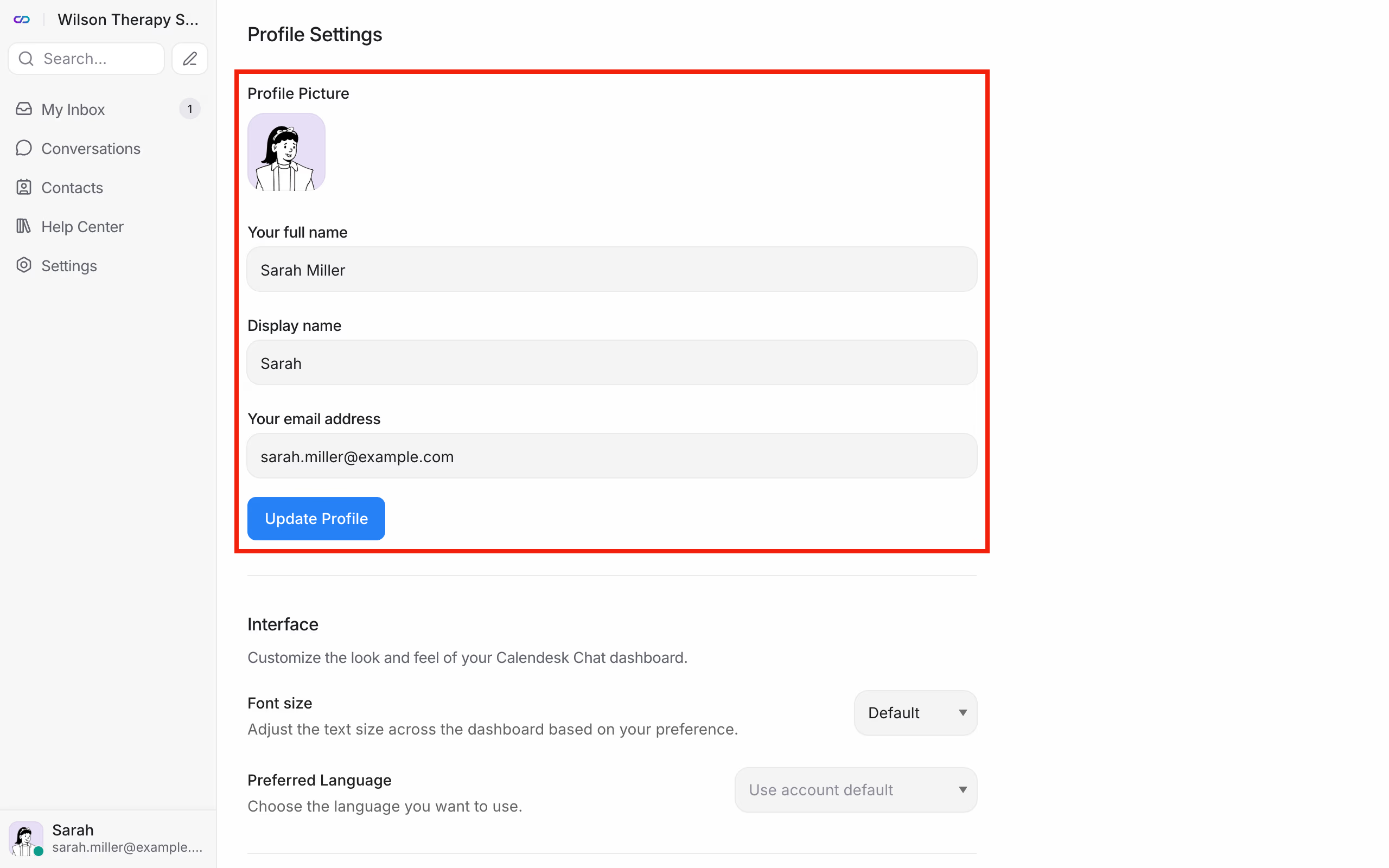
In the Profile section you set:
- Profile Picture: clients see it next to your messages. A plain, clear photo of your face builds more trust than a logo,
- Your full name and Display name: the display name is what appears next to your messages, for example "Emma",
- Your email address: this is your login for the chat dashboard.
Save with Update Profile.
How do you add a signature to your messages?
In the Personal message signature section, type the text that can appear at the end of your messages, for example "Sarah Miller, psychologist". Save with Save message signature.
How do you change the language, text size and send key?
- Preferred Language: the chat dashboard language, just for you,
- Font size: bigger text, if you spend long hours on the chat,
- Hotkey to send messages: send with Enter or with Cmd/Ctrl + Enter.
How do you change your password?
An agent who logs in at chat.calendesk.com changes their password in the Password section, with Change password. An administrator who opens the chat from the Calendesk menu doesn't need a password.
How do you set up notifications?
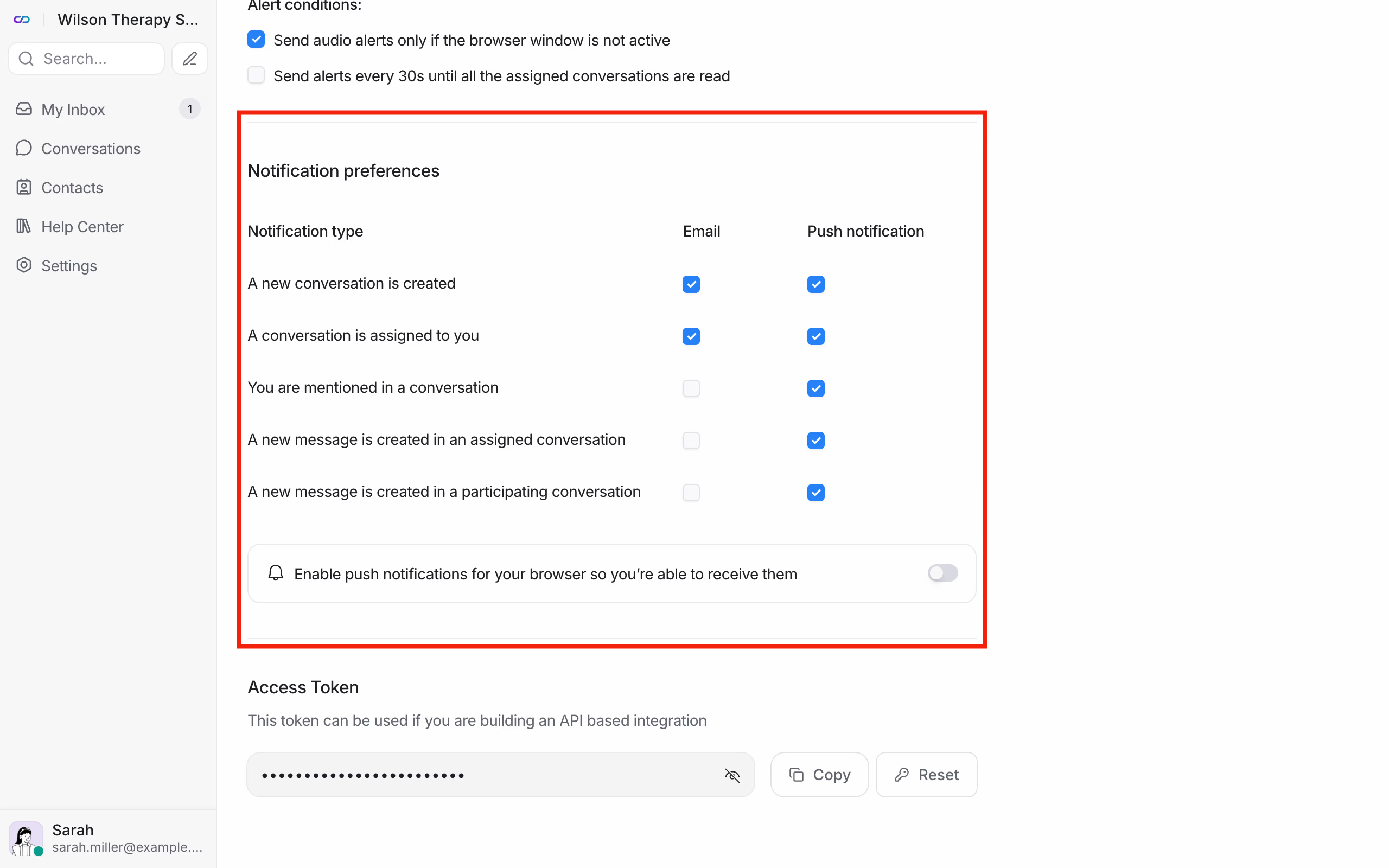
The Notification preferences section has a table. The rows are events, and the columns are two ways to be notified: Email and Push notification (in your browser). The events are:
- A new conversation is created,
- A conversation is assigned to you,
- You are mentioned in a conversation, which means someone tagged you in a note,
- A new message is created in an assigned conversation,
- A new message is created in a participating conversation.
To start with, we recommend: email for a new conversation and for an assignment, push for everything. Push notifications work once you turn on the switch next to Enable push notifications for your browser so you're able to receive them and allow them when your browser asks.
In the Audio Alerts section you turn on a sound while the dashboard is open: for all conversations or only the ones assigned to you. You can also choose to play the sound only when the dashboard tab isn't active.
How do you set your availability?
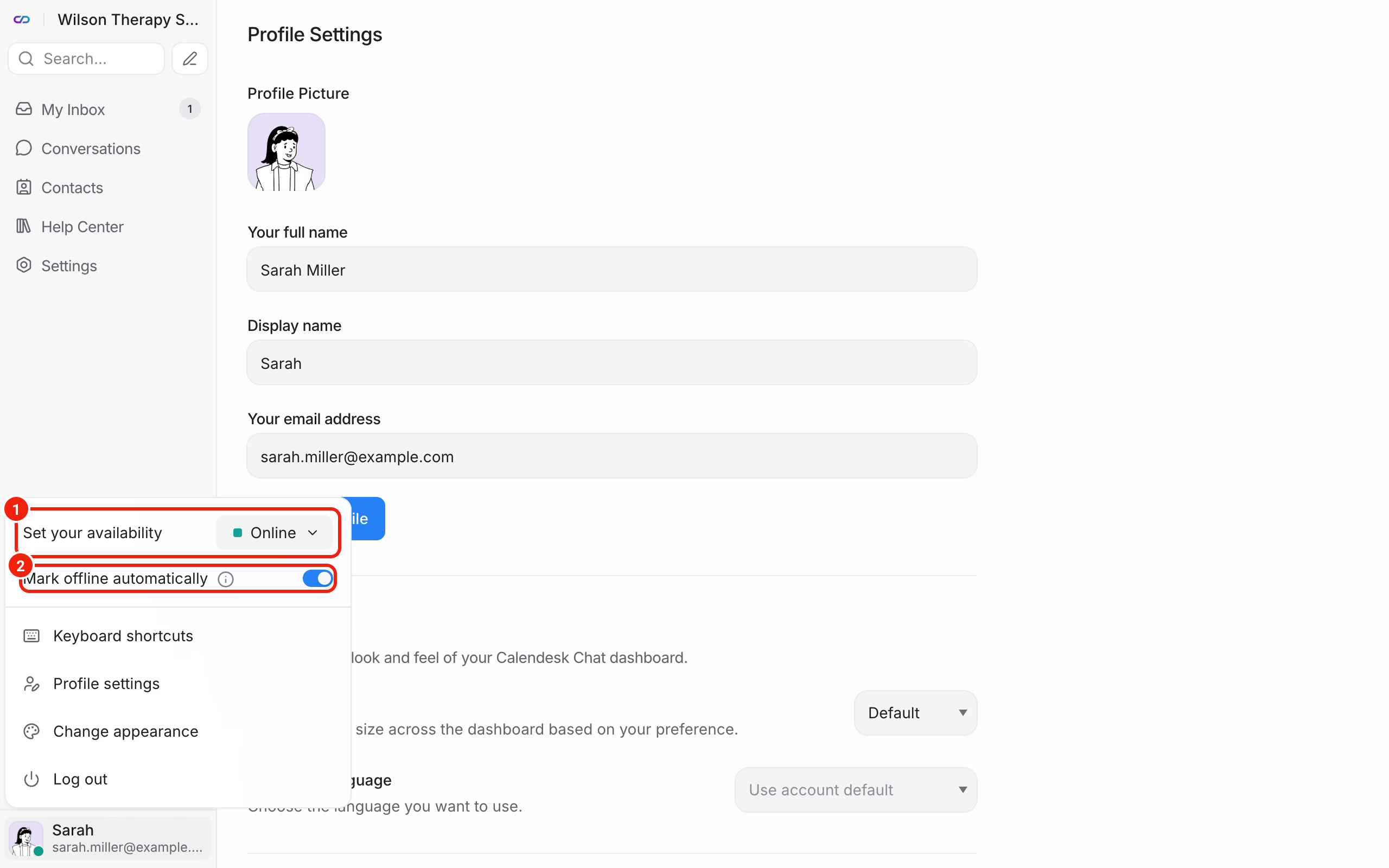
Click your profile picture in the bottom left corner. In the menu, under Set your availability, pick a status:
- Online: you're answering right now,
- Busy: you're in the dashboard, but you'll reply later,
- Offline: you're away from the chat.
Other agents see your status. When nobody is online, the client sees "We are away at the moment" in the chat window. The Mark offline automatically option changes your status by itself when you're not using the dashboard.