How do I connect my own system to Calendesk Chat with webhooks and bots?
This article is for developers and businesses with their own system. Calendesk Chat can send event information to your server (webhooks), and your server can reply to clients as a bot. If you don't have a developer, you don't need this feature.
The chat administrator sets up webhooks and bots.
How do you add a webhook?
- In the chat dashboard, go to Settings → Integrations and click Configure on Webhooks.
- Click Add new webhook.
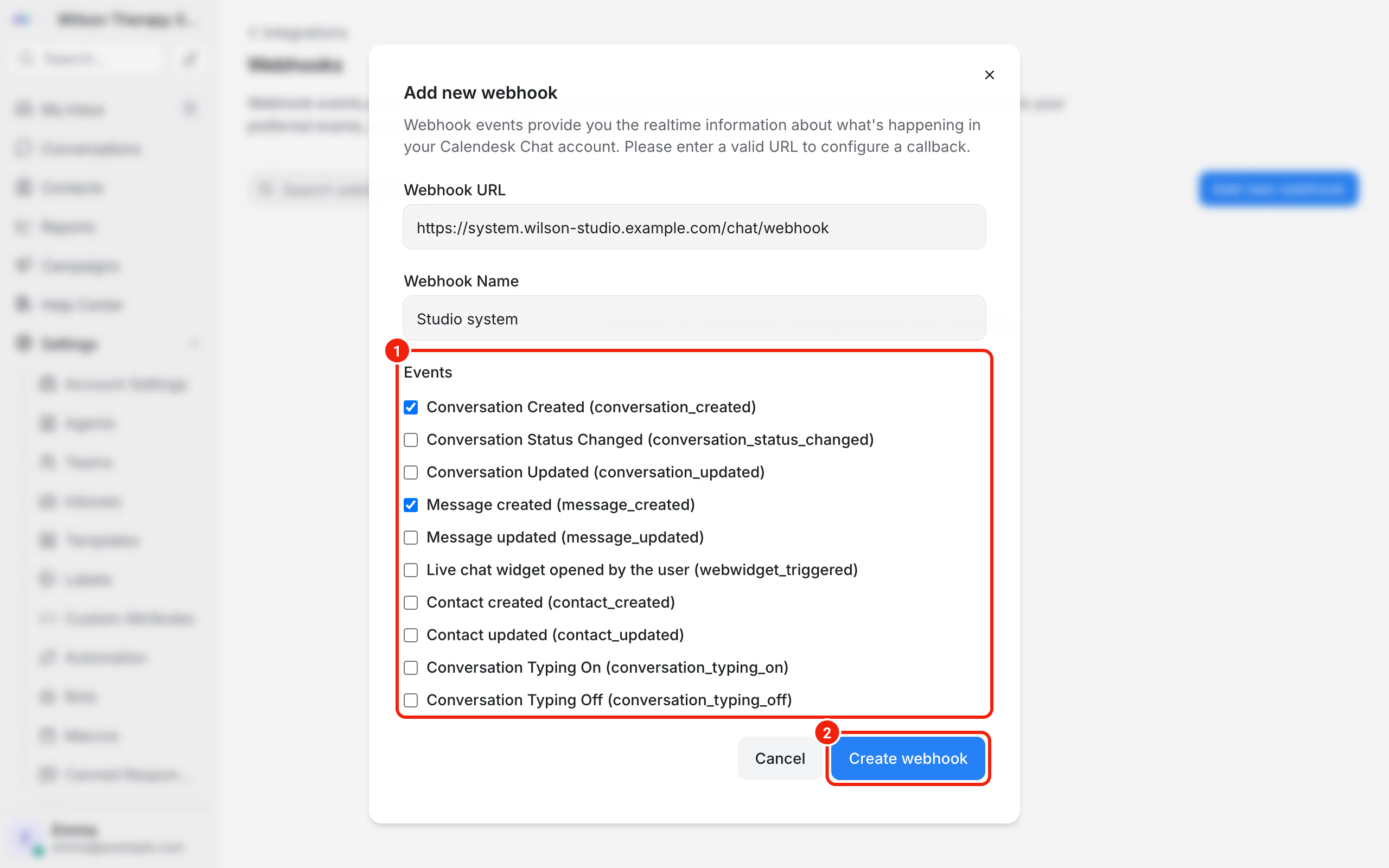
- Enter the Webhook URL, an HTTPS address on your server, and the Webhook Name.
- In the Events section, tick the events you want to hear about.
- Click Create webhook.
Once it's created, the dashboard shows the webhook's Secret. Copy it right away. You can also find it later in the webhook's edit form.
Which events can a webhook send?
- Conversation Created, Conversation Updated, Conversation Status Changed,
- Message created, Message updated,
- Live chat widget opened by the user,
- Contact created, Contact updated,
- Conversation Typing On, Conversation Typing Off,
- Inbox updated.
Each event is a POST request with JSON data. You'll find the event name in the event field.
How do you check that a request really came from the chat?
Every request carries a timestamp and a signature in its headers, in the format sha256=<signature>. The signature is an HMAC SHA-256 of the string <timestamp>.<request body>, computed with the webhook secret. Compute it on your side and compare it with the header. Reject requests with a signature that doesn't match or an old timestamp. You'll see the names of both headers in the first request that reaches your server.
What is a bot?
A bot is an automatic participant in the conversation whose "brain" runs on your server. The chat sends it every client message at the webhook URL, and your server replies in the conversation on the bot's behalf. That's how you'd build, say, a bot that answers questions about free slots by itself and hands the conversation to a person when it doesn't know the answer.
How do you add a bot?
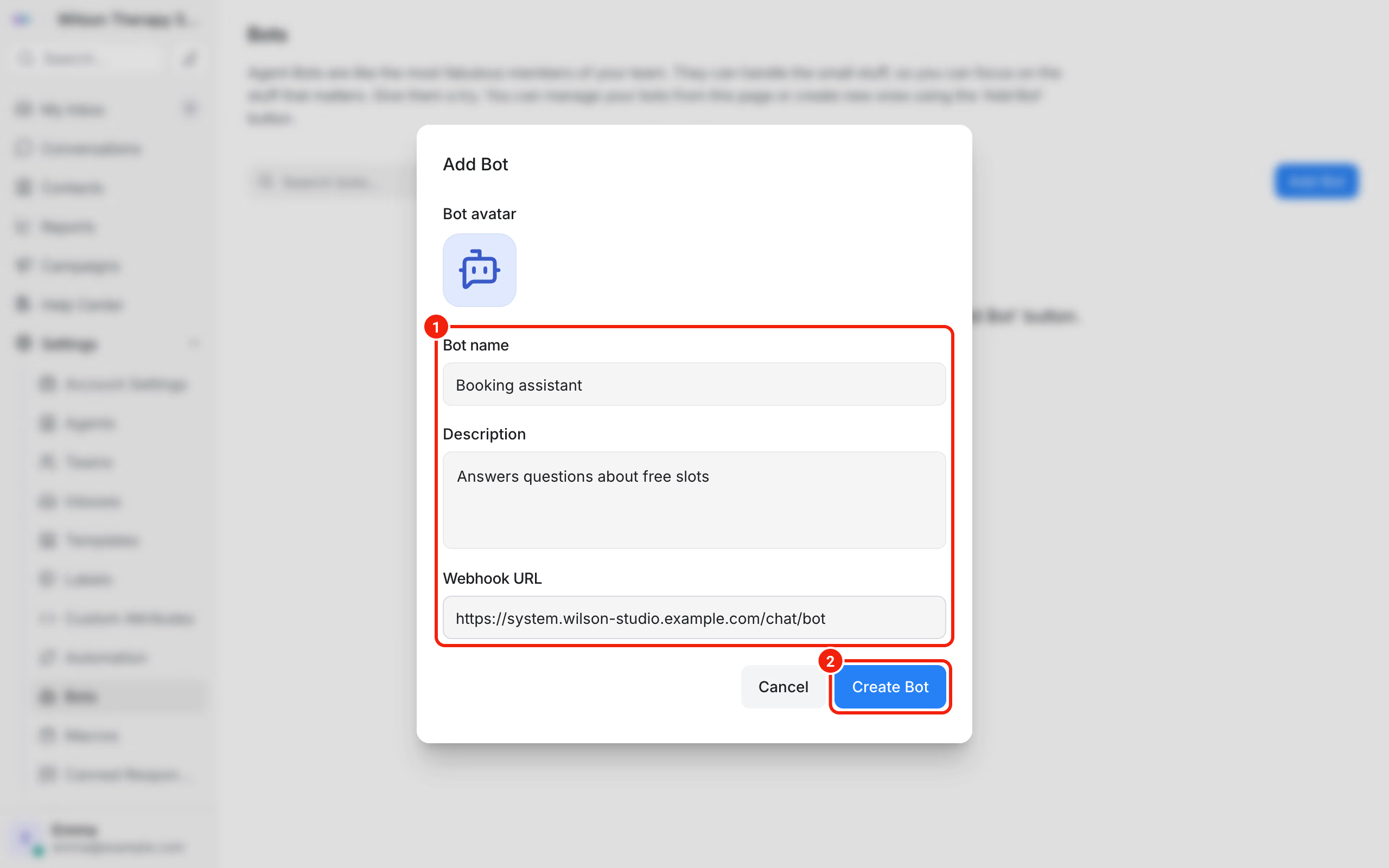
- Go to Settings → Bots and click Add Bot.
- Enter the Bot name, a Description and the Webhook URL. You can also add a Bot avatar.
- Click Create Bot and copy the Webhook Secret. You use it to check signatures, the same way as with a webhook. You can also find it later in the bot settings.
- The bot settings also hold an Access Token. Your server uses it when it sends replies on the bot's behalf. Keep it somewhere safe.
Then connect the bot to your website's inbox: in the inbox settings, on the Bot Configuration tab, pick the bot and click Update.
What changes once a bot is connected?
New conversations in that inbox start with the status Pending. The bot handles them, and agents don't get them in their open list. When your server switches a conversation's status to open, it goes to the agents as usual. If a client writes in a conversation that's already resolved, it goes back to the bot first.
You disconnect the bot on the same tab, with Disconnect bot.
Frequently asked questions (FAQ)
Can I have more than one webhook?
Yes. Each one can send different events to a different address.
My server isn't getting any requests. What should I check?
Is the address public and running on HTTPS, did you tick the right events, and does your server reply quickly with a 200 code? If that doesn't help, write to us at [email protected].