How do I organize conversations with labels and attributes?
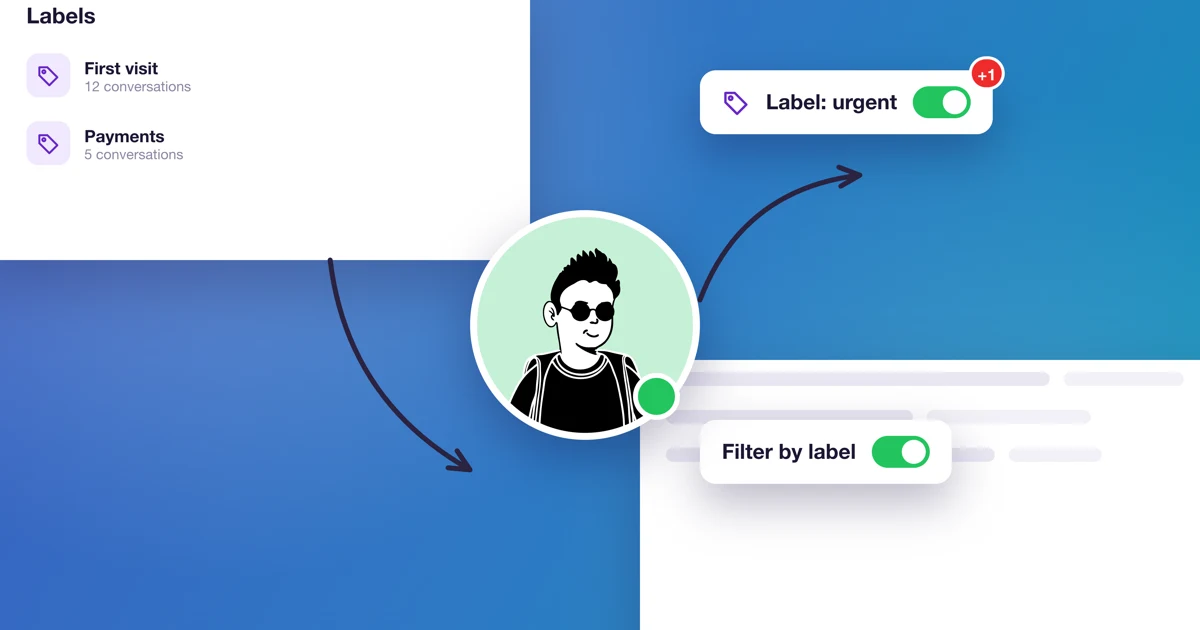
A few weeks into using the chat, you've got dozens of conversations. Labels help you find them fast: who's a new client, who asked about an invoice, what's urgent. Attributes go one step further. They're your own fields, where you record one specific piece of information, like where the contact came from.
How do you create a label?
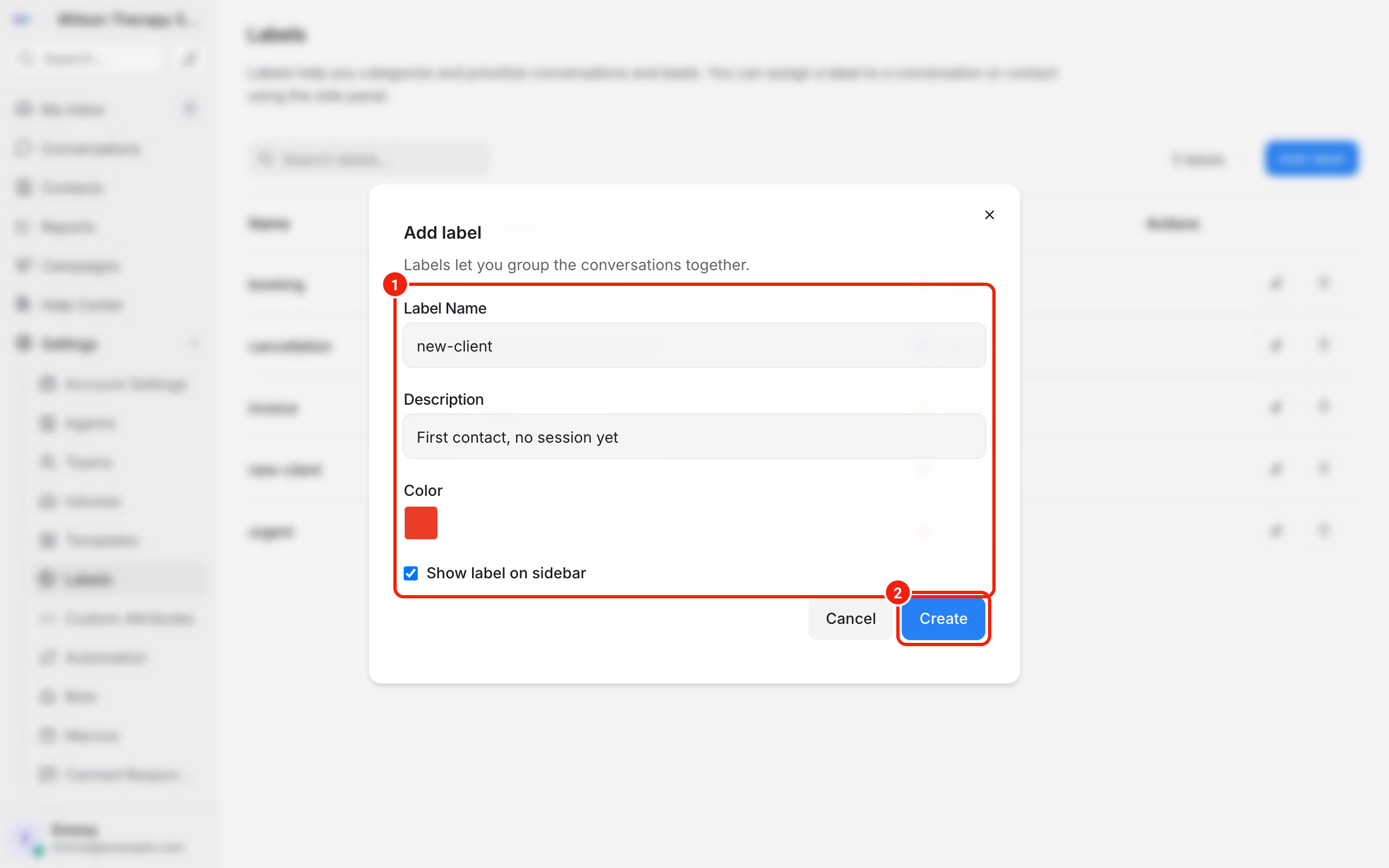
The chat administrator creates labels:
- go to Settings → Labels and click Add label,
- enter the Label Name. Only letters, numbers, hyphens and underscores are allowed, so use a hyphen instead of a space:
new-client, - add a Description, so your team knows when to use it,
- pick a Color,
- leave Show label on sidebar ticked if you want it close at hand in the left menu,
- click Create.
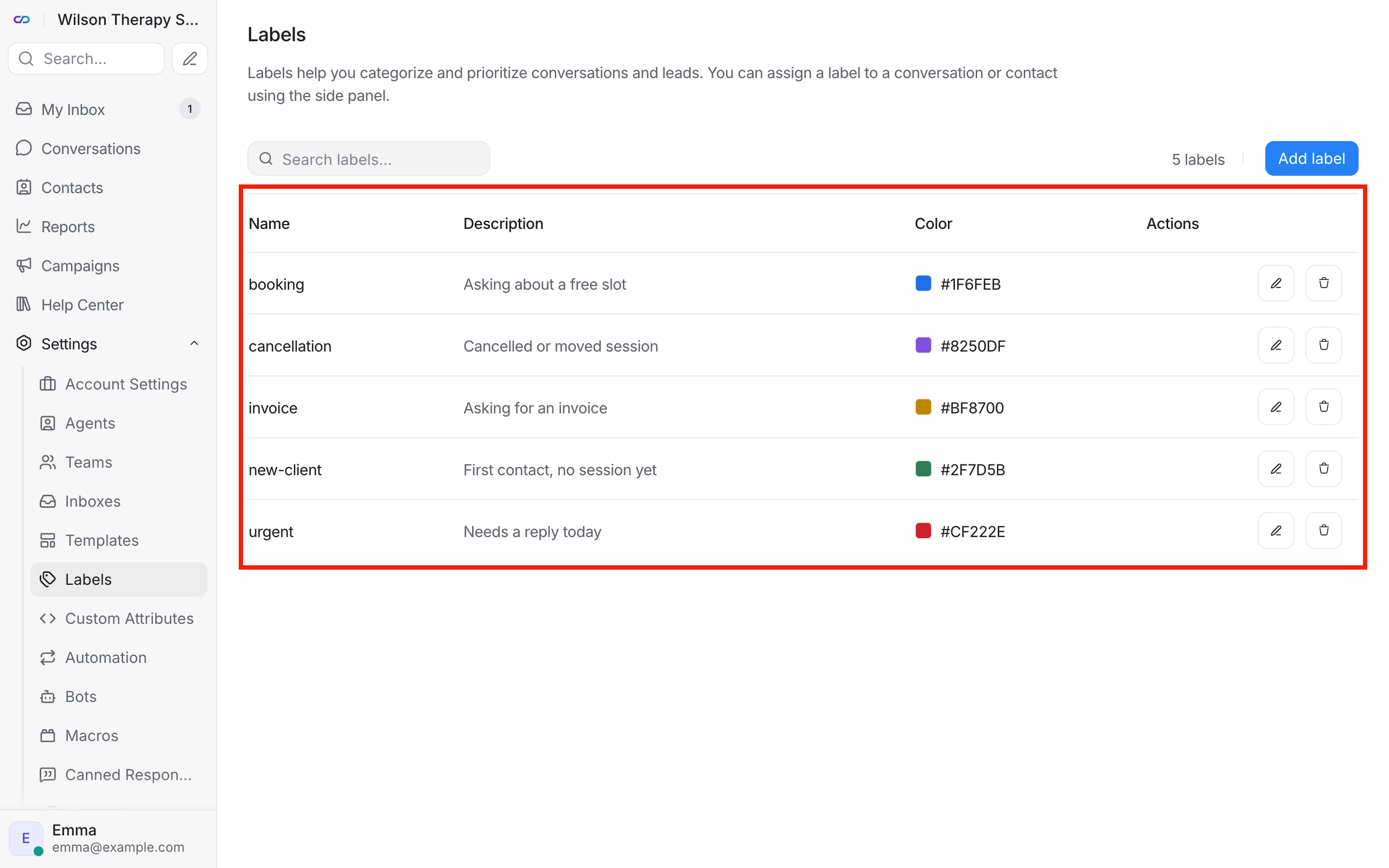
A starter set for a therapy practice: new-client, appointment, cancellation, invoice, urgent. Five labels are enough. With twenty, nobody remembers which one to use.
How do you label a conversation?
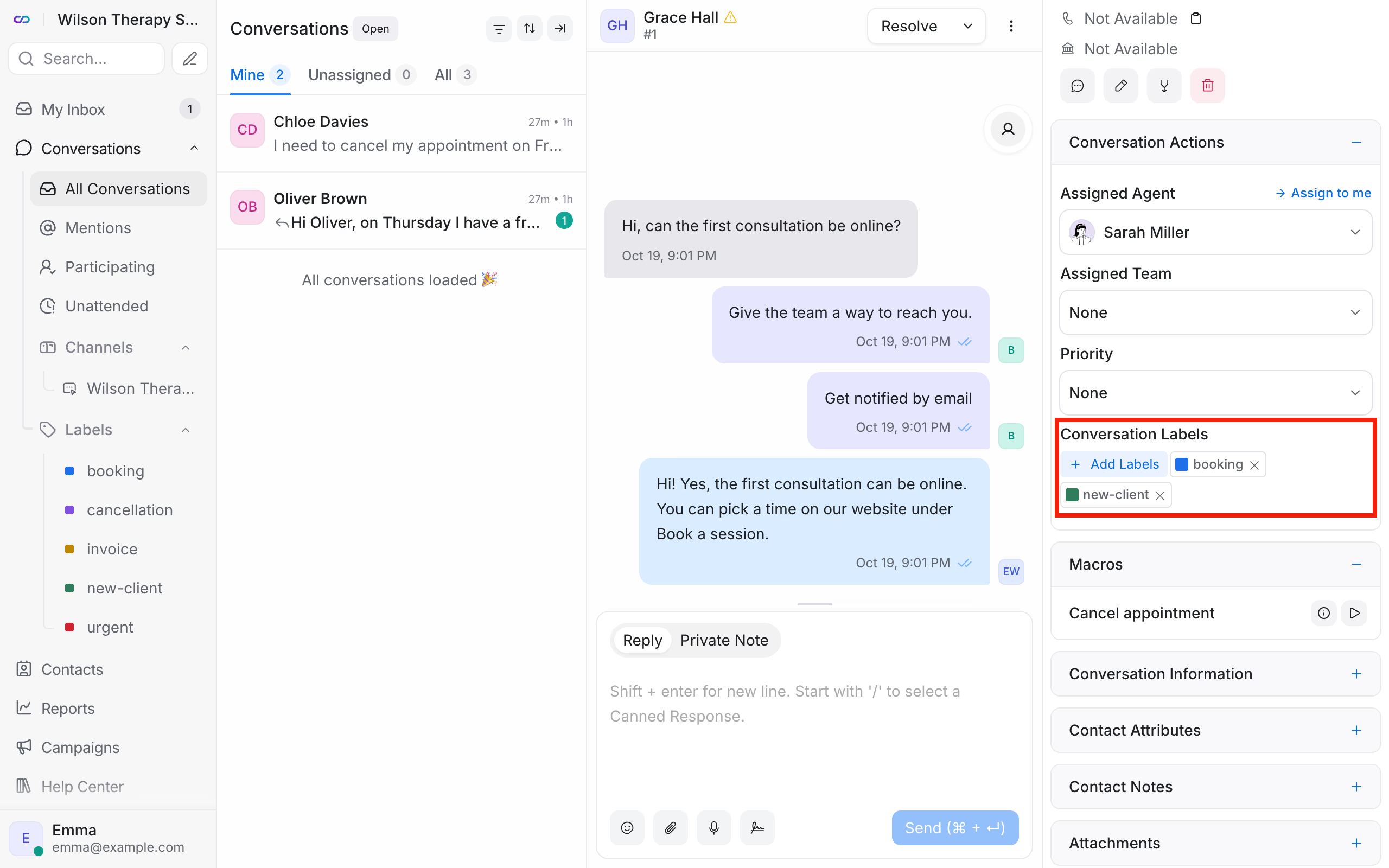
Any agent can add labels. In an open conversation, find Conversation Labels in the right panel and pick a label from the list. A conversation can have several labels at once.
To see every conversation with a given label, click it in the left menu, in the Labels section under Conversations.
Labels can also be added automatically, for example when a client types the word "invoice". That's what automation rules do, described in How do I set up automation in Calendesk Chat?
What are custom attributes?
An attribute is your own field holding one specific piece of information. A label says "this is a new client". An attribute records something like "how they found us: referral". Most practices start with labels alone. Attributes pay off when you want to collect the same information for every conversation or every client.
How do you add an attribute?
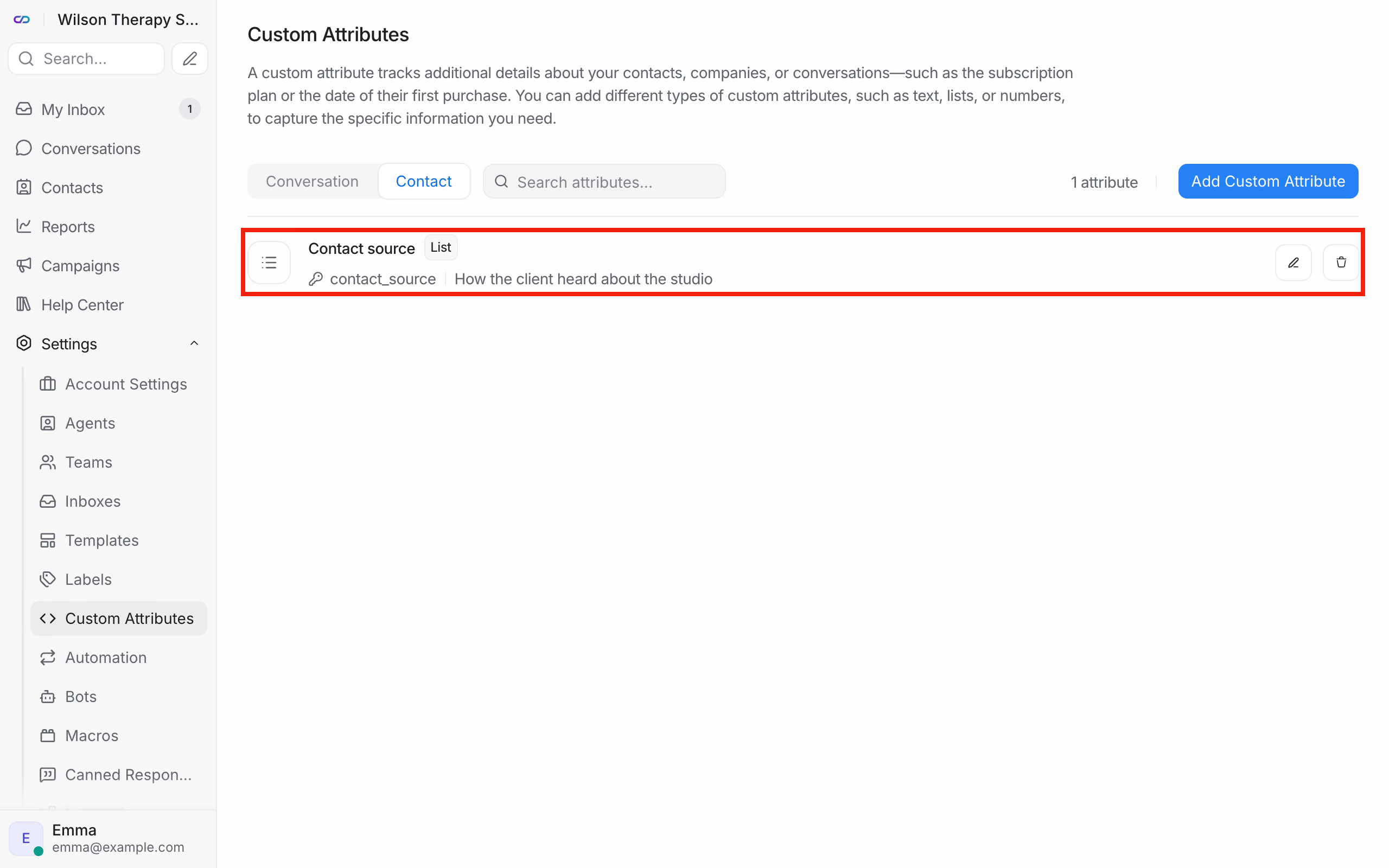
- Go to Settings → Custom Attributes and click Add Custom Attribute.
- Under Applies to, choose Conversation (information about this one conversation) or Contact (information about the client, visible in all their conversations).
- Enter the Display Name, for example "Contact source". The Key fills itself in.
- Choose the Type: Text, Number, Link, Date, List or Checkbox. For a list, enter the possible values, for example: referral, Google, flyer, doctor.
- Click Create.
Where do you fill in an attribute?
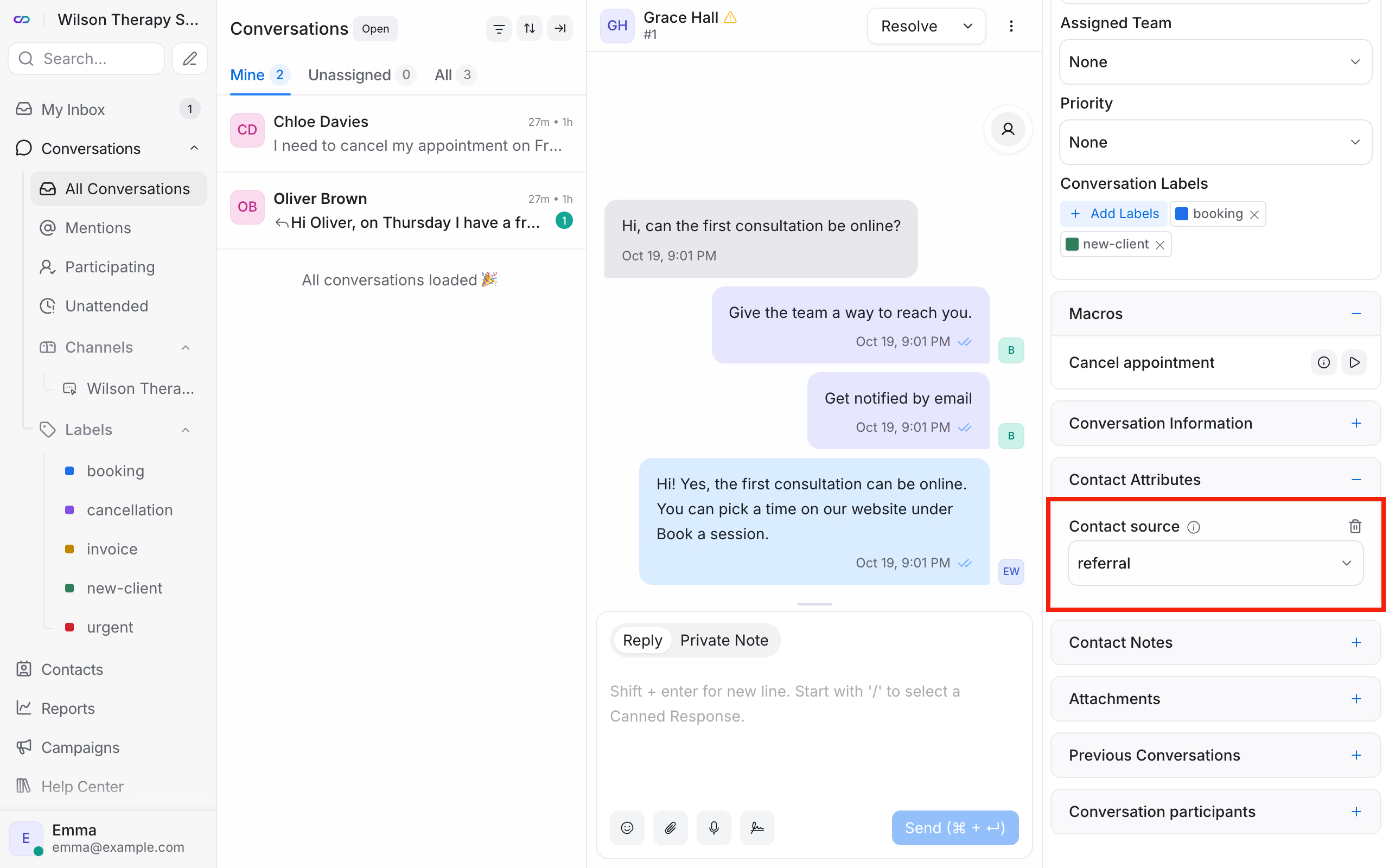
In an open conversation, in the right panel. Conversation attributes are under Conversation Information, contact attributes under Contact Attributes. Click the field and pick or type a value.
Frequently asked questions (FAQ)
Can an agent create new labels?
No. The chat administrator creates labels and attributes. Agents add existing labels to conversations and fill in attributes.
Can I label a client instead of a conversation?
Yes. Open the client under Contacts and add a label on their card. A conversation label describes one matter, a contact label describes the client.