How do I set up the chat's look, greeting and business hours?
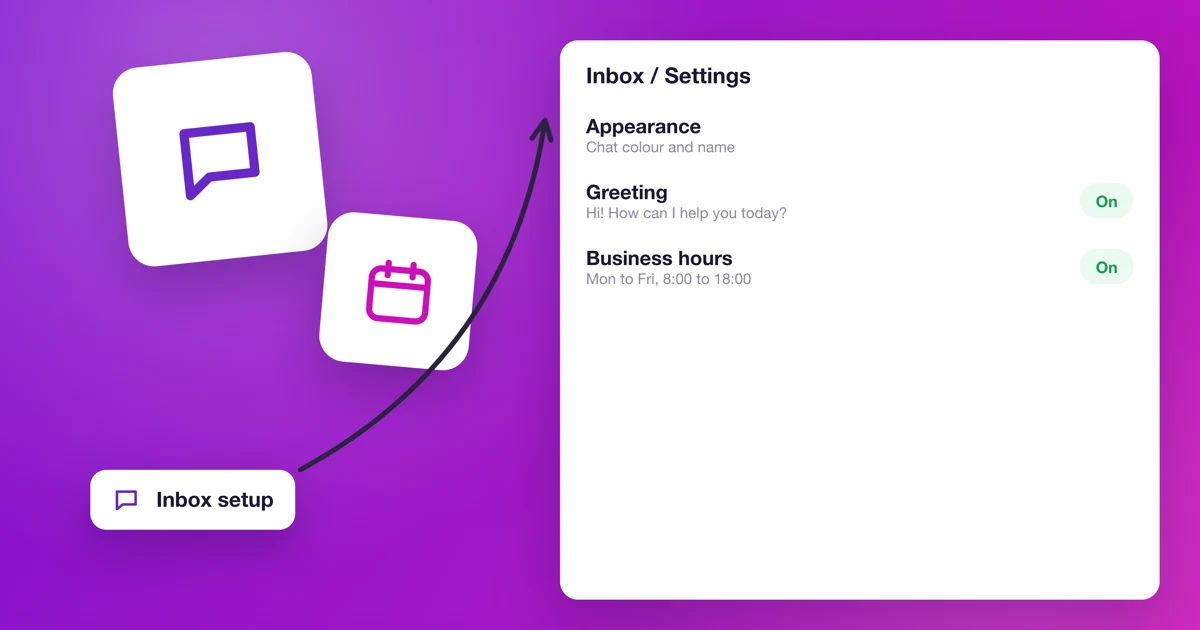
You can make the chat window fit your website: the color, the greeting, where the bubble sits, a pre chat form and the hours when you answer. You set all of it in the inbox you created for your website. If you don't have one yet, start with How do I add Calendesk Chat to my website?
The chat administrator changes the inbox settings. Go to Settings → Inboxes and click the settings icon next to your website's inbox. You'll see the tabs Settings, Collaborators, Business Hours, CSAT, Pre Chat Form, Configuration and Bot Configuration.
How do you set the window's look and greeting?
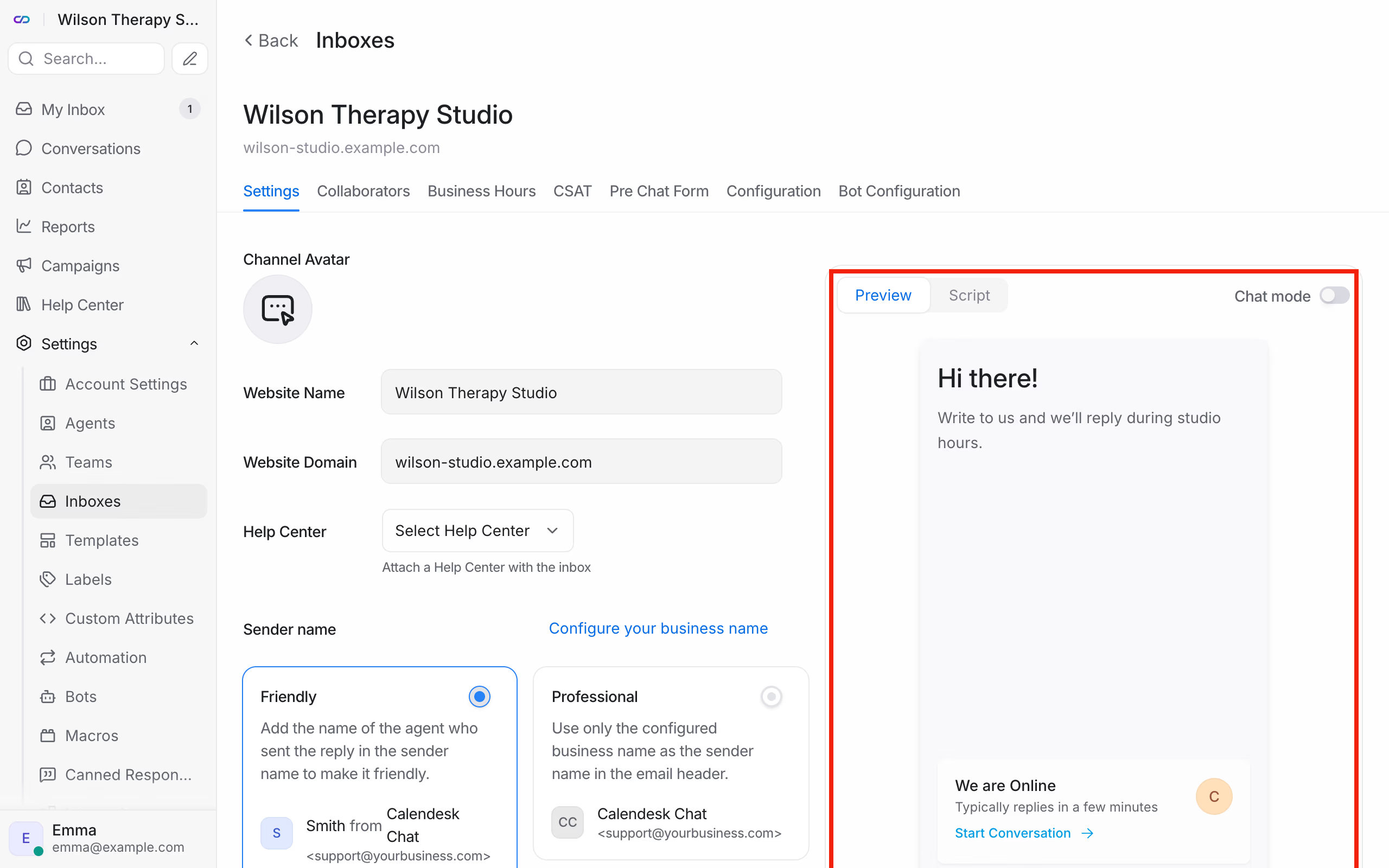
On the Settings tab there's a preview of the chat window on the right. It updates as you edit the fields:
- Channel Avatar: a logo or photo in the window header,
- Welcome Heading and Welcome Tagline: two lines at the top of the window, for example "Hi there!" and "Send us a message and we'll reply during studio hours.",
- Widget Color: the color of the bubble and the header,
- Set Reply time: tells the client whether you usually reply within a few minutes, a few hours or a day,
- Features (in the Widget features section): whether the client can send a file, pick an emoji and end the conversation themselves.
Further down, under Channel Preferences, are options that change how a conversation runs:
- Enable channel greeting: the chat sends the client the text from Channel greeting message when they start a conversation. A good place for "Thanks for your message. I usually reply within an hour.",
- Enable email collect box: the chat asks the client for an email address, so you can reach them after they leave the website,
- Allow messages after conversation resolved: the client can keep writing in a conversation you've already resolved.
Save your changes with Update. The greeting, color and texts change on your website by themselves. You don't need to paste the script again.
Where does the bubble sit and what does it look like?
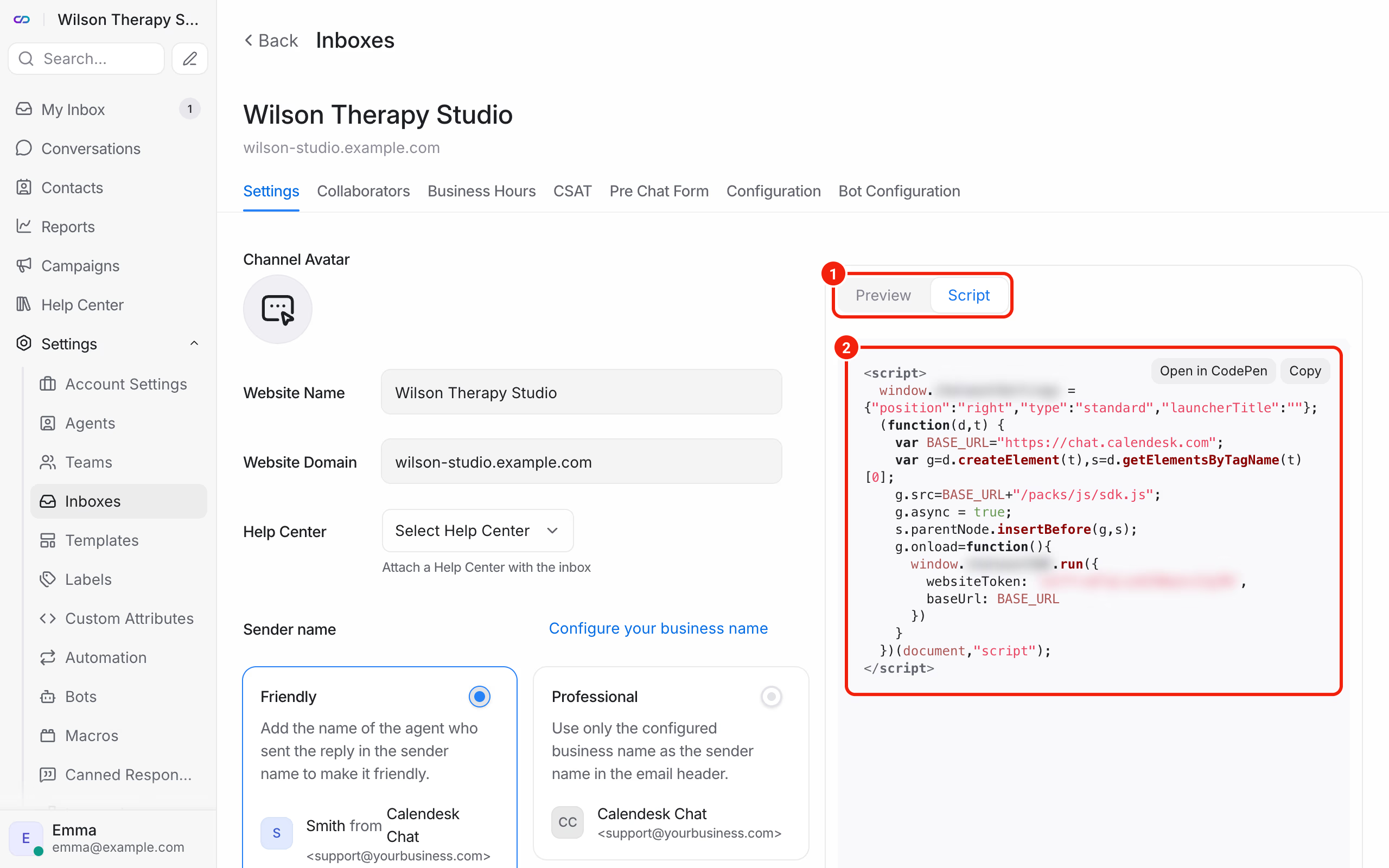
On the same tab, in the Bubble section, you set the bubble's Position (left or right), its Type (Standard or Expanded Bubble with text) and the Launcher Title on the expanded bubble, for example "Chat with us".
Heads-up: these three settings live inside the script itself. After you change them, copy the script again and replace it on your website. Above the window preview, switch from Preview to Script and copy the code.
Should clients fill in a form before they chat?
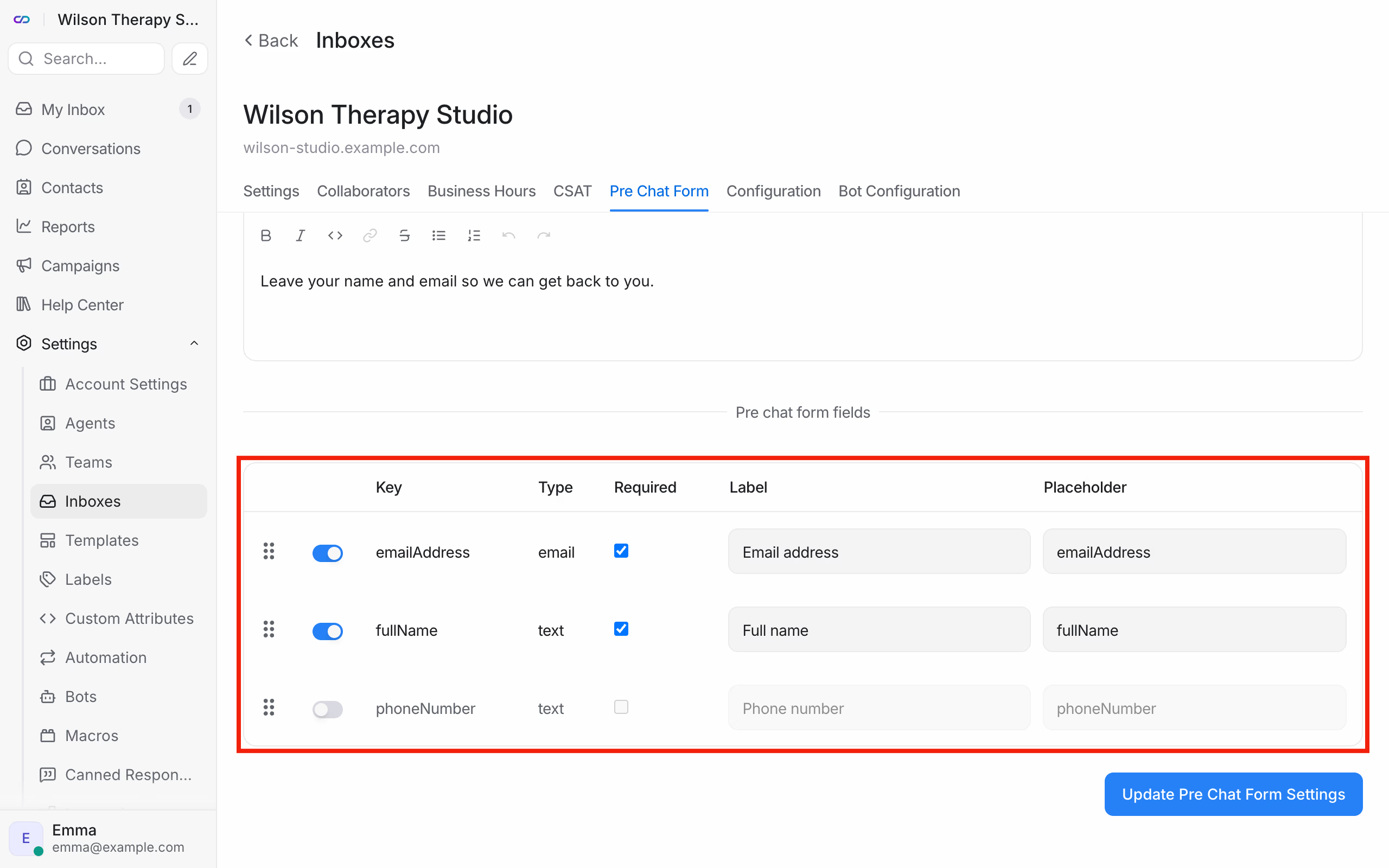
On the Pre Chat Form tab you decide whether the client introduces themselves before they write. Turn on Enable pre chat form, write a Pre chat message, and under Pre chat form fields tick what you ask for and what's required.
Ask only for what you need to reply. At a therapy practice, a name and an email are usually enough. Every extra field is one more reason for the client to close the window.
How do you show your business hours?
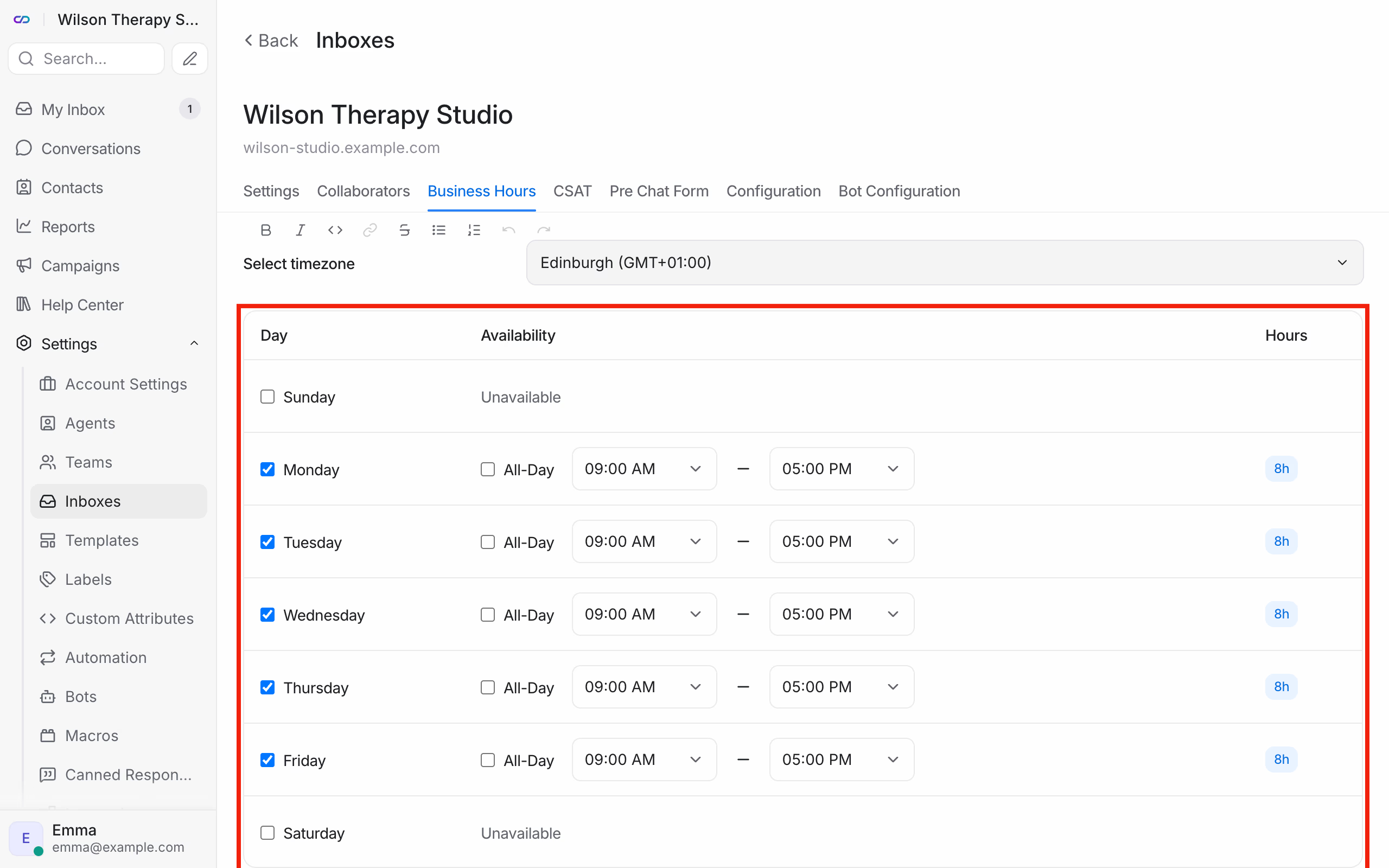
On the Business Hours tab you show clients when you answer:
- turn on Enable business availability for this inbox,
- write an Unavailable message for visitors, for example "We'll get back to you on Monday from 9 am.",
- choose your time zone in Select timezone and set the hours for each day of the week,
- click Update business hours settings.
Outside business hours the client can still write. They'll see your message, and the conversation waits in the dashboard for a reply.
Who answers messages from this website?
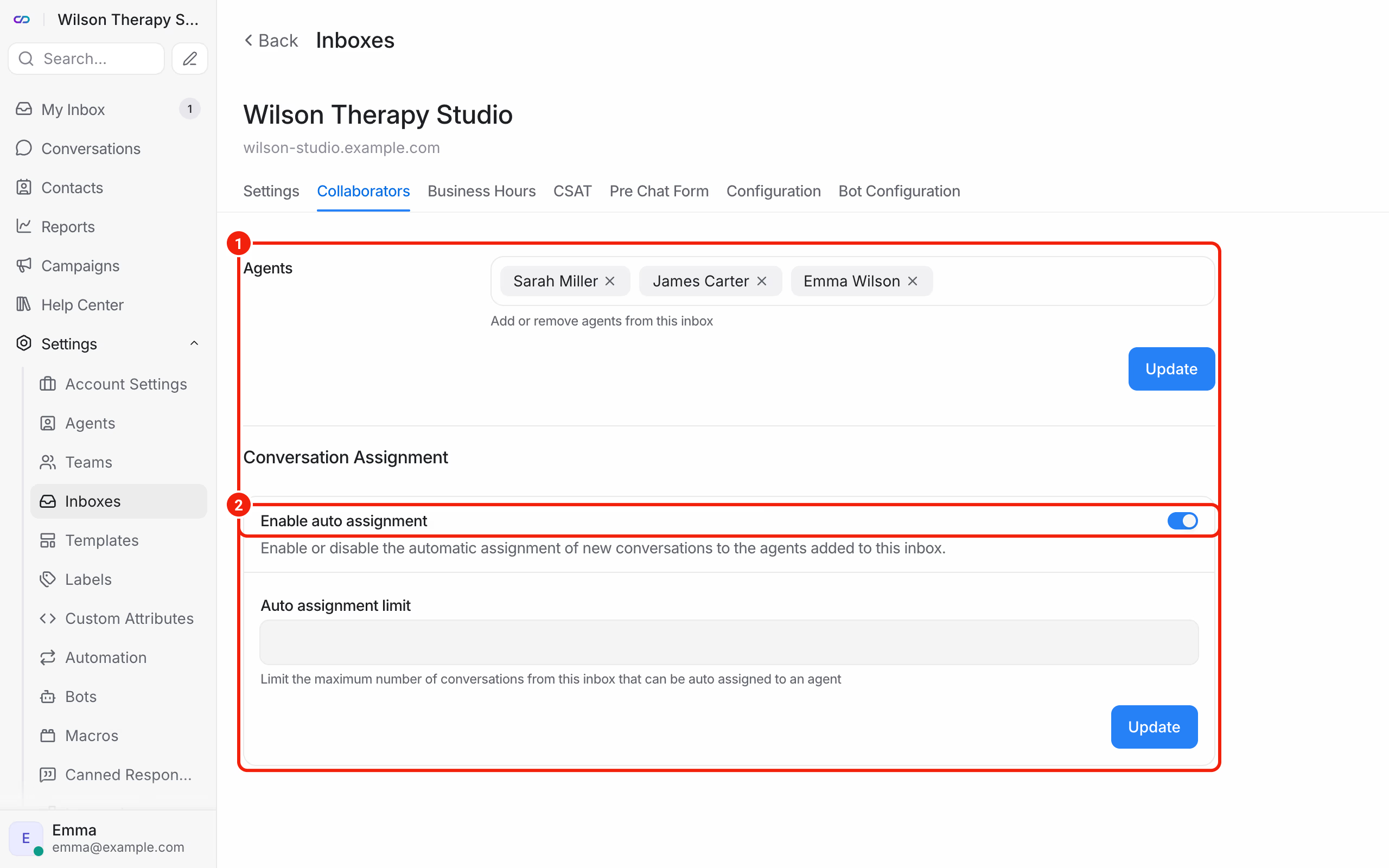
On the Collaborators tab, in the Agents section, you add or remove the people who see conversations from this inbox. Save with Update.
The same tab has Enable auto assignment. With it on, every new conversation goes straight to one of the available agents, taking turns. With it off, new conversations wait under Unassigned until someone picks them up.
Can you ask clients for feedback after a conversation?
On the CSAT tab you can turn on a short satisfaction survey. The chat sends it to the client after the conversation is resolved, once per conversation. You'll see the results under Reports.
Frequently asked questions (FAQ)
I changed the bubble position, but nothing changed on my website. Why?
The bubble's position and type are stored in the script. Copy the script again from the Settings tab (the Script switch above the preview) and replace it on your website. If your website is built in Calendesk, publish it after the change.
Can I change the website address I entered when I created the inbox?
Yes. The Settings tab has a Website Domain field.