How do I add Calendesk Chat to my website?
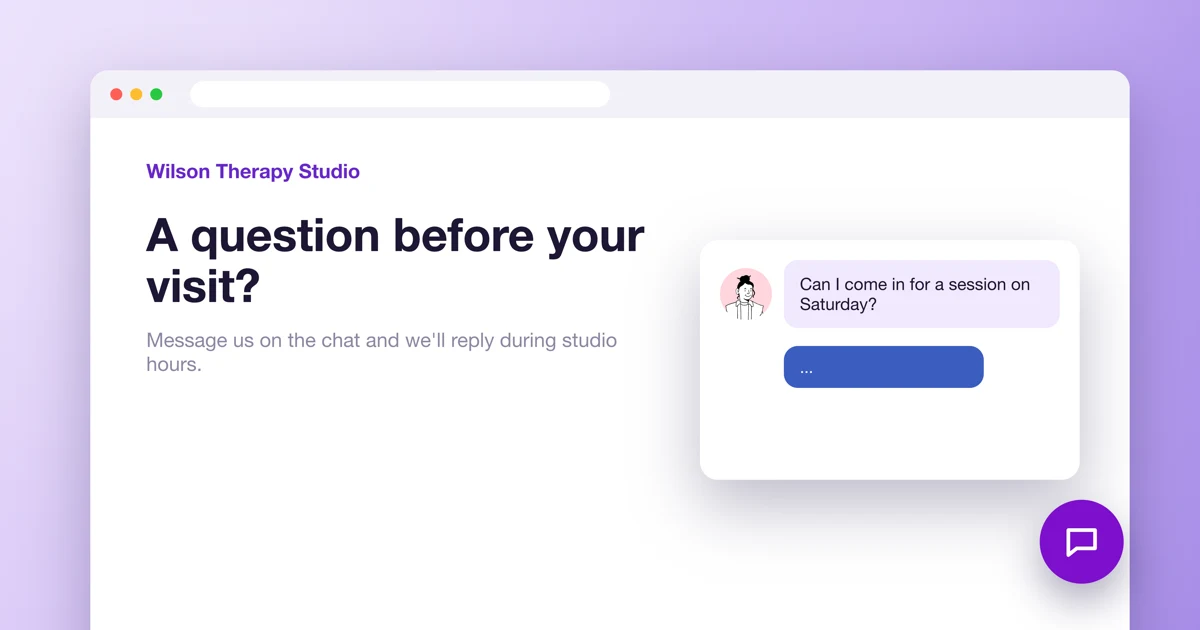
Before clients can message you, the chat has to appear on your website. That happens in two places: first you create an inbox for your website in the chat dashboard and copy the script, then you paste the script into your website. Below are both parts, with separate steps for a website built in Calendesk and for other websites.
The chat administrator creates the inbox.
Step 1. Create an inbox for your website
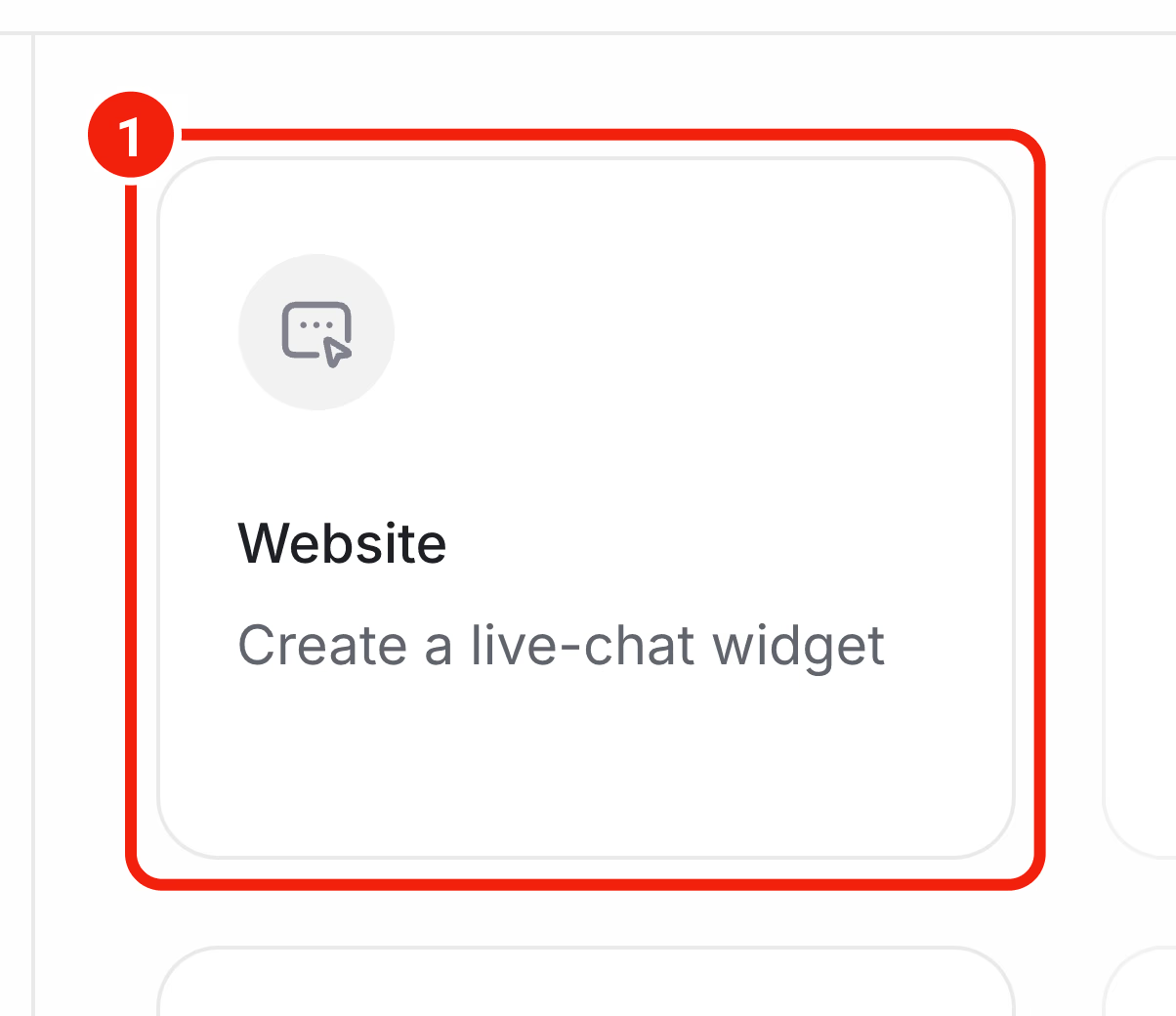
In the chat dashboard, go to Settings → Inboxes and click Add Inbox. Choose Website as the channel.
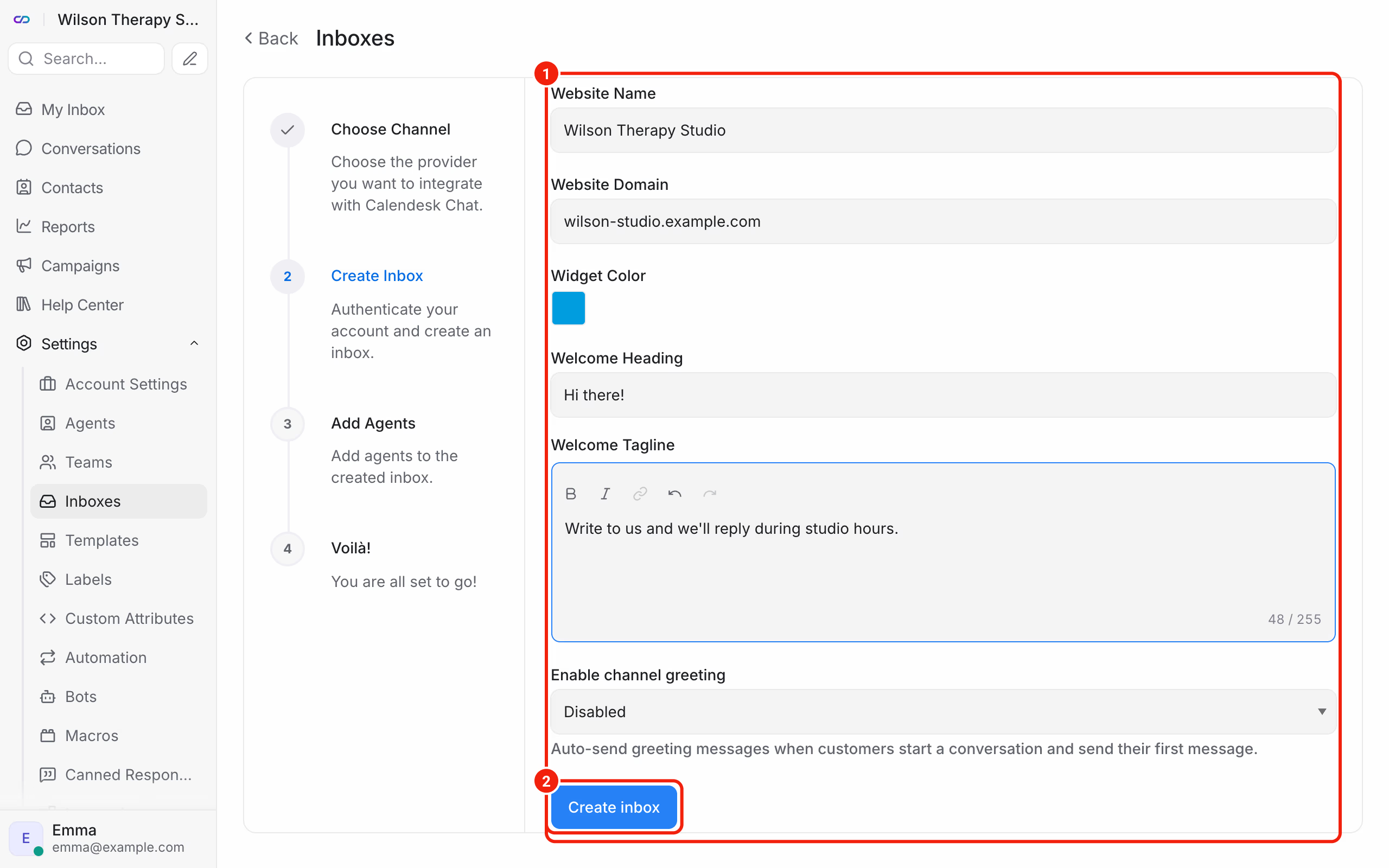
Fill in the form:
- Website Name: your practice's name, for example. Clients see it in the header of the chat window.
- Website Domain: the address of the website the chat will run on, for example wilson-studio.example.com.
- Widget Color: the color of the chat bubble and the window header.
- Welcome Heading and Welcome Tagline: two short lines the client sees when they open the window.
- Enable channel greeting: turn this on and the chat sends the client the text from Channel greeting message as soon as they start a conversation.
Click Create inbox. You can change every one of these fields later in the inbox settings.
Step 2. Choose the agents
In Pick agents for the inbox, select the people who should answer messages from this website and click Add agents. An agent only sees conversations from the inboxes you add them to. Add yourself too, so you get notifications.
Step 3. Copy the chat script
On the Your Inbox is ready! screen you'll see the chat script. Copy it with the copy button.
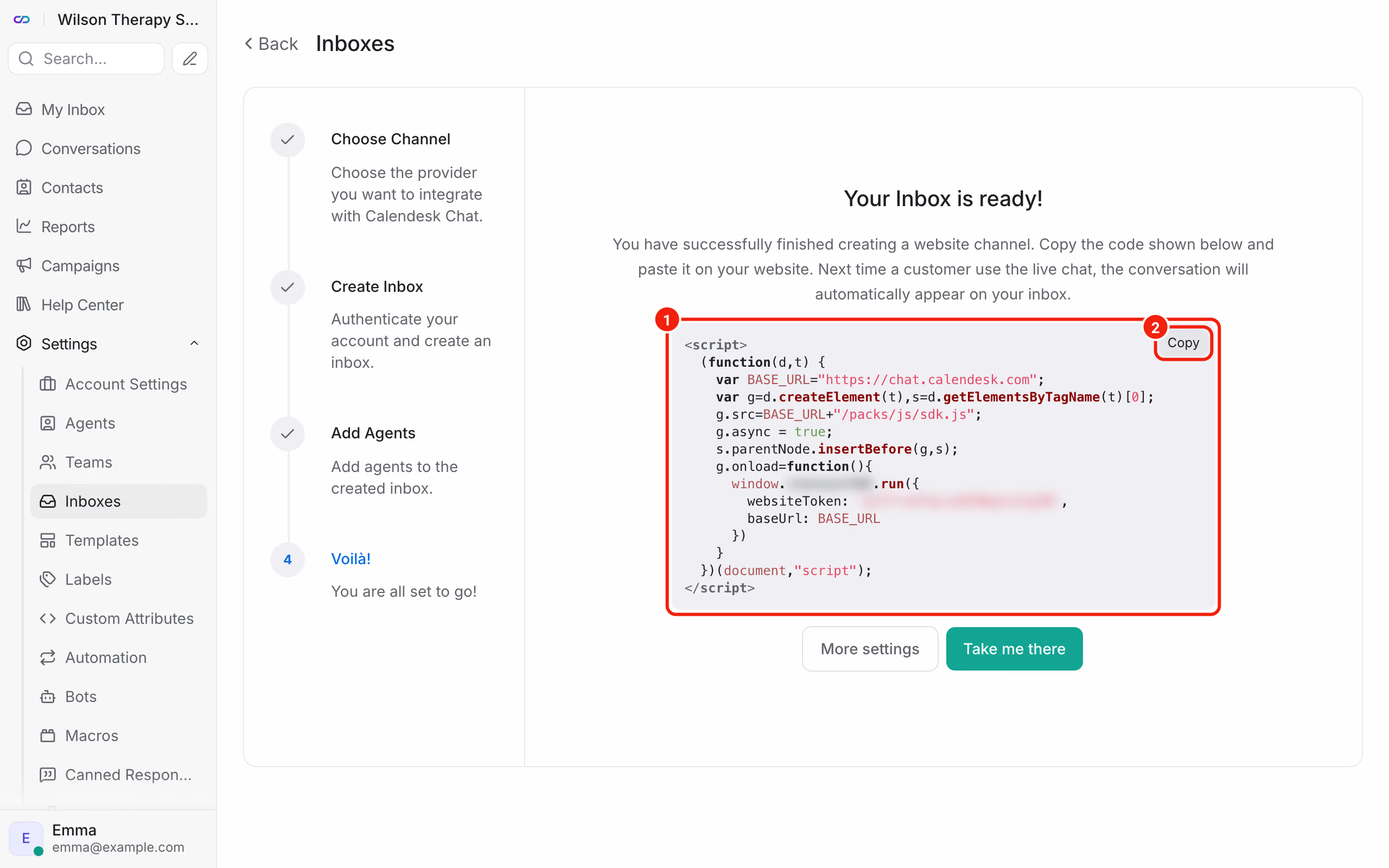
Closed that window already? The script is also in the inbox settings: Settings → Inboxes, the settings icon next to the inbox, the Settings tab. On the right, above the chat window preview, switch from Preview to Script.
Step 4. Paste the script into a website built in Calendesk
- In the Calendesk panel, go to Tools → Websites and open your website in the builder.
- Click General and expand the Integrations and advanced section.
- Paste the script into the Custom scripts field. If there's already something there, paste the script below it.
- Click Publish.
The chat only appears on the published website. You won't see it in the builder preview. The script works on every subpage.
How does the chat work with a cookie banner?
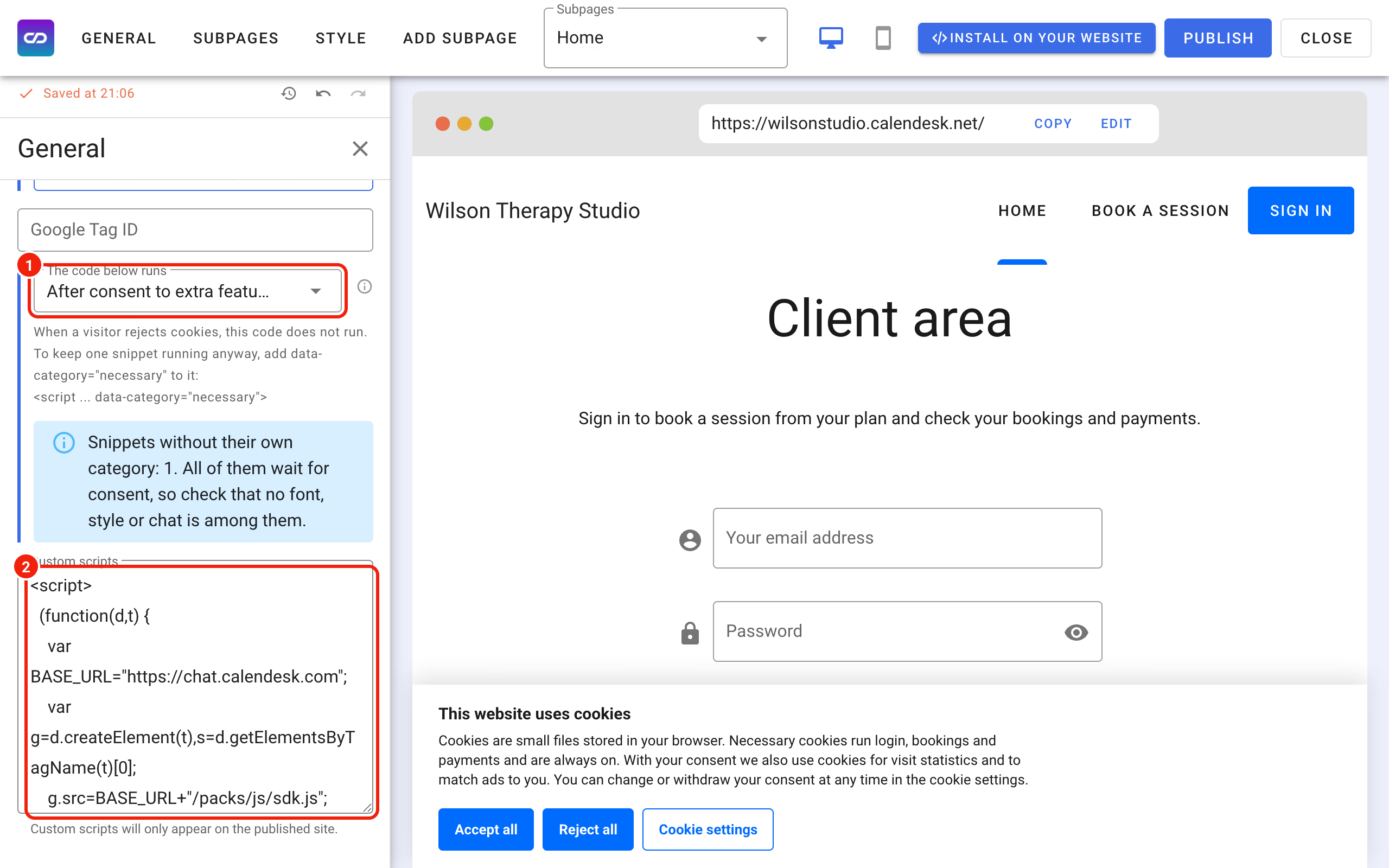
If the cookie banner is on for your website, you'll see a The code below runs field above Custom scripts. It decides when the code in Custom scripts starts:
- Right away, without asking for consent: the chat starts for every visitor, including people who reject cookies,
- After consent to extra features, After consent to statistics or After consent to ads: every script without a category of its own waits for that consent.
If you turned the banner on when there was already code on the website, the builder set this field to After consent to ads by itself. In that case only visitors who accept ads will see the chat.
The chat stores a cookie with the conversation ID in the visitor's browser, so the conversation doesn't disappear when they move to another page. In the cookie banner, the chat belongs in the Extra features category. What to do:
- if the chat is the only thing in Custom scripts, set The code below runs to After consent to extra features,
- if there's other code in there too, say an ad pixel, keep the category that fits that code for the whole field, and add a category to the first tag of the chat script:
<script data-category="functionality">. Then the chat waits only for consent to extra features.
A visitor who doesn't accept extra features won't see the chat. Leave them another way to reach you on the website, like a phone number or an email address. The Extra features category also has to be visible in the banner settings. If it isn't, nobody can accept it and the chat never starts. More about the categories in How to add a cookie banner to your website?
What if your website uses Google Tag Manager?
If you use Google Tag Manager on your website, you can add the chat as a separate tag. We walk through it step by step in How to add Calendesk Chat to your website with Google Tag Manager?
What about other websites: WordPress, Wix and the like?
Paste the script into the place for your own code in the website or theme settings. It belongs inside the <body> tag, ideally right before </body>. Save the changes and publish the website. If your website has its own cookie banner, put the chat in the functional category, as that banner's instructions describe.
How do you check that the chat works?
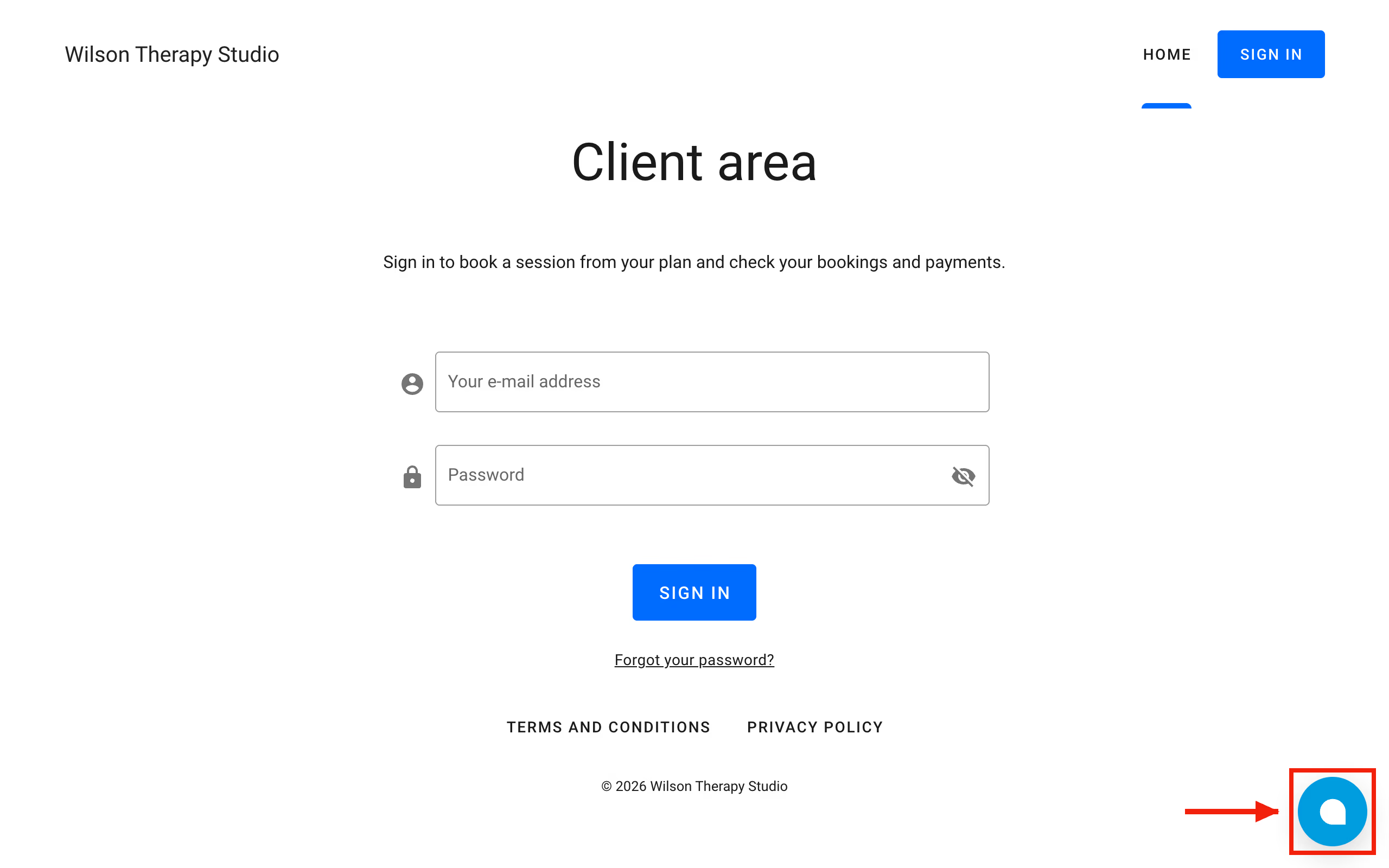
Open your website in a private browser window. If you have a cookie banner, accept extra features. You'll see the chat bubble in the bottom right corner. Send a test message and reply to it in the chat dashboard.
Frequently asked questions (FAQ)
The chat doesn't show up on my website. What should I check?
In this order: is the website published (the builder preview doesn't show the chat), did you accept extra features in the cookie banner, and is the whole script pasted in, from <script> to </script>? If you filled in Allowed Domains on the Configuration tab of the inbox settings, check that your website's address is on that list.
Can I limit which websites my chat works on?
Yes. In the inbox settings, on the Configuration tab, enter your websites' addresses in the Allowed Domains field, separated by commas, and click Update. If the field is empty, the chat works on any website where someone pastes your script.
I have two websites. Can I have the chat on both?
Yes. Create a separate inbox for each website, with its own script and its own look. Conversations from both land in one dashboard, and the number of inboxes doesn't change the price of the add-on.