How to add Calendesk Chat to your website with Google Tag Manager?
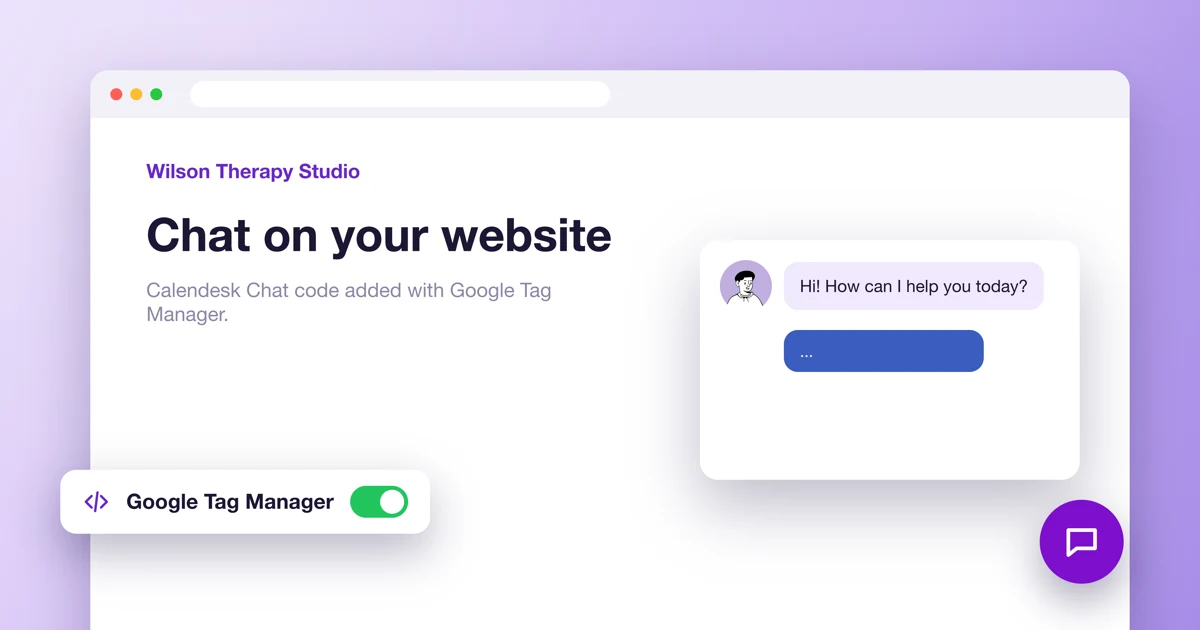
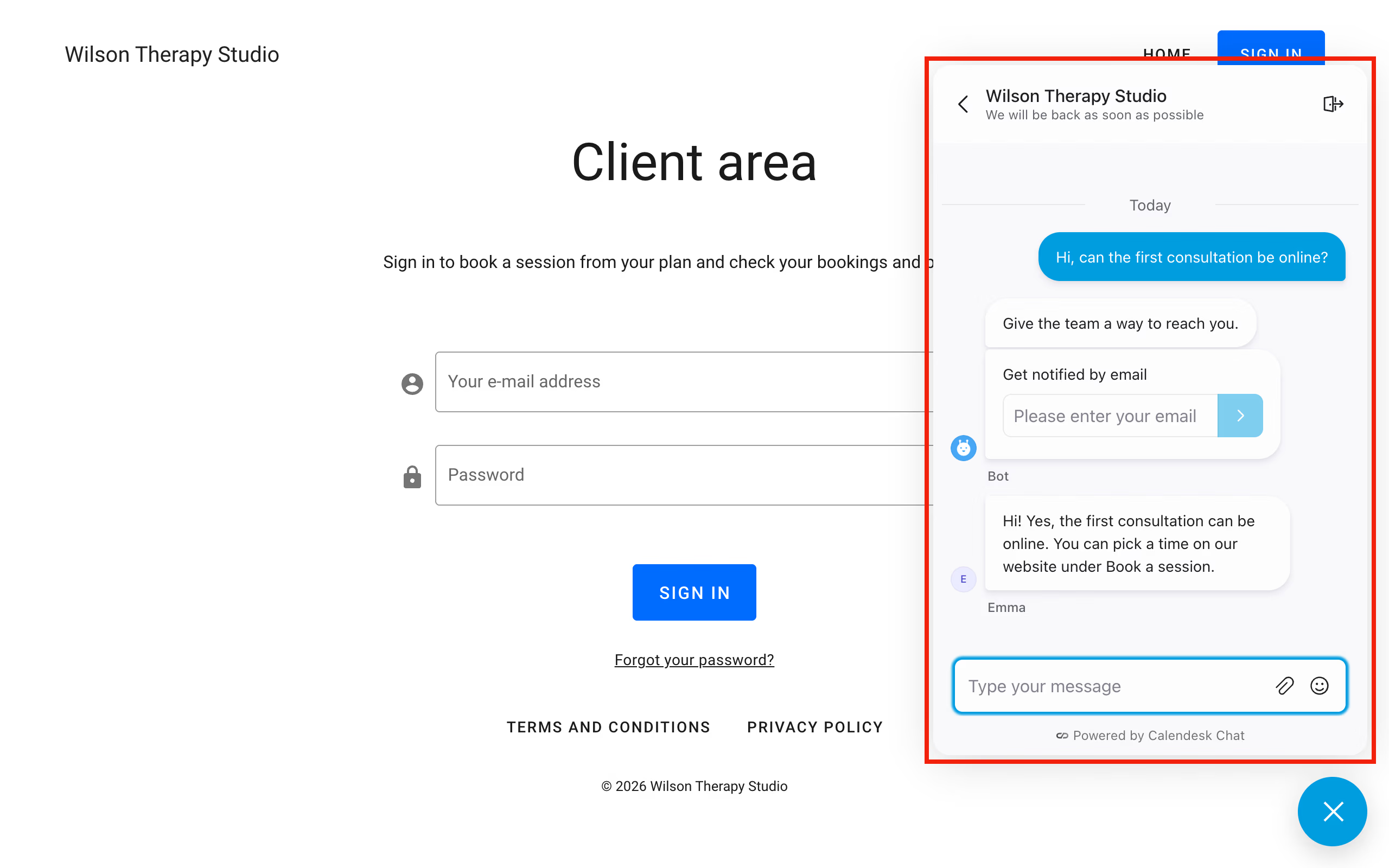
Calendesk Chat is live chat for your website. A visitor clicks the chat window in the corner of the page and writes to you, and you reply from the chat dashboard. This article shows how to add the chat window to your website with Google Tag Manager.
What you need
- An active Calendesk Chat package. You turn it on in Billing → Subscription.
- A Google Tag Manager account. If you don't have one, you'll create it in step 3.
- The Standard or Pro plan. On these plans you can enter a Google Tag Manager ID in the website builder.
The chat and Google Tag Manager are set up by the account administrator.
Step 1. Set up Calendesk Chat
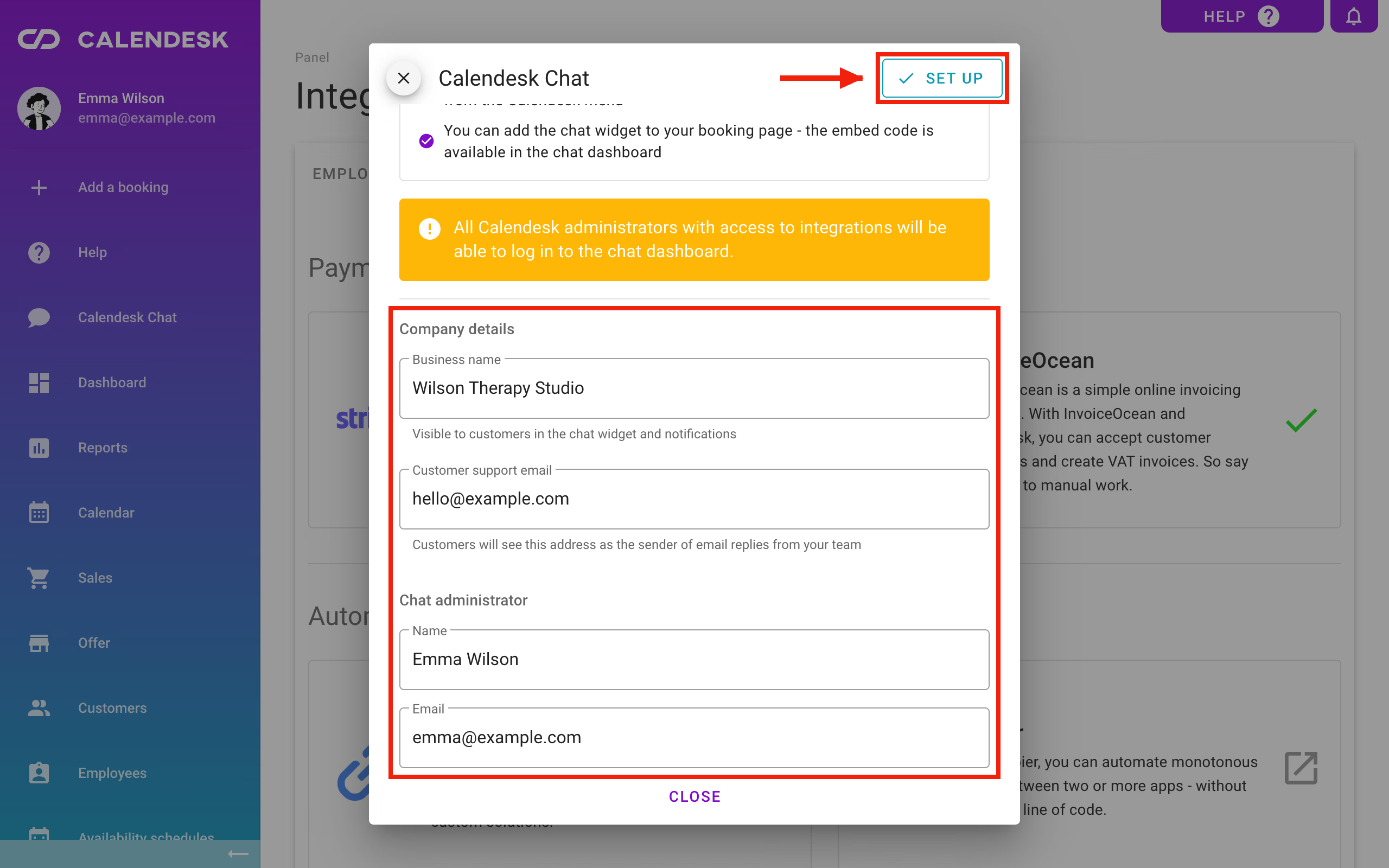
Once the package is on, Calendesk Chat appears in the panel menu. Open it and fill in the form:
- Business name,
- Customer support email,
- under Chat administrator, the name and e-mail of the person who will manage the chat.
Save with Set up, then click Open dashboard. The chat dashboard is a separate app at chat.calendesk.com, and Calendesk administrators sign in to it with one click.
Step 2. Create an inbox for your website and copy the script
In the chat dashboard:
- go to Settings → Inboxes and click Add Inbox,
- choose the Website channel,
- enter a name and the Website Domain, the address of the site where the chat will run, then click Create inbox,
- add agents, the people who will answer messages from this website.
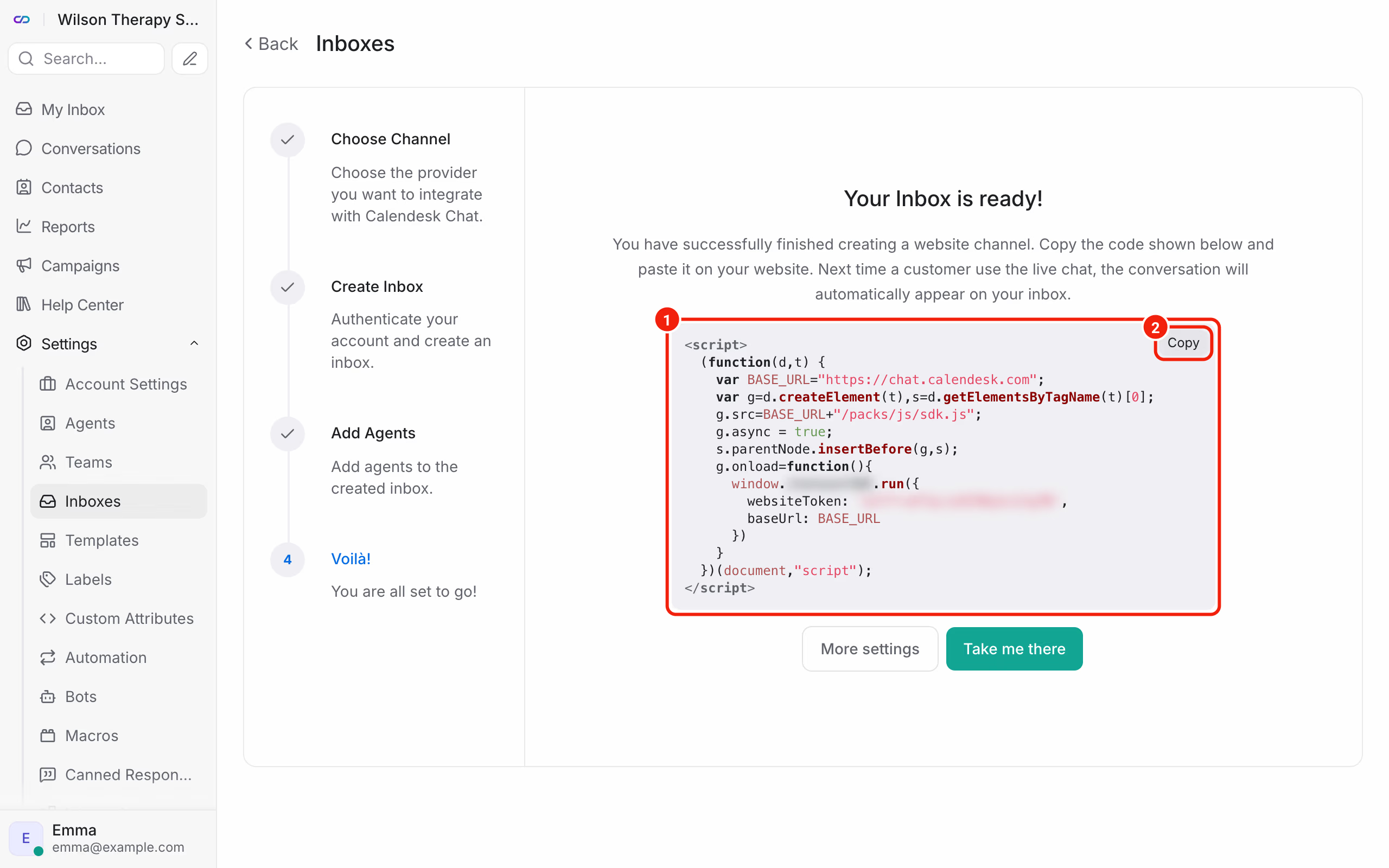
The last screen shows the chat script. Copy it and keep it somewhere for a moment, for example in a text file. If you close this screen, you'll find the script later in the inbox settings, on the Settings tab: above the chat window preview, switch Preview to Script.
Step 3. Create a Google Tag Manager account and container
If you already have a Google Tag Manager container for your website, skip to step 4.
- Open tagmanager.google.com and sign in with your Google account.
- Create an account: enter an account name (your business name works) and your country.
- In the container settings, enter your website address and choose Web as the target platform.
- Accept the Google Tag Manager terms of service.
Step 4. Enter the container ID in the website builder
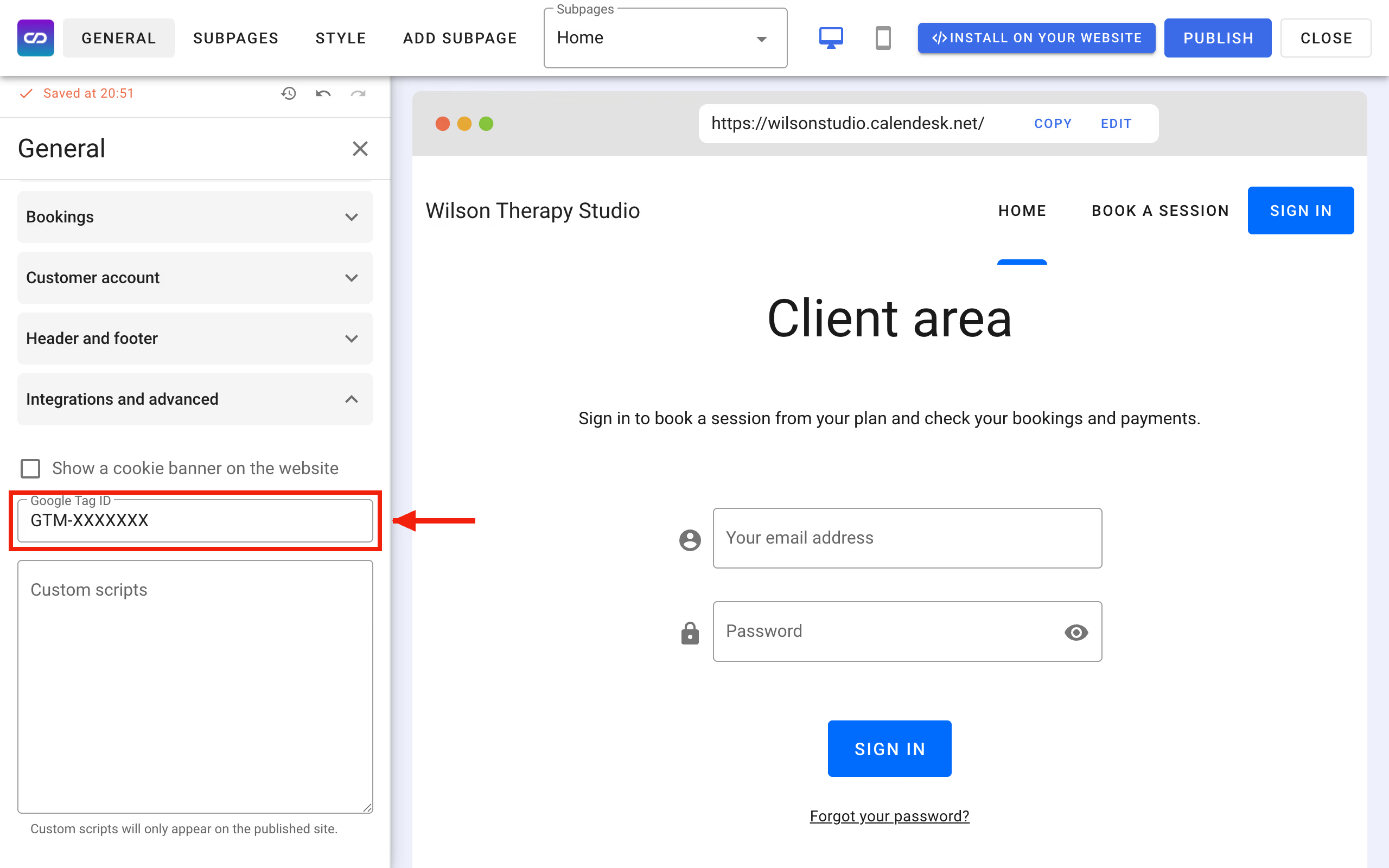
Every container has an ID in the format GTM-XXXXXXX, shown at the top of the Google Tag Manager screen. Copy it, then:
- in the Calendesk panel go to Tools → Websites and open your website in the builder,
- open the General tab and its Integrations and advanced section,
- paste the ID into the Google Tag ID field,
- publish the website.
Step 5. Add a tag with the chat script
Go back to Google Tag Manager:
- open Tags → New and name the tag, for example "Calendesk Chat",
- click Tag Configuration and choose Custom HTML,
- paste the chat script you copied in step 2,
- click Triggering and choose All Pages, so the chat shows on every page,
- save the tag.
Step 6. Publish the changes in Google Tag Manager
Click Submit in the top right corner, then Publish. You can add a version description such as "Add Calendesk Chat", which makes the change easy to find in the container history.
Check that the chat works
Open your website in a private browser window. The chat window appears in the bottom right corner. Send a test message and check that it arrives in the chat dashboard. Reply from the dashboard, and the reply shows up on the website right away.
Chat and the cookie banner
If your website shows a cookie banner, the builder by default starts Google Tag Manager only after the visitor agrees to cookies. Visitors who reject cookies won't see the chat. The setting sits under the Google Tag ID field, in Google Tag Manager runs. Choose Right away, passing the visitor's choice to Google only if you have set in Google Tag Manager which tags require consent.
Without Google Tag Manager
If you don't use Google Tag Manager, you can paste the chat script straight into the builder. On the General tab, in Integrations and advanced, there is a Custom scripts field. Paste the script there and publish the website. Custom scripts only appear on the published website, not in the builder preview.