How do I add agents to Calendesk Chat?
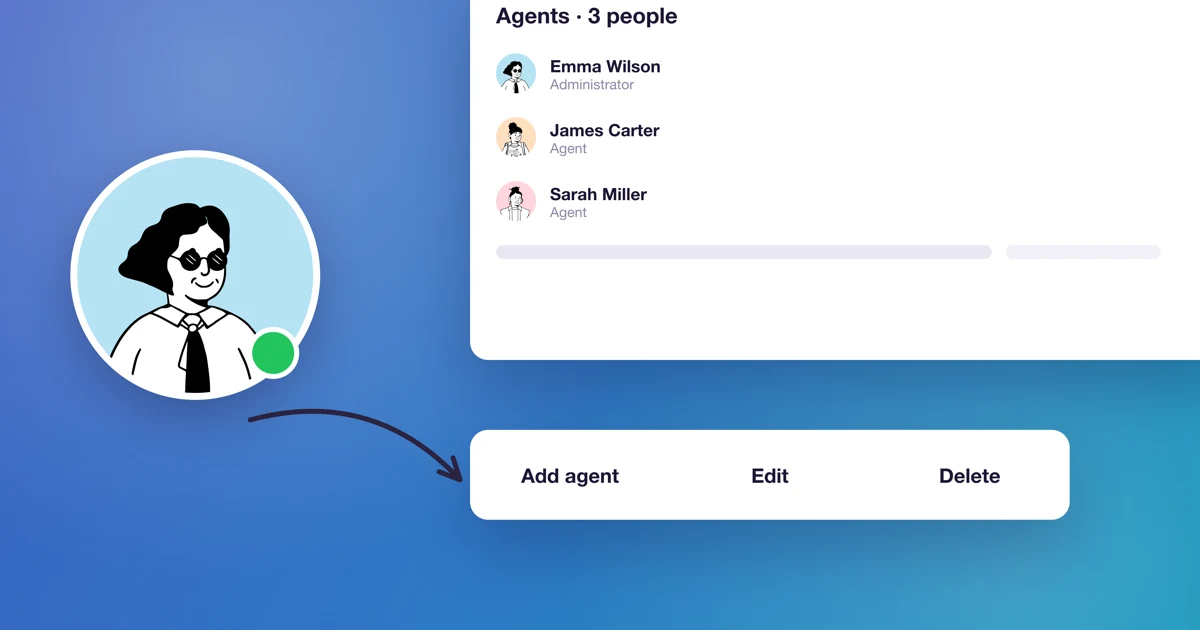
An agent is a person who logs in to the chat dashboard and answers clients. Every agent takes one agent slot in the Calendesk Chat add-on, and that includes the chat administrator. This article shows how to check how many slots you have, buy more and invite your colleagues.
Administrator or agent?
The chat dashboard has two roles:
- An Administrator sees everything: conversations, reports and all settings. They invite agents and create inboxes, labels and automation rules.
- An Agent answers conversations from the inboxes you add them to. They can create canned responses and their own macros, and they set up their own profile. They don't see reports or the other settings.
Calendesk panel administrators open the chat with one click from the Calendesk Chat menu item, and they all come in as the same chat administrator. Together they take one slot. Everyone else you invite as an agent.
How many slots do you have, and how do you buy more?
In the Calendesk panel, go to Integrations → Calendesk Chat. Next to Agent slots you'll see how many slots your add-on includes. Below it is the link Need more agents? Upgrade your package. It takes you to Billing → Subscription, where you change the Number of agents on the Calendesk Chat card.
Each slot costs the per-agent price shown in the billing window, paid monthly or yearly, the same way you pay for your plan. New slots work in the chat dashboard as soon as the change is paid.
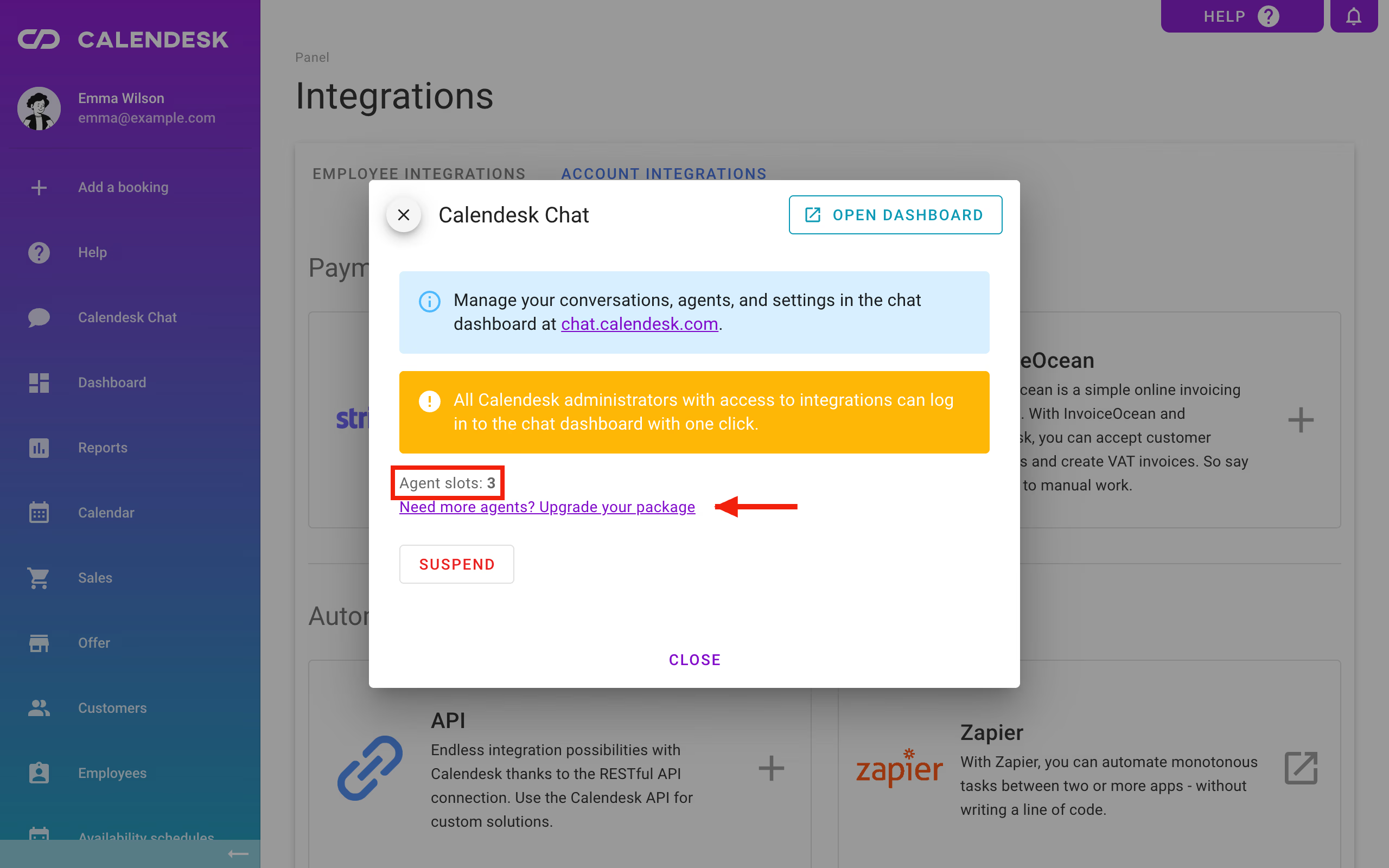
Want fewer slots? First remove the agents you don't need in the chat dashboard. Calendesk won't let you set fewer slots than the agents you have right now: the billing window tells you the minimum number of slots you need.
How do you add an agent?
This is a job for the chat administrator:
- in the chat dashboard, go to Settings → Agents and click Add Agent,
- enter the Agent Name, meaning their full name,
- under Role, choose Agent or Administrator,
- enter the Email Address and click Add Agent.
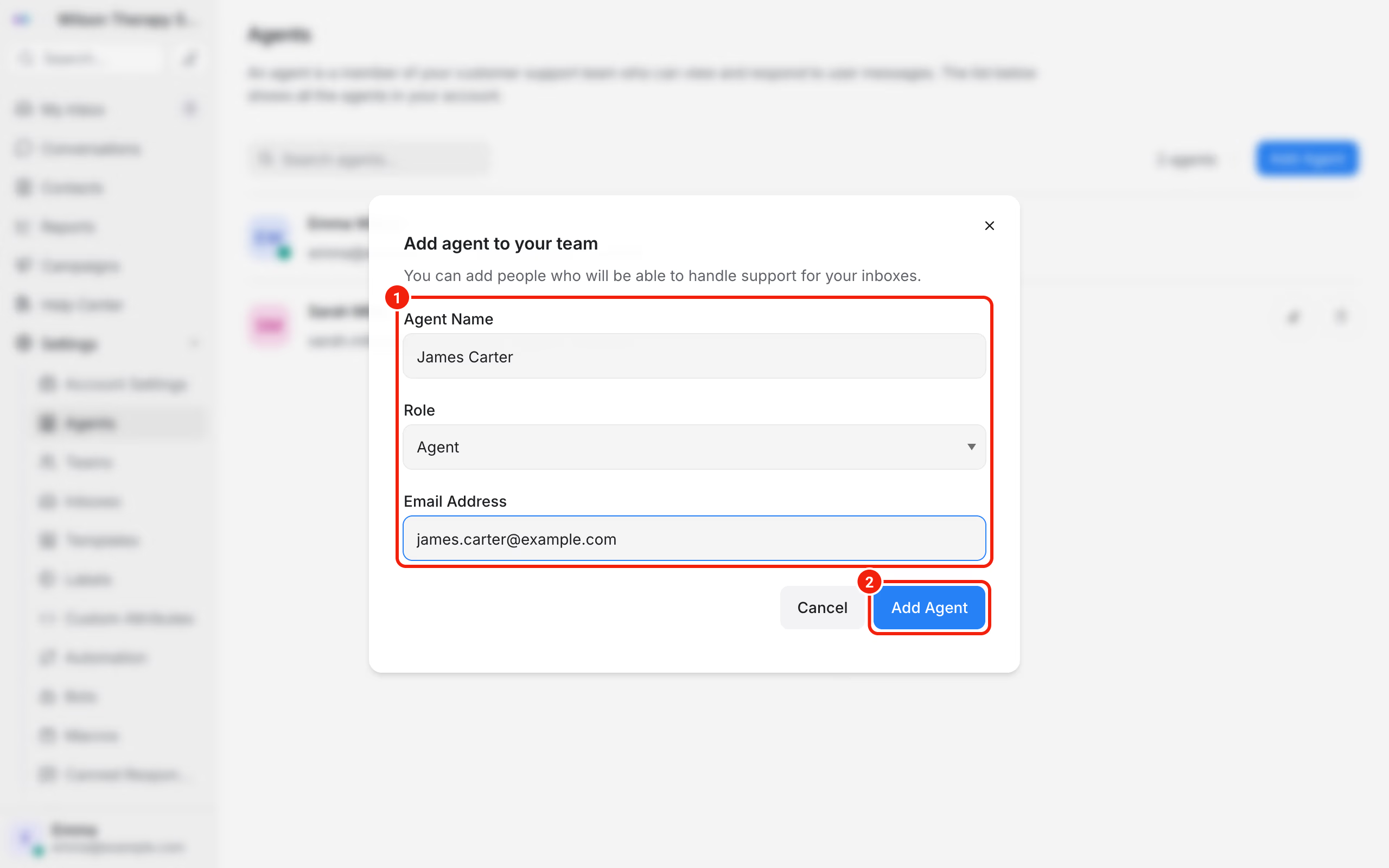
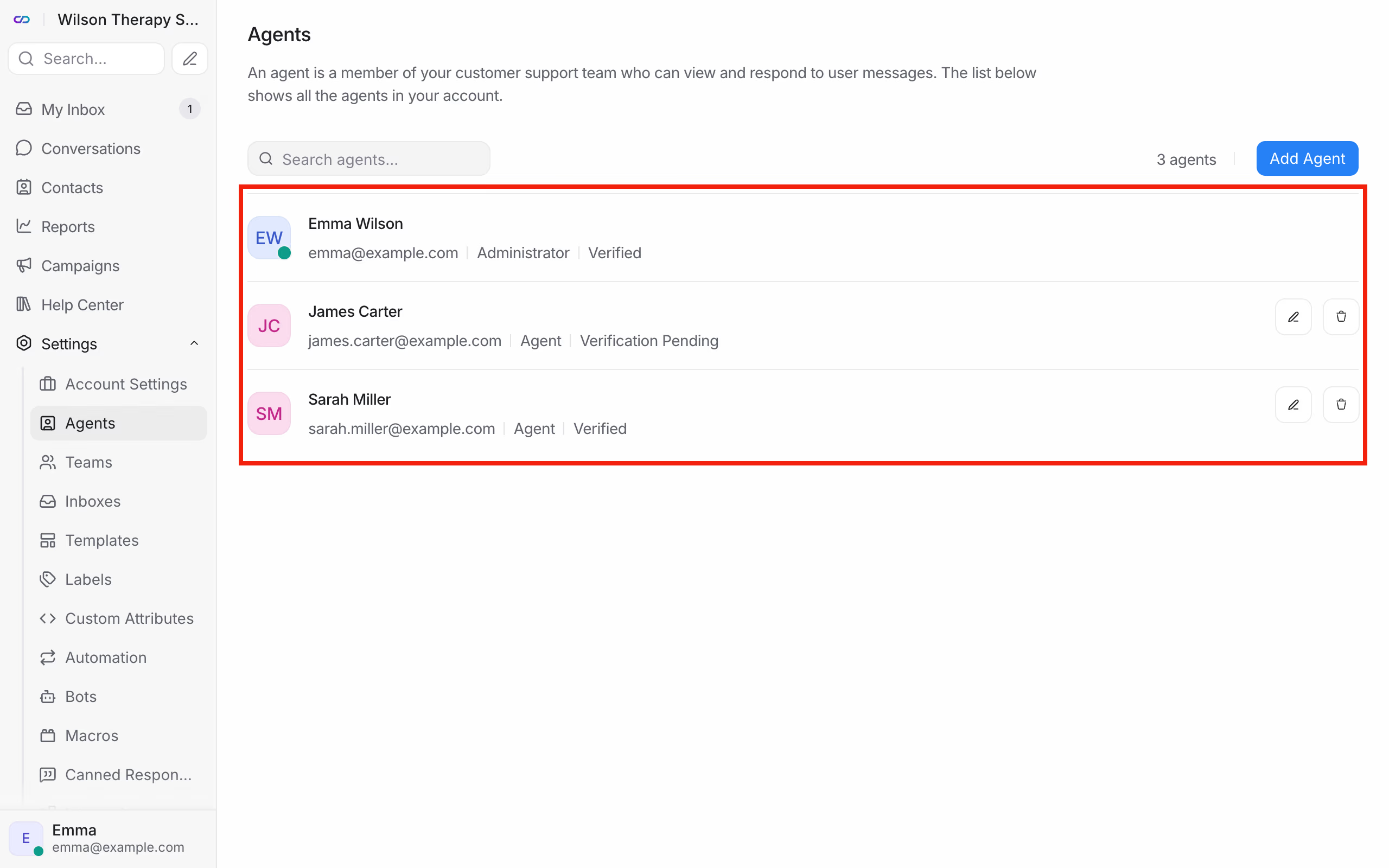
The new agent gets an invitation email with a link to set a password. Until then, their status on the list is Verification Pending. After that, they log in at chat.calendesk.com with their email and password.
One more thing: an agent only sees conversations from the inboxes they belong to. Add them to your website's inbox in its settings, on the Collaborators tab. We describe it in How do I set up the chat's look, greeting and business hours?
What happens when you run out of slots?
When every slot is taken, the chat dashboard won't add another agent. Buy a slot in Billing → Subscription, or remove an agent who no longer works with you.
How do you change an agent's details or remove them?
On the list in Settings → Agents, click the edit icon next to the agent. You can change their name, Role and Availability there. The Reset Password button sends the agent an email with a link to set a new password.
The trash icon removes the agent and frees up their slot. The conversations they handled stay in the dashboard.
Frequently asked questions (FAQ)
Does an agent need an account in the Calendesk panel?
No. The chat dashboard account is separate. An agent doesn't need access to the Calendesk panel.
An agent didn't get the invitation email. What should I do?
Ask them to check their spam folder. If the email isn't there, open the agent's edit window and click Reset Password. The agent gets a new link.
Can I have two chat administrators?
Yes. When you add or edit an agent, choose the Administrator role. Each of these administrators takes a separate slot and logs in with their own password.