How do I handle conversations in Calendesk Chat day to day?
This article is for everyone who answers on the chat: how to find new messages, reply, leave a note for a colleague, hand a conversation over and resolve it. At the end you'll find a setting that resolves conversations by itself once nobody writes in them anymore.
Where are the new messages?
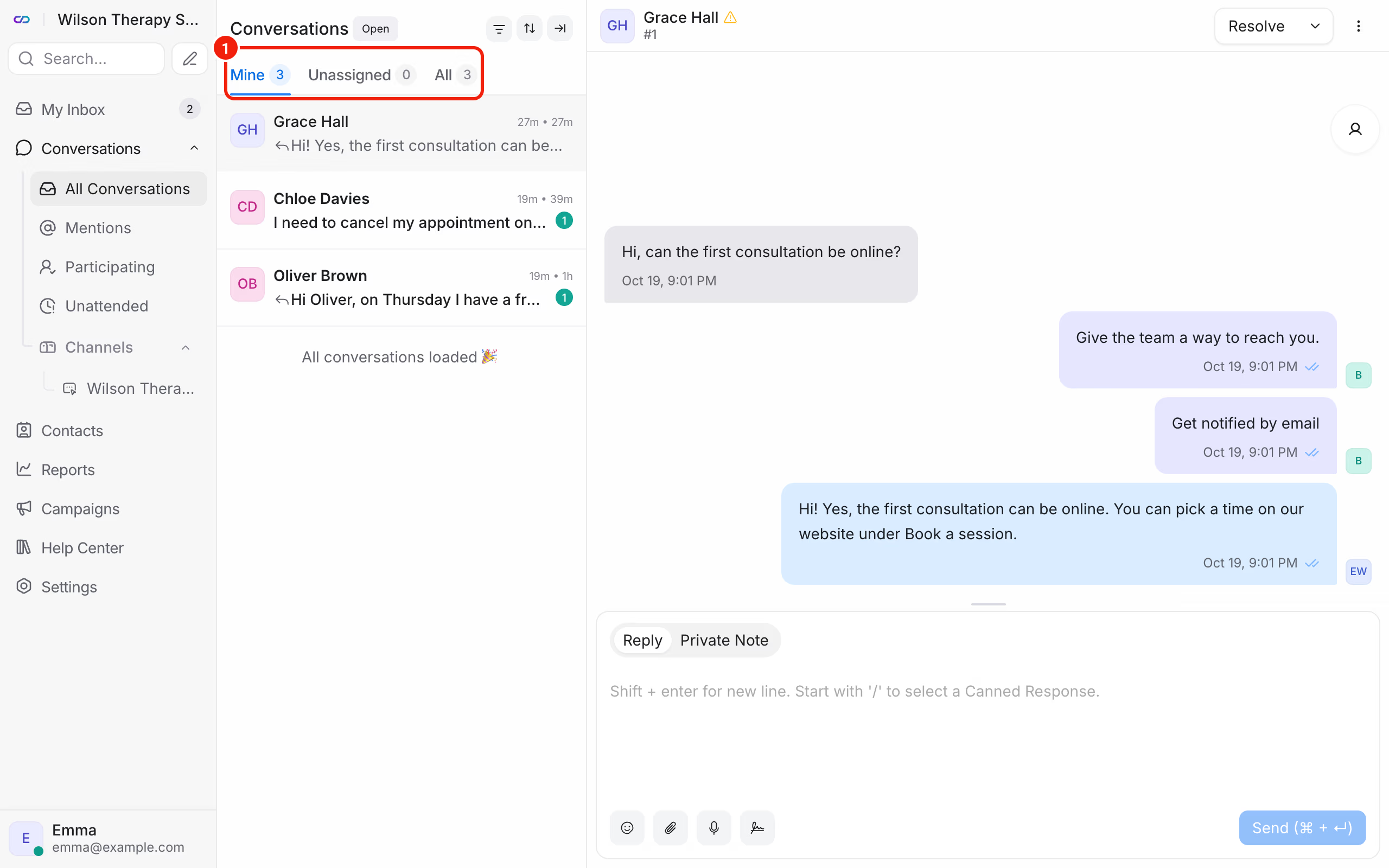
Click Conversations in the left menu. Above the list there are three tabs:
- Mine: conversations assigned to you,
- Unassigned: new conversations nobody has picked up yet,
- All: everything from the inboxes you have access to.
By default the list shows open conversations. Use the status filter to switch to Resolved, Pending, Snoozed or All. The left menu also has two ready-made views: Mentions (conversations where someone tagged you) and Unattended (conversations where a client is waiting for a reply).
How do you reply to a client?
Click the conversation, type your message in the box at the bottom and click Send. The client sees it right away in the chat window on your website.
- Shift + Enter adds a new line.
- Type
/and a few letters to insert a canned response. How to set them up: How do I use canned responses in Calendesk Chat? - Add a file with the Attach files icon and a voice message with the Record audio icon.
How do you leave a note the client won't see?
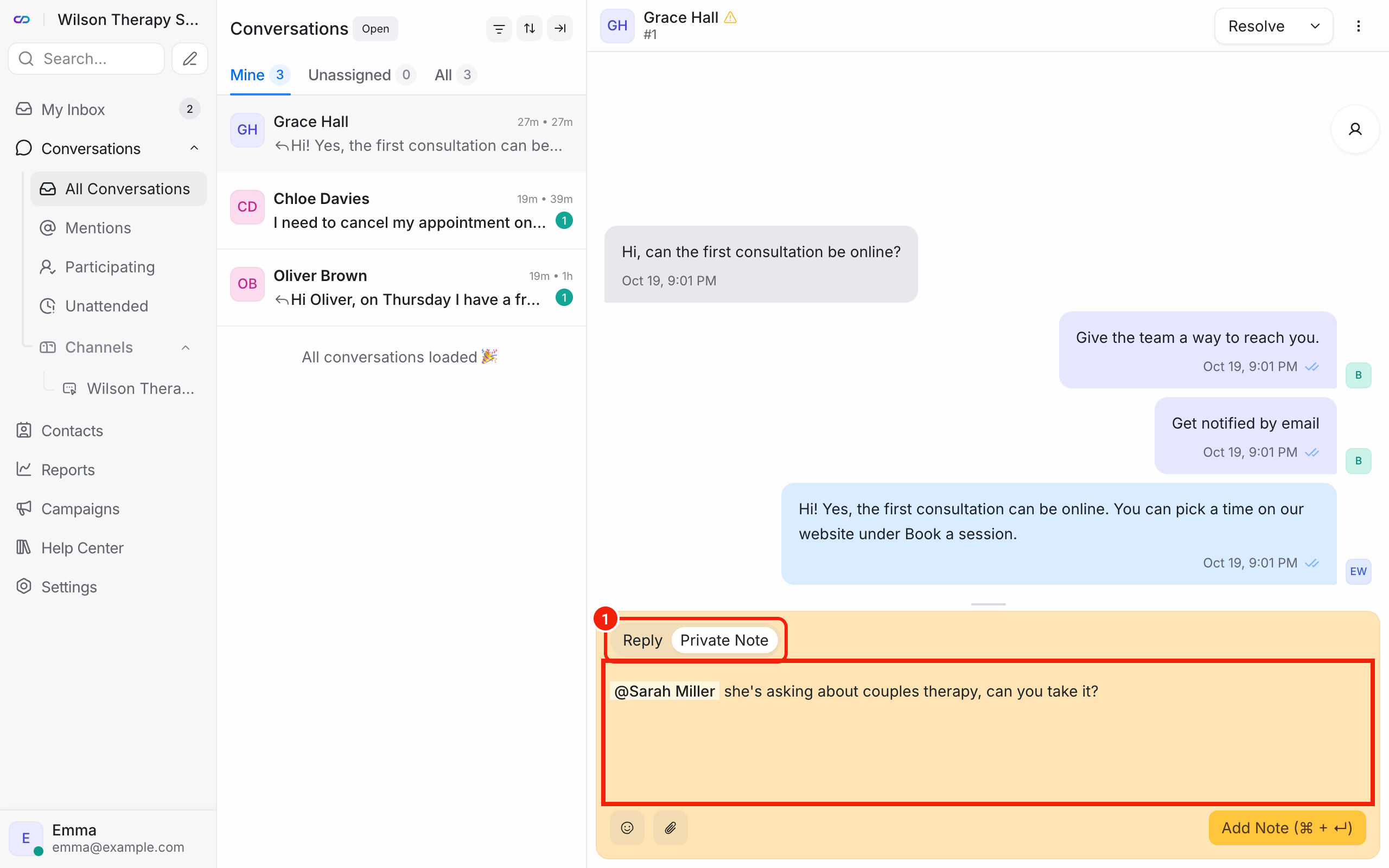
Above the message box, switch from Reply to Private Note. The box changes color, and only agents can see the note. It's handy when you want to add context or ask someone on your team for help.
In the note, type @ and pick a person from the list. They get a notification, and the conversation shows up in their Mentions.
How do you hand a conversation to someone else?
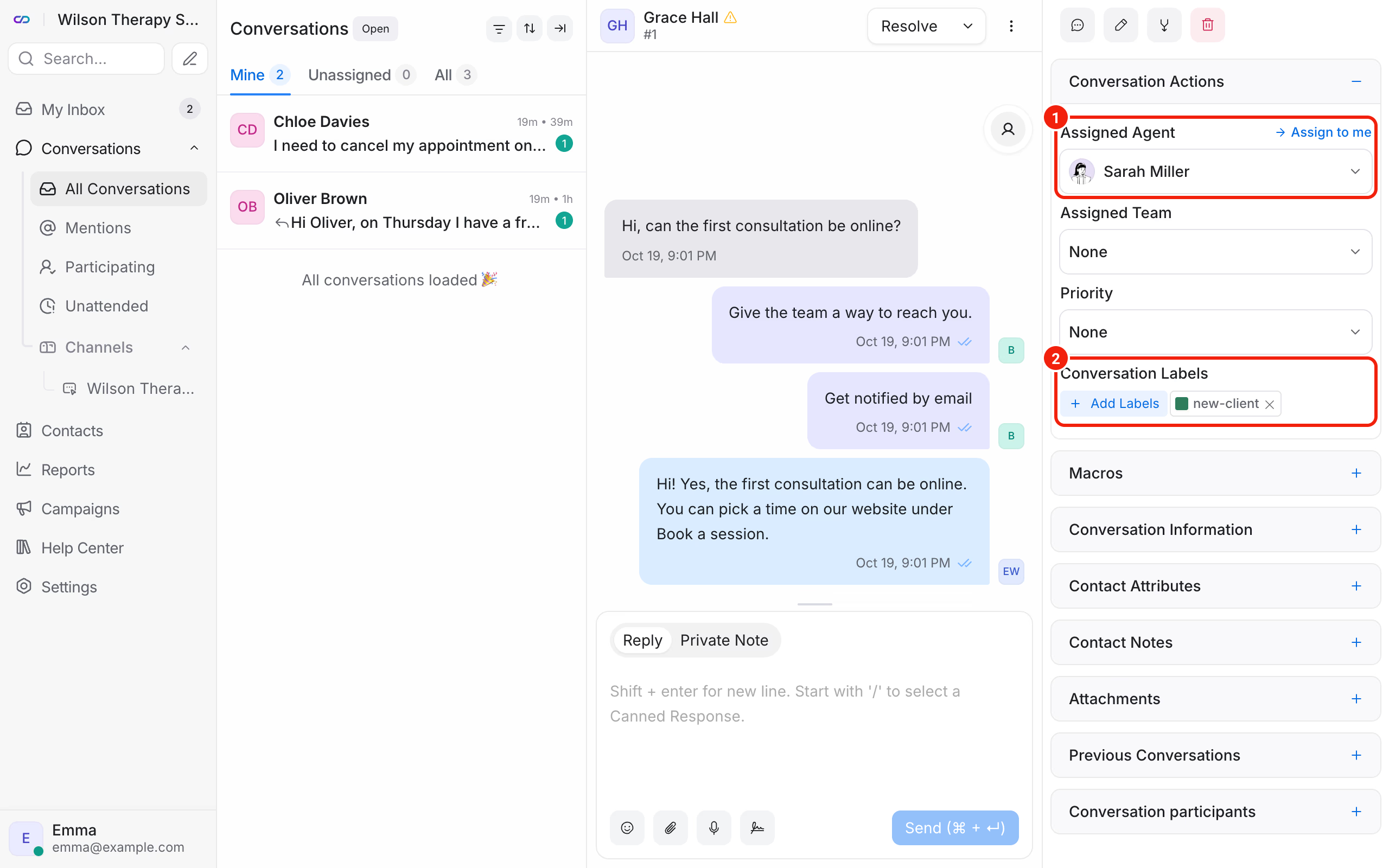
On the right side of the conversation, in the Conversation Actions section:
- Assigned Agent: pick the person who should handle the conversation, or click Assign to me,
- Assigned Team: pick a team, if you use them,
- Conversation Labels: label the conversation, for example "new-client" or "invoice".
The person you assign gets a notification and sees the conversation under Mine. More about labels in How do I organize conversations with labels and attributes?
How do you resolve a conversation?
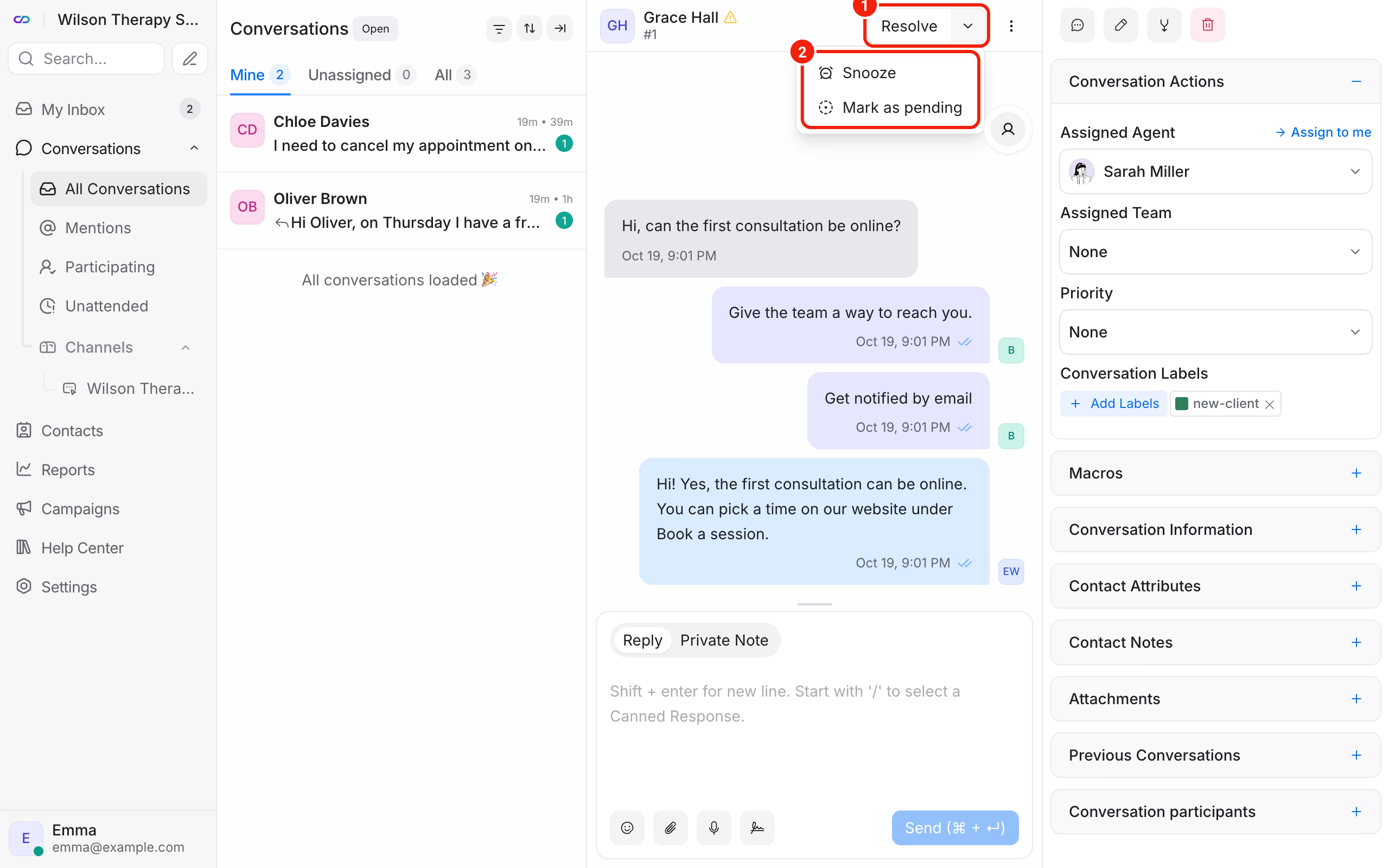
Once the matter is sorted, click Resolve in the top right corner of the conversation. The conversation leaves the open list. If the client writes in it again, it goes back to open.
The arrow next to Resolve gives you two other options:
- Mark as pending: the conversation waits, for example until you've checked the free slots,
- Snooze: the conversation leaves the list until the client's Next reply, until Tomorrow or until Next week, and then comes back.
How do you resolve conversations nobody replies to automatically?
Conversations where the client stopped writing can resolve themselves. The chat administrator sets this up in Settings → Conversation Workflow, in the Auto-resolve conversations section:
- Inactivity duration: how long without new messages before the conversation is resolved (from 10 minutes to 999 days),
- Custom auto-resolution message: the text the client gets when the conversation is resolved,
- Add label after auto-resolution: for example "no-reply", so these conversations are easy to find,
- Skip conversations waiting for agent's reply: a conversation where the client is waiting for you won't resolve itself.
Save with Save Changes. Tick that last option, so no client question gets resolved without an answer.
Where do you find the client's details and past conversations?
The conversation's right panel has the client's Contact Details, Previous Conversations and Contact Notes. The name and email show up if the client gave them on the chat, for example in the pre chat form.
Everyone who has ever written to you is under Contacts in the left menu.
Frequently asked questions (FAQ)
The client closed the page before I replied. What now?
The conversation stays in the dashboard. When the client comes back to your website in the same browser, they'll see your reply in the chat window. If they left an email address, you can also write to them from your own mailbox.
Can the client see who's replying?
Yes. Next to every message they see the agent's name and picture. You set them in your profile, described in How do I set up my profile and notifications in Calendesk Chat?