What is Calendesk Chat and how do I turn it on?
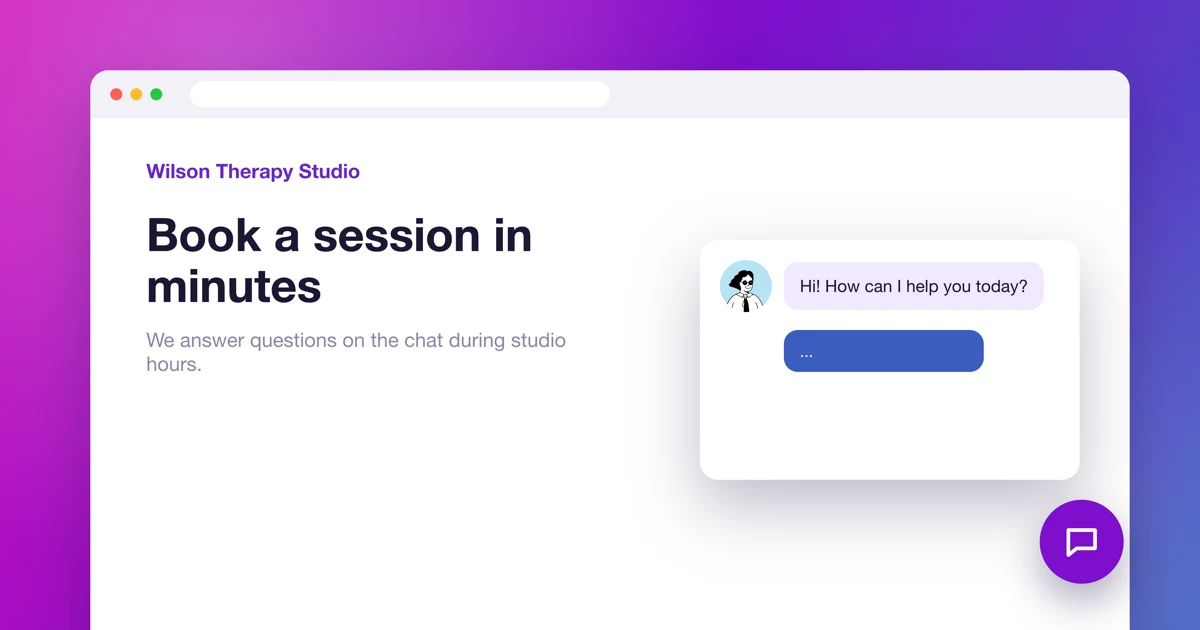
Calendesk Chat is live chat on your website. A client clicks the chat window in the corner of your site and types a question, and you answer from the chat dashboard at chat.calendesk.com. No phone tag, no waiting for an email. Read on for who the chat is for, how you pay for it and how to get it running, step by step.
Who is Calendesk Chat for?
For any business where clients have a question before they book. At a therapy practice it's usually something like: do you work with couples, can the first consultation be online, how long is a session? You answer in a minute, and the client books with you instead of looking somewhere else.
Several people can answer on the chat. Each of them is an agent: they have their own account in the chat dashboard and see the conversations from the inboxes you add them to.
How much does Calendesk Chat cost?
Calendesk Chat is an add-on for the Standard or Pro plan. You pay per agent, which means for every person who logs in to the chat dashboard. Each agent takes one agent slot.
The price per agent depends on the currency you're billed in and on how you pay for your plan: monthly or once a year. The setup window in billing shows the exact amount before you pay anything.
The chat administrator takes a slot too. Example: you and two colleagues make 3 agents, so you pay for 3 slots.
Step 1. Buy the Calendesk Chat add-on
- In the Calendesk panel, go to Billing → Subscription.
- On the Calendesk Chat card, click Enable.
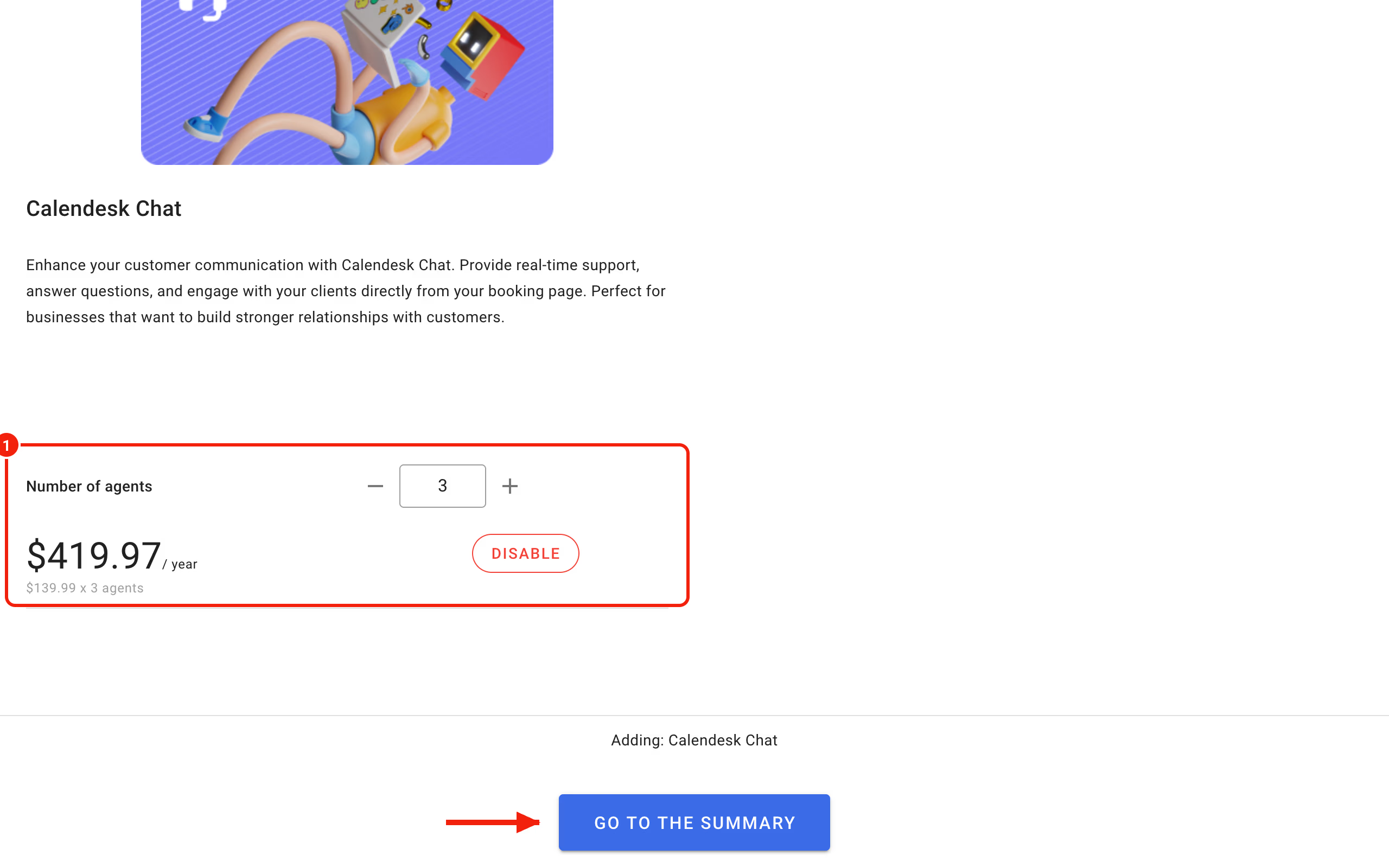
- In the window that opens, set the Number of agents.
- Click Go to the summary and confirm the payment.
Step 2. Set up the chat
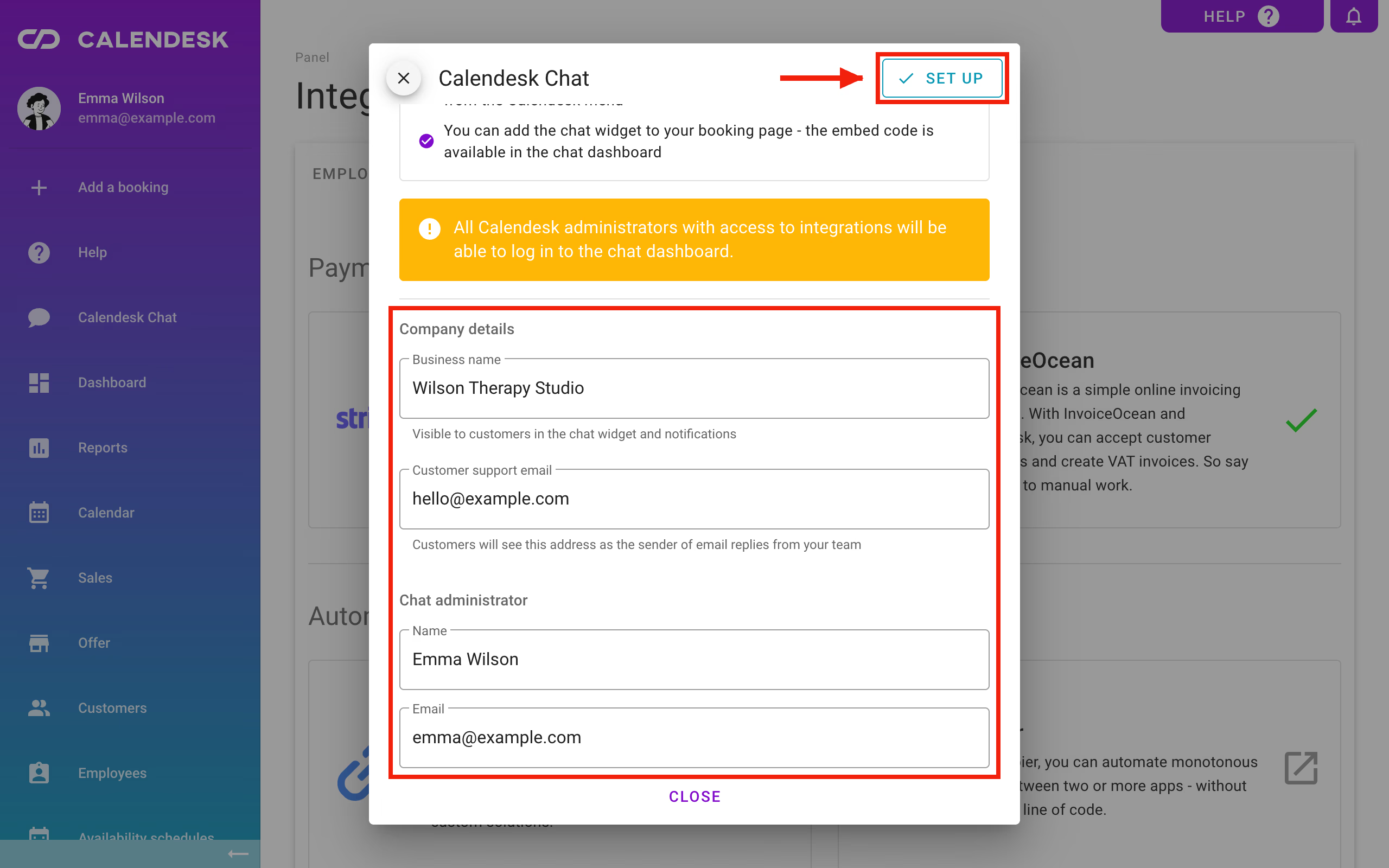
Once you've paid, Calendesk Chat shows up in the Calendesk panel menu. Click it. A setup form opens. You'll also find it under Integrations, in the Customer support section. Fill it in:
- Business name: clients see it in the chat window and in notifications,
- Customer support email: the address clients see as the sender when your team replies by email,
- in the Chat administrator section: the Name and Email of the person who will manage the chat.
Click Set up. A moment later, your chat account is ready.
Step 3. Open the chat dashboard
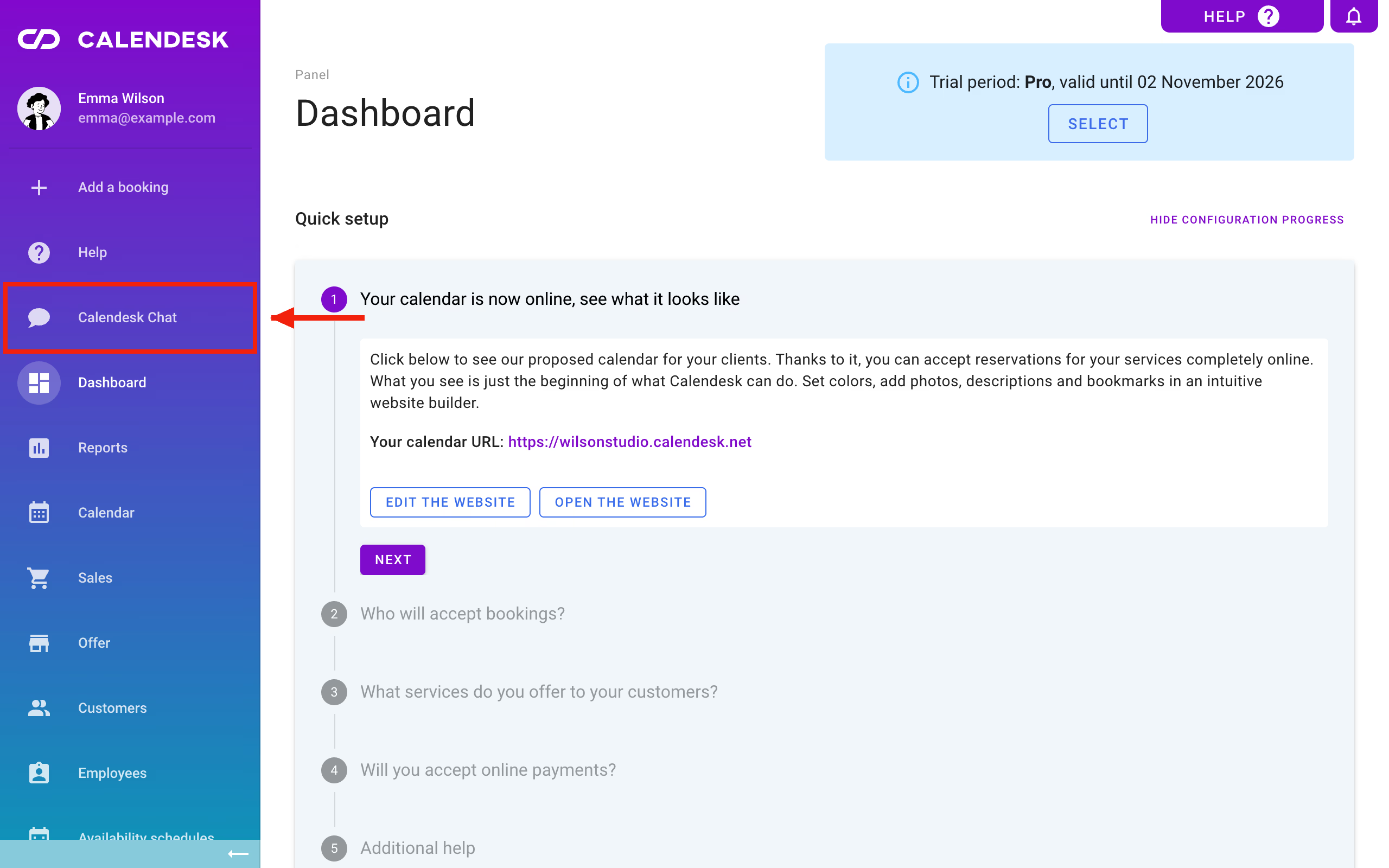
Click Calendesk Chat in the Calendesk panel menu. The chat dashboard opens in a new tab and you're already logged in. No password needed.
Every Calendesk administrator logs in this way: one click, as the chat administrator. Staff who will answer clients log in differently. You invite them in the chat dashboard as agents, and they sign in at chat.calendesk.com with their own email and password. You'll find out how in How do I add agents to Calendesk Chat?
Step 4. Add the chat to your website
The chat works on your website once you paste a short script into it. We've described the whole start, from the first login to a test message, in How do I get Calendesk Chat running on my website in 15 minutes?
What's in the chat settings?
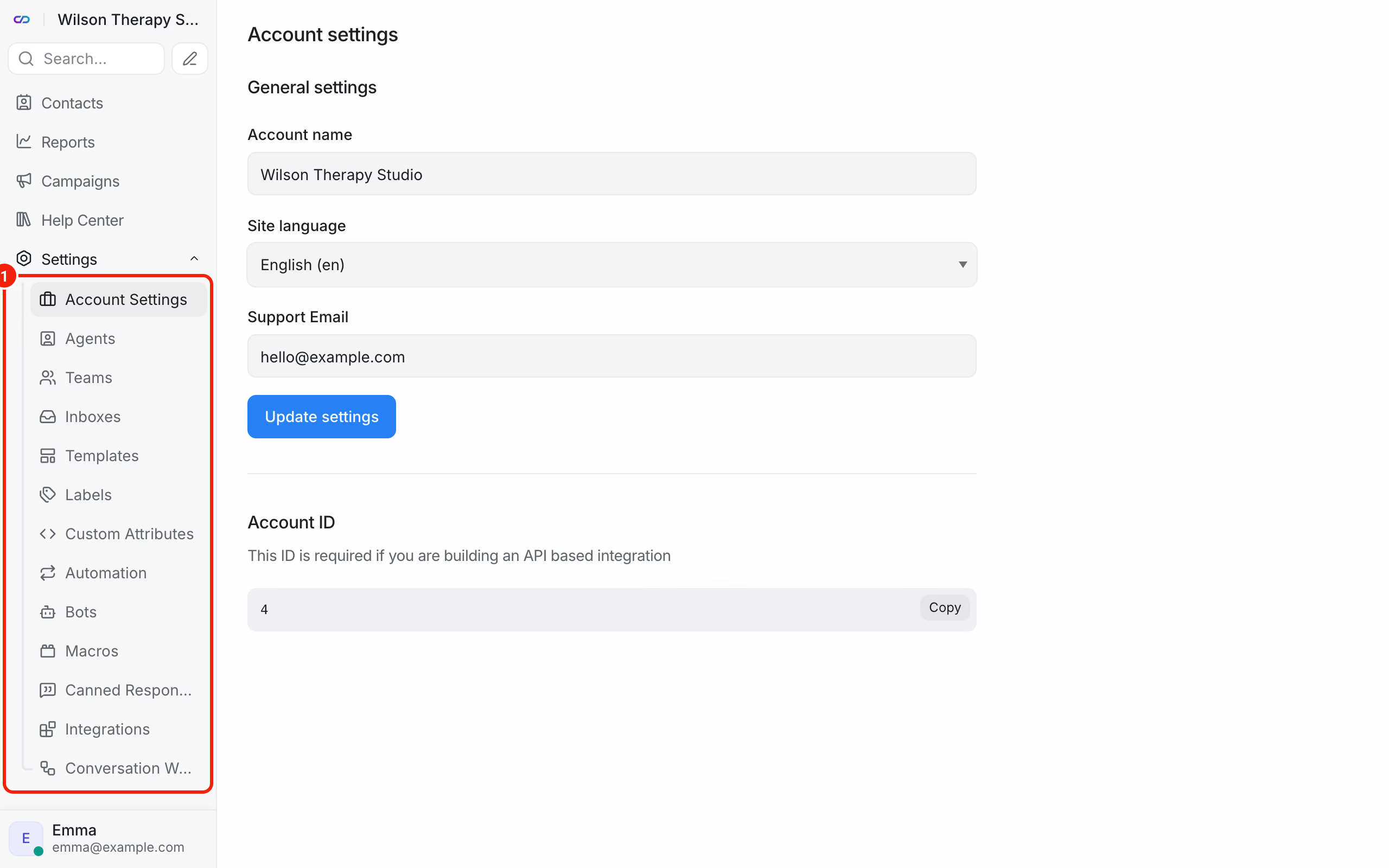
In the chat dashboard, click Settings in the left menu. You'll see:
- Account Settings: account name, language and support email.
- Agents: the people who answer on the chat. More about agents.
- Teams: groups of agents, useful once you're three people or more. More about teams.
- Inboxes: this is where you create the chat for your website and set how it looks. How to add the chat to your website.
- Labels and Custom Attributes: keep your conversations in order. More about labels and attributes.
- Automation: rules that assign and label conversations for you. More about automation.
- Bots: a link to your company's own system. More for developers.
- Macros: several actions in one click. More about macros.
- Canned Responses: message templates you insert with a shortcut. More about canned responses.
- Integrations: connections to other tools. More about integrations.
- Conversation Workflow: automatically resolving conversations nobody replies to. More about handling conversations.
Frequently asked questions (FAQ)
Can I change the number of agents later?
Yes. You can buy more slots at any time in Billing → Subscription. To go down to fewer slots, first remove the agents you no longer need in the chat dashboard.
How do I stop paying for the chat?
Go to Billing → Subscription and click Disable on the Calendesk Chat card. The Suspend button in Integrations → Calendesk Chat only switches the chat window off on your website. It doesn't stop the payments.
Does a staff member need access to the Calendesk panel to answer on the chat?
No. An agent has a separate account in the chat dashboard and logs in at chat.calendesk.com. They don't need access to the Calendesk panel.