Why can't my customer pay for a booking?
Grace Hall books a psychological consultation at Wilson Therapy Studio, then emails you: she can't pay the $50. The cause almost always sits in one of four places: your Stripe account, the service settings, the booking status or the customer's browser. Check them in that order.
How does a customer pay for a booking?
Online payments in Calendesk run through Stripe. Right after booking, the customer sees the Your booking window with a Pay Online button. It takes them to Stripe's payment page, and once they've paid they land back on your site with "The payment was successful, thank you!".
They don't have to pay right away. If you send email notifications, the "Booking confirmation - payment required" email has a link back to the booking. Customers with an account on your site also find unpaid bookings in the Bookings tab.
Which payment methods show up on Stripe's page is your call, in your Stripe account under Payment methods. Cards, BLIK, Przelewy24 and the rest are all switched on there. Calendesk has no separate Przelewy24 integration; it goes through Stripe as well. BLIK only appears when your prices are in Polish złoty.
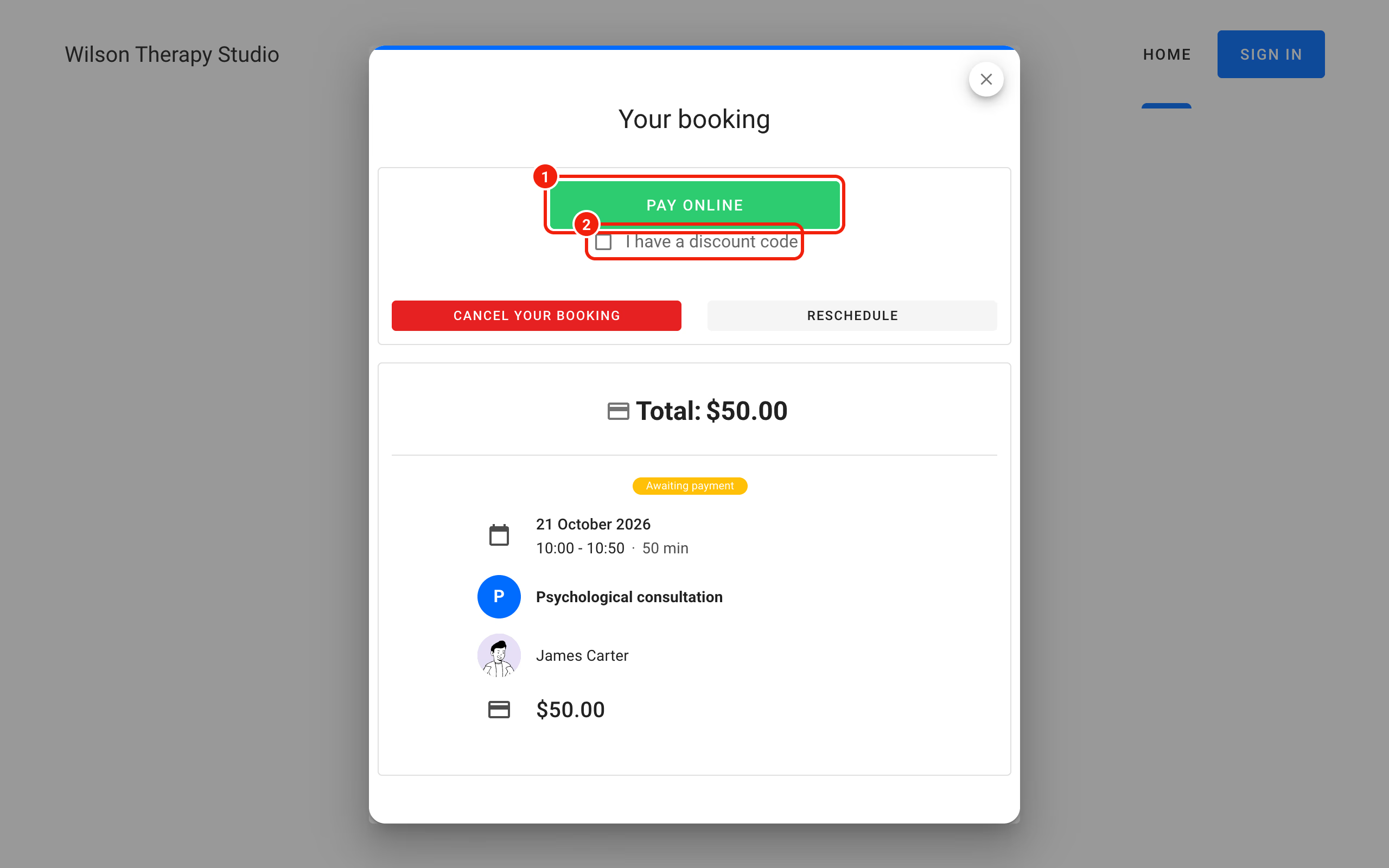
When does the customer see the Pay Online button?
Only when all four of these are true:
- Your Stripe account is connected and verified. Under Integrations – Stripe you see the Account connected step. If it still says Account verification, Stripe is checking your details and nobody can pay yet.
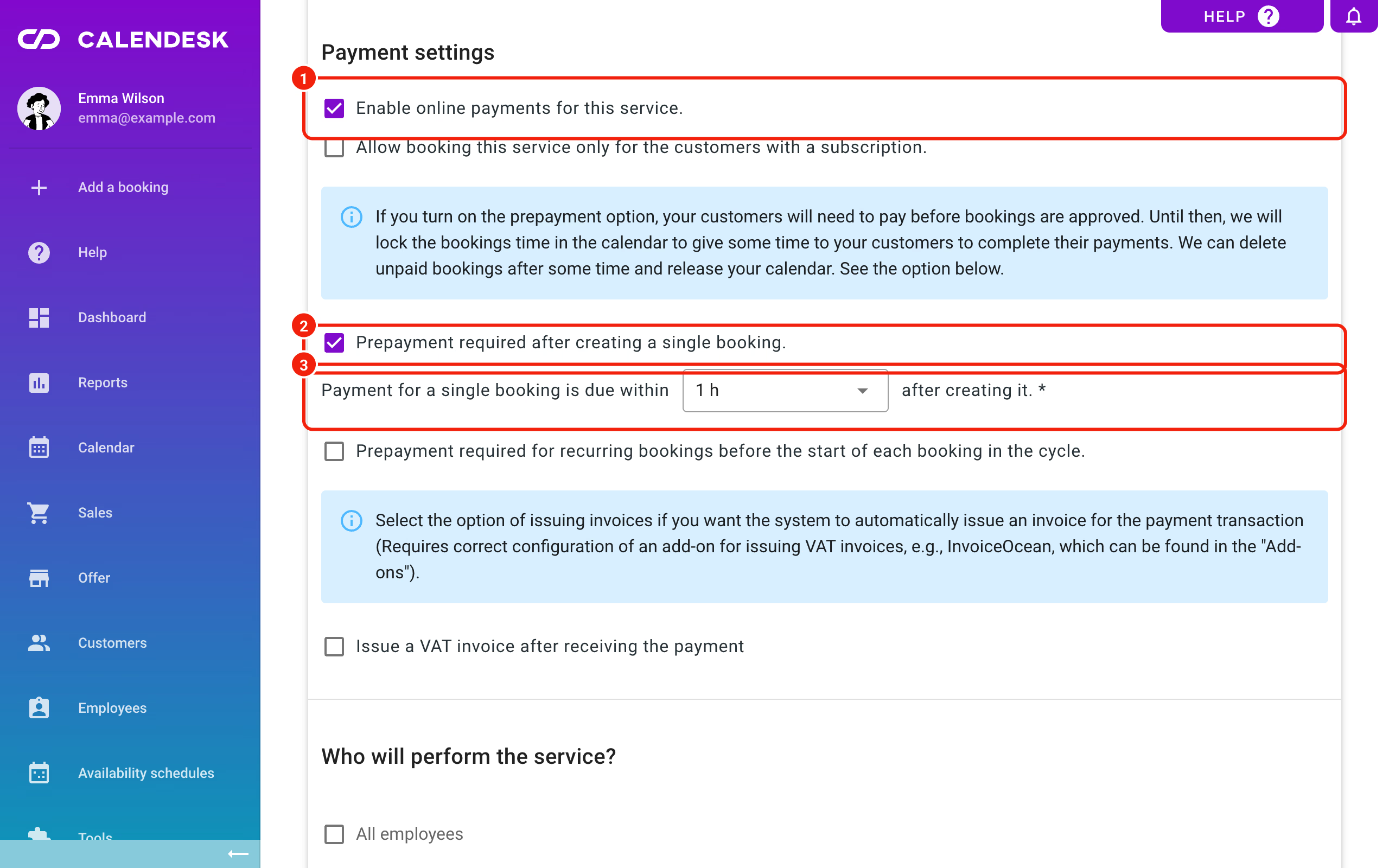
- The service takes payments. Go to Offer – Services, edit the service and tick Enable online payments for this service. in Payment settings.
- The price in Price in USD is at least $1.00 and the service isn't marked Free. Below that, the button stays hidden.
- The booking is unpaid and its status is Approved or Prepayment required. A booking that's Awaiting approval or Canceled can't be paid online.
Tick online payments while Stripe isn't ready and the service form warns you: "Stripe integration is inactive. Connect Stripe to accept payments."
Should payment be required or optional?
One checkbox decides it: Prepayment required after creating a single booking. in the service's Payment settings.
With it ticked, a new booking gets the Prepayment required status. The time slot is held for the customer, and you and your employee hear about the booking only once it's paid. Leave it unticked and payment is optional. The booking is Approved straight away, and the customer pays online or in person. Recurring bookings have their own checkbox: Prepayment required for recurring bookings before the start of each booking in the cycle.
Prepayments in detail: How to set up prepayments for bookings?
What happens if the customer doesn't pay in time?
With prepayment on, you pick how long the customer has in Payment for a single booking is due within: anything from 30 minutes to 14 days, or No limit. Calendesk checks unpaid bookings every 5 minutes. Once the time is up, the booking switches to Canceled and the slot opens again. If you send email notifications, the customer gets a cancellation email. You don't get one, so abandoned payments don't flood your inbox.
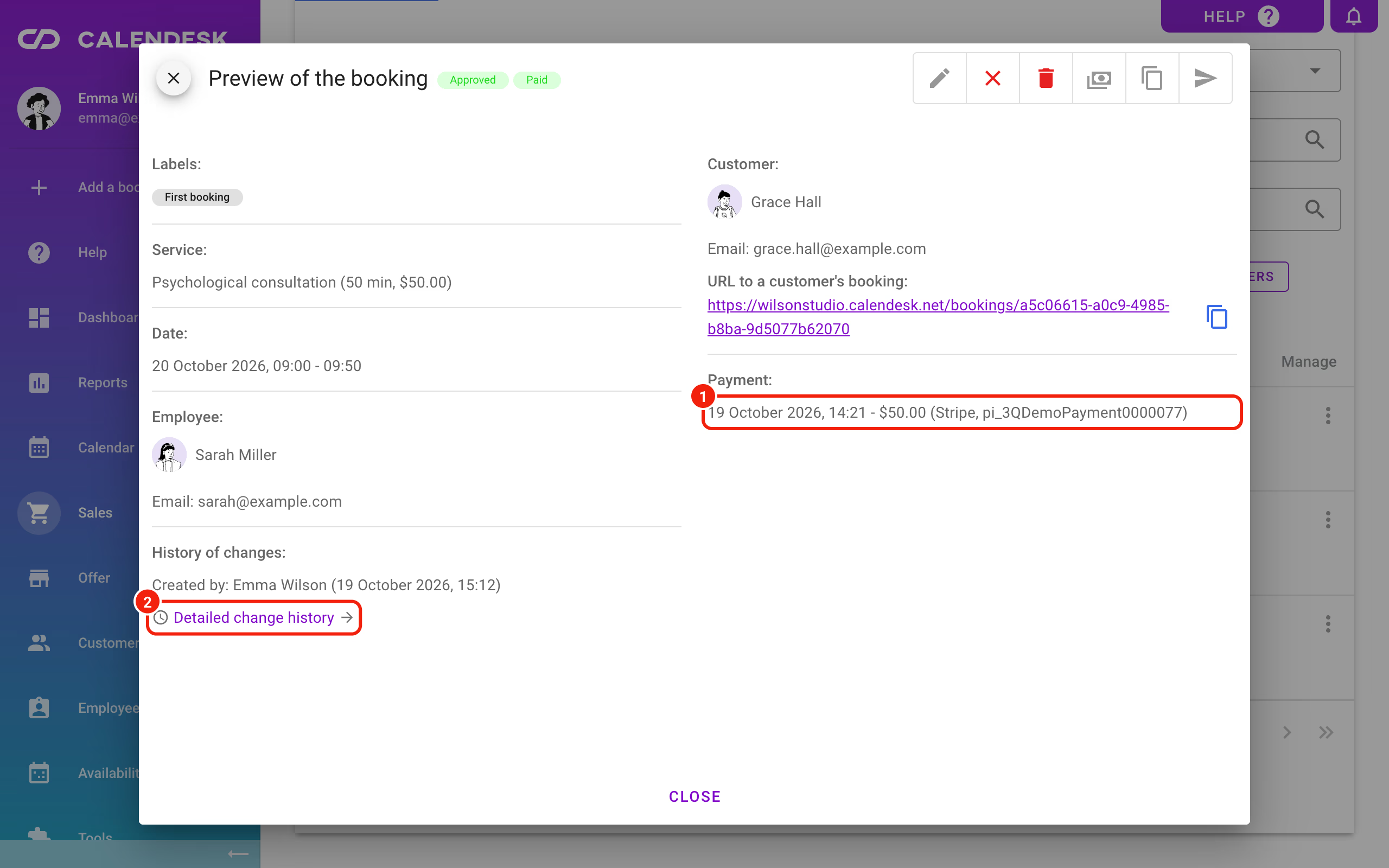
The booking stays on your list. Open it, go to Detailed change history and you'll see Cancellation source: Payment not received.
With No limit, an unpaid booking waits forever and keeps the slot blocked the whole time.
One edge case. Stripe's payment page stays open for 30 minutes to 24 hours, depending on your payment time. A customer who pays on a page that's still open after the booking was canceled does get charged, but the booking stays canceled. Add the booking back by hand or refund the payment in Stripe.
What do the error messages on the booking site mean?
When a payment fails, the customer sees one of these:
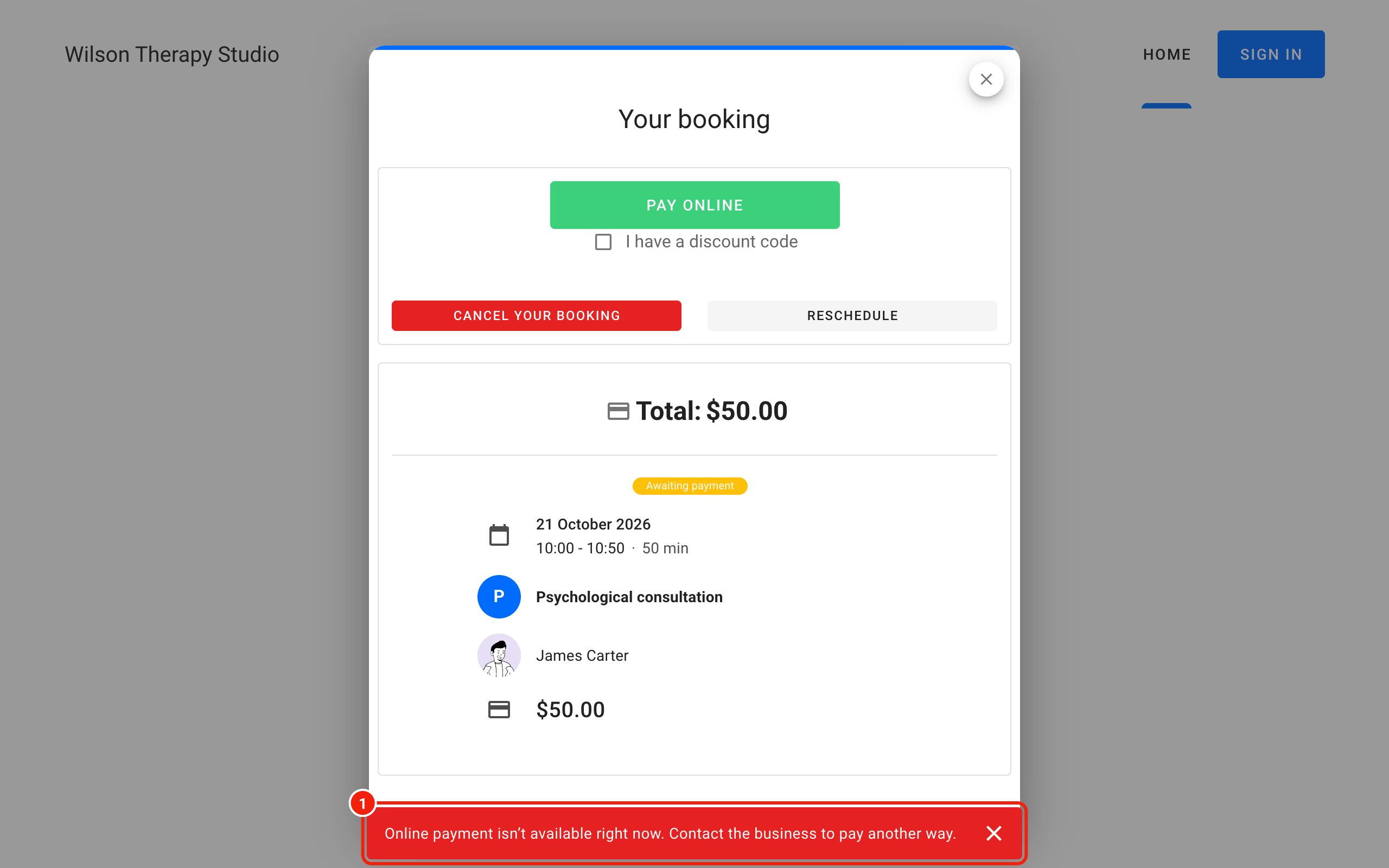
- "Online payment isn’t available right now. Contact the business to pay another way." Stripe isn't accepting payments on your account at the moment, usually because of a pending verification or missing details. Log in to Stripe and see what it's asking for.
- "Payment is unavailable. Refresh the page or use the link in the email again to view the booking." This booking can't be paid anymore. It's already paid, it was canceled (for example for non-payment), or the service no longer takes online payments.
- "The payment operator Przelewy24 cannot be used. Please get in touch with your payment operator." Stripe has blocked Przelewy24 on your account. Przelewy24 checks the website listed in your Stripe account; missing terms, a missing privacy policy or incomplete company details get the method switched off. Fix the website, then ask Stripe support to review your account again.
- "The provided discount code is invalid." The code doesn't exist in your Stripe account, it has expired, or the customer already used a one-time code.
- "The payment has failed, please try again." The customer left Stripe's page without paying, for example with the back button. They see the booking again with Pay Online and can retry.
- "Sorry, an error occurred. Please try again in a moment." Something else went wrong. If it keeps happening, email us.
Is the customer paying inside Instagram or Facebook?
The browsers built into those apps sometimes block the jump to Stripe. The booking site spots this and swaps Pay Online for a Go to payment button. The customer taps it and the payment page opens.
Still stuck? Ask them to open the link in a regular browser like Safari or Chrome.
If you've embedded the booking calendar on your own website, paste the code from the website builder as it is. Stripe's payment page never opens inside a frame, so a sandbox attribute added to that frame can block payments completely.
Where can you see if a booking is paid?
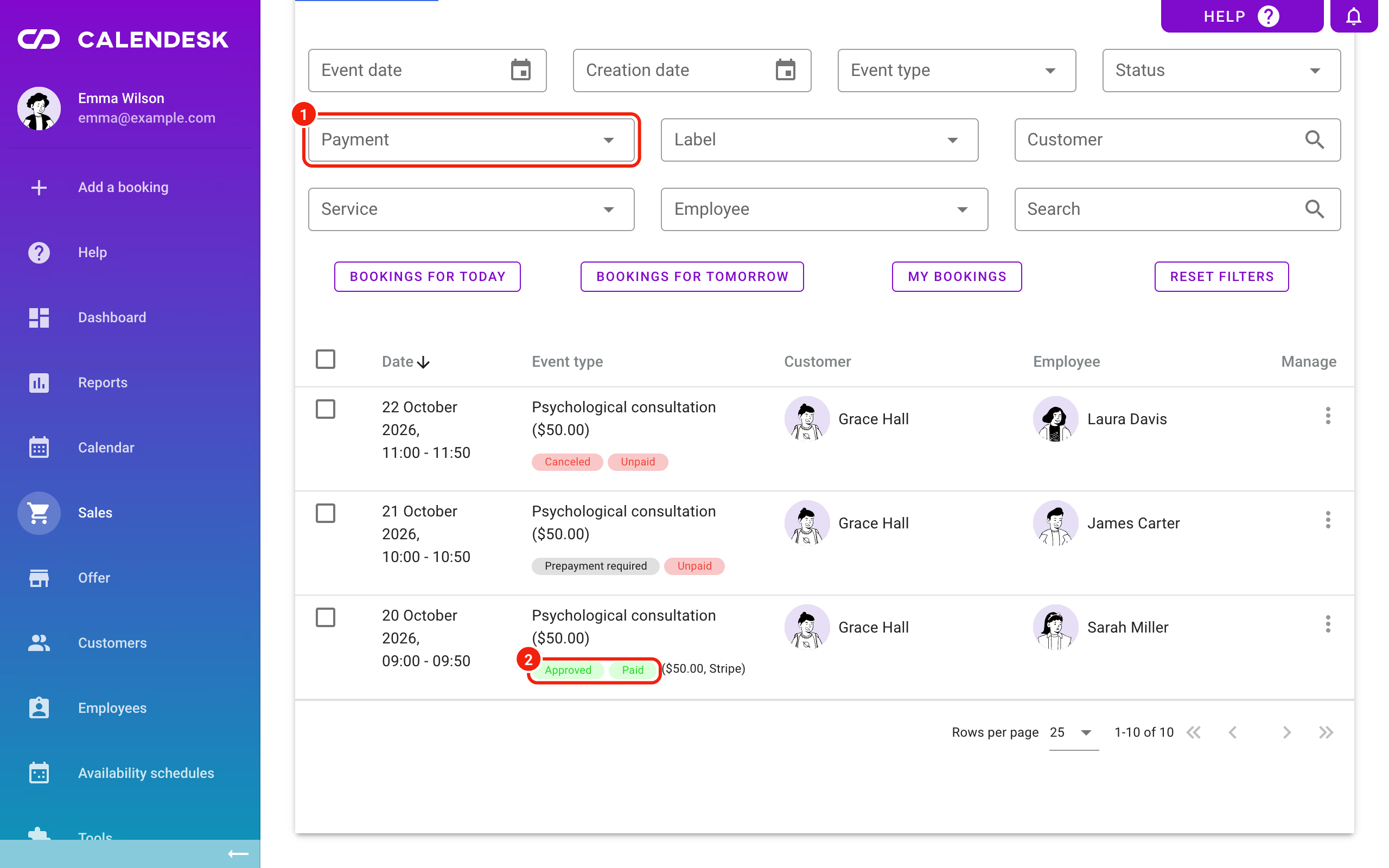
In Sales – Bookings, every booking shows Paid or Unpaid next to its status. Use the Payment filter to list only one kind.
Open a paid booking and the Payment part shows the date, amount, method and transaction number. Paste that number into Stripe's search to find the payment, for a refund for example.
Customer paid in cash or by bank transfer? Pick Pay on the booking. In the Pay for the booking window, choose the Payment method, tick Paid and save. The Transaction number / comment field takes a note like the transfer reference.
When should you contact us?
Email [email protected] when Integrations – Stripe says Account connected, the service takes online payments, and the customer still can't pay. Same if Stripe shows a successful payment but the booking still reads Unpaid several minutes later. Include the booking ID, the customer's email, the time they tried and a screenshot of the message.
Problems with the Stripe account itself, like verification or a blocked payment method, are for Stripe support.
Frequently asked questions (FAQ)
Does the customer get a refund when a booking is canceled?
Not automatically. Calendesk never refunds on its own. You refund in your Stripe account: find the payment by its transaction number and click Refund.
Why doesn't the customer see BLIK on the payment page?
BLIK has to be switched on under Payment methods in Stripe, and your prices have to be in Polish złoty. Stripe says a BLIK code is valid for 2 minutes and the customer has 60 seconds to approve it in their banking app. After that they need a new code.
Can I send the customer the payment link again?
Yes. The link to manage the booking is in your email notifications. To add it to your own message text, see How can your customers manage their bookings? It only works for a booking that isn't canceled.
Can a customer pay for several bookings at once?
Yes, if they have an account on your site. In the Bookings tab they add unpaid bookings to the cart in the Bulk payment column, then click Bulk payment.