How to add a fixed phone button to your website with Google Tag Manager?
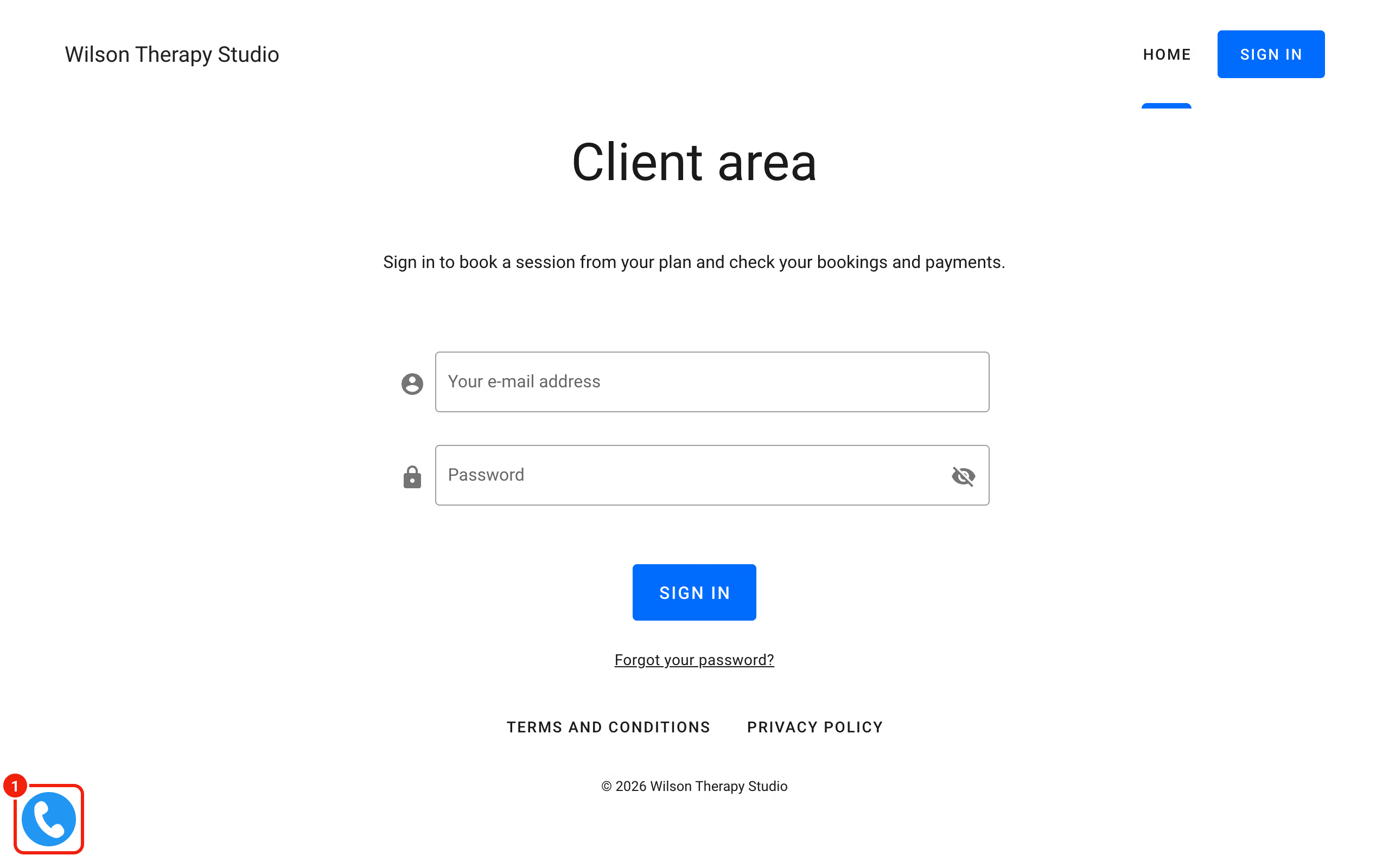
Many customers still like to pick up the phone before they book. A phone button that stays visible on every page of your website, for example in the bottom left corner, makes that easy. You can add one with Google Tag Manager.
Connect Google Tag Manager to your website
If your website already uses Google Tag Manager, skip to the next part. Otherwise:
- Sign in to Google Tag Manager with your Google account and create an account and a container for your website (choose Web as the platform).
- Copy the container ID. It looks like GTM-XXXXXX.
- In Calendesk, open your website from Tools – Websites, go to the General tab, open the Integrations and advanced group and paste the ID into Google Tag ID.
- Click Publish.
If your website shows a cookie banner, also check Google Tag Manager runs in the same group. With After the visitor agrees to cookies, the phone button shows only to visitors who accept cookies.
Add the phone button
In Google Tag Manager, open your workspace and add a new tag.
- Name the tag so you know what it does later, for example "Phone".
- Tag configuration: choose Custom HTML and paste this code:
<a href="tel:+442079460958"> <div class="phone-call"> <img src="https://media.calendesk.com/demo/static/phone.png" height="50" alt="Call Now" title="Call Now"> </div> </a> <style> .phone-call { width: 50px; height: 50px; left: 20px; bottom: 20px; background-color: #2196f3; position: fixed; text-align: center; color: #ffffff; cursor: pointer; border-radius: 50%; z-index: 99; display: inline-block; line-height: 65px; } .phone-call:before { position: absolute; content: " "; z-index: -1; top: -15px; left: -15px; background-color: #2196f3; width: 80px; height: 80px; border-radius: 100%; animation-fill-mode: both; -webkit-animation-fill-mode: both; opacity: 0.6; -webkit-animation: pulse 1s ease-out; animation: pulse 1.8s ease-out; -webkit-animation-iteration-count: infinite; animation-iteration-count: infinite; } @-webkit-keyframes pulse { 0% { -webkit-transform: scale(0); opacity: 0; } 25% { -webkit-transform: scale(0.3); opacity: 1; } 50% { -webkit-transform: scale(0.6); opacity: .6; } 75% { -webkit-transform: scale(0.9); opacity: .3; } 100% { -webkit-transform: scale(1); opacity: 0; } } @keyframes pulse { 0% { transform: scale(0); opacity: 0; } 25% { transform: scale(0.3); opacity: 1; } 50% { transform: scale(0.6); opacity: .6; } 75% { transform: scale(0.9); opacity: .3; } 100% { transform: scale(1); opacity: 0; } } </style> - Triggering: choose All Pages.
- Click Save.
- Click Submit, then Publish, so the change goes live.
On a phone the button looks like this:
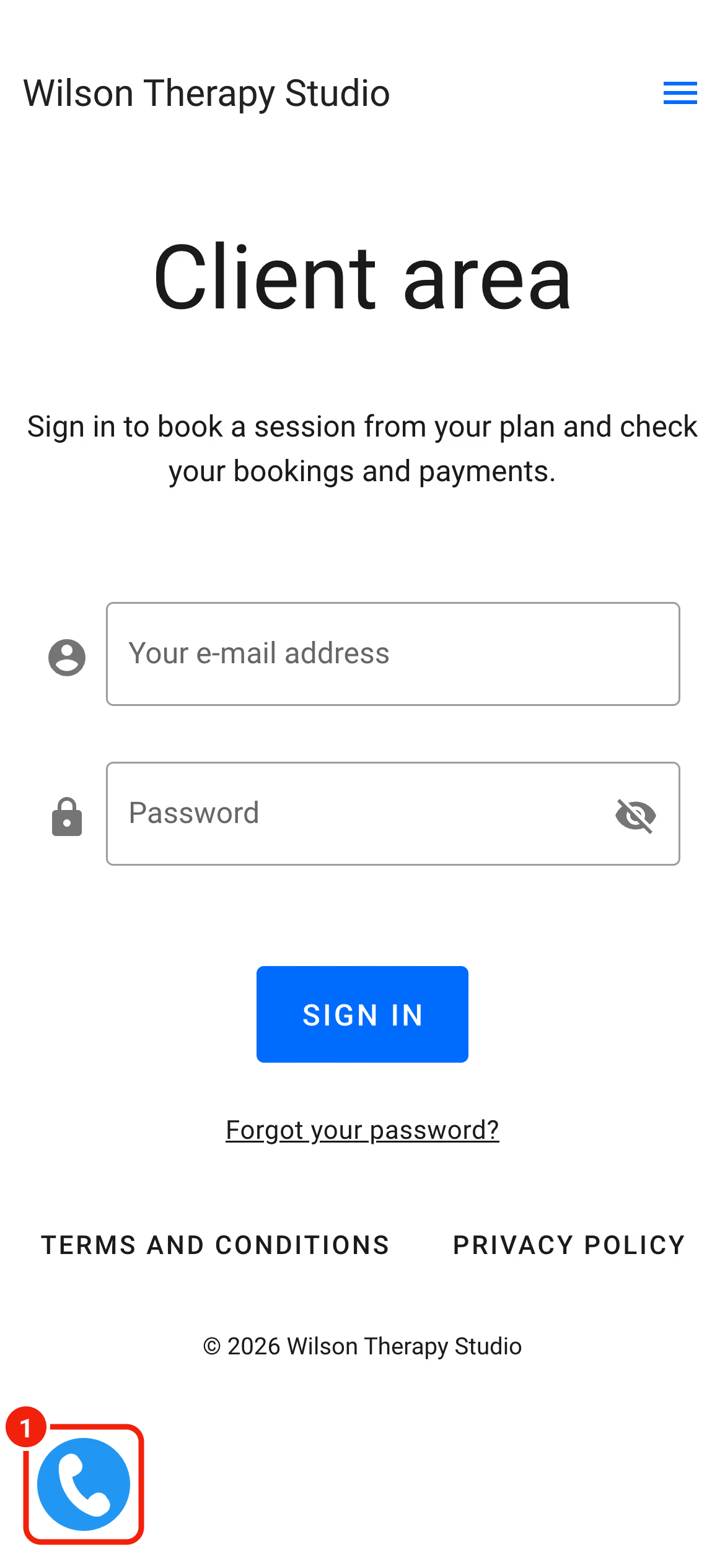
When a customer taps it, their phone calls the number from the code.
Making the button your own
To change the number, the colour, the size or the pulsing effect, edit the code above.
Put your phone number in line 1, after tel:, with the country code and no spaces:
<a href="tel:+442079460958">Change the colour in lines 12 and 29:
background-color: #2196f3;The colour is a HEX code. A colour picker gives you the code for any colour you like.
Remember to save and publish every change in Google Tag Manager.