I can't log in to Calendesk. What can I do?
The panel won't let you or one of your employees in? Most of the time a new password, set from the link in an email, fixes it. If it doesn't, this article goes through every message the login page can show and what to do about each one.
Where do you log in to the Calendesk panel?
The panel has one address: admin.calendesk.com. The ending only sets the panel language: /en, /pl, /de, /es or /fr. Your account and password are the same in every version.
On the Log in to the Calendesk panel page, type your email in Your email address (1), your password in Password (2) and click Log in. The Forgot your password? link (3) sits under the button.
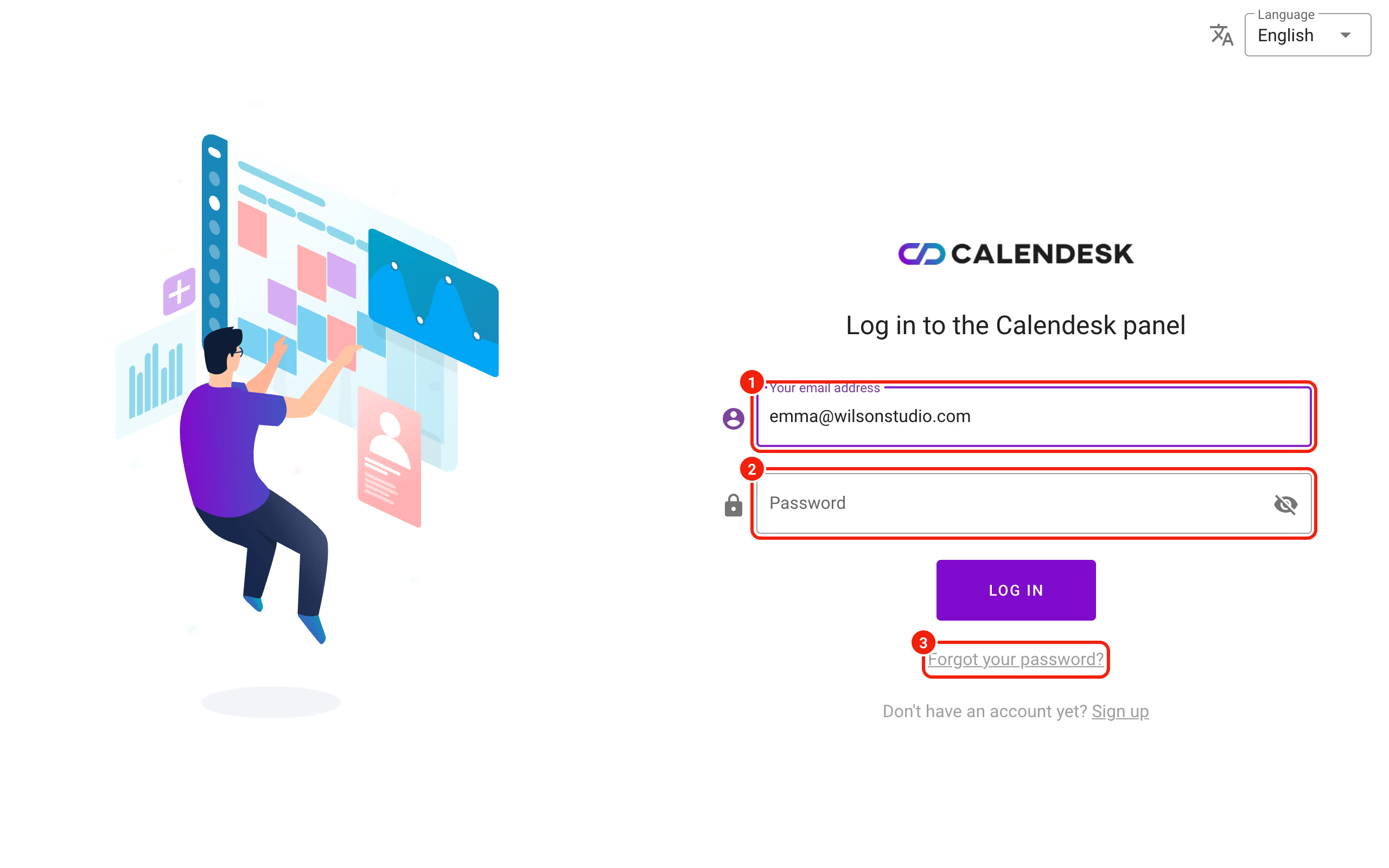
If your email belongs to more than one company in Calendesk, clicking Log in opens Please select the company you want to log in to. Pick the right company. Each company has its own password, so the password from one won't work in the other.
What does "The email address or password is incorrect" mean?
This message covers several different cases. The panel never says whether an account with that address exists, so you see the same text when:
- the address has a typo, or you're using a different address than the one in Calendesk, like a personal one instead of your work email,
- the password is wrong, for example because Caps Lock is on or your browser filled in an old saved password,
- there were 10 failed attempts in a row. Login for that address is then locked for 15 minutes, even with the right password. Setting a new password removes the lock straight away,
- it's an employee who has no access to the panel, or whose account is blocked (see below).
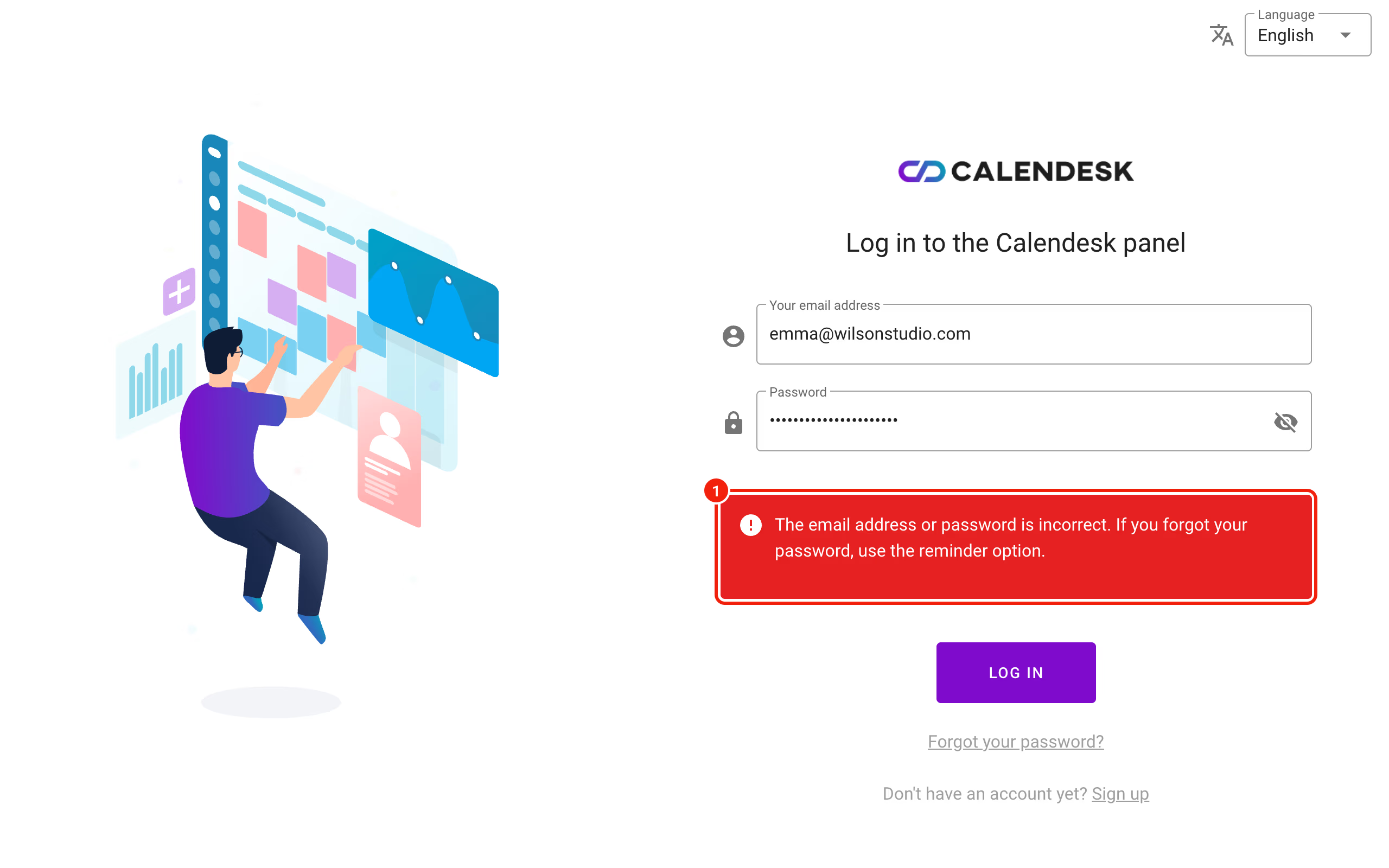
If you're not sure about the password, don't keep guessing. Set a new one.
How do you set a new password?
- On the login page, click Forgot your password?.
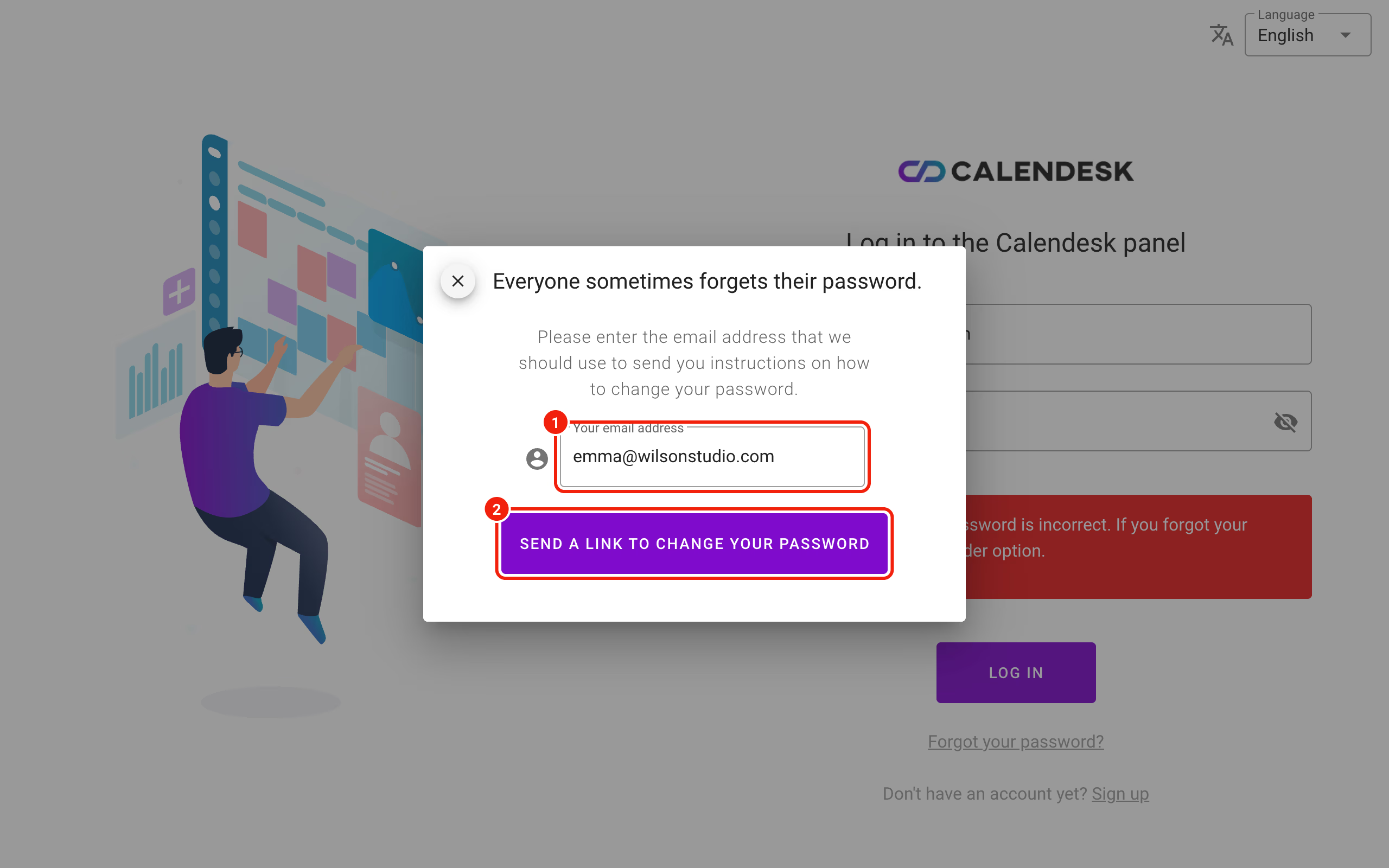
- In the Everyone sometimes forgets their password. window, type your account email (1) and click Send a link to change your password (2). If the email belongs to several companies, choose the one whose password you want to change.
- A Check your inbox window appears. Open the password email (usually with the subject "Your Calendesk password") and click Set password.
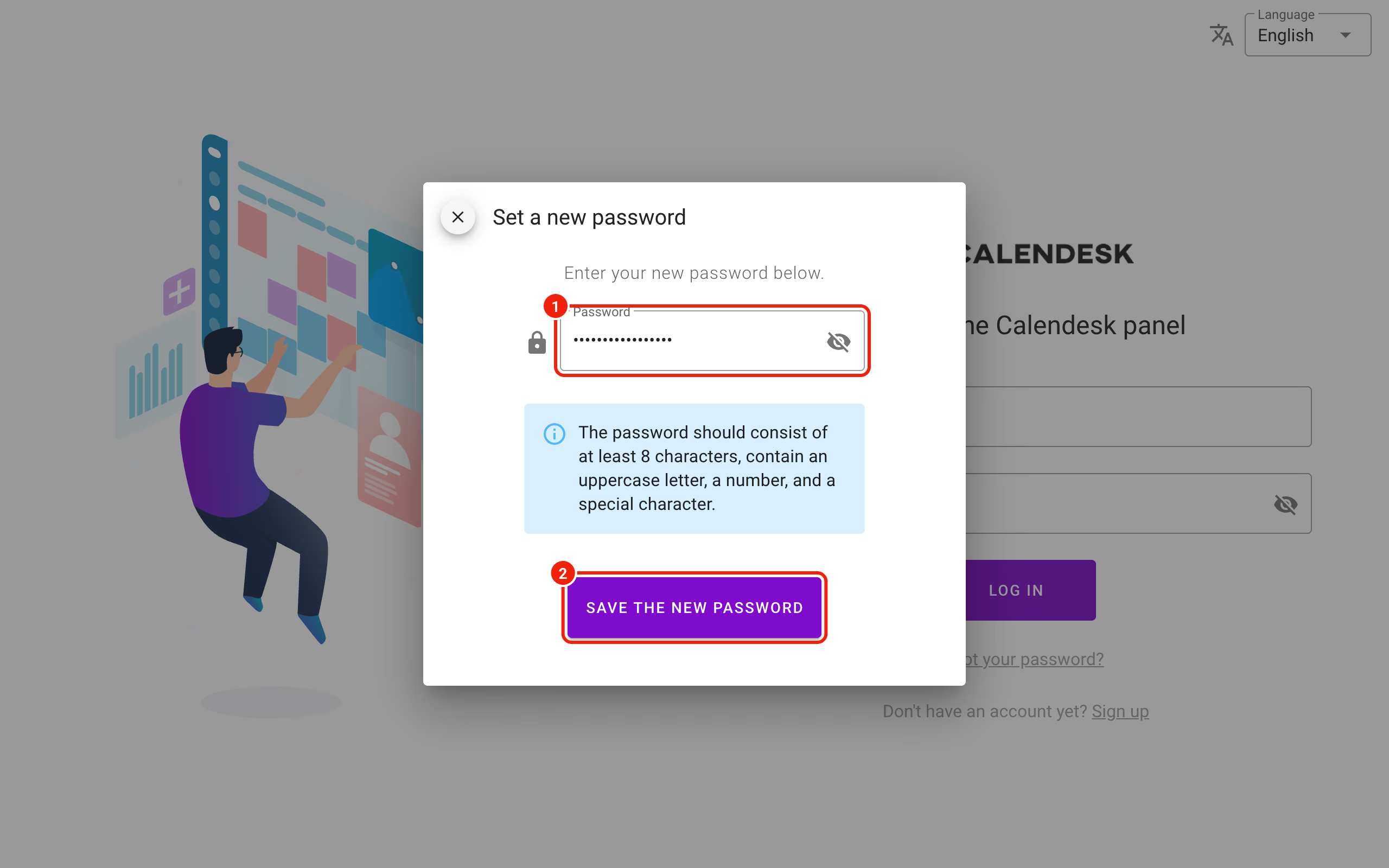
- The panel opens with a Set a new password window. Type the new password (1) and click Save the new password (2). It needs at least 8 characters, an uppercase letter, a number and a special character.
- When you see Your password has been changed., click Ok and log in with the new password.
A few things about that link catch people out:
- The link works for 60 minutes and only once. Every new request cancels the previous link, so always use the one in the newest email.
- The password has not been changed. The link has probably expired. means the link is old or already used. Ask for a new one.
- The Check your inbox window always appears, even when the address isn't in the system or the account has no panel access. In those cases no email arrives. If there's nothing in your inbox or spam after a few minutes, check the address, or read the employee section below.
- You can ask for a link twice a minute. Try more often and you'll see Oops! You're moving a bit too fast. Slow down and try again in a moment.
- Changing the password logs you out on your other devices, the mobile app included. Log in there with the new password.
Your employee can't log in?
Employees log in on the same page, with their own email and password. The panel only lets them in when their profile has The employee can log in to the Calendesk panel ticked. Without it, the employee gets the wrong email or password message, and no password link reaches them.
An administrator of the account grants access:
- Go to Employees and open the employee's profile.
- In Access to the Calendesk panel, tick The employee can log in to the Calendesk panel (1).
- In Select function, pick the employee's role (2).
- Tick Send the employee a link to set a password (3). The link goes to the employee's email in their language and works for 7 days.
- Save.
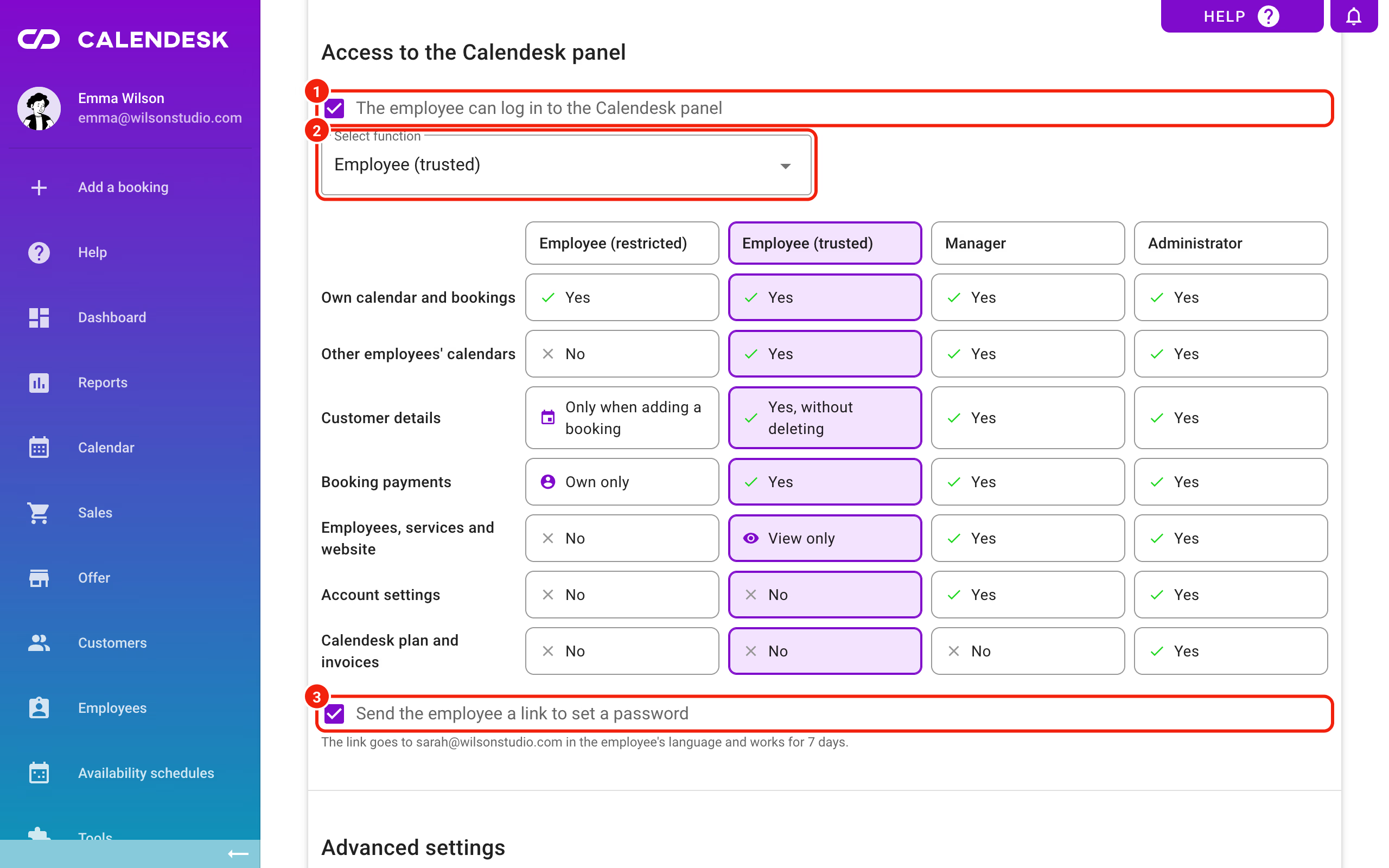
The employee gets an email called "Your employee account in Calendesk has been created" with a Set password button. The link checkbox only shows when you grant access for the first time and the employee has an email in their profile.
The link expired or never arrived?
The employee can click Forgot your password? on the login page. You can also send a link from the employee list: in the Manage column, click the three dots next to the employee and choose Set a new password (1). Leave Send a link to change the password to the email address. switched on and click Ok. If you'd rather type a password yourself, switch it off, enter the password and pass it on to the employee.
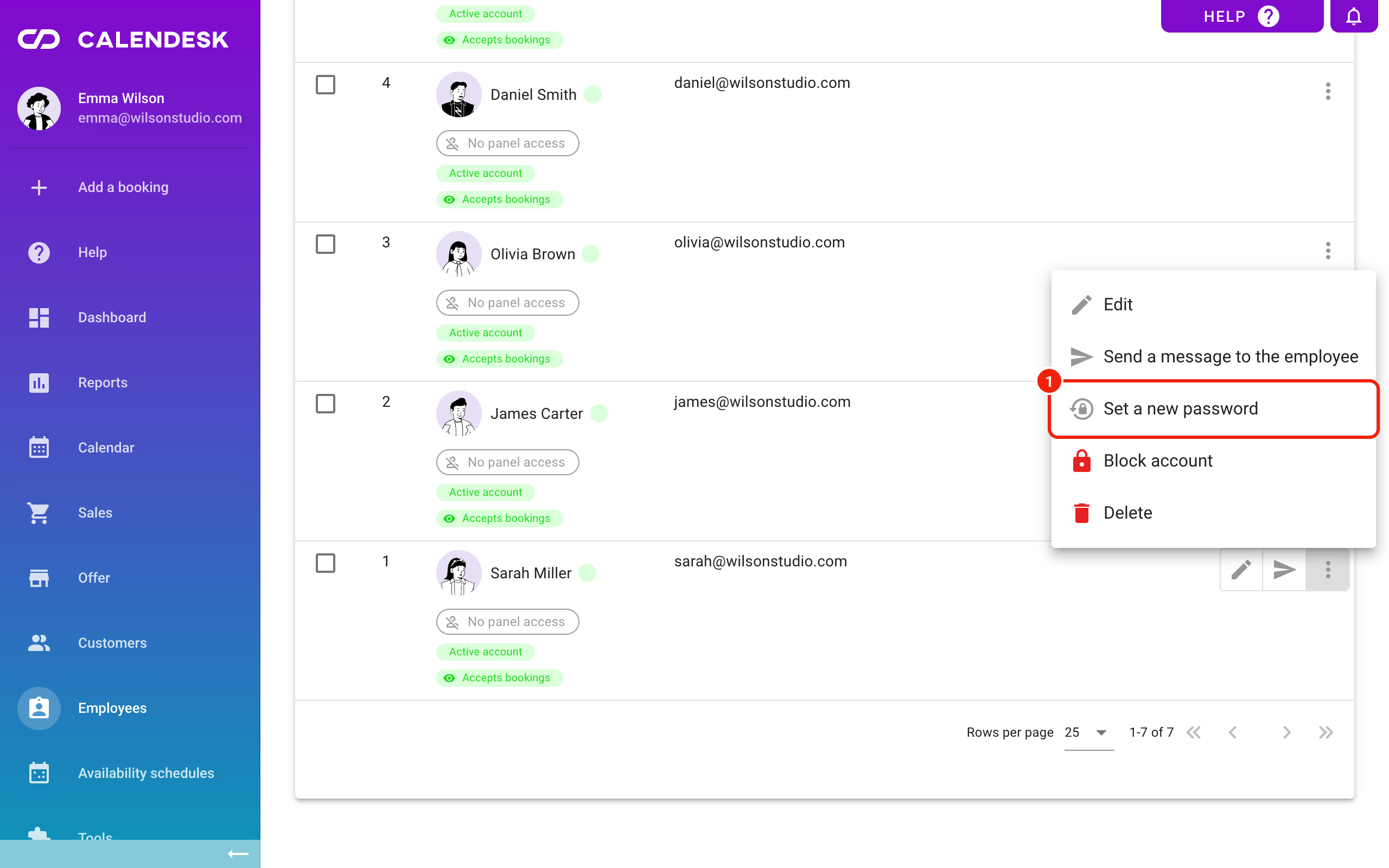
You can't change an administrator's password from the list. The panel shows You can not update the Admin password. Administrators set a new password themselves through Forgot your password?.
Is the employee's account blocked?
A blocked account can't log in, even with the right password, and the login page shows the same wrong email or password message. In the Manage column, click the three dots next to the employee and choose Unblock account.
How do you log in with 2-step verification?
With 2-step verification on, the panel shows a Two-factor authentication window after your password. Type the 6-digit code from the authenticator app on your phone (1) and click Verify. You have 5 minutes. After that you'll see Your 2FA session has expired. Please log in again. and start again from the password.
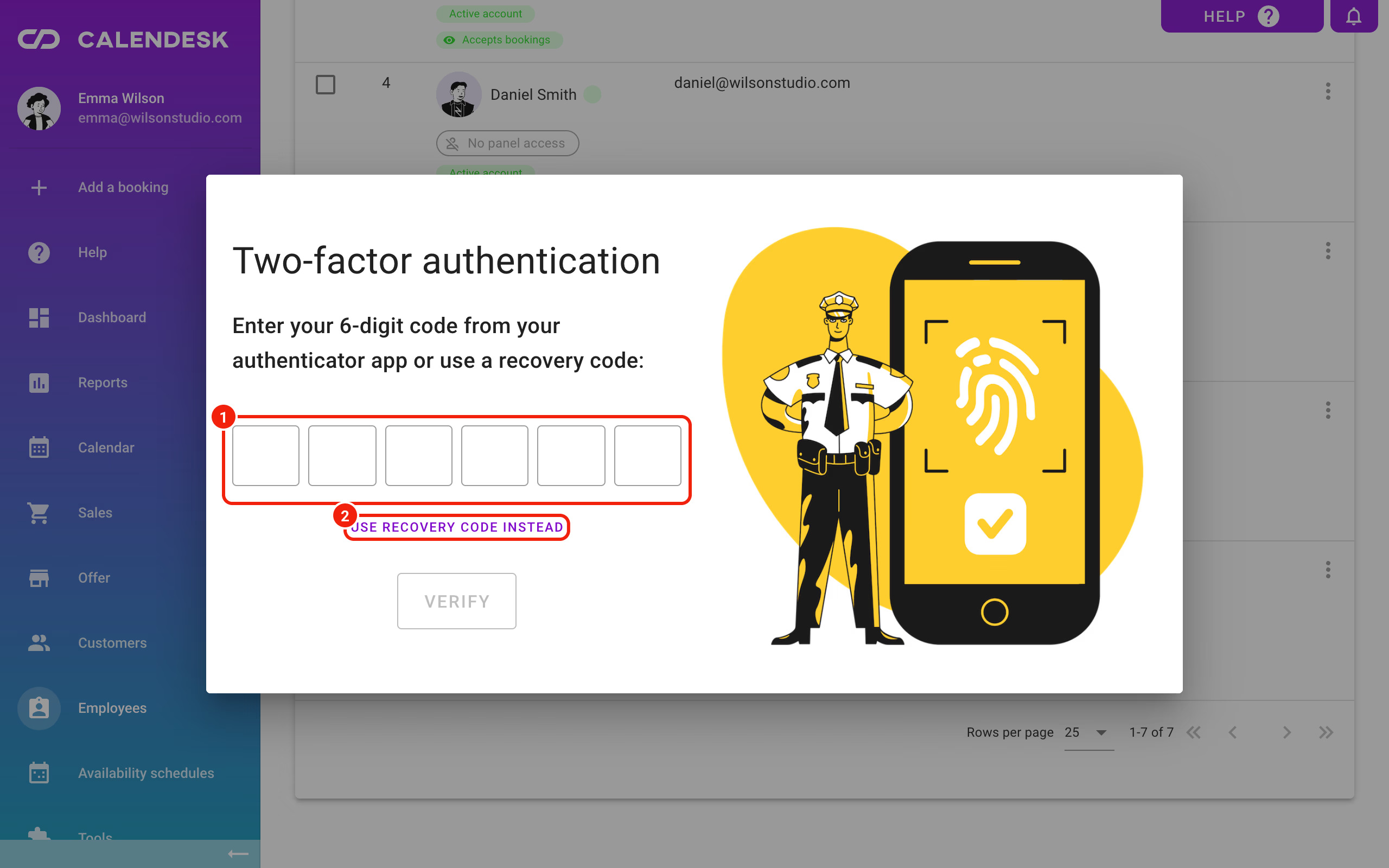
Phone not with you? Click Use recovery code instead (2) and type one of the recovery codes you downloaded when you turned 2FA on. Each code works once.
A new password doesn't turn off 2-step verification. If you have neither the app nor your recovery codes, write to us on the chat or by email from the address linked to your account. We'll help you get back in.
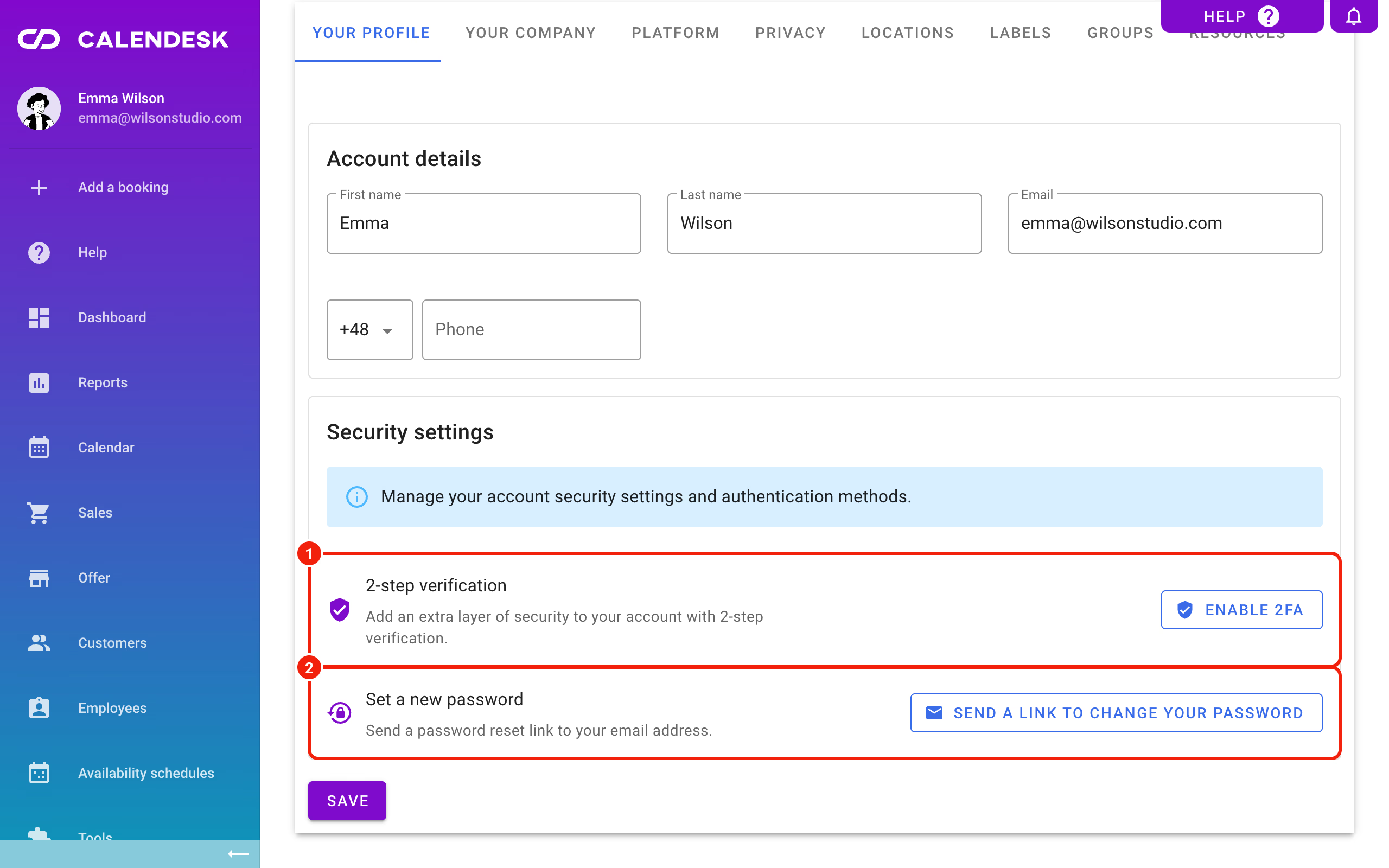
You turn verification on and off in Settings – Your profile, under Security settings, with Enable 2FA or Disable 2FA (1). Everyone does this for their own account. Turning it off asks for your current password and an app code or a recovery code.
The panel asks for a code from your email?
Sometimes clicking Log in opens an Enter verification code window. It's an extra check for when the bot protection (Google reCAPTCHA) couldn't confirm it's really you, for example when the browser or an ad blocker stops the Google script from loading. Type the 6-digit code from the email and click Verify.
If you close that window, you'll see Captcha verification incorrect. Try reloading the page if the problem persists. Reload the page, turn off your ad blocker for admin.calendesk.com and log in again.
The panel says your account was inactive for a long time?
Your account has been inactive for a long time. We are restoring your data. Please try again in a few minutes. shows up when nobody used the account for a long time and its data was moved to an archive. Your login attempt starts the restore on its own. Wait a few minutes and log in again. If the message comes back the next day, write to us.
A customer can't log in on your booking site?
A customer account isn't a panel account. Customers log in on your booking site, not at admin.calendesk.com, and if they forget their password they click Forgot your password? in the login window there. How customers use their account is covered in How can your customers manage their bookings?.
If you've turned on Show customers only the bookings made since they created their account, a new customer can log in only after confirming the account with the link in their email. More in Privacy: automatic deletion of customer data, account history and passwords.
Still stuck?
Email us at [email protected] from the address you log in with. We can help faster if you include:
- the account email and your company name in Calendesk,
- whether you log in as the account owner or as an employee,
- the exact message you see, ideally with a screenshot,
- the time of your last attempt and the browser you use.
Frequently asked questions (FAQ)
Do I use the same password in the mobile app?
Yes. The Calendesk mobile app for employees uses the same email and password as the panel. After changing your password in the panel, log in to the app with the new one.
How do I change my password while I'm logged in?
Go to Settings – Your profile and, under Security settings, click Send a link to change your password. The link arrives in your inbox.
Can I see my employee's password as the owner?
No. Nobody can see a password, administrators included. You can send the employee a link to set a new password, or type a new password for them yourself.
How long does a password link work?
The Forgot your password? link works for 60 minutes. The welcome email link for a new employee works for 7 days. Each works only once.