How to choose the services shown in the booking calendar?
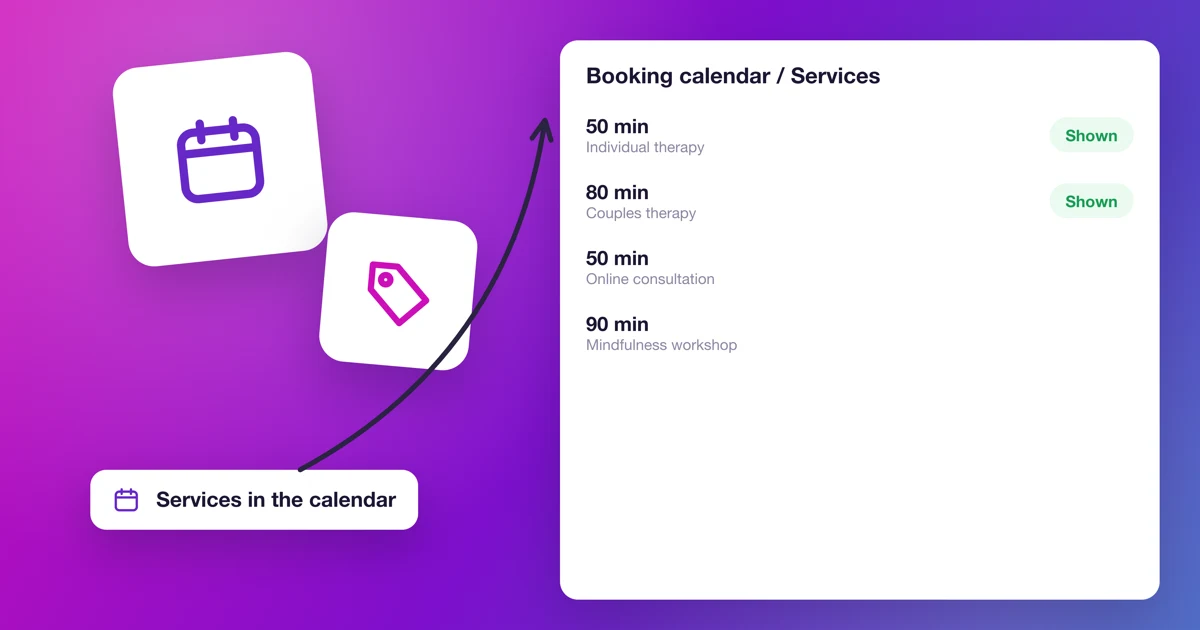
Choosing the services in your booking calendar
Your online booking system should show exactly the services you want customers to book. Here is how to control which services your customers can book.
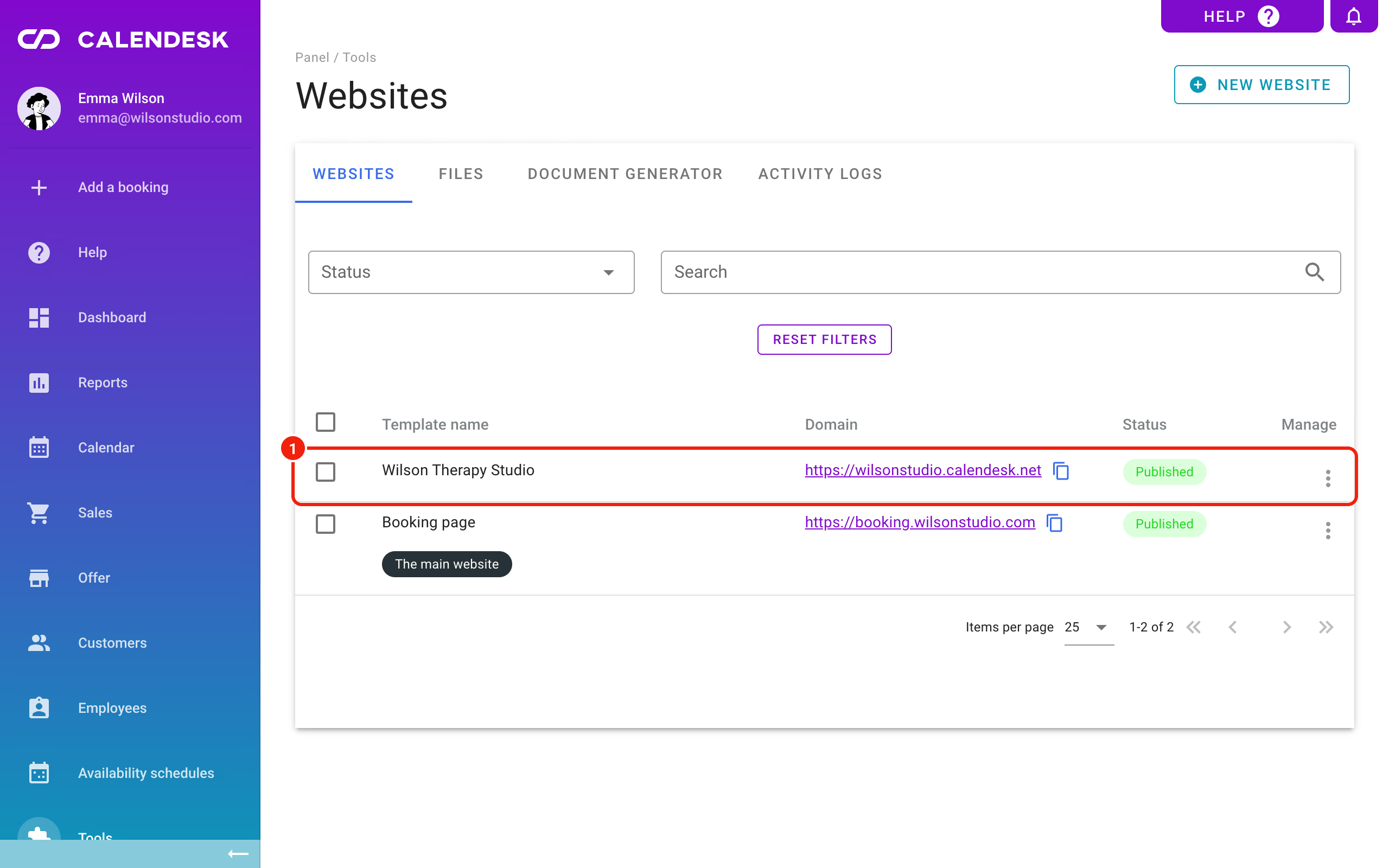
Sign in to the Calendesk panel and go to Tools – Websites. Pick the website with the calendar you want to edit; the website builder opens.
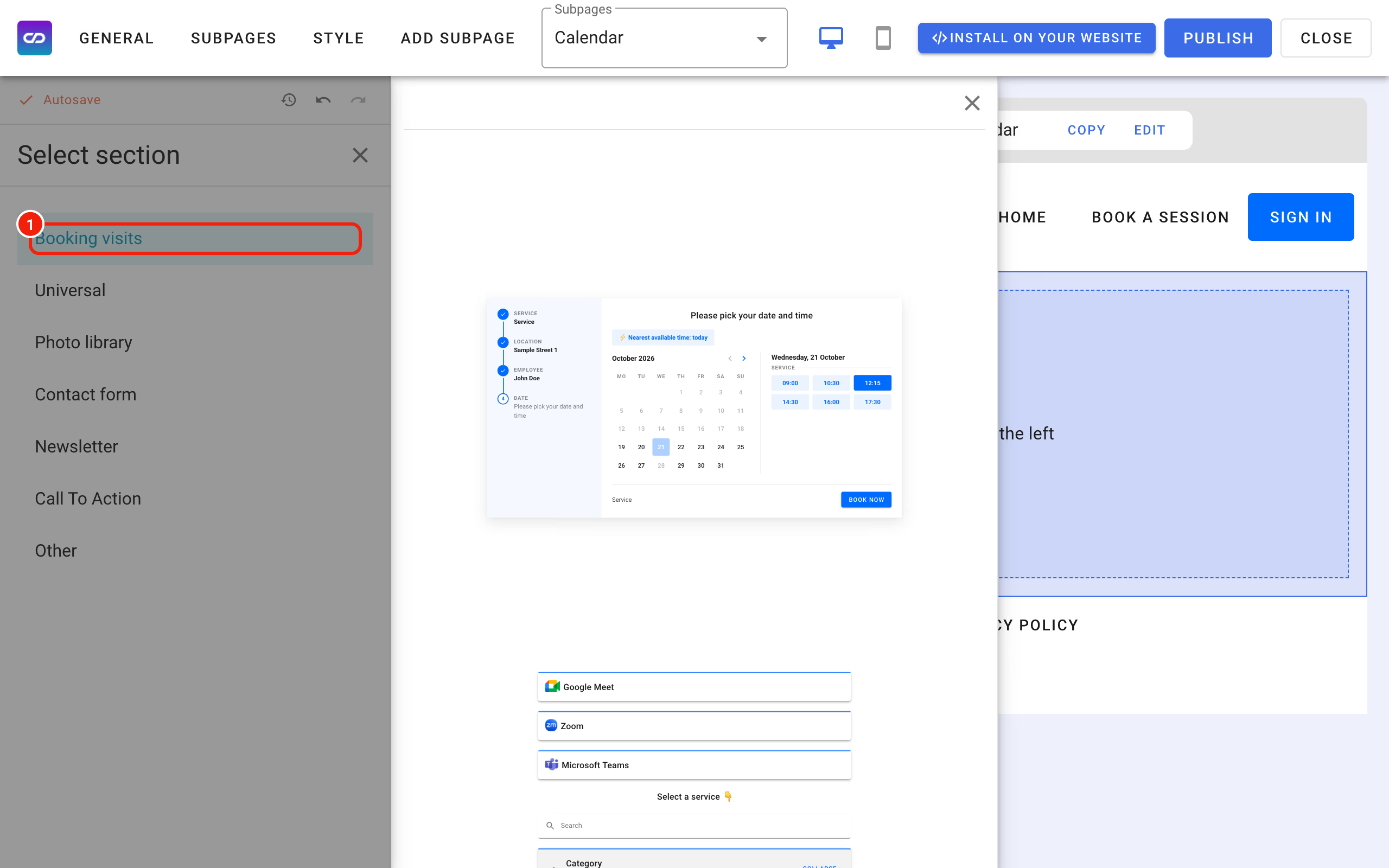
If your website already has a booking calendar, click the section that contains it. If it doesn't, click Add section, choose the Booking visits category on the left and pick the calendar that suits you.
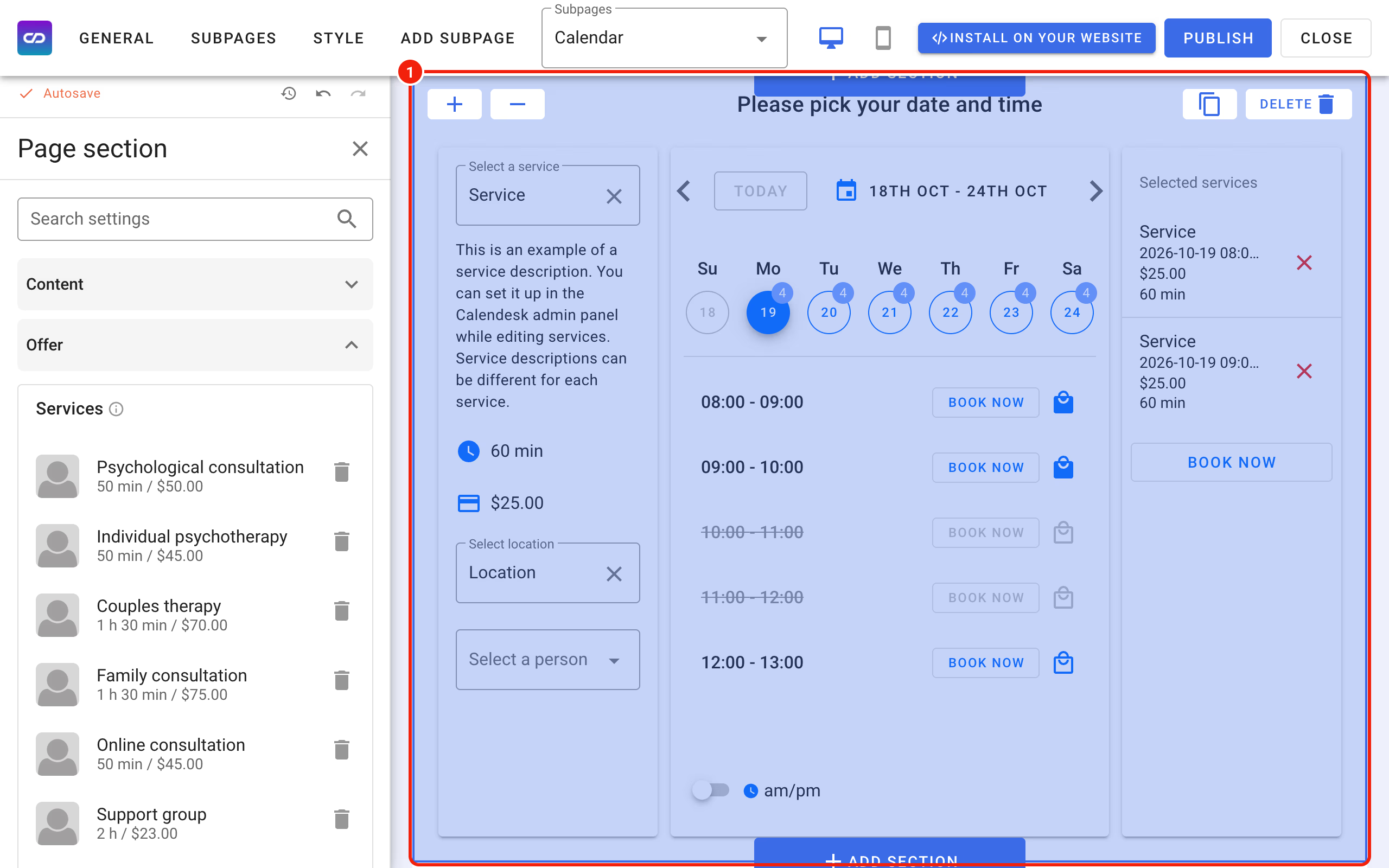
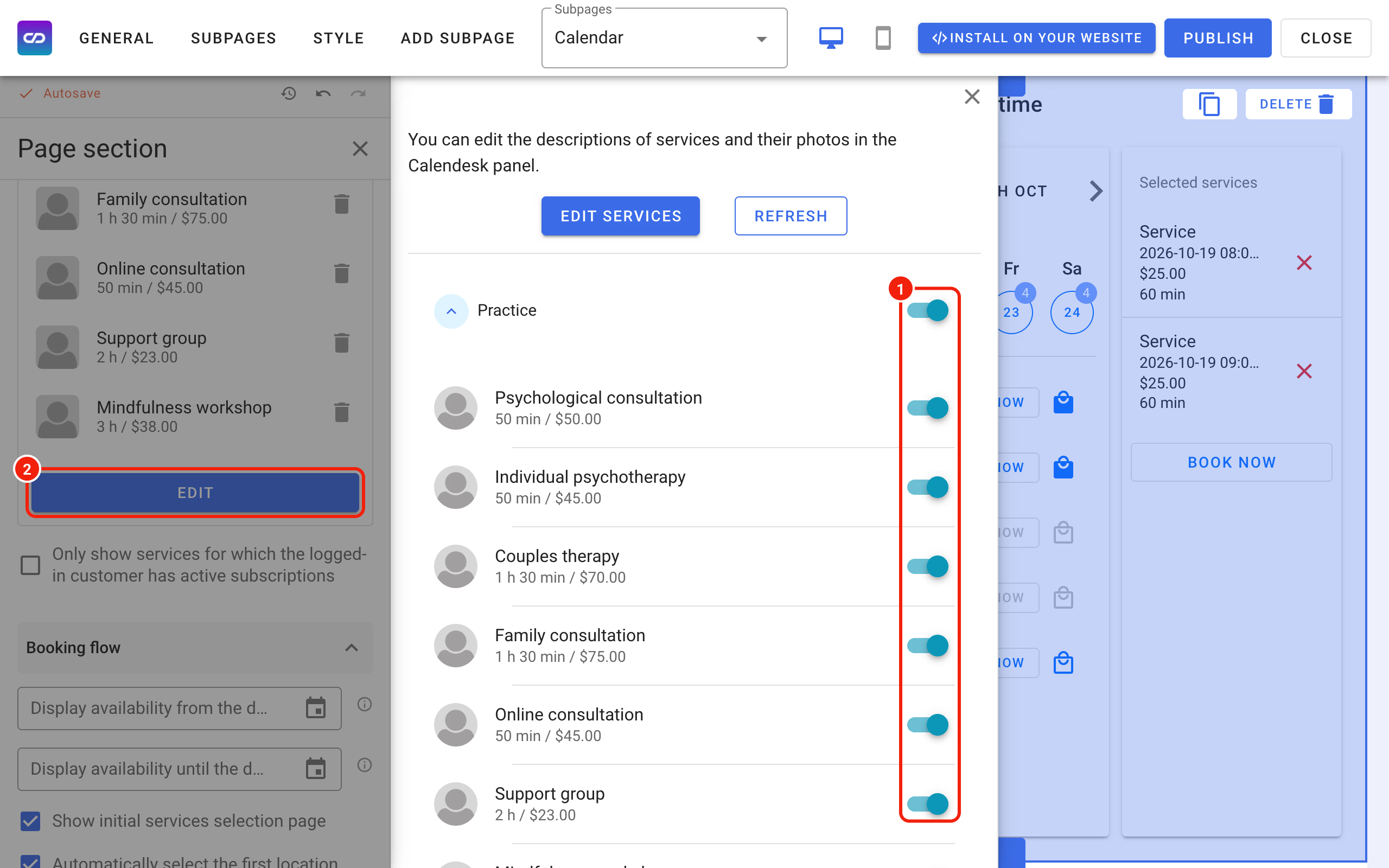
In the settings you will find Services, the list of services shown in this calendar. Click Edit under the list (2). In the window that opens, switch individual services on or off for this calendar (1). The Edit services button in that window takes you to the panel, where you change the services themselves, such as their descriptions and photos.
Showing services with a URL parameter
You can also choose the services by adding the services parameter to the calendar's address. For example, if the subpage with the calendar is:
https://my-calendar.calendesk.net/
you can use this address instead:
https://my-calendar.calendesk.net/?services=1
where 1 is the ID of the service the calendar should show. To show several services, separate their IDs with commas:
https://my-calendar.calendesk.net/?services=1,2,3
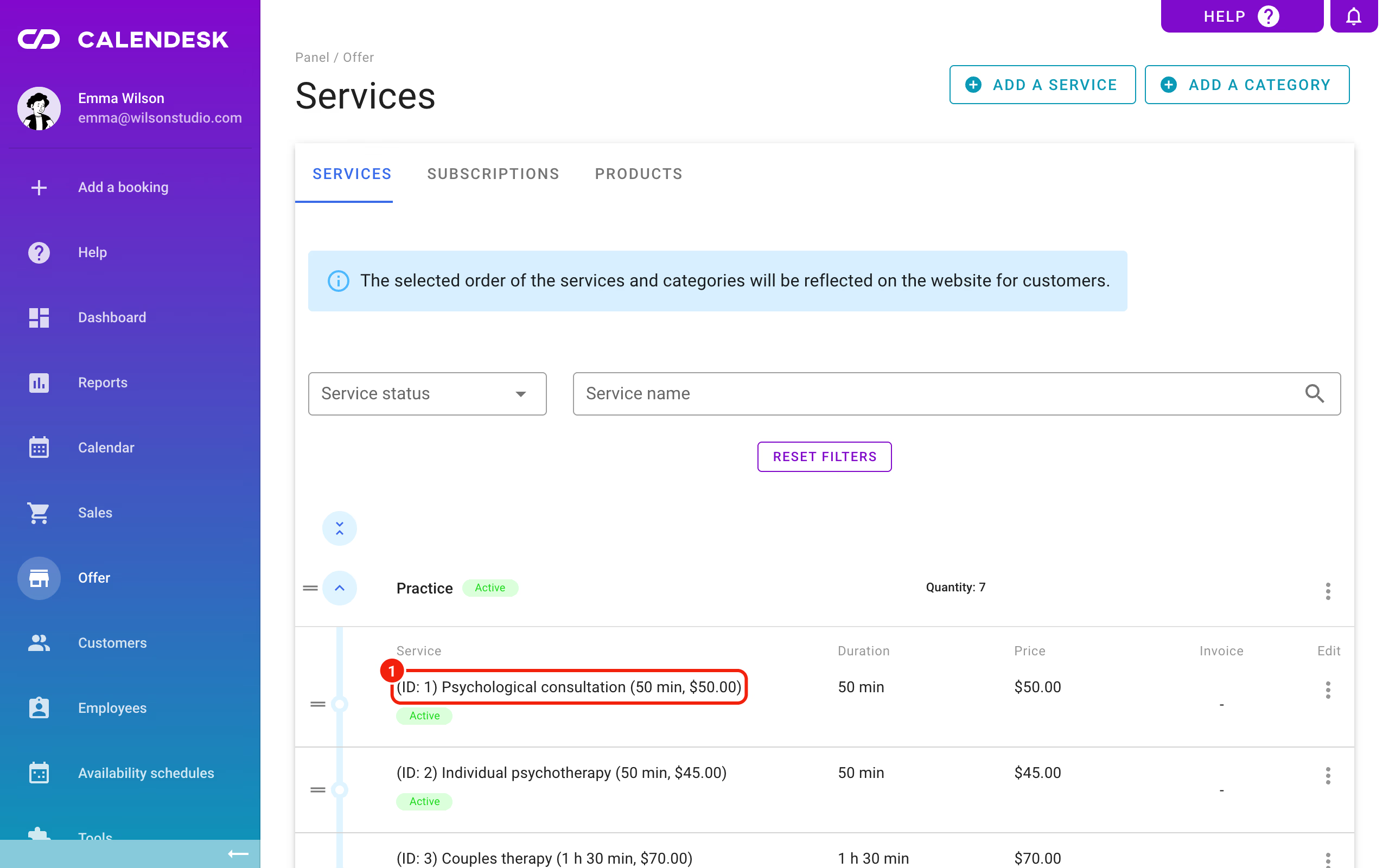
You will find the service IDs in Offer – Services in the Calendesk panel: the ID is shown before the service name.
How to make customers pick a service first?
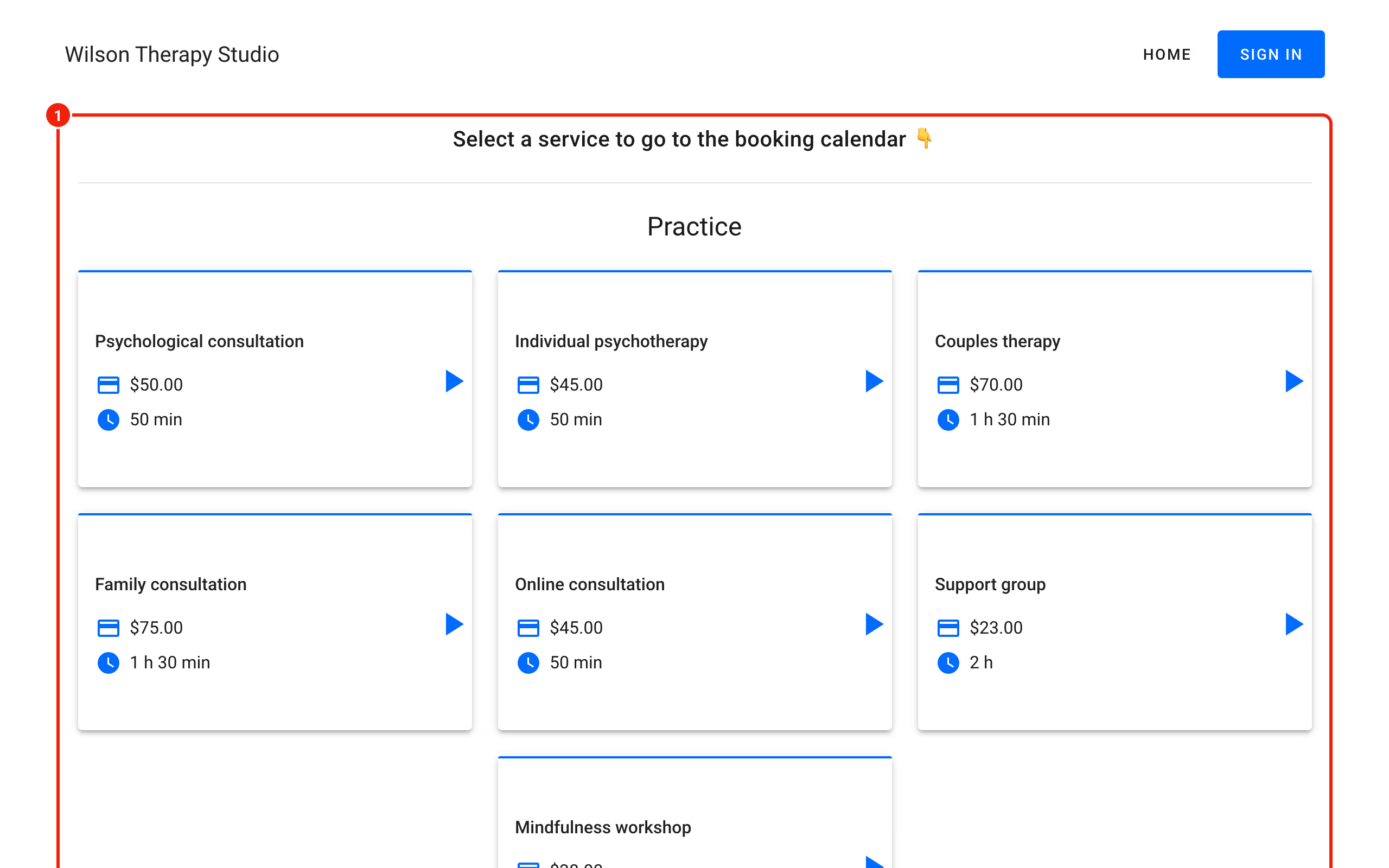
If you want customers to choose a service before they see its availability, tick Show initial services selection page, marked in the image below.
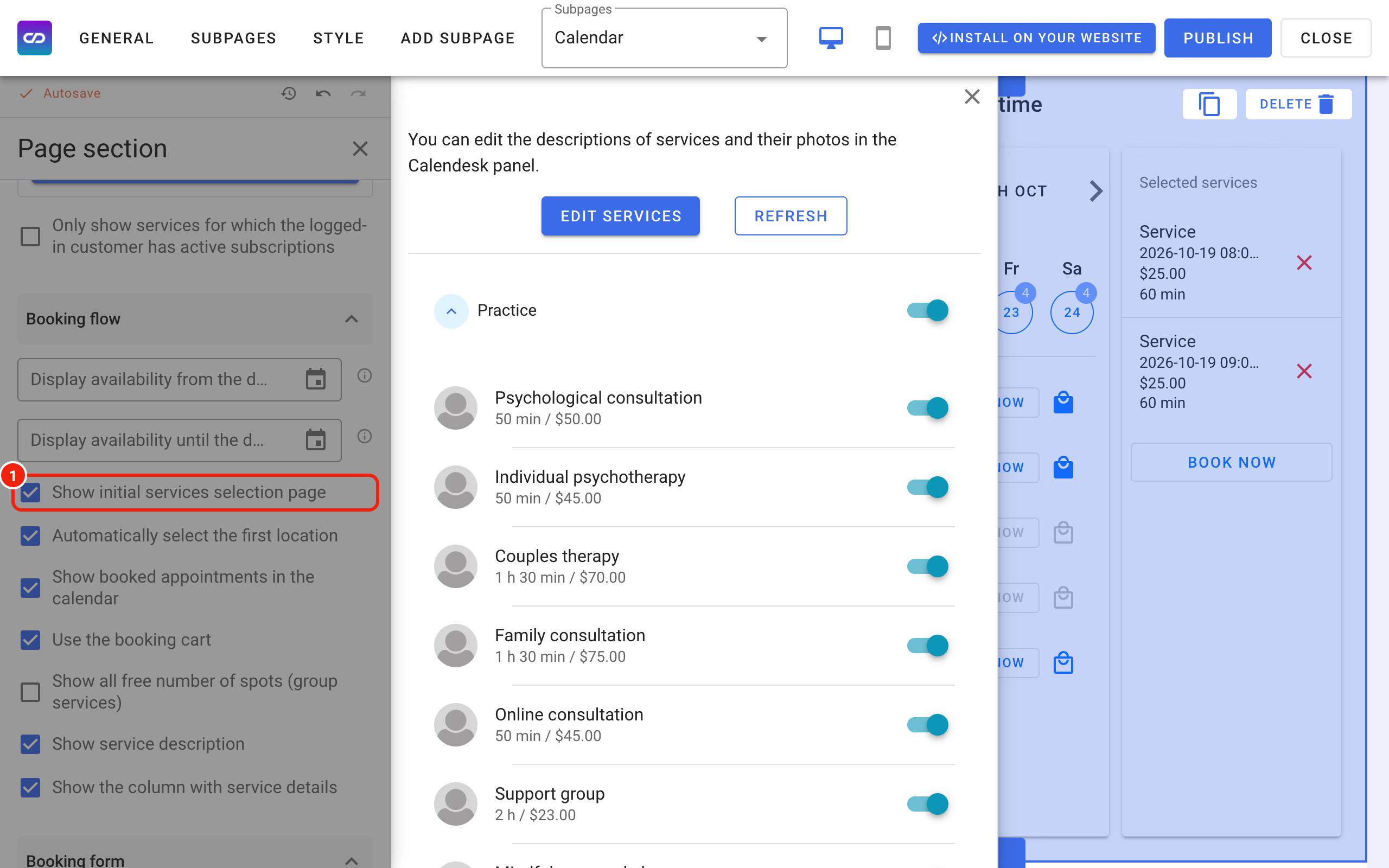
Save the change with Publish in the top right corner, then open the calendar on your website and refresh the page. Instead of the calendar with a drop-down list of services, customers now see tiles, one for each service added to this calendar.