How to change the logo on your website?
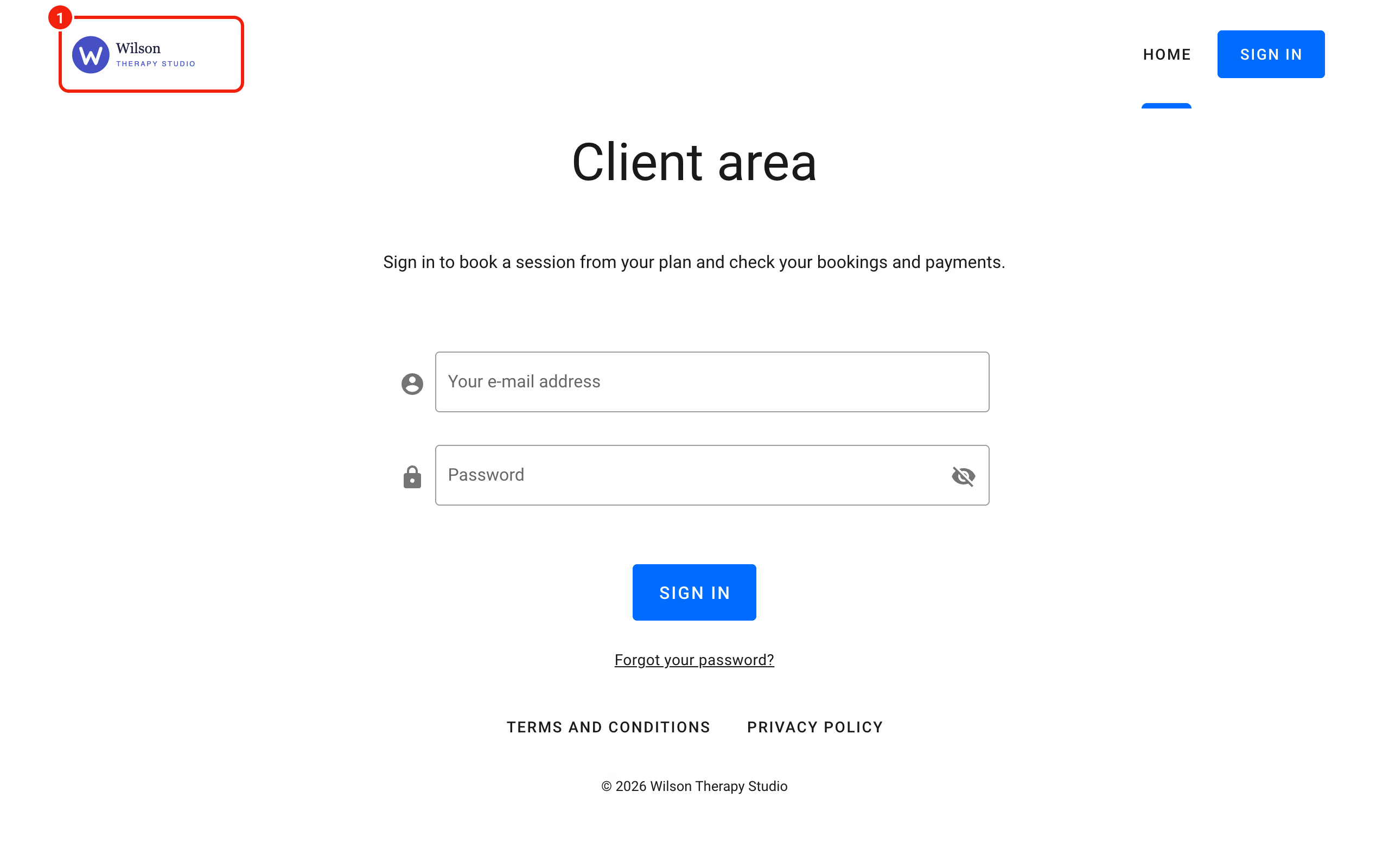
The logo on your Calendesk website
Your logo works like a business card and sits at the very top of your website. This article shows how to add it and change it in the Calendesk website builder.
Adding and changing the logo
Sign in to the admin panel, go to Tools – Websites and click the pencil next to your website to open it in the website builder.
Click the header section at the very top of the page. Its settings open in the panel on the left.
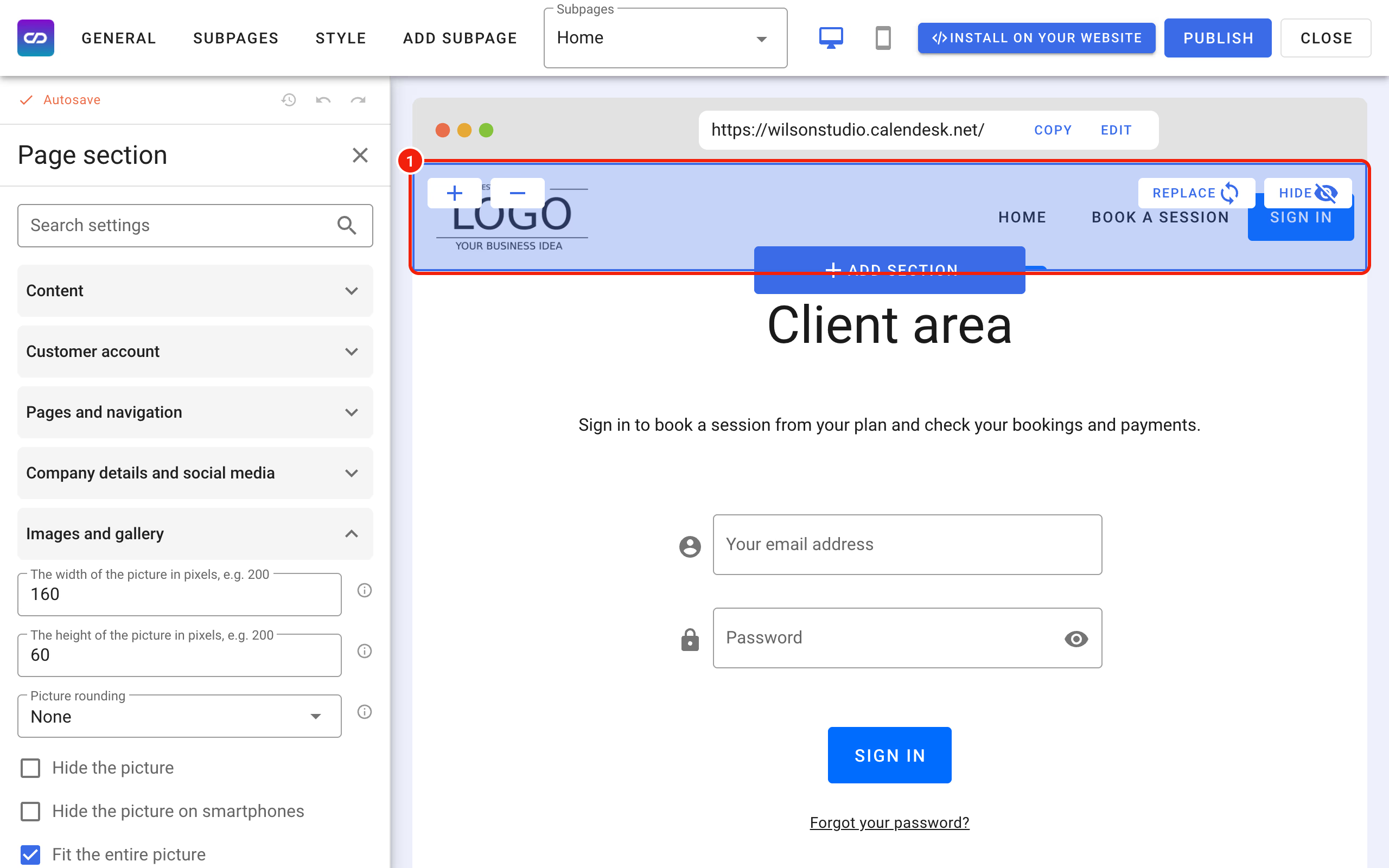
If your header has no place for a logo, click Replace on the header and choose Navbar with logo.
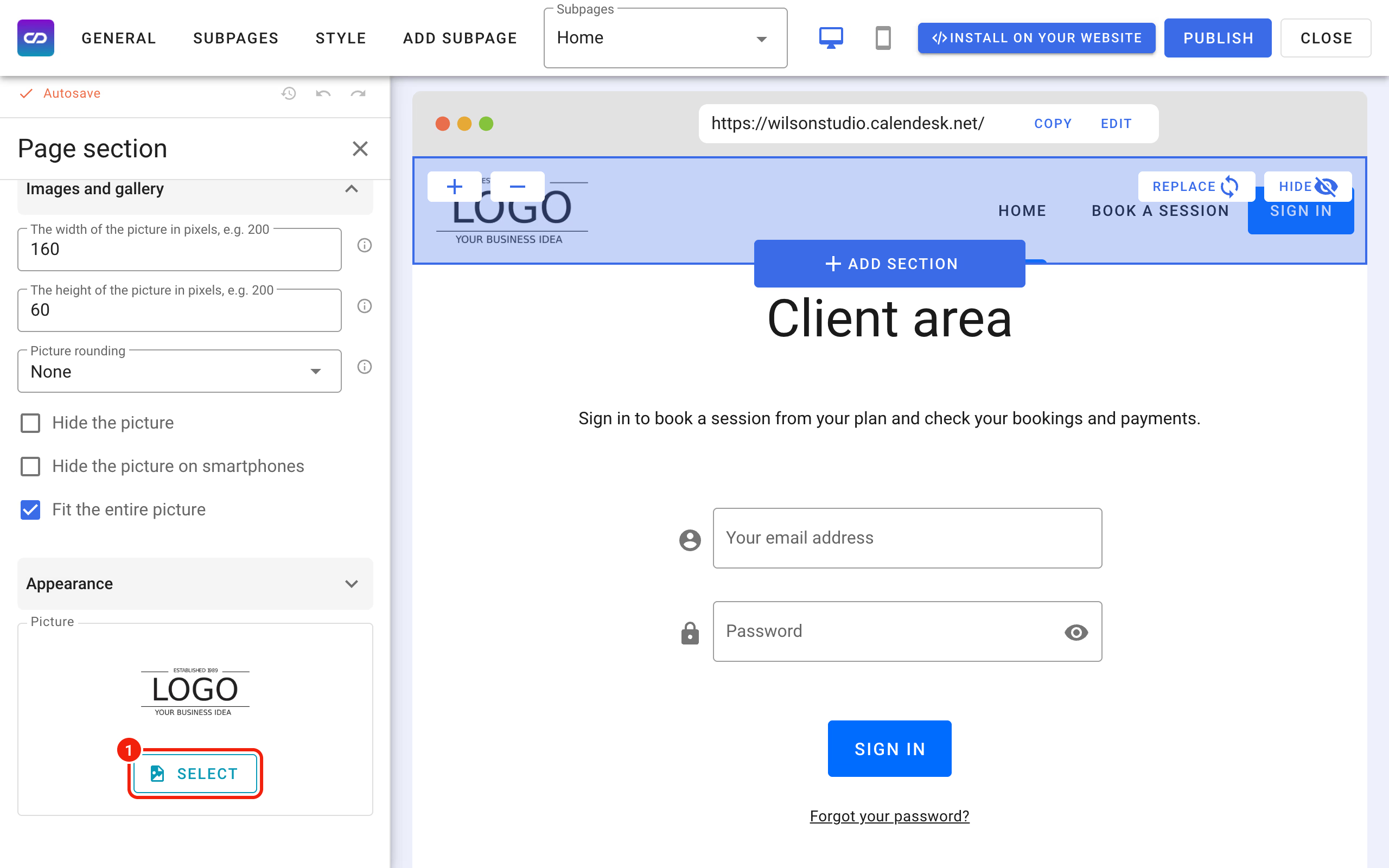
At the bottom of the panel you'll find the Picture field. Click Select to add your logo.
You can also adjust the logo in a simple editor. In Your gallery, hover over a picture and click the brush icon. In the Picture editor you drag the frame to crop the picture. The toolbar above it lets you rotate the picture, zoom in or out, flip it horizontally or vertically, or reset your changes.
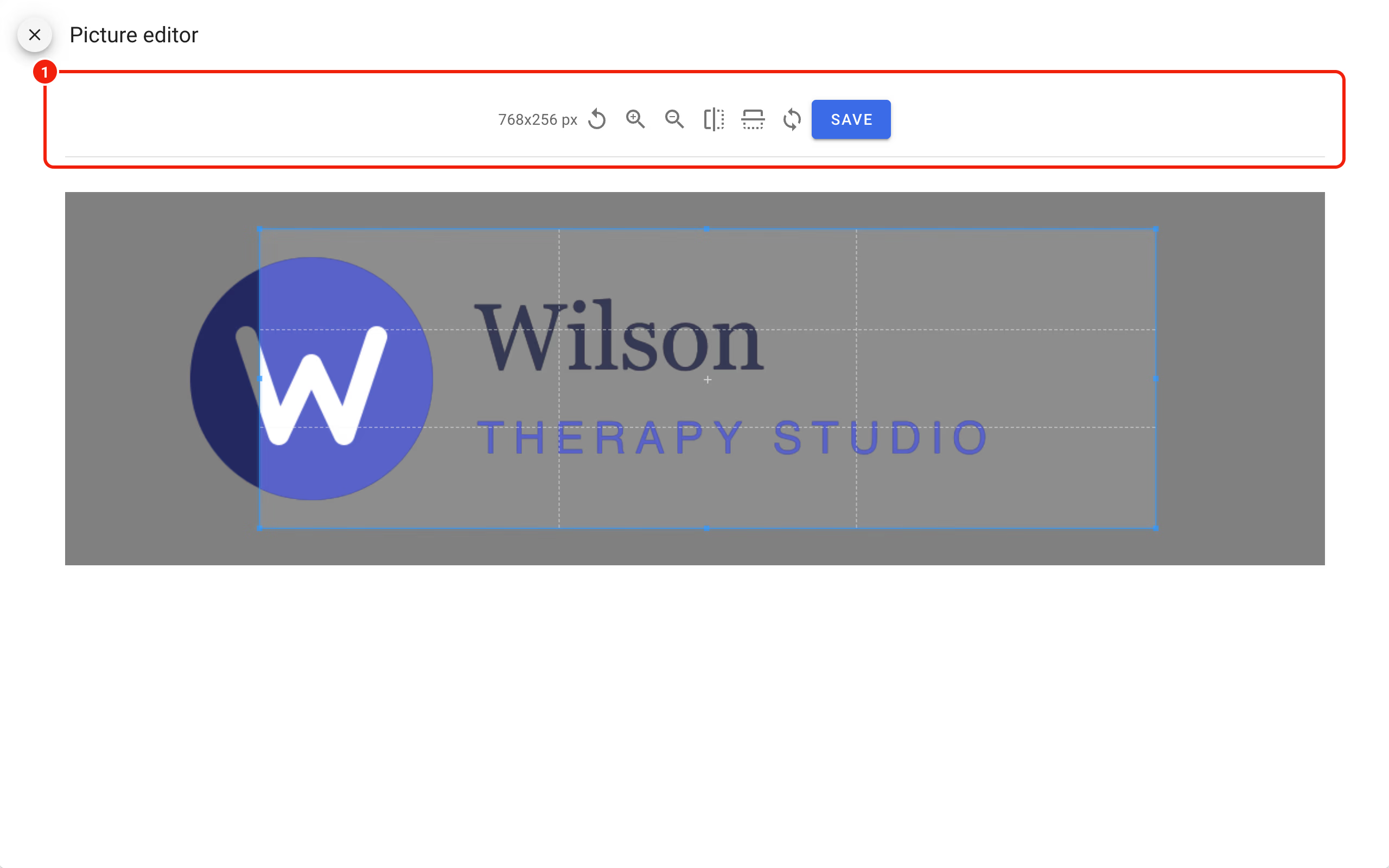
When you're happy with it, click Save. The logo then shows in the Picture field.
How the logo is shown
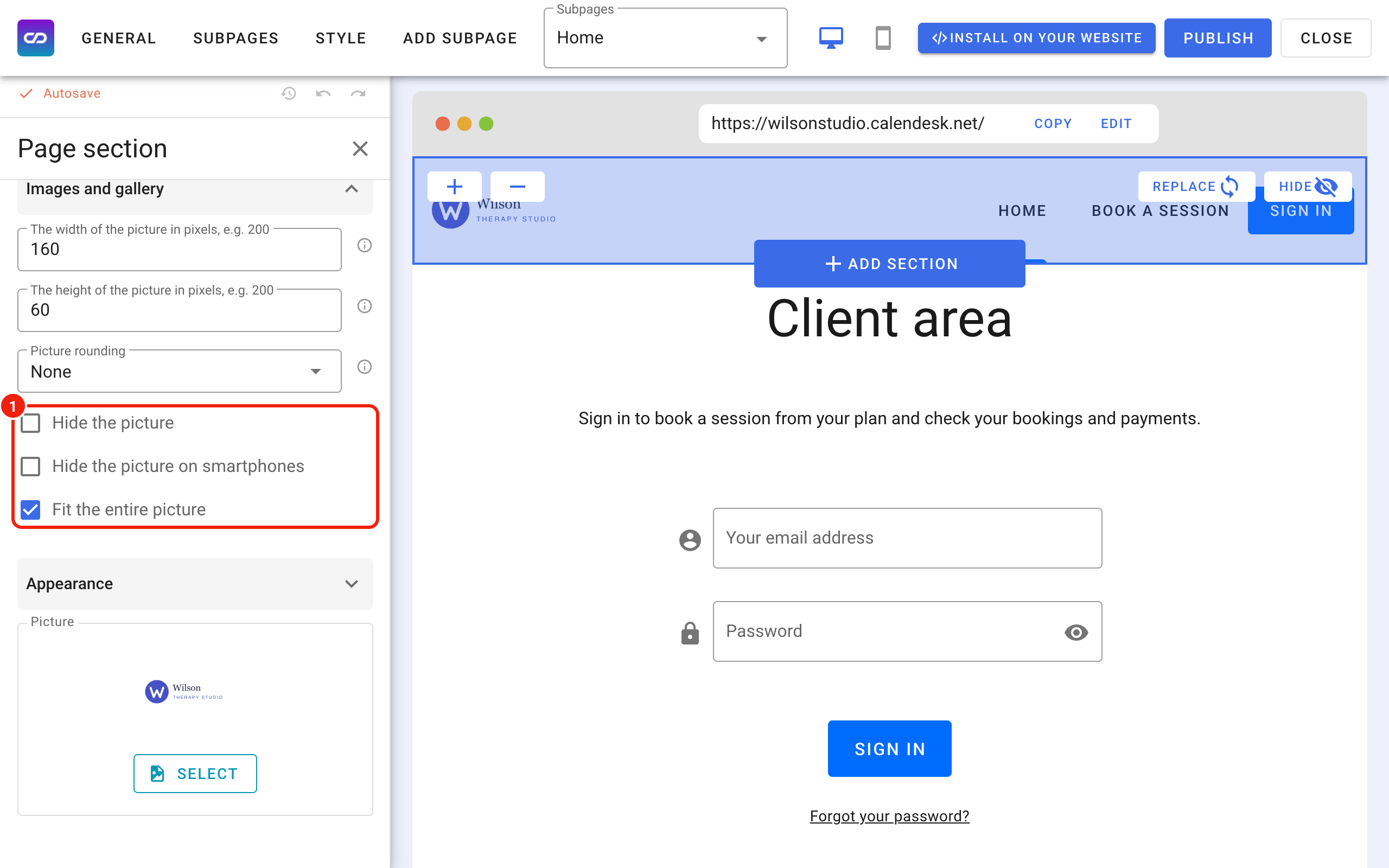
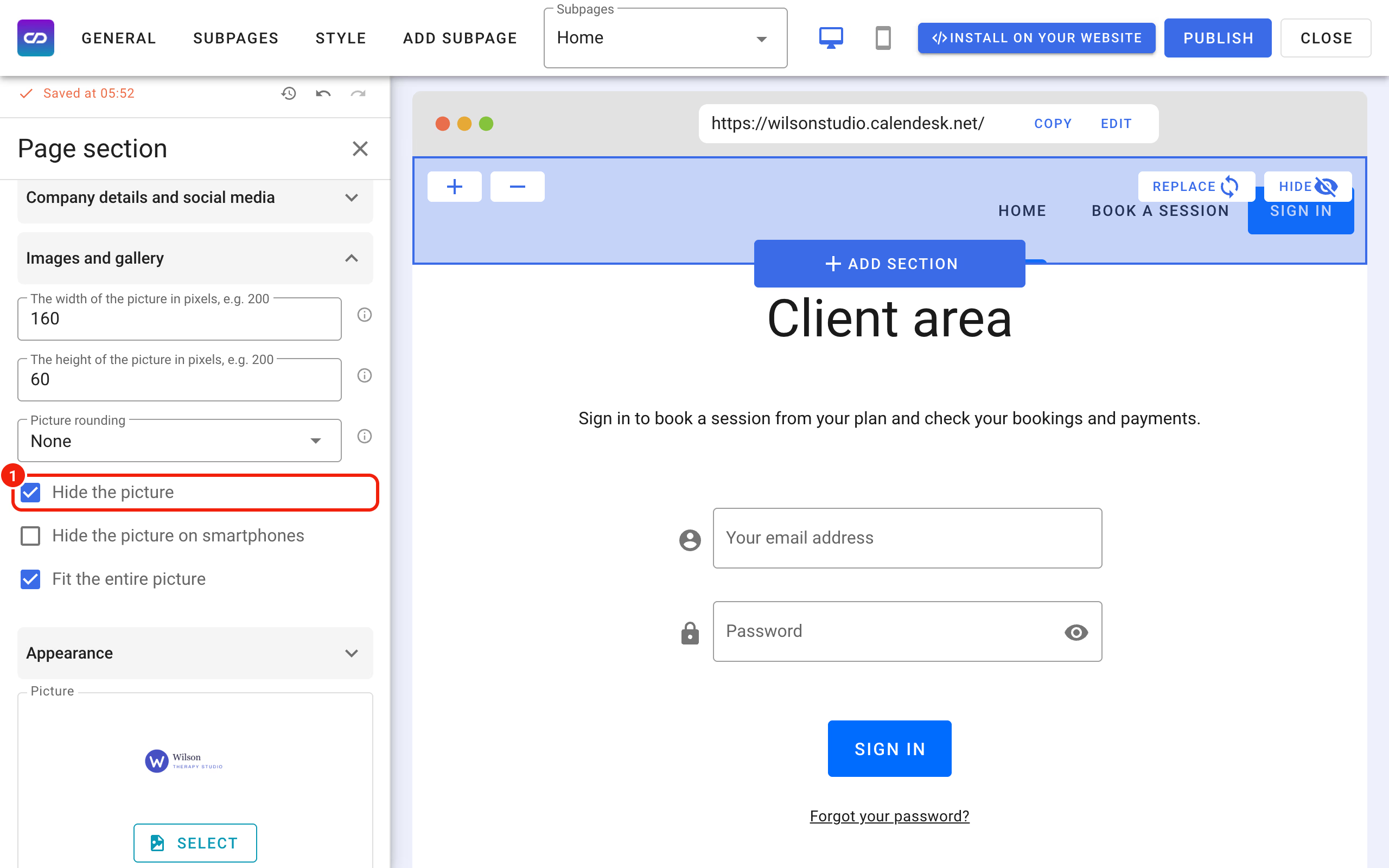
The Images and gallery group in the header settings decides how the logo appears. At the top of the group you set its width and height in pixels. For the logo to show in the top left corner, leave Hide the picture and Hide the picture on smartphones unticked. Fit the entire picture shows the whole logo without cropping. With it unticked, the logo is fitted to the set size.
Where the logo leads
When the logo is visible, a customer who clicks it on any subpage goes back to your home page.
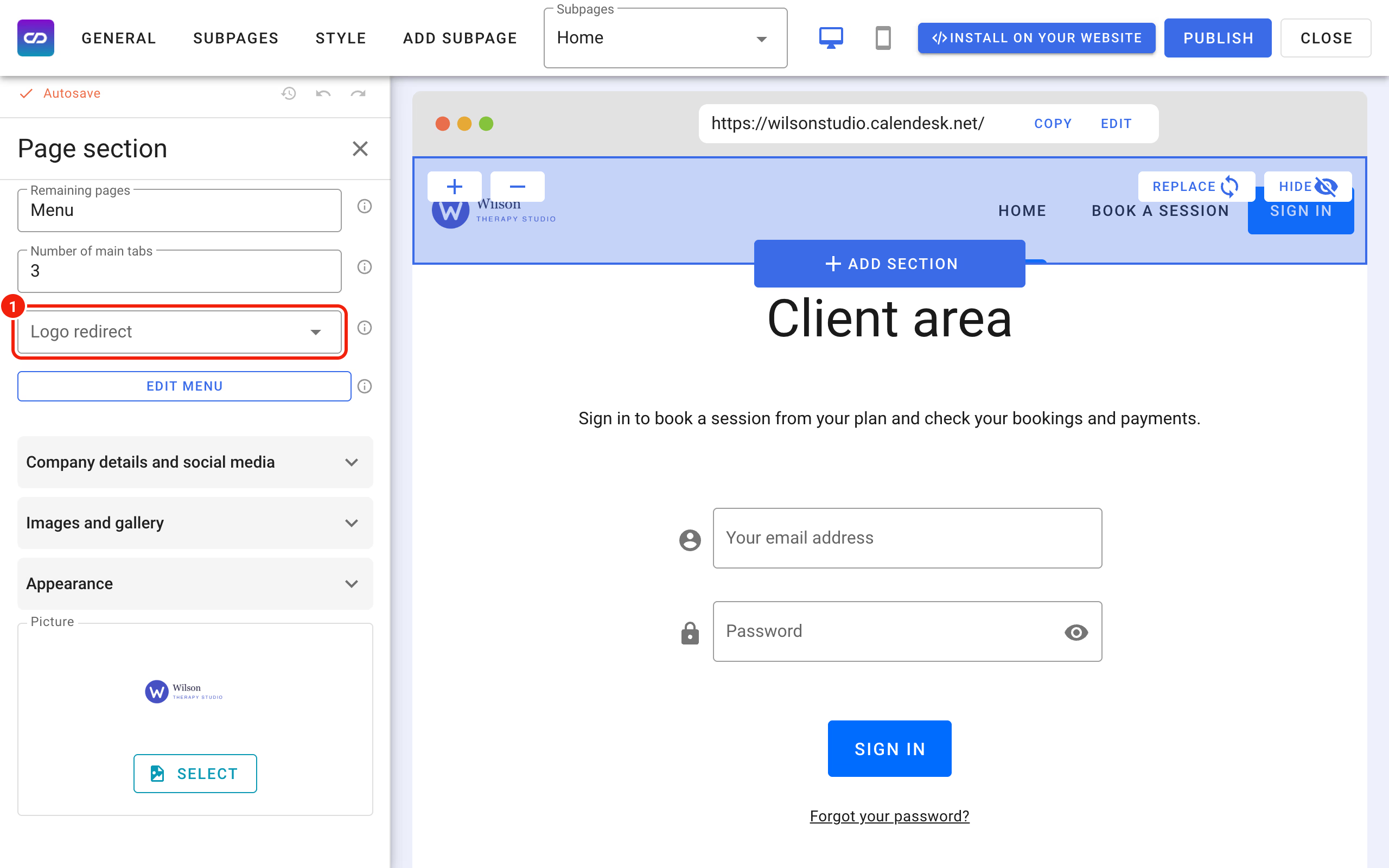
You can choose a different subpage in Logo redirect, in the Pages and navigation group of the header settings.
The logo can also lead to a website outside Calendesk. To set that up, first add a new subpage to your website and choose Redirect (external link) as its type.
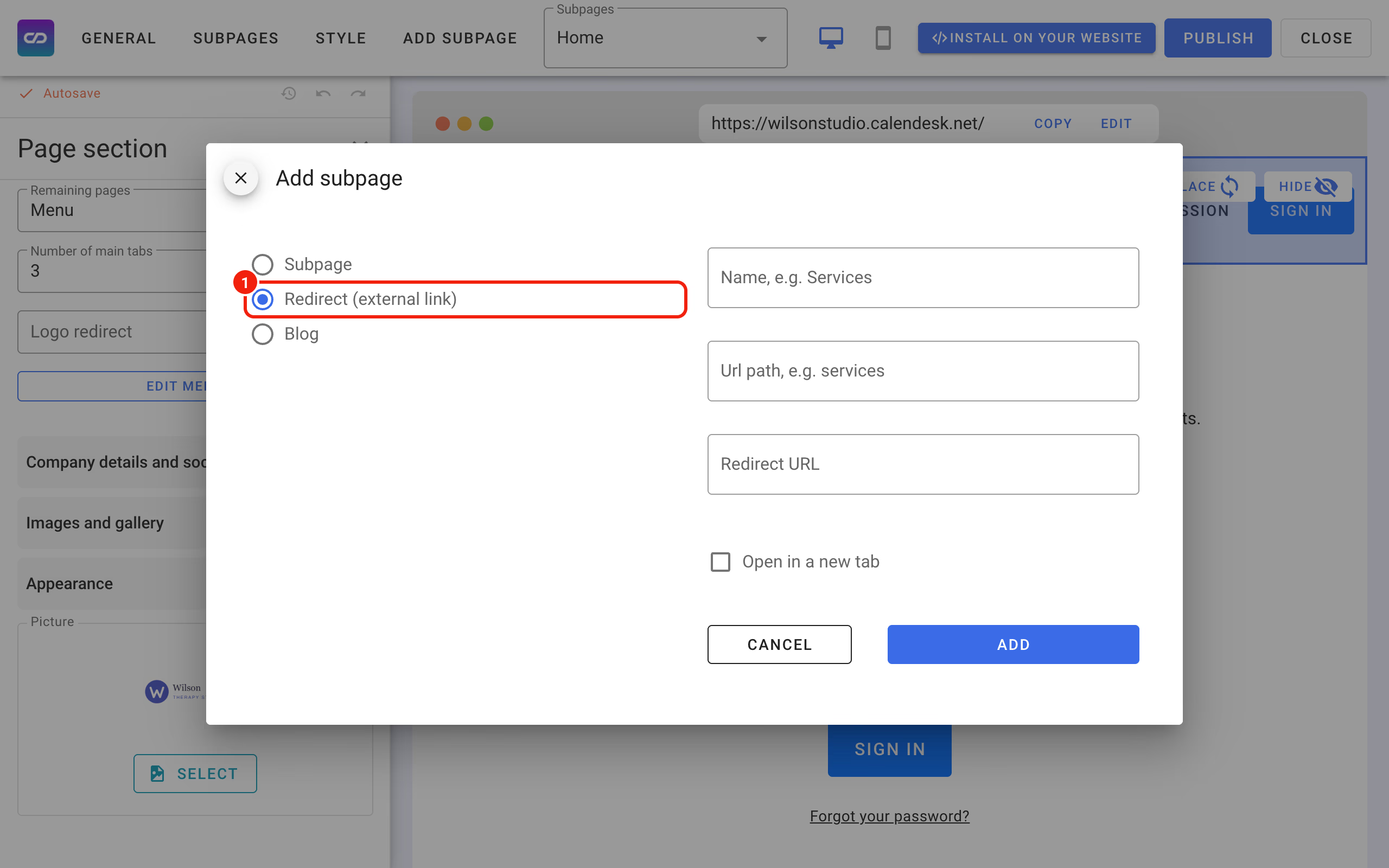
Paste the address the logo should open into Redirect URL. Once the subpage exists, pick it in Logo redirect.
Good to know
If you don't want a logo at the top of your website, tick Hide the picture.
After any change, click Publish. Otherwise your changes won't show on the live website.
A good logo is simple and easy to read. Save it as a .png file: that way it won't get a box of background colour around it.