How to connect Calendesk payments with InvoiceOcean (Fakturownia)?
This article shows how to connect Calendesk payments with InvoiceOcean, the invoicing service known in Poland as Fakturownia. It's mainly useful for businesses that issue Polish VAT invoices.
What is InvoiceOcean?
InvoiceOcean (Fakturownia) is an online invoicing platform. Besides VAT invoices it handles pro forma, advance and final invoices, foreign-currency invoices, corrective invoices, receipts and many other documents, and lets you print or copy them whenever you need.
The Calendesk integration covers one thing: after a successful payment, Calendesk issues a sales invoice in InvoiceOcean automatically. Any other documents you create manually in InvoiceOcean.
The InvoiceOcean add-on isn't available on the Lite plan. You need Standard or Pro.
How do you connect InvoiceOcean with Calendesk?
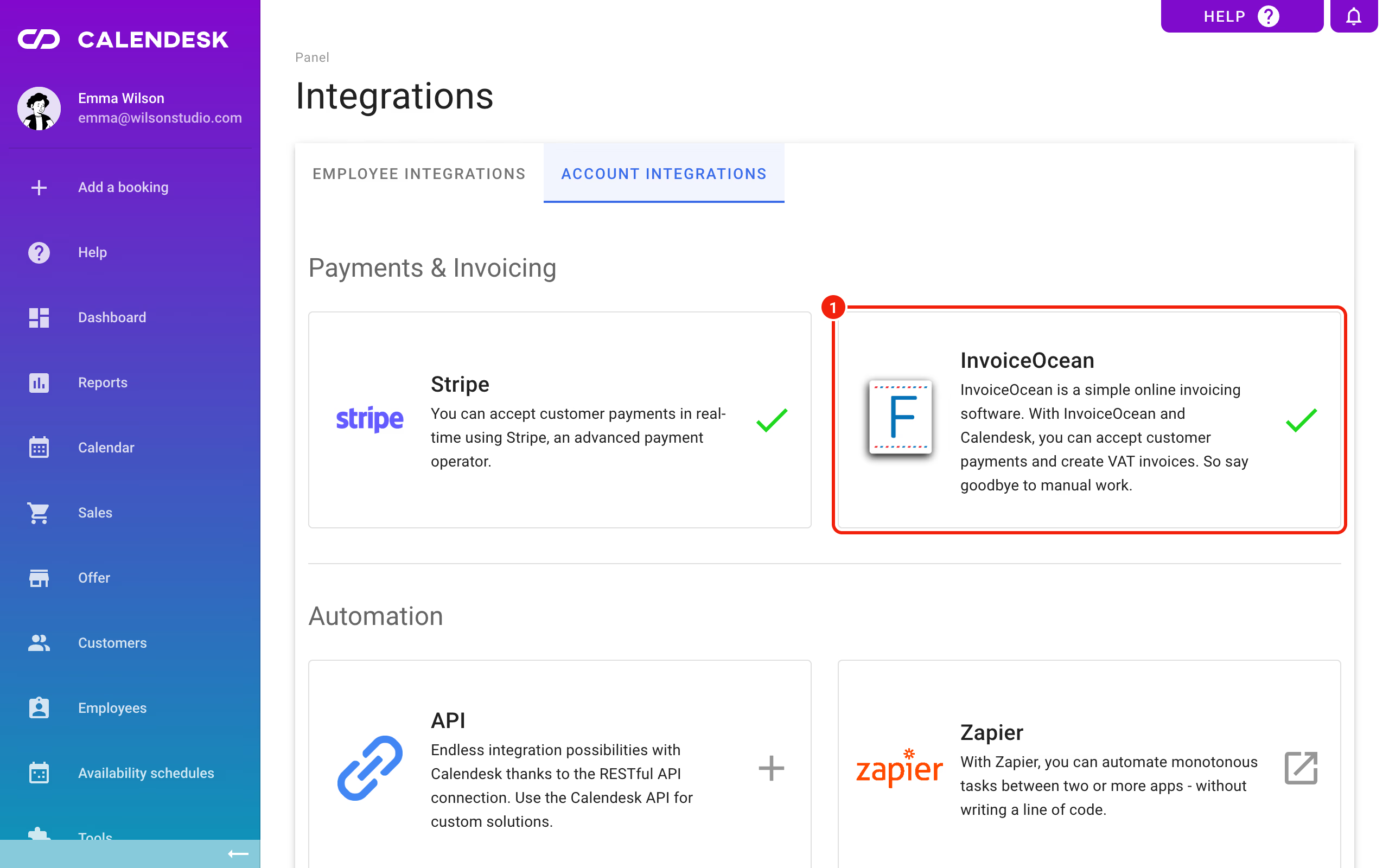
In the Calendesk admin panel go to Integrations – Account integrations and click Start integration on the InvoiceOcean tile. Calendesk needs two things from you:
- API Token,
- URL address of the account.
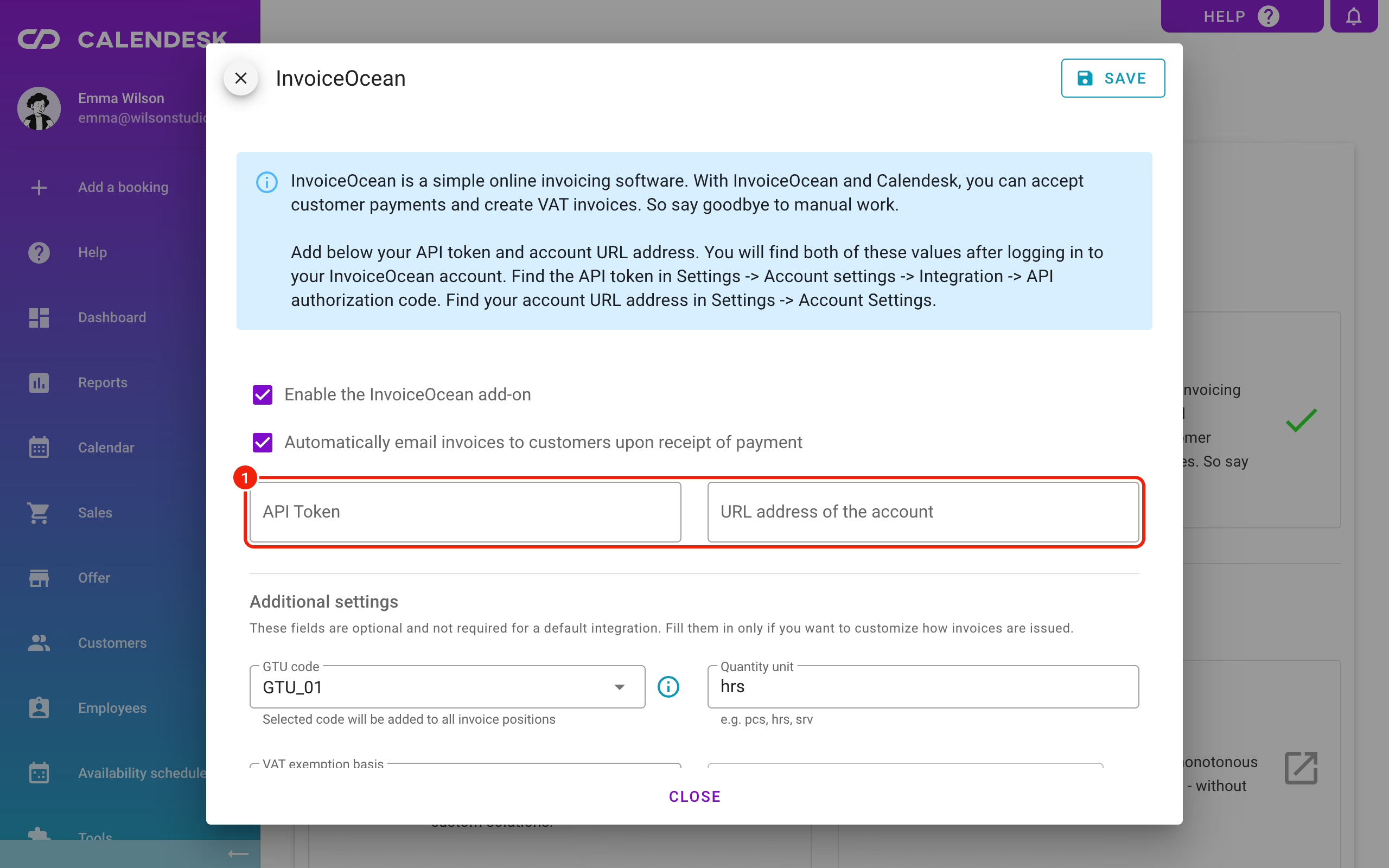
Where do you find the API token and the account URL?
First create an account on InvoiceOcean (Fakturownia). During sign-up it asks which account address you want to use. Any address works, but it's easiest to use your business name, the same as in Calendesk.
That address is your account URL. Find the API token in InvoiceOcean under Settings → Account settings → Integration → API authorization code.
Back in Calendesk, open Integrations – Account integrations again and enter both values.
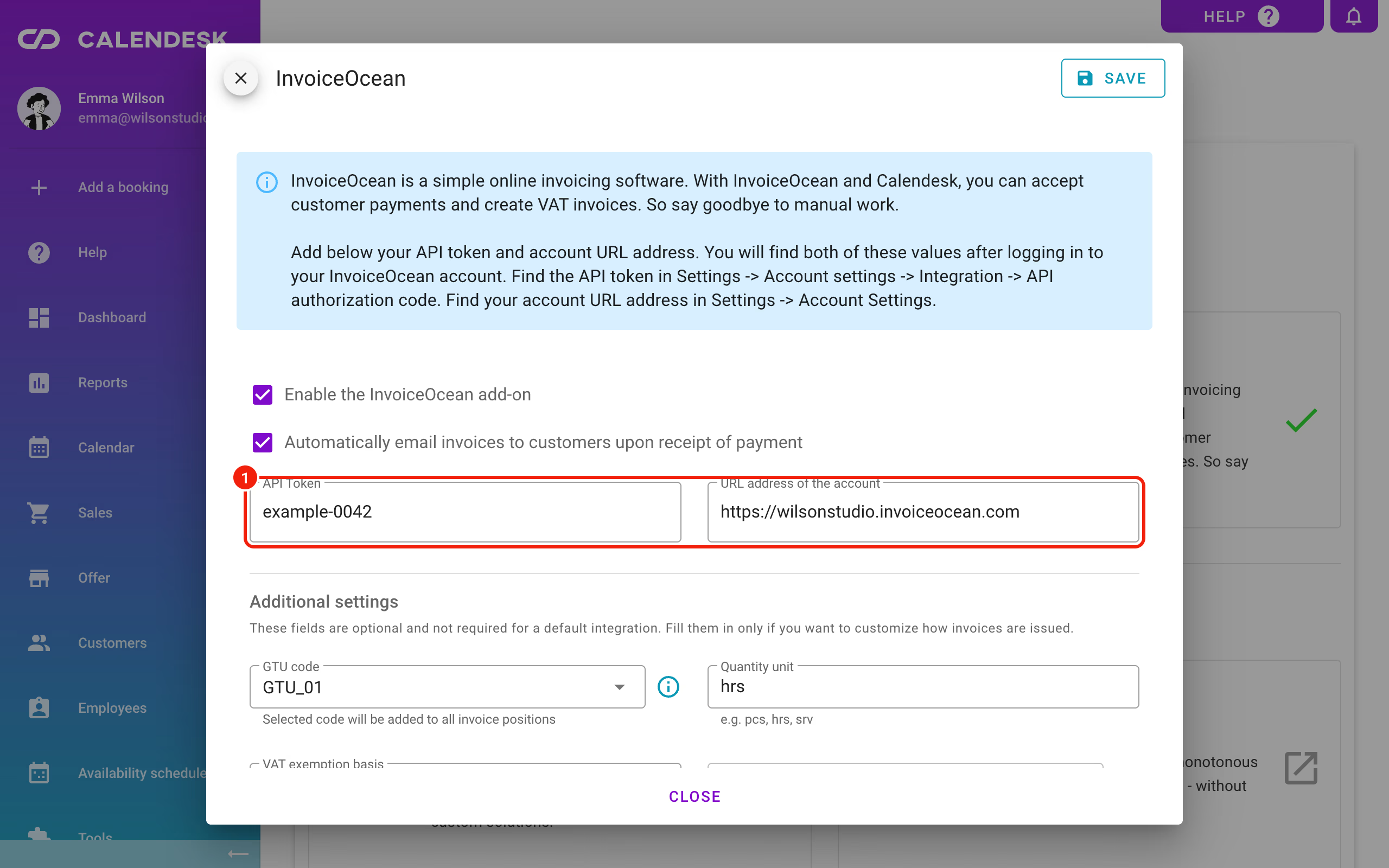
Click Save. Calendesk checks the details and tries to connect to your InvoiceOcean account. If the details are wrong, you'll see a message saying Calendesk can't connect, so check the token and the account URL.
Your accounts are now connected. To have invoices issued automatically after each payment, tick Enable the InvoiceOcean add-on.
To email each invoice to the customer as soon as it's issued, tick Automatically email invoices to customers upon receipt of payment.
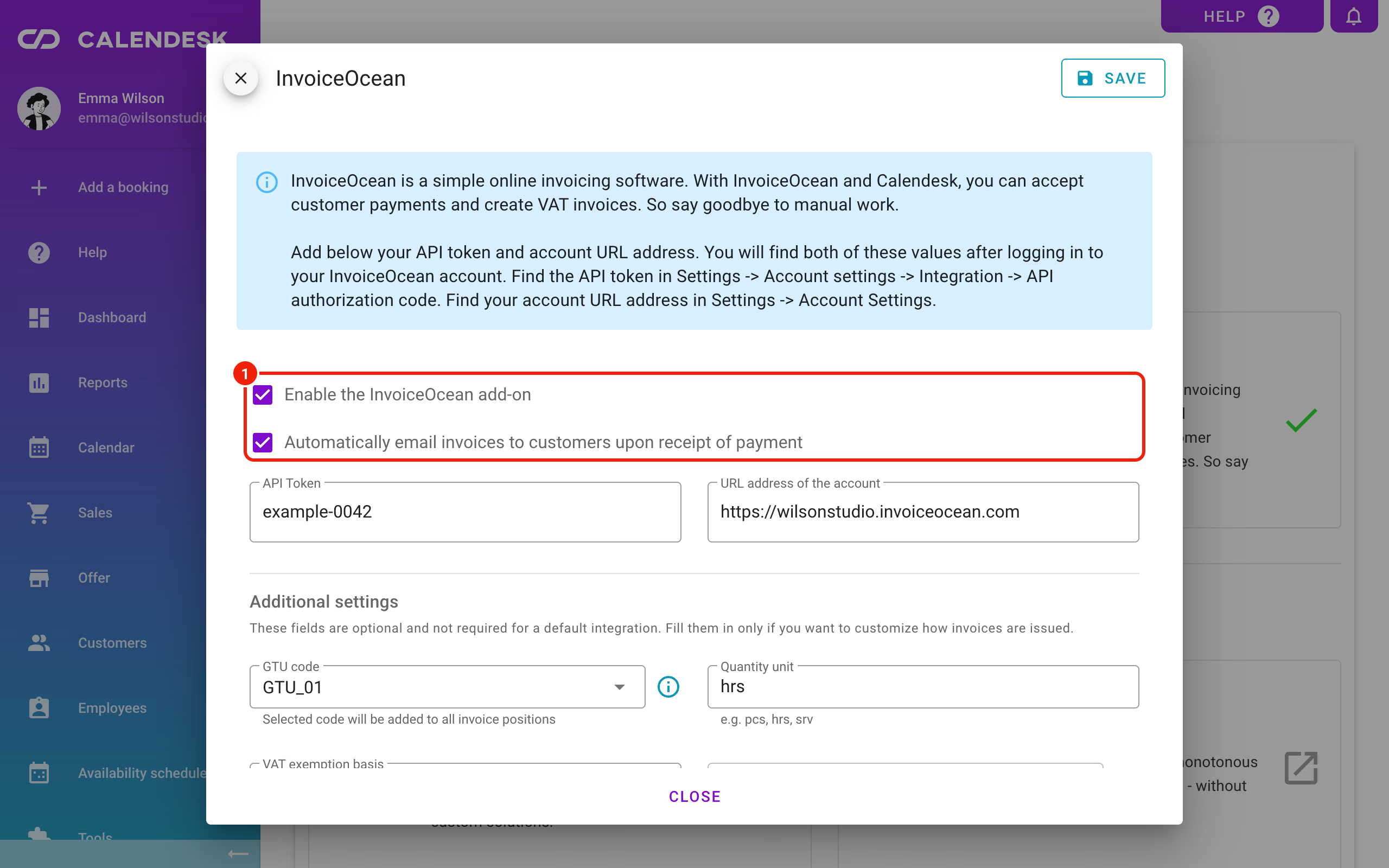
The dialog also has Additional settings: department ID, quantity unit and VAT exemption basis. They're optional, so fill them in only if you want to change how invoices are issued.
Calendesk and InvoiceOcean now talk to each other. For the invoices to carry the right seller and buyer details, you still need to fill those in, in both systems.
Where do you enter seller and buyer details?
Seller details
In InvoiceOcean go to Settings – Company details and fill in your details, as they should appear on every new invoice. You can speed this up by looking your company up by its tax ID.
Buyer details
When you add a booking yourself in the Calendesk panel
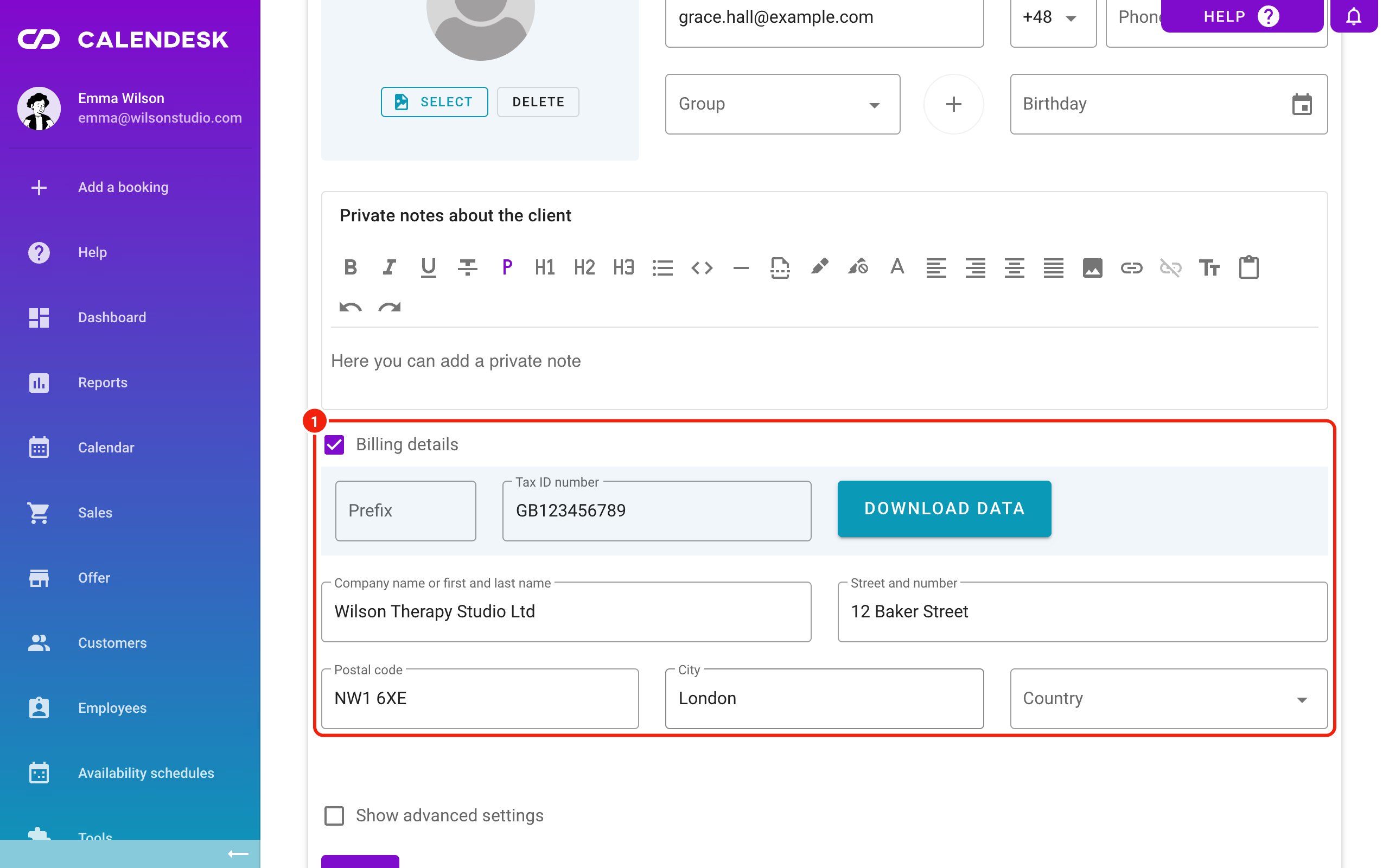
Open Customers, pick the customer and check that Billing details is ticked and filled in. Make sure the tax ID is correct and real, otherwise the invoice won't be issued. If the customer hasn't entered the details themselves, fill them in for them.
When the customer books through your website
Let customers enter their billing details in the booking form. Go to Tools – Websites, open your website and edit the calendar section. Find the checkboxes shown below.
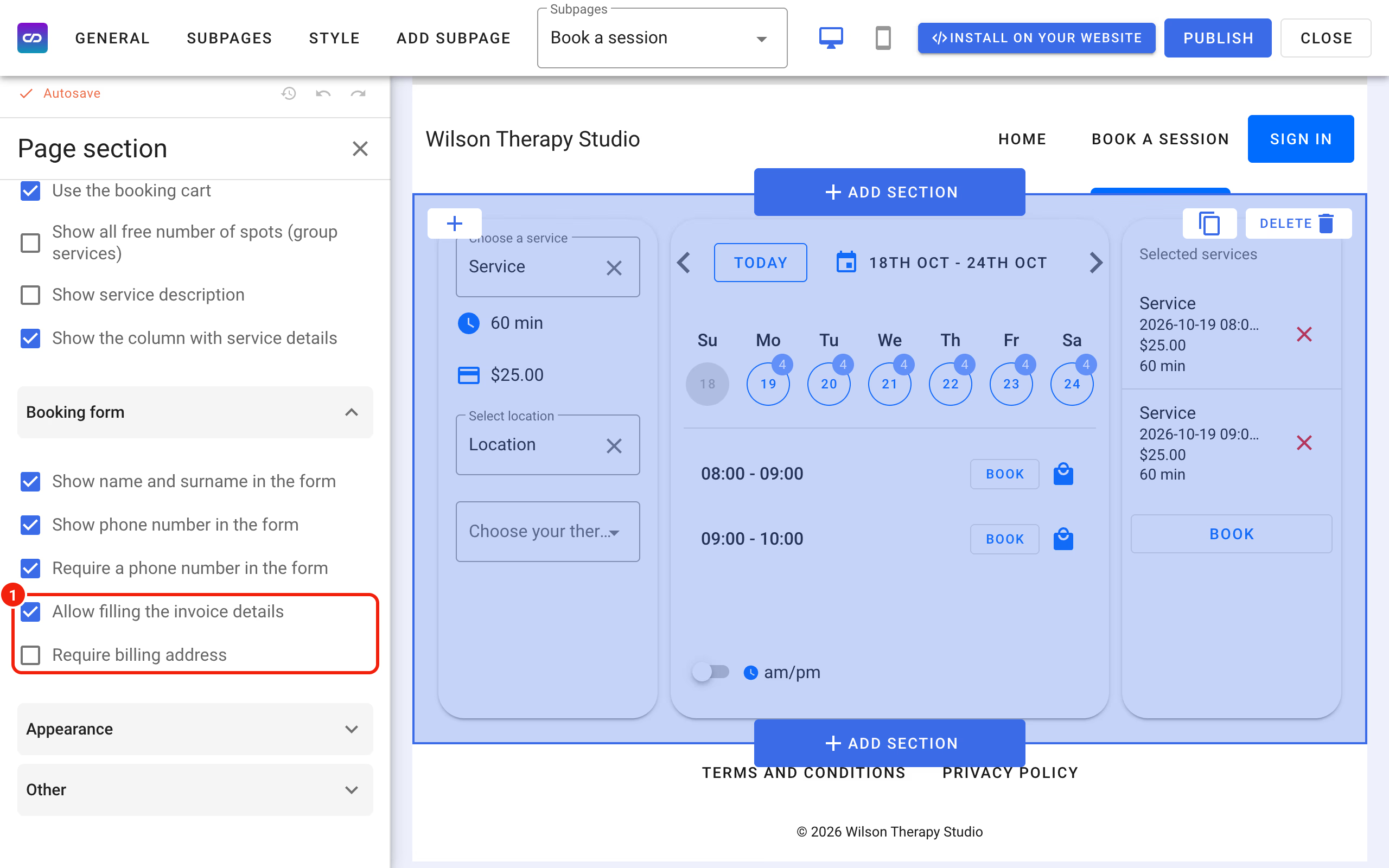
To let customers give their billing details, tick Allow filling the invoice details. To make them required, also tick Require billing address. Customers then have to give their billing details to finish the booking.
If you require billing details, don't show paid and free services in the same calendar.
Services and VAT rate
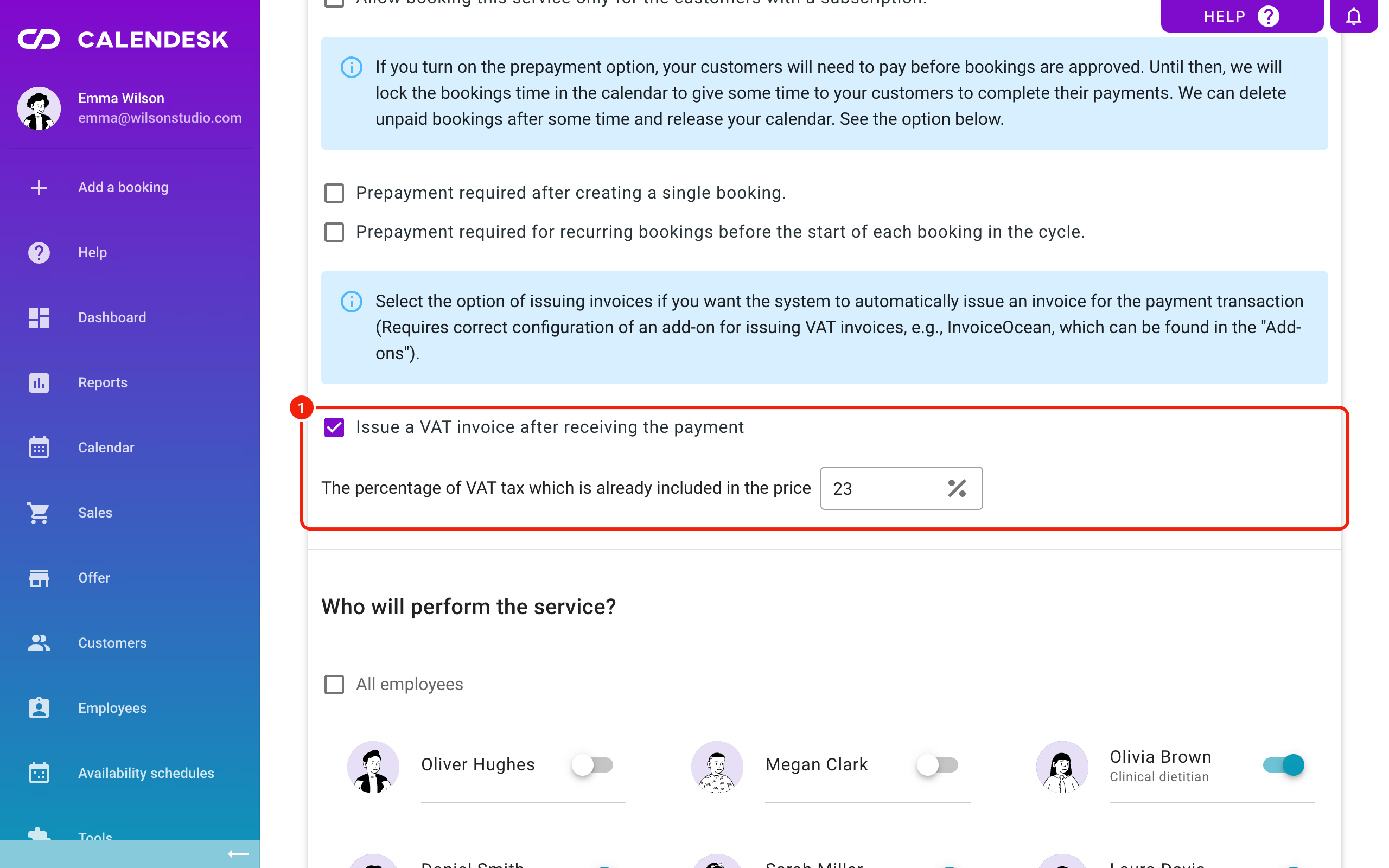
Next, mark which services, subscriptions and products should trigger an invoice. Go to Offer and then Services, Subscriptions or Products.
When you add or edit an item, tick Issue a VAT invoice after receiving the payment and set the VAT rate that applies to it.
GTU codes
GTU codes (Goods and Services Groups) are 13 Polish tax markings, GTU_01 to GTU_13, used to classify certain goods and services in JPK VAT files. You set them in Integrations – Account integrations, in the InvoiceOcean dialog under GTU codes. Calendesk adds the chosen code to every line on the invoice.
Important: InvoiceOcean doesn't print GTU codes by default. Turn it on in InvoiceOcean under Account settings → Printouts → Insert GTU codes.
A discount for Calendesk customers
Calendesk customers get 20% off InvoiceOcean (Fakturownia.pl) services with the code xda7uf.