How to integrate Microsoft Services (Outlook Calendar and Teams) with your system?
Synchronize your Outlook calendars and automatically create Microsoft Teams meeting links
This article will show you how to connect your Calendesk calendar with your Outlook calendar. With this implementation, your Outlook calendar will import all bookings from the Calendesk calendar. This integration of calendars also works the other way. If you have scheduled events in the Outlook calendar, the Calendesk calendar will create blackout dates for these events, preventing your customers from making bookings at that time. If, in addition, you use Microsoft Teams, then Calendesk can create a unique meeting link for online meetings. Calendesk can send meeting links in all notifications and reminders.To connect your Microsoft account, please log in to the employee's account, go to the "Integrations" - Employee Integrations tab, and then to the "Calendars and video conferencing" section. Click on the "Microsoft services" card.
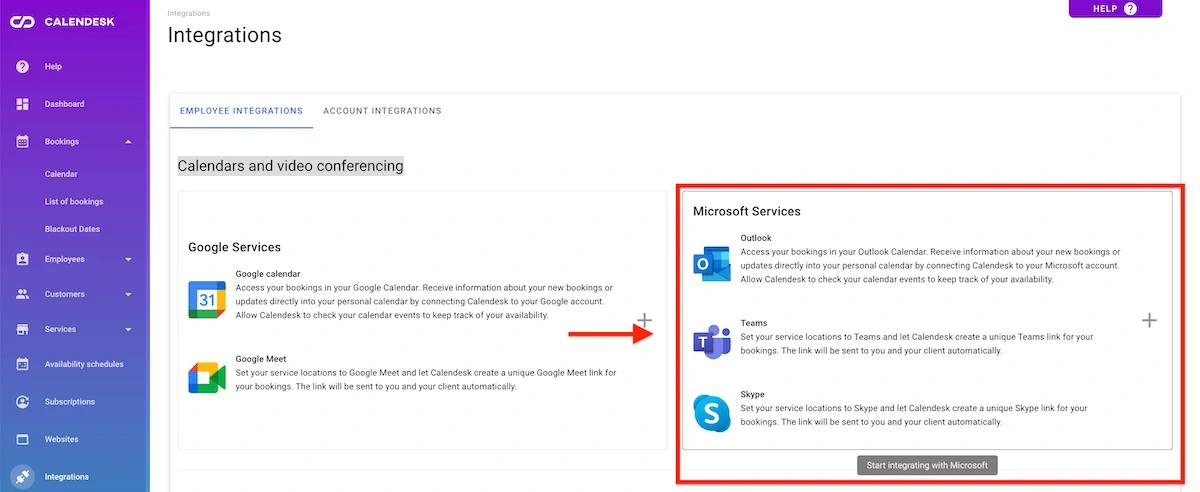
When you select this integration, Calendesk will redirect you to Microsoft, where you can select the Microsoft account you want to use with Calendesk. You will need to log in to your Microsoft account if you are not currently logged in.
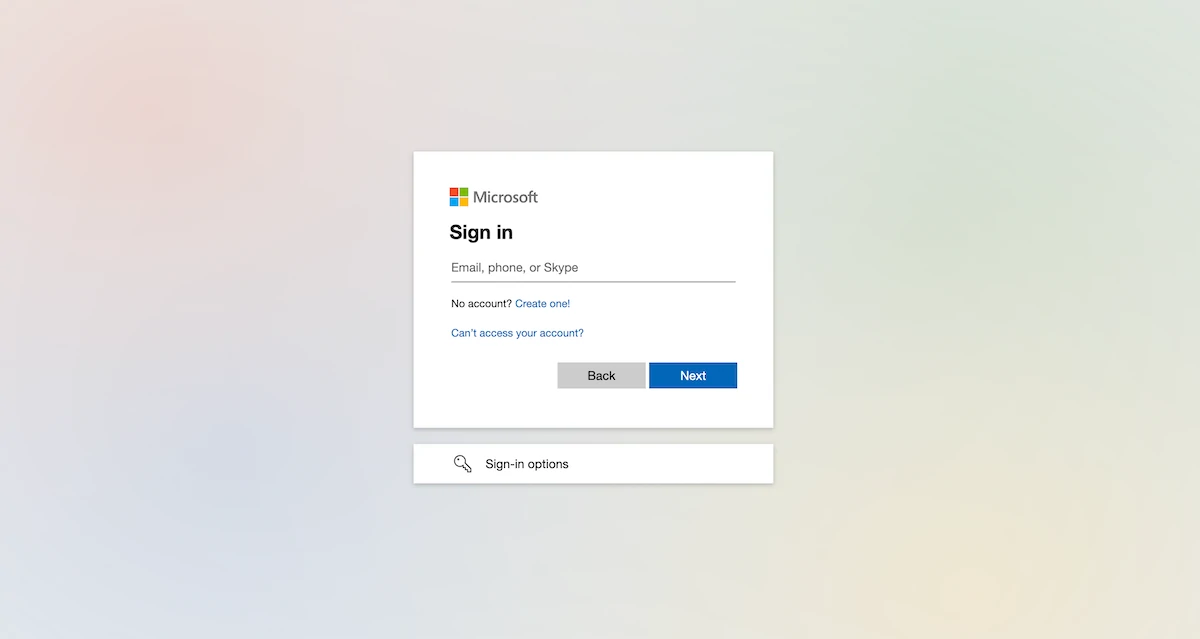
After selecting an account/logging in, approve the permissions to your Microsoft account for Calendesk with the "Accept" button.
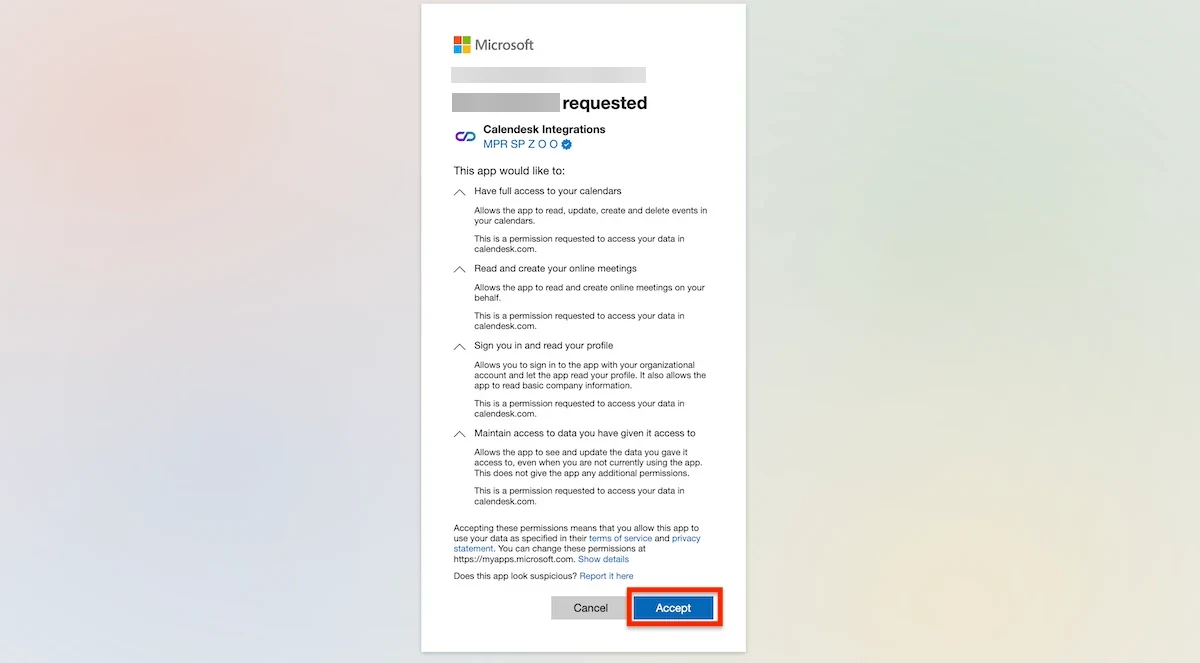
After accepting the permissions, Calendesk will redirect you back to the "Integrations" tab - Employee Integrations. You should see a window where you can finish the setup of your configuration:
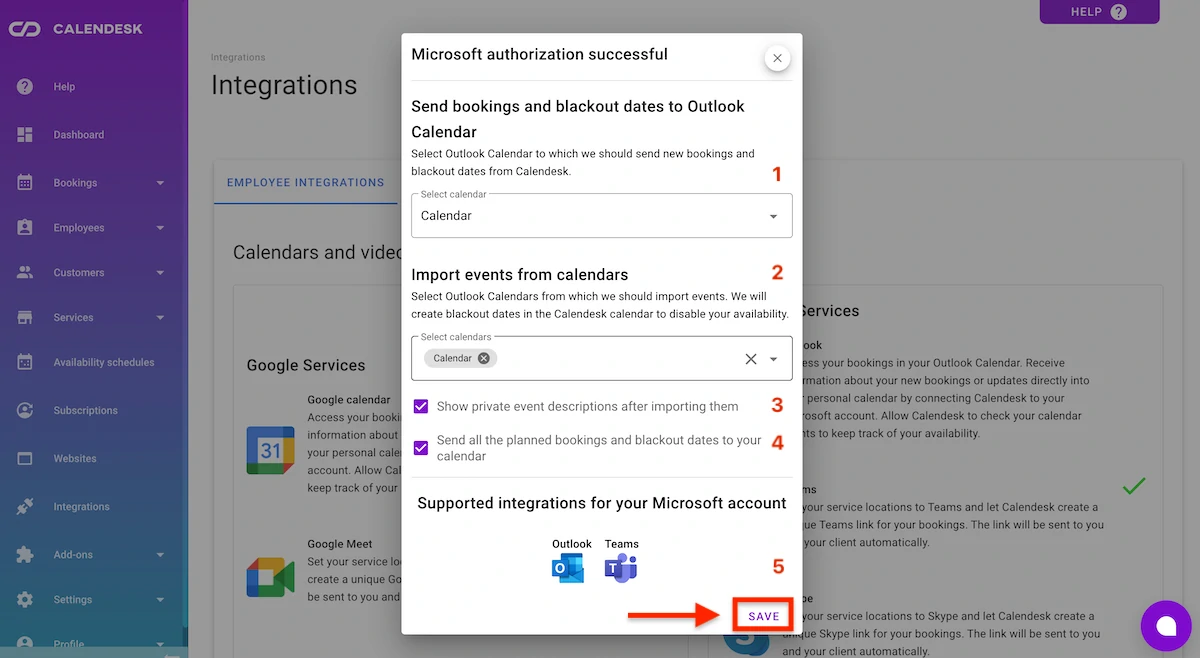
- Select an Outlook calendar to which Calendesk should add events from your Calendesk calendar.You can select only one Outlook calendar to which Calendesk will send events from your Calendesk employee calendar.
- Select Outlook calendars from which Calendesk will download events to your Calendesk calendar.You can select multiple calendars from which Calendesk will download events to your Calendesk employee's calendar.
- Decide whether your Calendesk calendar should display private descriptions of your events from your Outlook calendar.If you do not check this box, you will only see the description "Outlook calendar event" in the descriptions of the "blackout dates" created in the Calendesk employee's calendar.
- Decide whether Calendesk should send all planned blackout dates and bookings to your connected Outlook calendar.
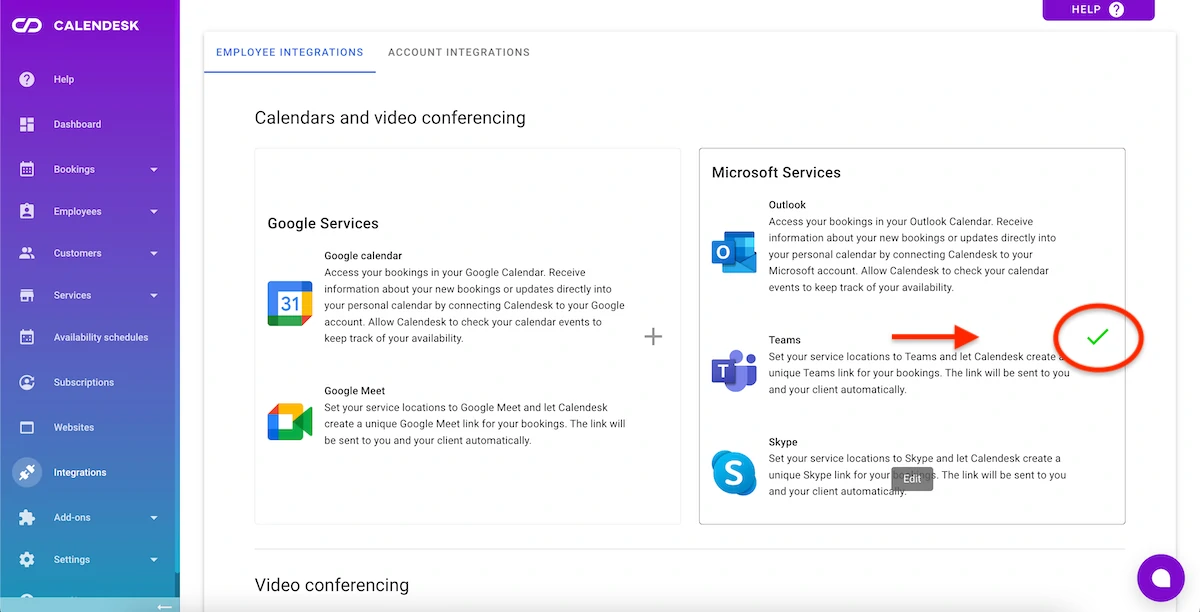
- You will see which integrations your Microsoft account supports. Microsoft Teams meeting links work with a Microsoft 365 work or school account. With a free Microsoft account you can still connect your Outlook calendar, but Calendesk can't create Teams links. Save your settings. After successful integration, you will see check marks in two places:
The green checkmark next to the Microsoft Service integration on the left side, under "Integrations" - Employee Integrations:
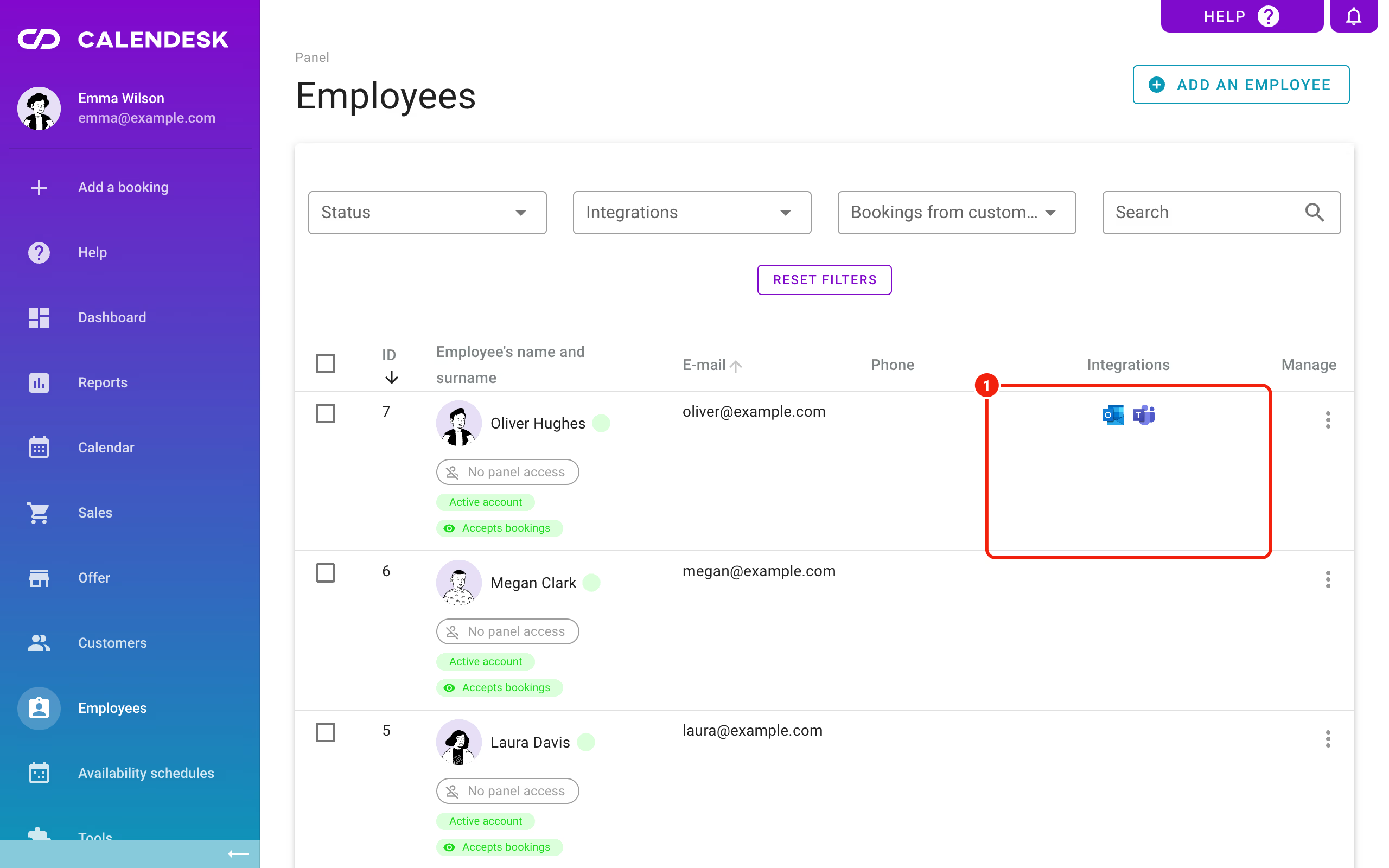
In the "Employees - List of employees" tab, next to the employee's name, in the "Integrations" column, you will see icons of applications integrated with that employee's account.
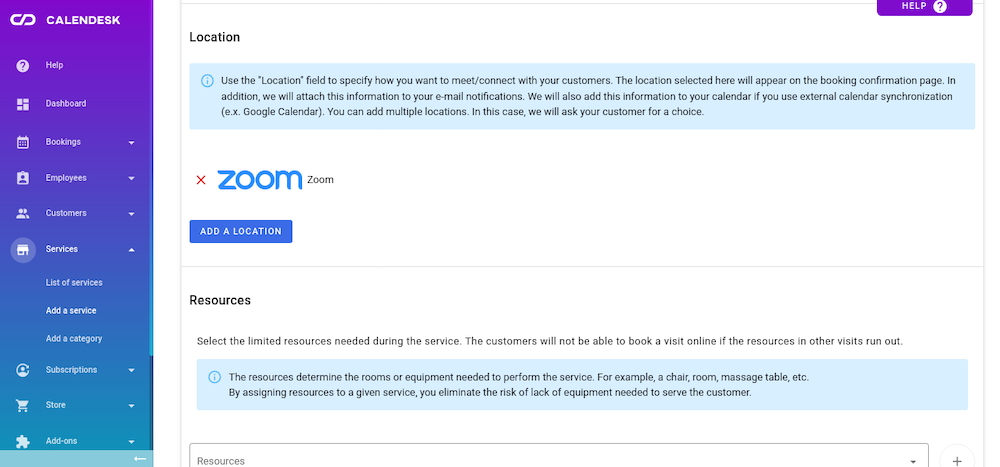
Select locations for your services
After correct integration, you can assign new locations to selected services. Go to the list of services to edit the services.In the Location section, you can select new integrations. Remember to save your settings.