Privacy: automatic deletion of customer data, account history and passwords
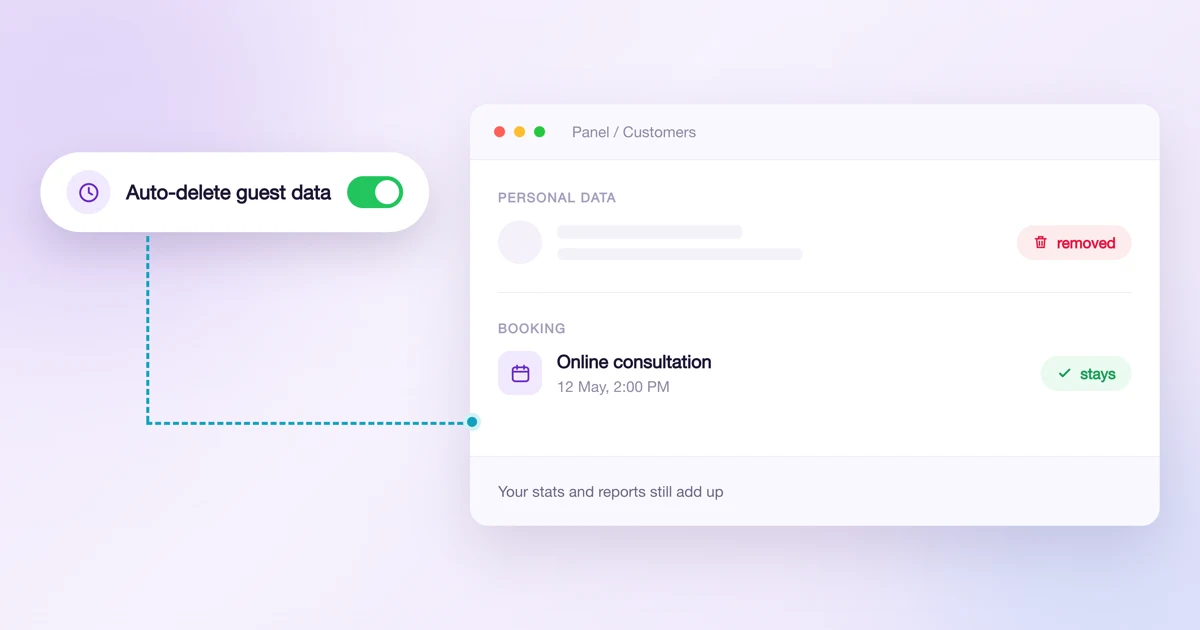
Your customers leave you data you stop needing at some point. Someone booked once, two years ago, never came back, and their name, phone number and email address are still sitting in your database. GDPR says to keep personal data only as long as you need it, but cleaning a database by hand is the kind of job nobody ever gets round to.
In Calendesk you set this up once and it runs by itself. Everything lives in Settings → Privacy. There are three independent switches there: what a customer sees after logging in, when we delete the data of people without an account, and what passwords your customers must use.
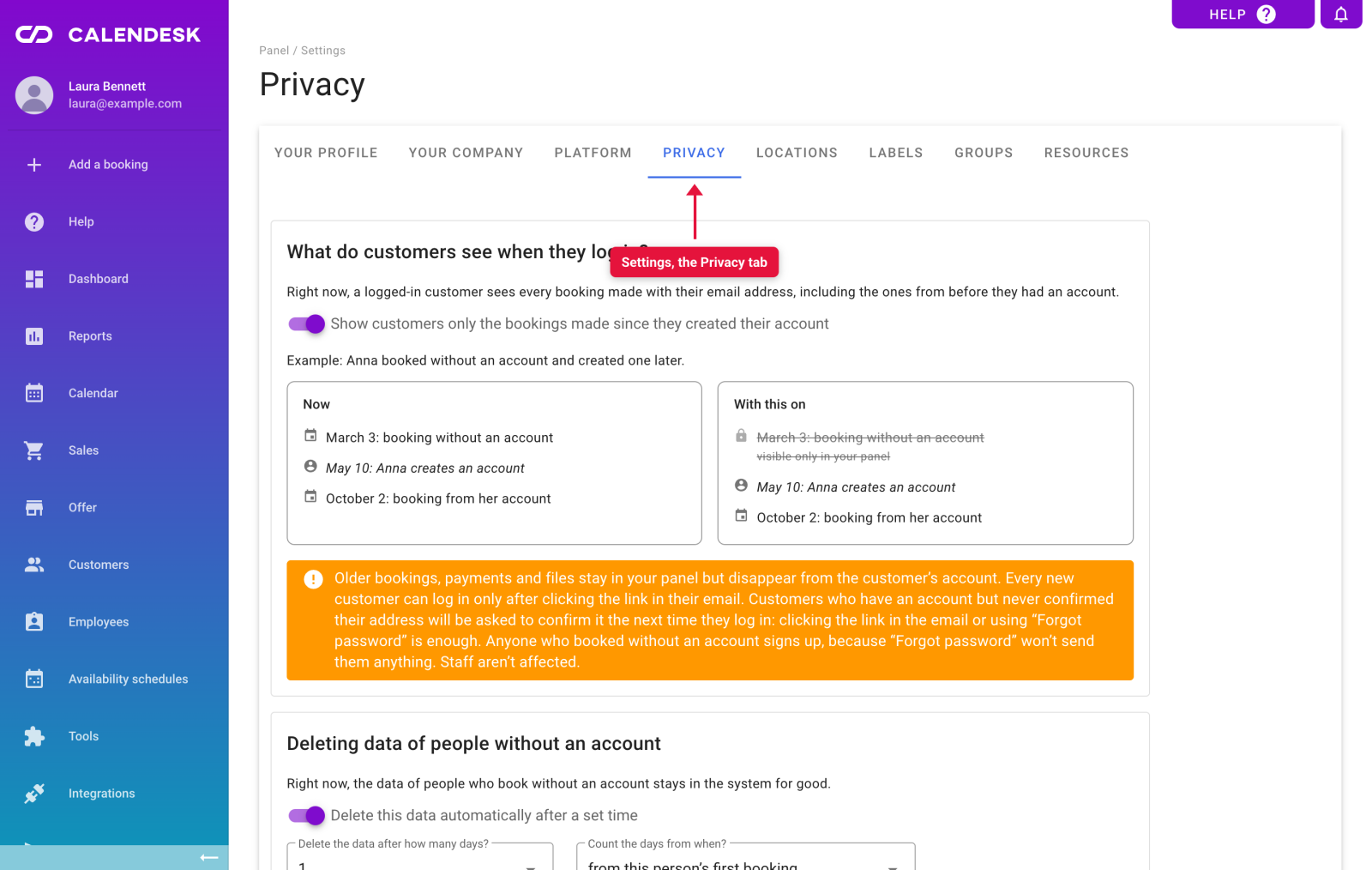
Nothing changes by default. Every setting starts at the value your account had until now, so until you switch something on, the system behaves exactly as before.
What do customers see when they log in?
Right now a customer logs into their account and sees every booking ever made with their email address, including bookings from before the account existed.
That sounds harmless until you picture someone typing in another person's address when booking. Or a family sharing one mailbox. Whoever later creates an account on that address sees a history that is not necessarily theirs.
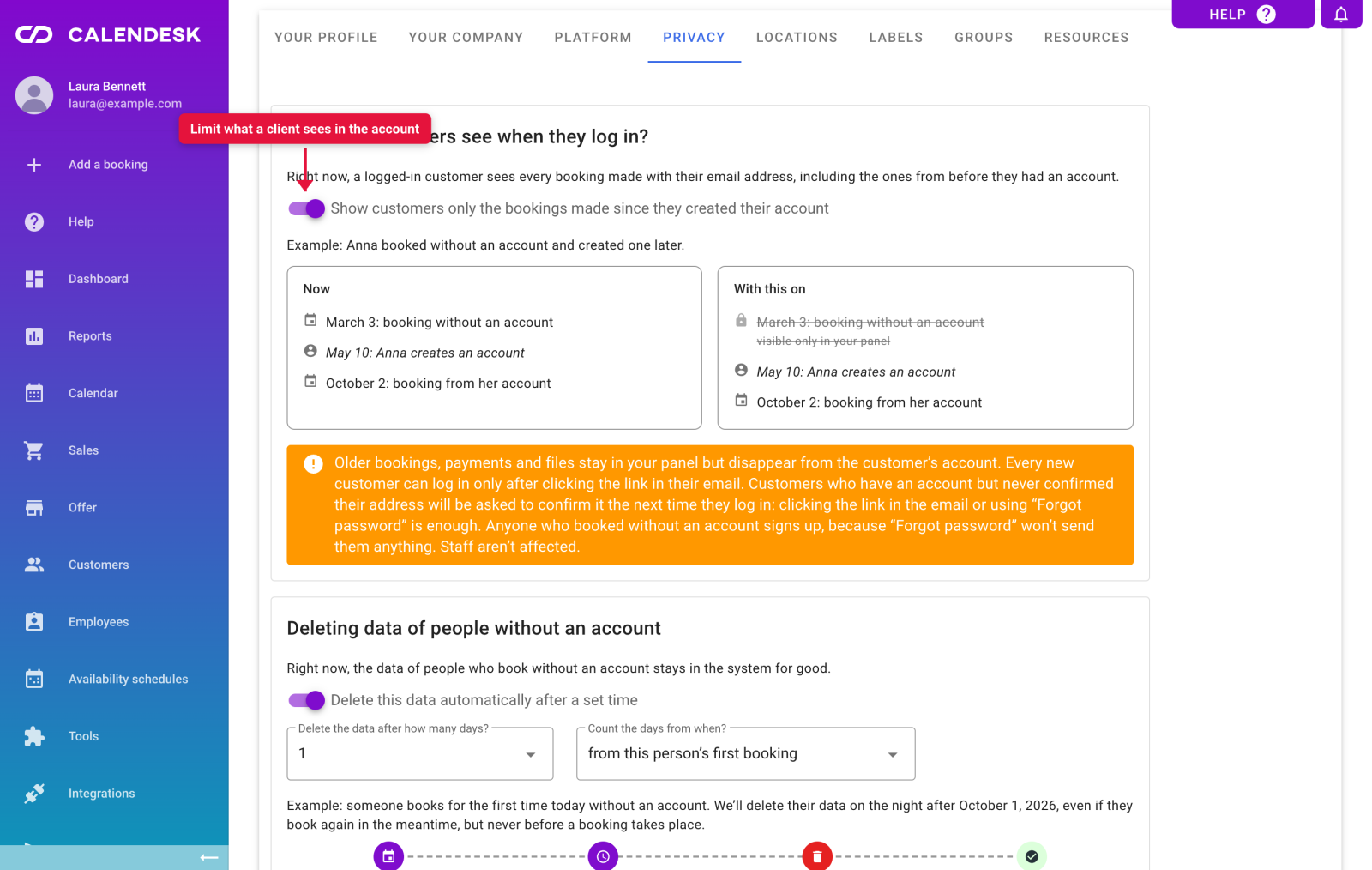
Switch on Show customers only the bookings made since they created their account and the account shows only what was created from the moment the owner of that address asked for an account and confirmed it through the emailed link. Older bookings, payments and files do not disappear: they stay in your panel, and the customer still reaches them through the links in the messages you sent.
This changes one thing about signing in, so it is worth knowing beforehand. Every new customer signs in only after clicking a link from their email. Customers who have an account but never confirmed their address will be asked to confirm at their next sign-in: they click the emailed link or use the "Forgot password" option. Anyone who booked without an account creates one through ordinary registration, because "Forgot password" will not send them anything. None of this affects your employees.
Deleting the data of people without an account
This is the heart of the feature. Switch on Delete this data automatically after a set time and from then on we check every night whose data has passed the deadline you set, and remove it for good.
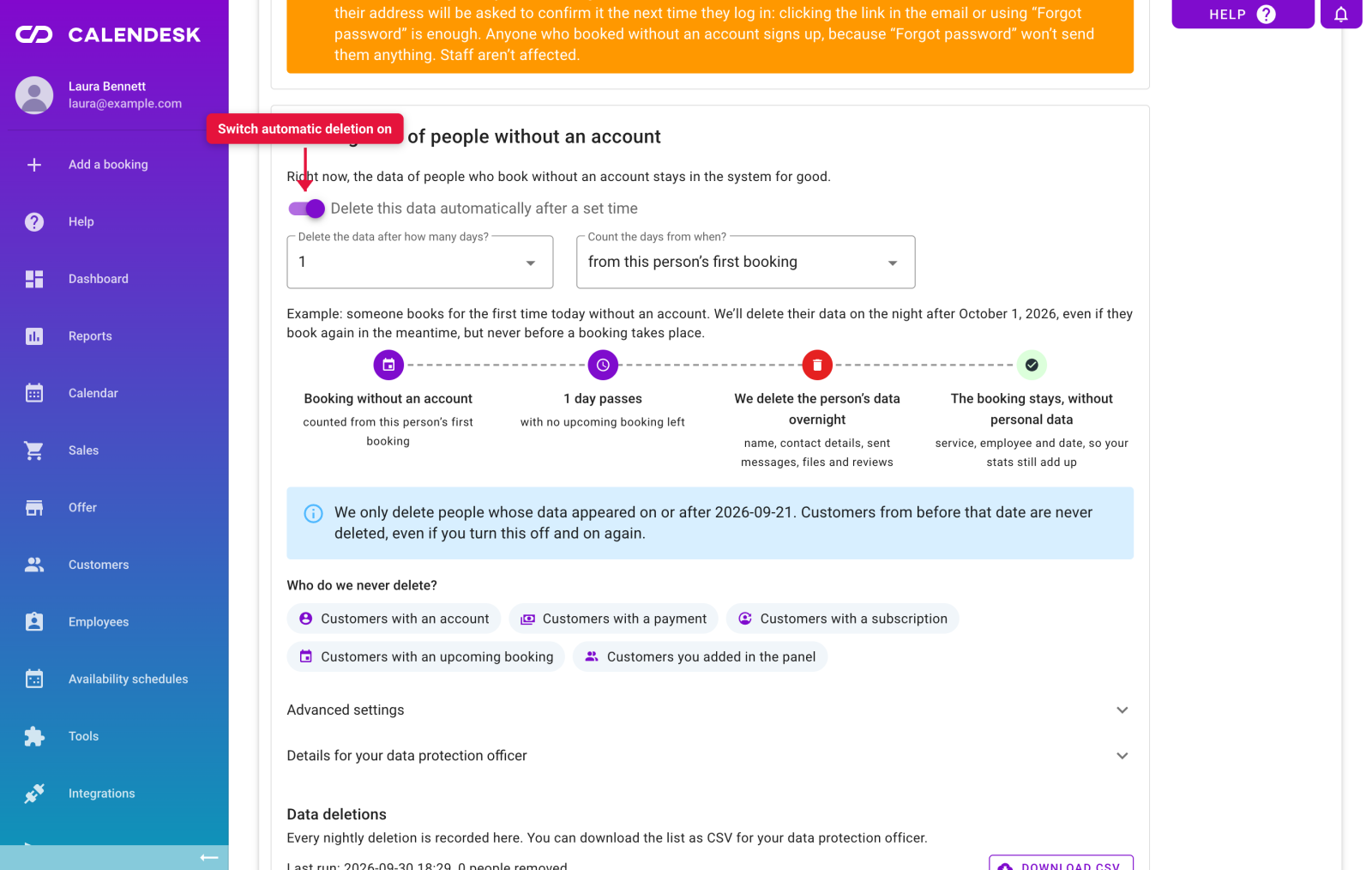
It covers only people who booked an appointment without creating an account. Nobody else.
After how many days, and counted from when?
Pick the number of days, up to 3650. The ready-made options are 90, 180, 365 and 730.
The second field decides what that period counts from:
from this person’s last booking (recommended) (recommended). Every new visit pushes the deadline back. Someone who returns to you twice a year is never deleted.
From this person's first booking. The deadline is fixed from the moment the data first appeared, no matter how many visits follow.
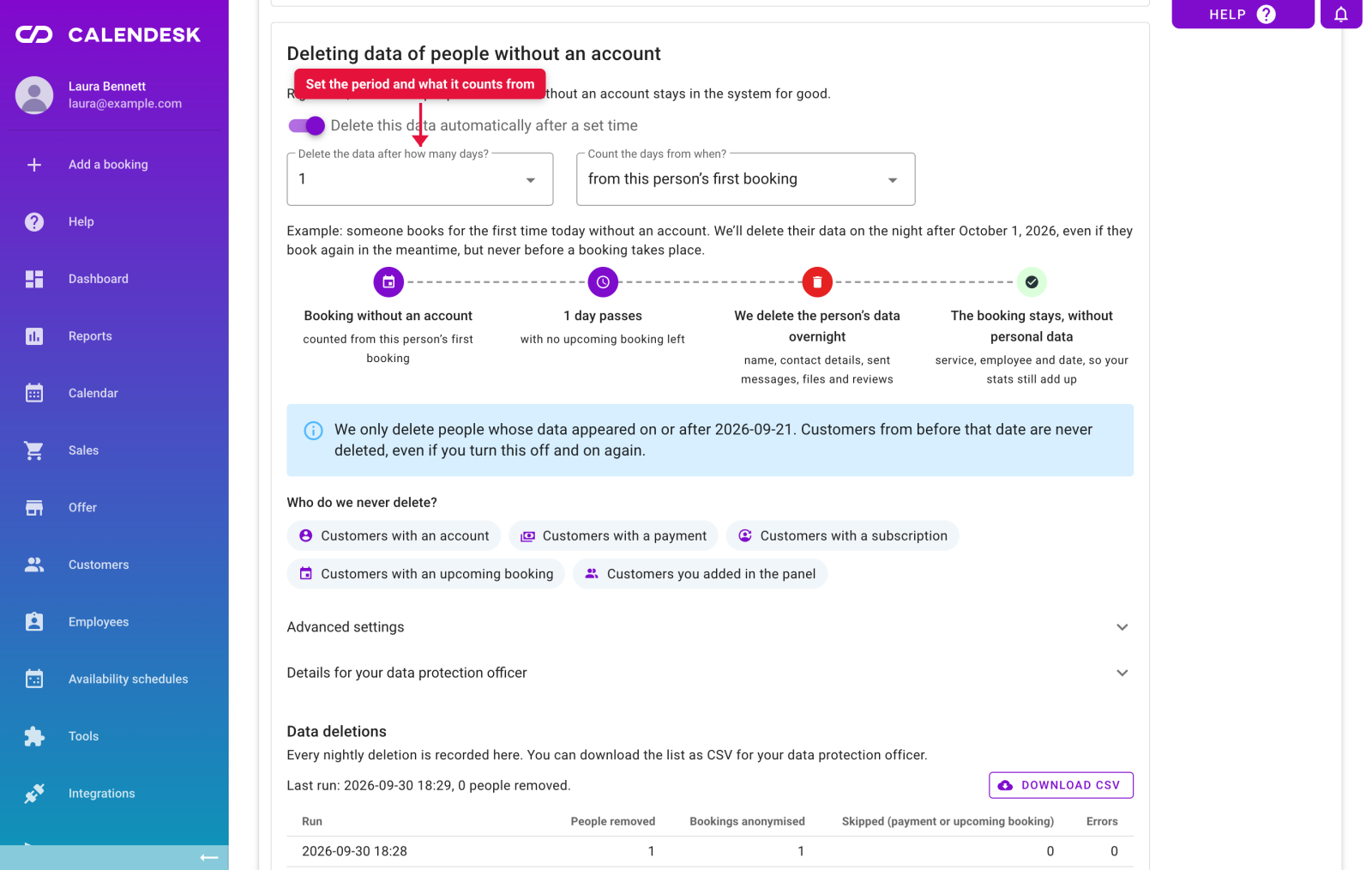
Either way, we never delete anyone's data before a booking that is still ahead of them.
What goes, and what stays?
What goes is the person: name, email address, phone number, postal address, the emails and text messages you sent them, their activity log entries, attachments and reviews.
What stays is the booking itself, minus the human: service, employee, date and status. That keeps your reports honest. A month in which you delivered 120 appointments still reads 120 appointments after the cleanup.
Who do we never delete?
Five groups are protected no matter how you configure this:
customers with an account, along with anyone who requested one or signed in at least once,
customers with any payment, because their data is tied to accounting records,
customers with a subscription or a pass,
customers with a booking still ahead of them,
customers you added by hand in the panel.
People skipped because of a payment or an upcoming visit are listed in the log as skipped, so you can see the system considered them and deliberately left them alone.
Deletion is never retroactive
This one matters and is easy to miss. We only ever delete people whose data appeared on or after the day you first switched the option on. Customers from before that date are never touched, not even if you switch the option off and on again.
That first date is recorded once and cannot be moved. If you want to clear older records, do it by hand in the Customers tab.
Older bookings by people who signed up later
There is one extra checkbox under Advanced settings. It only does anything when "Show customers only the bookings made since they created their account" is already on.
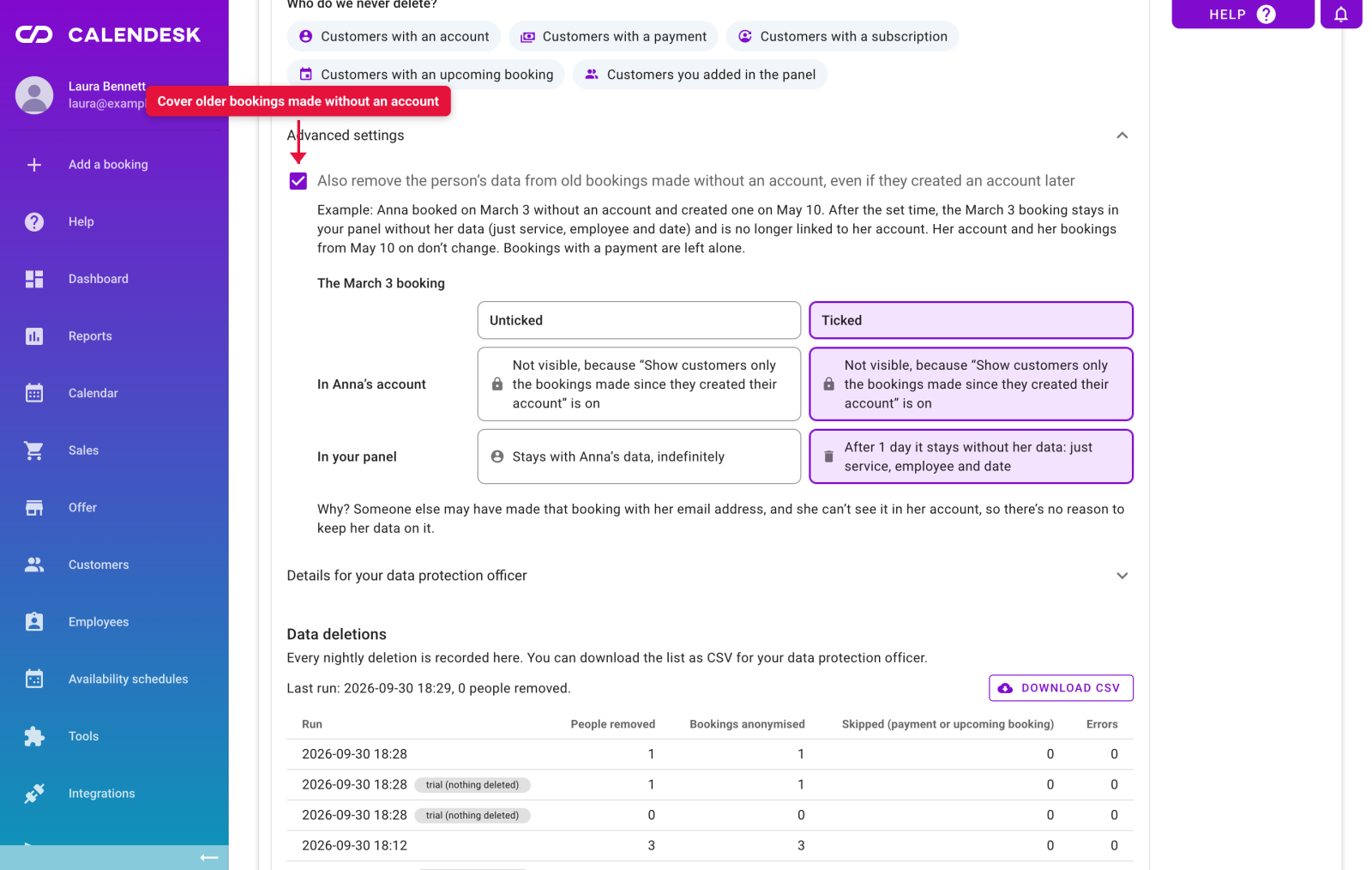
The worked example in the panel explains it best. Anna booked on 3 March without an account and created one on 10 May. After the period you set, the 3 March booking stays in your panel without her data: service, employee and date only. Her account and every booking from 10 May onwards are untouched. Bookings with a payment are never affected.
Why bother? Anna cannot see that booking in her account anyway, and someone else may have made it using her address, so there is no reason for her details to keep sitting on it.
The deletion log and the file for your DPO
Every nightly cleanup is recorded in the Data deletions list: the date of the run, how many people were removed, how many bookings were left without personal data, how many people were skipped, and whether anything failed. Runs marked as a trial are tests that deleted nothing.
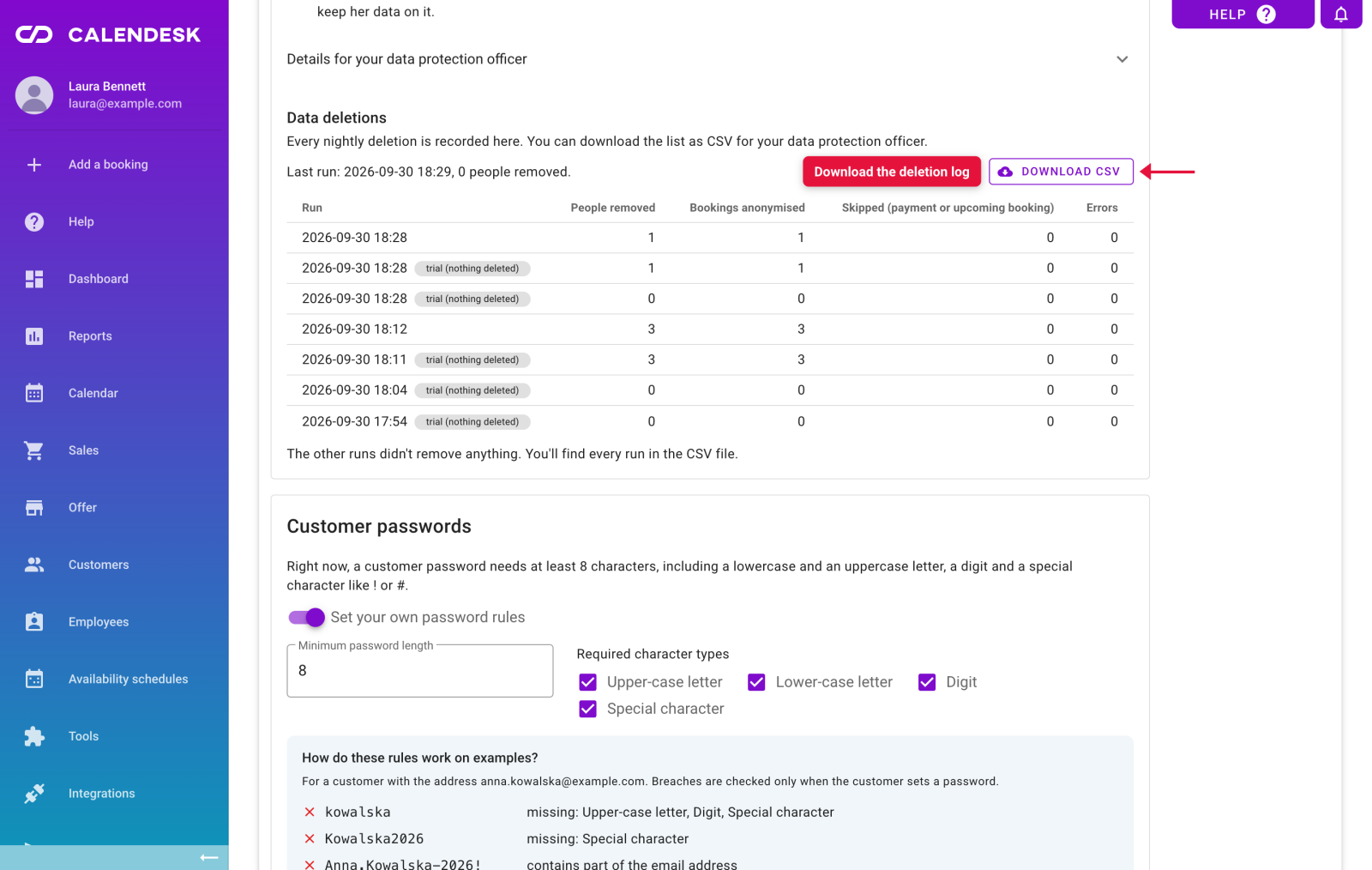
The Download CSV button hands you the whole list as a file you can pass to your data protection officer or produce during an audit.
A few details a DPO usually asks about:
The log stores counts only, never the data of the people who were deleted.
For 90 days we keep an irreversible hash of the email addresses, so that we can answer whether a particular address was deleted if someone asks.
Expand Details for your data protection officer in the panel for the full description. You can copy it straight into your own documentation.
Customer passwords
The third setting is not about deletion, but it sits here because it guards the same thing: keeping the wrong person out of a customer's account.
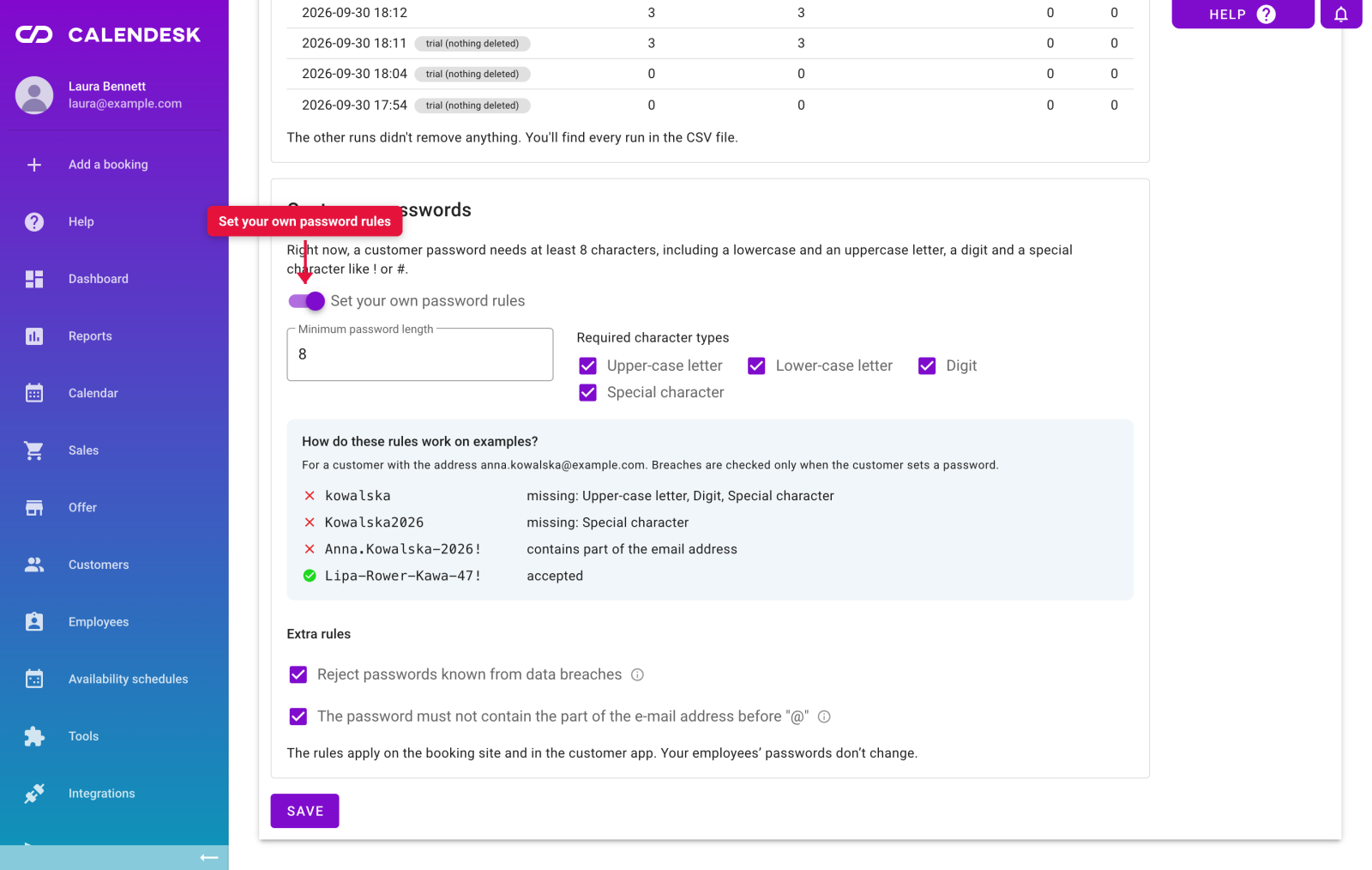
By default a customer password needs at least 8 characters, including a lower-case letter, an upper-case letter, a digit and a special character. Switch on Set your own password rules and you choose the minimum length, anywhere from 8 to 64 characters, and which character types you require.
Two extra rules come with it:
Reject passwords known from data breaches. We check whether the password has shown up in public data breaches. The password itself never leaves your system.
The password cannot contain the part of the email address before the "@". That blocks the classic "smith123" for [email protected].
The panel shows four live examples, so you can see immediately what passes and what does not. The rules apply on your booking page and in the customer app. Your employees' passwords are unaffected.
Frequently asked questions (FAQ)
Can I undo a deletion?
No. Deletion is permanent, which is why the panel asks you to confirm when you switch the option on. Before you save, you see how many people the next cleanup will affect.
What about invoices for a customer whose data we deleted?
That cannot happen. Anyone with even a single payment is protected and is never deleted.
Will I lose data from my reports?
No. The booking stays in the system, it simply stops pointing at a person. Appointment counts, revenue, employee workload and service popularity all carry on as before.
Do customers get told their data was deleted?
We send no notification. The cleanup is silent and visible only to you, in the log.
What if I switch it on and straight back off?
The date of the first switch-on is stored permanently. When you switch it on again, the cleanup also covers people who booked while it was off, as long as their data appeared after that first date.
Got a question this article does not answer? Write to us at [email protected].