How to sell Calendesk subscriptions on a website built outside Calendesk?
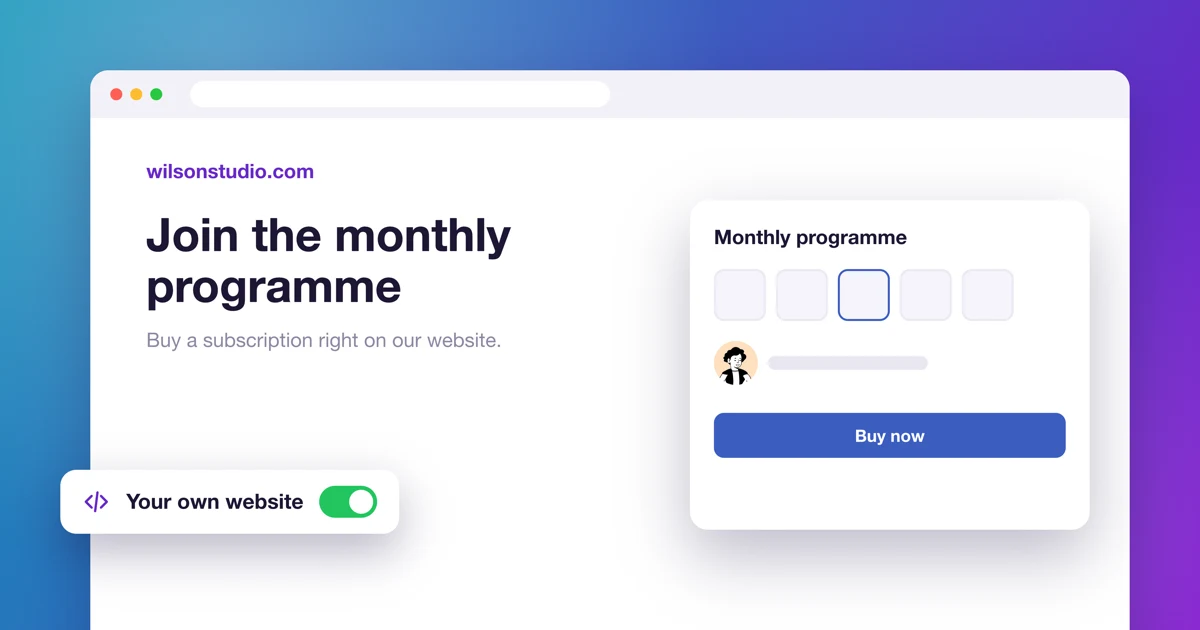
If your website is built with something other than the Calendesk website builder, you can still connect the booking system to it and sell Calendesk subscriptions and packages there. Here is how to add subscriptions to your own website.
Step 1: Create subscriptions in the Calendesk panel
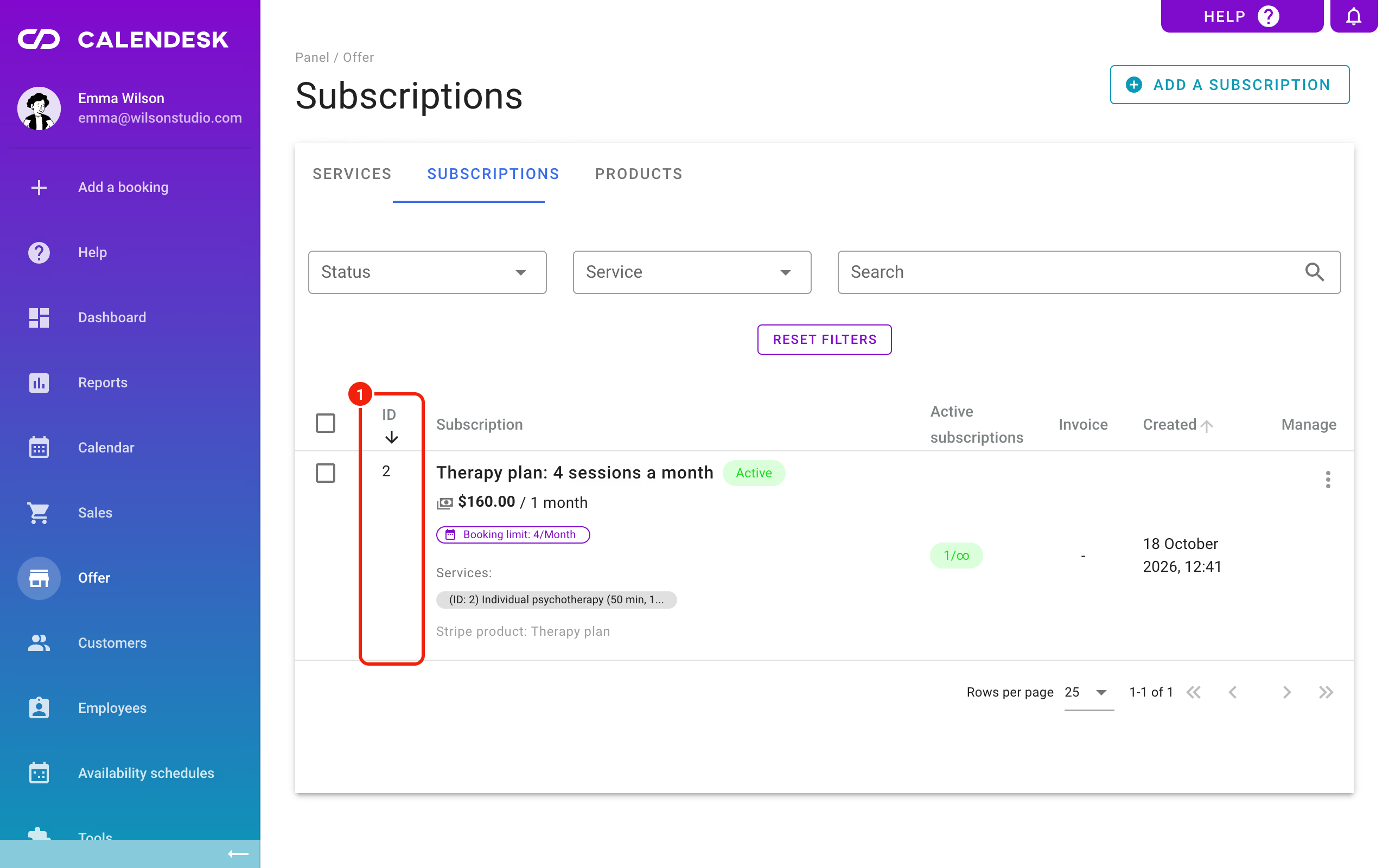
How to set up a subscription is described in How to offer subscriptions or one-time payments for your customers? Decide whether you are selling one-time packages (they don't renew and the customer pays once) or subscriptions (they renew and the customer pays regularly). Once your subscriptions are ready, you will find their ID numbers under Offer – Subscriptions. You need these IDs so that customers can buy the subscriptions on your website.
Step 2: Create the links and add them to your website
Wherever you want to sell, add links that take your customers to the subscription or package purchase.
A subscription link always looks like this:
https://your-website.calendesk.net/subscription/2where:
https://your-website.calendesk.netis the address of your Calendesk website from Tools – Websites. The link has to point to a website made in the Calendesk website builder.
/subscription/2is the part you add yourself: /subscription/ followed by the subscription ID from Offer – Subscriptions.
Step 3: Create a sign-in page for your customers
Customers with an active subscription or package have to sign in to book with it. Add a Sign in button to your website and link it to a sign-in page. You can build that page in the Calendesk website builder; see How to create a customer login page?
Once the sign-in page and the booking calendar for customers with an active subscription or package are ready, you can start selling.