How to create a customer login page?
If your website runs on a platform other than Calendesk and you want to sell subscriptions or service packages set up in Calendesk, your customers need to be able to sign in to their customer accounts. With an account, a customer can manage their bookings, payments, subscriptions and packages, their details and even their notifications.
See an example of such a sign-in page here (the demo site is in Polish). Sign in with:
Login: [email protected]
Password: KlientCalendesk
Step 1: Create a new website template
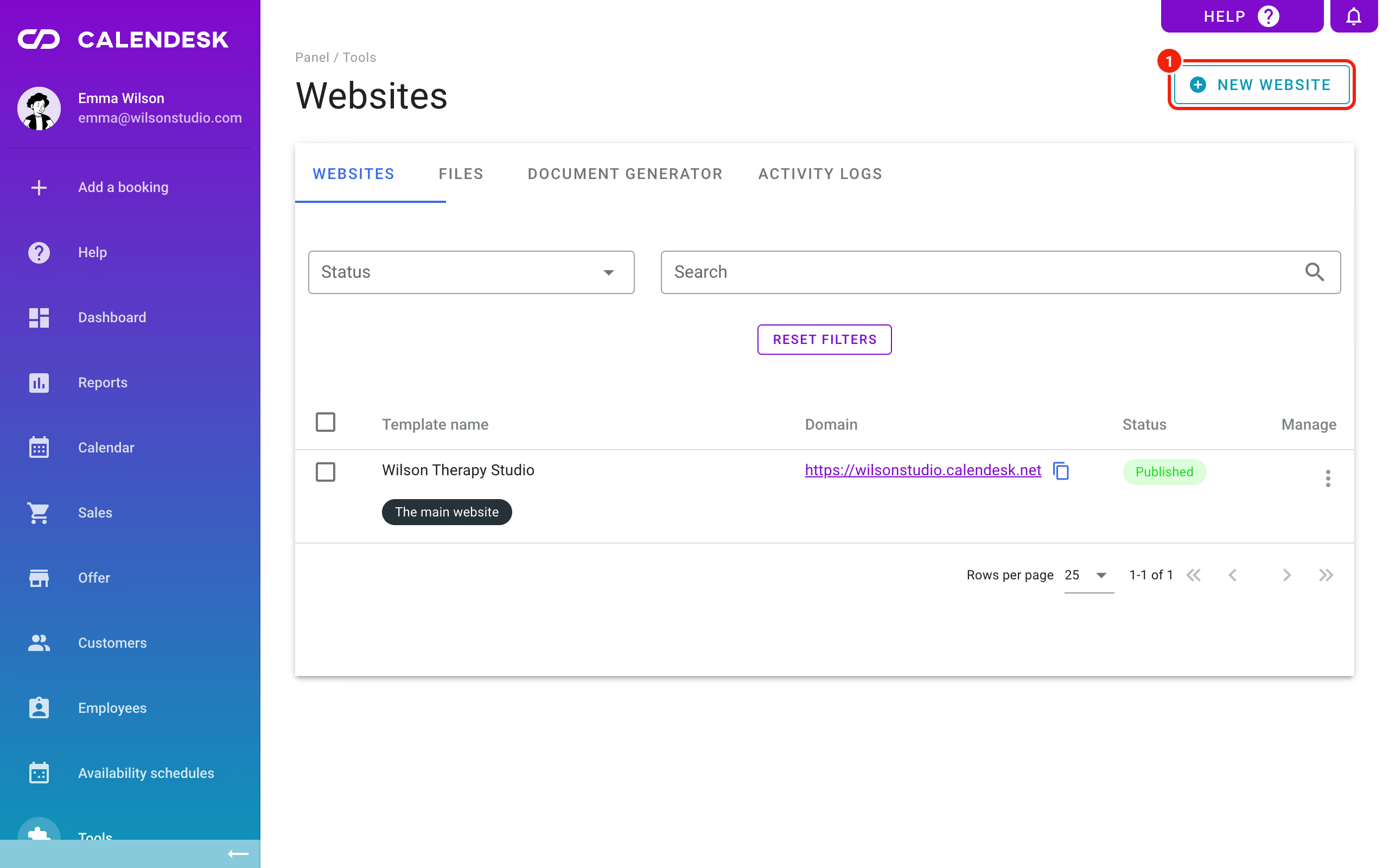
Sign in to the Calendesk panel and go to Tools – Websites. Click New website.
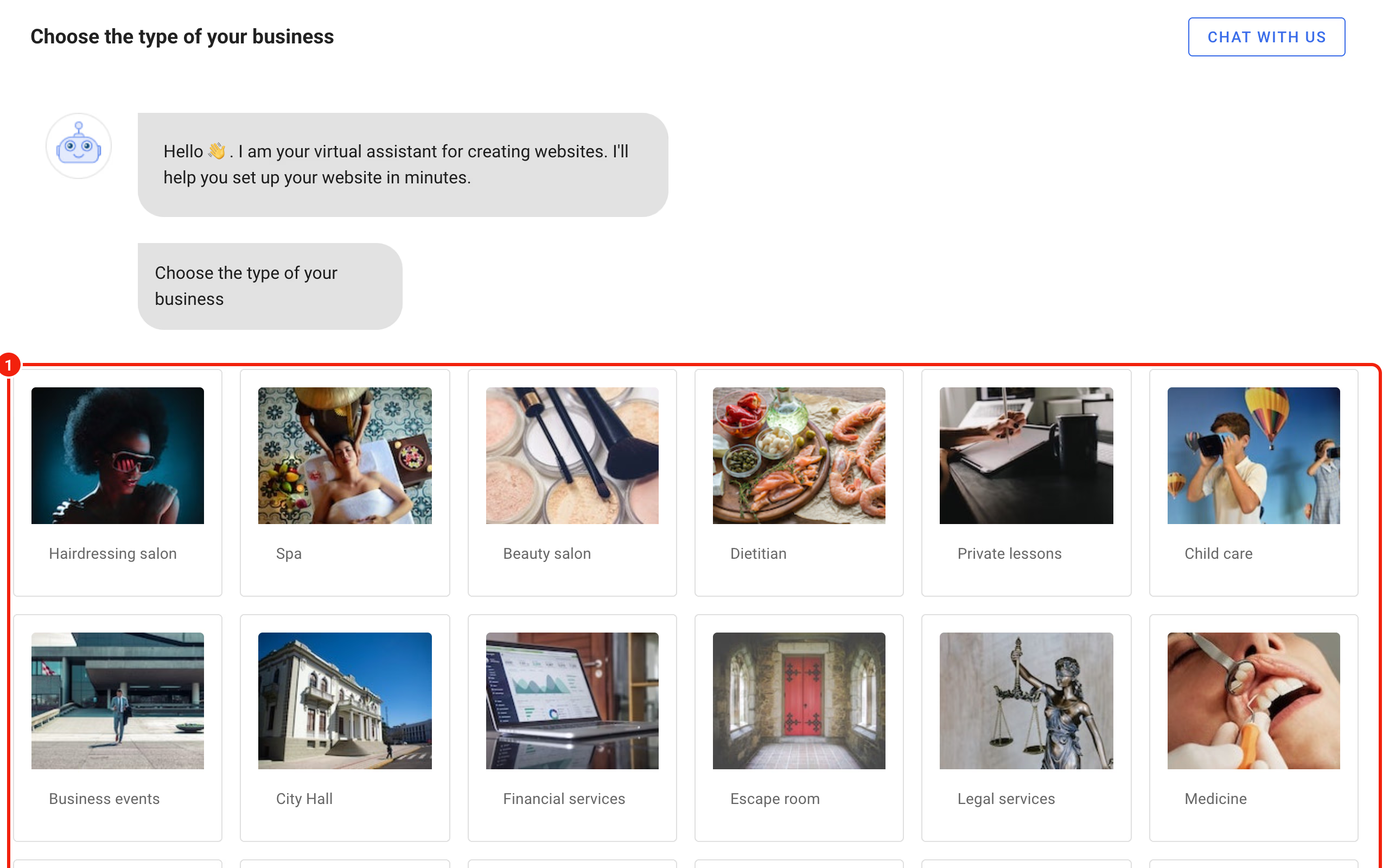
A short assistant opens. Choose your type of business, for example Psychologist, and give the website a name, so your websites stay easy to tell apart. You will change the generated pages anyway, so the answers don't need to be perfect.
Once the template is generated, remove everything you don't need. A minimal page works best: the customer doesn't get lost and knows straight away how to get to the booking calendar. Our sign-in page will only have the logo with the company name and the e-mail and password fields.
Step 2: Edit the sign-in page
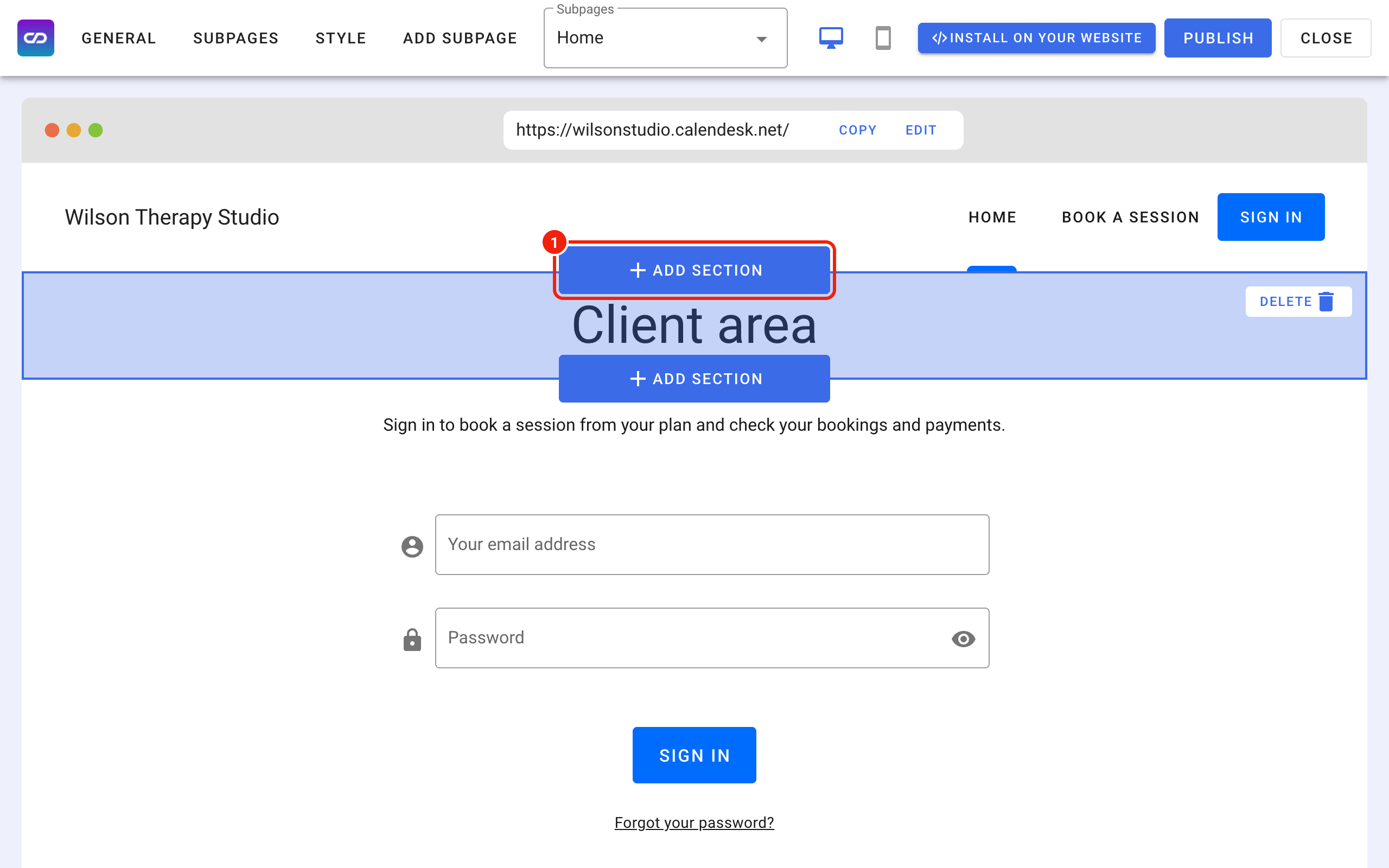
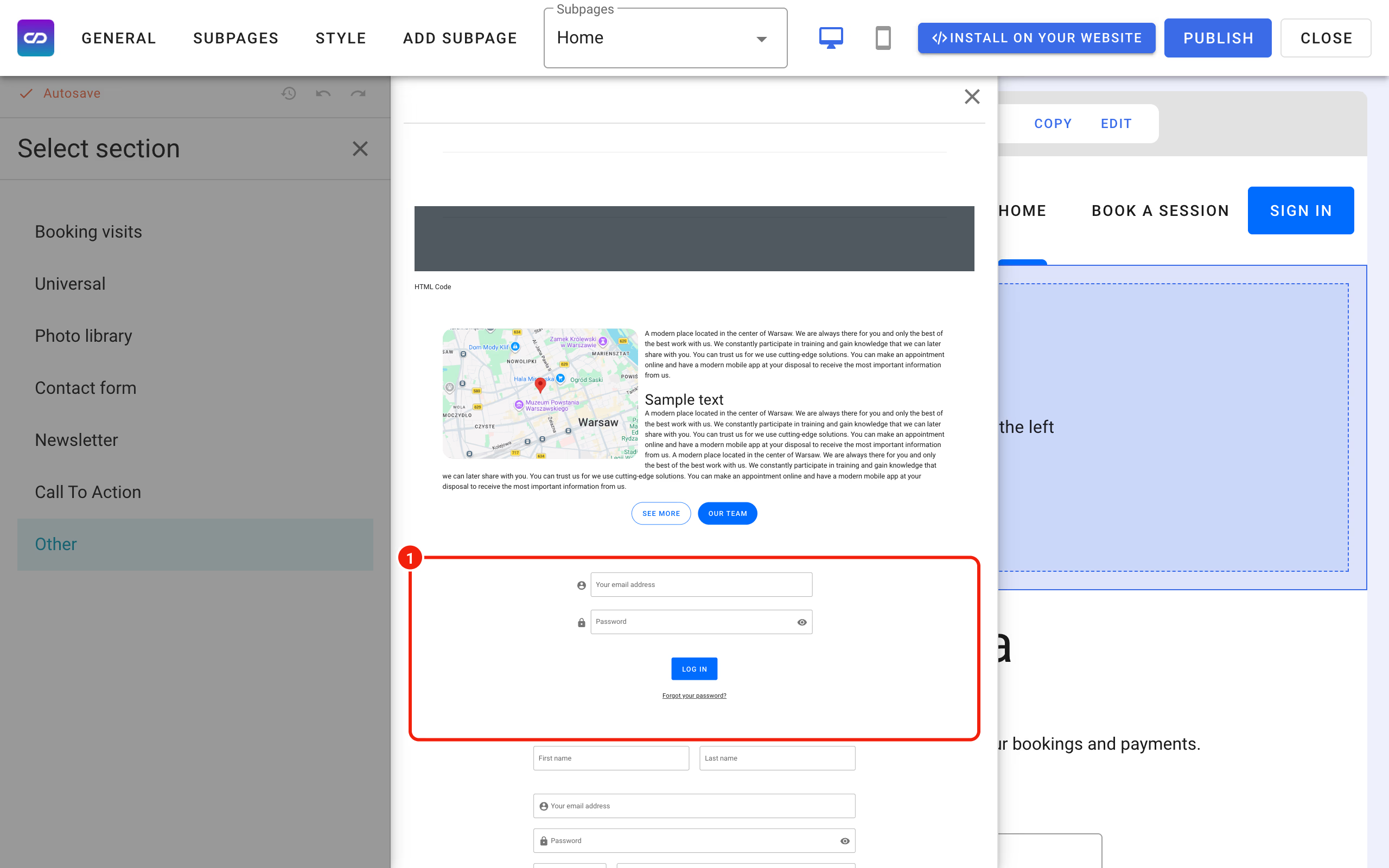
After removing the extra sections, add a heading that tells customers where they are, then click Add section to add the e-mail and password fields.
Step 3: Create a subpage with the calendar
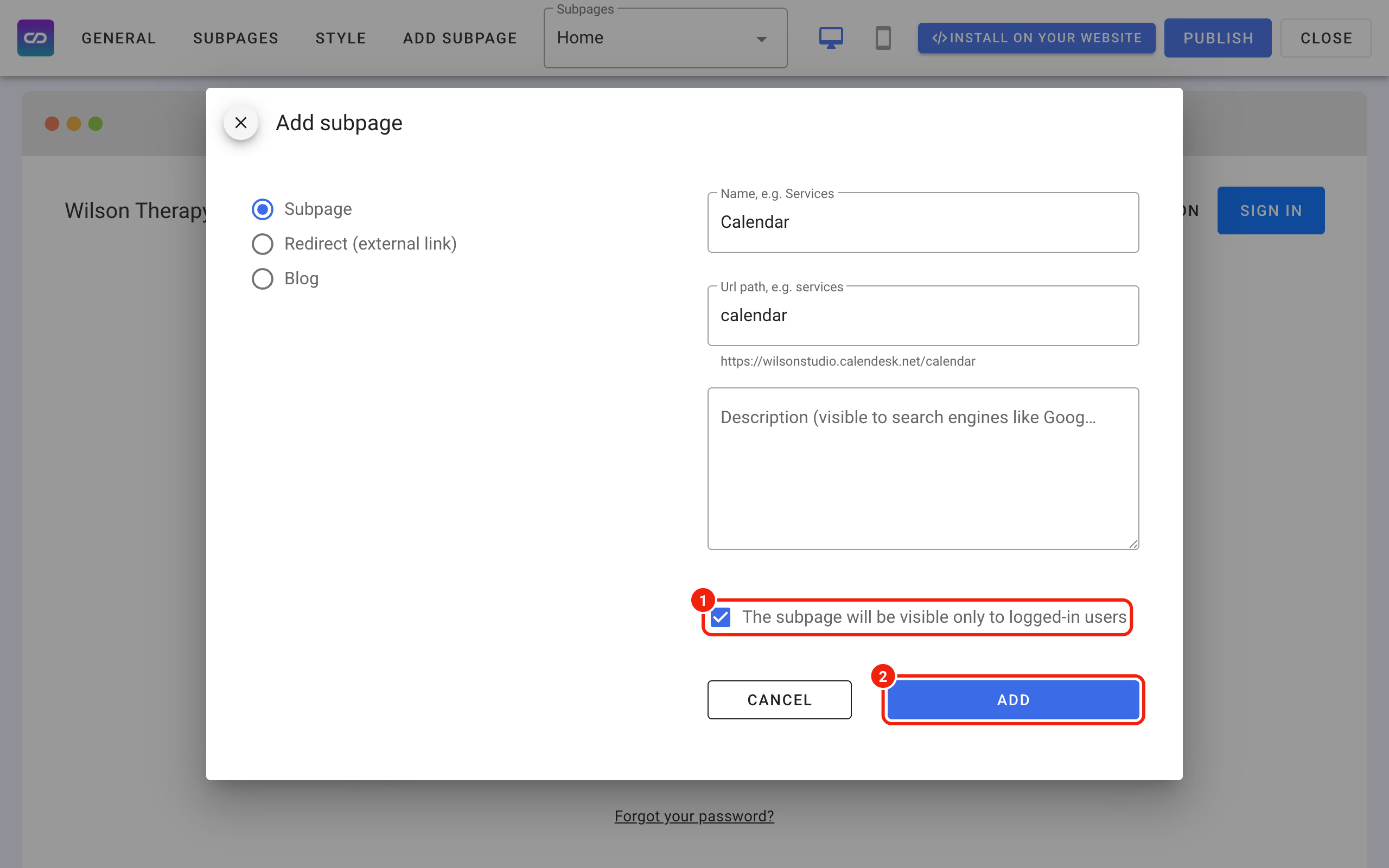
Now create a subpage with the booking calendar for customers with an active subscription. Click Add subpage and give it a name, for example Calendar. This calendar should only be available to signed-in customers, so tick The subpage will be visible only to logged-in users and click Add.
Next, open the new Calendar subpage and add a booking calendar to it.
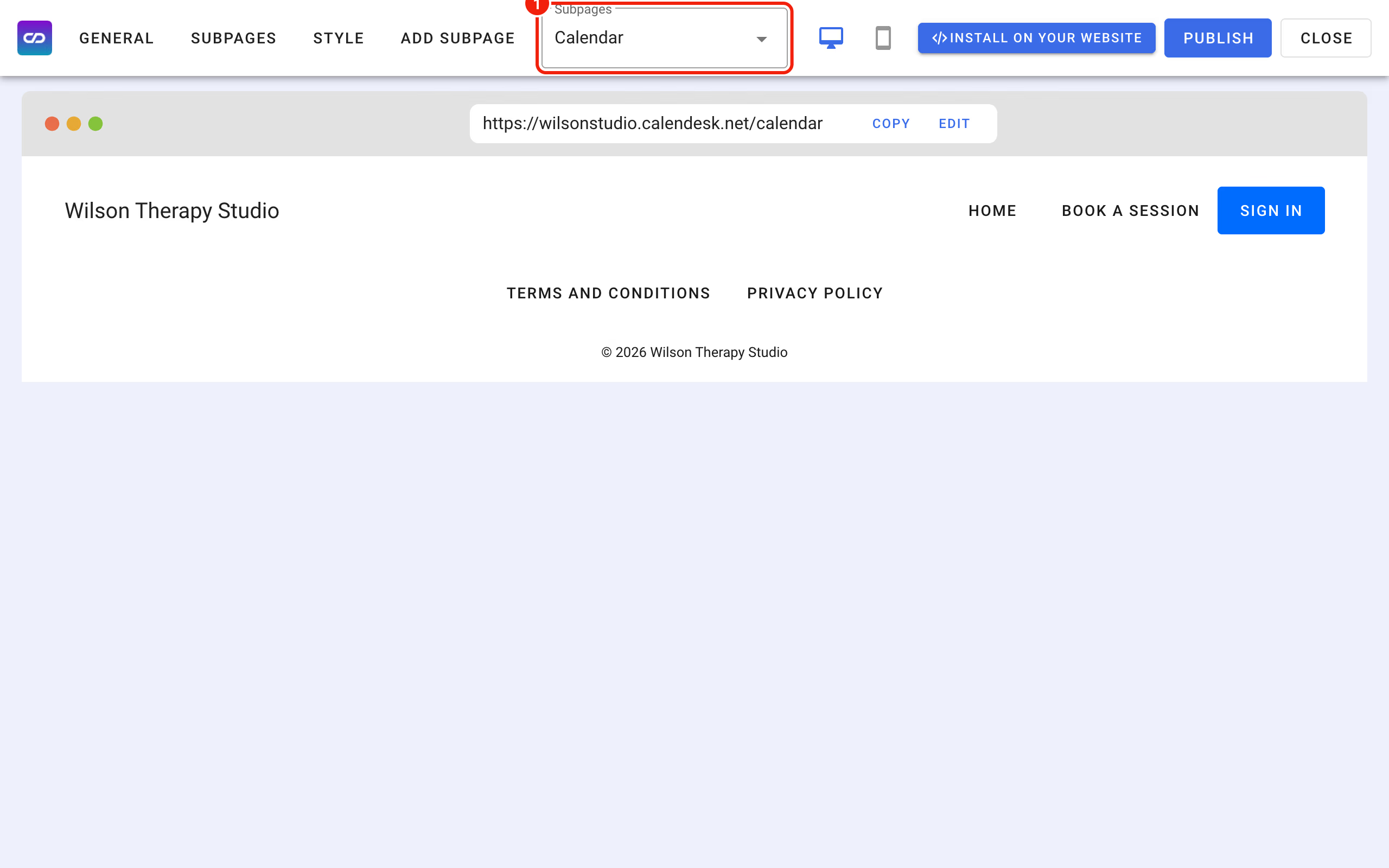
The subpage has no sections yet. Click Add section and choose a calendar from the Booking visits category.
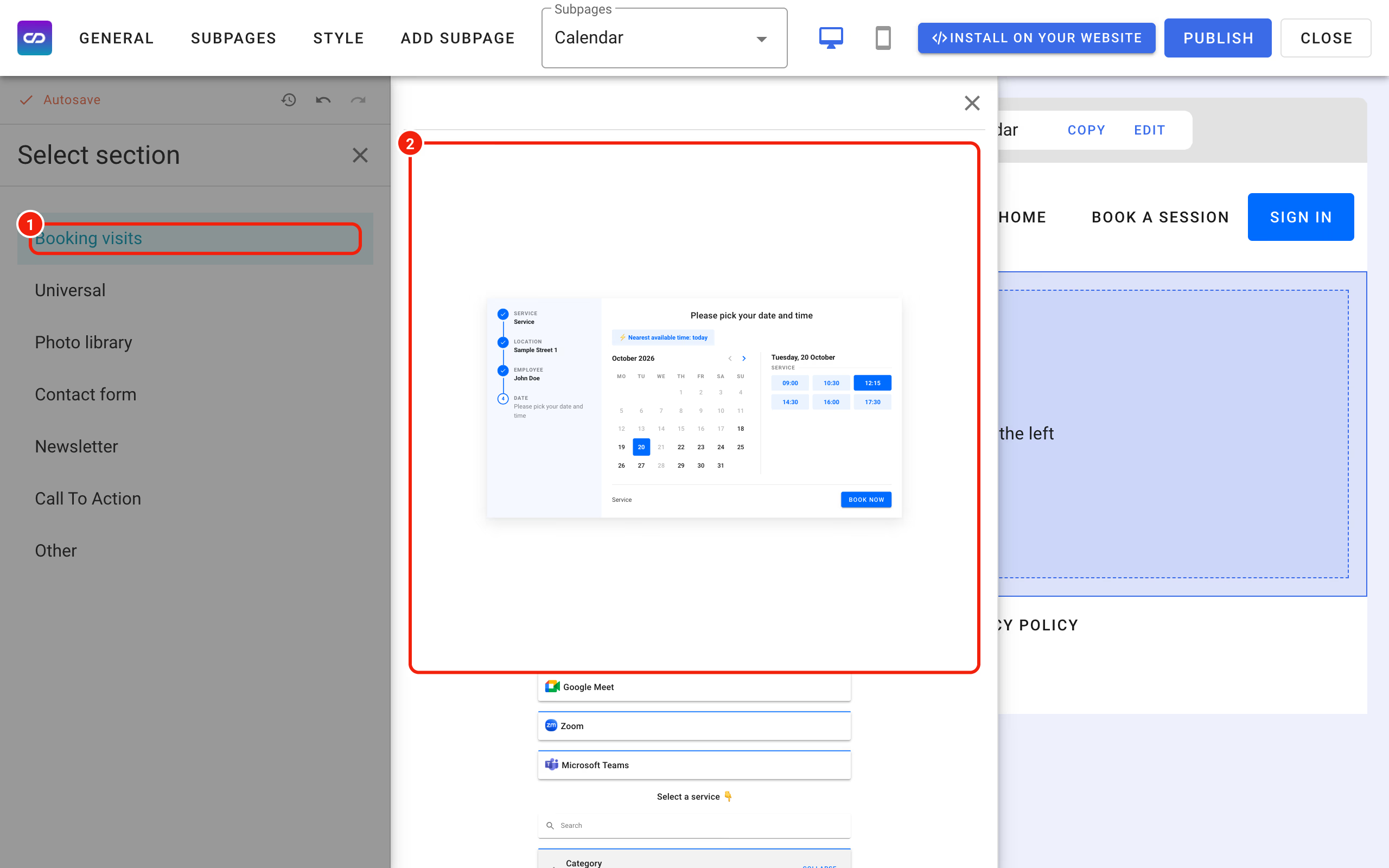
Then click the calendar section to open its settings.
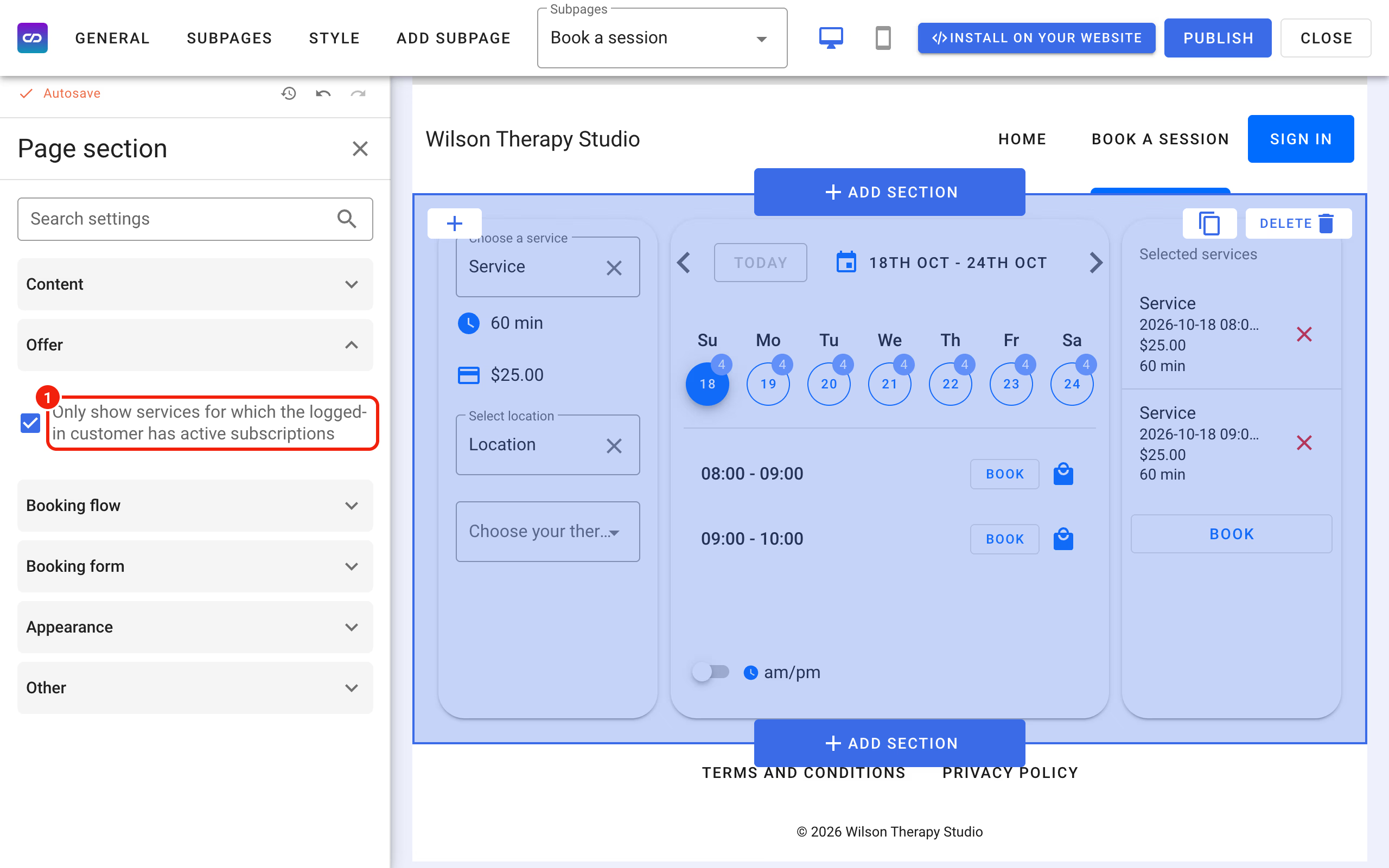
A few settings in the left panel are worth setting up for this calendar:
- add the booking form fields you need (consent to the processing of personal data, additional information and so on),
- choose the services shown in the calendar,
- tick Only show services for which the logged-in customer has active subscriptions if the calendar should only show the services the customer has paid for. Note that a customer without a subscription, or one who has signed out, will see an empty list.
Step 4: Adjust the general settings
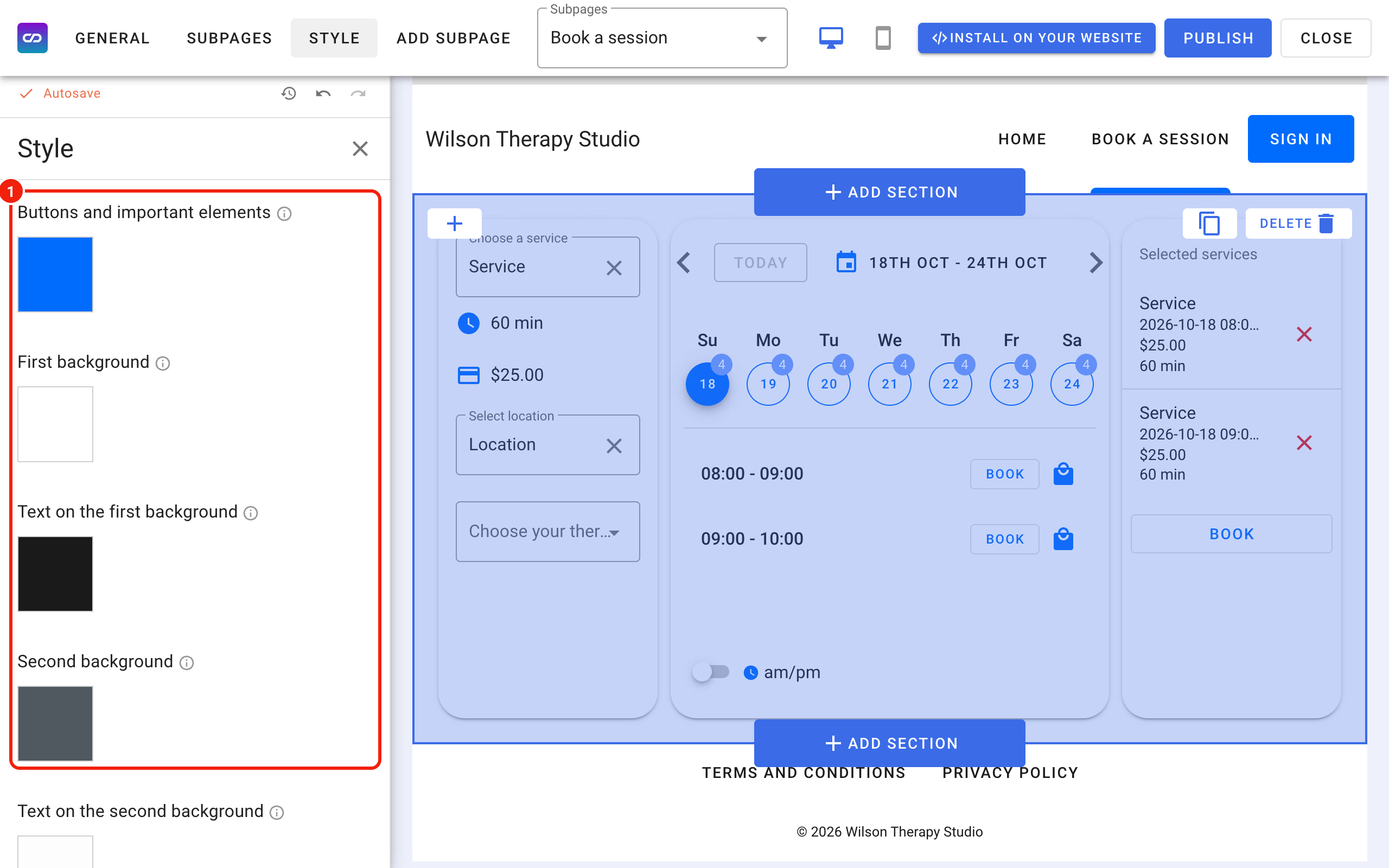
Now you can change the look of the calendar. You can change the colours of the text, the background and the fixed elements of the calendar in the Style tab.
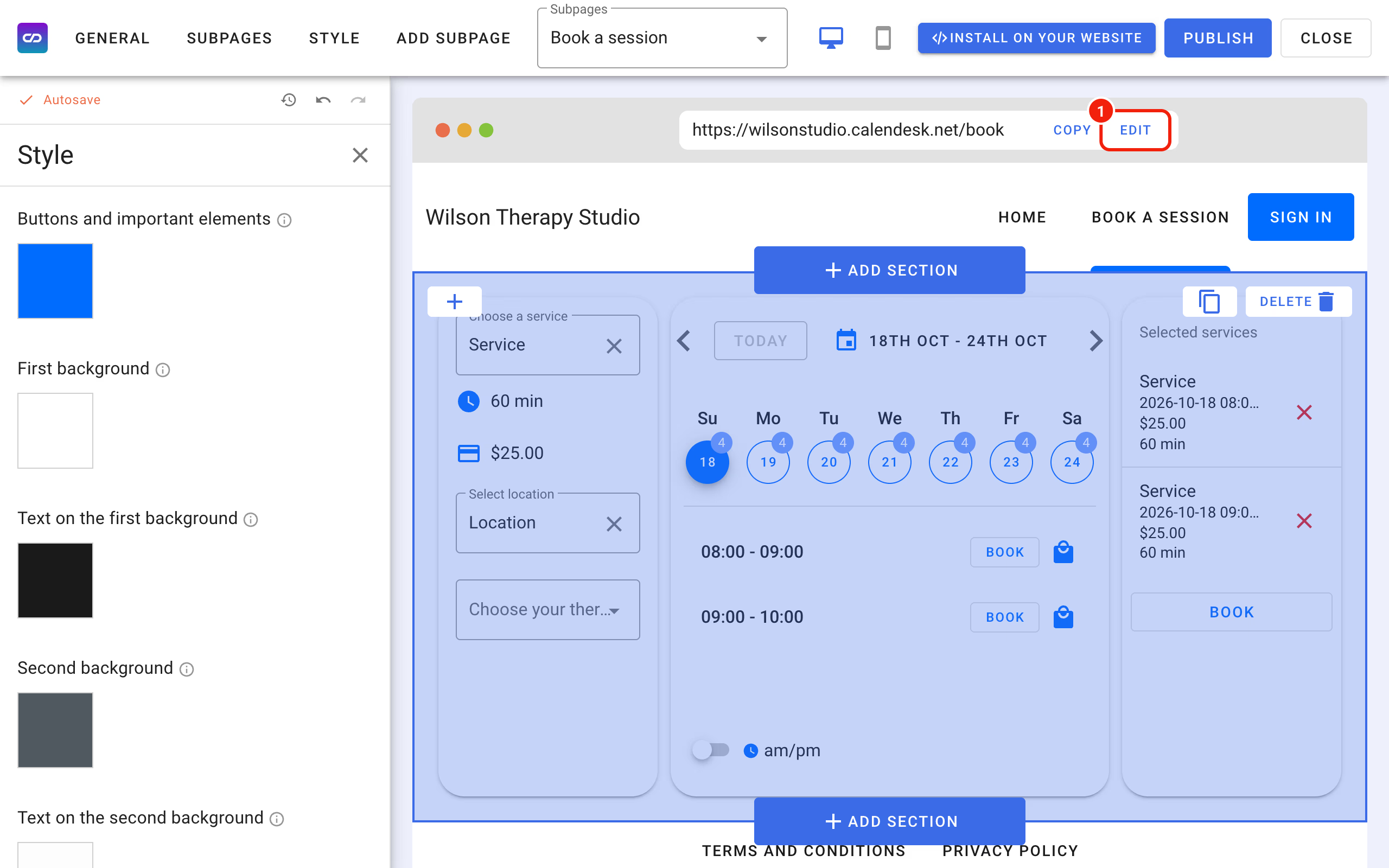
The domain may matter to you too. You can connect your own domain or change the subdomain we gave you; to change the subdomain, use the button marked below. You can connect your own domain only if you already own one bought from a domain provider. Here is how: How to set your custom domain for your website?
A couple more changes before you finish.
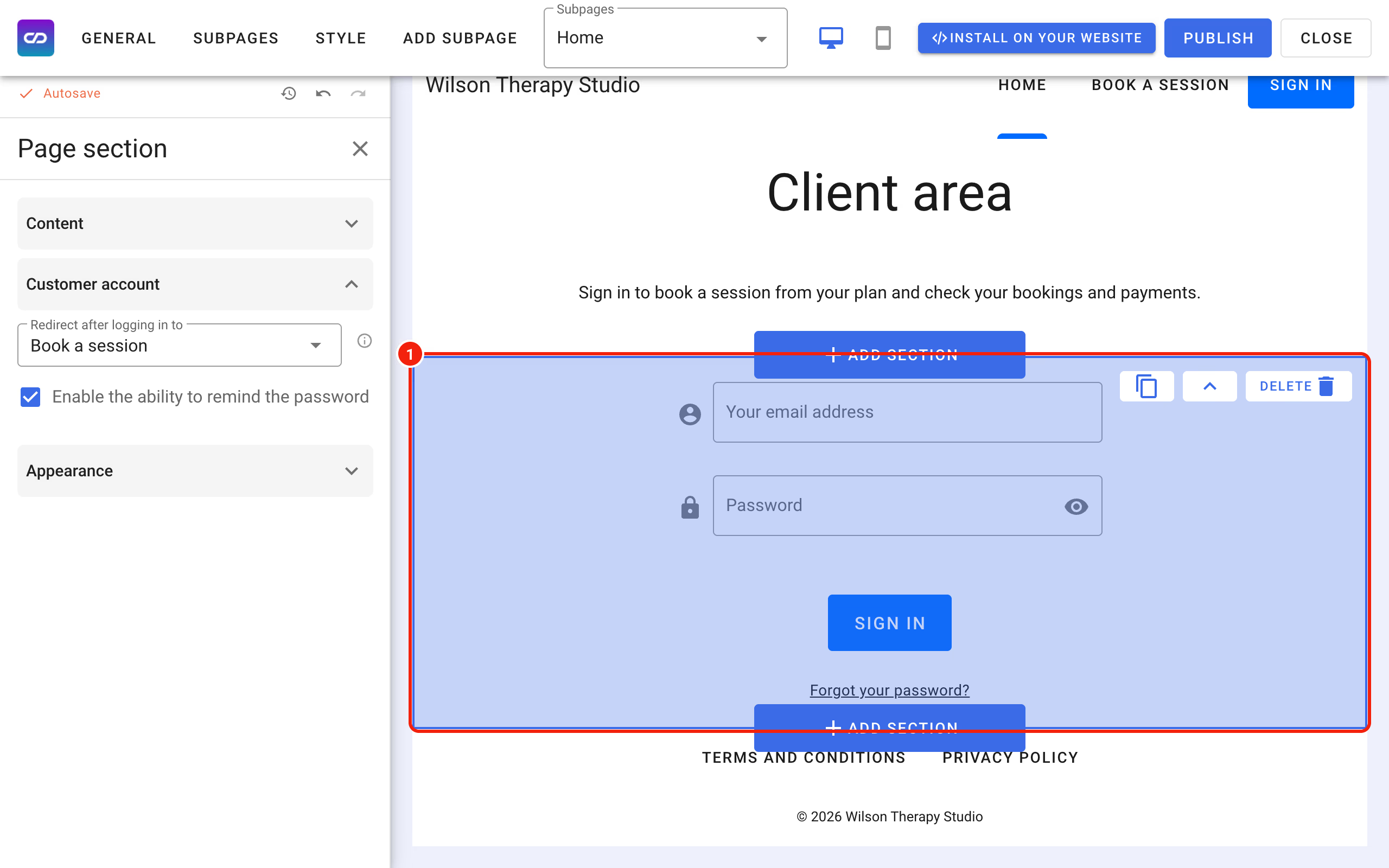
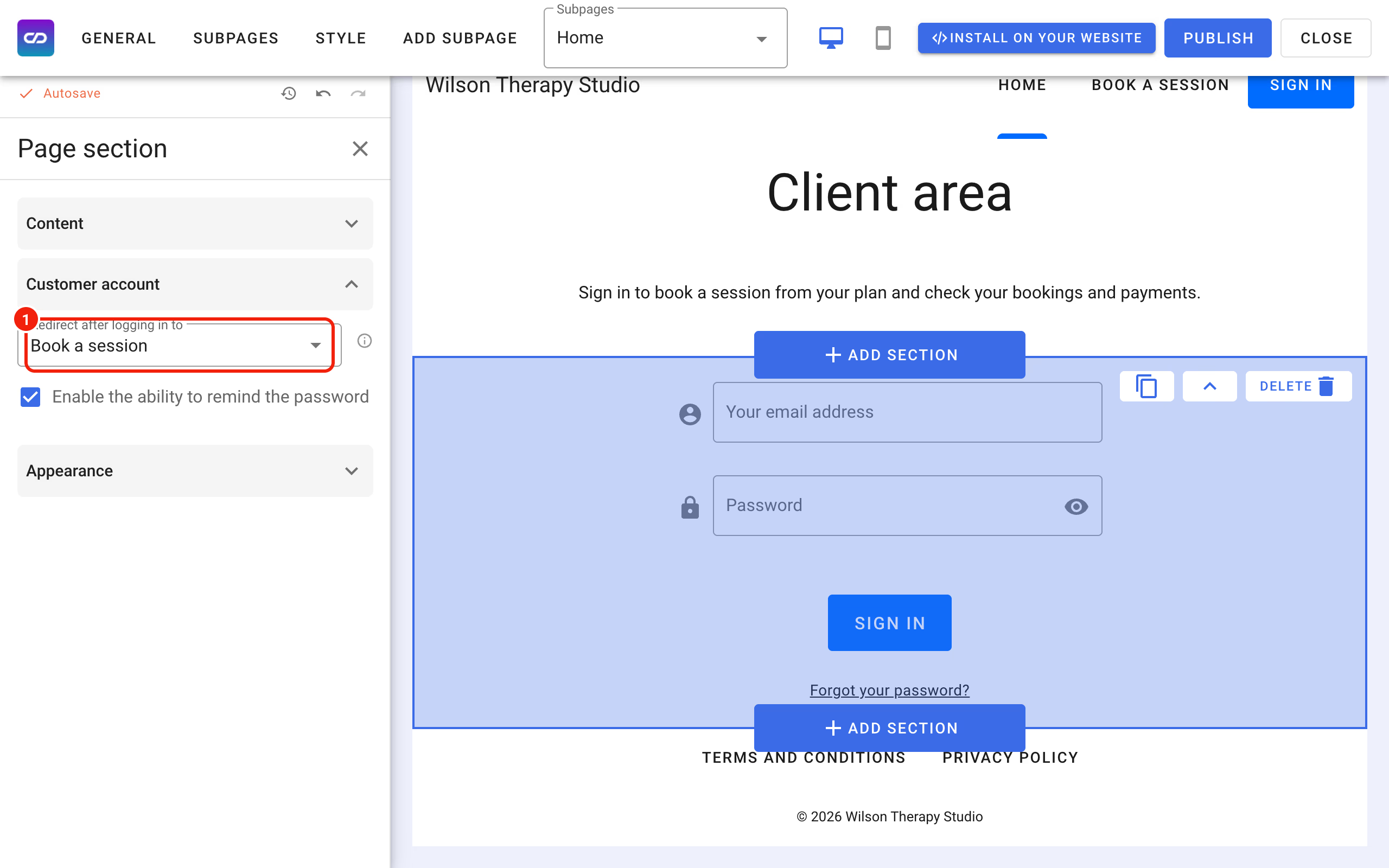
First, set where customers land after they sign in. We want a customer who enters the right e-mail and password to go straight to the subpage with the calendar, which shows only the services they have a subscription for. Go to the Home page subpage, click the section with the sign-in form and set Redirect after logging in to to the subpage with that calendar.
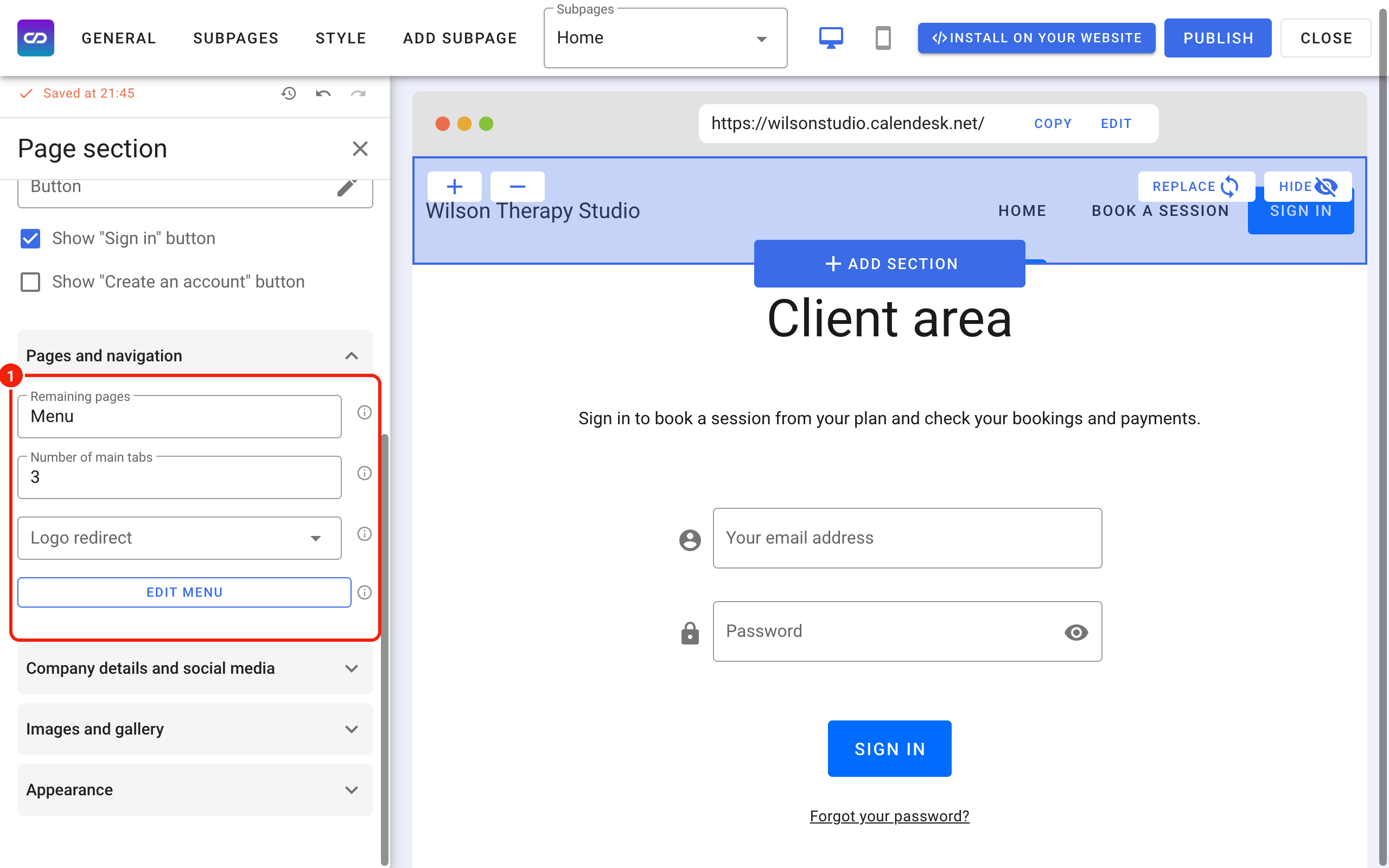
You can also remove tabs you don't need from the header and the footer: click the header or footer section and edit the menu.
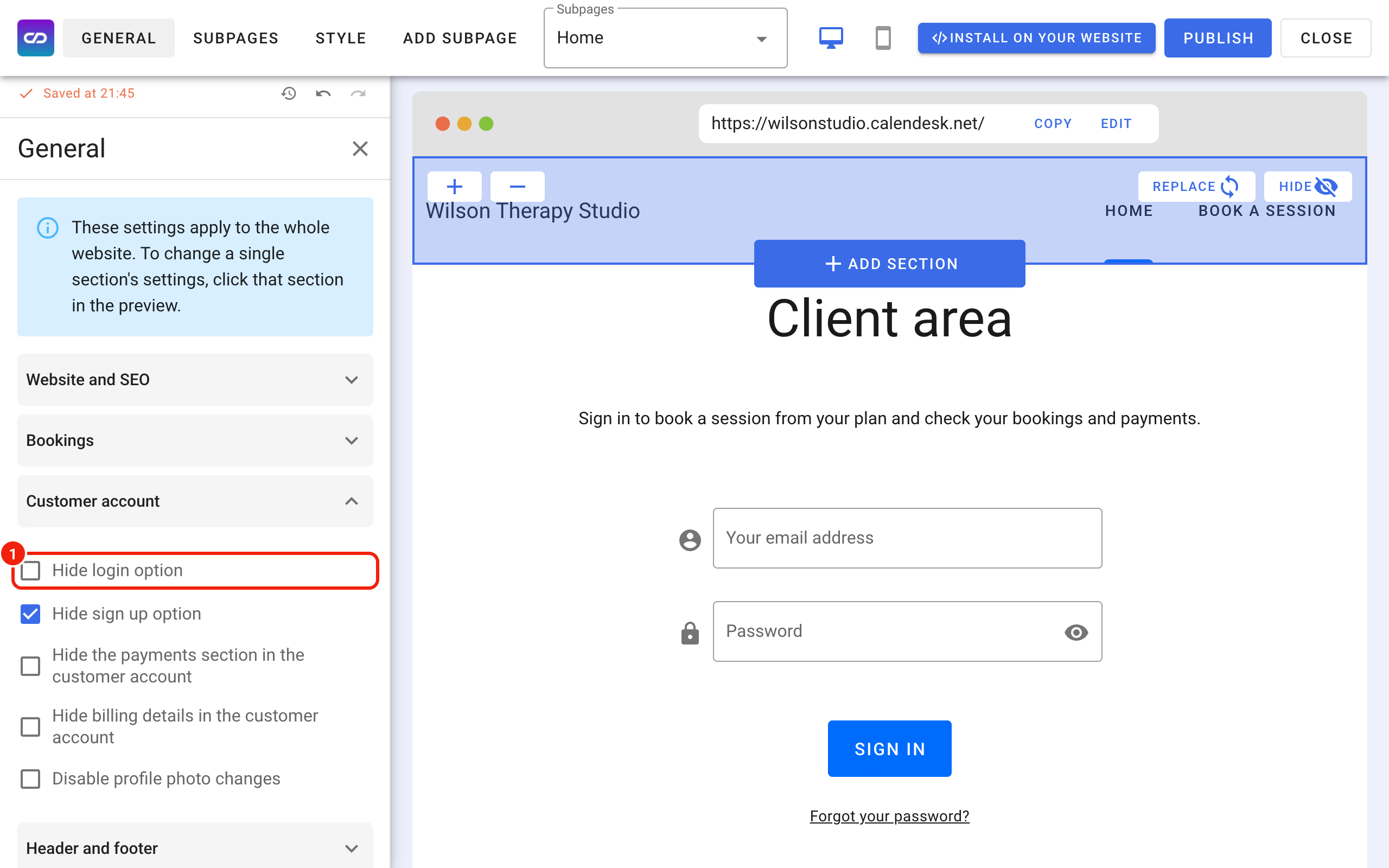
In the General tab, make sure Hide login option is not ticked,
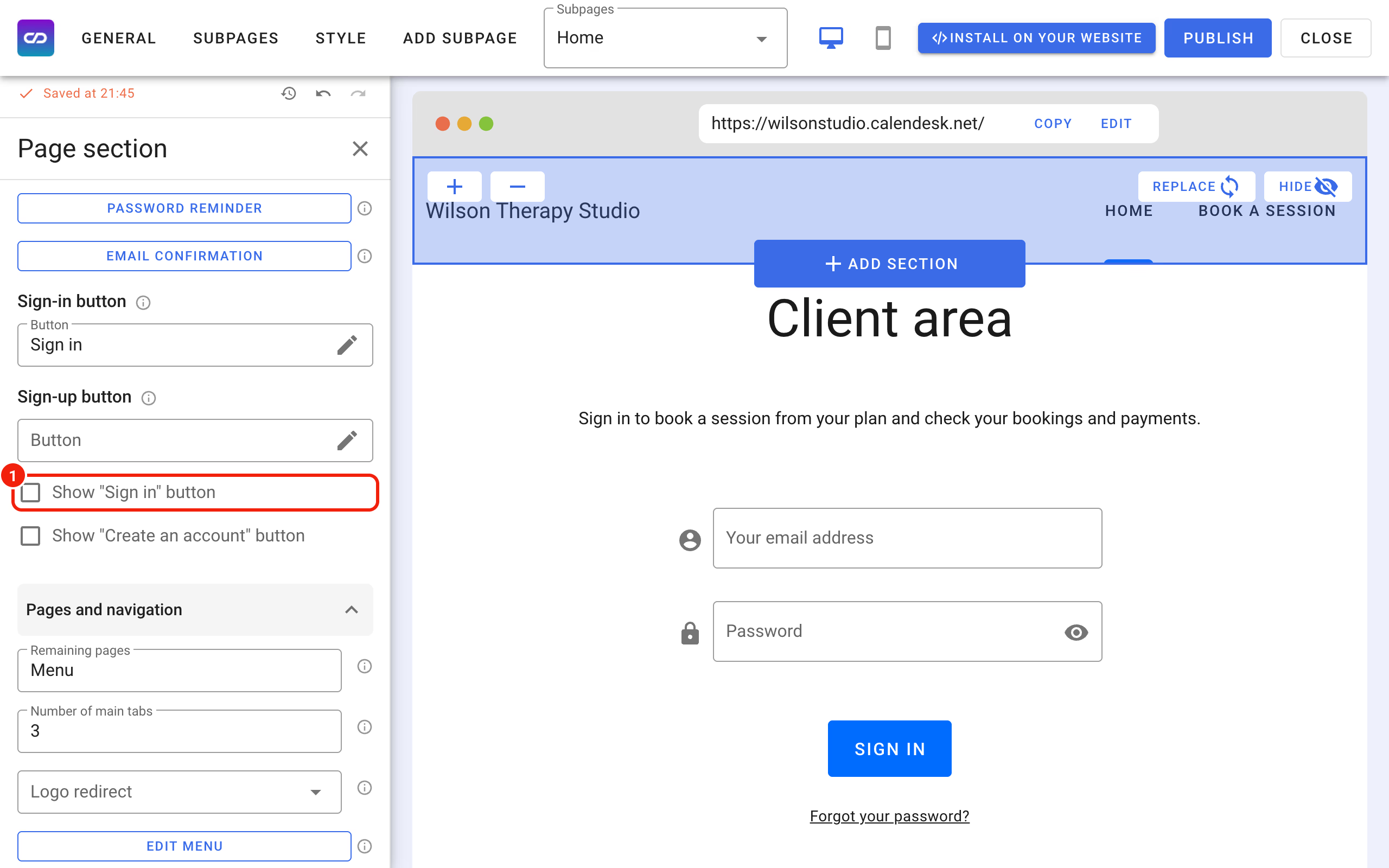
and in the header menu, make sure Show "Sign in" button is not ticked.
Step 5: Show your customers how to use their subscription and account
After publishing the changes, test the whole flow and share it with your customers. Check that they can easily find the buttons for buying subscriptions and packages on your website, and that after buying they know they have to sign in to their account.
You can also send customers to a page of your choice after a successful subscription or package payment. A short thank-you page that explains what to do next will be shown to every customer who buys.