How to add a website and booking calendar in another language?
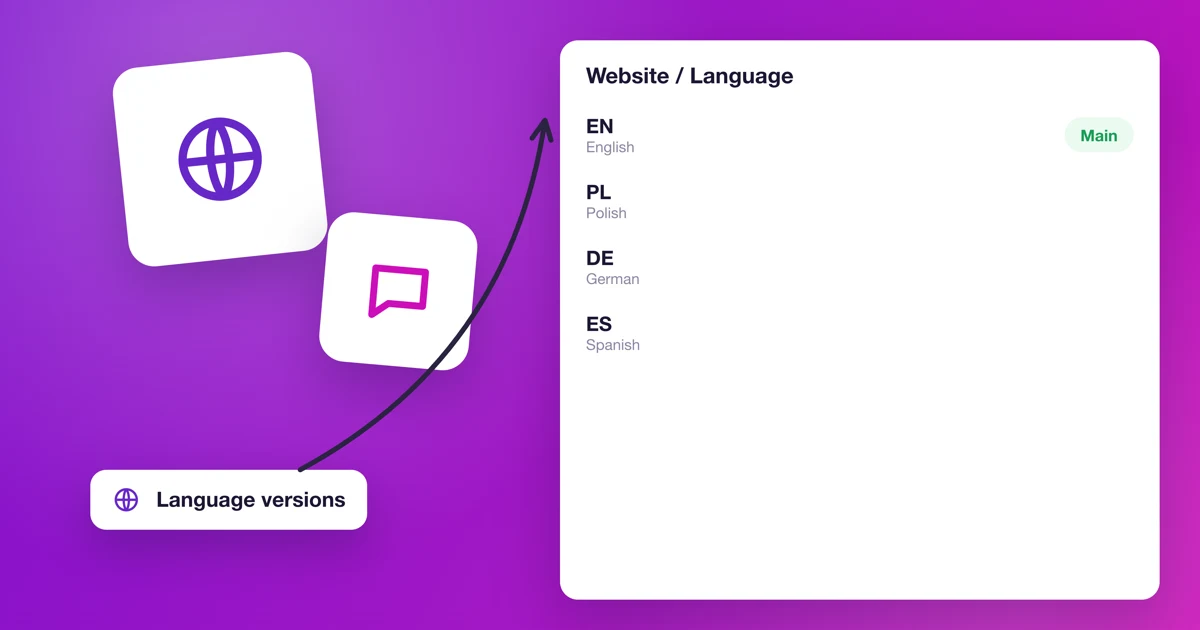
If your customers speak different languages, you can give them a website and booking calendar in their language. In Calendesk you do this with a second website built in the other language, linked to the first one.
Your plan needs to allow more than one website. The Standard plan includes one website, the Pro plan three, so check your plan first.
Create the website in the other language
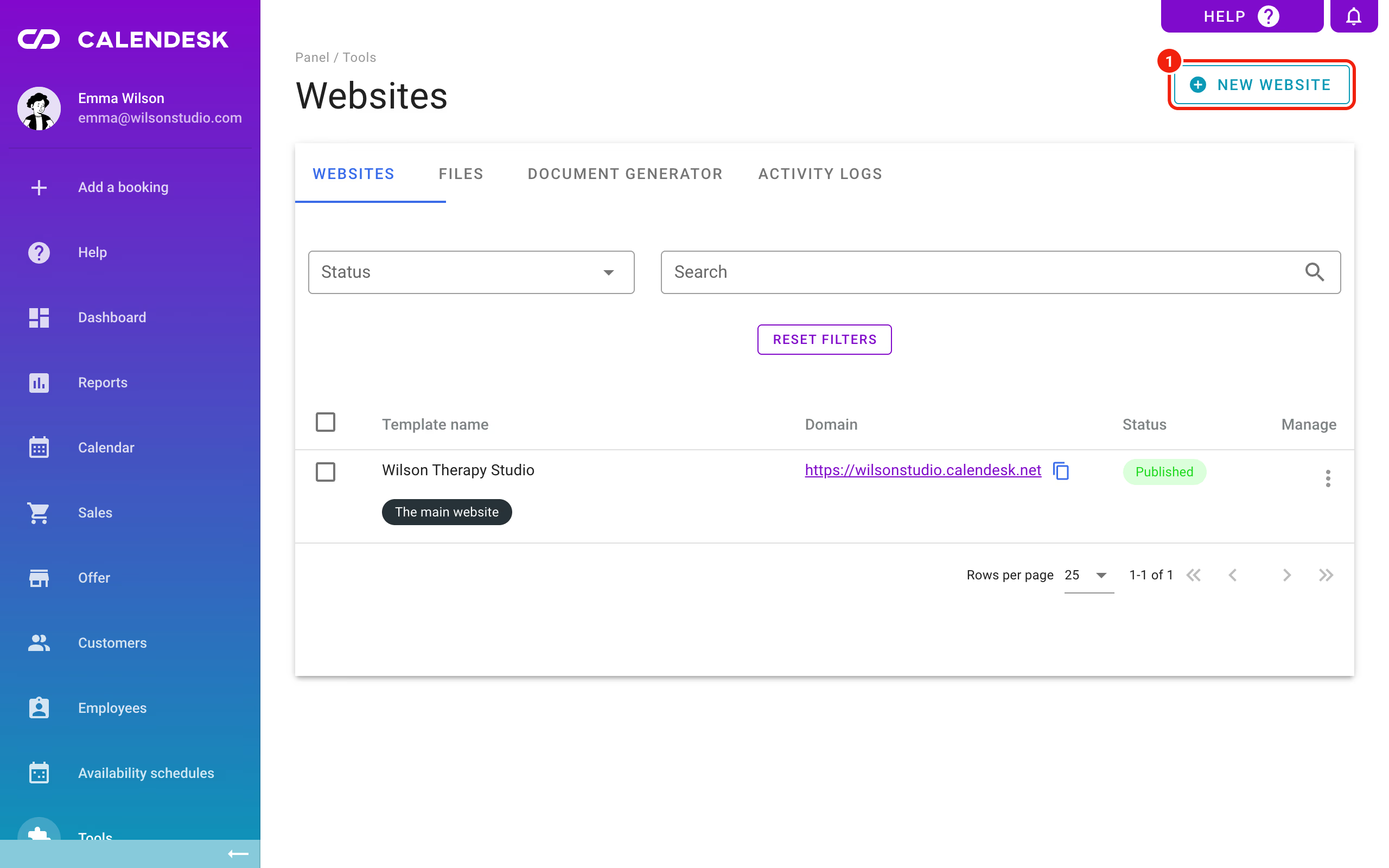
Go to Tools – Websites and create a new website with the button shown below.
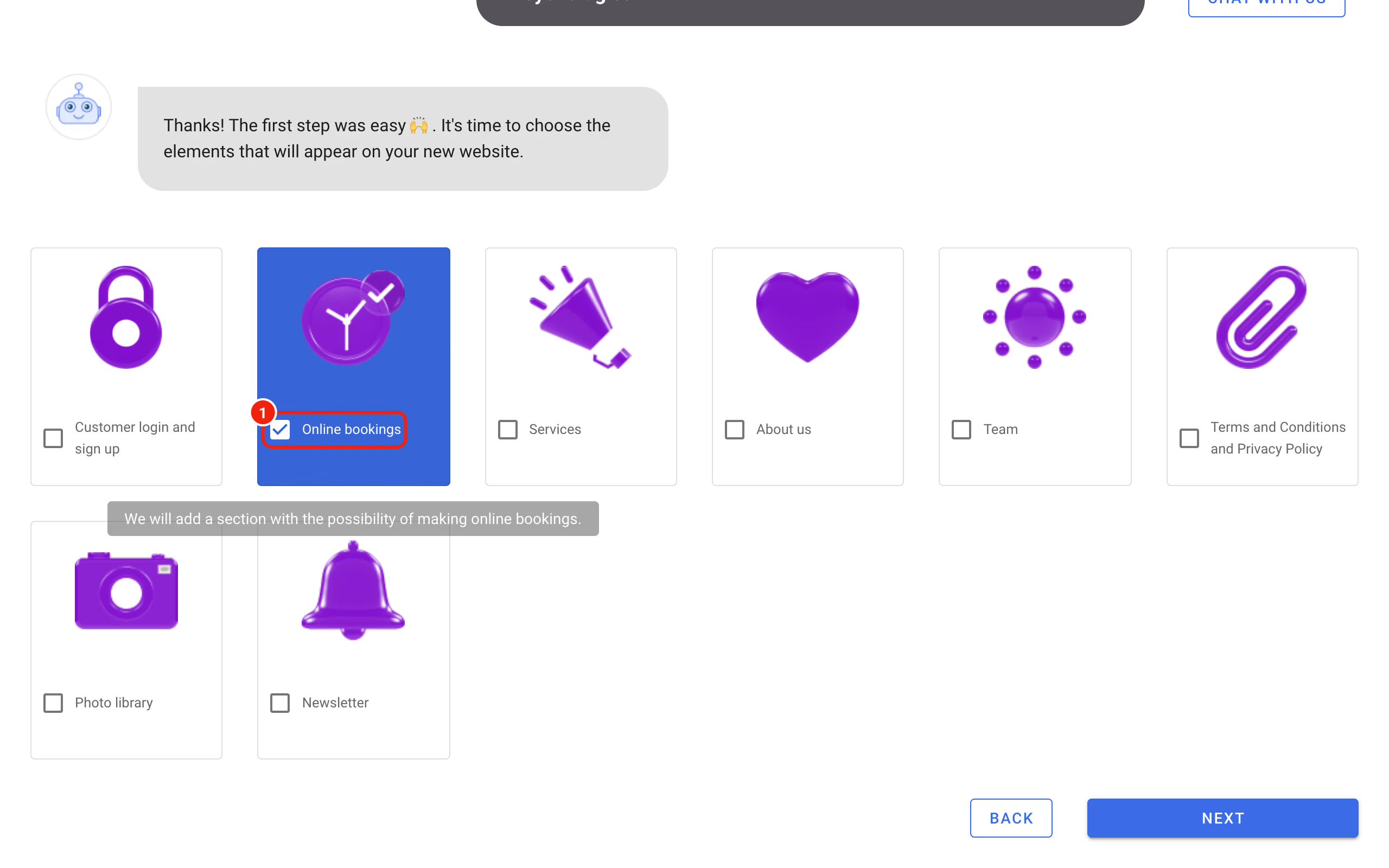
Start with as few sections as you can, ideally only Online bookings. Texts you add before changing the language stay in the old language and you'd have to translate them by hand. Add the rest of the sections after the language change and you'll have far less to translate.
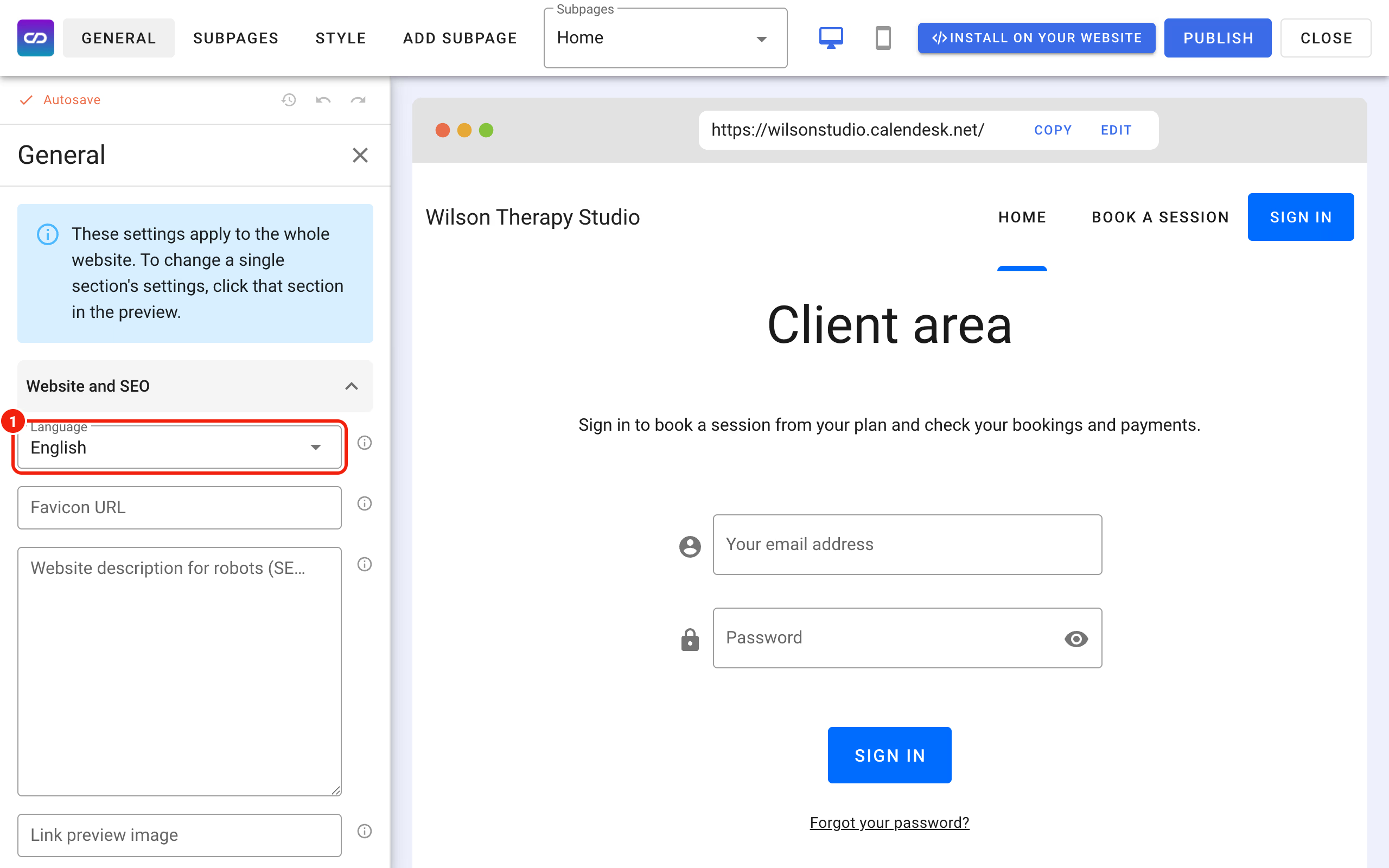
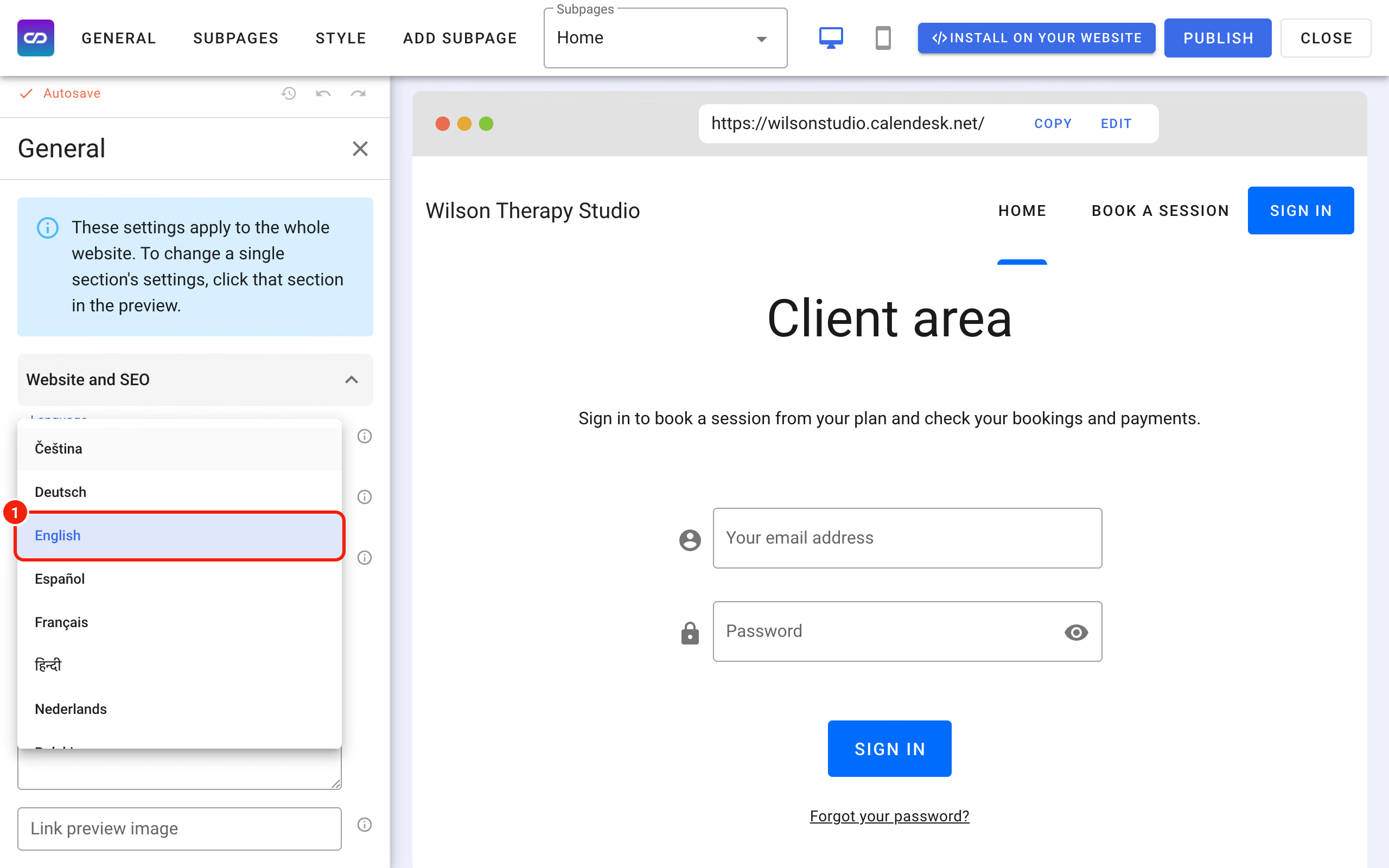
Once the website is created, open it in the builder, go to the General tab and choose the Language in the Website and SEO group. This sets the language your customers see on the website: buttons, forms and the booking view.
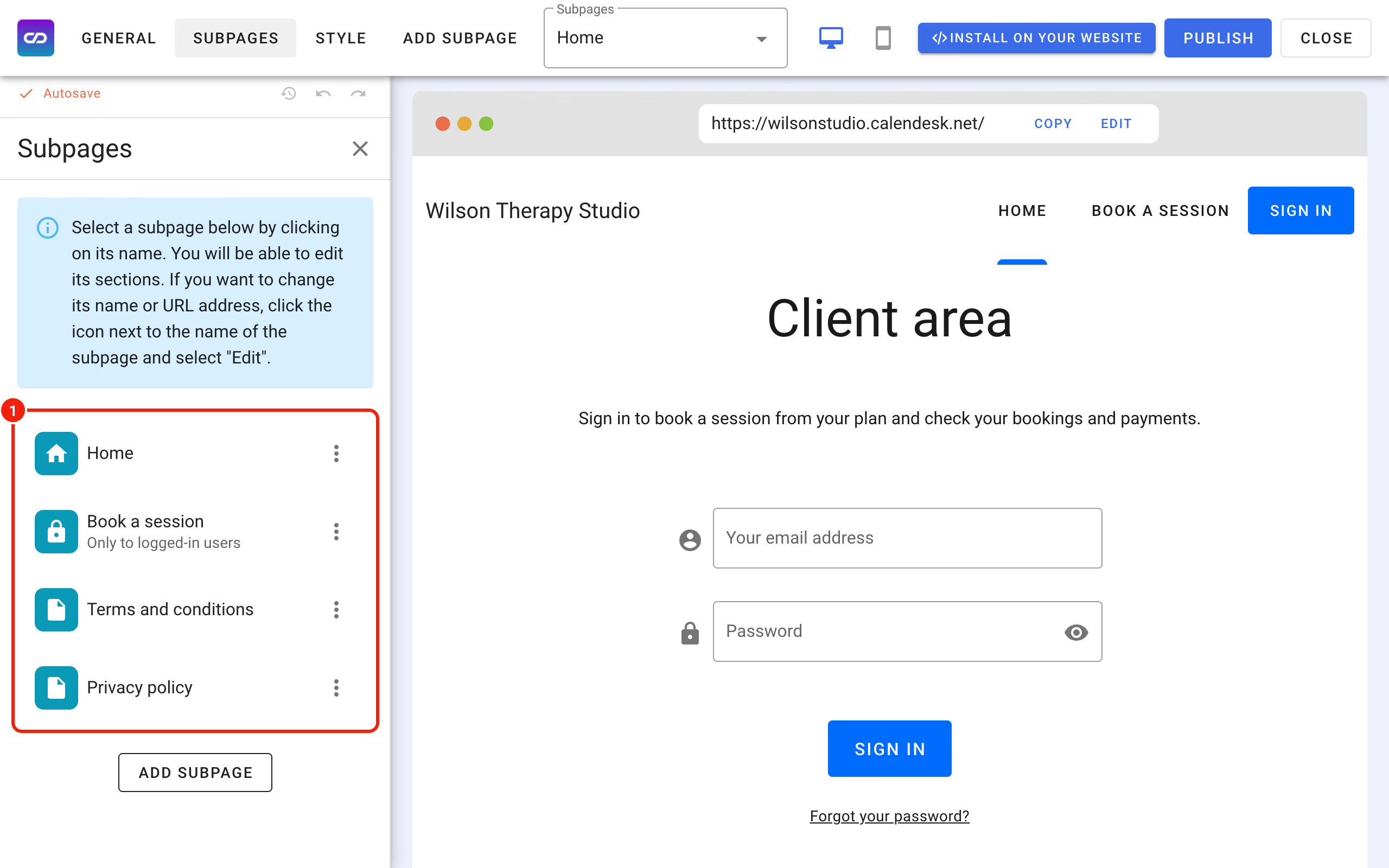
Your own texts and the names of subpages don't change with the language. Rename the subpages yourself and add the rest of your content in the new language.
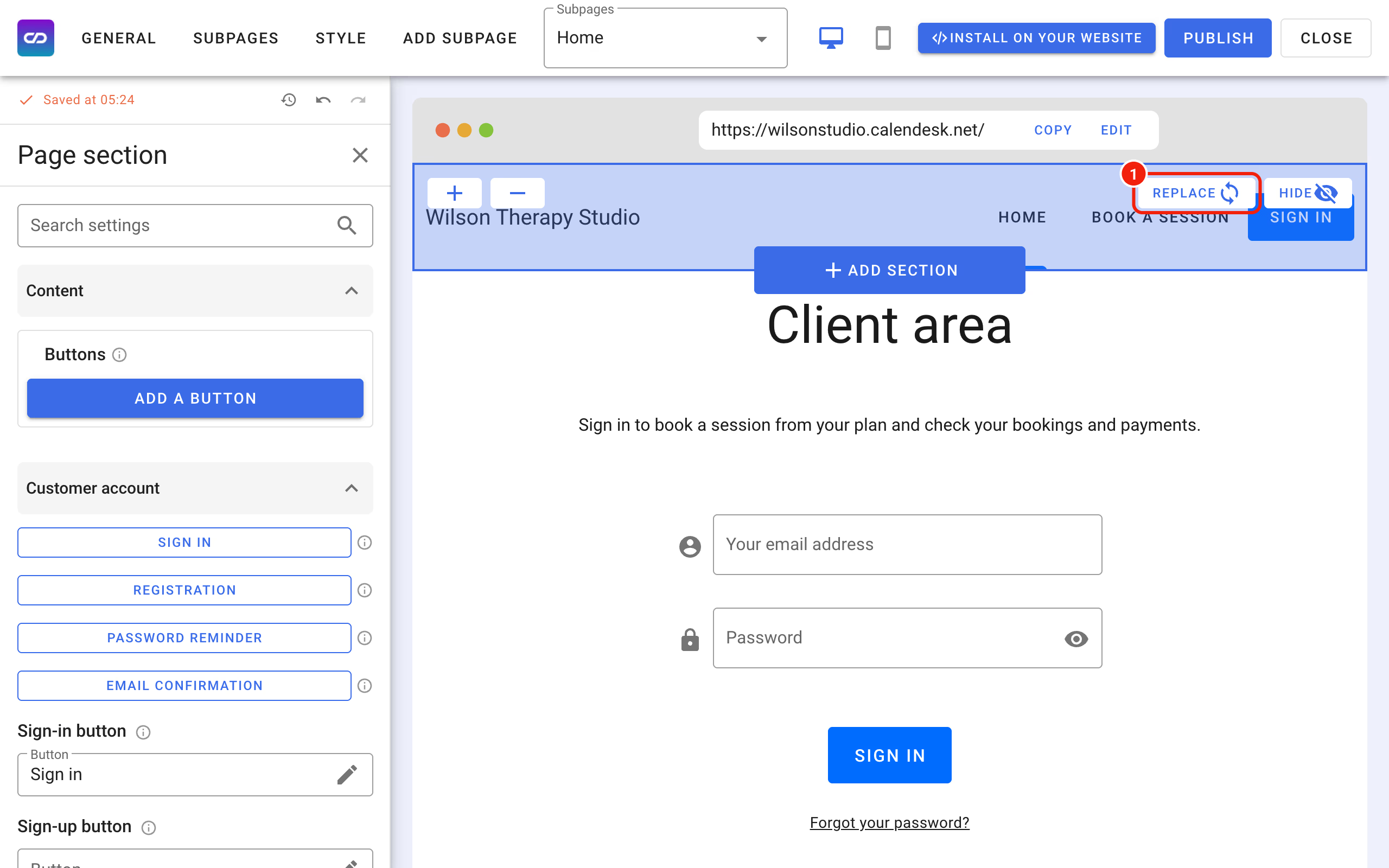
Then swap the header and footer for fresh ones in the new language: click the section and use the Replace button shown below. On a website in another language this button carries that language's label.
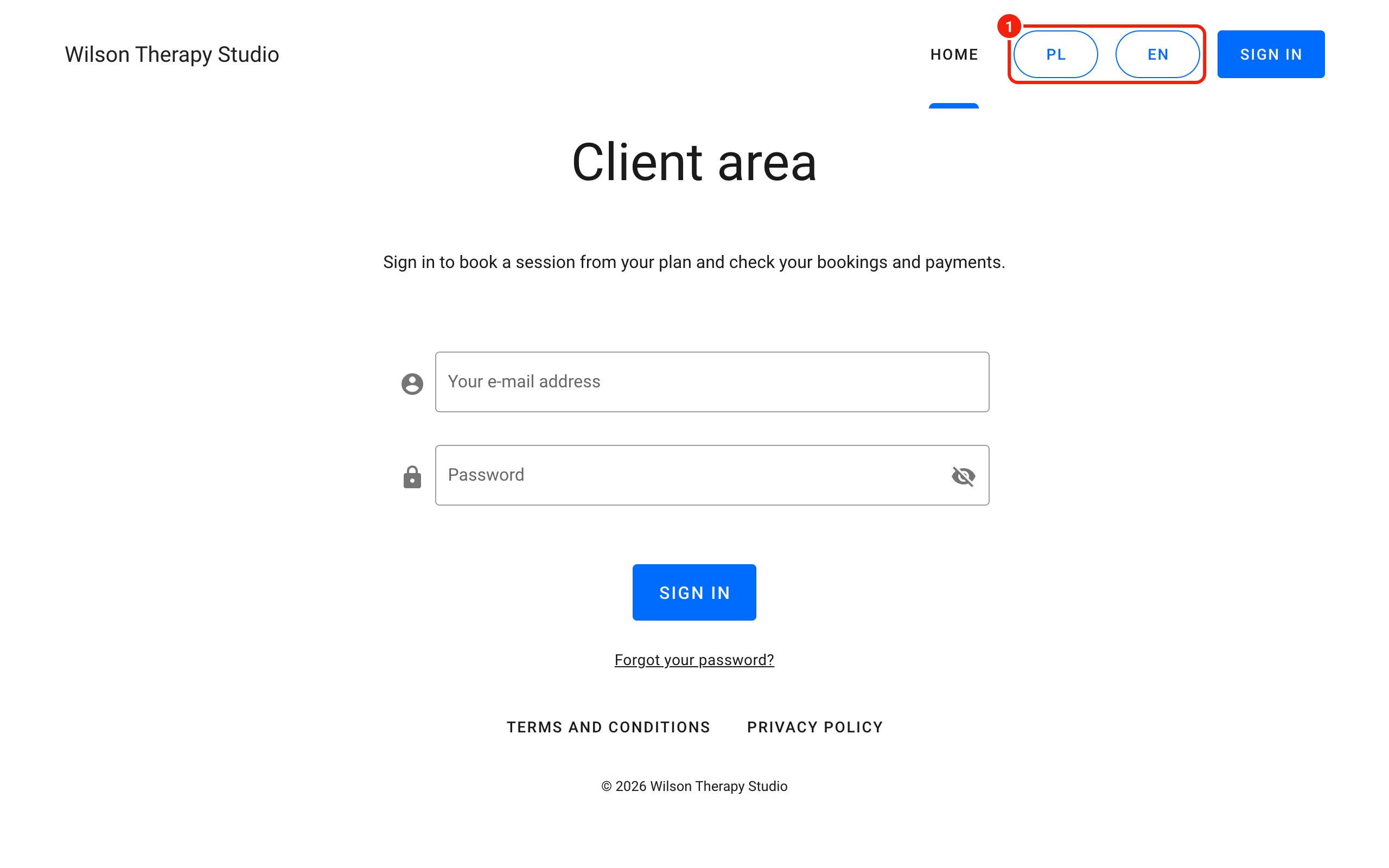
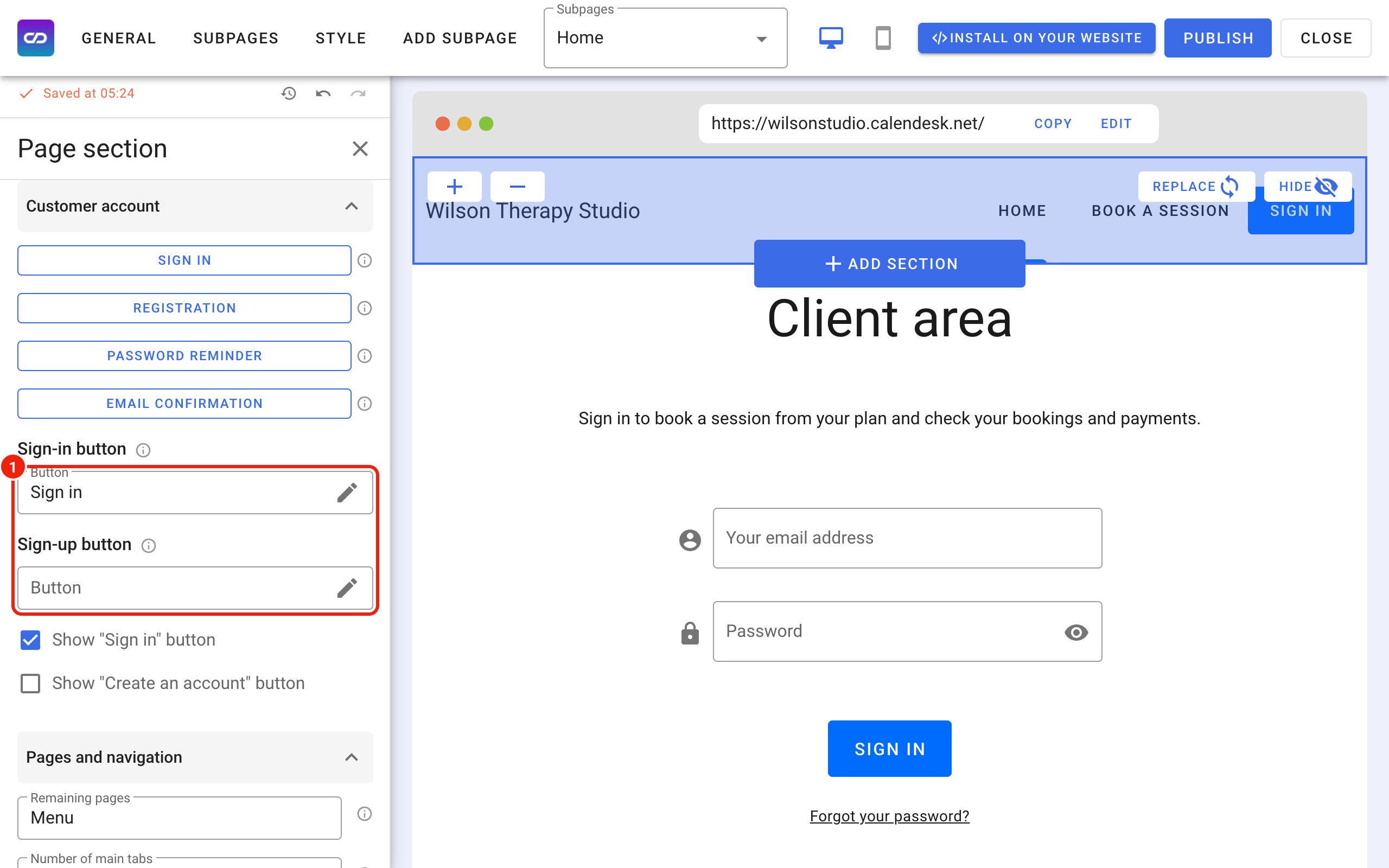
If customers can sign in and create an account on your website, go to the General tab, open the Customer account group and untick Hide login option and Hide sign up option (on a website in another language they carry that language's labels). Then click the header and check the texts of the sign-in and sign-up buttons marked below.
Link the language versions
Every website built in Calendesk has its own address, so you can link the versions with buttons. A good place is the header: add a button such as "Polski" or "English" that opens the other website.
To add a button to the header, click the header and, in the panel on the left, find Add a button (on a website in another language it carries that language's label).
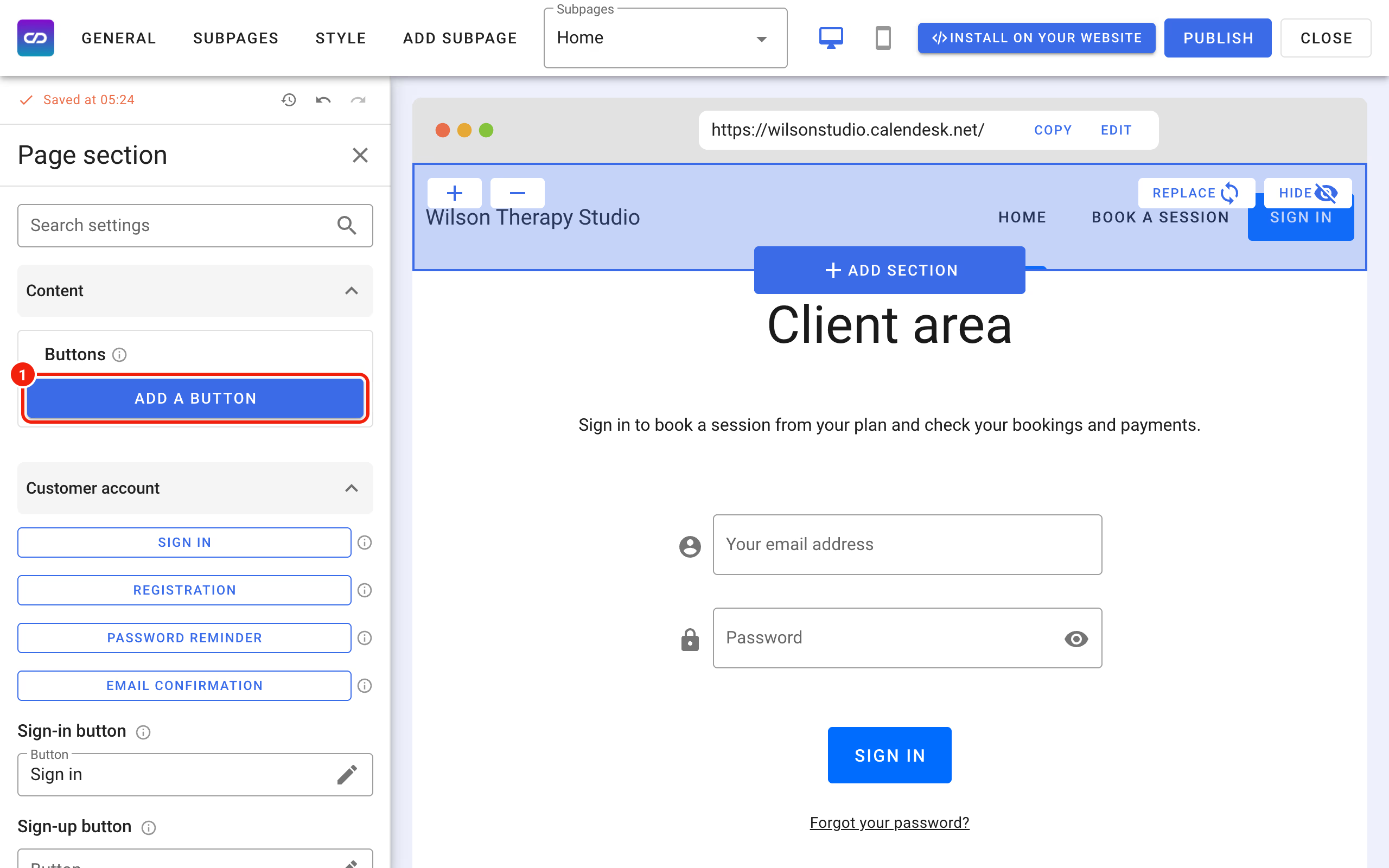
Then edit the new button: choose Redirect, tick Redirect to an external URL and enter the address of the website in the other language in URL address. Do the same on the other website, so customers can switch both ways. Click Publish on both websites when you're done.