How to add a contact form to your website?
Adding a contact form
A contact form makes it easy for customers to reach you, and you won't miss a message because you couldn't pick up the phone: every message lands in your mailbox. Messages go to the company e-mail address set in Settings – Your company in the Calendesk panel. You can add a form to any website you build with the Calendesk website builder. Here is how.
- Sign in to the Calendesk panel and go to Tools – Websites.
- Pick the website you want to edit. The website builder opens.
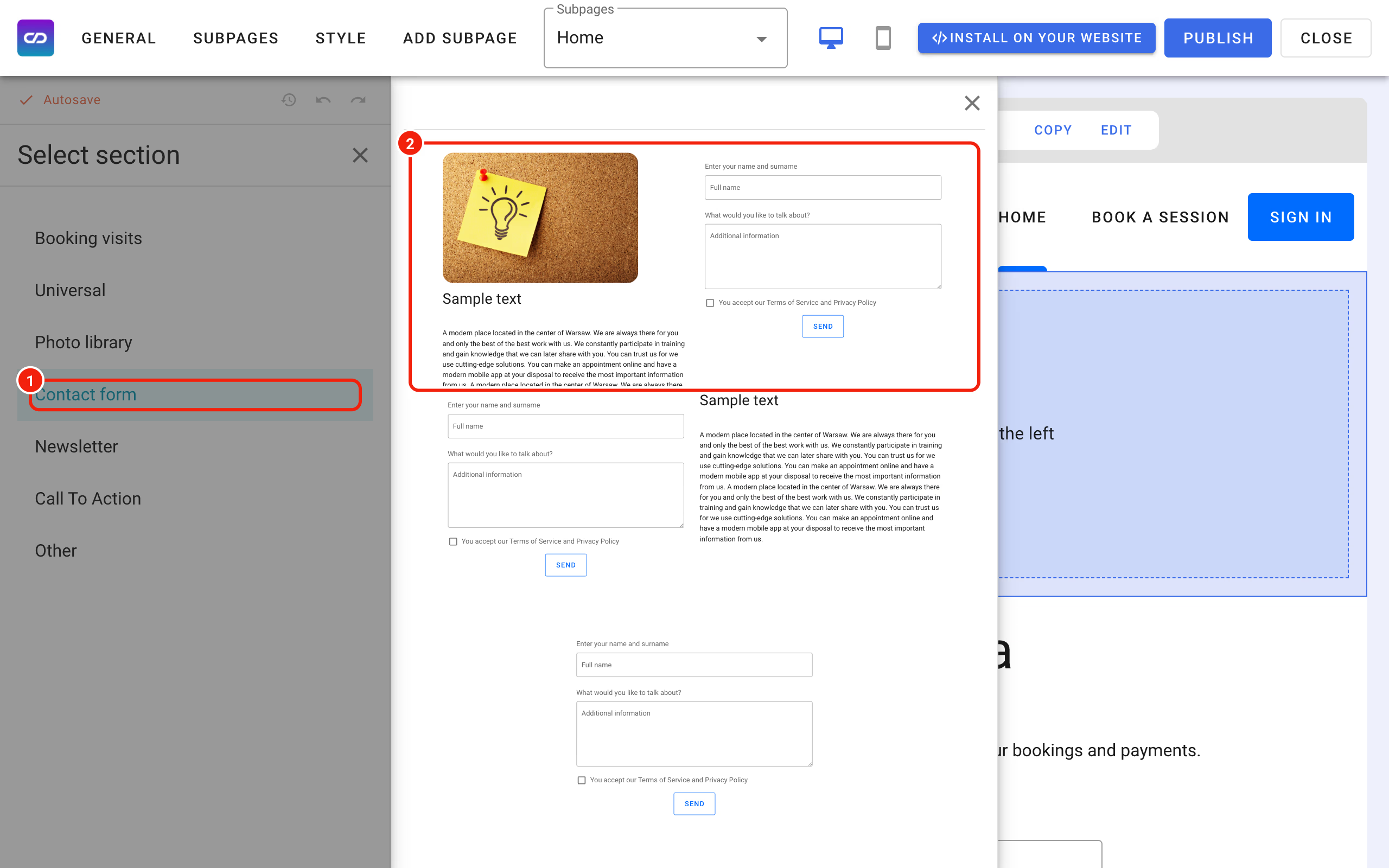
- Click Add section and choose the Contact form category from the menu on the left.
Editing the form fields
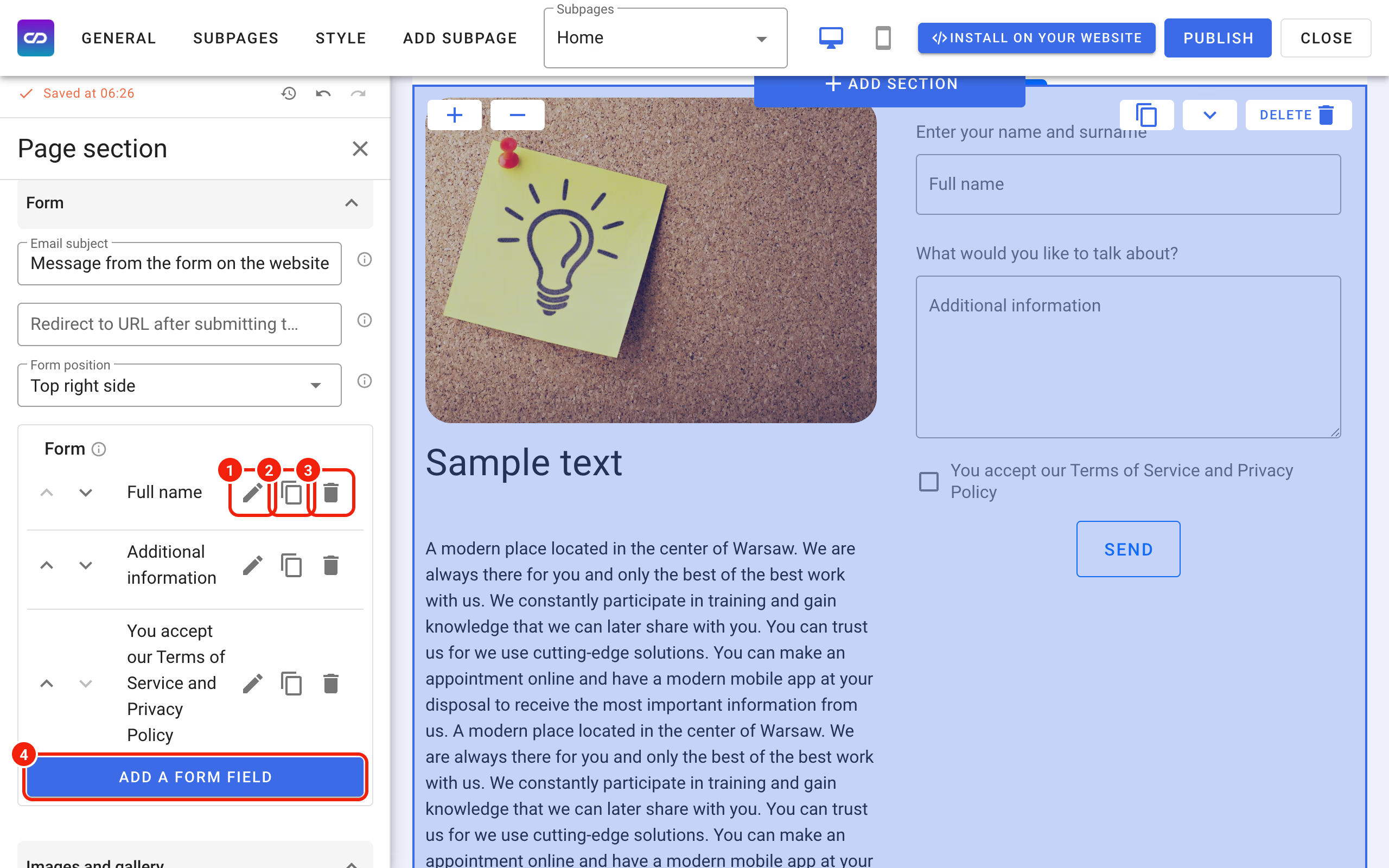
- Click the form section on the preview to open its settings.
- The panel on the left lets you set up the form. In the Form group you see the list of fields. The pencil icon edits a field, the icon next to it duplicates the field, and the bin icon removes it. To add a new field, click Add a form field.
When you add or edit a field, you can set it up to fit your needs:
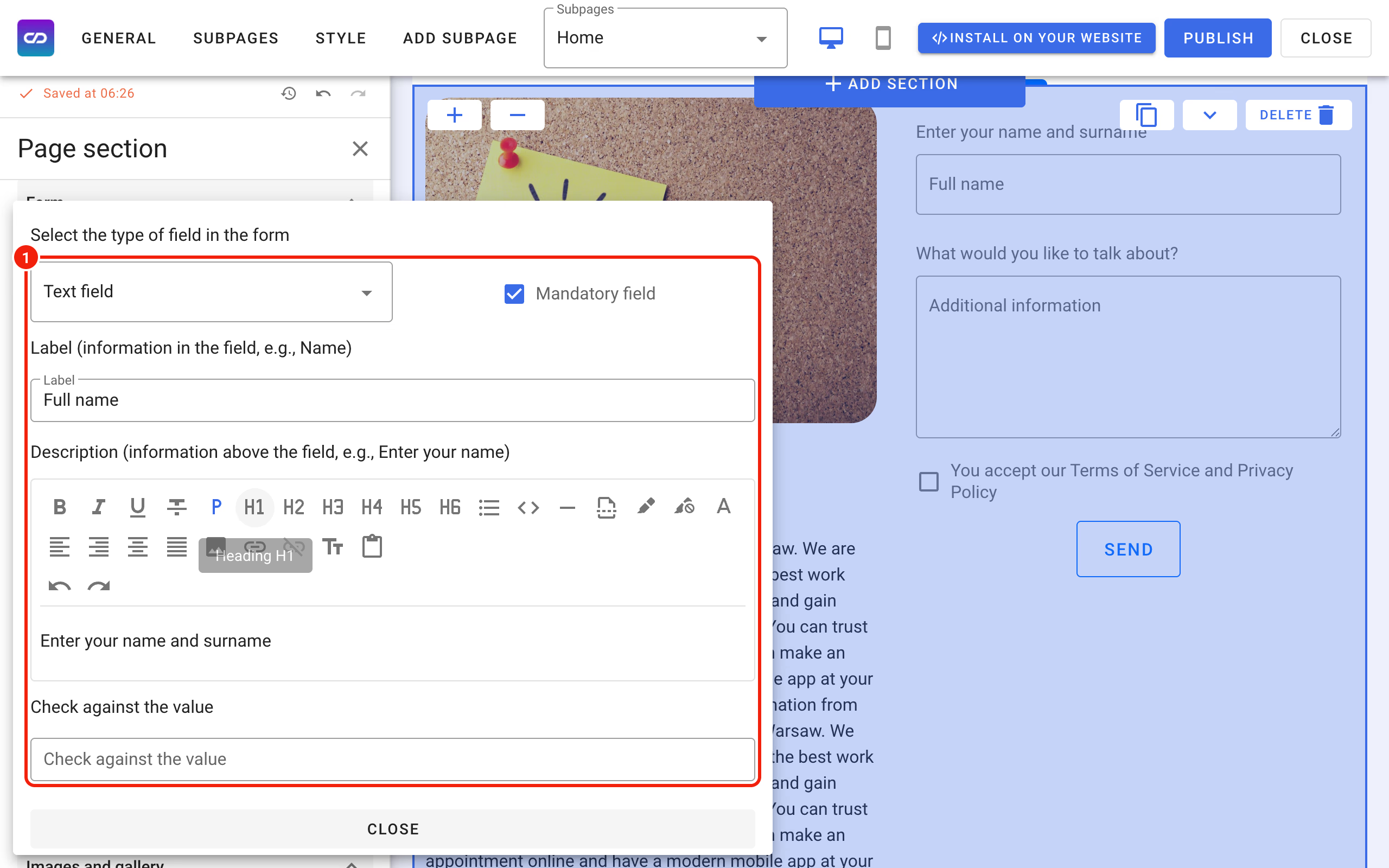
- Field type (Select the type of field in the form):
- Text field: a single line of text,
- Text area: several lines of text, for longer messages,
- Checkbox: a box to tick, for example to accept your terms,
- Radio button: several options where the customer picks one,
- Email: a field for an email address,
- Phone: a field for a phone number,
- Address.
- Mandatory field: decide whether the customer has to fill in or tick this field.
- Label: the hint shown inside the field, for example "Name".
- Description: the text shown above the field, for example "Enter your name". Use it for any extra information about the field.
- Check against the value: the value the customer has to enter for the form to go through.
The email and what happens after sending
Below the fields, in the same Form group, you set:
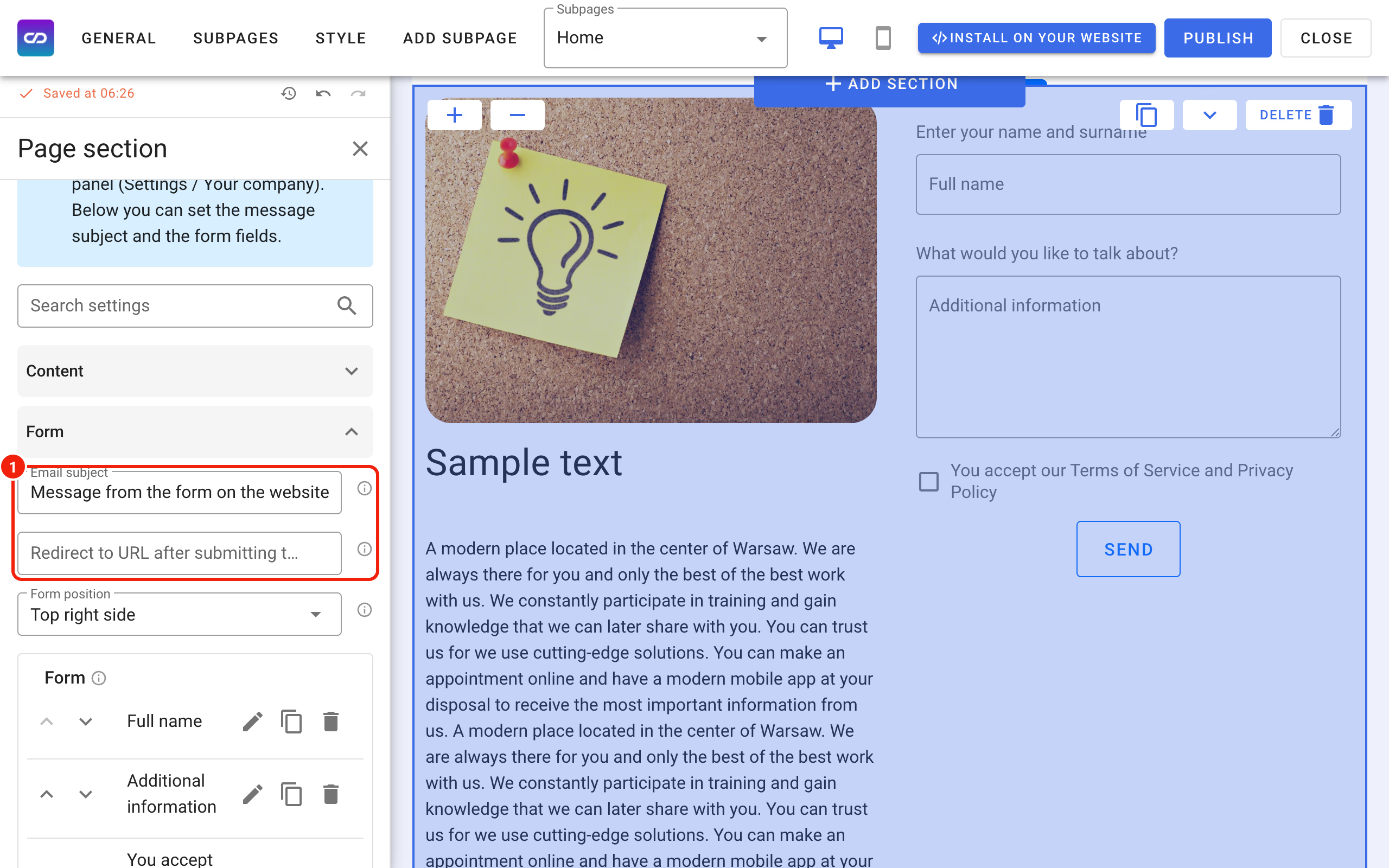
- Email subject: the subject of the email that brings you the answers from the form. Pick something you'll recognise in your inbox.
- Redirect to URL after submitting the form: optional. Enter an address, for example a thank-you page, and the customer goes there after sending the form.
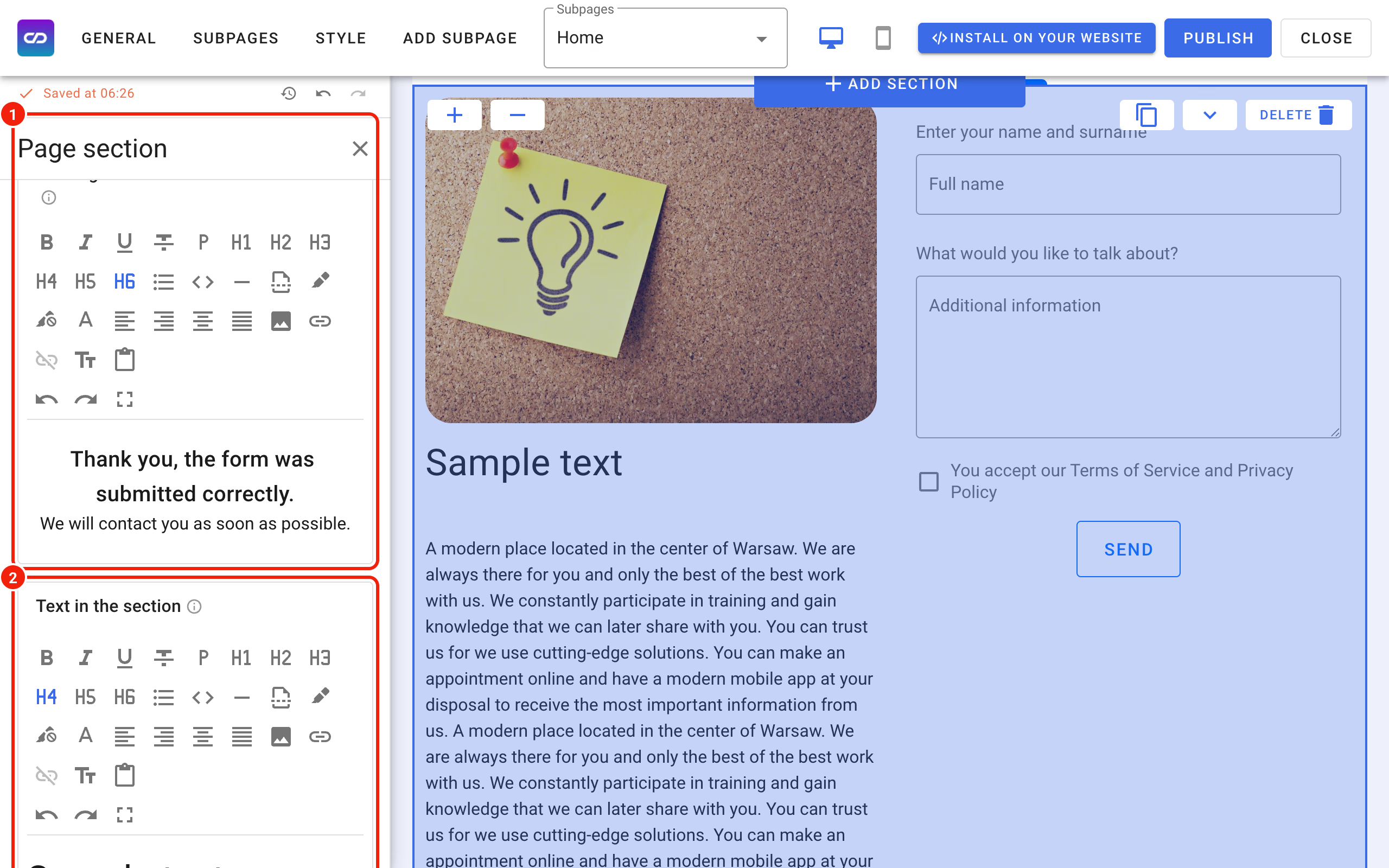
In the Content group you write the text shown next to the form, for example what customers should include in their message, and The content of the message after sending the form: the text that replaces the form once it is sent, such as "Thank you, we'll get back to you soon". This text is shown only when you haven't set a redirect.
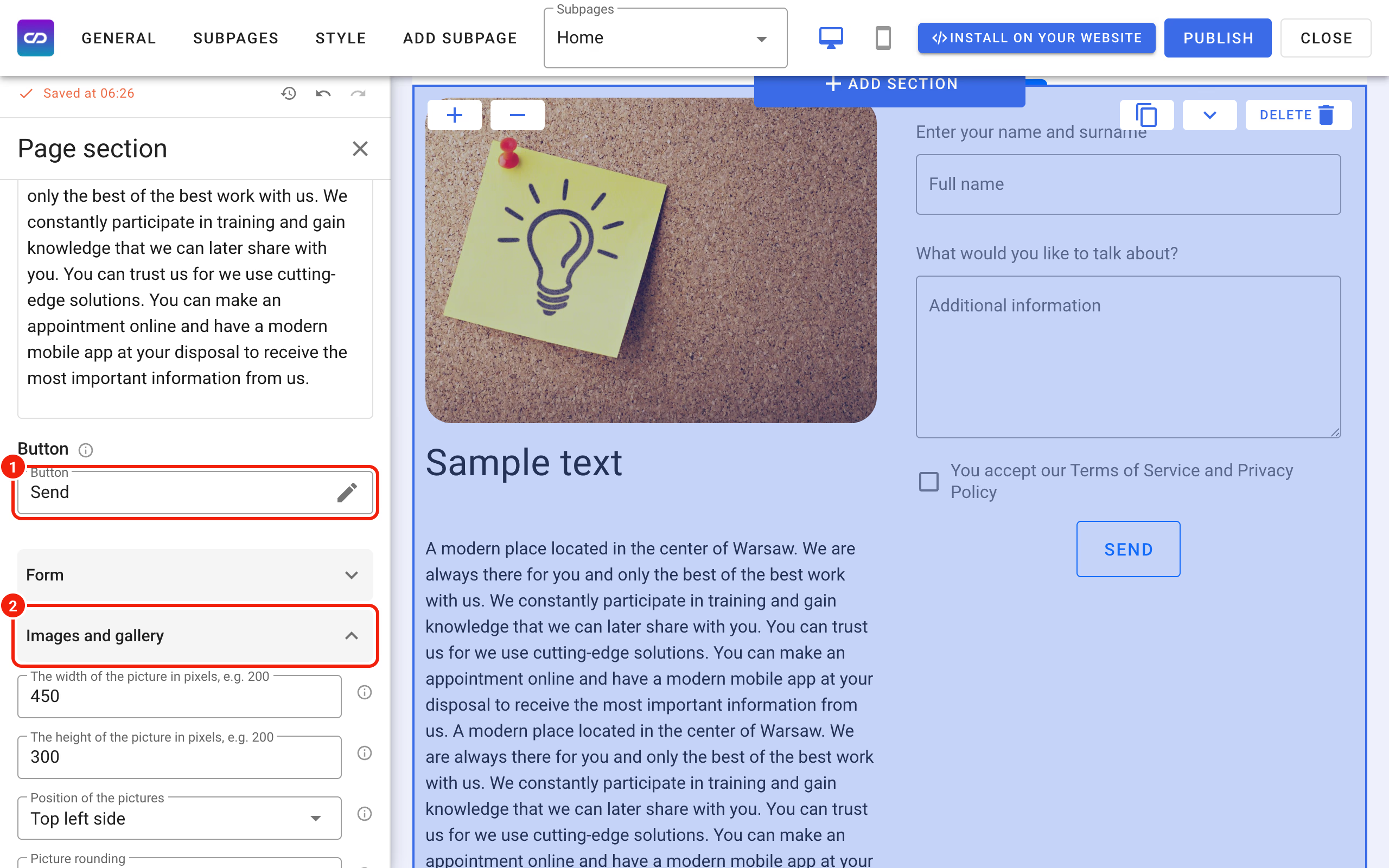
The send button is set in the Content group too, under Button: its text and its look. The Images and gallery group decides how the picture next to the form is shown, for example its size, its rounding or whether to hide it on smartphones.
You can place the form on your home page or on a separate subpage of your booking website. Remember to click Publish so the changes show up on your live website.