Latest system changes in Calendesk: October 2026
 Maciej Cupiał
In October 2026 Calendesk got changes for practices and teams where more than one person works a booking and several bookings share one room. You can add an assisting employee to a booking, give a resource a daily limit, free a room before the appointment ends, and see what happened to the invoice at every payment.
Below is each change on its own: what it does and where to find it in the panel.
More than one person at a booking: assisting employees
A couples session run by two therapists, a workshop with an assistant, a training day with a second trainer. Until now a booking had one employee, and the second person had to remember the date and block their own calendar by hand. Now you add them to the booking as an assisting employee.
Open the booking in the calendar and click “Add an assisting employee” under the employee field.
Pick the person. One booking takes up to 10 assisting employees.
If someone helps for only part of the booking, click their name and set “Helping from” and “Helping until”.
Save the booking.
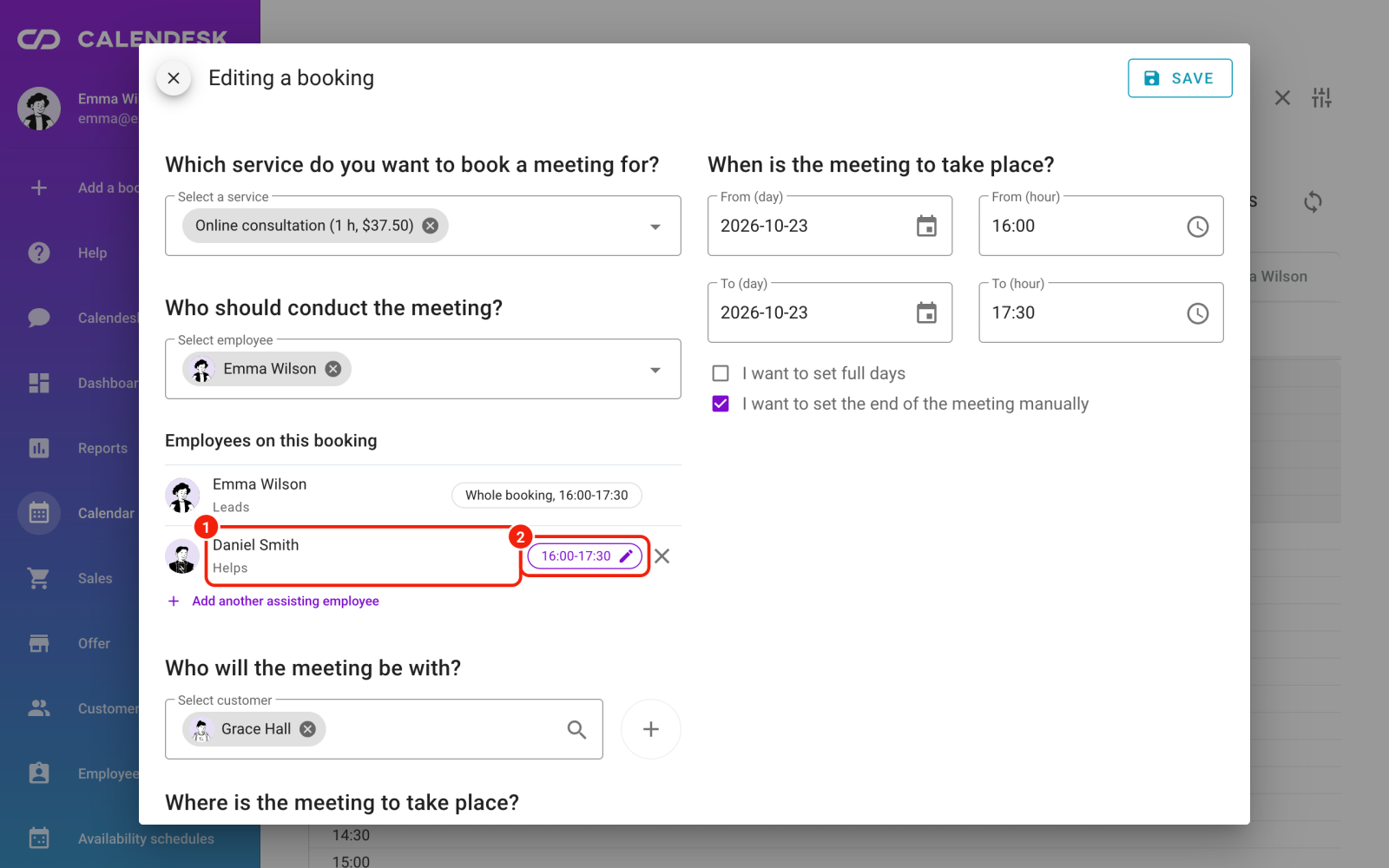
The help time blocks that person’s calendar, online bookings included. If they already have something on, the panel tells you before you save. Assisting employees get a “Helping” tile in their calendar for their help time, and see the booking with its customer and the lead employee’s contact.
Assisting employees can also get notified about a new booking, a change, a cancellation, and get reminders. Turn it on in Notifications → Settings, at the bottom of the page, in the “Notifications for assisting employees” section. That section has its own Save button.
One limit: you can’t add an assisting employee to an all-day booking. Full walkthrough: How do I add an assisting employee to a booking?
Daily limits for resources
A group room that also hosts workshops needs time during the day to be cleaned and set up. Such a resource can now take a set number of minutes or bookings per day: 1 to 1440 minutes, or 1 to 100 bookings.
Go to Settings → Resources and add a new resource or edit one.
Tick “Set a daily limit”.
In the “Limit” field, enter a number and choose minutes or bookings.
Save the resource.
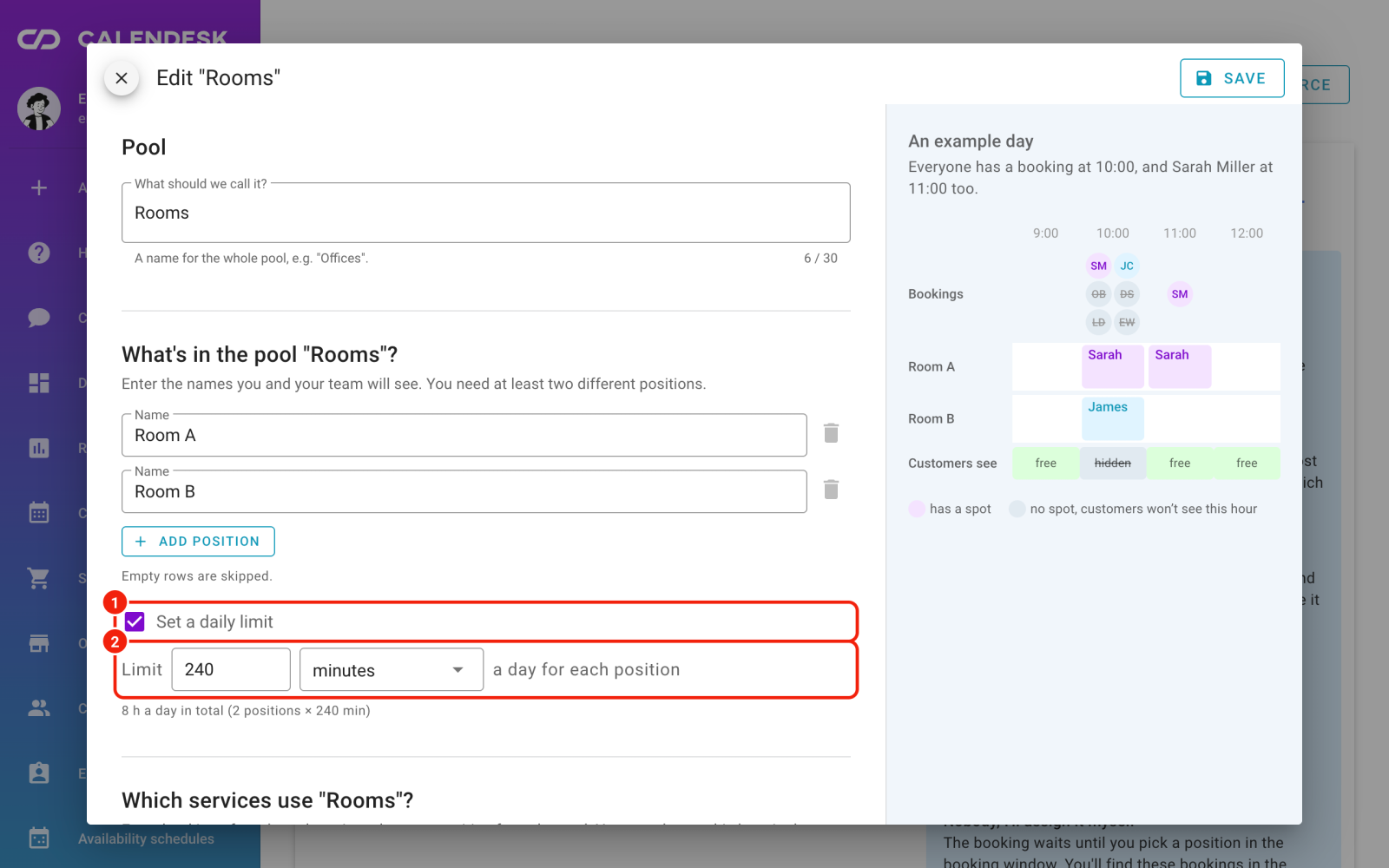
Customers on your booking site don’t see times that would take the resource over its limit. You can still save a booking over the limit in the panel: before it saves, you see how much of that day’s limit is left, and you decide.
Free the room before the booking ends
Some services need a room for only part of the appointment. Say a 90-minute assessment uses the testing room for the first 45 minutes, and the therapist finishes in their own office. Until now the room stayed taken for the full 90 minutes.
Go to Offer → Services and edit the service.
In the resources block, tick “Release resources before the booking ends”.
For each resource, set the “Hold time”: how long from the start of the appointment it stays taken. “Whole booking” keeps it until the end.
Save the service.
After that time the room is free for other bookings, online and in the panel, while the employee stays busy until the end. Bookings of this service already in the calendar follow the new hold time too. Only the hold time counts towards a daily limit in minutes. More on both settings: How do I set a daily resource limit and release a resource early?
Labels, resources and helpers in the bookings list
In Sales → Bookings, every row now shows the booking’s labels and resources, and a “Helpers” block when someone assists. Group classes add up their participants’ resources, for example “Mat ×8 of 12”, so you see how much of the pool is taken without opening the booking. Same count on the class tile in the calendar.
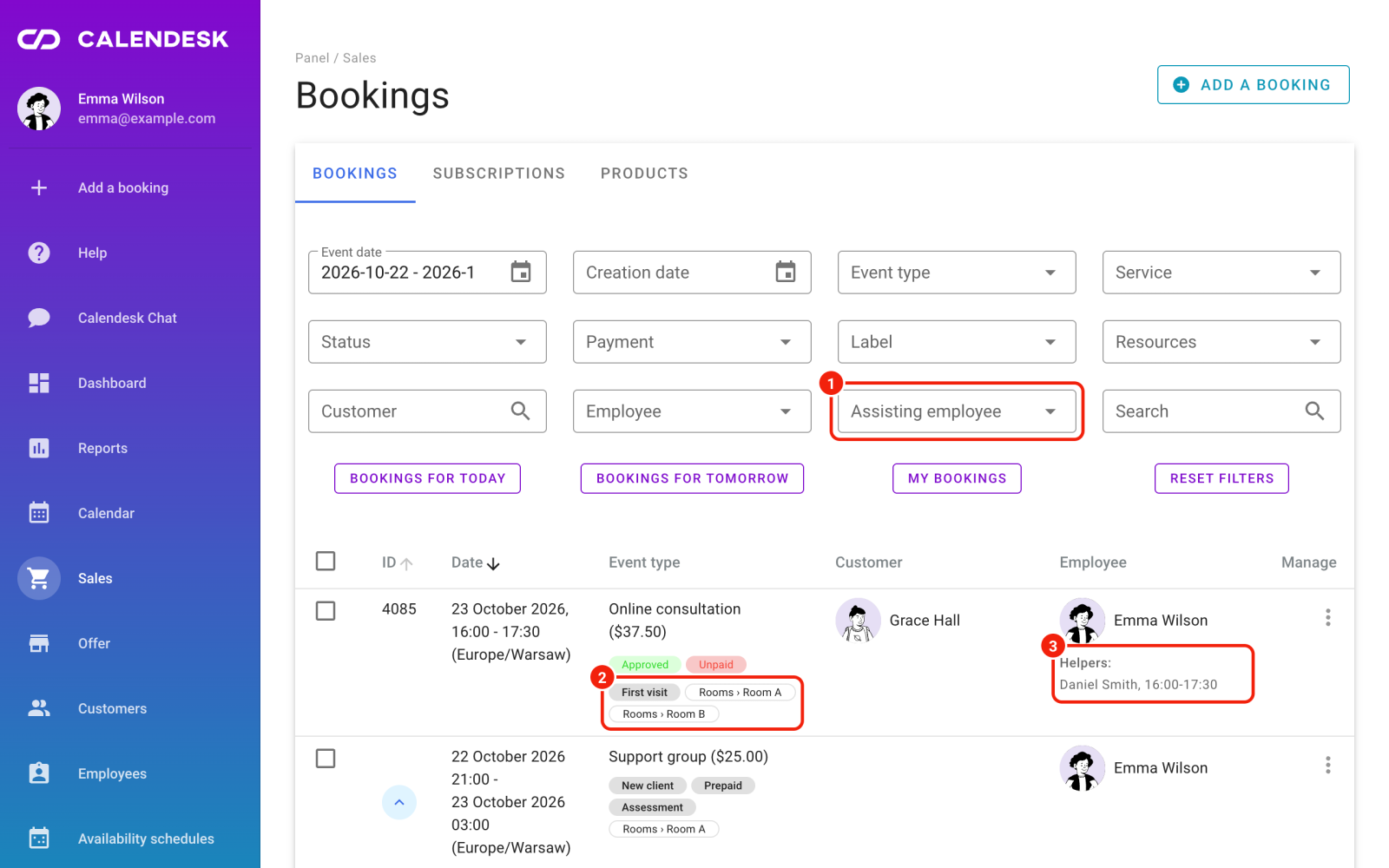
The list filters gained an “Assisting employee” field. Pick a person to see every booking they help at.
Dragging a booking in the calendar checks for conflicts
When you drag a booking or a blocked time in the calendar, or change its length, the panel checks the new time the same way it does when you save the booking window. If the employee has another booking or a blocked time, is outside working hours, or an assisting employee is busy, you see it before anything is saved.
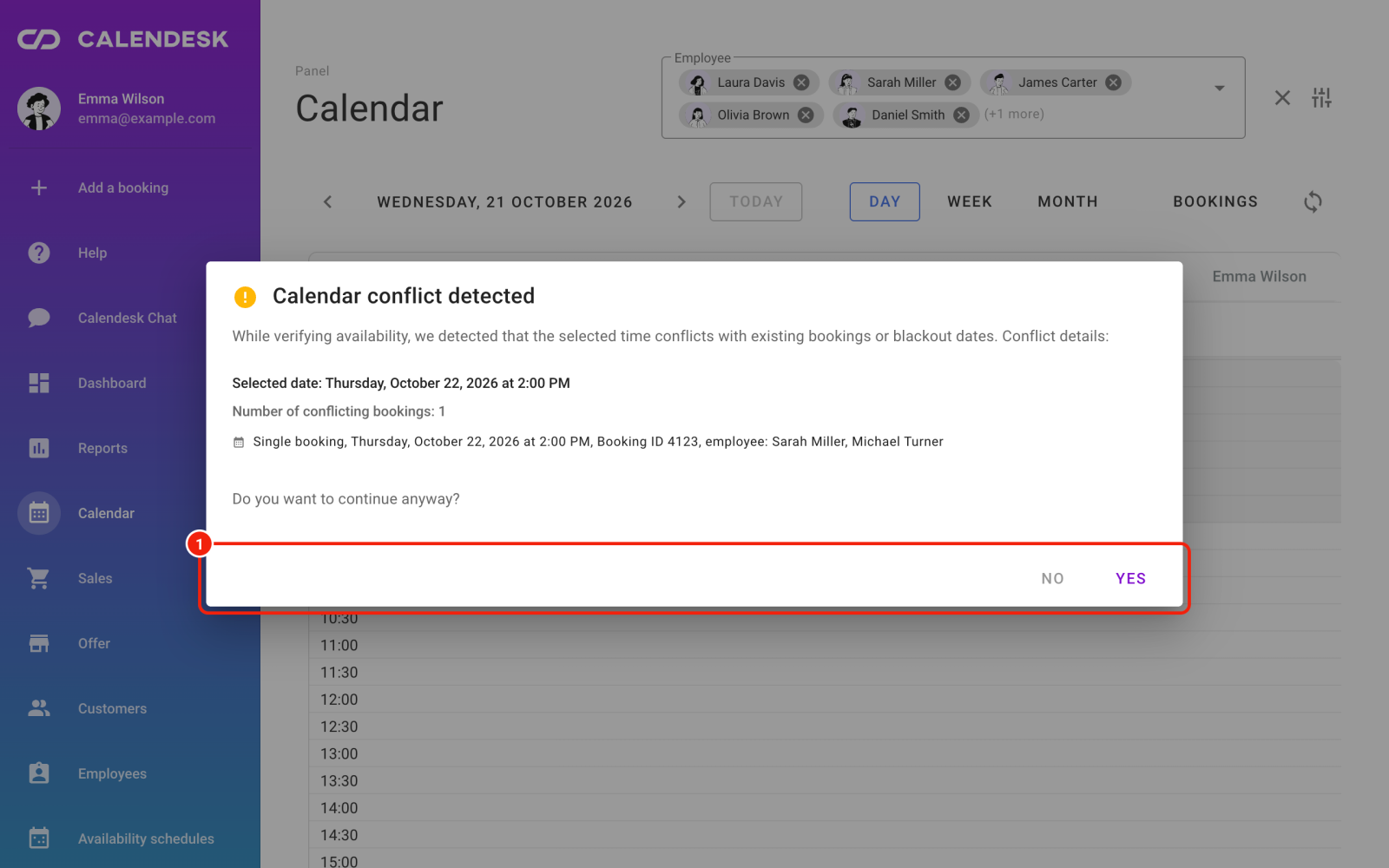
Click “No” to put the booking back where it was, or “Yes” if the overlap is fine. When an assisting employee is busy, the window has “Go back and change” and “Save anyway” buttons instead.
InvoiceOcean invoices: the state at every payment
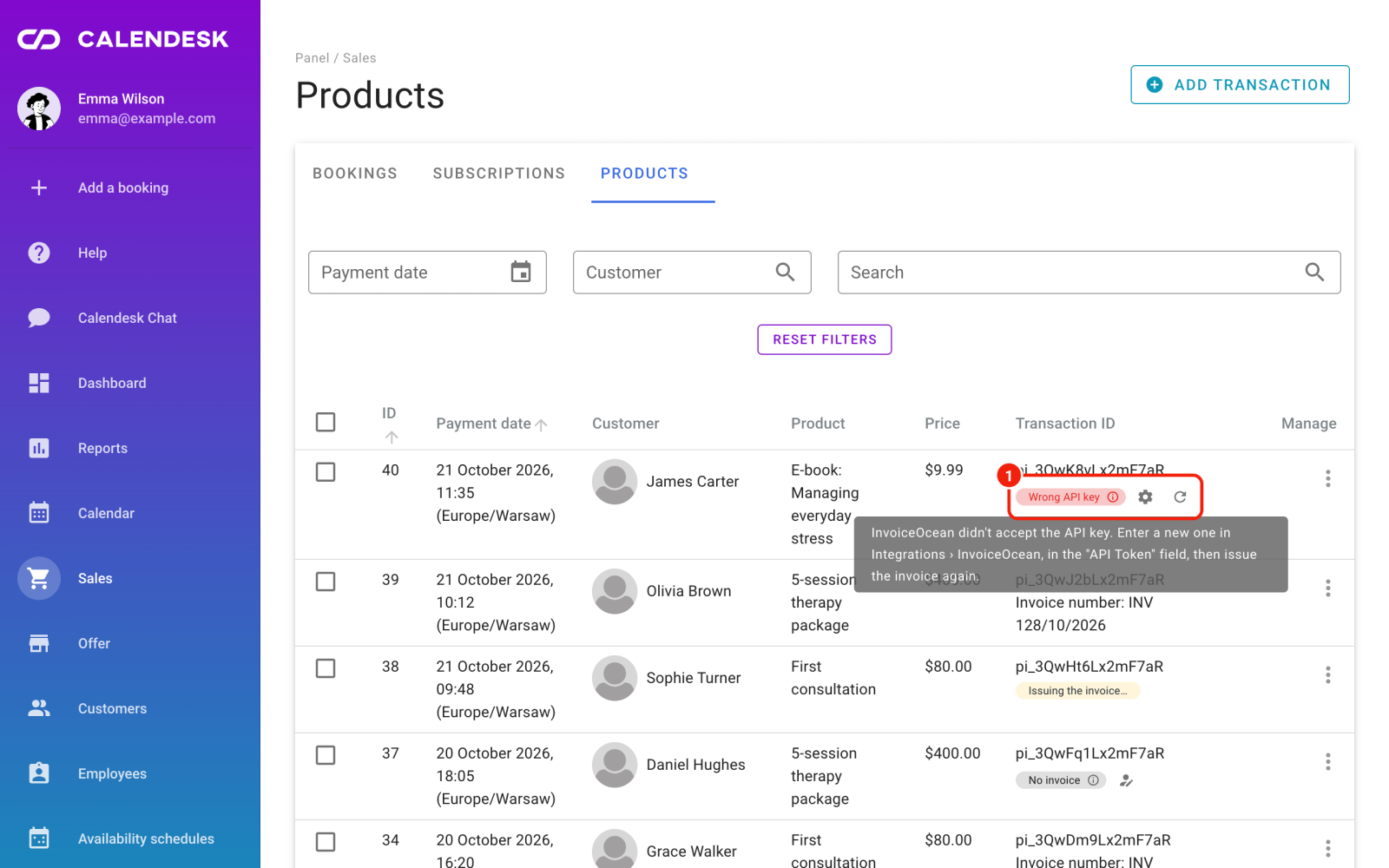
If you issue invoices through InvoiceOcean (Fakturownia), every payment now shows what is happening to its invoice: “Issuing the invoice…”, the number of the issued invoice, “No invoice”, or an error with a short reason: “Wrong API key”, “Wrong account address”, “Rejected by InvoiceOcean” or “No connection”.
Open a booking’s payment, an entry in Sales → Products, or the Payments tab on a customer card.
Hover over the invoice state. The panel says what to fix and gives you a “Fix the InvoiceOcean integration” or “Fix the customer’s invoice details” button.
Once it’s fixed, click “Issue the invoice”.
Two warnings stop mistakes. Before you delete a payment that has an invoice, the panel reminds you the invoice stays in InvoiceOcean and any correction happens there. A second manual payment for the same subscription warns that it gets its own invoice.
Your company details for Calendesk invoices, in Billing → Invoice details, now need a full address: name, street, postal code, city and country. Any missing field gets marked straight away. How to connect the two: How to connect Calendesk payments with InvoiceOcean (Fakturownia)?
Signed-in customers go straight to their bookings
A customer who is already signed in on your booking site no longer sees the sign-in form again. Instead, they get a button to their bookings and a sign-out link. On sign-up, the “e-mail already taken” message shows correctly in every language of the site.
Nothing to set up: it works on every booking site.
Small improvements
Form error messages come in your account’s language, German, Spanish and French included.
Filters in the Sales lists follow one order: dates, what the entry is about, its state, then customer and employee.
Before you save a payment, one sentence says what saving will do, for example “We’ll mark the booking as paid and issue the invoice.”
On phones, the toggles in Reports fit on one row.
Frequently asked questions (FAQ)
Will an assisting employee get an SMS or e-mail about the booking?
Yes, once you turn on notifications for assisting employees in Notifications → Settings. They get the same messages as the lead employee, using your account’s templates and settings. Someone with no e-mail, phone or app in their profile gets nothing on that channel.
Will a daily limit stop me from adding a booking in the panel?
No. It only hides times on your booking site. You get a warning in the panel with what is left of the limit, and can save anyway.
Do I need to turn anything on to see labels and resources in the bookings list?
No. The list shows them whenever a booking has labels or resources.
No account yet? Create a Calendesk account and try these on your own calendar.