What changed in Calendesk: September 2026 release
 Szymon Chołuj
September went in two directions at once. You got tools for keeping customer data tidy, and we closed a long list of items around security and payments. At the end there is one change from the first days of October, because anyone who hates hour-long holes in their schedule will want it.
Customer data: deletion on autopilot, passwords under your rules
Settings has a new Privacy tab. Three settings, each switched on separately, each off by default. Nothing changes in your account until you click.
1. Data of people without an account disappears after a period you choose
Someone books one visit without creating an account, shows up, pays, done. Their name, phone and e-mail used to stay in your database forever. Under GDPR that is a problem you had to solve by hand.
Now you switch on the Deleting data of people without an account card in the Privacy tab, set the number of days, and choose what to count from: that person's last booking or their first one. Before you save, the panel tells you how many people the next night will cover, so there are no surprises.
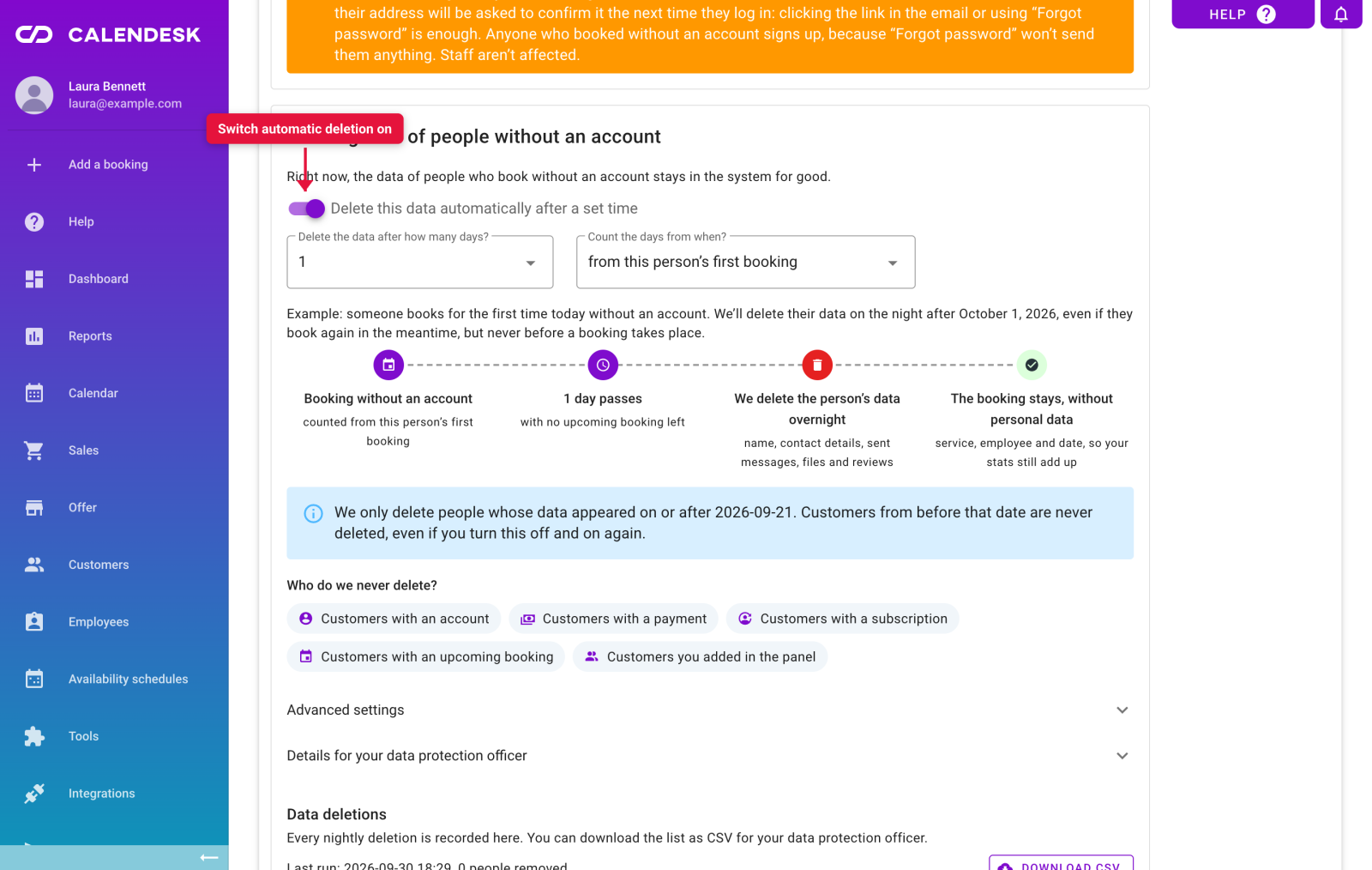
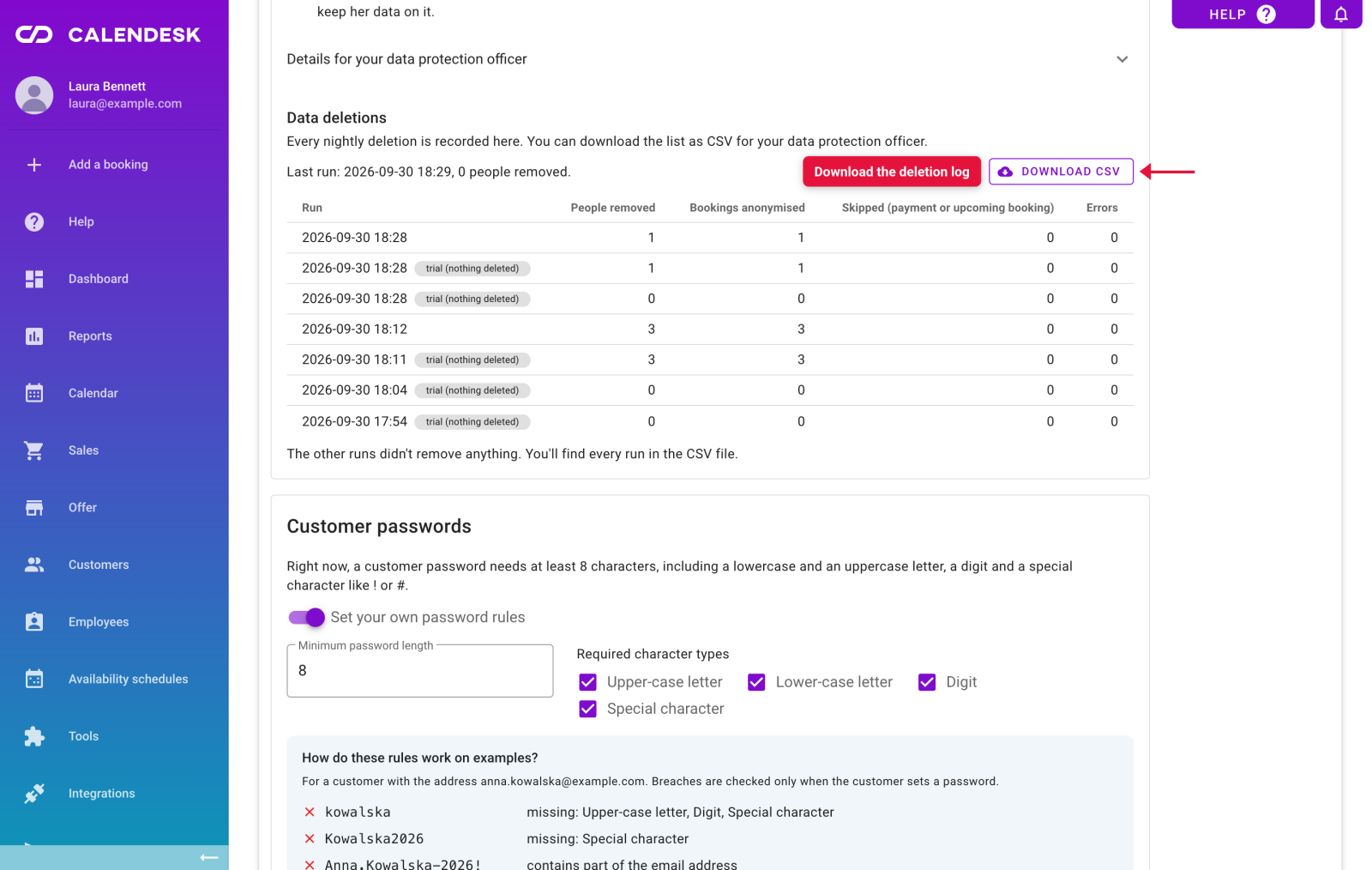
Every night we delete the data of people who meet the conditions. The booking itself stays in your calendar, only without the customer's details: you still see the service, the employee and the time, so your statistics add up. We never touch customers with an account, with a payment, with an active subscription, with an upcoming booking, or those added by hand in the panel. Anyone who has ever logged in on your site stays too. Each run lands in a deletion log with the number of people and bookings, downloadable as CSV, which helps when your data protection officer asks.
The customer card shows what is coming right away: "We'll delete the data tonight", or the reason we will not delete it at all.
2. You decide what password a customer may use on your site
Until now the booking site asked customers for eight characters with an upper-case and a lower-case letter, a digit and a special character. Enough for most. If you run a practice where the customer account holds a visit history, you may want more.
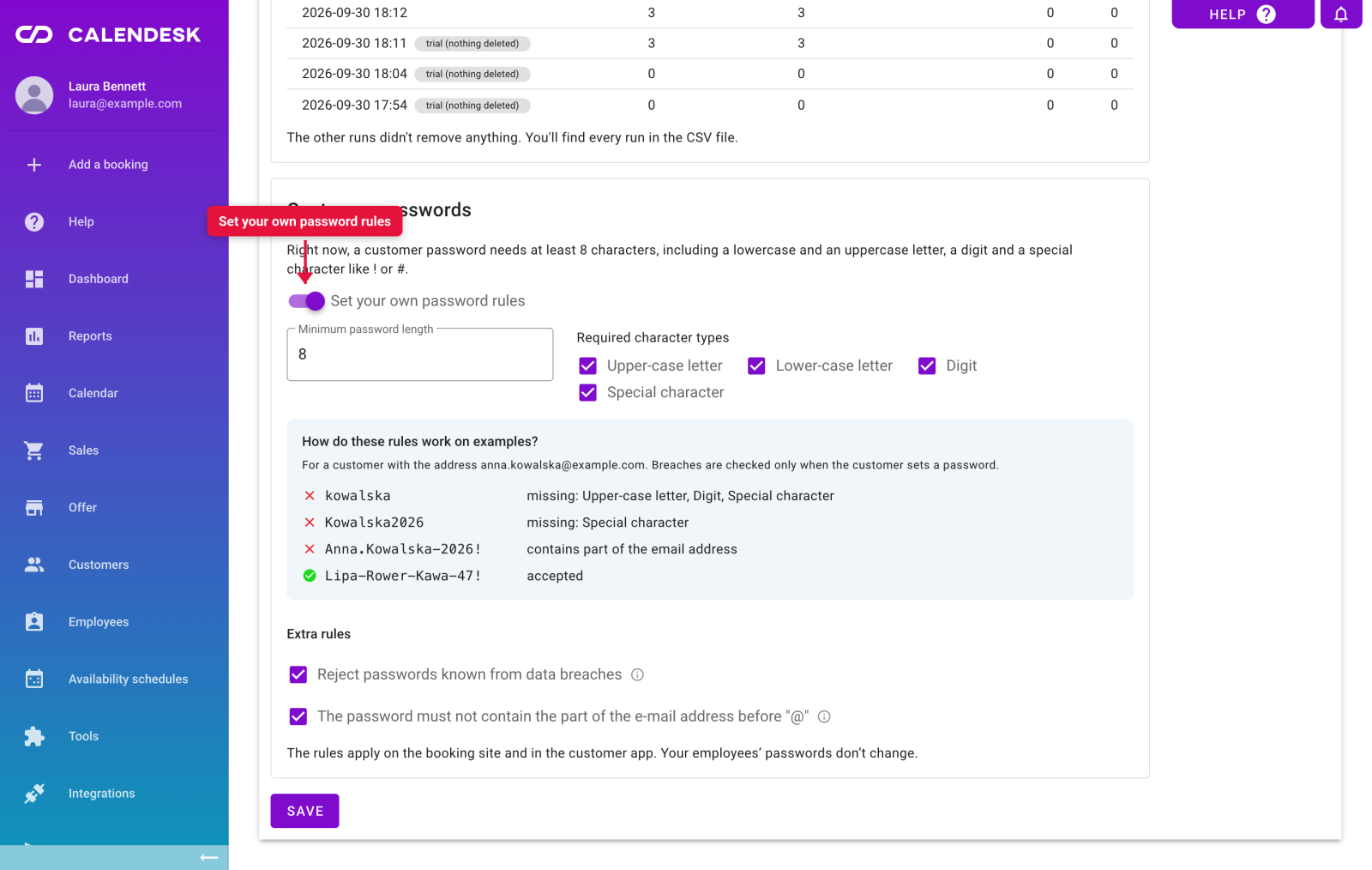
In the Customer passwords card you set the minimum length, the required character types, a block on passwords that contain the e-mail address and, the interesting one, rejection of passwords known from data breaches. We check them against a breach database without ever sending the password itself outside the system: the customer's browser sends only the first five characters of a hash and does the comparison on its own. Below the settings there is a preview with examples, so you see which passwords will pass before you save anything.
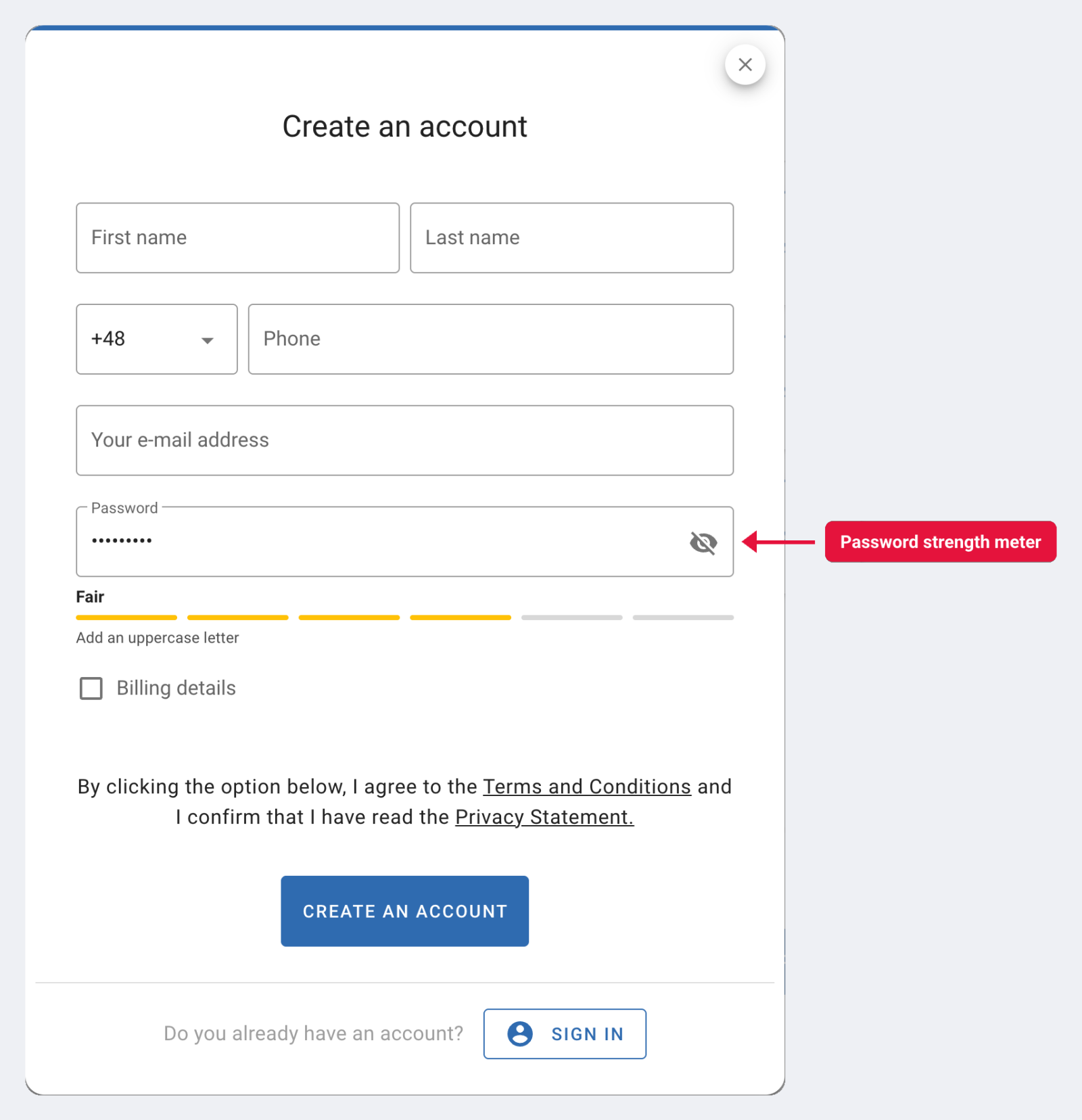
On the customer side one thing changed: a meter appeared under the password field. It shows the strength and names what is still missing ("Add an upper-case letter") instead of rejecting the form only after the click. It works with the default rules too, with nothing switched on in the panel.
3. A customer sees in their account only what happened after they created it
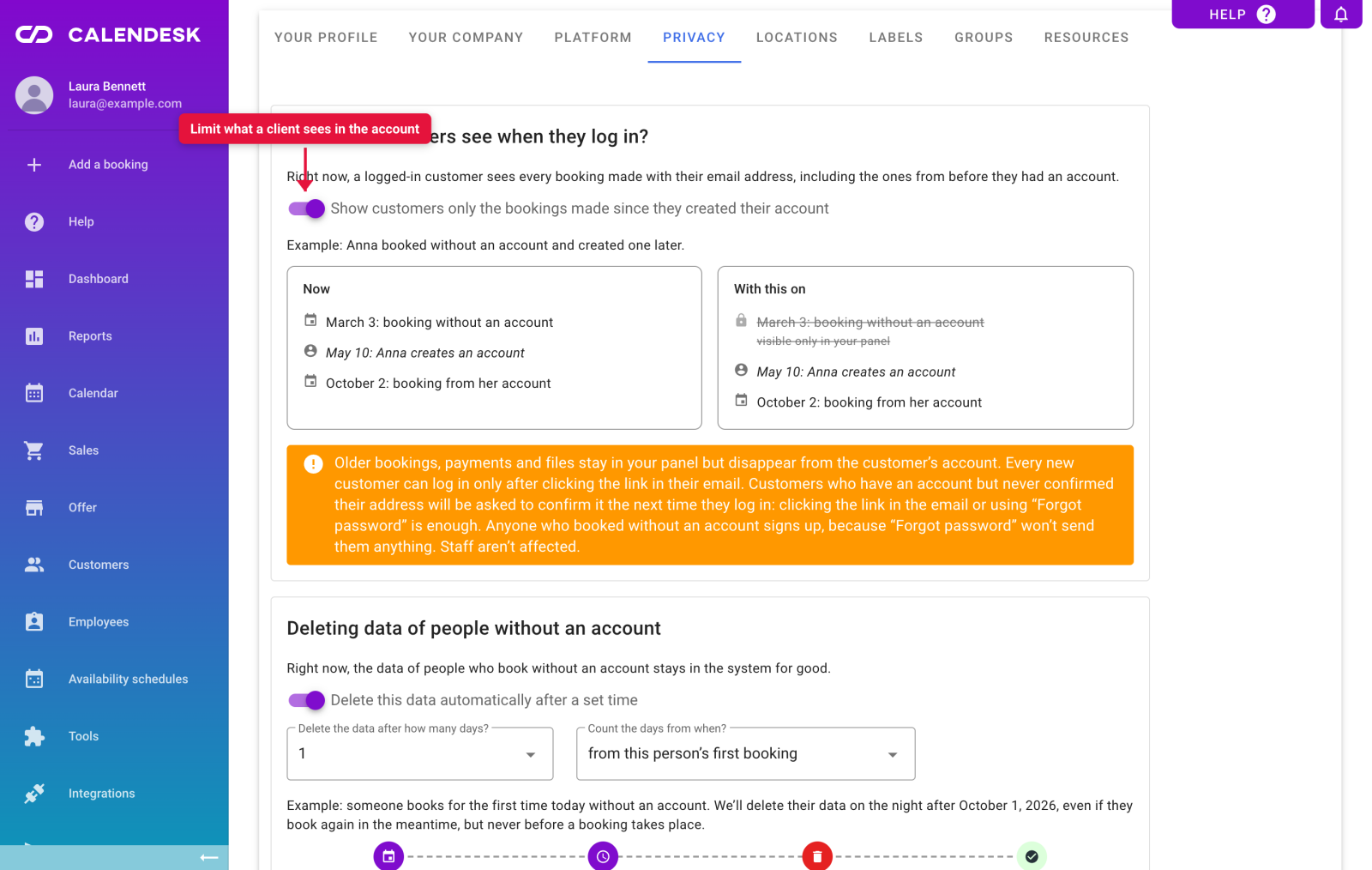
A case therapists reported to us: the front desk adds bookings to a patient's e-mail from the panel for half a year, and when the patient finally creates an account, they see that whole history, together with notes that were not meant for them. You can cut that now. The What do customers see when they log in card limits the customer account to bookings made from the moment the customer asked for it. Earlier ones stay in your panel and are not in their account.
The booking site works for more people
4. reCAPTCHA is a switch now
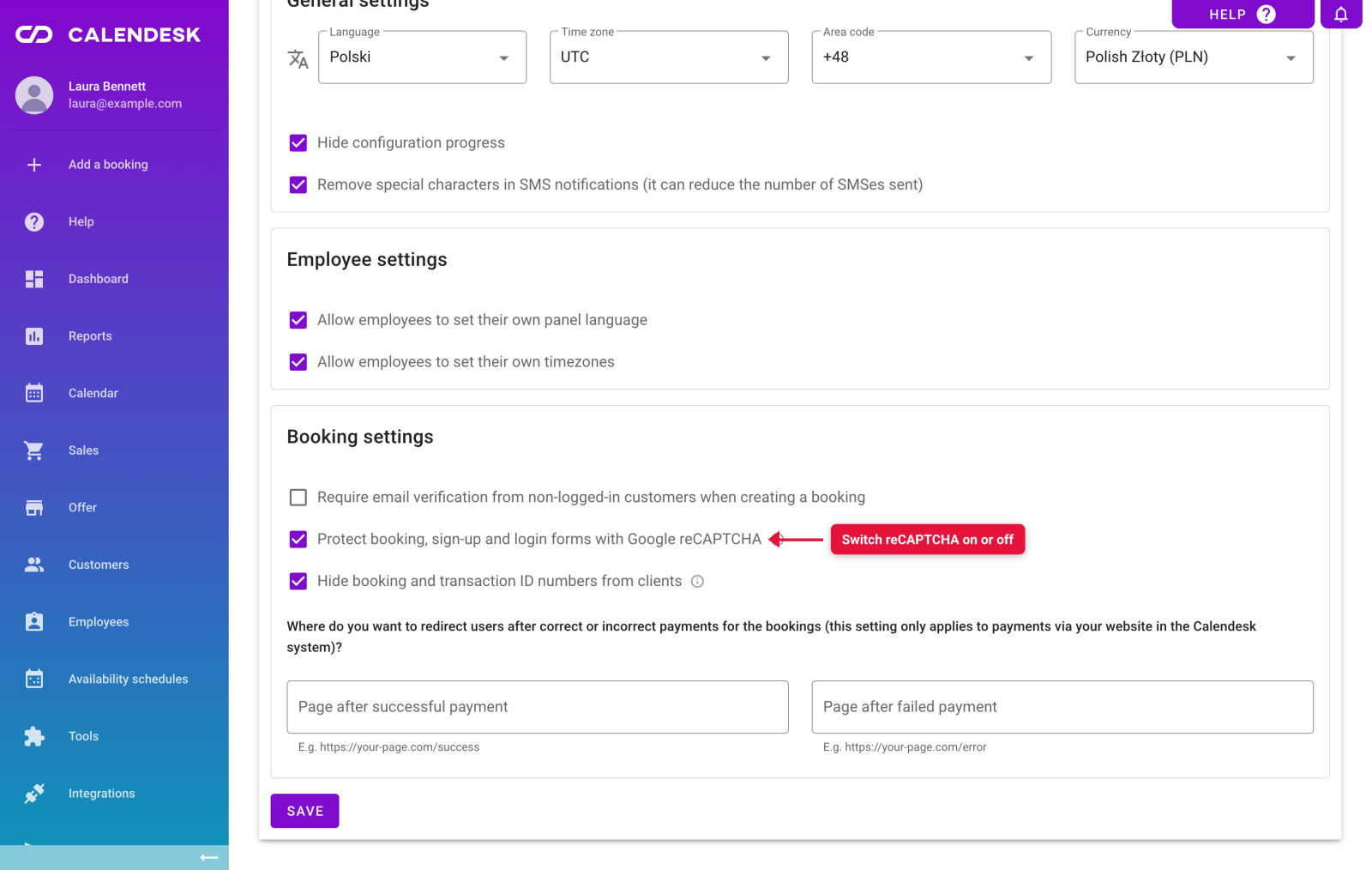
Google reCAPTCHA has protected the booking, sign-up and login forms from day one, but you could not turn it off. Now it is a plain switch in Platform settings. Why turn it off? Without it your site loads no Google scripts and sets no Google cookies, which makes the cookie policy simpler. You lose the bot filter in return, so if you switch it off, switch on the e-mail confirmation for bookings without an account next to it.
5. Keyboard, screen reader, contrast
We went through the booking pages with a screen reader and without a mouse. Every element got a readable name, keyboard focus stays where the customer is, and the forms tell assistive technology what they expect. We also fixed text that was too light to read. There is nothing to set up; the changes are on every site built in Calendesk.
6. A calendar embedded in your own site scrolls itself back into view
If you have a Calendesk calendar embedded in your website, you know the effect: the customer picks a service, the calendar jumps to the next step and the page is left scrolled somewhere halfway. Now after each step change the calendar asks your page to scroll it back into view, with room for a sticky header. It works in Safari and with older embed codes too.
The panel: change your plan without guessing what the card will be charged
7. A new subscription page with a "What will you pay today?" preview
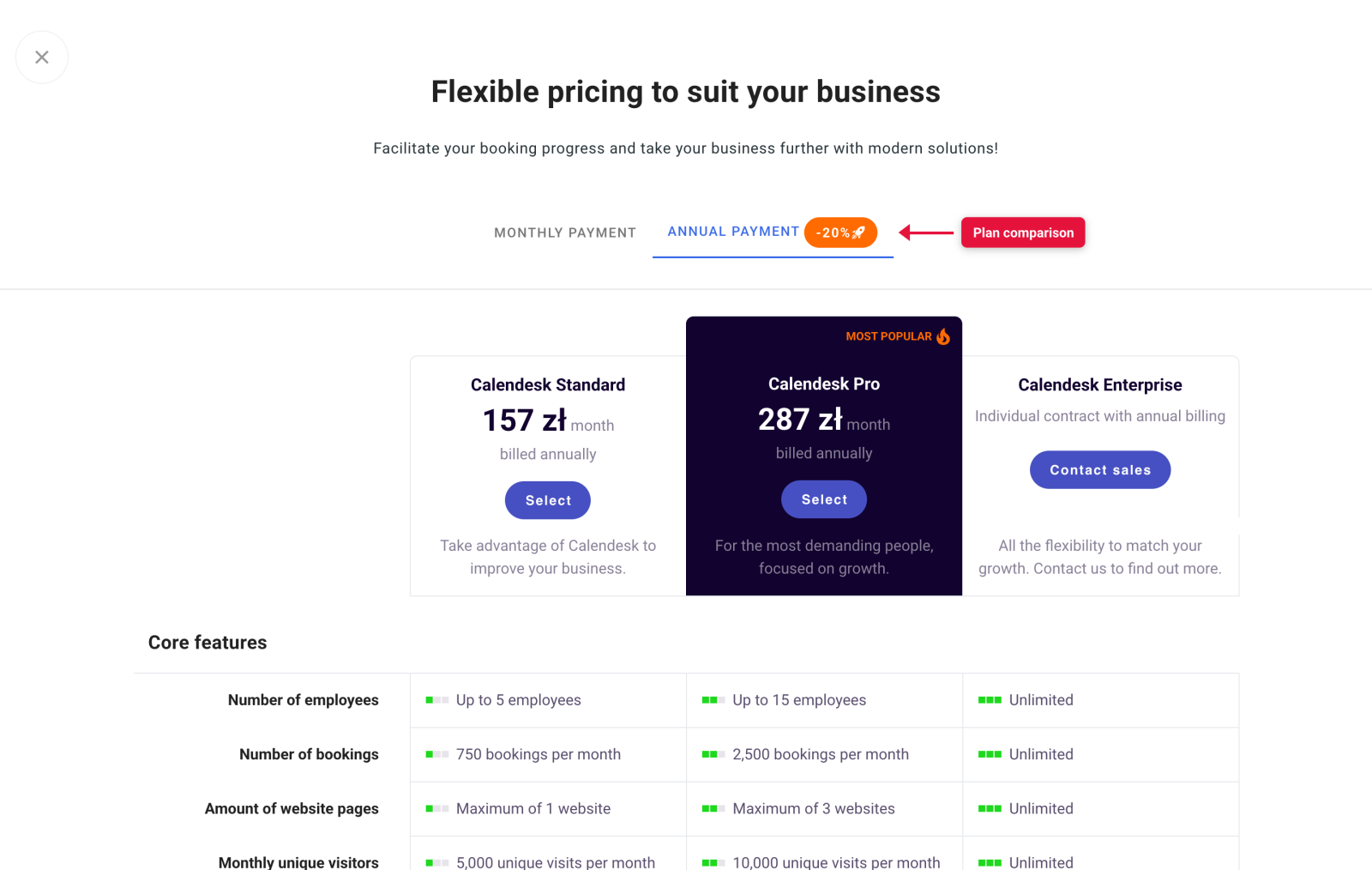
Billing → Subscription now shows your plan and all your packages in one place, and every change goes through one dialog. The plan comparison looks like the public pricing page: in sections, with what your plan already has at the top.
The important part sits at the end. Before you confirm a plan or package change, you get it itemised to the cent: what you pay today, what the pro-rated part is, which discount is already in the prices, how much VAT, how much your balance covers and when the card is charged next. That amount is exactly what we charge, because it is computed where the invoice is made, not from the price list.
8. A declined card says why
When the bank declines a card for a plan or a notification package, the panel names the reason: insufficient funds or a bank decline, instead of a generic "payment failed". You know whether to call the bank or just top up the account.
9. Role and access readable from the employee list
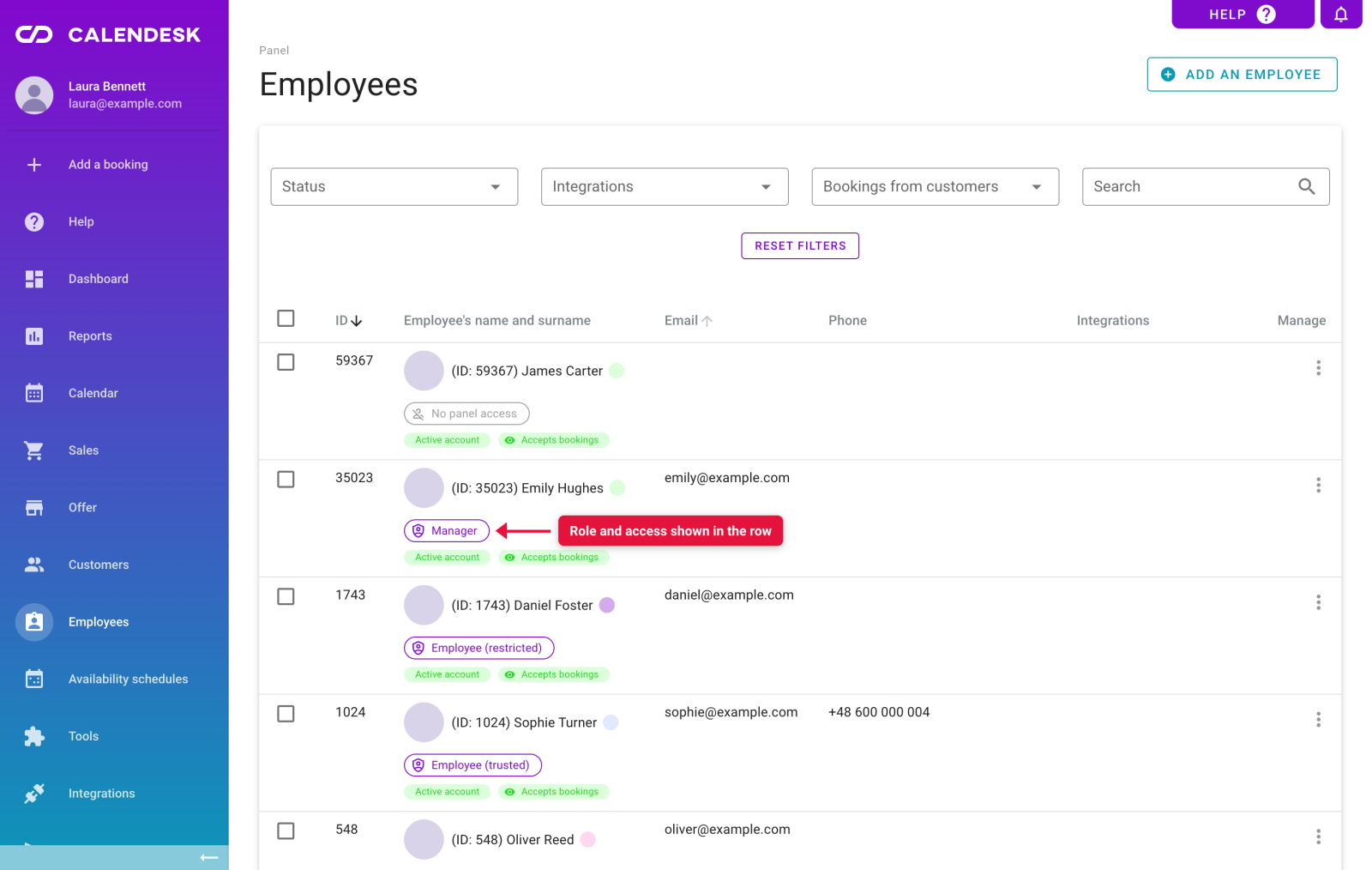
The Employees list shows in each row the panel role (Administrator, Manager, trusted or restricted Employee) or a grey "No panel access" tag, and an eye icon next to "Accepts bookings" tells you whether customers see that person online. Until now you had to open every profile one by one.
Integrations: webhooks your system can trust
10. Every webhook delivery is signed
A webhook is a message Calendesk sends to your system when something happens, for example a booking is created. Until now your system had no way to be sure the message came from us. Now you enter a signing key in the webhook settings and we sign every delivery with it in the Calendesk-Signature header. The panel shows a preview of the headers your system will receive and a "How do I verify the signature?" guide with ready-made code in PHP and Node.js.
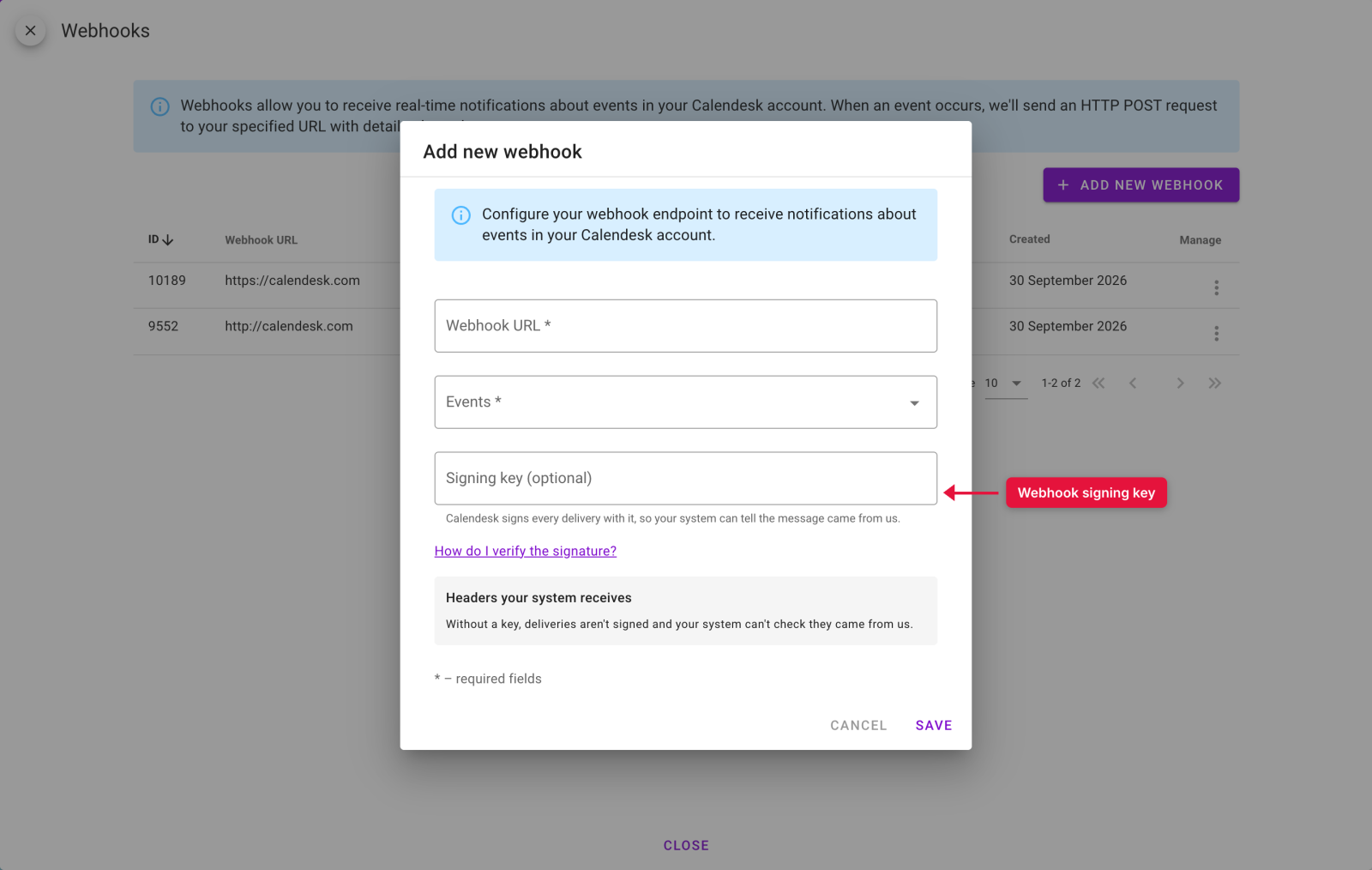
New webhook addresses must use https. The ones you have on http keep working, but get a warning.
Early October: no more holes in the schedule
11. Limit the gap between an employee's bookings
A riding instructor has a lesson at 10:00. If the next customer books 14:00, the four hours in between are lost. The same goes for a trainer who commutes to the gym, or a psychologist renting an office by the hour.
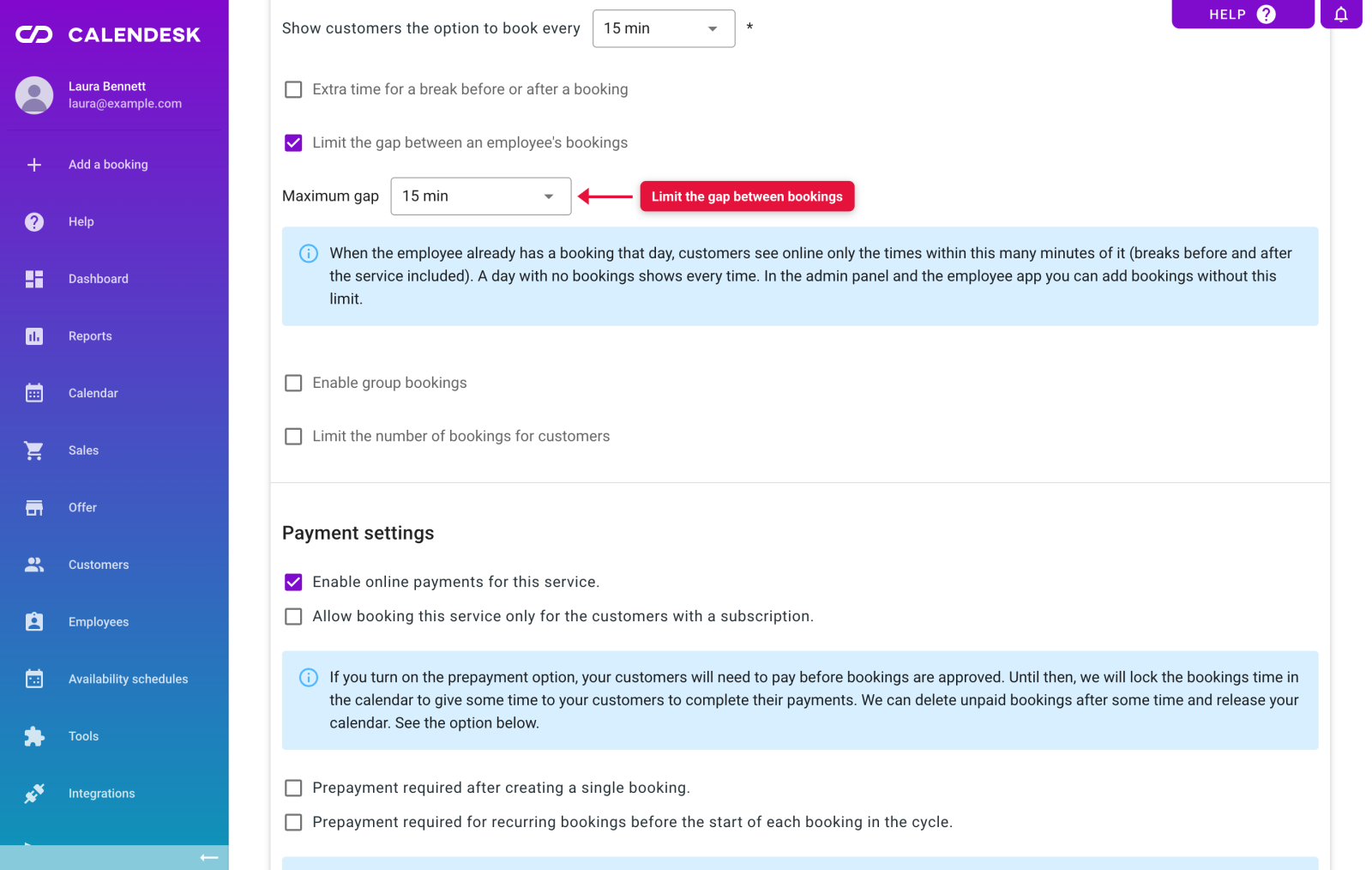
In the service settings, in the booking section, tick Limit the gap between an employee's bookings and choose the maximum gap, say one hour. From then on, when the employee already has a booking that day, customers see online only the times within that distance of it, breaks before and after the service included. A day with no bookings shows every time, as before.
This is how it looks on the booking site: times outside the gap are crossed out, and the first customer of the day still picks any hour.
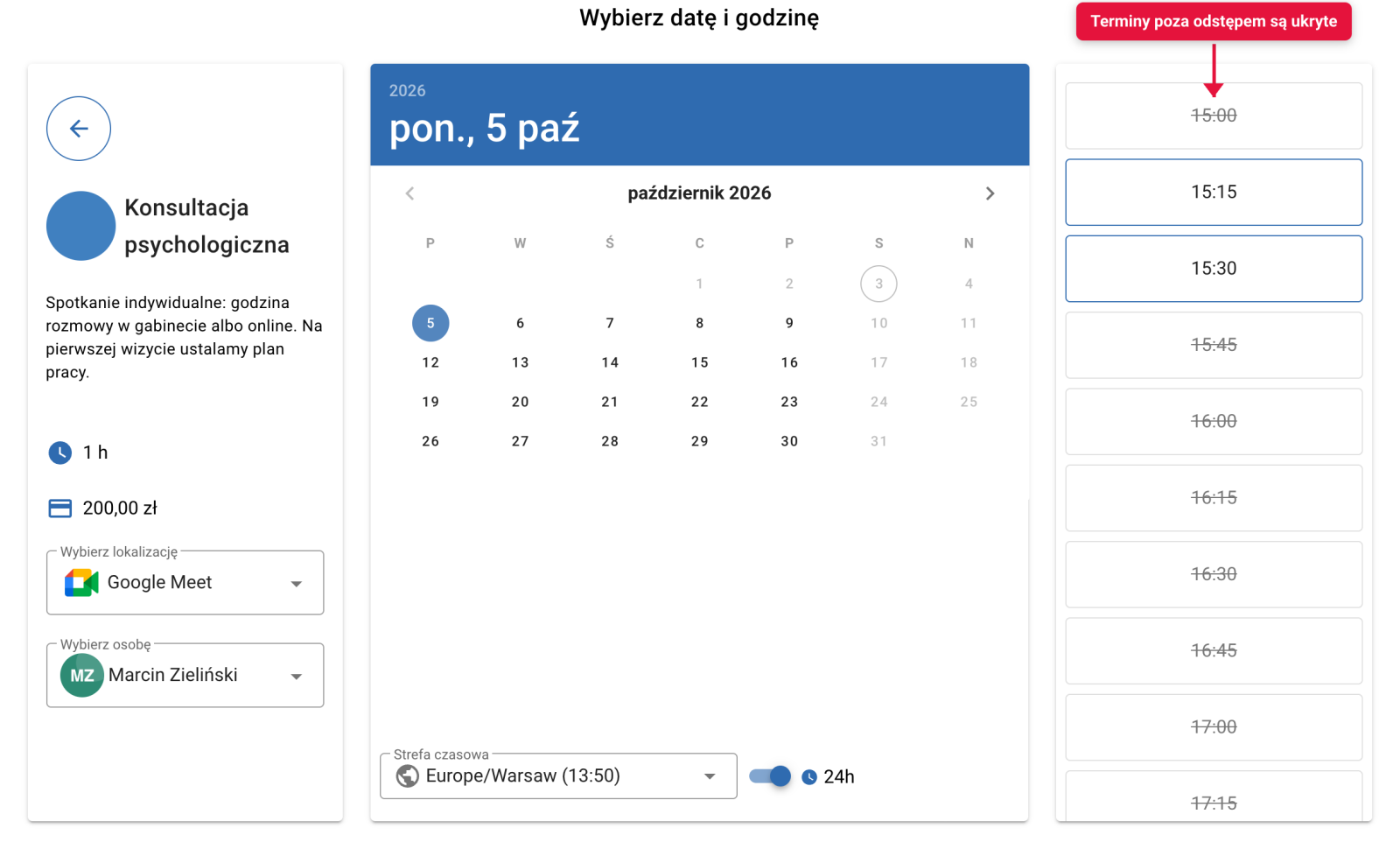
The limit applies to customers only. In the panel and in the employee app you can add a booking at any time, because you know when an exception makes sense.
That is September. If any of this raises a question, write to [email protected]; we read every message.