How do I add an assisting employee to a booking?
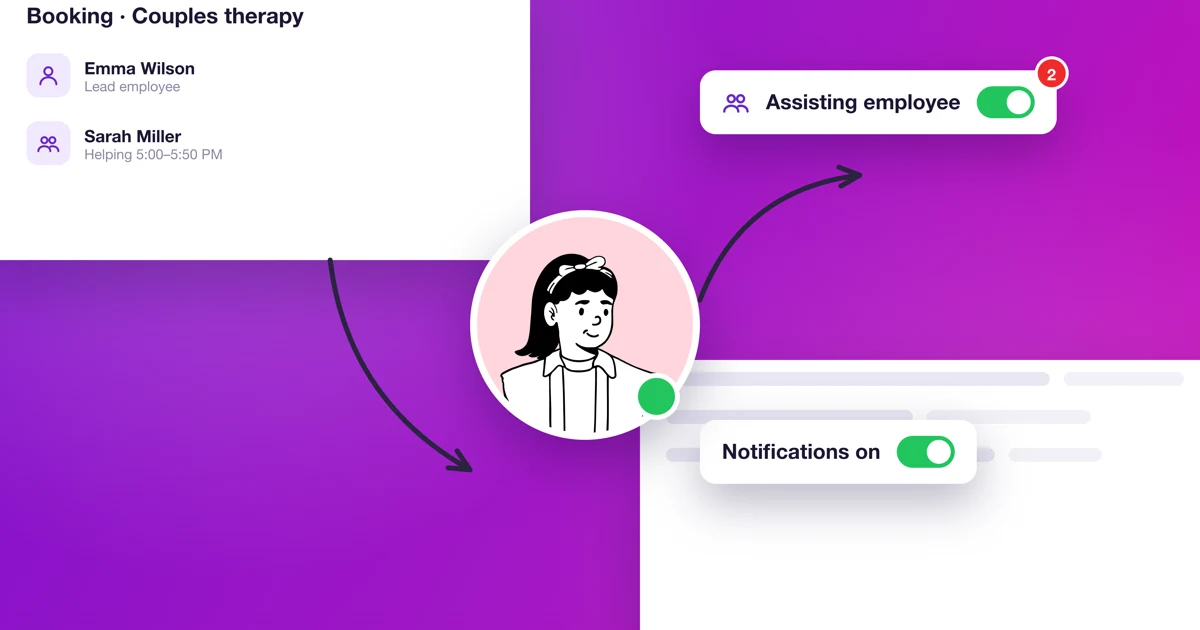
Some appointments need more than one person: a second therapist in a couples session, a co-therapist in family therapy, an assistant at a workshop. You add that person to the booking as an assisting employee. One employee still leads the booking, and the assisting employee has their own help time in it: the whole appointment or part of it.
Help time takes up the assisting employee’s calendar. Customers can’t book them online during it, and the panel warns you when one of the assisting employees is busy.
How do I add an assisting employee to a booking?
- Open the Calendar and add a new booking, or click an existing one and choose edit.
- Under the employee field, click Add an assisting employee. The Employees on this booking section appears.
- In the Who's helping? field, pick the person. The list shows only the employees who can still help at this booking.
- To add someone else, click Add another assisting employee. Up to 10 people can help at one booking.
- Click Save.
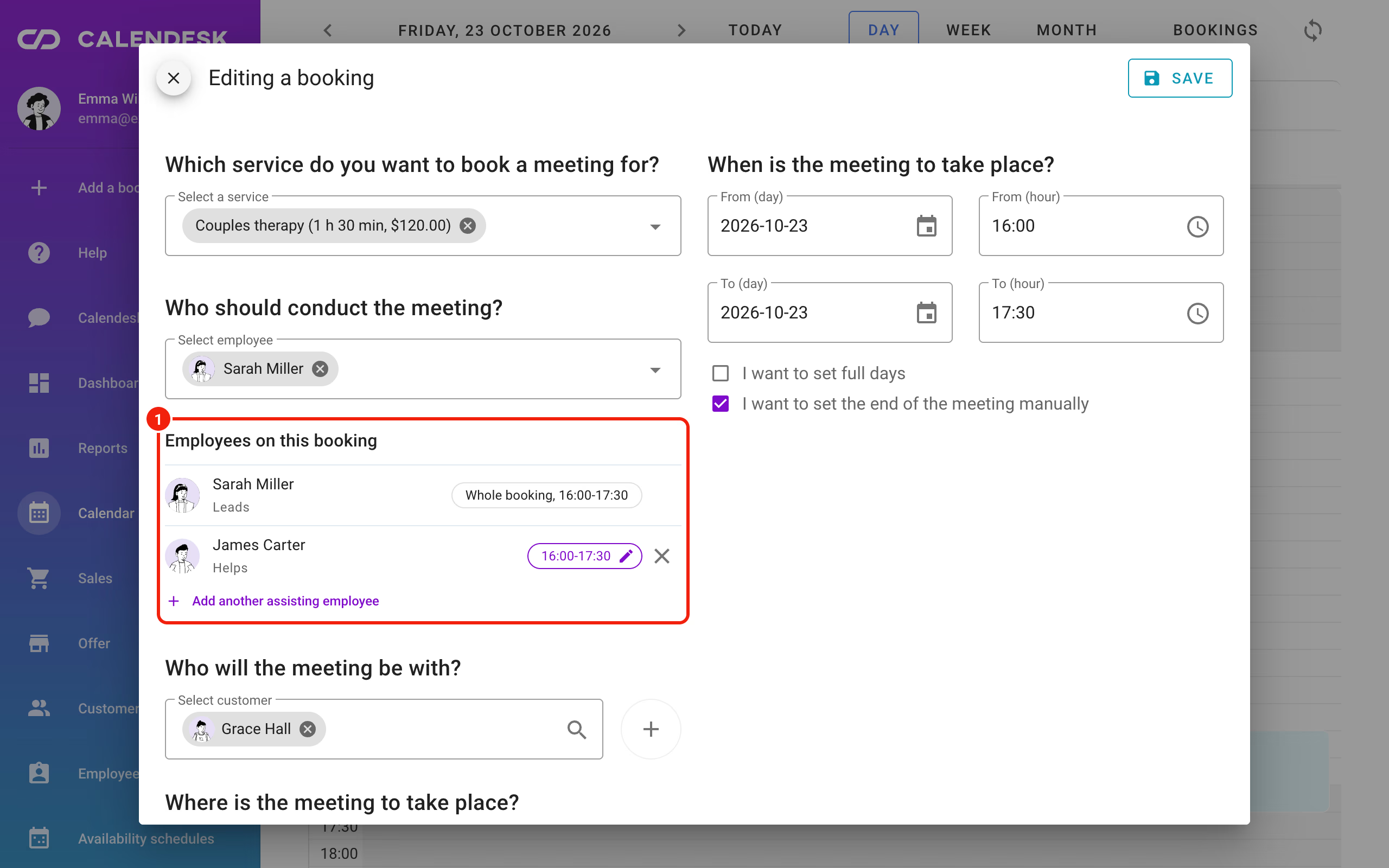
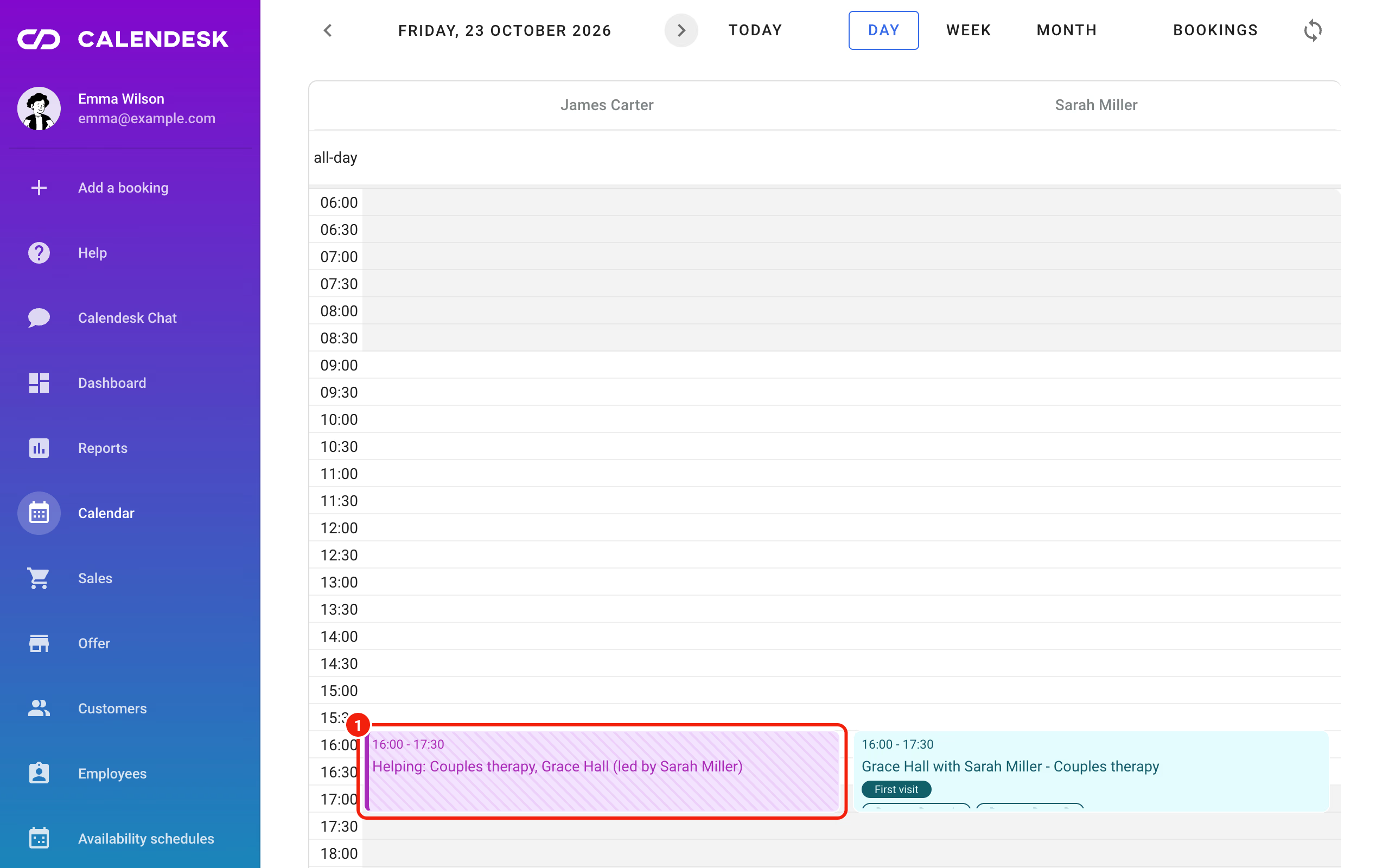
At Wilson Therapy Studio, Sarah Miller runs the couples sessions. James Carter joins the first session with each new couple, so Sarah adds him as an assisting employee.
How do I set which part of the appointment they help with?
By default an assisting employee helps for the whole booking. If they join for part of it:
- In Employees on this booking, click their name.
- In the Help time popup, set Helping from and Helping until. The time has to fall within the booking and last at least 5 minutes.
- Close the popup and save the booking.
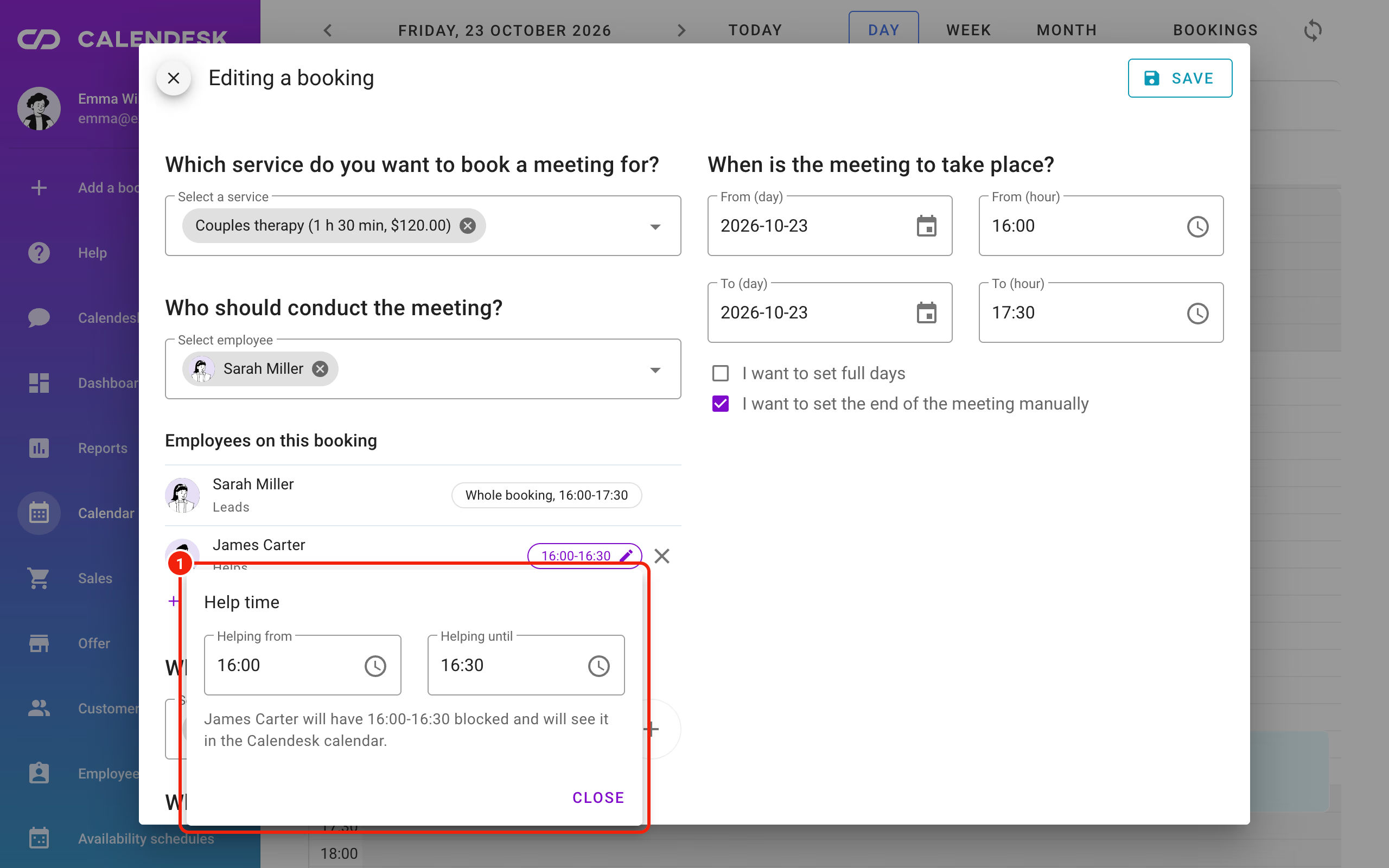
Each assisting employee has their own time. One person can help for the first 30 minutes and another for the whole session.
If assisting employees were added to this service recently, the panel suggests: Last time this service had: … Add them again? Click Add to add the same people, or Not now to hide the suggestion.
What happens when an assisting employee is busy?
When you save, the panel checks every assisting employee. If someone has another booking, blocked time, is helping at another booking or is outside working hours during their help time, you see the Not everyone is free to help window, with the reason and time of each conflict.
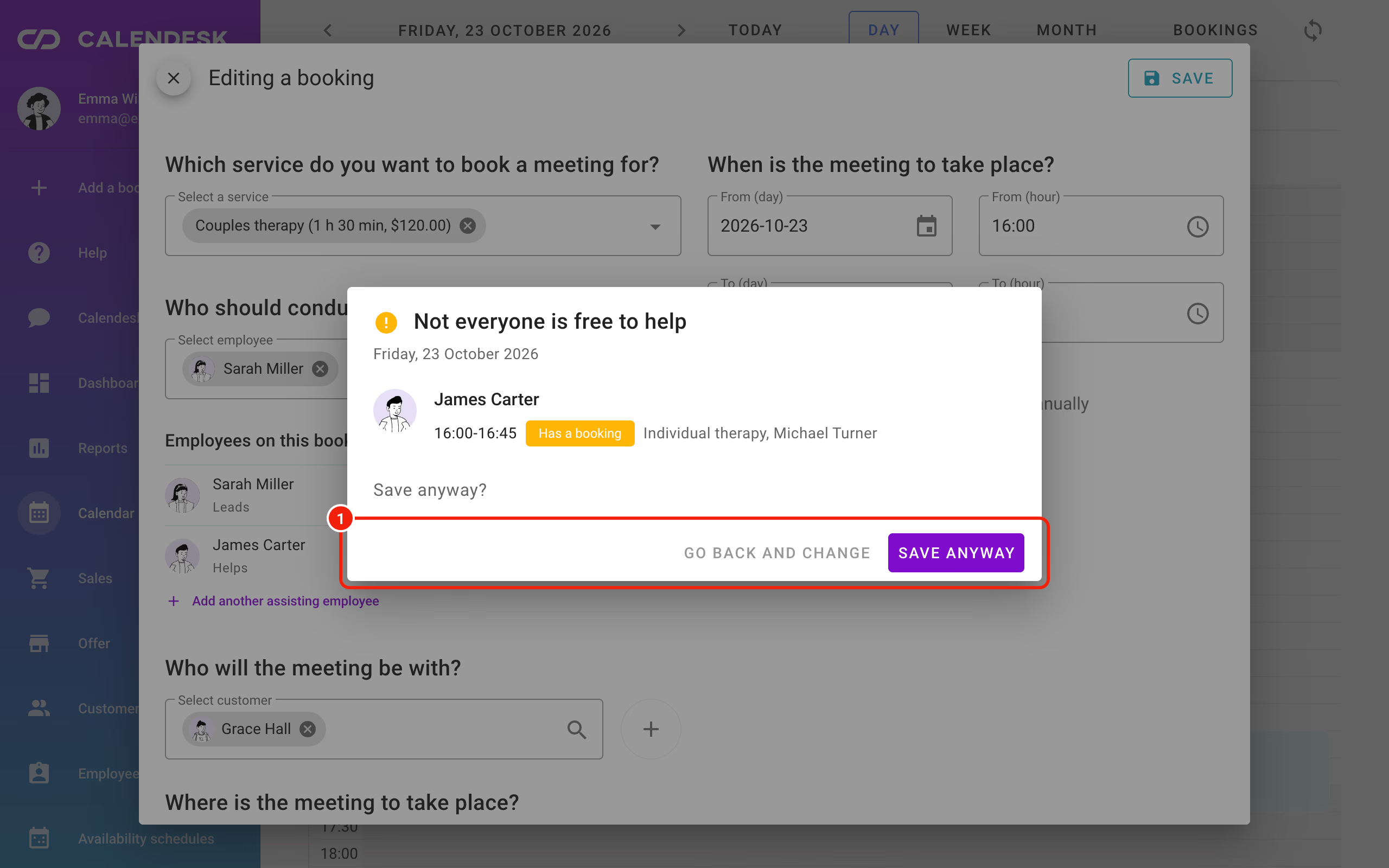
- Go back and change takes you back to the booking so you can change the time or the person.
- Save anyway saves the booking with the conflict.
The same check runs when you move a booking, edit a recurring series or drag an appointment in the calendar.
Where can I see help time?
- In the calendar. The assisting employee gets a Helping tile for their help time. Clicking it opens the booking.
- In online booking. Help time blocks the assisting employee’s free slots, just like their own appointments.
- In the bookings list. In Sales → Bookings, a Helpers block under the booking’s employee lists each person’s help time. The Assisting employee filter shows every booking the chosen person helps at.
What does the assisting employee see?
Assisting employees see the bookings they help at, even with the Employee (restricted) role, which gives access to their own appointments only. The bookings list shows them their help time. They see the customers of those bookings the same way as the customers of their own appointments, along with the lead employee’s contact.
Who can add assisting employees?
Assisting employees are added and changed by anyone who can add bookings (on a new booking) or edit bookings (on an edit). Everyone else sees them in the booking but can’t change them. More about roles: How do I give an employee panel access and permissions?
Do assisting employees get notifications?
Yes, if you turn it on. By default only the lead employee gets notifications.
- Go to Notifications → Settings.
- In Notifications for assisting employees, tick Notify the employees who help at a booking.
- Click Save under that section.
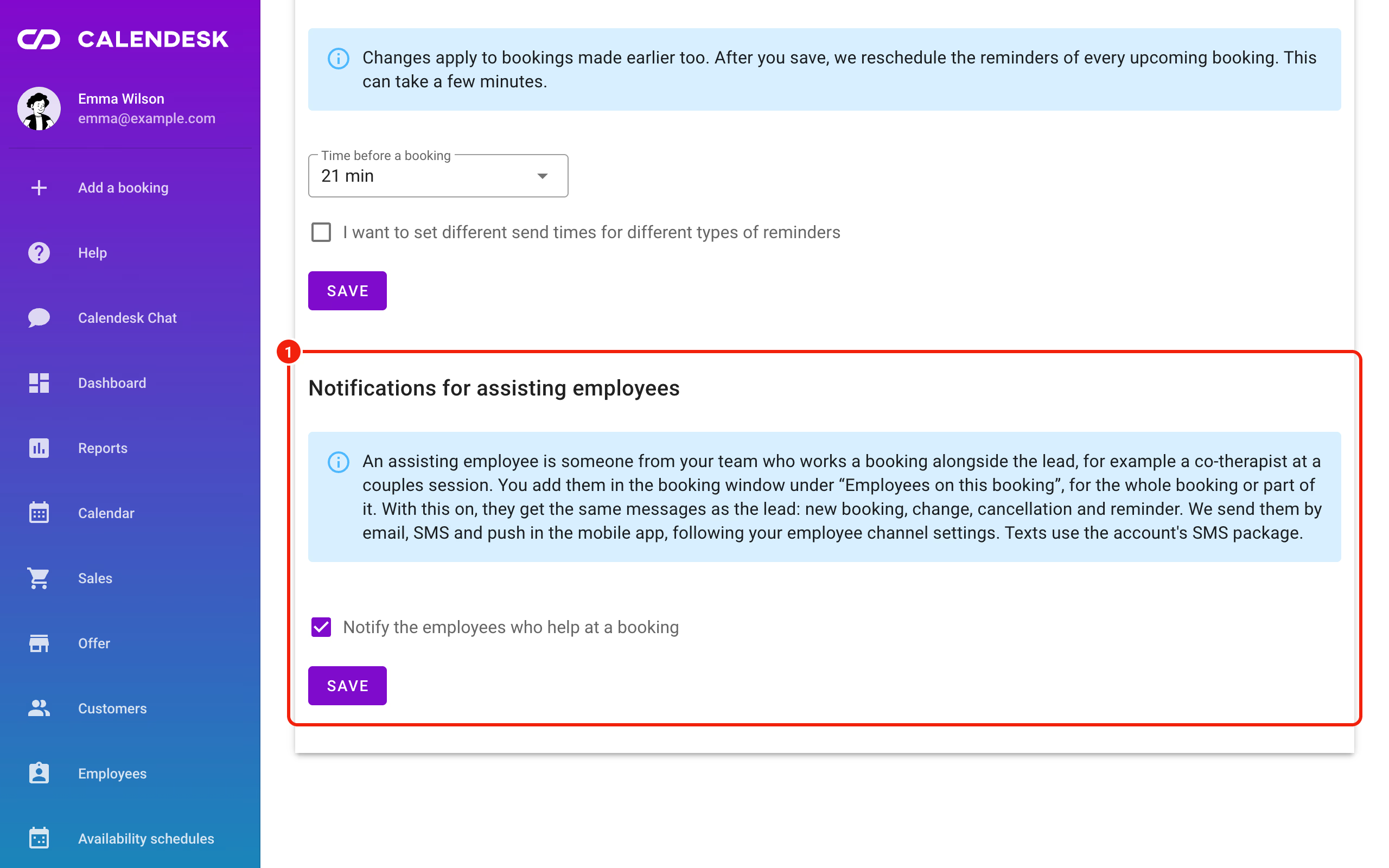
They then get the same messages as the lead employee: new booking, change, cancellation and reminder, by email, SMS and push notification in the mobile app. Text messages come from your account’s SMS package. Only the lead employee gets the Zoom host link. This section is visible to anyone who can edit settings.
Frequently asked questions (FAQ)
Does help time go to Google Calendar or Outlook?
No. The booking goes to the lead employee’s calendar, and help time is visible in Calendesk only.
Can I add an assisting employee to an all-day booking?
No. Assisting employees can be added only to bookings with a start and end time.
Can the lead employee also be an assisting employee on the same booking?
No. The lead employee is already on the booking, so they are not on the list of people who can help.
Is help time included in exports?
No. Exports show the booking under the lead employee, without help time.