How to edit and delete recurring bookings?
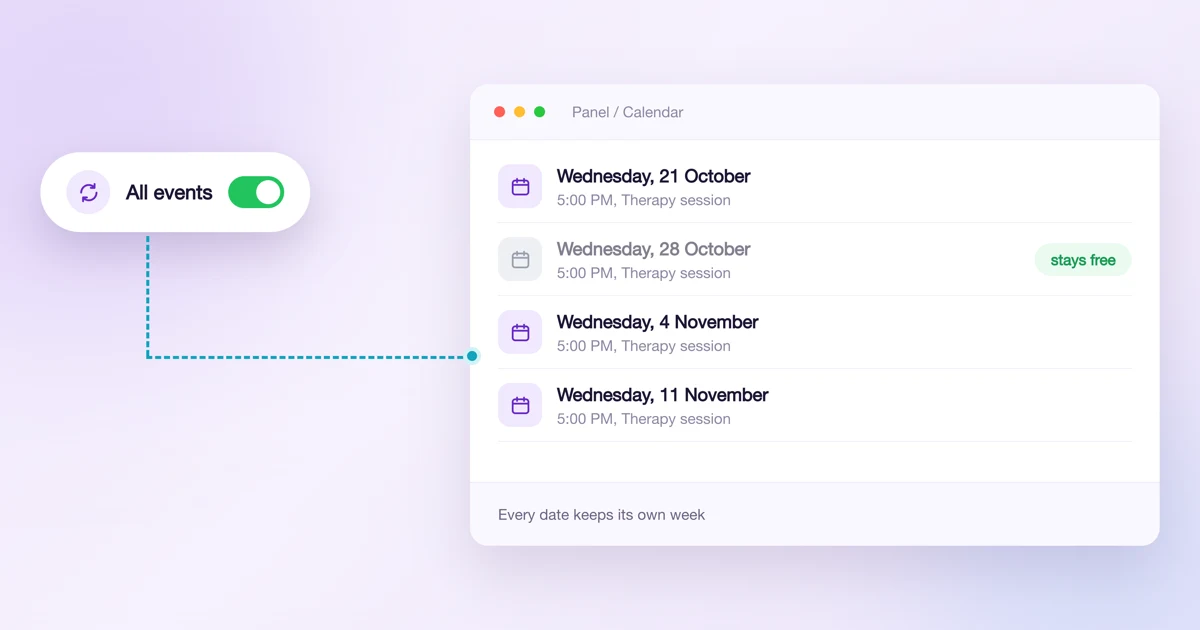
You edit or delete a series from any of its dates. Calendesk asks whether the change covers only that date, that date and every later one, or the whole series. Dates you deleted or cancelled earlier stay free, and every other date keeps its week.
What are your options when you edit or delete a series?
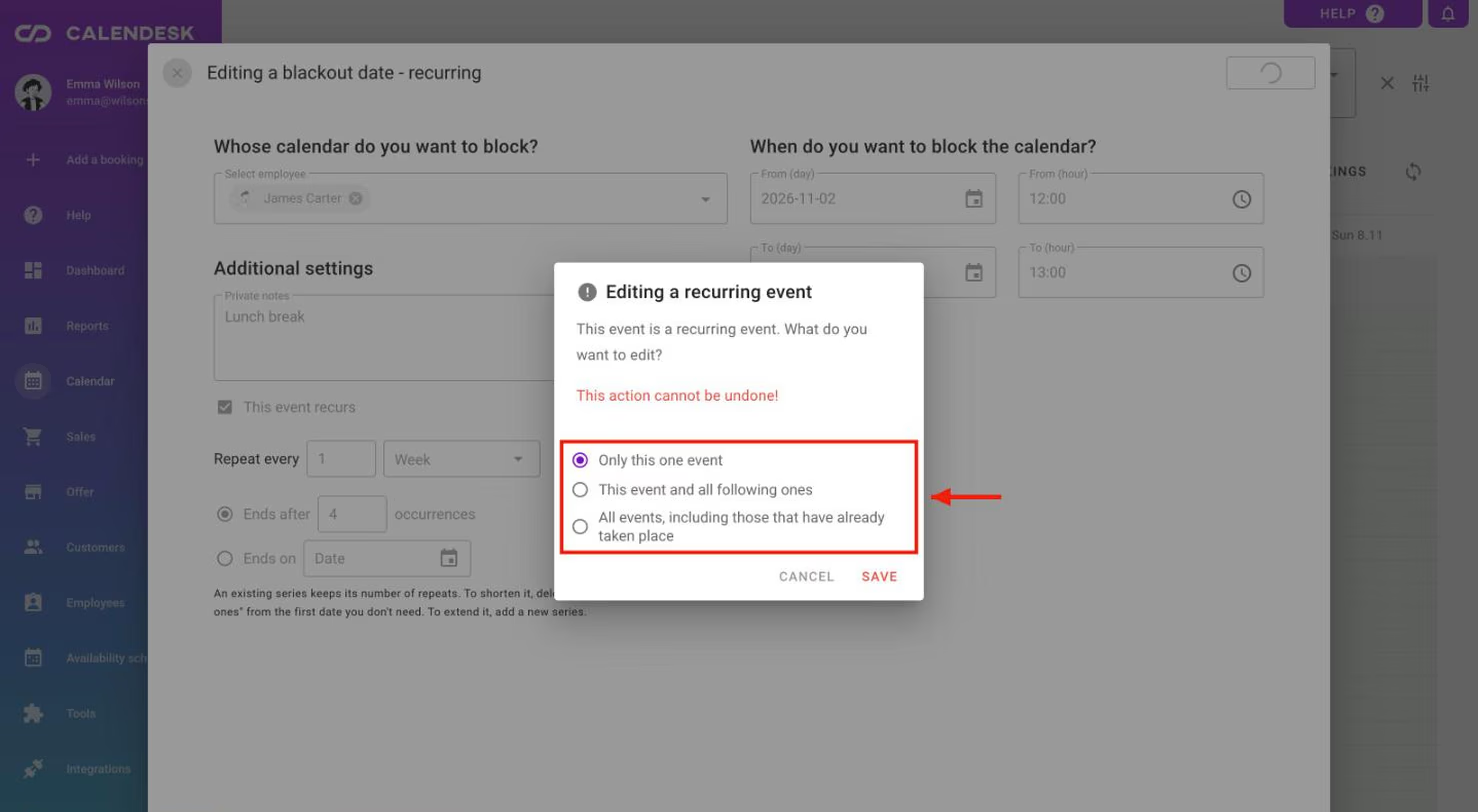
Open a booking or blackout date from the series in the Calendar tab or in the Sales – Bookings list. When you save a change or delete it, Calendesk asks what it applies to:
- Only this one event. You change or delete only the date you opened. From then on it sits outside the series, so later edits of the series leave it alone.
- This event and all following ones. The series splits at the date you opened. Earlier dates stay as they are; the change or delete covers the opened date and every later one.
- All events, including those that have already taken place. The change covers the whole series, from the first date to the last.
What happens to dates you deleted or cancelled earlier?
They stay free. Say you have a series on Wednesdays at 5 pm and a client cancelled 28 October because of a holiday. If you later change the service for the whole series, 28 October stays free and every other appointment keeps its date. The client's reminders stay with the right dates too.
How do you move a whole series to another time or day?
Open any date in the series, set the new time or date, and save with All events. You don't have to find the first date. Example: a series on 4, 11, 18 and 25 June at 10 am. You open 18 June and change the time to 12 pm. All four appointments move to 12 pm and keep their dates.
If you move the opened date to another day, every date in the series moves by the same number of days. The exception is a series whose rhythm depends on a position in the month, such as "the last working day of the month": after the move it would no longer fit. Calendesk won't save that change and tells you why. Delete the dates from the day you want with This event and all following ones, then add a new series starting that day.
How do you shorten or extend a series?
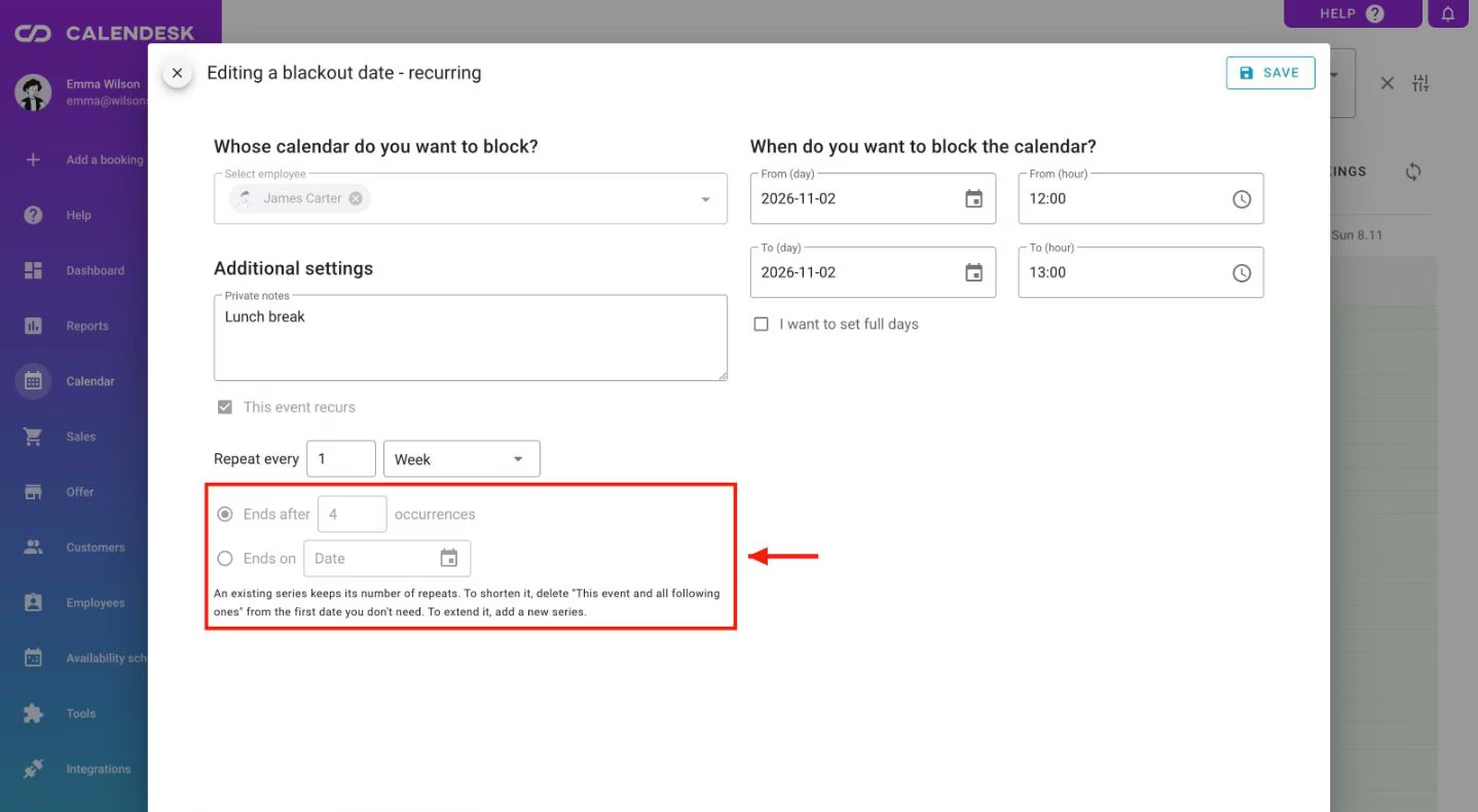
When you edit an existing series, the Ends after and Ends on fields are locked, because the number of repeats can't change. Instead:
- to shorten the series, open the first date you don't need and delete it with This event and all following ones,
- to extend it, add a new series starting on the day the current one ends.
Does a status or payment change apply to the whole series?
Only if you change it. Every appointment in a series is paid and tracked on its own. If you open an appointment that has already taken place and is paid, and save, for example, a new service for all events, future appointments are not marked as done or paid. If you deliberately change the status or payment in that same edit, the change covers every date in the range you chose.
How does editing a recurring group class work?
A change to the whole class series reaches every participant of the session you opened, including someone who skipped that one week. If you change only the service, the class is updated in place and nobody gets a new meeting link.
Someone booked for a single session keeps their time when you move the class. Their booking then gets its own event in the employee's calendar. For an online meeting, that client gets a separate link and one message about the change.
For a single participant of a recurring class you can't change the service, time or employee. Make those changes by editing the whole group. If a participant's booking is out of date, cancel it and add it again.
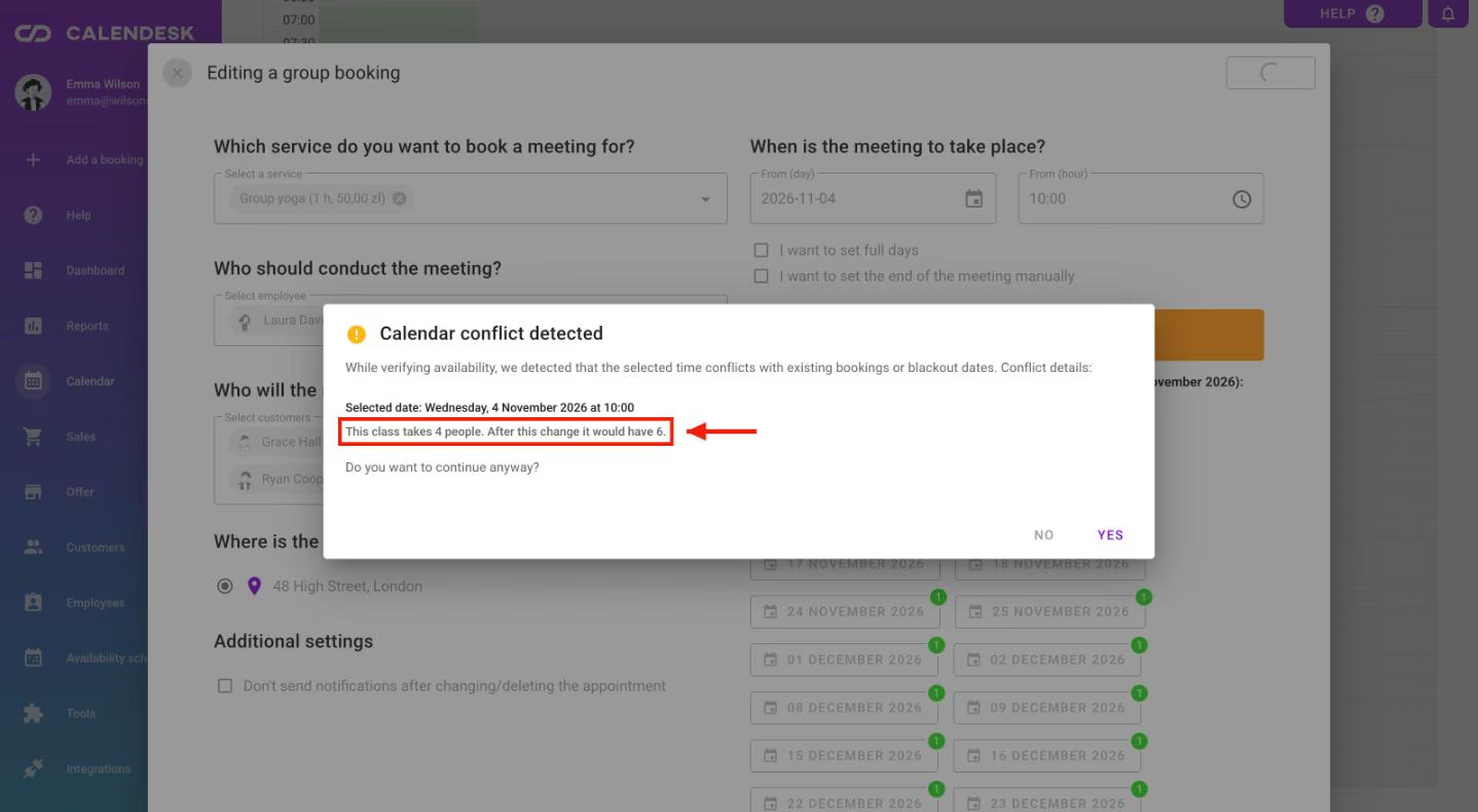
If a change would put more people in the class than its limit, Calendesk warns you first, for example: "This class takes 4 people. After this change it would have 6." You can still save the change.
Frequently asked questions (FAQ)
Why can't I change the number of repeats in a series?
An existing series keeps all its dates. Shorten it by deleting dates with "This event and all following ones", and extend it by adding a new series from the day the current one ends.
How many repeats can a new series have?
Up to 100, or up to 50 for a booking with a Zoom meeting. If you set more repeats or an end date too far ahead, Calendesk won't save the series and shows "This series has too many occurrences. Pick an earlier end date or fewer occurrences." Need a longer series? Add another one from the day the first one ends.
Will editing a series bring back a date I deleted earlier?
No. A deleted or cancelled date stays free, and the other dates stay in their weeks.
Do I have to open the first date to change the time of the whole series?
No. Open any date and save with "All events". The dates stay the same; only the time changes.
Why won't Calendesk move my series to another day?
That happens with a series whose rhythm depends on a position in the month, such as "the last working day of the month". Delete the dates from the day you want with "This event and all following ones" and add a new series from that day.