How do I require approval of online bookings?
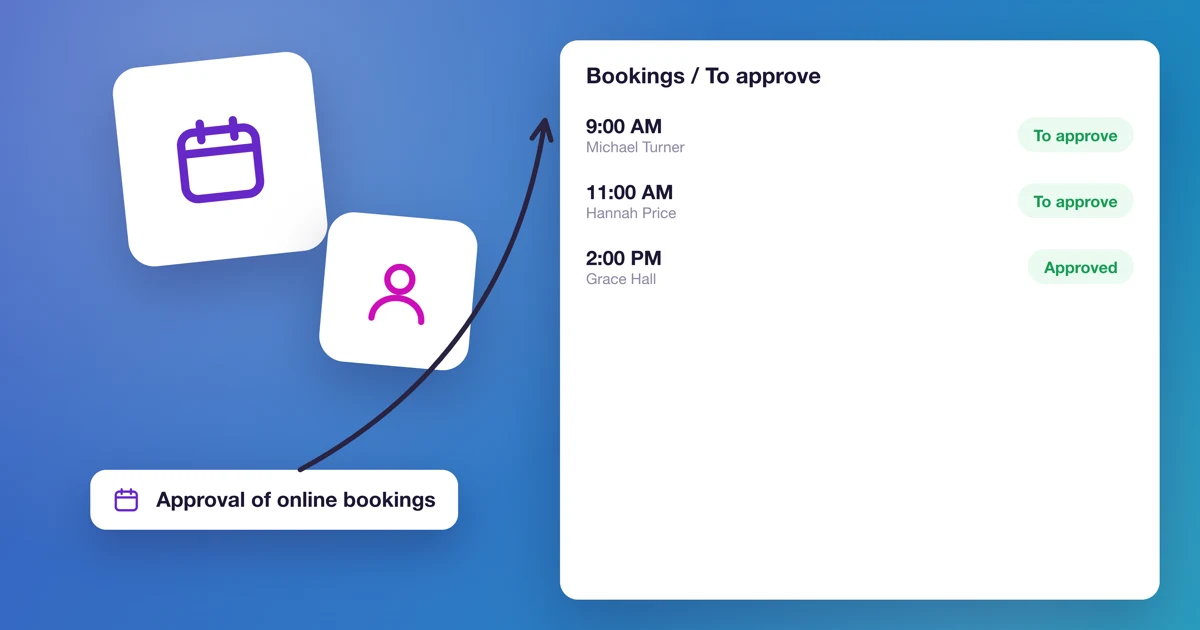
Some online bookings you'd rather not take straight away. A first consultation, a session where you want to read the request first, a case that needs a look before anyone commits: you want to decide yourself. Turn on approval of online bookings for that service. A booking a customer makes then waits until someone on your team approves or rejects it.
How do I turn on approval of online bookings?
- Open Offer → Services and click the service.
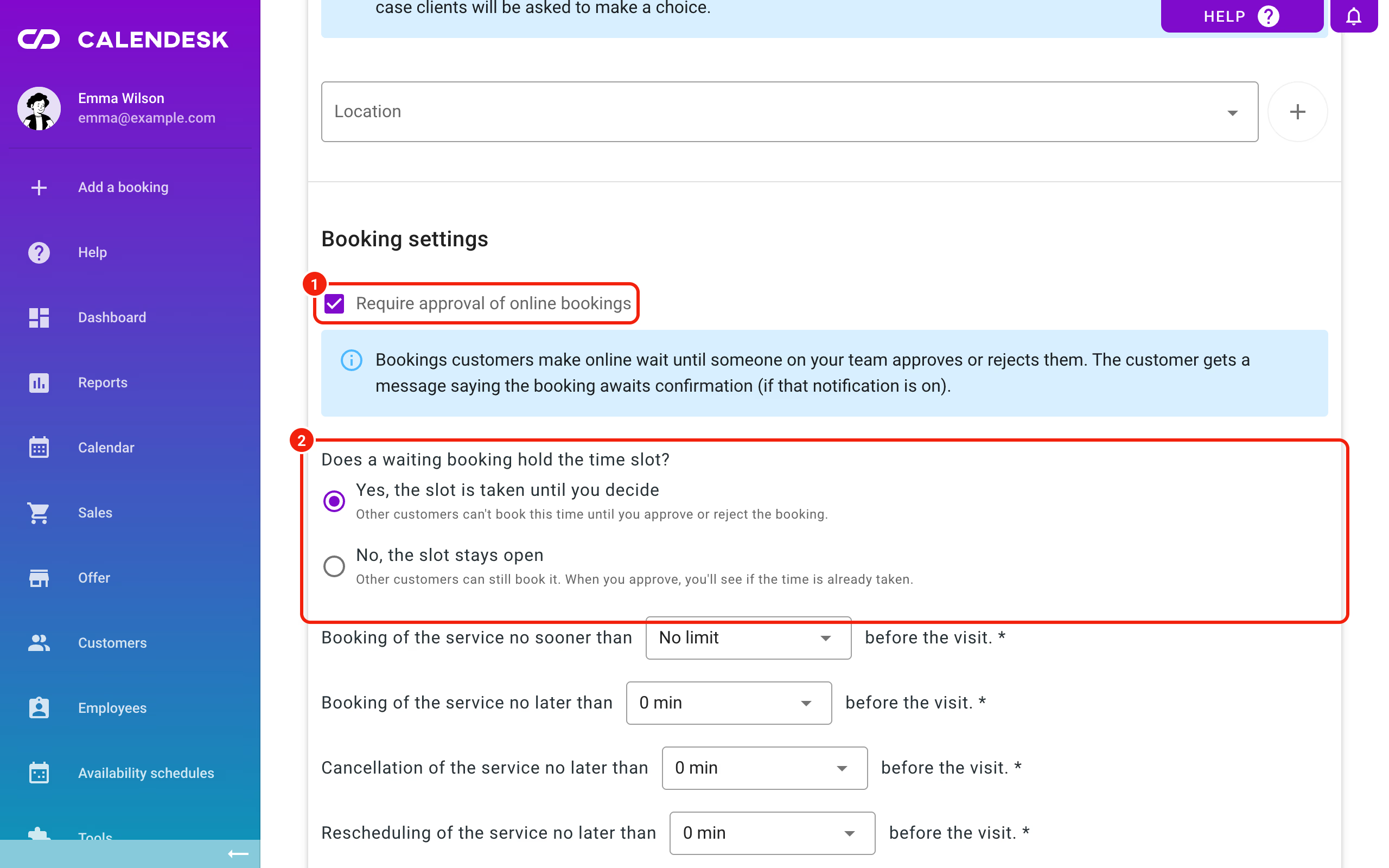
- In Booking settings, tick Require approval of online bookings.
- Choose whether a waiting booking holds the time slot (see below).
- Click Save.
The setting works per service. Your other services keep taking bookings as before.
At Emma Wilson's practice, a first consultation needs approval, because Sarah Miller reads what the customer is coming in with before they meet. Follow-up sessions are booked without waiting.
Does a waiting booking hold the time slot?
You choose this on the service, under Require approval of online bookings:
- Yes, the slot is taken until you decide. No other customer can book that time until you approve or reject the booking. This is the default.
- No, the slot stays open. Other customers can still book it. If the slot gets taken in the meantime, you'll see it when you approve.
What does the customer see?
The customer books the way they always do. Afterwards they get an email saying the booking is awaiting confirmation and becomes valid once you confirm it. In their account on your booking site the status reads Pending.
While the booking waits, the customer can't pay for it online and gets no online meeting link. Payment and the link come after you approve.
Where do I find bookings to approve?
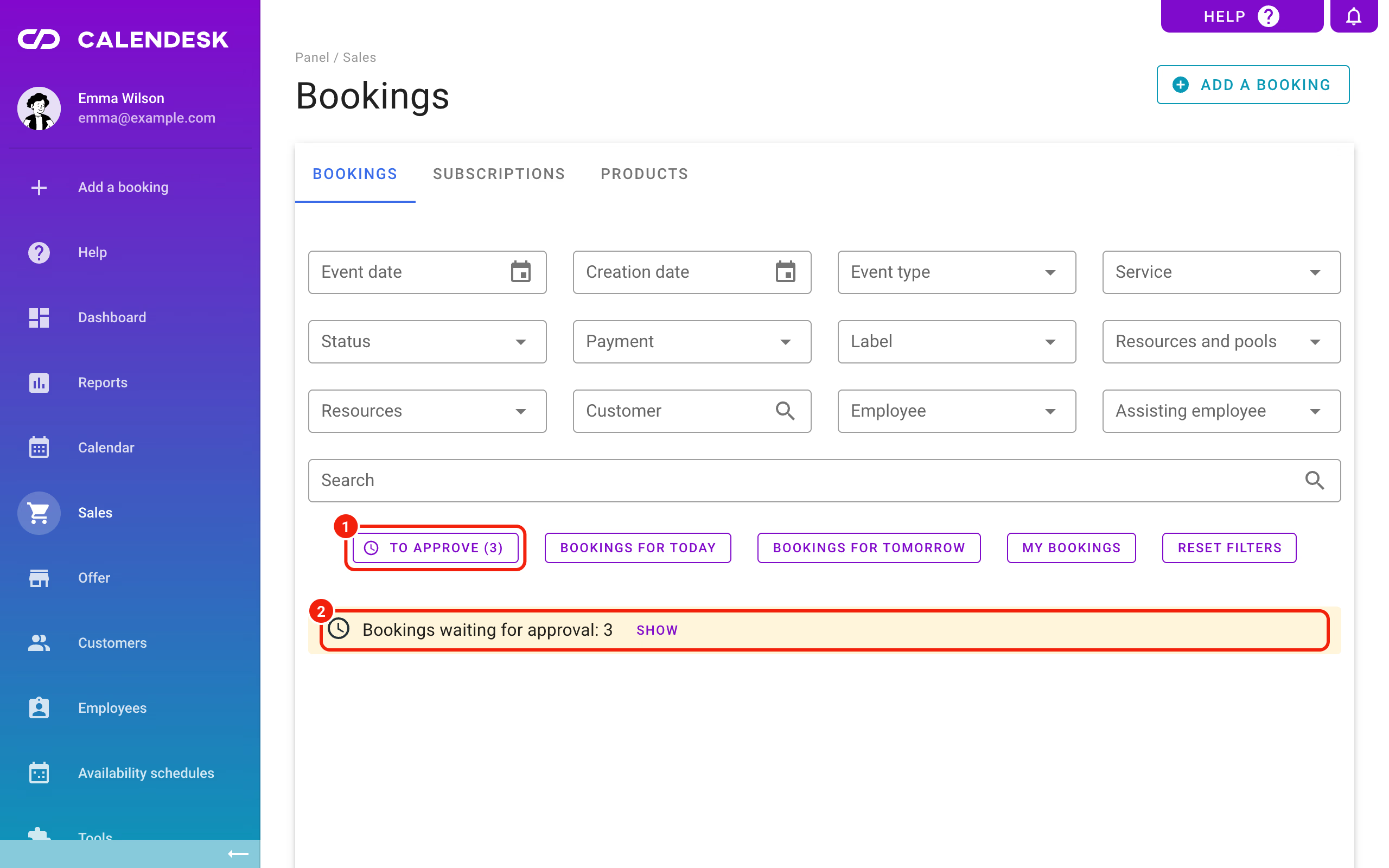
- In the booking list. In Sales → Bookings, a bar above the list says Bookings waiting for approval and how many there are. Click Show, or the To approve button next to the filters, to see only those.
- In the calendar. The booking's tile carries a To approve label.
- In a notification. The employee gets a Booking to approve message with the customer's details and the time.
How do I approve or reject several bookings at once?
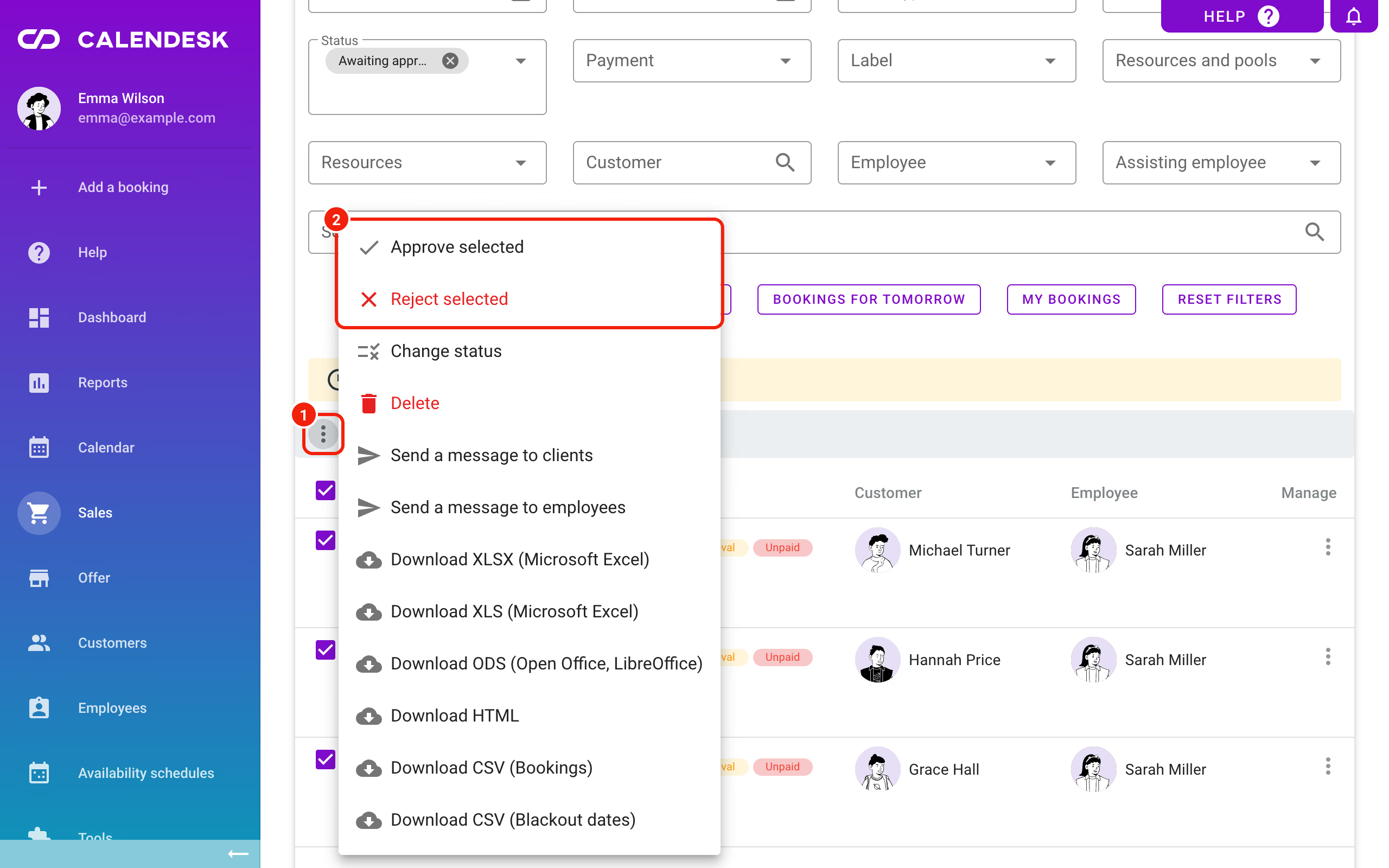
- In Sales → Bookings, click To approve and select the bookings in the list.
- In the selected items bar above the list, click ⋮.
- Choose Approve selected or Reject selected.
How do I approve or reject a single booking?
Open the booking from the calendar or the list. At the top it says This booking is waiting for your approval., with Approve and Reject buttons.
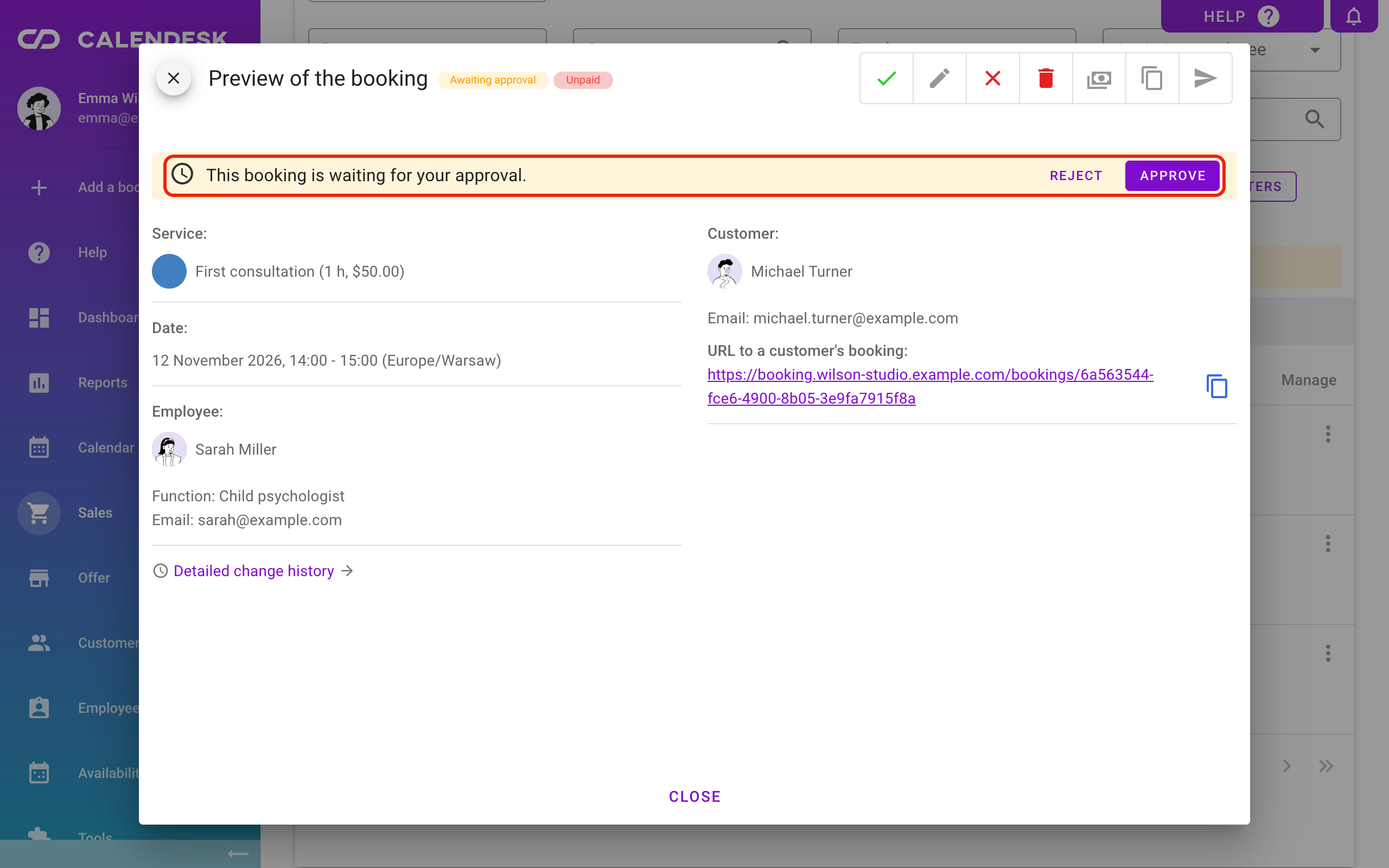
Quicker: hover over the booking in the list, or open its preview, and click the green ✓.
Before you approve, the panel shows what will happen: who gets a confirmation and how (email, SMS, mobile app), whether the booking goes to a connected calendar, and whether an online meeting link is created. Sent notifications can't be taken back, but you can still cancel the booking later.
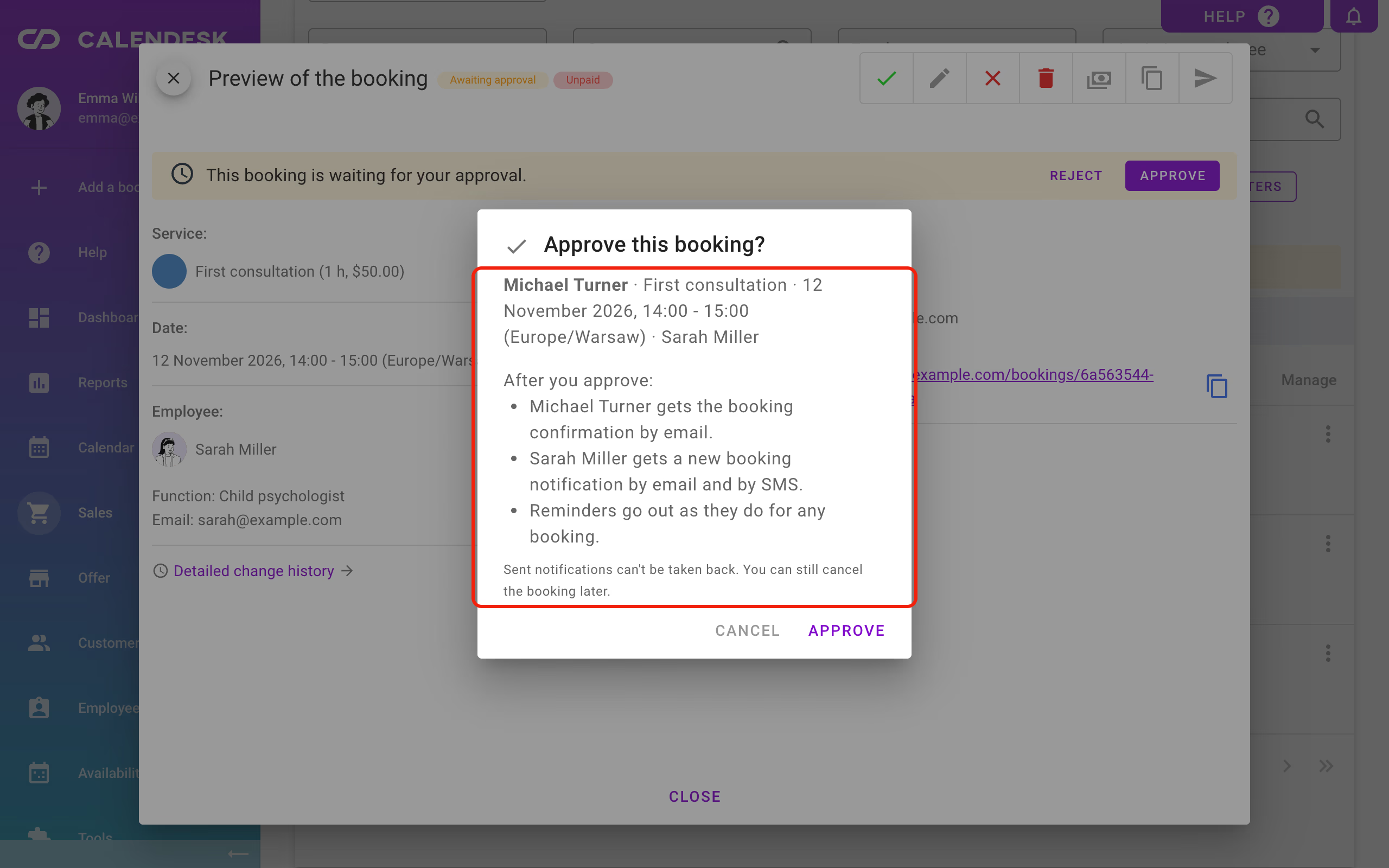
If another booking already takes that time, the approval window tells you. You can go back or choose Approve anyway.
Rejecting sets the booking to cancelled. The customer then gets the cancellation message, as with any cancelled booking, if that notification is on.
Which notifications go out?
- After the booking: the customer and the employee get the Booking awaiting approval notification. The SMS to the customer is off by default.
- After approval: the usual Booking confirmation goes out, followed by reminders, as with any booking.
You set the wording and channels in Notifications, like any other notification. More in How can I edit email, SMS and push notifications?.
Frequently asked questions (FAQ)
Why can't I tick "Require approval of online bookings"?
When a service needs online payment or is for subscribers only, the payment or the subscription confirms the booking, so it can't wait for approval. The field is turned off then.
Do bookings added in the panel wait too?
No. The setting covers bookings customers make online. A booking your team adds gets whatever status you pick when you save it.
What about recurring bookings?
You approve the whole series in one click: Approve the whole series. If you approve just one booking from the series, it's detached from the series.
Can I set an approved booking back to waiting?
Yes. Edit the booking and pick Awaiting approval in the Status field. Nobody is notified. When you approve it again, the customer and the employee get a confirmation.
What happens if I record a payment for a waiting booking in the panel?
Adding a payment in the panel approves the booking.