How to block your calendar for customers at a chosen time?
When an employee suddenly can't come in, for example because of sick leave or a day off, you don't have to change their availability schedule. Add a blackout date to the calendar instead.
Where do you add a blackout date?
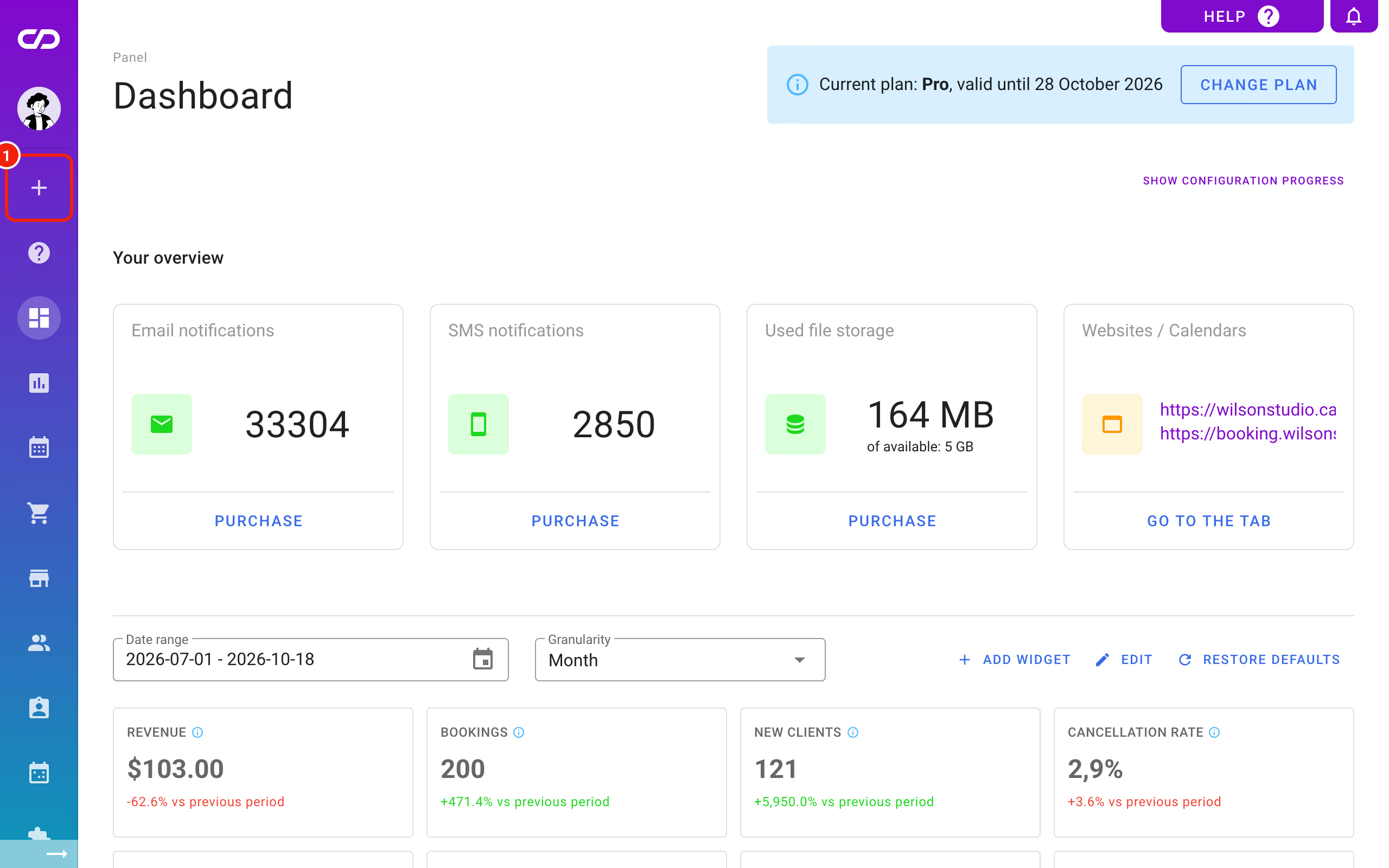
To block a time slot (an hour, a few hours, a whole day or several days), open the Calendesk admin panel and go to the form for adding a new booking.
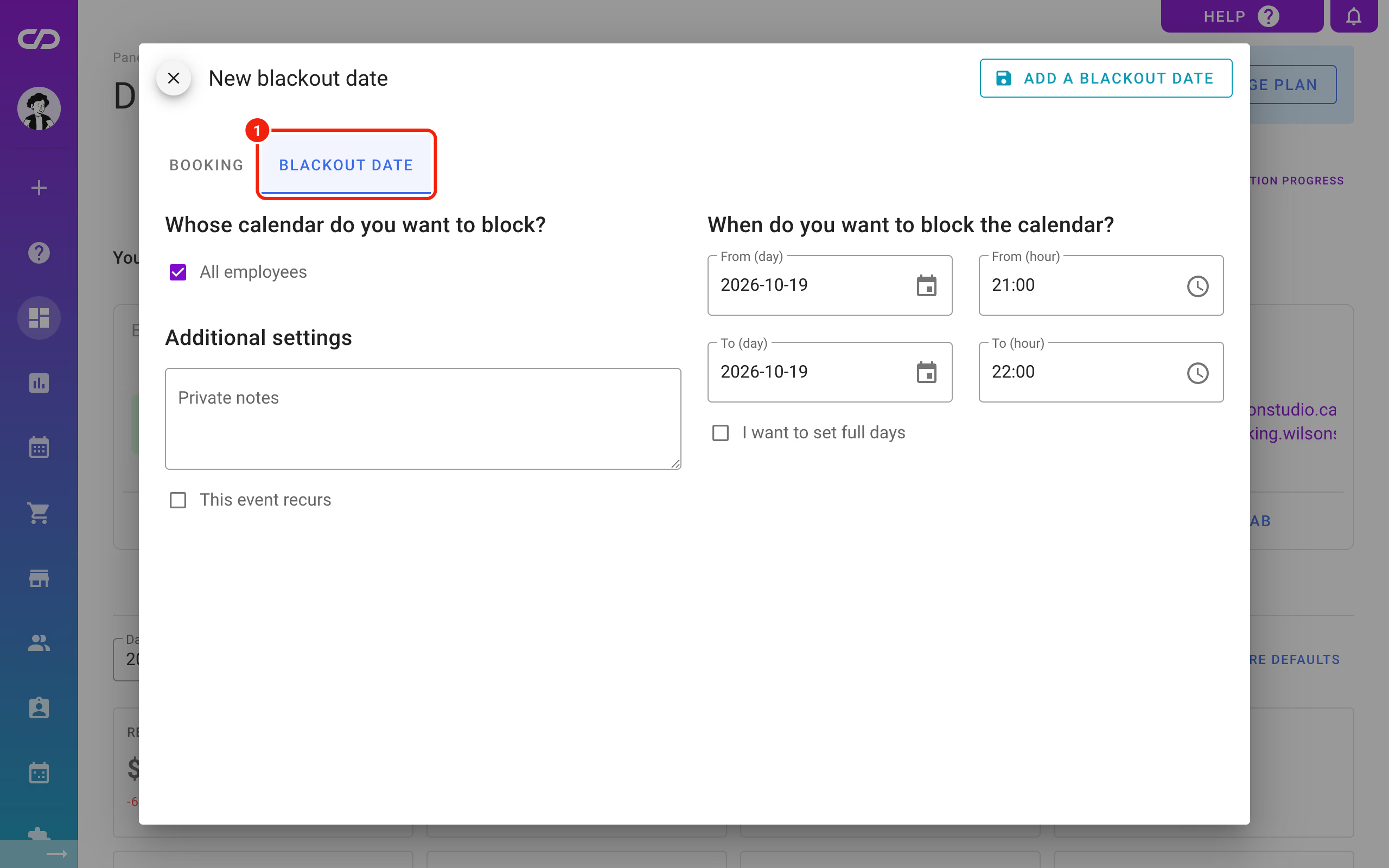
In the window that opens, choose Blackout date.
How do you add a blackout date?
To block the calendars of all employees, make sure the checkbox shown below is ticked.
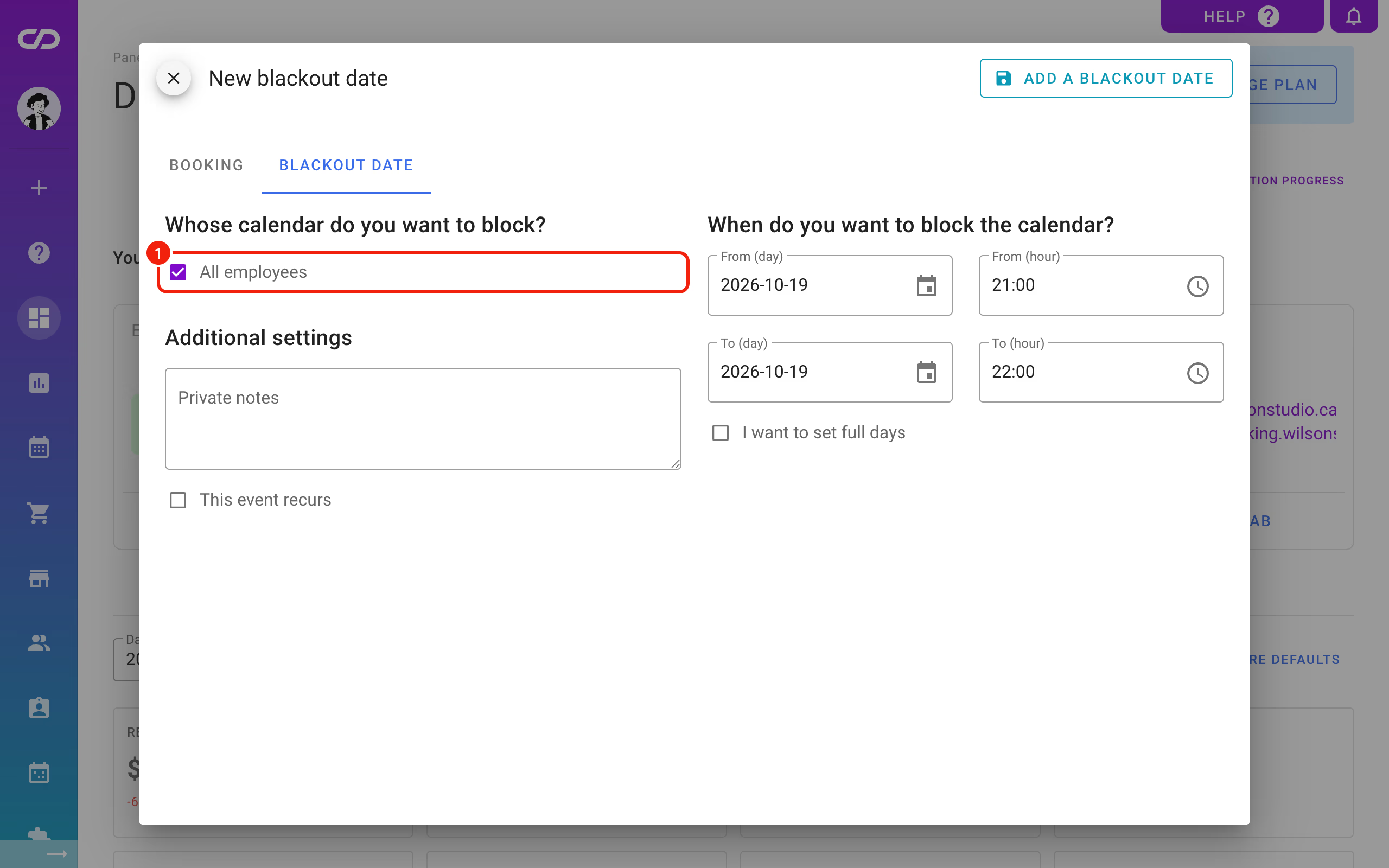
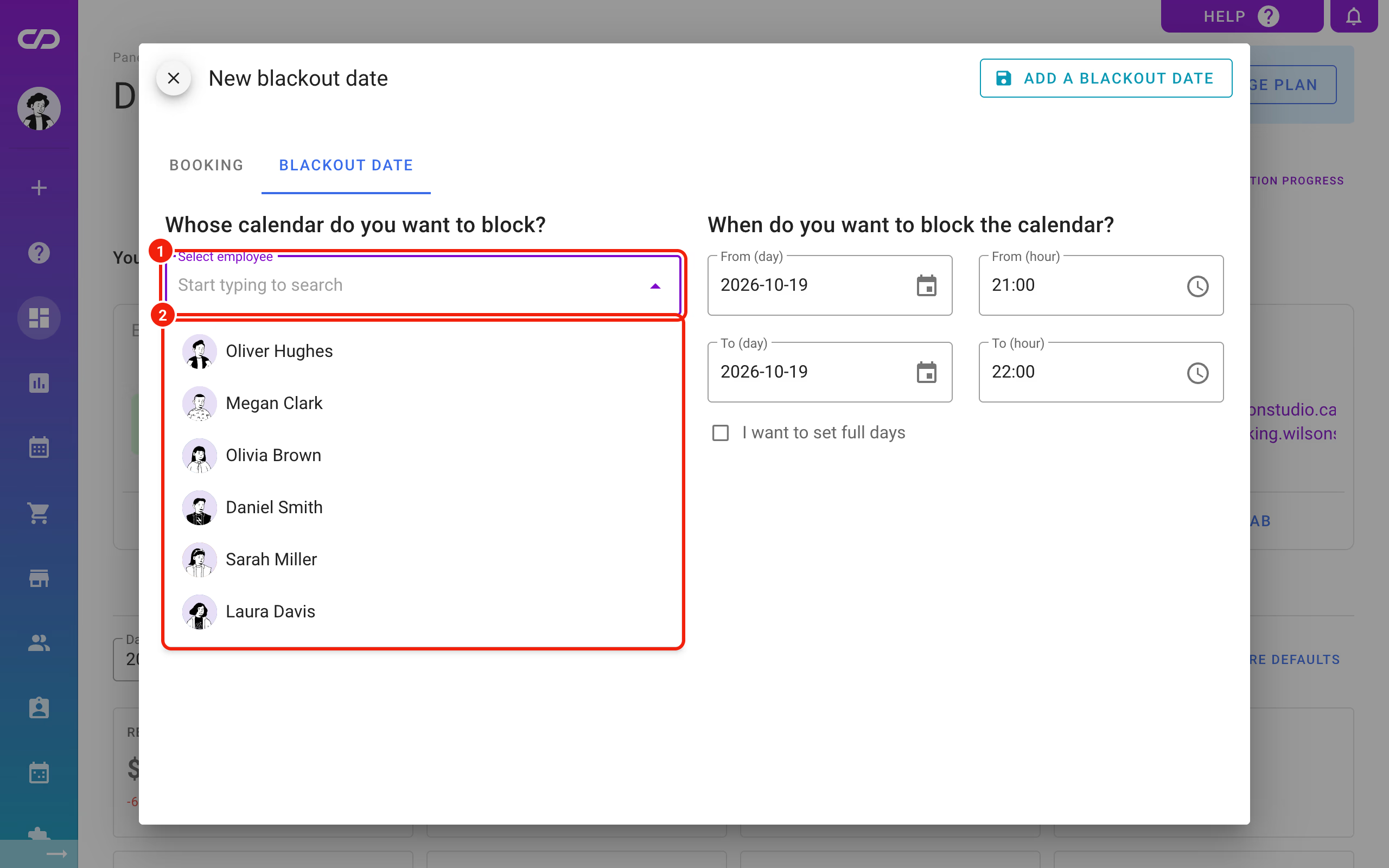
To block the calendar for one employee only, untick that box and pick the employee from the list. You can block either all employees or one employee at a time, not a few selected ones at once.
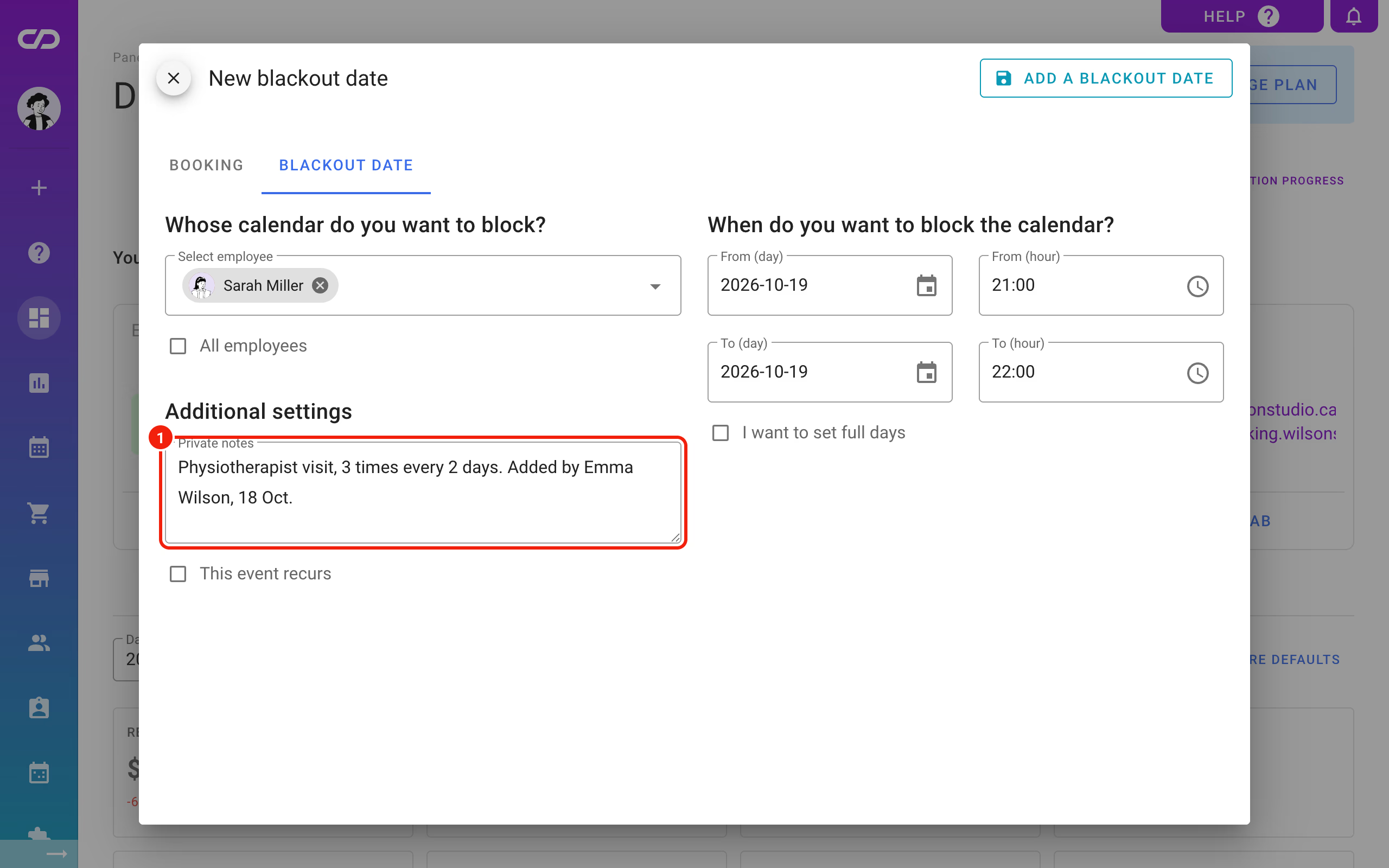
Additional settings
Private notes
Write down as much as you can here. You know why you're adding the blackout date today, but you may not remember it in a few months. Note when and by whom it was created, why, and for how long. That makes it easy to recognise later.
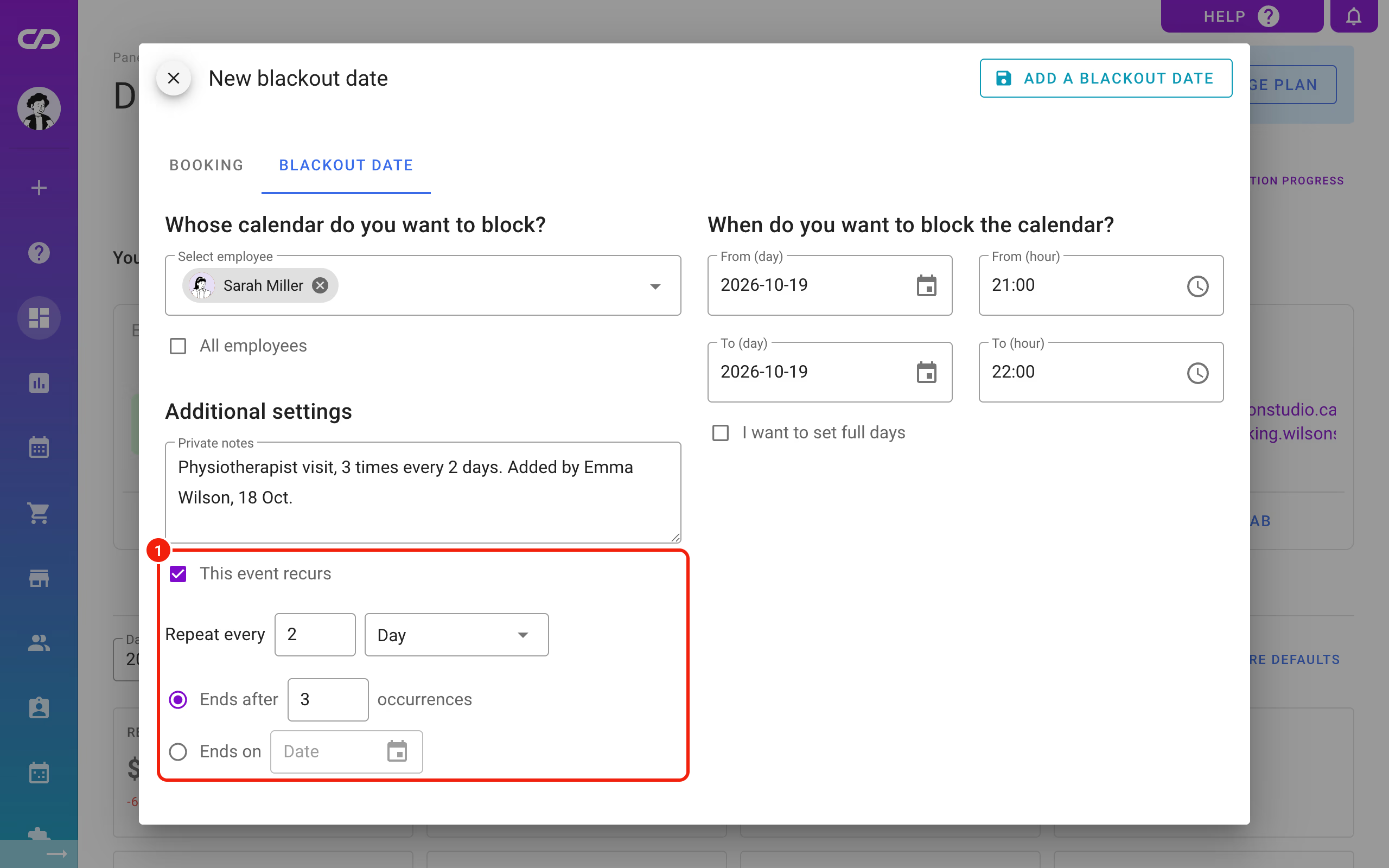
This event recurs
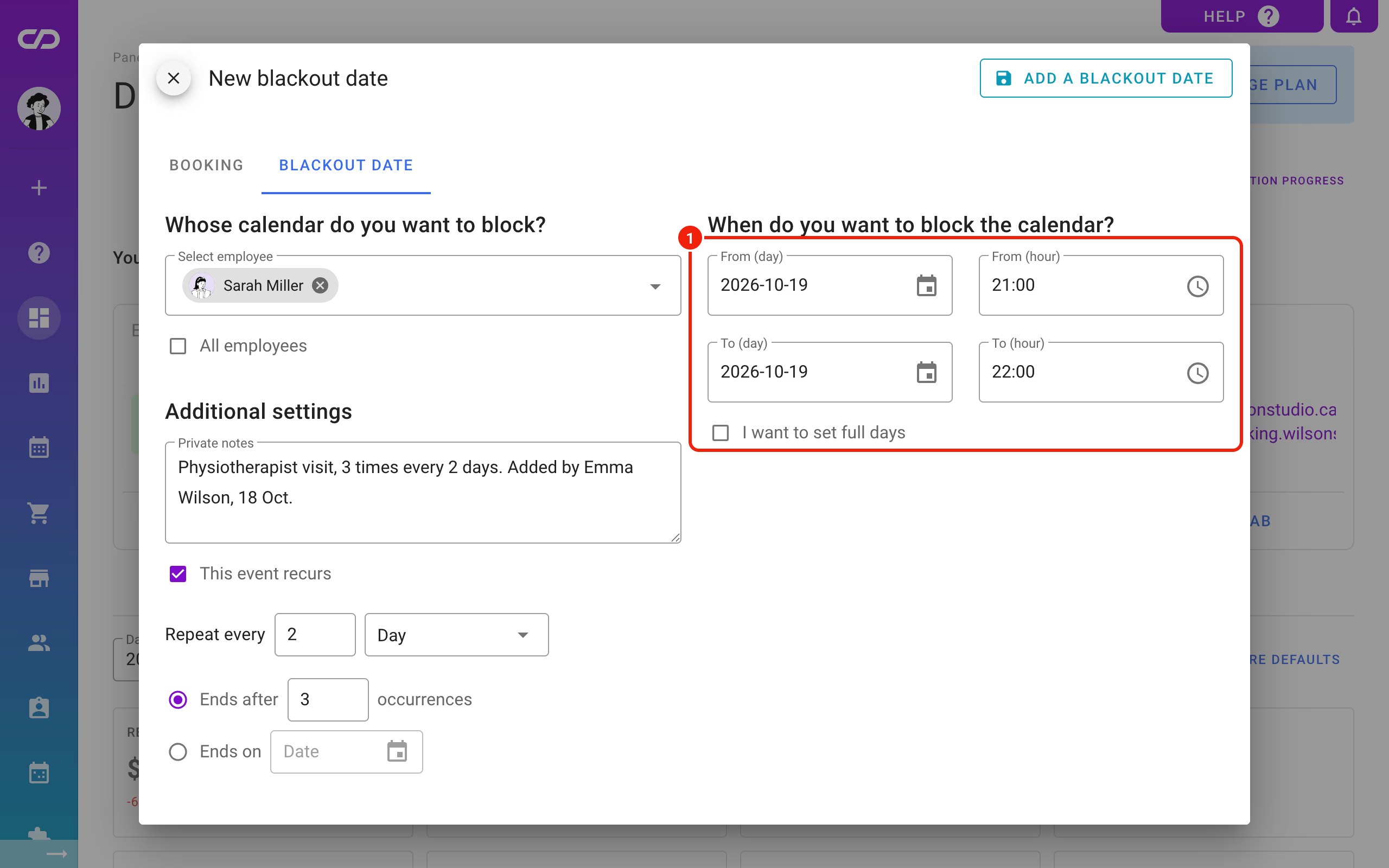
Just like bookings, blackout dates can repeat. Set up the series once and block several slots at equal intervals, for example a physiotherapist visit three times, every two days, one hour each.
When do you want to block the calendar?
Choose the start date and time of the blackout date, then the end date and time.
If you don't want to set hours, tick I want to set full days.
Blackout dates in the calendar
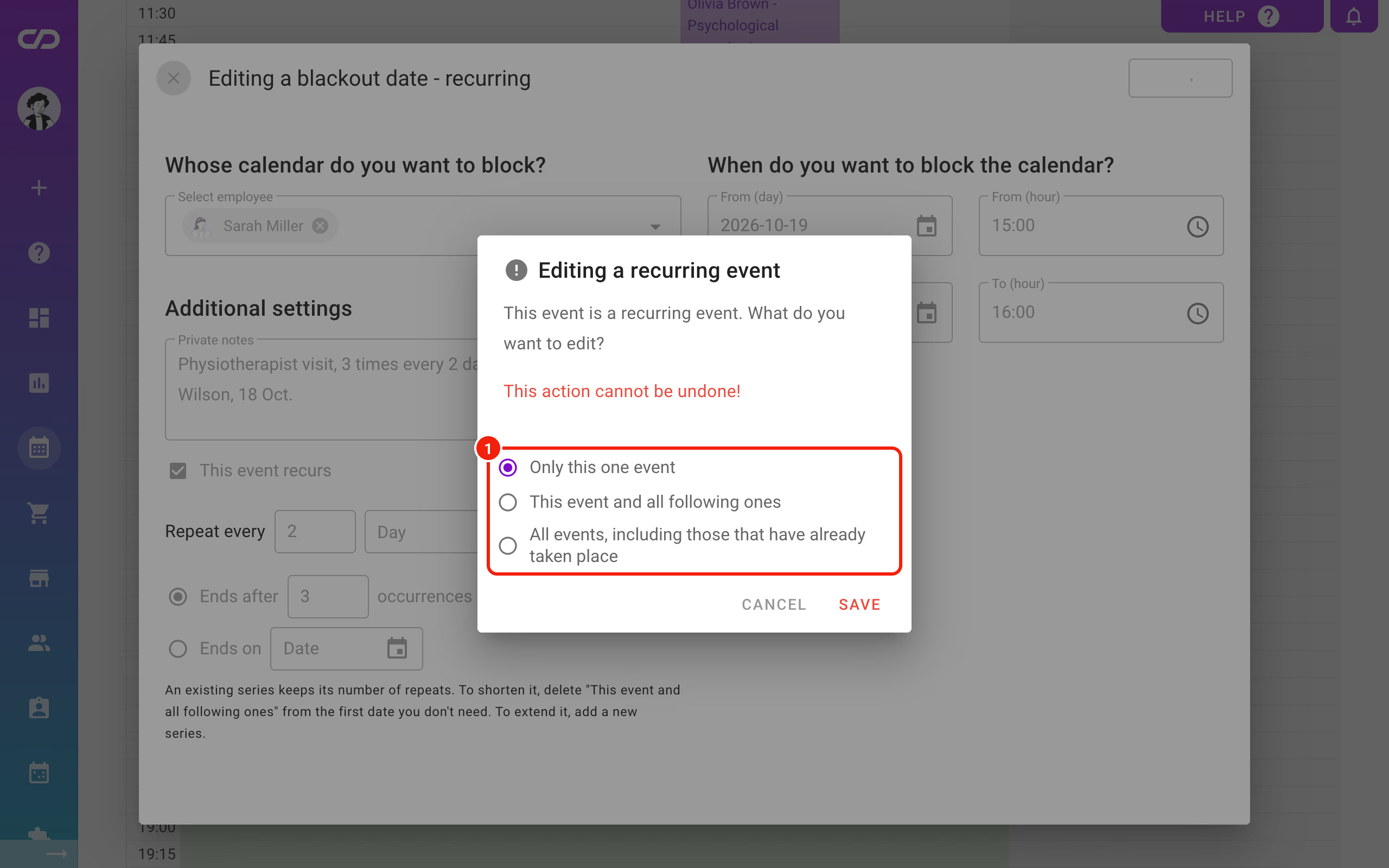
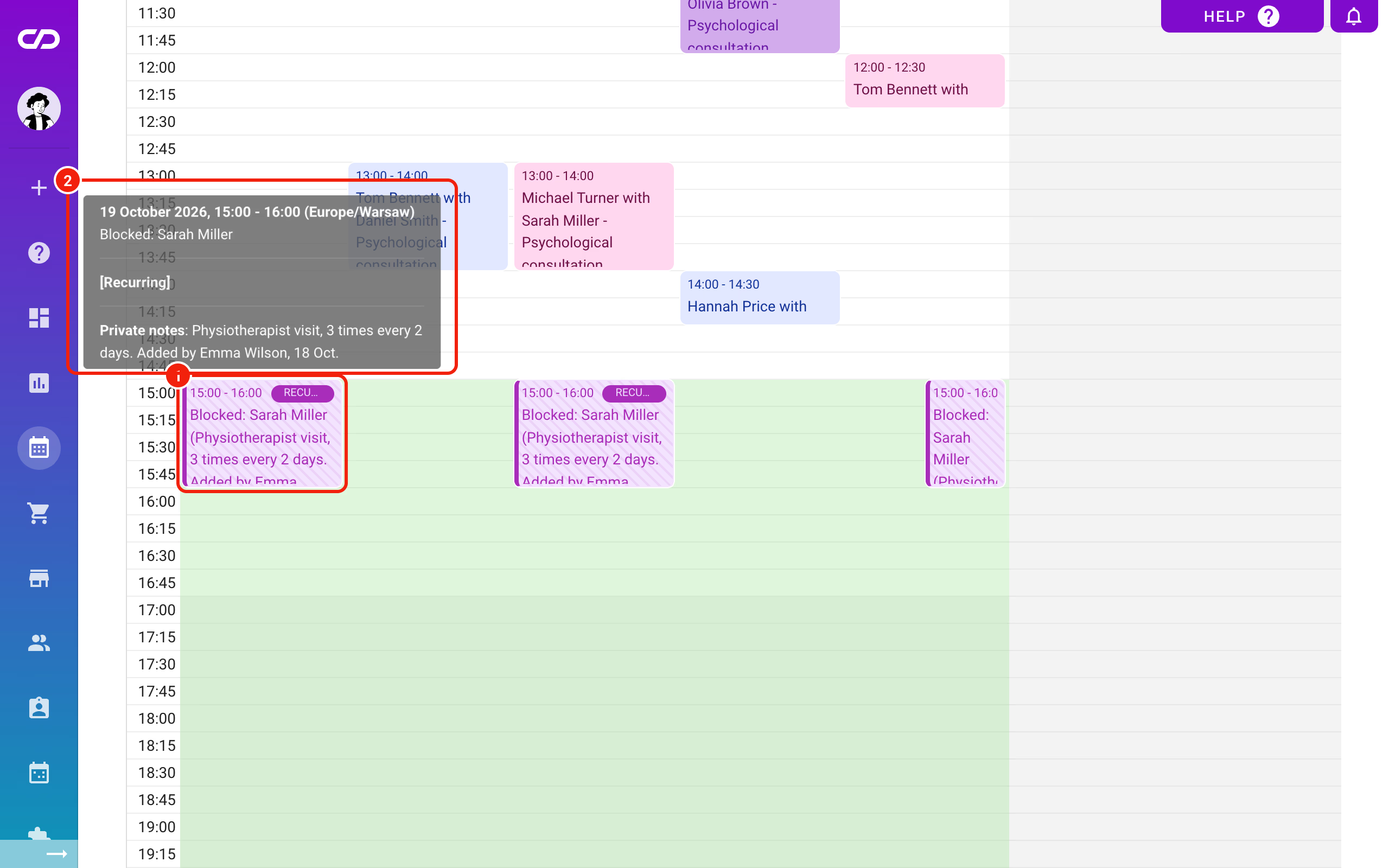
Blackout dates show up as tiles in the Calendar tab. Click a tile to open its preview, and from the preview you can edit it. If the blackout date belongs to a series, Calendesk asks what you want to change: Only this one event, This event and all following ones or All events, including those that have already taken place.
What happens when you edit a series of blackout dates?
- Only this one event. You change only the blackout date you opened. From then on it stands on its own, outside the series, and later edits to the series don't touch it.
- This event and all following ones. The series splits at the blackout date you opened. Earlier ones stay as they are; the change covers the one you opened and all that follow.
- All events. The change covers the whole series. Move the opened blackout date by two days and the whole series moves by two days, with the new time on every date.
A date removed from a series stays free. If you deleted one blackout date earlier, for example to see a customer that day, editing the series later won't bring it back.
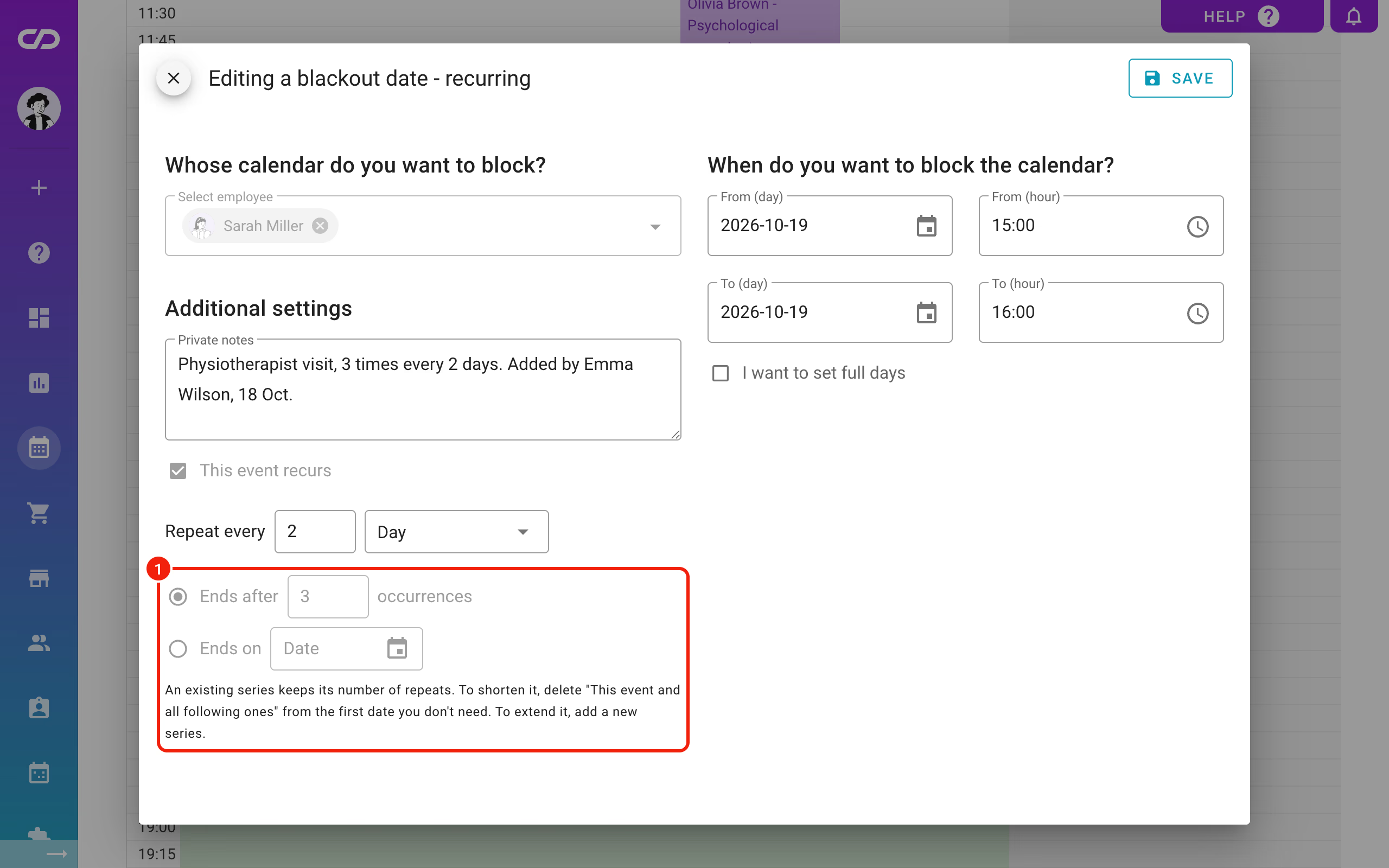
When you edit a series, the Ends after and Ends on fields are locked, because you can't change the number of repeats of an existing series. To shorten it, open the first blackout date you no longer need and delete it with This event and all following ones. To extend it, add a new series starting where the current one ends.
When you move a series to another day, all its dates move with it. The exception is a series whose rhythm depends on the position in the month, for example "last working day of the month": after moving, it would no longer match. Calendesk then won't save the change and tells you why. Delete the dates from the chosen day with This event and all following ones and add a new series from that day.
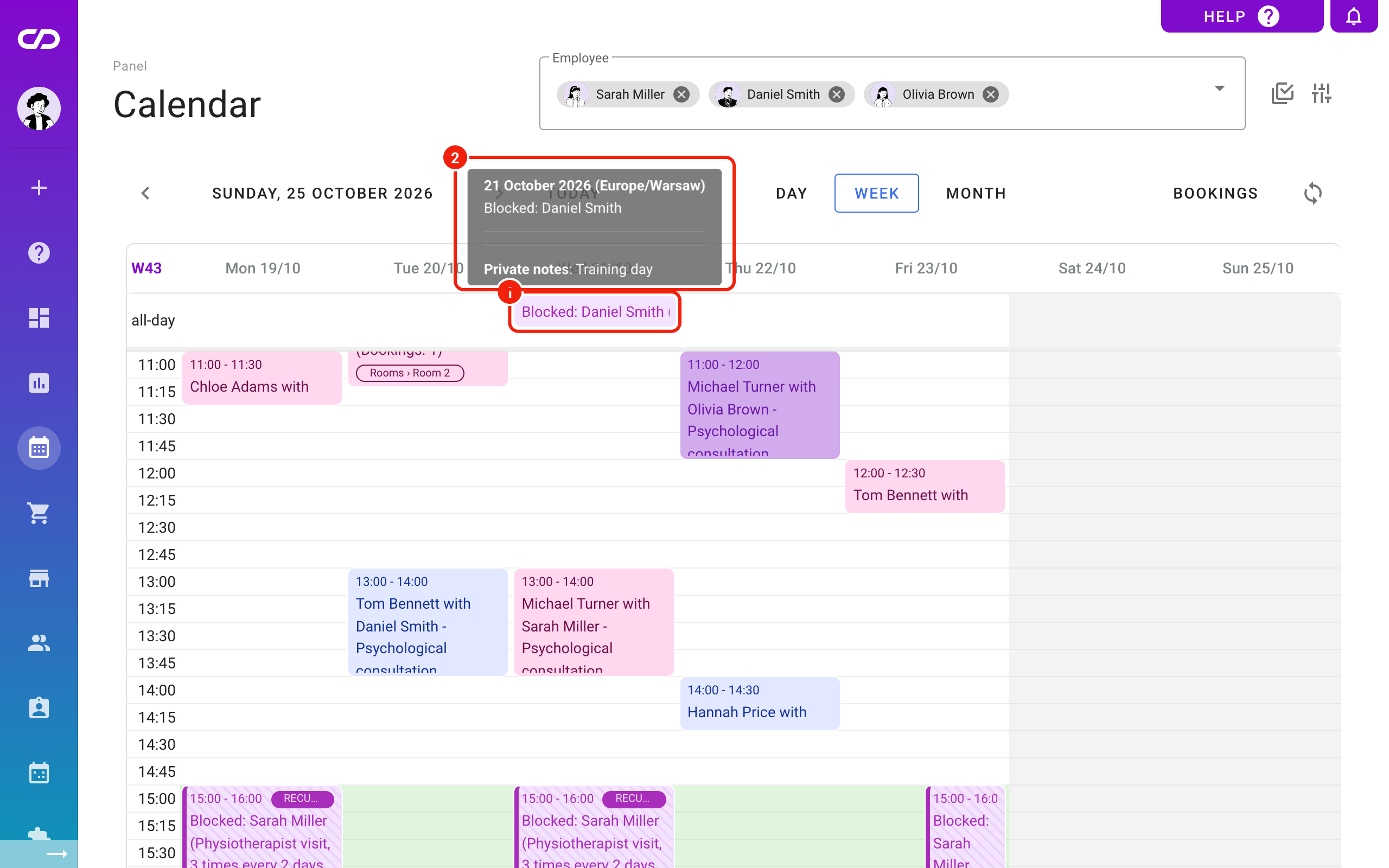
A full-day blackout date shows as a narrow bar at the very top of the calendar in the day and week views,
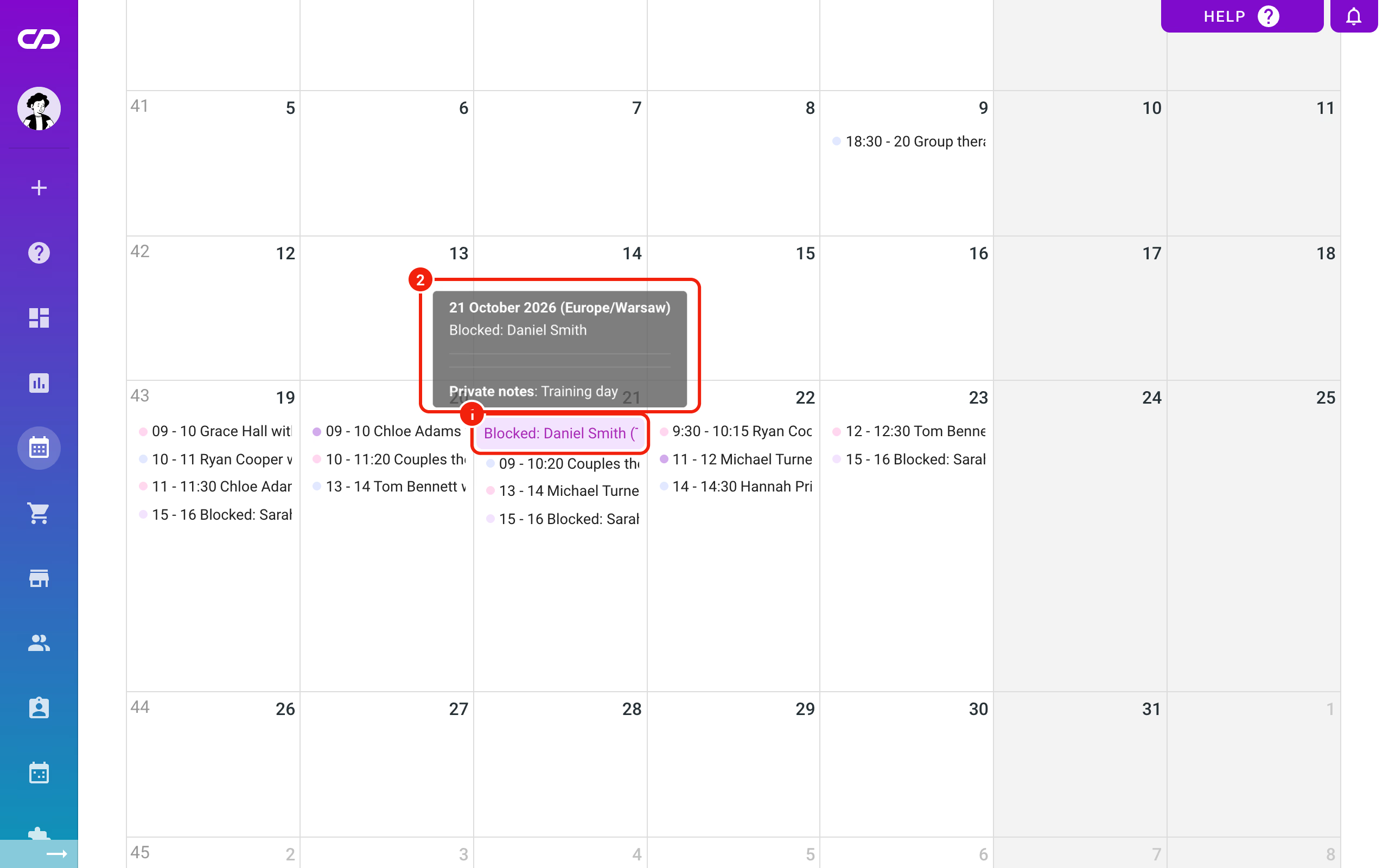
and as a narrow bar in the month view.
Blackout dates in Sales – Bookings
Blackout dates also appear in the list, together with where they came from. A blackout date can come from three sources:
- Calendesk: added by an employee or an administrator,
- Google Calendar,
- Outlook Calendar.
In the list, each blackout date has an icon showing its source.
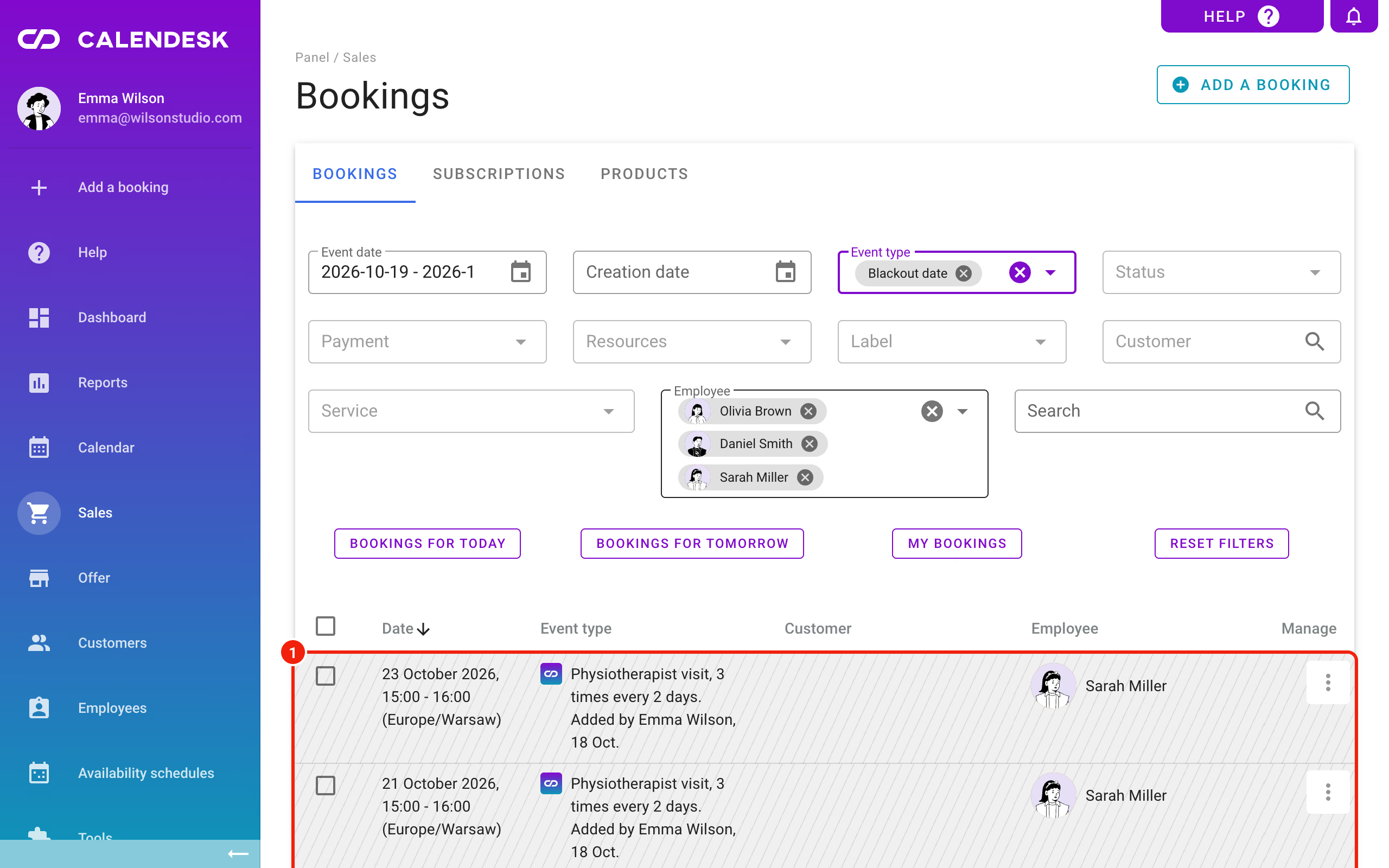
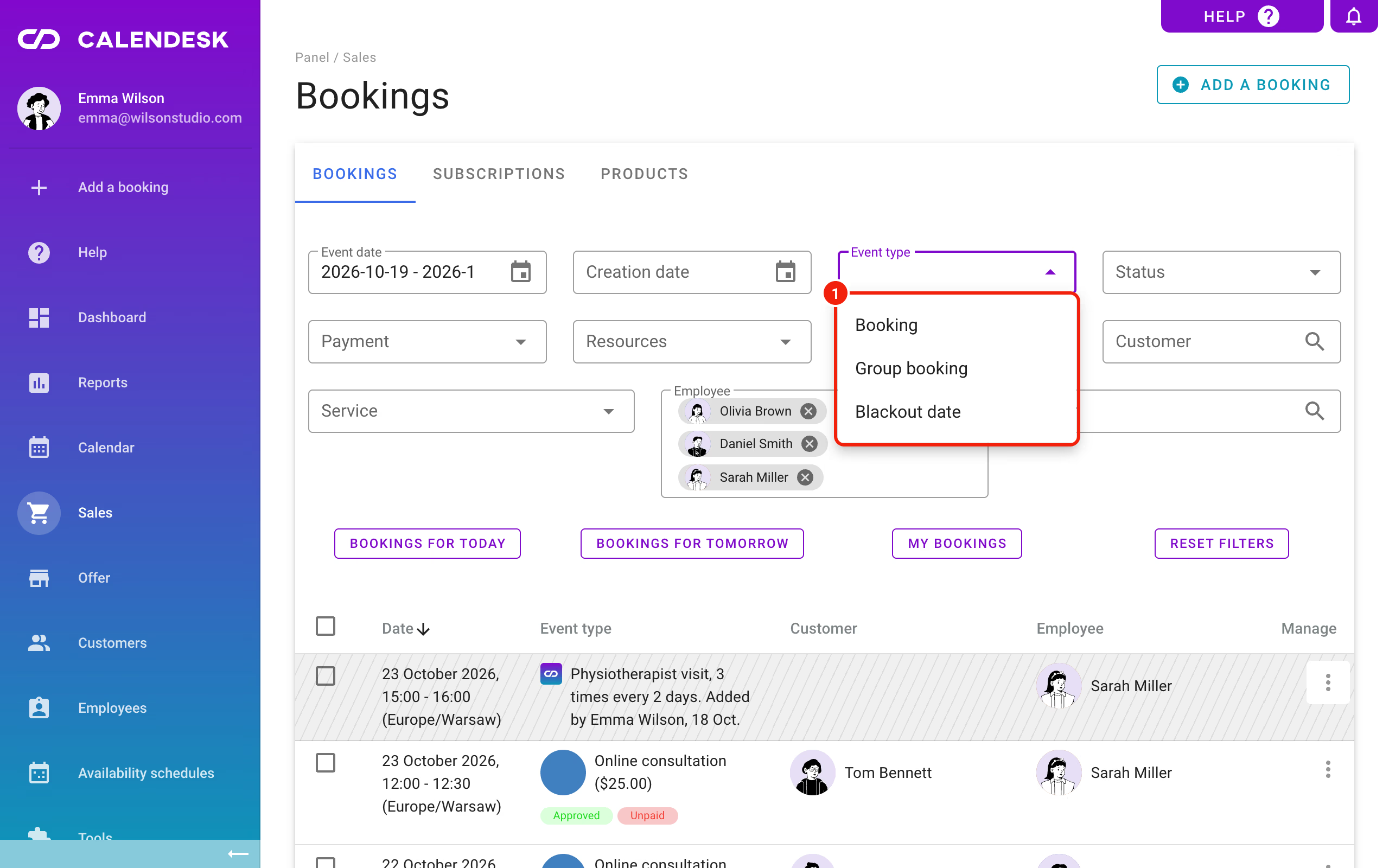
Use the filters to hide blackout dates (in Event type choose Booking and Group booking) or to see only blackout dates (choose only Blackout date).