How do I give an employee panel access and permissions?
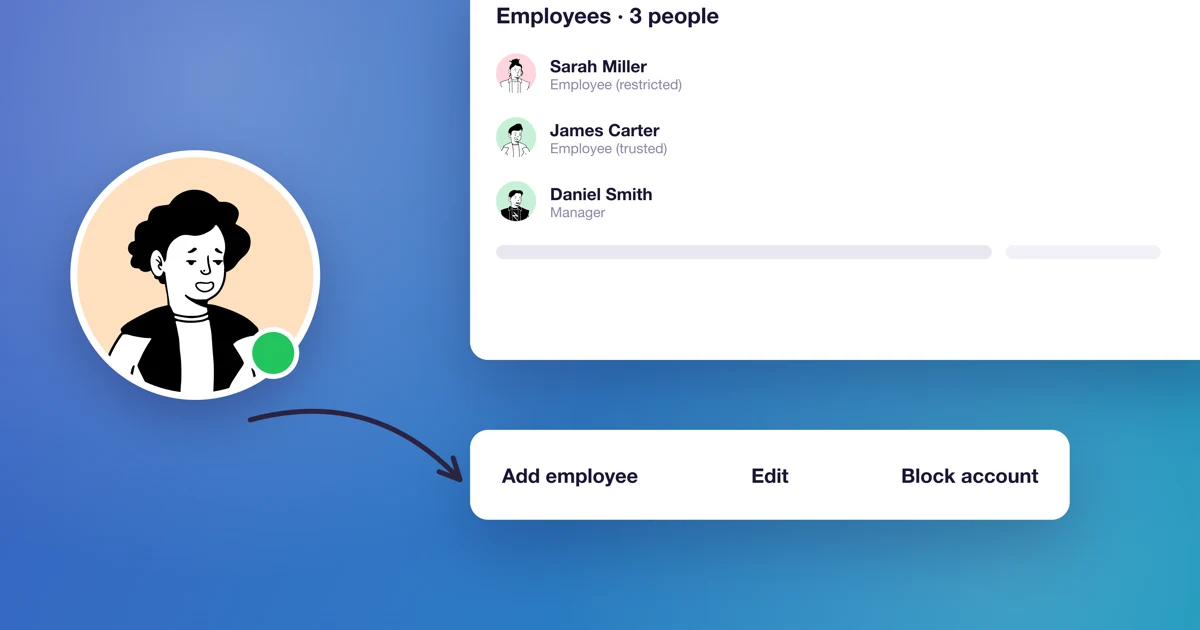
Every employee you add gets a calendar and can take bookings. Only the ones you give access to can log in to the Calendesk panel, and the role you pick decides what they see there: just their own sessions, or the whole practice.
Adding an employee, their services and their schedule is covered in How can I add an employee?. This article is about the account itself: roles, logging in, and what happens when you take access away.
What's the difference between an employee with an account and one without panel access?
An employee without access is on your employee list, has services and a schedule, and customers can book them through your booking calendar. They can't do anything in the panel themselves. You, or someone with access, manage their bookings. That works well for a therapist who sees clients at your practice once a week and doesn't need a login.
An employee with access logs in at https://admin.calendesk.com/en/ with their email and password, and sees what their role allows.
At Wilson Therapy Studio, Sarah Miller runs her own sessions, so she has the Employee (restricted) role. James Carter works the front desk and books clients for every therapist, so he has Employee (trusted).
How do I give an employee access to the panel?
- Go to Employees. Open the Manage menu next to the employee and choose Edit. For a new employee, use Add an employee.
- Make sure the employee's email is filled in under Basic information. It's their login, and the set-password link goes there.
- In Access to the Calendesk panel, tick The employee can log in to the Calendesk panel.
- Pick a role in Select function. Below the field there is a role table. The column for your choice is highlighted.
- Leave Send the employee a link to set a password ticked.
- Click Save. On a new employee the button says Add.
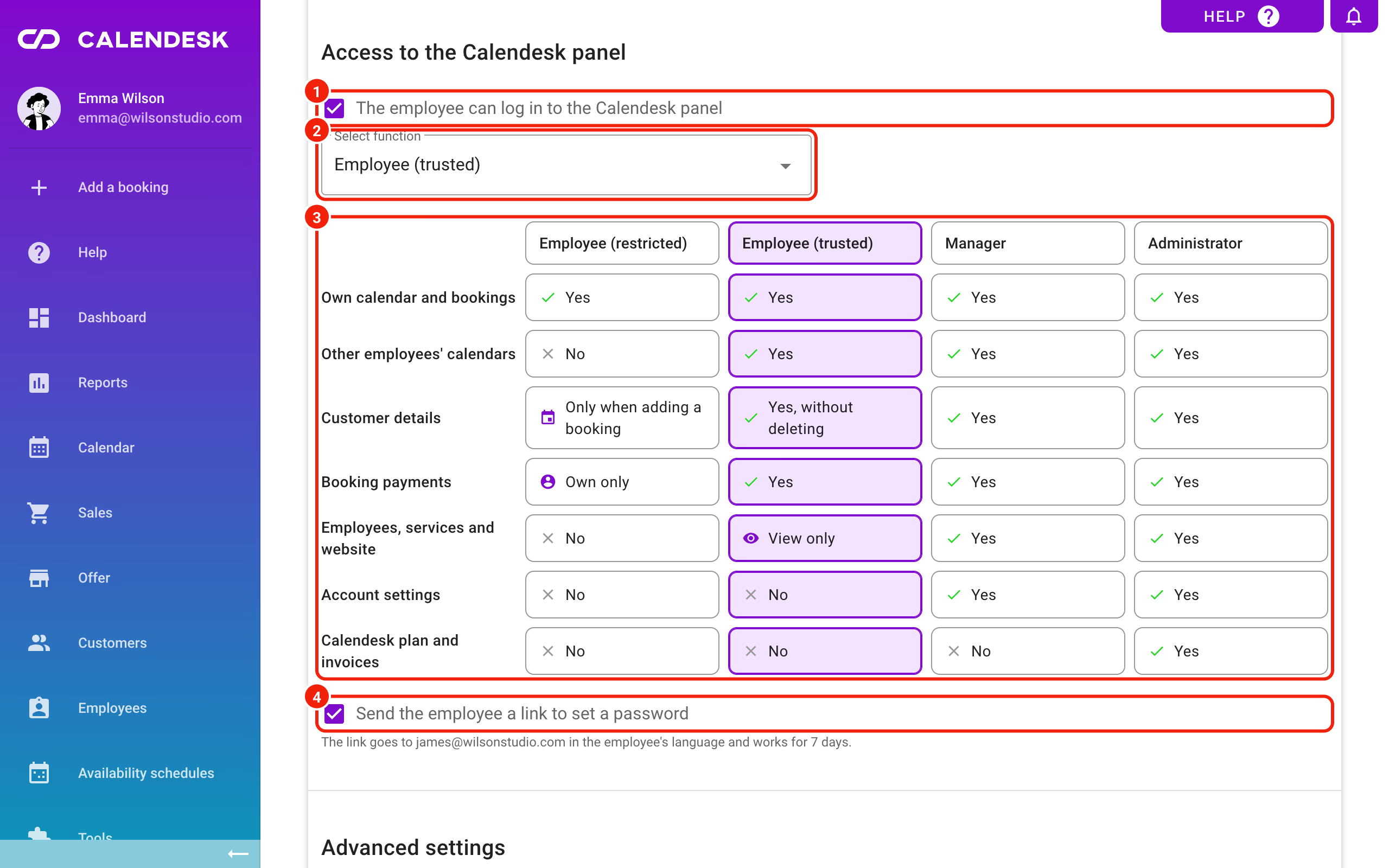
The set-password checkbox only shows up when the employee is getting access for the first time and has an email address. Without an email they have nothing to log in with, so add it before you grant access.
Only an Administrator sees the Access to the Calendesk panel section. A Manager can add and edit employees but can't give them panel access.
Which roles can you assign?
There are four. The employee form shows the same table:
| Employee (restricted) | Employee (trusted) | Manager | Administrator | |
|---|---|---|---|---|
| Own calendar and bookings | Yes | Yes | Yes | Yes |
| Other employees' calendars | No | Yes | Yes | Yes |
| Customer details | Only when adding a booking | Yes, without deleting | Yes | Yes |
| Booking payments | Own only | Yes | Yes | Yes |
| Employees, services and website | No | View only | Yes | Yes |
| Account settings | No | No | Yes | Yes |
| Calendesk plan and invoices | No | No | No | Yes |
Here's what that looks like day to day:
- Employee (restricted) is for a therapist who should only see their own schedule. They add and change their own bookings but can't delete them, and they manage their own availability schedules and blackout dates. When adding a booking, they can only find customers who've already had a session with them, though they can add a new customer. They see and record payments for their own bookings only.
- Employee (trusted) fits a front desk. They see every employee's calendar, book and change sessions for anyone, and handle payments for all bookings. They get the Customers tab and can add and edit customers, but not delete them. They can't delete bookings either. Employees and services show up in the calendar and booking form, read-only.
- A Manager runs the practice day to day: employees, services, the website, notifications, statistics and platform settings. What they don't get is Billing, which holds your Calendesk plan and invoices, and they can't give anyone panel access.
- An Administrator can do everything, including the plan, invoices and other people's roles.
The owner's account, the one Calendesk was set up with, is always an Administrator. You can't change its role, block it or delete it.
Which menu tabs does each role see?
When an employee asks where a tab went, check their role here:
| Tab | Employee (restricted) | Employee (trusted) | Manager | Administrator |
|---|---|---|---|---|
| Dashboard, Reports | No | No | Yes | Yes |
| Calendar | Yes, own only | Yes | Yes | Yes |
| Sales | Bookings only | Bookings only | Yes | Yes |
| Offer | No | No | Yes | Yes |
| Customers | No | Yes | Yes | Yes |
| Employees | No | No | Yes | Yes |
| Availability schedules | Yes | Yes | Yes | Yes |
| Tools | No | No | Yes | Yes |
| Integrations | Yes | Yes | Yes | Yes |
| Notifications | No | No | Yes | Yes |
| Settings | Your profile only | Your profile only | Via your profile, except Your company | Yes |
| Billing | No | No | No | Yes |
| Affiliate Program | Yes | Yes | Yes | Yes |
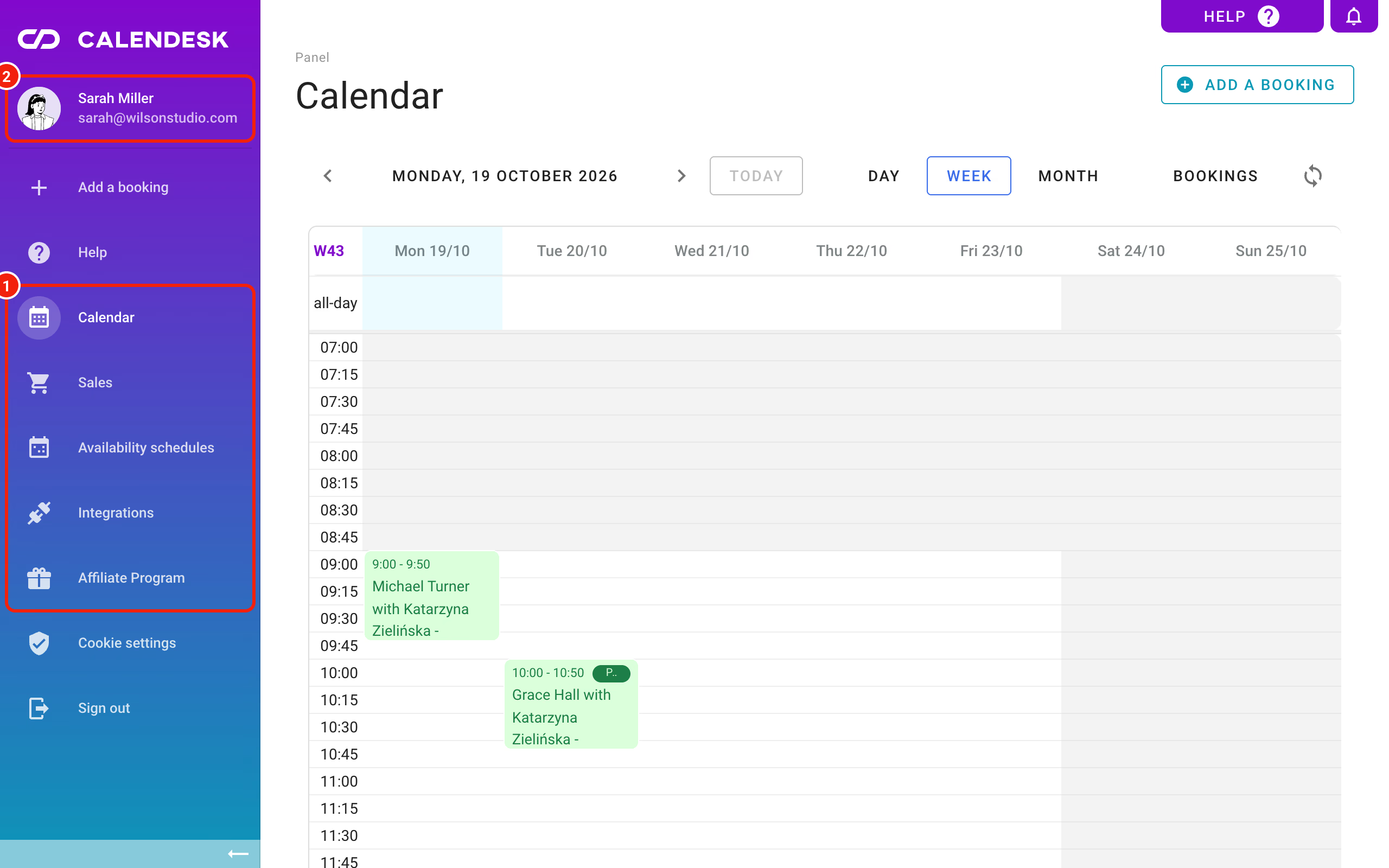
Anyone with access opens their own profile by clicking their name at the top of the menu. A Manager has no Settings tab in the menu, so that's also how they reach the platform settings.
How does the employee get their login and password?
Once you save, the employee gets an email with the subject "Your employee account in Calendesk has been created" and a Set password button. It comes from Calendesk, not from your practice, so tell them to expect it.
The link works for 7 days and arrives in the employee's language. After setting a password they log in at https://admin.calendesk.com/en/, using their email address as the login.
If the link has expired or they've forgotten the password, there are two ways back in:
- They click Forgot your password? on the login page and enter their email. That link works for one hour.
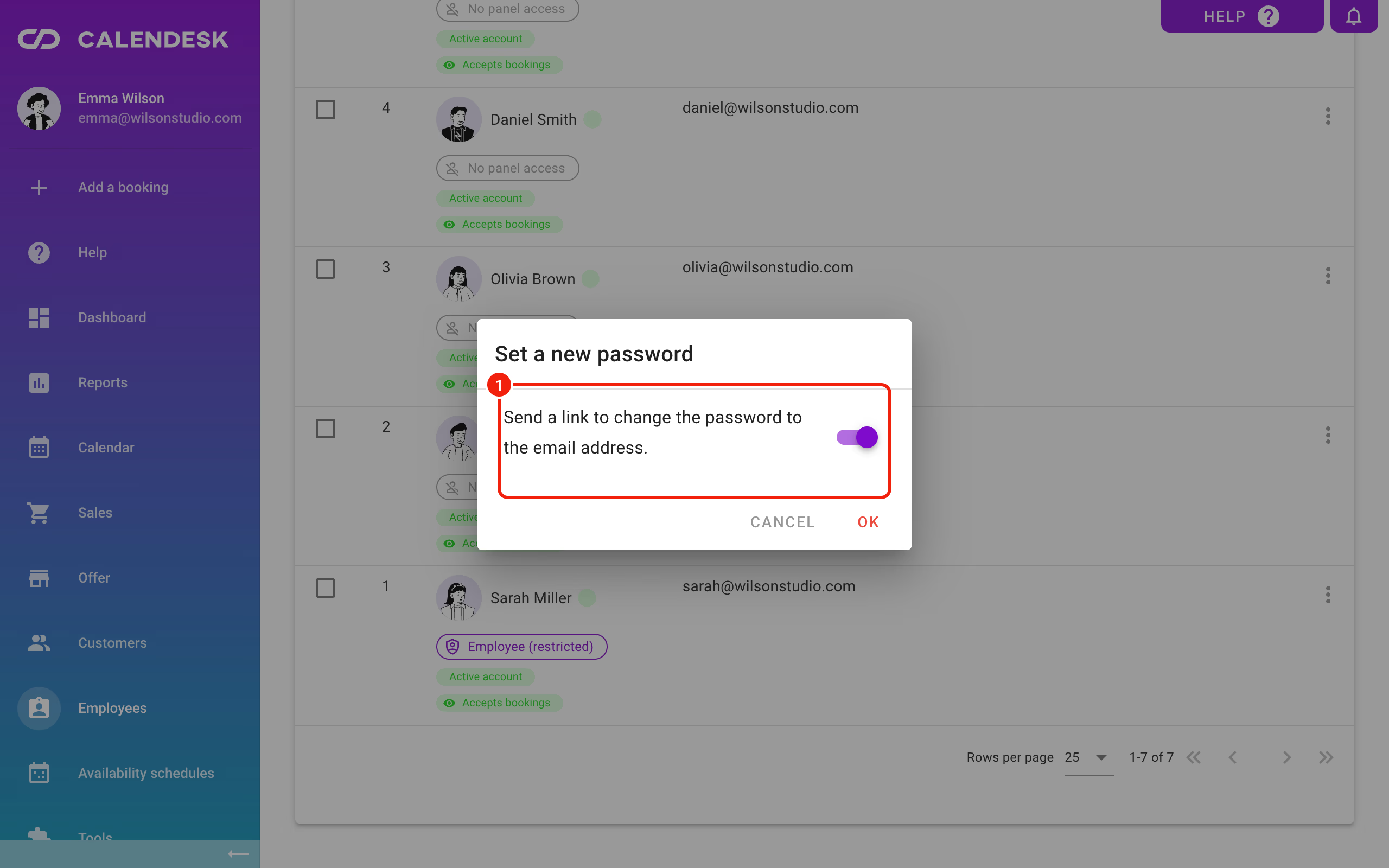
- You go to Employees, open Manage and choose Set a new password. With Send a link to change the password to the email address. switched on, they get a fresh link, valid for one hour. Switch it off and you type the password yourself: at least 8 characters, with an uppercase letter, a number and a special character.
How do I change a role or remove access?
To change a role, open the employee's profile, pick a new one in Select function and click Save. Their password stays the same. If they have the panel open right now, they should refresh the page to see the new menu.
To remove access, untick The employee can log in to the Calendesk panel and save. They lose access straight away, including in a tab they already have open.
The Manage menu next to each employee in Employees has two more options:
- Block account locks them out of the panel and takes them off your booking calendar. Unblock account in the same menu reverses it.
- Delete removes the employee and their account for good. There's no undo.
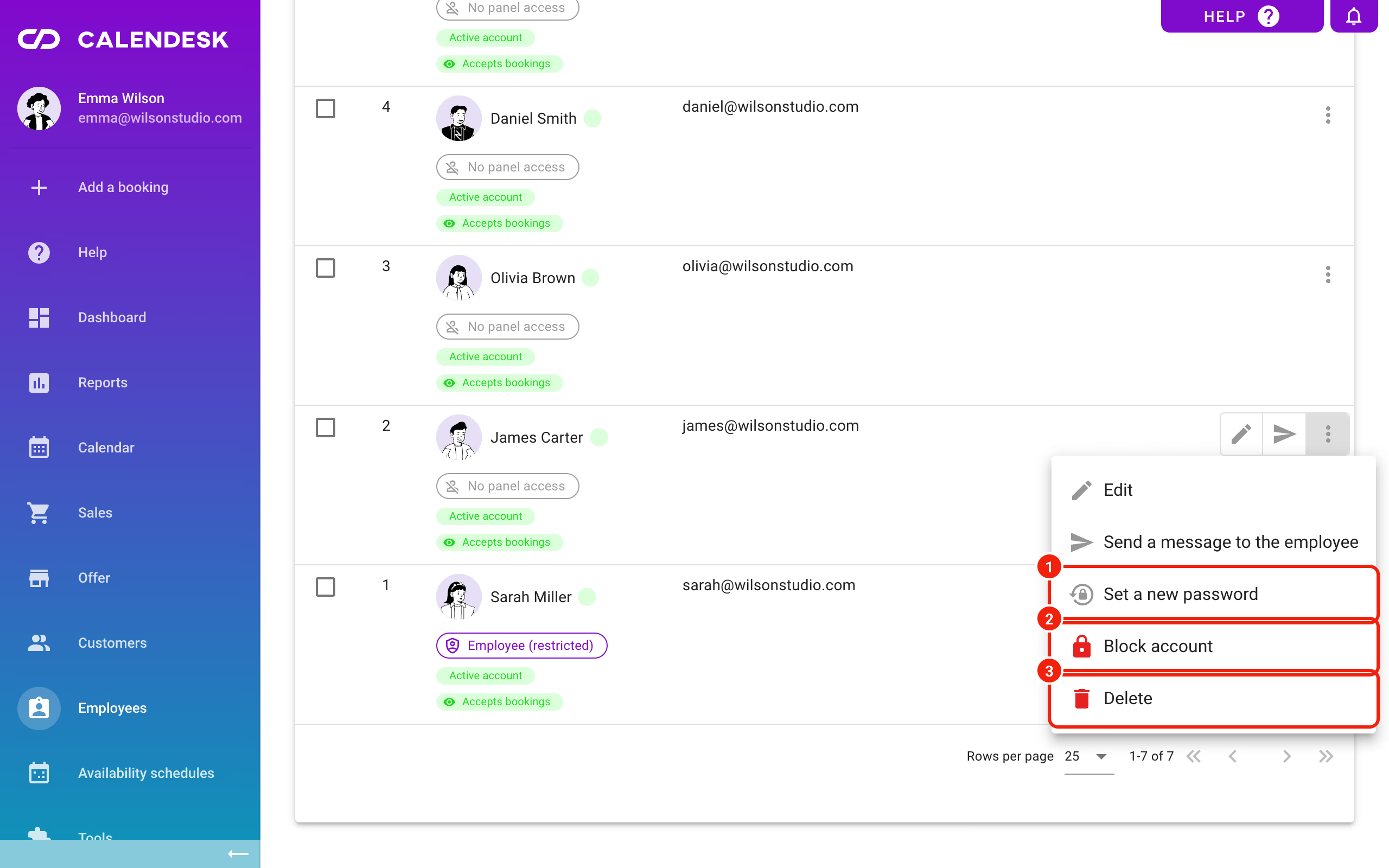
An Administrator can change roles and block accounts for anyone with a lower role. Only the owner can change another Administrator. A Manager can manage employees with an Employee role and those without panel access, but can't give or remove access.
What happens to the employee's bookings?
| What you do | Employee can log in | Customers can book new sessions with them | Bookings they already have |
|---|---|---|---|
| Remove panel access | No | Yes | Stay as they are |
| Block the account | No | No | Stay as they are |
| Delete the employee | No | No | Upcoming confirmed bookings have to be cancelled or moved first. Past ones stay in your history with no employee assigned. |
A blocked employee has no free slots when you add a booking in the panel either. If someone's leaving and still has clients booked, move those sessions to a colleague first, then delete them.
How many employees can you add?
It depends on your plan:
- Standard: up to 5 employees.
- Pro and Enterprise: no limit.
Every employee on the list counts, with or without panel access, blocked ones too. If you see clients yourself and you're on the list, you count as well. Once you hit the limit, the form is replaced by a "Limit reached" message and a Change your plan button. Changing plans is covered in How can I manage my Calendesk subscription?
Frequently asked questions (FAQ)
Why can't my employee see other employees' bookings?
They have the Employee (restricted) role, which only shows their own calendar. If they need to see the whole practice, switch them to Employee (trusted).
Why can't my employee see the Customers tab or find a customer?
Employee (restricted) has no Customers tab. When adding a booking, they only find customers who've already had a session with them, so someone who used to book with a colleague won't show up. Ask a trusted employee to make that booking, or change this person's role.
Why can't my employee see payments?
Employee (restricted) sees payments for their own bookings only. Payments for every booking are visible from Employee (trusted) up. The Billing tab, with your Calendesk plan and invoices, is for Administrators only.
My employee didn't get the email with the link. What should I do?
Check the email address in their profile and ask them to look in spam, for a message from Calendesk rather than from your practice. If the address was wrong or the link has expired, fix the email, save, and send a new link from Manage and Set a new password. The link from the form only goes out once, when the employee first gets access.
Why can't my employee log in?
Check three things: that The employee can log in to the Calendesk panel is ticked in their profile, that their account isn't blocked, and that they're using the email address from their profile. Forgot your password? only sends a link to someone who has panel access.
Why don't I see the Access to the Calendesk panel section?
That section is for Administrators only. If you're a Manager, ask the account owner or an Administrator to grant access.
Why can't I delete an employee?
They still have upcoming confirmed bookings. The panel shows "This employee has scheduled visits or has already been removed. You should cancel or reassign their visits before removing an employee." Cancel those bookings or move them to someone else, then try again. If you only want to lock them out, blocking the account is enough.
Can I change individual permissions within a role?
The panel lets you pick one of the four roles, and you can't change what a role covers. Pick the one that gives the employee the least access they still need for their work.