Latest system changes in Calendesk: November 2026
 Maciej Cupiał

Between late October and early November 2026 Calendesk gained approval of online bookings: for the services you choose, a customer's booking waits until you approve or reject it. Calendars and online meetings also cope better with provider outages, and the booking site tells customers more clearly what is going on.
Below, each change on its own: what it does and where to find it in the panel.
Online bookings you approve first
A first consultation, a session where you want to read the request beforehand, a case someone should look at before anyone commits. For services like these you can now have online bookings wait for your decision. Your other services keep taking bookings as before.
- Open Offer → Services and click the service.
- In Booking settings, tick "Require approval of online bookings".
- Choose whether a waiting booking holds the time slot until you decide, or the slot stays open for other customers.
- Save the service.
The customer books as usual and gets an email saying the booking is awaiting confirmation. In their account on your booking site the status reads "Pending". While it waits, they can't pay for it online and get no online meeting link.
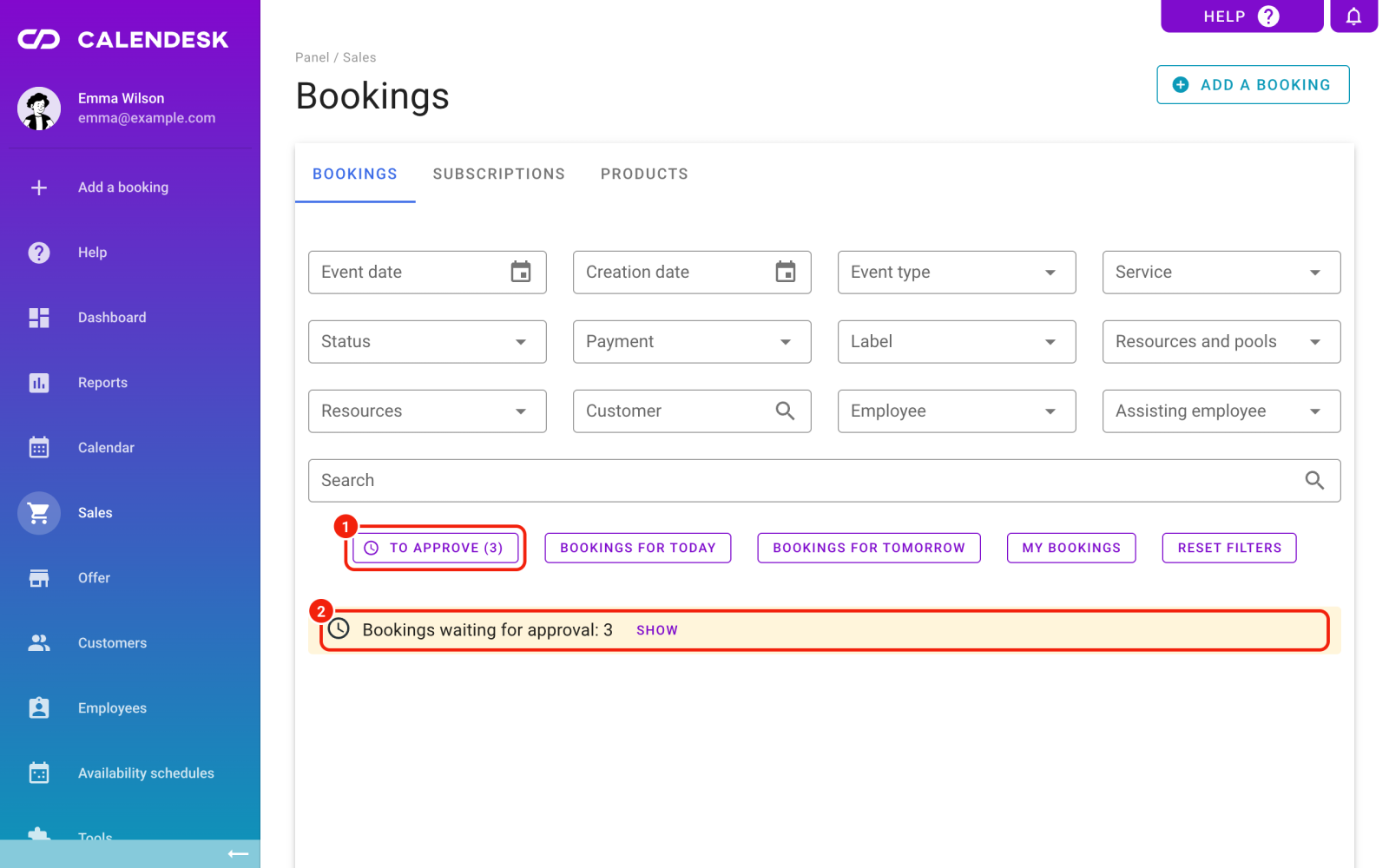
You'll find the bookings waiting for you in Sales → Bookings: a bar above the list says how many there are, and the "To approve" button narrows the list to just those. To approve or reject several at once, select them and use the menu in the selection bar.
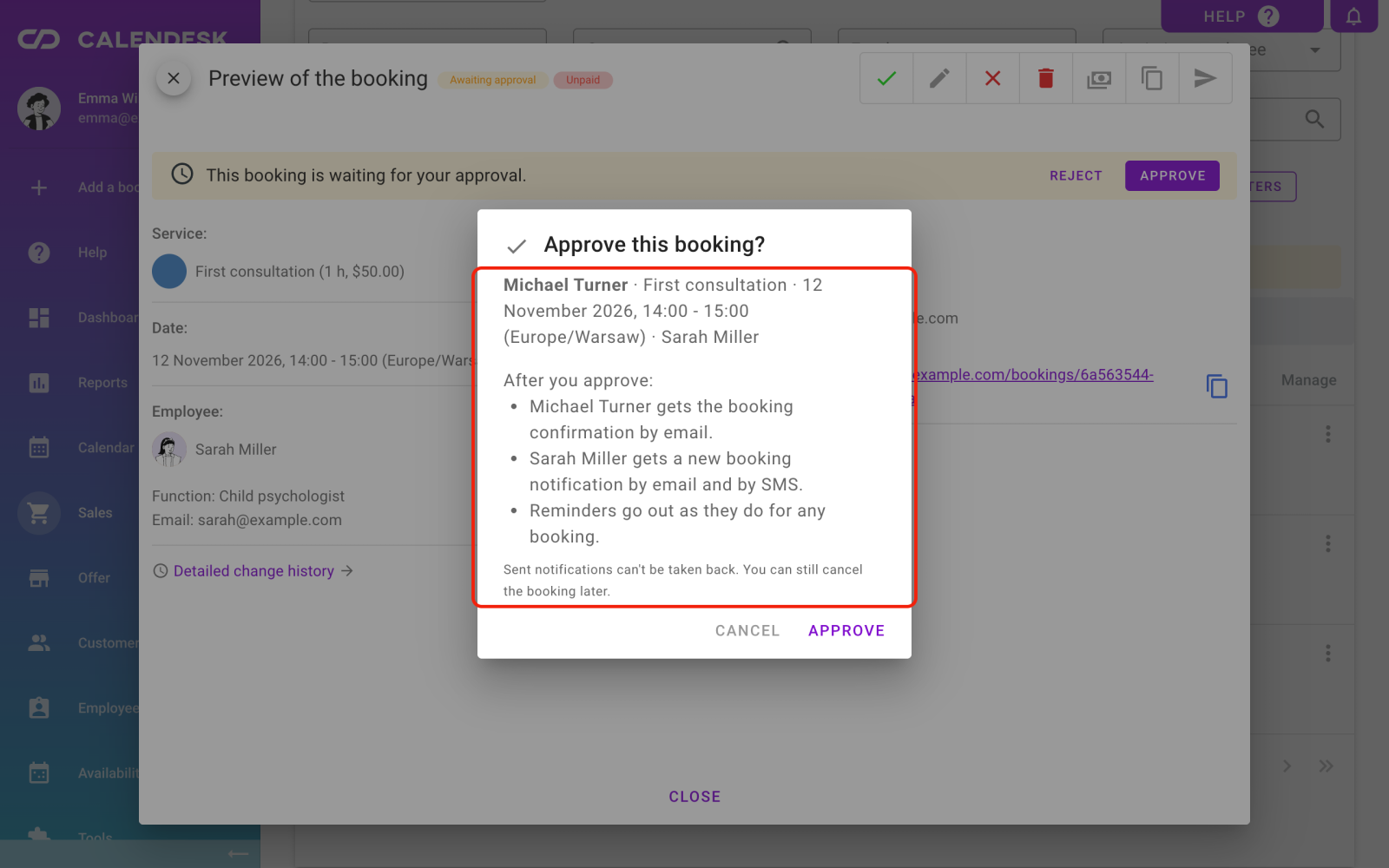
To handle a single booking, open it from the list or the calendar and click "Approve" or "Reject". Before you approve, the panel shows who gets a confirmation and how, whether the booking goes to a connected calendar, and whether an online meeting link is created.
Approving bookings is coming soon to the mobile app too. The full details, including notifications and recurring bookings, are in How do I require approval of online bookings?
Calendars and online meetings
- When Google, Microsoft or Zoom has an outage, we keep retrying the calendar event and the meeting link for about 2 hours, so a short break on their side no longer leaves a gap in your calendar.
- An online meeting link created late still reaches the calendar event.
- Events in the connected calendar are written in the employee's language.
- A Zoom account another employee has already connected can't be connected a second time, and the panel tells you why.
- Long "Add to calendar" links open without an error.
Booking site
- When there are no free slots, the message says which dates were checked.
- When a customer sends too many requests at once, they see one message instead of several, and a calendar with no free slots no longer keeps reloading.
- The Stripe payment script loads only when the customer goes on to pay.
- Form fields no longer pull the cursor away from a password manager, so customers can fill in their details in peace.
Availability schedules and the panel
- An employee can assign themselves an availability schedule with a validity period without losing their other schedules.
- An employee without some permissions no longer gets a load error and a permissions window every time they open the panel.
- Invoice messages name the system you have connected, such as Fakturownia or InvoiceOcean.
- The "&" character shows correctly in system messages.
- Importing a file with a single row works.
Frequently asked questions (FAQ)
Do bookings added in the panel need approval too?
No. The setting covers bookings customers make online. A booking your team adds gets whatever status you pick when you save it.
Can I require approval for a service paid online?
No. When a service needs online payment or is for subscribers only, the payment or the subscription confirms the booking, so the approval field is turned off.
What does the customer get when I reject a booking?
The booking is set to cancelled, and the customer gets the cancellation message if that notification is on.
Don't have an account yet? Sign up for Calendesk and try these features on your own calendar.