How to create a website with service categories?
This article shows how to build a website in the Calendesk website builder where customers first pick a category of services, for example a specialist or a type of therapy, and then see a booking calendar with only the matching services.
You can see an example of such a website here: https://psycholog-pomoc.calendesk.net/
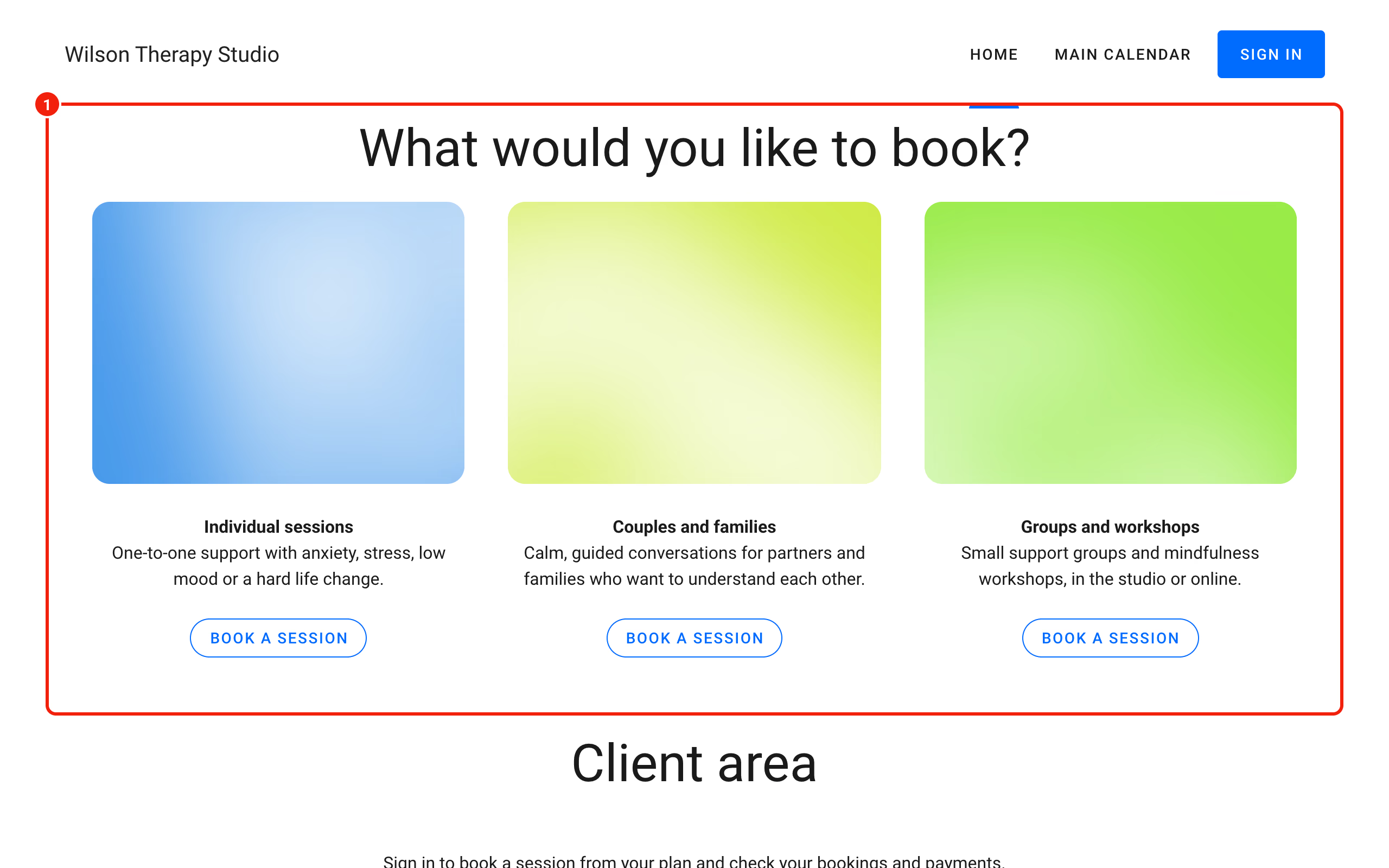
Create a new website
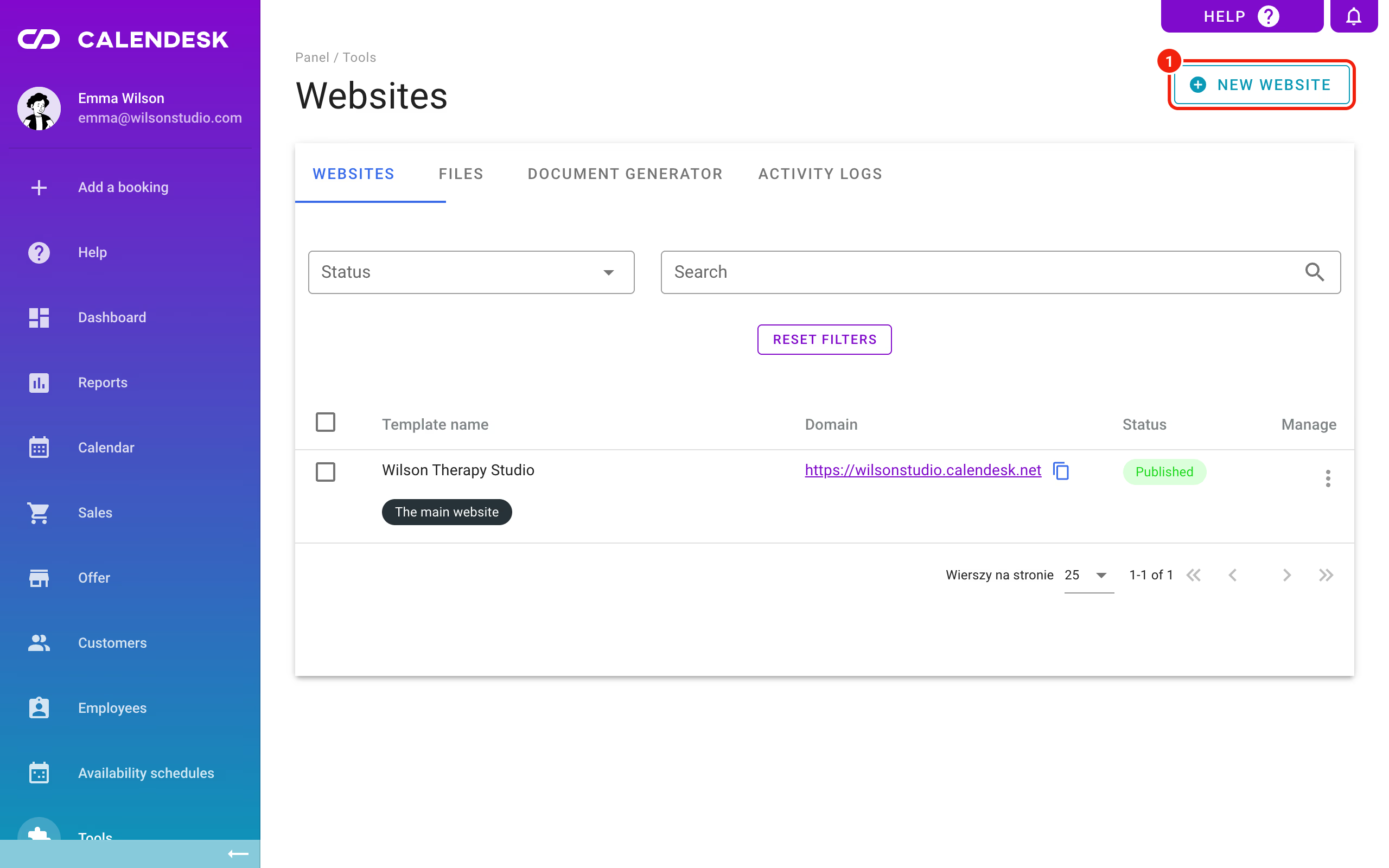
Start by creating a website. Go to Tools – Websites and click the button shown below.
A short assistant asks about your type of business and the name of the website, then builds a starting website for you. You will change most of it anyway, so keep it simple and move on to the subpages.
Add a subpage with the calendar
First, plan the path a customer takes. In our example it is: the Book a visit button, then the choice of a category, then the choice of a date. To get there, create a first subpage called Main calendar.
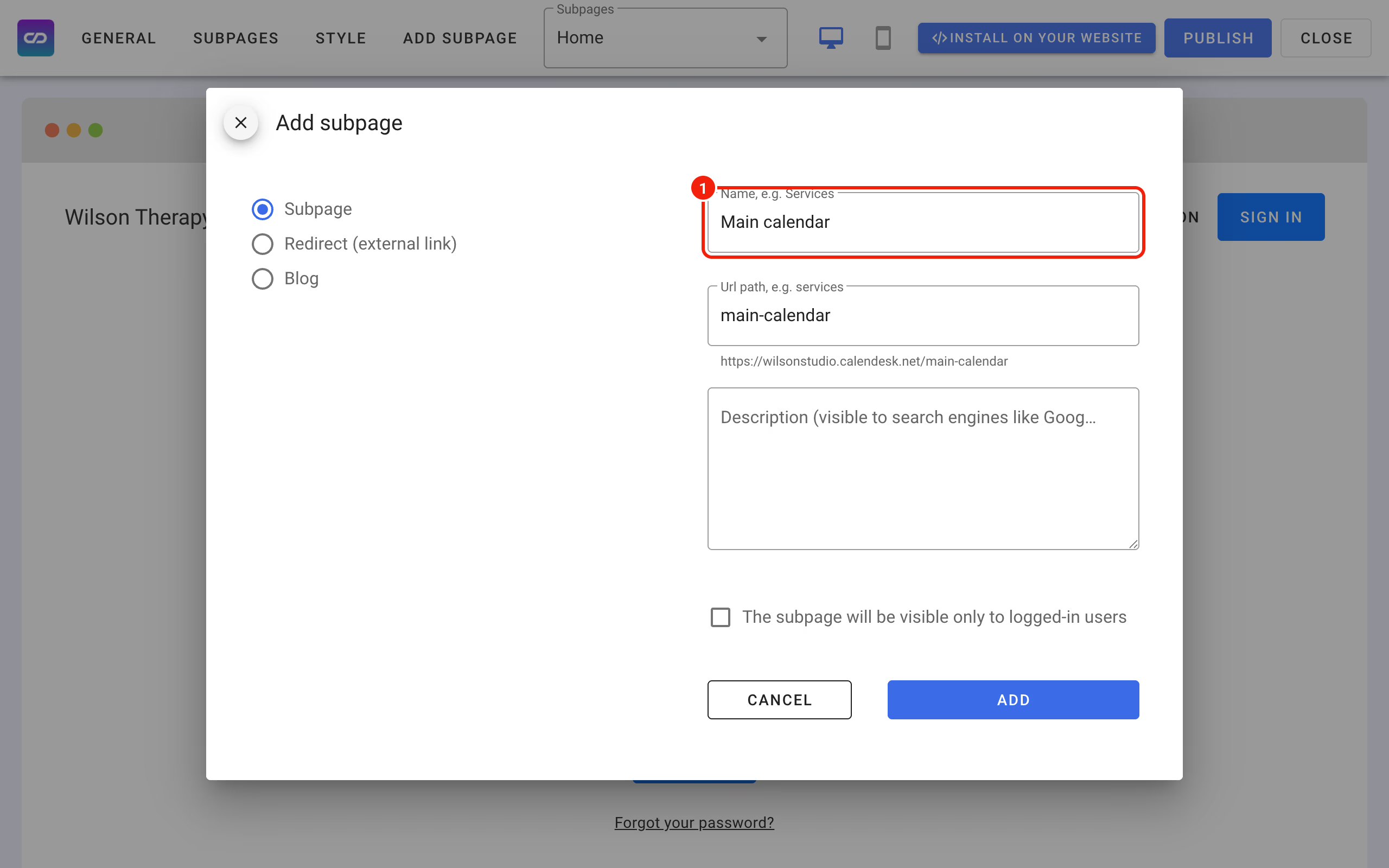
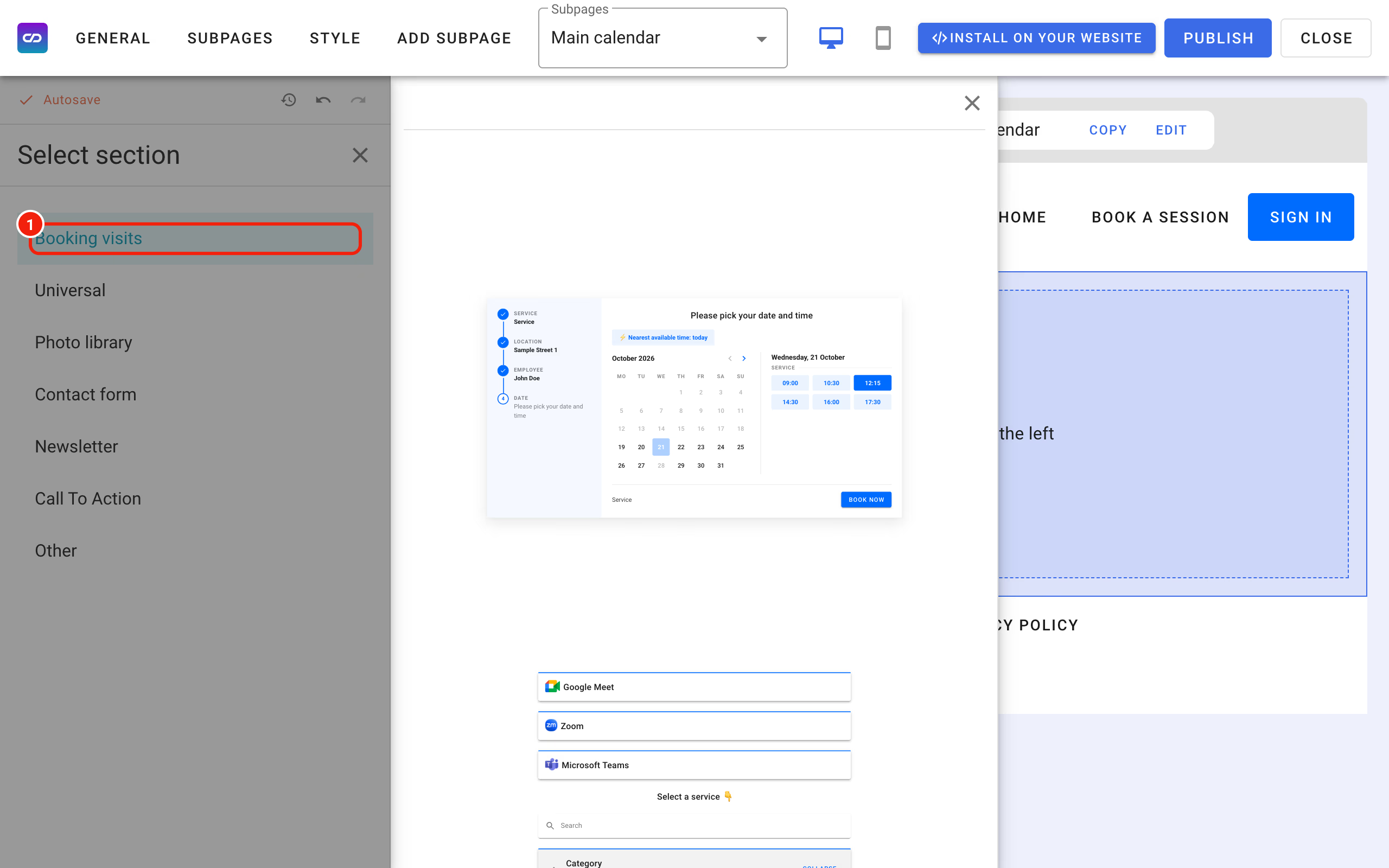
Open this subpage and add a calendar section to it.
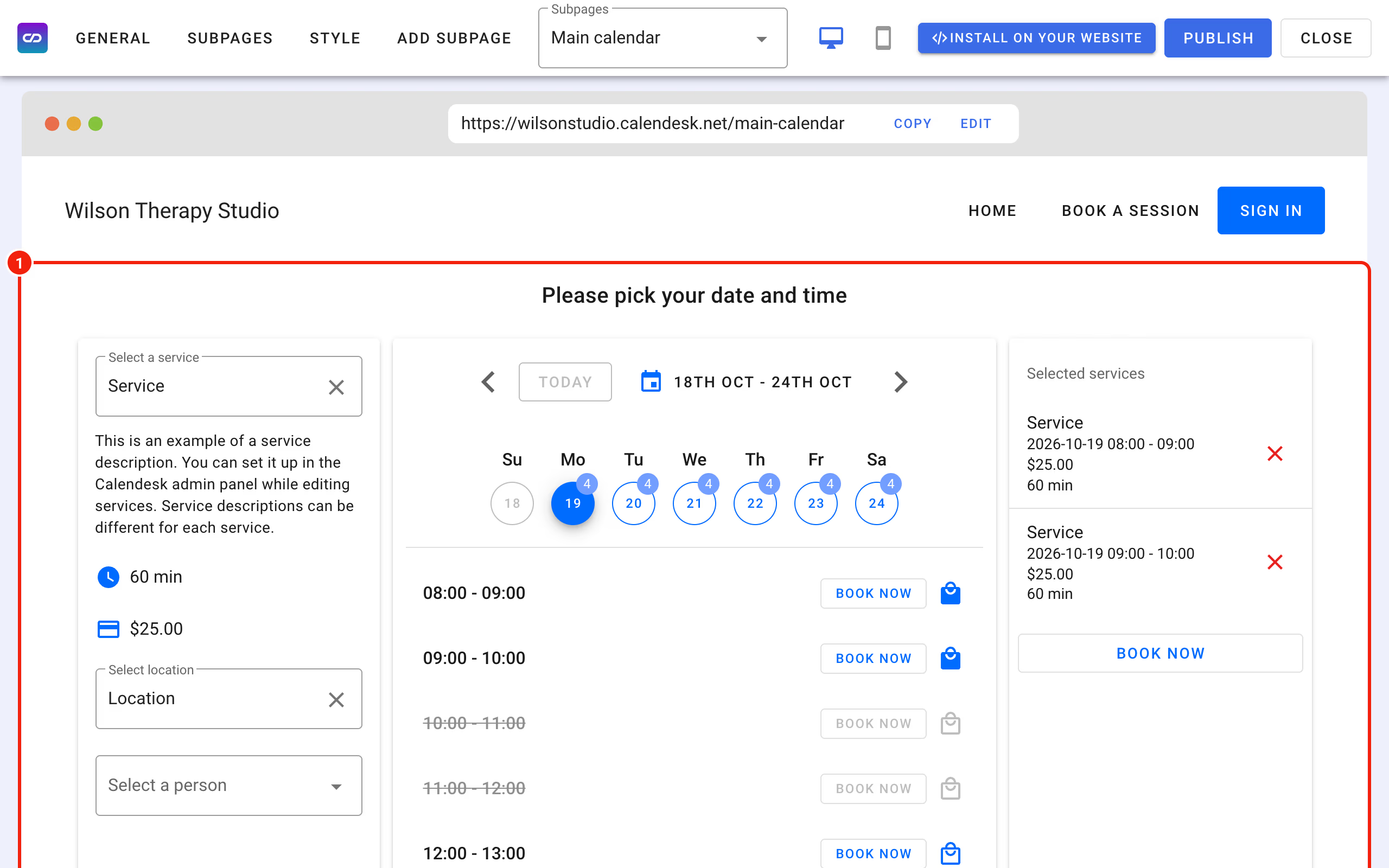
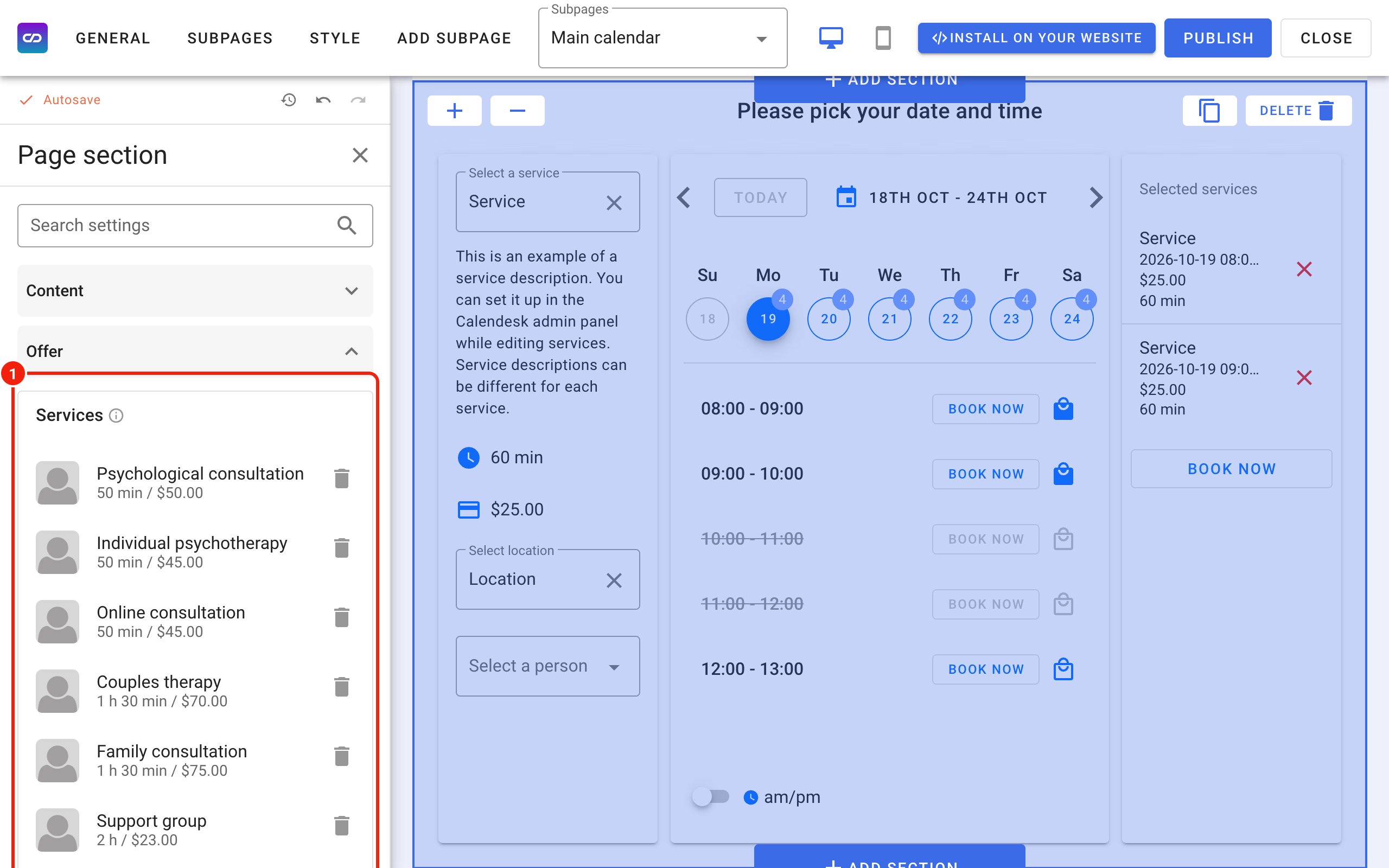
Add all the services customers can book from your website to this calendar, across all your employees.
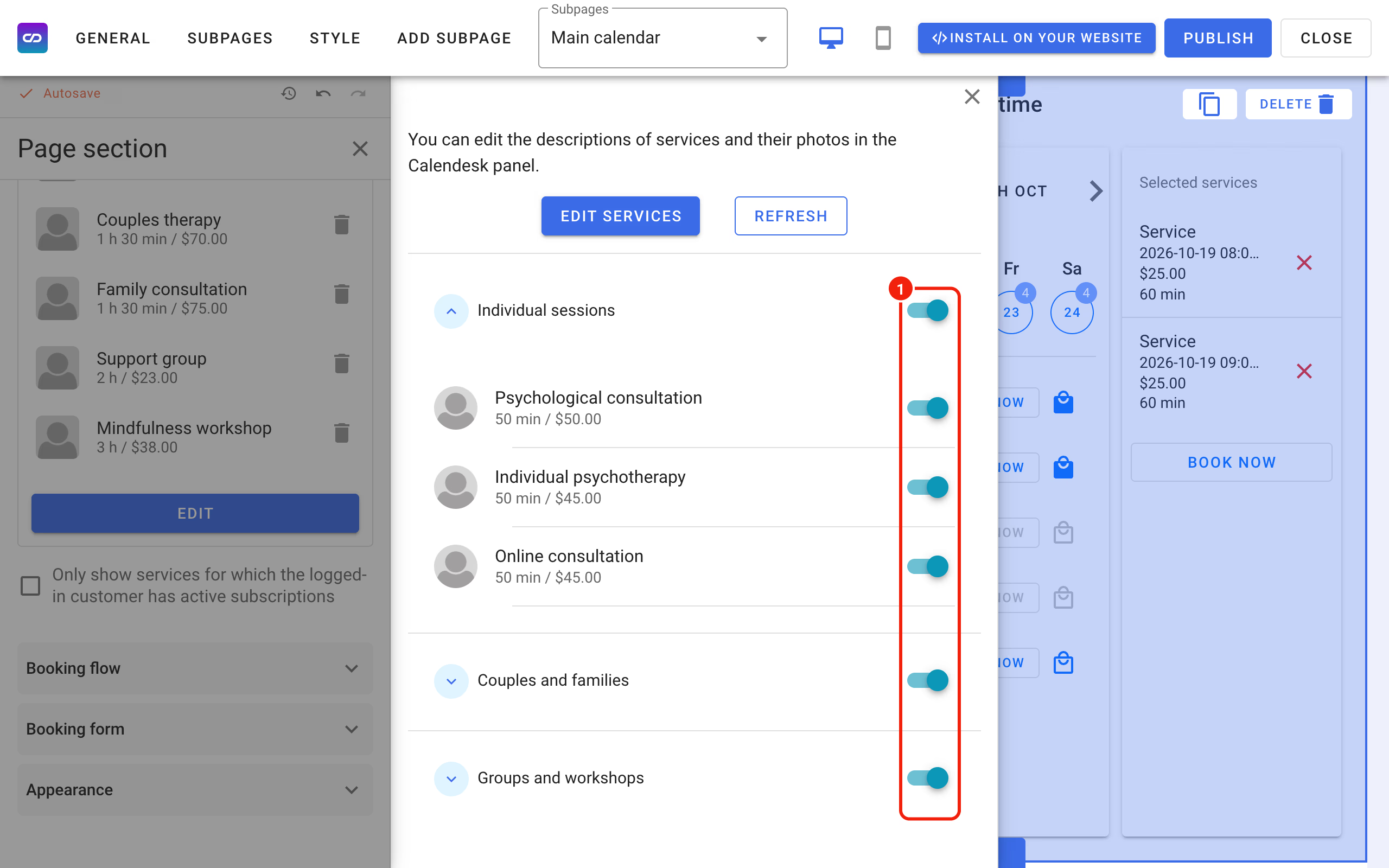
That's the first step done. Now let's create the place where customers choose the category.
Add a subpage with your offer
Next, add a subpage where customers look at your offer and pick a category. Create it the same way as before and call it, for example, Our offer.
Show the subpages in the header
New subpages have to be switched on in the header. Click the header section and, in the Pages and navigation group on the left, find Number of main tabs. Enter how many tabs the header should show.
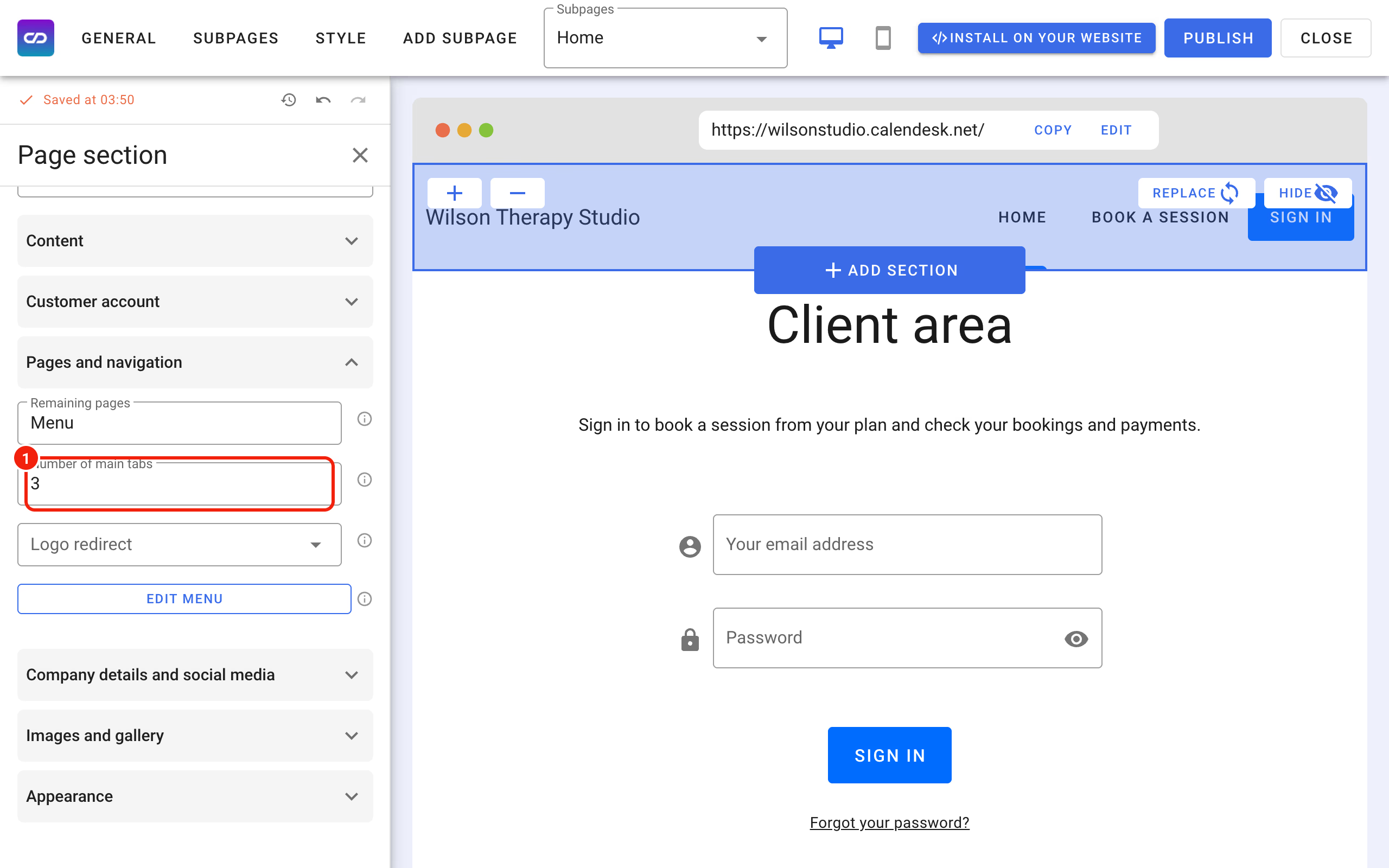
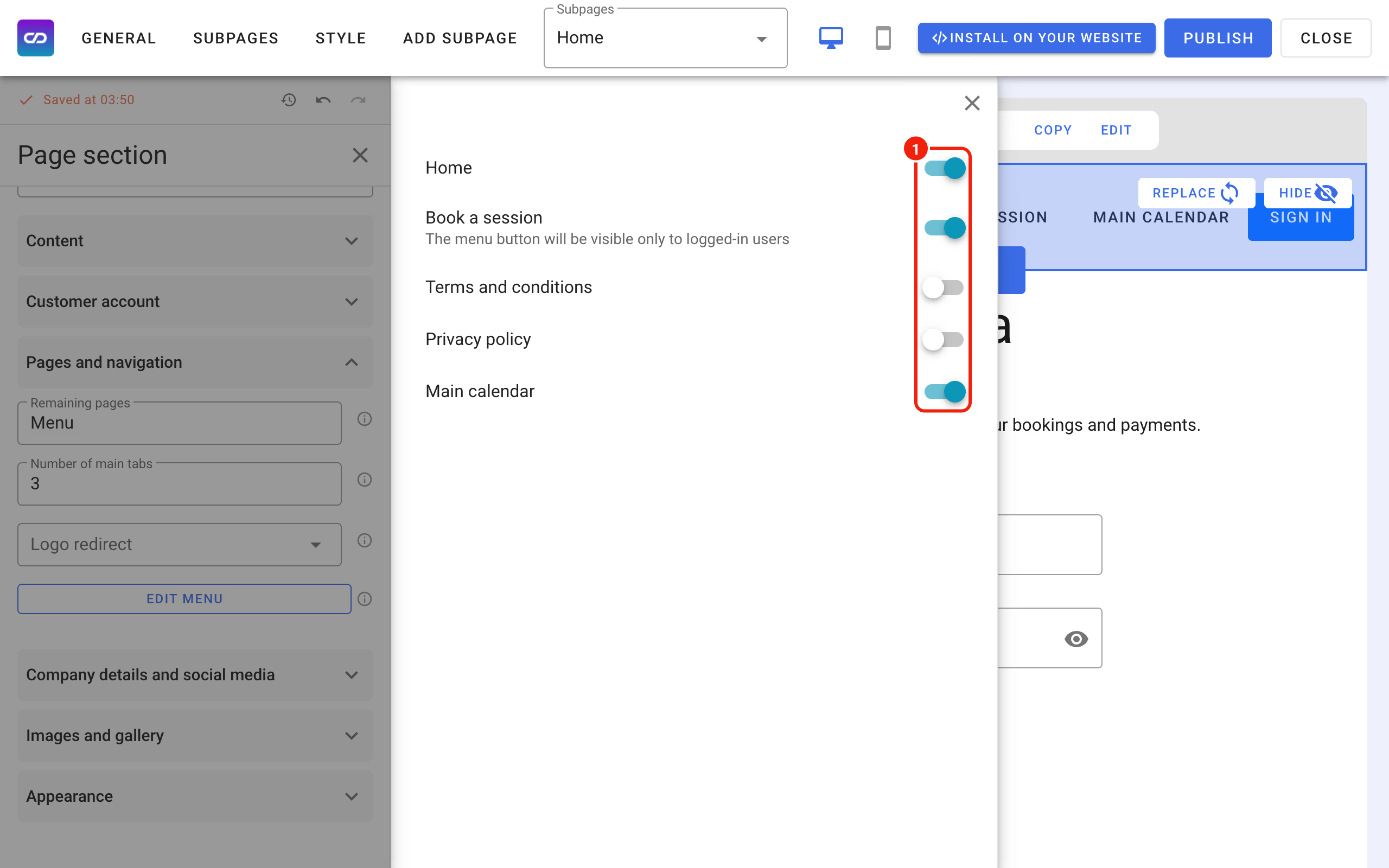
Then, in the same group, click Edit menu and switch on the subpages that should appear in the header.
Build the category view
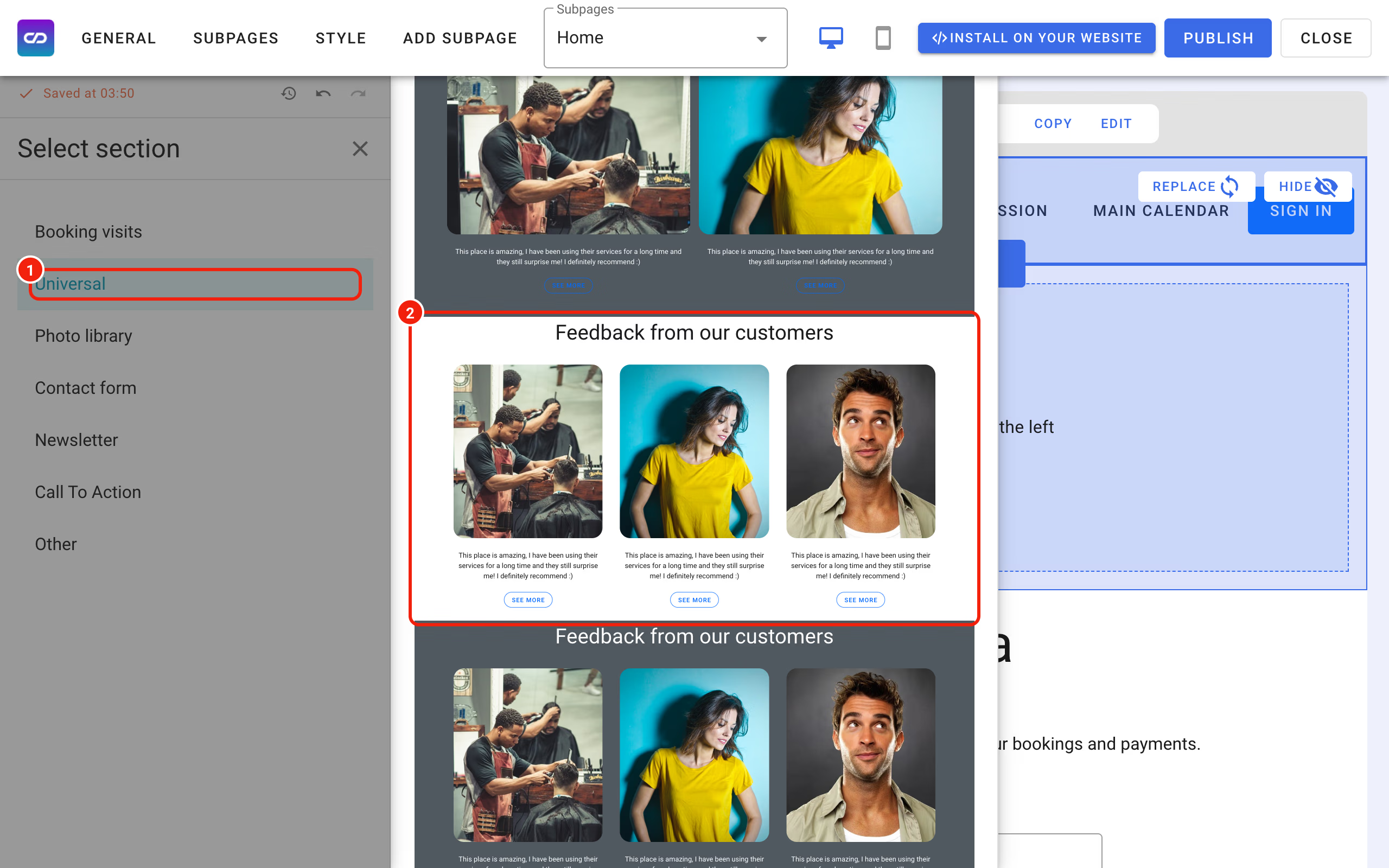
Now add a section to the Our offer subpage. In this example we use one of the general-purpose sections to show three categories side by side.
Click the section to open its settings.
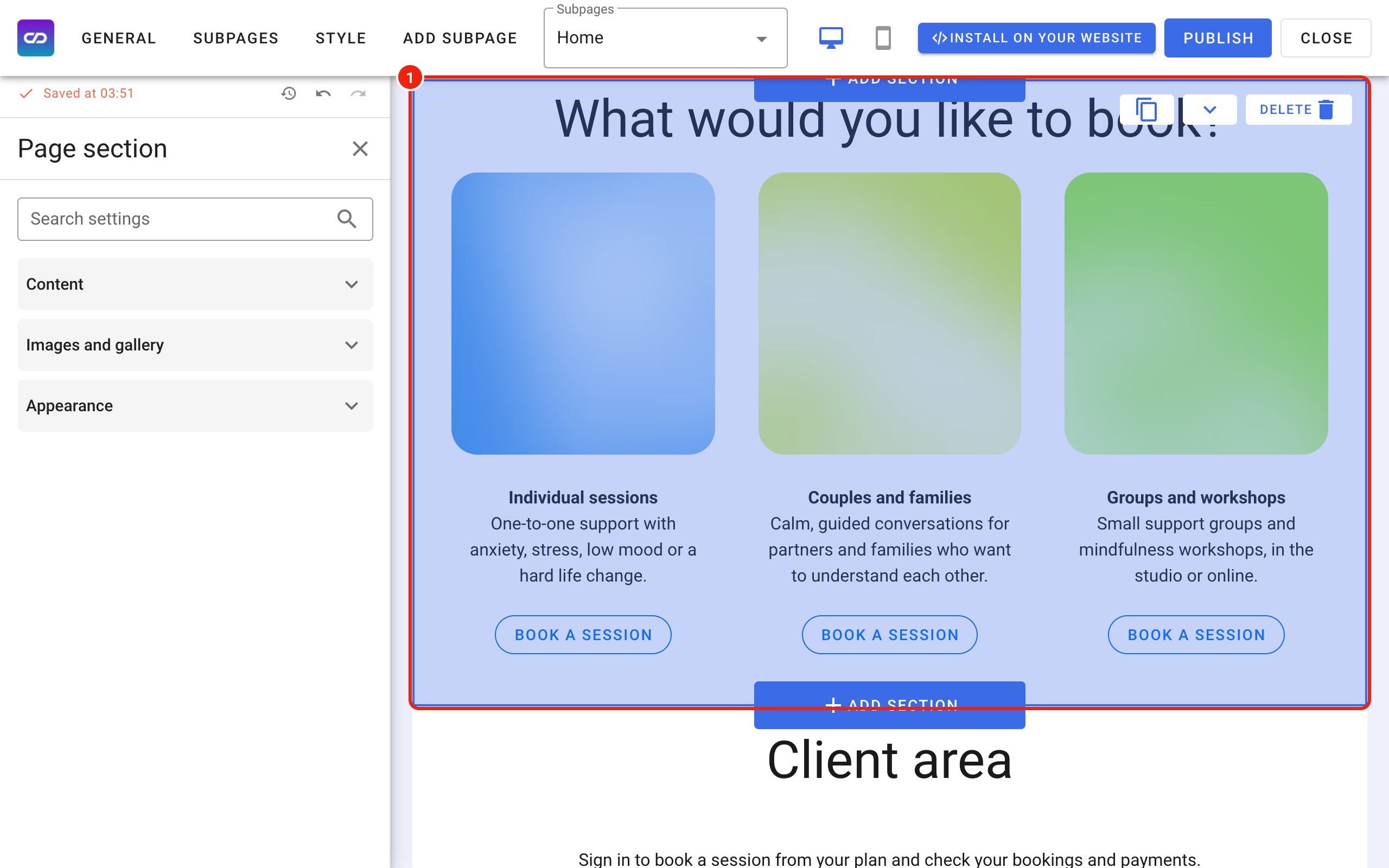
The panel on the left lets you change the pictures, the texts and the buttons. Each column in the middle of the screen has its own settings there.
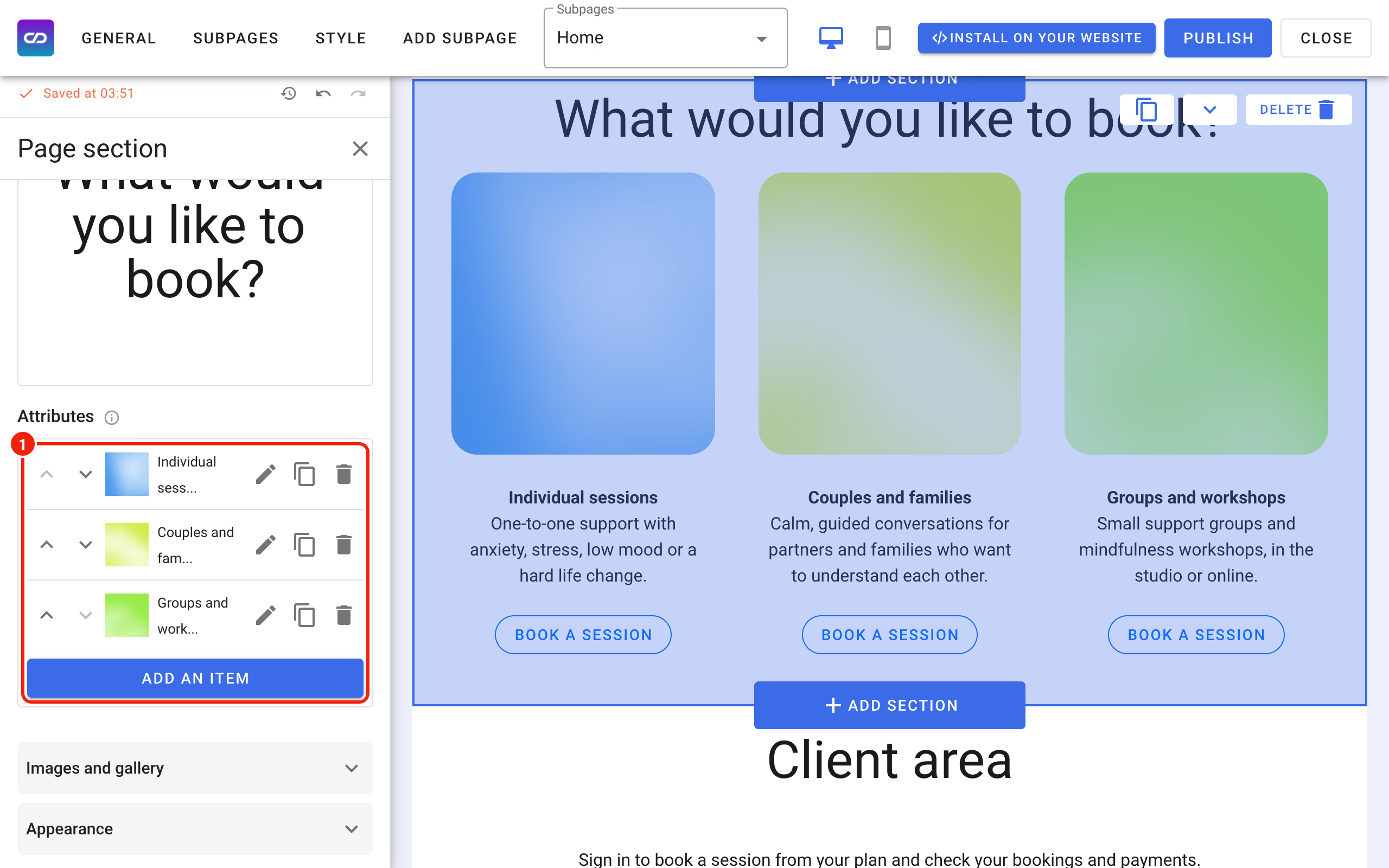
How to manage the columns
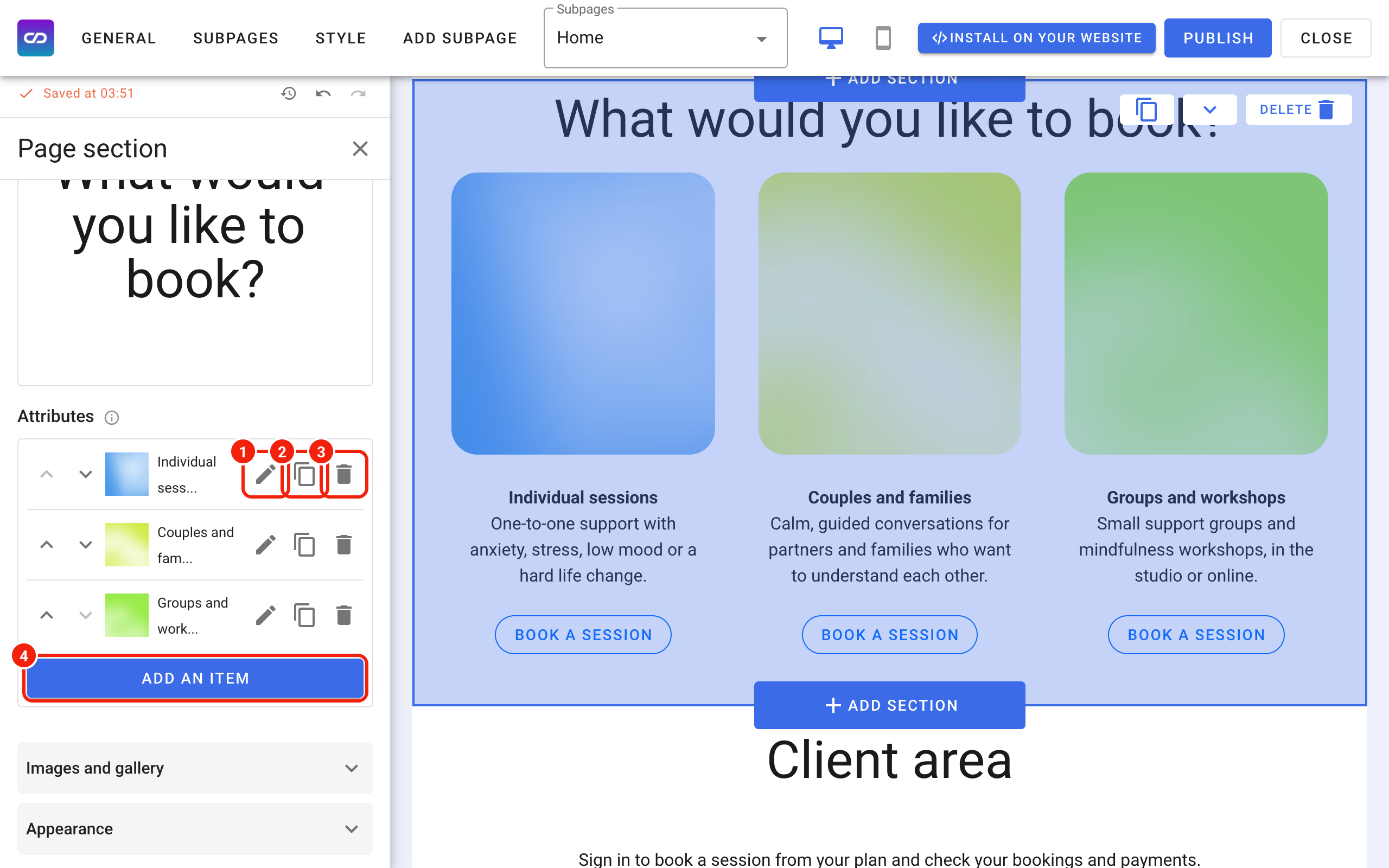
- Edit the column: its text, its picture and its button.
- Duplicate the column instead of building a new one from scratch.
- Delete the column.
- Add an item adds a new column that you set up from scratch.
Editing a column
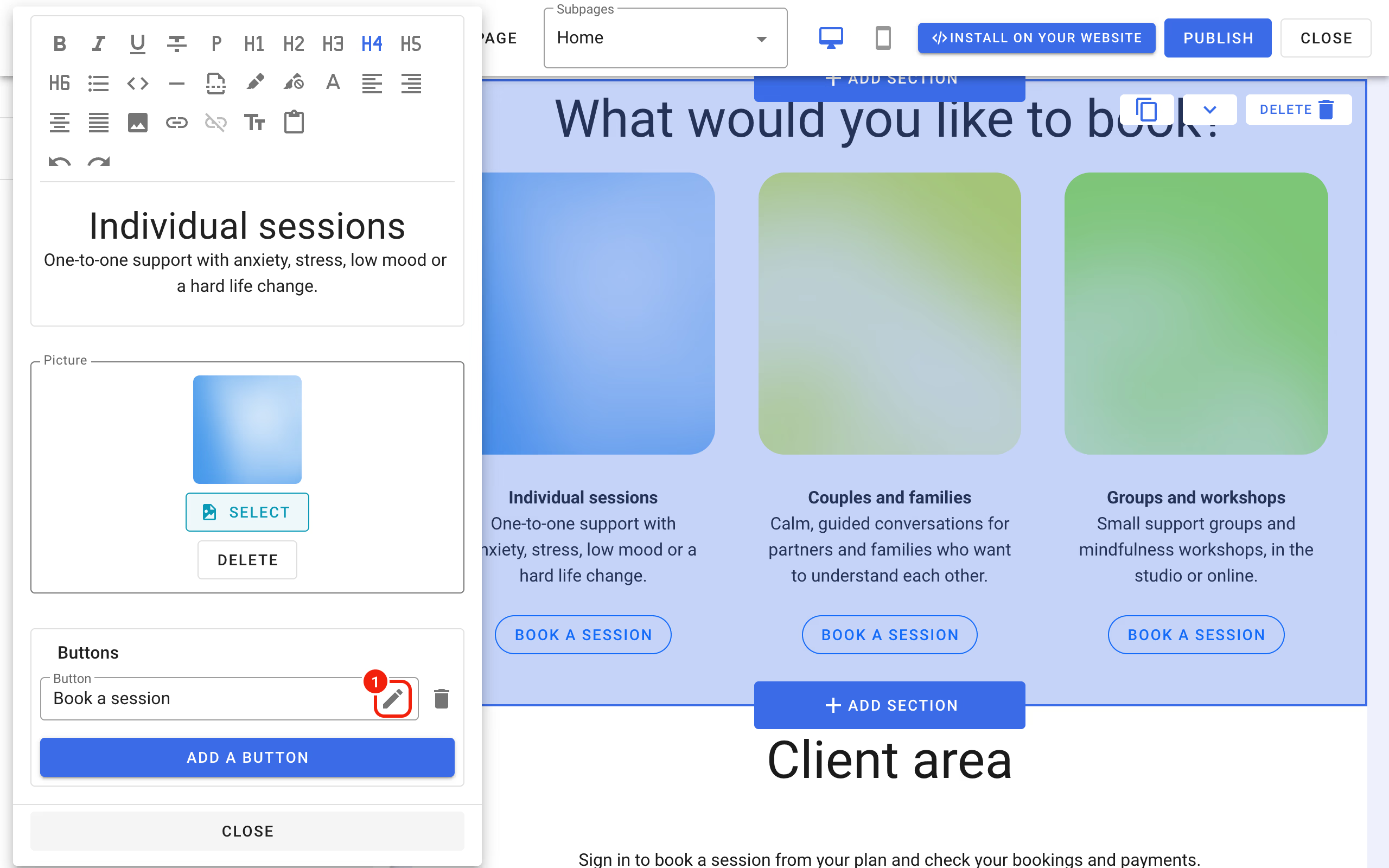
Click the pencil to change the text under the picture, swap the picture for one from your computer or from the Photos by Unsplash library, and set up the button.
Editing a button
Click the pencil next to the button to open its settings.
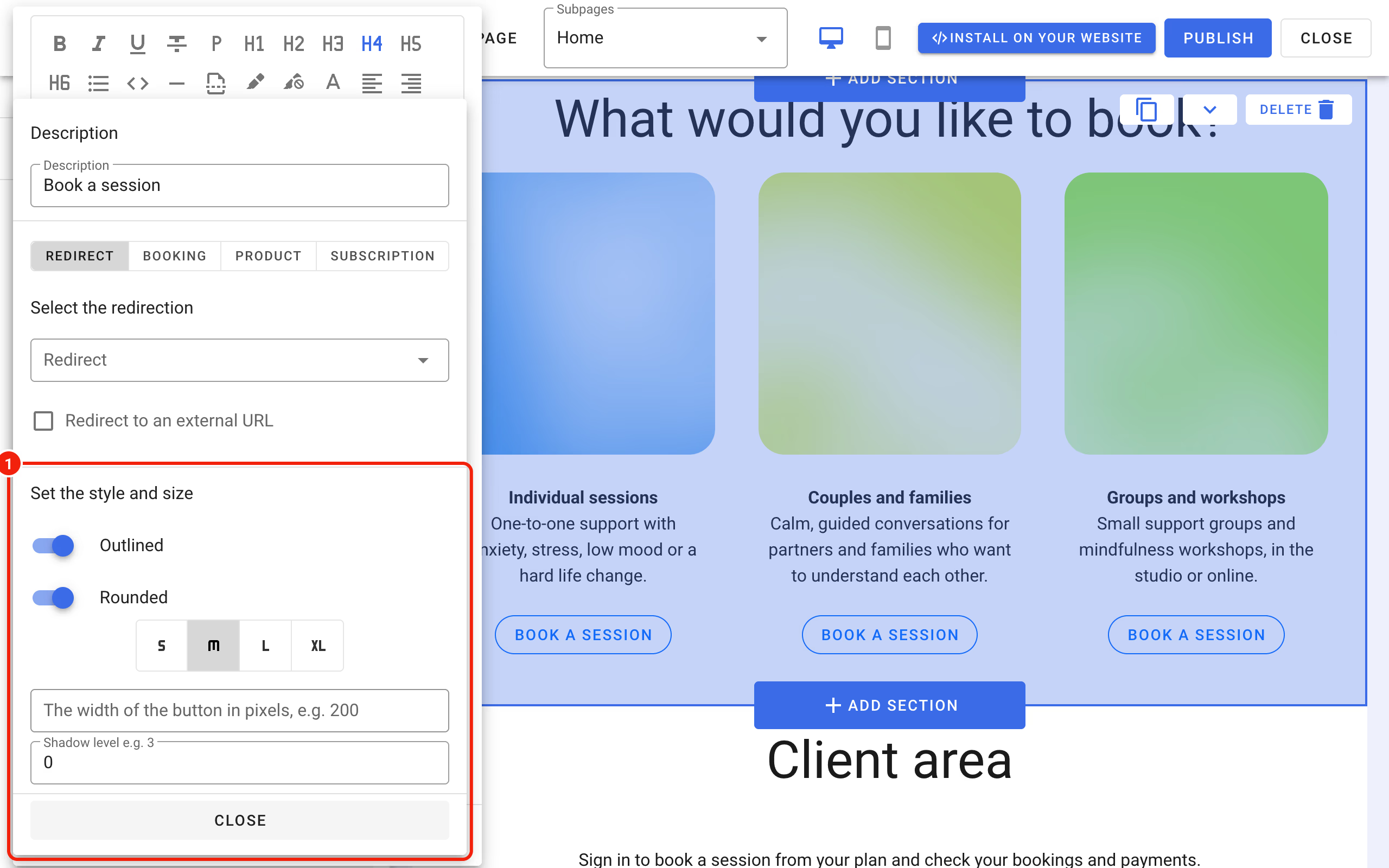
Under Set the style and size you change how the button looks:
- Outlined or filled,
- Rounded corners,
- the size, from S to XL,
- the width in pixels,
- the shadow level.
The text on the button goes into the Description field at the top of this window.
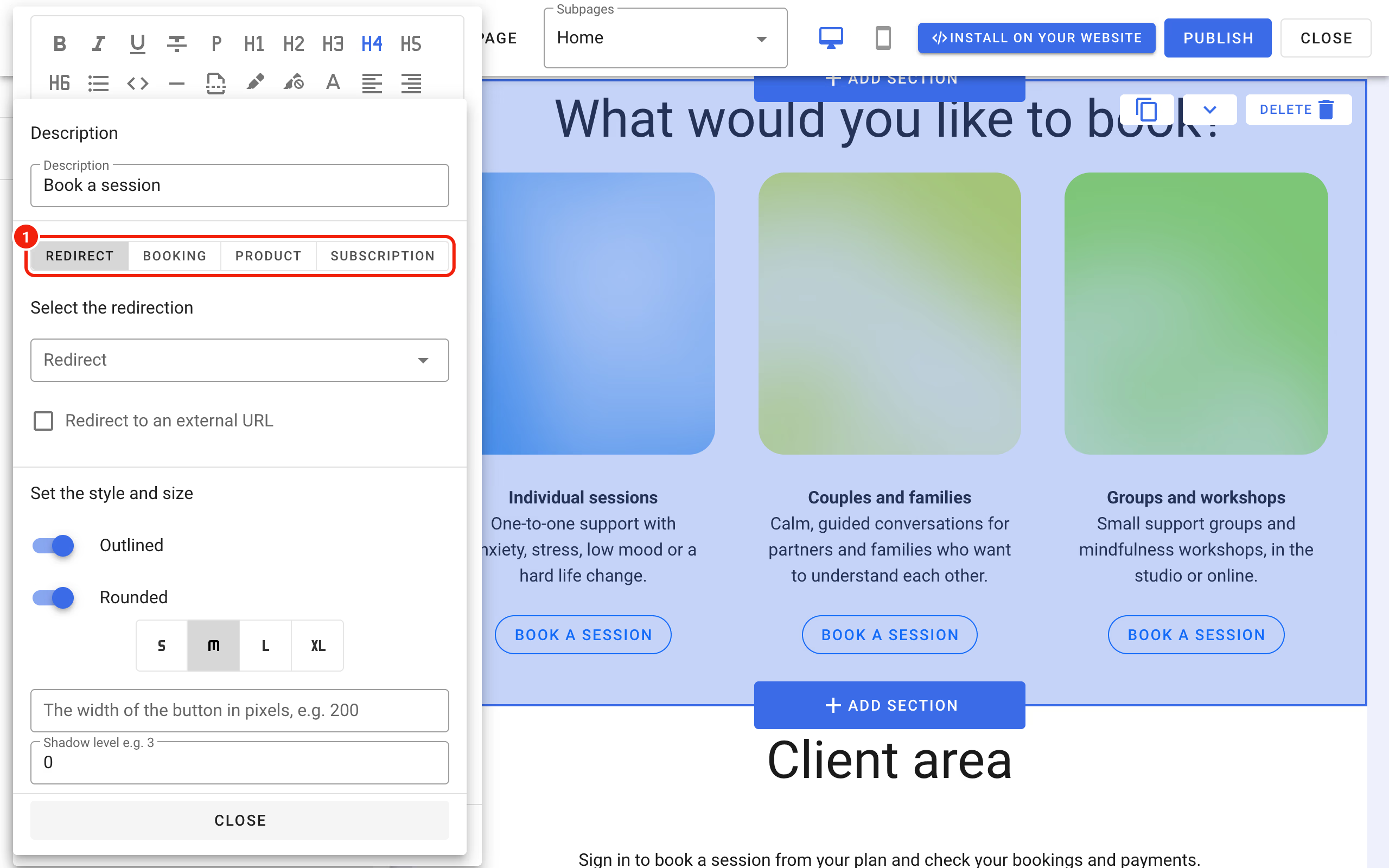
Under Select the redirection you decide what the button does:
- Redirect: opens a subpage of your Calendesk website, picked in the Redirect field, or any web address: tick Redirect to an external URL and enter the address,
- Booking: opens the booking of one of your services or service options from Offer – Services,
- Product: opens the purchase of a product from Offer – Products,
- Subscription: opens the purchase of a package or subscription from Offer – Subscriptions.
A redirect to a web address is especially handy here: it can open your calendar with only the services, only the employees, or only the combination you choose.
Linking to chosen services or employees
To build such a link:
- Copy the address of the calendar that holds the services you want to show. In our example it's the calendar on the Main calendar subpage: https://psycholog-pomoc.calendesk.net/kalendarz-glowny. Make sure the address starts with https://.
- Add one of these parameters at the end:
- ?services=1,2,3 shows only the services with these IDs. You'll find service IDs in the admin panel under Offer – Services.
- ?employees=1,2,3 shows all services of the employees with these IDs. You'll find employee IDs under Employees.
- ?employees=1,2&services=1,2,3 shows the chosen services of the chosen employees. This works only when those employees have those services assigned in their profiles.
- In the button settings choose Redirect, tick Redirect to an external URL and paste the full address.
Customers may want to go back to the previous screen. To make that easy, add a Back button with this address as its redirect: javascript:history.back()
The result
You now have a website where customers open Our offer, pick a category, and see a calendar with only the services from that category. Remember to click Publish to put your changes live.