How to change the font on your website?
When you build a website with the Calendesk website builder, you choose its colours, pictures and texts. You can also change the font, so the website looks exactly the way you want.
Open the website you want to edit from Tools – Websites. Go to the General tab, open the Integrations and advanced group and find the Custom scripts field.
In a new browser tab, open Google Fonts and look for the font you want.
You can find a font:
- by name, if you know it,
- by filtering the suggestions,
- by browsing the list.
Click the font, then Get font and Get embed code.
On the left, set the styles and weights you need, for example with Full axis. Then choose the @import option. Copy only the line that starts with @import, without the <style> tags Google Fonts puts around it.
Paste it into the Custom scripts field in the Calendesk builder and leave an empty line below it. We'll add one more thing there.
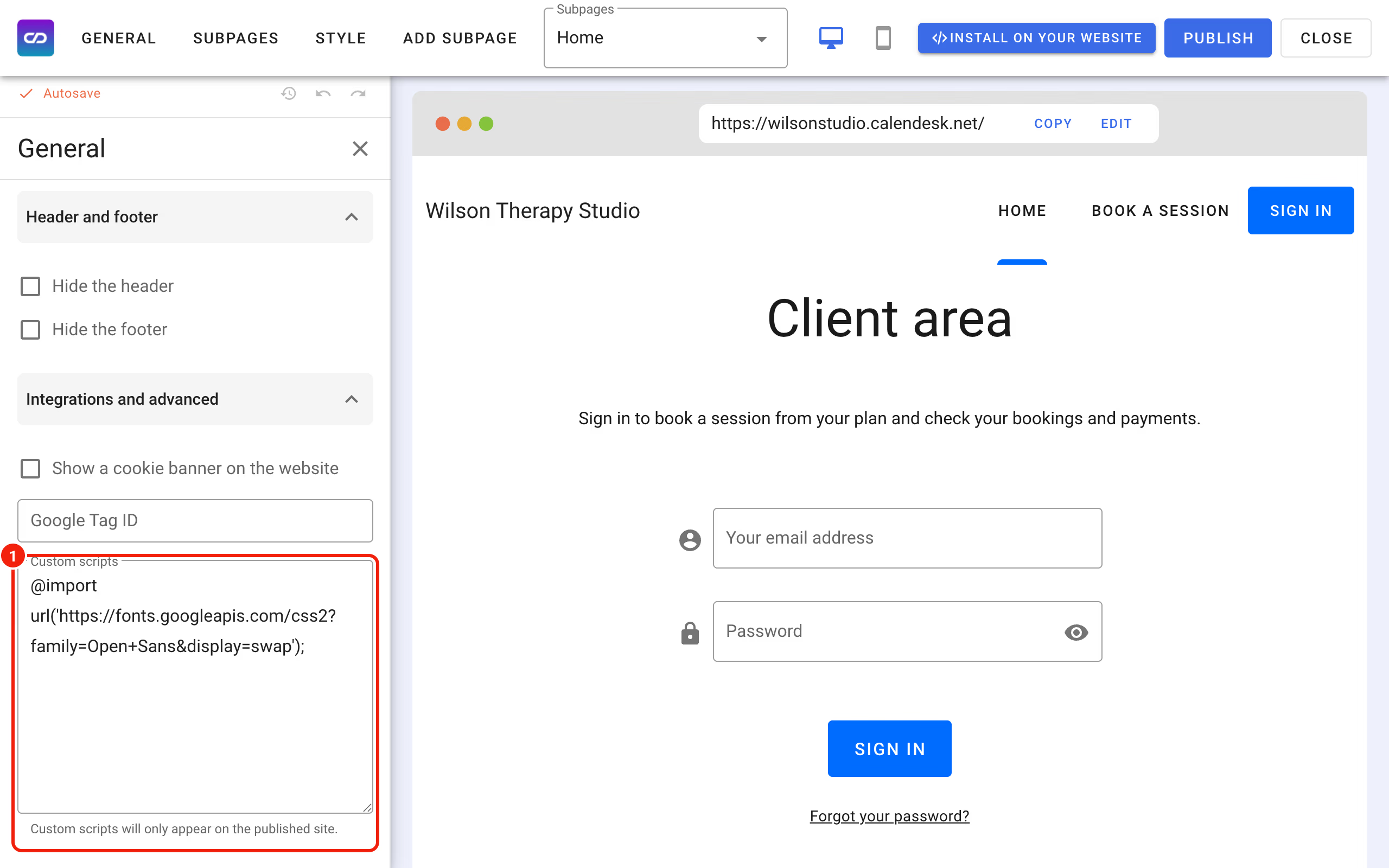
Go back to Google Fonts and copy the font-family line from the CSS class block below the embed code, for example font-family: 'Open Sans', sans-serif;.
For the builder to understand the code, wrap both pieces like this:
<style data-category="necessary">
FIRST COPIED CODE
* {
  SECOND COPIED CODE WITHOUT ITS SEMICOLON !important;
}
</style>
Remove the semicolon at the end of the font-family line and type !important; in its place. Without it, the new font won't replace the one your website already uses. For Open Sans the finished block looks like this:
<style data-category="necessary">
@import url('https://fonts.googleapis.com/css2?family=Open+Sans&display=swap');
* {
  font-family: 'Open Sans', sans-serif !important;
}
</style>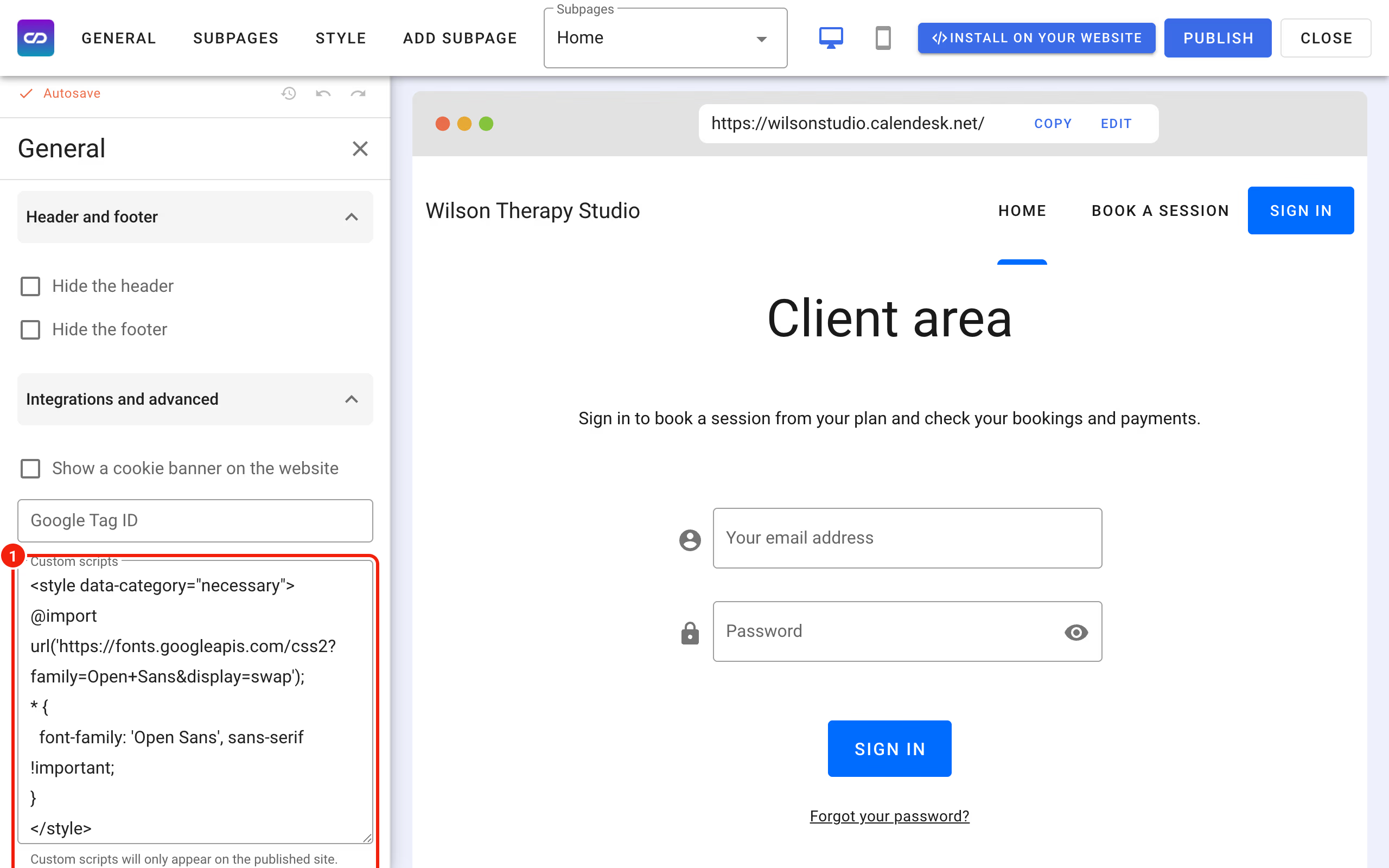
The data-category="necessary" part matters when your website shows a cookie banner. Without it, custom scripts wait for the visitor's consent, and visitors who reject cookies would see the default font. A font tracks nobody, so it can load for everyone.
Save your changes with Publish.
You won't see the new font in the builder: custom scripts only appear on the published website. Open your booking system or website in the browser and you'll see the change.