How to send customers online meeting links automatically?
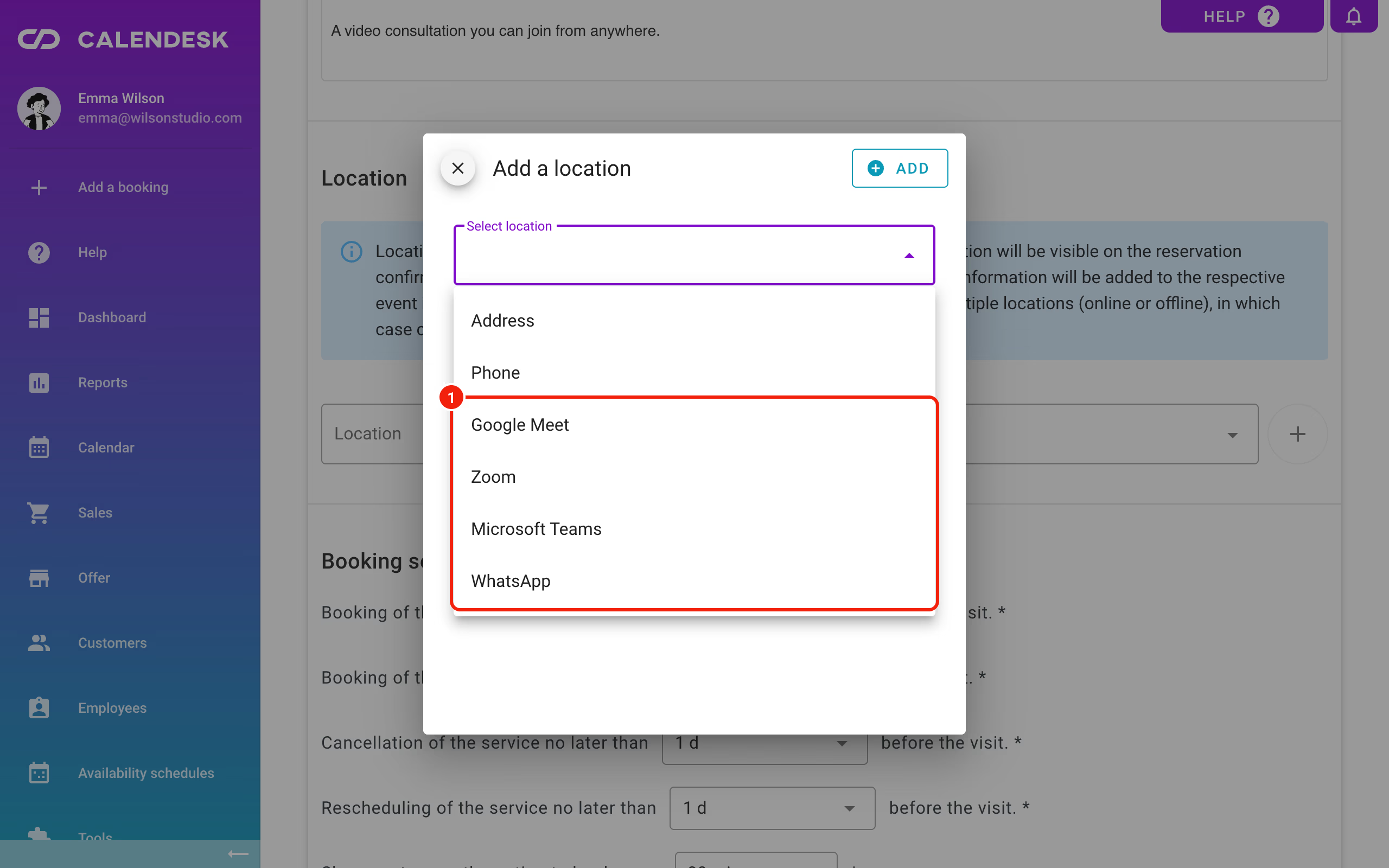
Many businesses give advice that doesn't need the customer to come to the office. You can hold these meetings online with Google Meet, Microsoft Teams, Zoom or WhatsApp. Here is what you need to know to offer online meetings.
Who are online meetings for?
Meetings booked with Calendesk can take place on several platforms, both for one-to-one services and for group services. For a one-to-one meeting, Calendesk asks the platform for a unique meeting link. If a meeting has several participants, they all get the same link.
How do customers choose an online meeting?
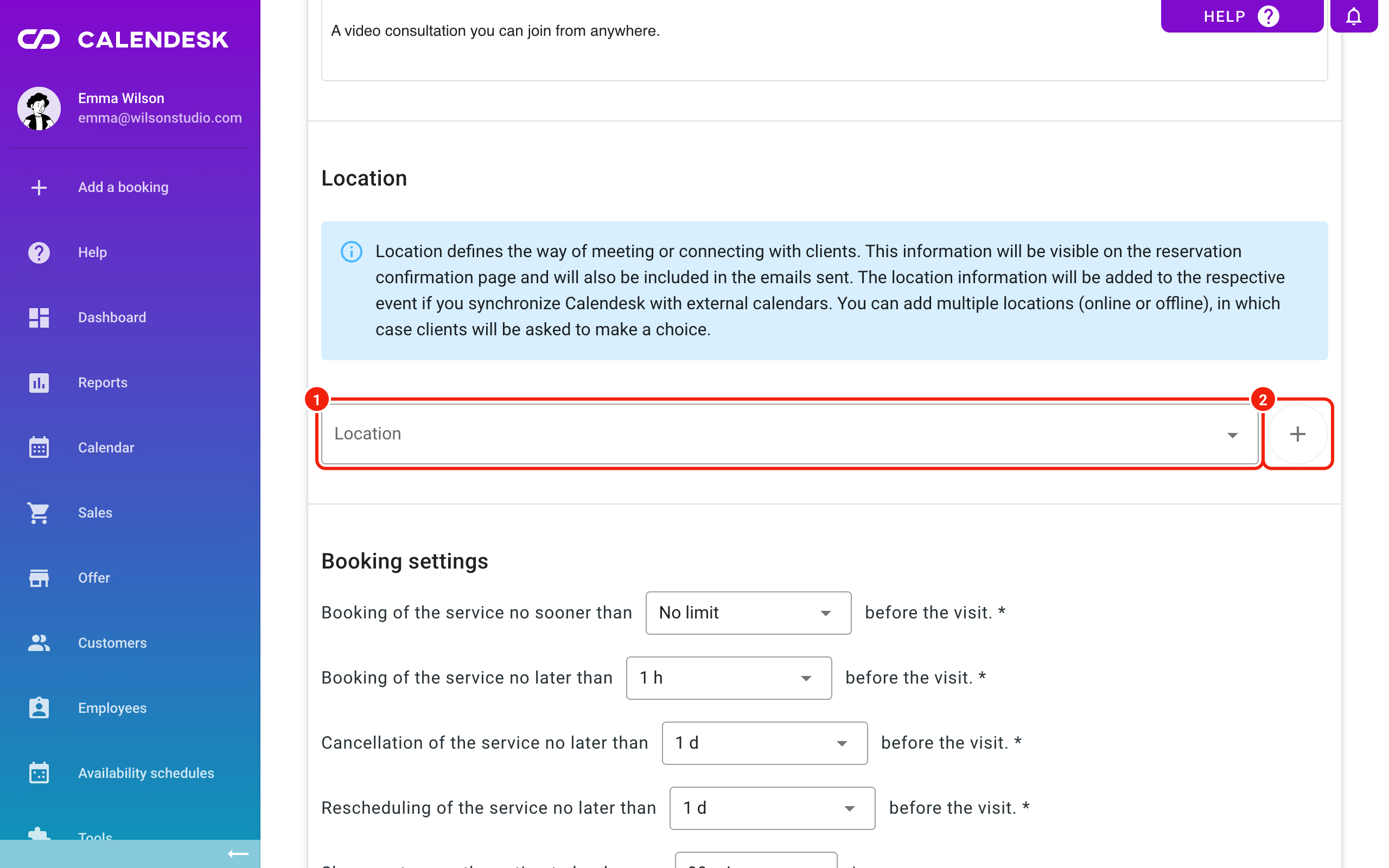
When you add or edit a service, you can let customers choose how the meeting takes place. In Offer – Services, open the service and click the + button next to the Location field.
You will see the list of meeting types. You can add more than one to each service. Customers see the locations you added and pick the one that suits them, one per booking. How the choice looks depends on which calendar section you use on your website.
How do customers get the meeting link in the booking confirmation e-mail?
Calendesk sends the meeting link to the customer automatically, for example in the booking confirmation e-mail, as long as e-mail notifications are switched on in Notifications – Settings.
The link is only created when the employee's account is connected to the meeting tool. Each employee connects their own account, and it's best if the whole team uses the same tool. To connect an account, see the articles in the Integrations category.
Calendesk adds the link to e-mail notifications whose content you haven't changed. The link comes from this variable:
[BOOKING_ONLINE_MEETING_URL]
It is already part of the default e-mail notifications and reminders, so you don't need to change anything for customers to get the link.
If you want different wording, you can edit the notifications yourself. Just remember to add the variables you need, so nothing important goes missing. More on this in How can I edit email, SMS, and push notifications?
If you changed the booking e-mail and want the original back, use Restore default content.
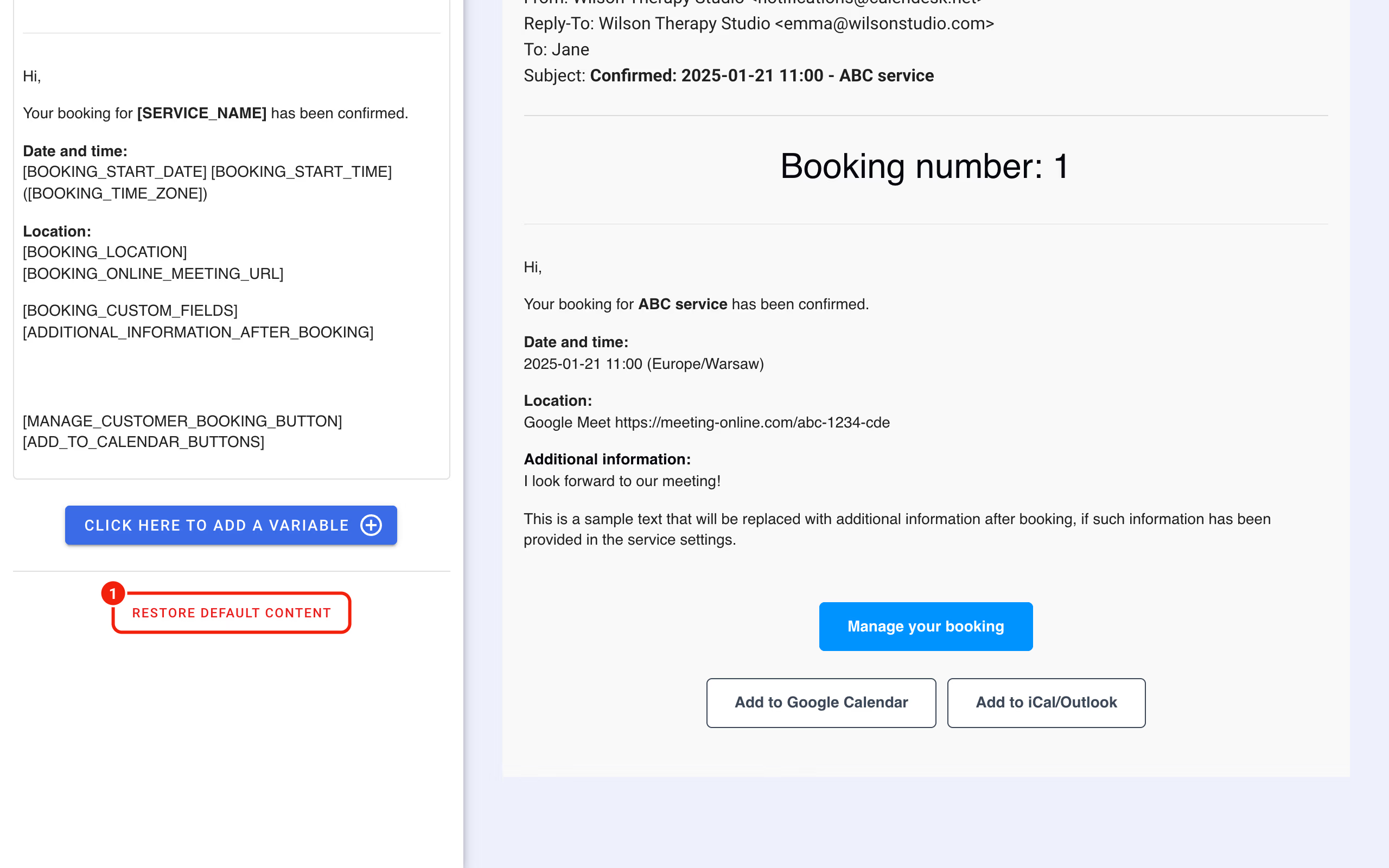
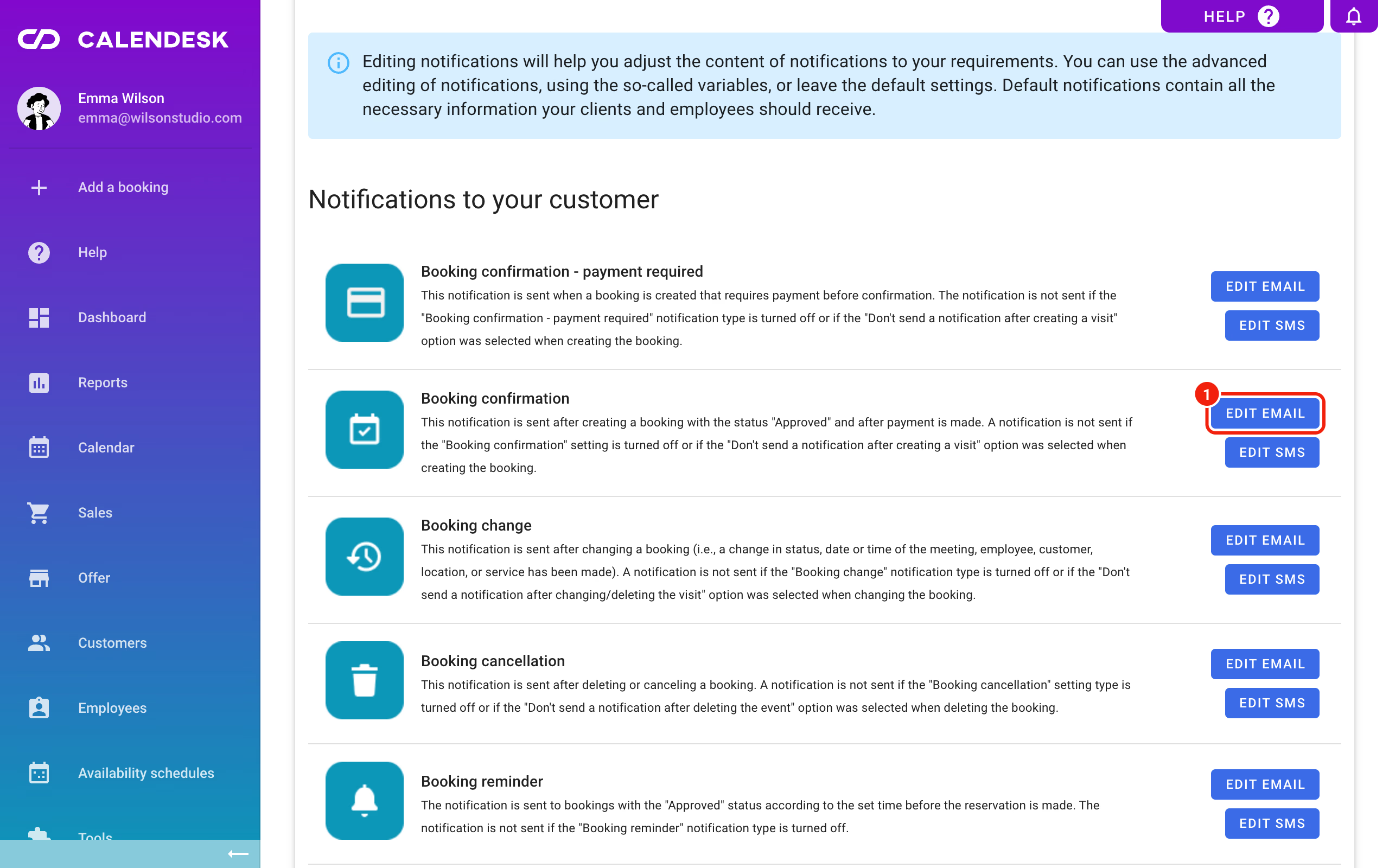
You'll find this button in Notifications – Templates: click Edit email next to the template, and the button is at the bottom of the editor.